


 वीडियो कनवर्टर अंतिम
 स्क्रीन अभिलेखी
 वीडियो मरम्मत
 सुरक्षित डाउनलोड
डीवीडी से H.264 कनवर्टर: त्वरित डीवीडी रूपांतरण के 3 तरीके
आज, ऑनलाइन स्ट्रीमिंग प्लेटफ़ॉर्म धीरे-धीरे डीवीडी की मांग और इस्तेमाल को खत्म कर रहे हैं। हालाँकि अभी भी कुछ लोग इसे पसंद करते हैं, लेकिन इस बात से इनकार नहीं किया जा सकता कि ज़्यादातर लोग वीडियो या फ़िल्में देखते समय लचीलेपन और सुविधा को प्राथमिकता देते हैं।
यदि आप पीछे छूटने का अहसास नहीं करना चाहते और अपनी DVD संग्रह को सुरक्षित रखना चाहते हैं, तो सबसे अच्छा काम यह है कि आप उन्हें डिजिटल प्रारूपों में बदल दें। आजकल अधिकांश डिवाइस और मीडिया प्लेयर DVD को पूरी तरह सपोर्ट नहीं करते, लेकिन जब उन्हें लोकप्रिय डिजिटल फॉर्मैट में रिप कर लिया जाता है, तो आप उनकी लचीलापन और सुविधा का आनंद ले सकते हैं। इस लेख में आप तीन आसान तरीके सीखेंगे जिनसे आप आसानी से DVD को H.264 में कन्वर्ट कर सकते हैं। साथ‑साथ यह भी समझें कि अपनी DVD को इस फॉर्मैट में बदलना क्यों ज़रूरी है। क्या आप अपनी DVD कन्वर्ट करने के लिए तैयार हैं? और जानने के लिए नीचे स्क्रोल करें।.

भाग 1. DVD को H.264 में क्यों बदलें?
अपनी डीवीडी को H.264 में बदलने के कई कारण हैं, और सबसे स्पष्ट कारण है डिस्क की सामग्री को सुरक्षित रखना और उसे डिजिटल रूप में सहेजना। हालाँकि, और भी कई कारण हैं जिन्हें लोग अक्सर अनदेखा कर देते हैं, या जिन्हें अभी तक समझ नहीं पाए हैं। अपनी डीवीडी को H.264 में बदलने के निम्नलिखित कारण हैं:
सभी उपकरणों में संगतता
H.264 आज सर्वाधिक व्यापक रूप से समर्थित वीडियो कोडेक्स में से एक है; इसलिए, जब आप अपनी डीवीडी को इस प्रारूप में परिवर्तित कर लेते हैं, तो अब आप अपनी डीवीडी पर मीडिया सामग्री देखते समय विभिन्न उपकरणों और मीडिया प्लेयरों तक सीमित होने का अनुभव या अनुभव नहीं करेंगे।
उच्च गुणवत्ता के साथ छोटा फ़ाइल आकार
मूल डीवीडी प्रारूप की तुलना में, H.264 बेहतर संपीड़न दर प्रदान करता है। इसके साथ, यह वीडियो की गुणवत्ता से कोई खास समझौता किए बिना डीवीडी के फ़ाइल आकार को कम करता है। इससे आप ज़्यादा स्टोरेज स्पेस का उपयोग किए बिना ज़्यादा फ़िल्में या वीडियो संग्रहीत कर सकते हैं।
स्ट्रीमिंग और क्लाउड स्टोरेज
H.264-एन्कोडेड वीडियो क्लाउड स्टोरेज और स्ट्रीमिंग के लिए आदर्श हैं। इससे आप अपने मीडिया संग्रह को कभी भी और कहीं भी एक्सेस कर सकते हैं।
संपादन और अनुकूलन
H.264 फ़ॉर्मेट में आने के बाद, आपके वीडियो को वीडियो एडिटिंग सॉफ़्टवेयर का उपयोग करके आसानी से संपादित किया जा सकता है, जिससे अवांछित भागों को काटना, उपशीर्षक जोड़ना या वीडियो की गुणवत्ता बढ़ाना संभव हो जाता है। यह लचीलापन मूल DVD फ़ॉर्मेट में संभव नहीं है।
डीवीडी ड्राइव की कोई आवश्यकता नहीं
आधुनिक लैपटॉप और कुछ डेस्कटॉप अब बिल्ट-इन डीवीडी ड्राइव के साथ नहीं आते। डीवीडी को H.264 में बदलने से बाहरी डीवीडी प्लेयर की ज़रूरत खत्म हो जाती है, जिससे किसी भी डिवाइस पर अपनी पसंदीदा फ़िल्में या शो देखना आसान हो जाता है।
भाग 2. डीवीडी को H.264 में बदलने का सर्वोत्तम तरीका
डीवीडी को H.264 में बदलने का सबसे अच्छा तरीका FVC द्वारा चुना गया AnyMP4 DVD Ripper है। यह टूल अपनी व्यापक विशेषताओं के लिए जाना जाता है जो उपयोगकर्ताओं को DVD डिस्क, ISO फ़ाइलें, फ़ोल्डर्स सहित सभी DVD मूवीज़ को प्रभावी ढंग से और आसानी से रिप करने और उन्हें अपने पसंदीदा आउटपुट फ़ॉर्मेट में बदलने की अनुमति देता है। यह DVD रिपर लगभग सभी आउटपुट फ़ॉर्मेट को सपोर्ट करता है, जिनमें H.264, MP4, MKV, MOV, AVI, FLV, WMV, WEBM, M4V, TS, MXF, MPG, 3GP, VOB, आदि शामिल हैं। इसके अलावा, इस टूल का यूज़र इंटरफ़ेस बहुत ही सरल और सहज है जो इसे इस्तेमाल करना आसान बनाता है। कोई भी उपयोगकर्ता, यहाँ तक कि शुरुआती उपयोगकर्ता भी, अपनी DVD रूपांतरण आवश्यकताओं को पूरा करने के लिए इस टूल का आसानी से उपयोग कर सकता है।
यहाँ FVC द्वारा चुने गए AnyMP4 DVD Ripper का उपयोग करके DVD को H.264 में कन्वर्ट करने का तरीका दिया गया है:
चरण 1. सबसे पहले, आपको यह टूल अपने डिवाइस पर डाउनलोड और इंस्टॉल करना होगा, चाहे आपका कंप्यूटर Windows पर चल रहा हो या macOS पर।.
फ्री डाउनलोडWindows 7 या उससे नए संस्करण के लिएसुरक्षित डाउनलोड
फ्री डाउनलोडmacOS 10.7 या उससे नए संस्करण के लिएसुरक्षित डाउनलोड
नोट: अगले चरण पर जाने से पहले आपको अपने कंप्यूटर के DVD ड्राइव में DVD डालनी होगी और कुछ मिनट इंतज़ार करना होगा, जब तक कि वह डिटेक्ट न हो जाए।.
चरण 2. अब टूल लॉन्च करें और बीच में मौजूद + के आकार वाले Getting Started आइकन पर क्लिक करके डिस्क लोड करें।.
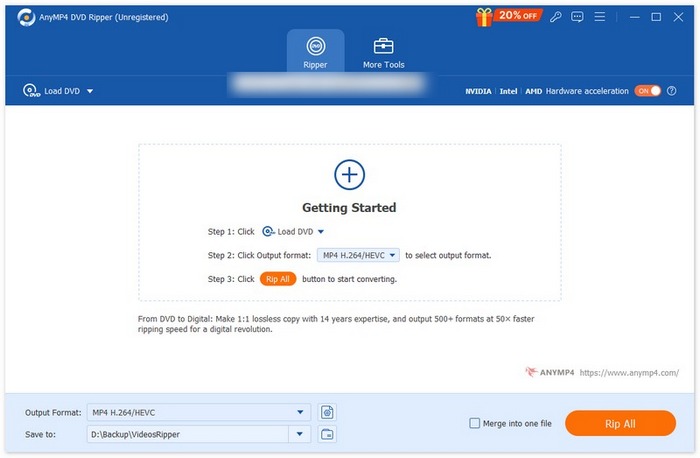
चरण 3. इसके बाद, नीचे दिए गए Output Format पर क्लिक करें और Video टैब से H.264 फॉर्मैट चुनें। हो जाने पर, बस Rip All बटन पर क्लिक करें ताकि आपकी DVD को रिप करना शुरू हो जाए।.
FVC द्वारा चुने गए AnyMP4 DVD Ripper की सबसे अच्छी बात यह है कि DVD से H.264 रूपांतरण सीधा होता है और इसके लिए किसी अतिरिक्त चरण की आवश्यकता नहीं होती। इसके अलावा, इसमें प्रयुक्त एन्कोडिंग तकनीक भी उत्कृष्ट है, क्योंकि यह सुनिश्चित कर सकती है कि सभी DVD समान या उससे भी बेहतर गुणवत्ता में रिप की जाएँ।
भाग 3. DVD को H.264 में बदलें [निःशुल्क]
अब, अगर आप सोच रहे हैं कि क्या H.264 कन्वर्टर के लिए मुफ़्त DVD उपलब्ध हैं, तो आप सही हैं! ये मुफ़्त कन्वर्टर टूल FVC द्वारा चुने गए Video Converter Ultimate की तरह, एक समर्पित वीडियो कन्वर्टर टूल नहीं हो सकते हैं। हालाँकि, ये टूल DVD को H.264 में बदलने में भी सक्षम हैं।
VLC मीडिया प्लेयर
VLC एक मीडिया प्लेयर के रूप में जाना जाता है और आम तौर पर उसी उद्देश्य के लिए उपयोग किया जाता है। हालाँकि, इसके अधिकांश उपयोगकर्ता नहीं जानते कि यह मीडिया प्लेयर DVD को H.264 में कन्वर्ट करने में भी सक्षम है। वास्तव में, VLC MP4, MKV, AVI आदि जैसे वीडियो आउटपुट फॉर्मैट सपोर्ट करता है, जिससे यह DVD रिपिंग के लिए एक बहुउपयोगी टूल बन जाता है।.
यहाँ VLC Media Player का उपयोग करके DVD को H.264 में कन्वर्ट करने का तरीका दिया गया है:
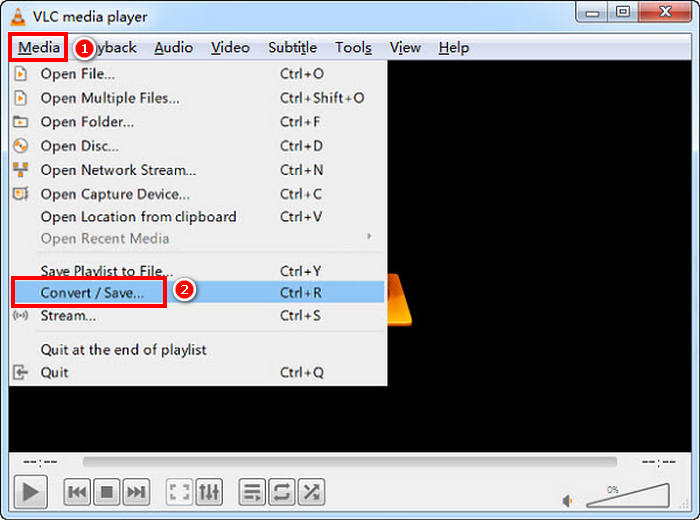
चरण 1. अपने कंप्यूटर पर DVD को डिस्क ड्राइव में डालें। इसके बाद, VLC खोलें, और Media टैब पर जाकर Convert/Save चुनें।.
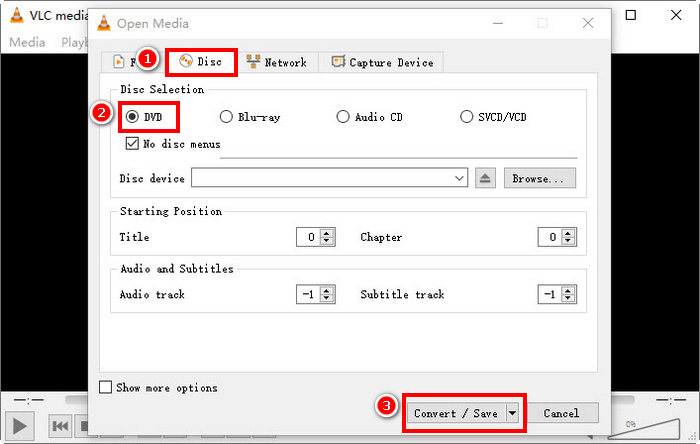
चरण 2. अब, Open Media पैनल में Disc टैब चुनें, DVD पर क्लिक करके उसे लोड करें, और Convert/Save बटन पर क्लिक करें।.
चरण 3. Convert विंडो में, Profile सेक्शन पर जाएँ और आउटपुट फॉर्मैट के रूप में H.264 + MP4 चुनें।.
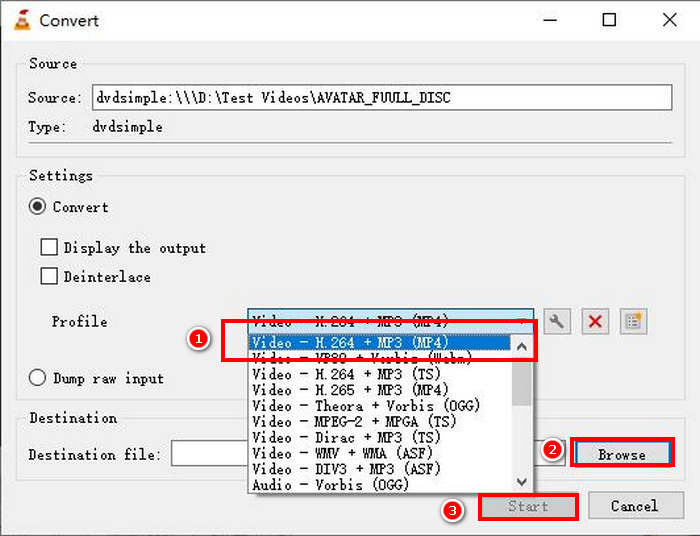
चरण 4. Browse पर क्लिक करके गंतव्य फ़ोल्डर चुनें और अपनी फ़ाइल का नाम दें।.
चरण 5. अंत में, Start बटन पर क्लिक करें ताकि रिपिंग प्रक्रिया शुरू हो सके।.
नोट: VLC डिफ़ॉल्ट रूप से कॉपी‑प्रोटेक्टेड DVD को रिप नहीं कर सकता। यदि आपको एन्क्रिप्टेड DVD के साथ समस्या आती है, तो आपको libdvdcss इंस्टॉल करने की ज़रूरत पड़ सकती है।.
HandBrake
एक और वीडियो कन्वर्टर टूल जिसे आप DVD को H.264 में कन्वर्ट करने के लिए इस्तेमाल कर सकते हैं, वह है HandBrake। यह टूल अपने मुफ़्त और ओपन‑सोर्स होने के लिए जाना जाता है। H.264 के अलावा, उपयोगकर्ता अपनी DVD को रिप करके MP4 और MKV जैसे आउटपुट फॉर्मैट भी प्राप्त कर सकते हैं।.
यहाँ HandBrake का उपयोग करके DVD को H.264 में कन्वर्ट करने का तरीका दिया गया है:
स्टेप 1. सबसे पहले HandBrake को अपने कंप्यूटर डिवाइस पर डाउनलोड और इंस्टॉल करें।.
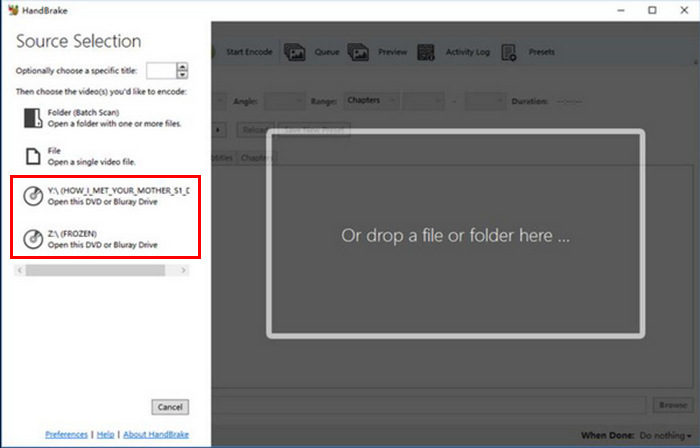
स्टेप 2. इसके बाद अपनी DVD को DVD‑ROM में डालें और Source Selection के अंतर्गत अपनी DVD चुनें। टूल इसके बाद DVD मूवी टाइटल्स को स्कैन करना शुरू कर देगा।.
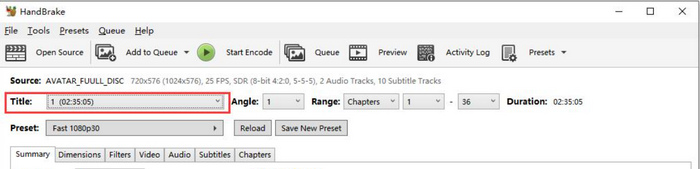
स्टेप 3. जब DVD खुल जाए, तो Title के ड्रॉप‑डाउन मेनू में जाकर वह टाइटल चुनें जिसे आप रिप करना चाहते हैं।.
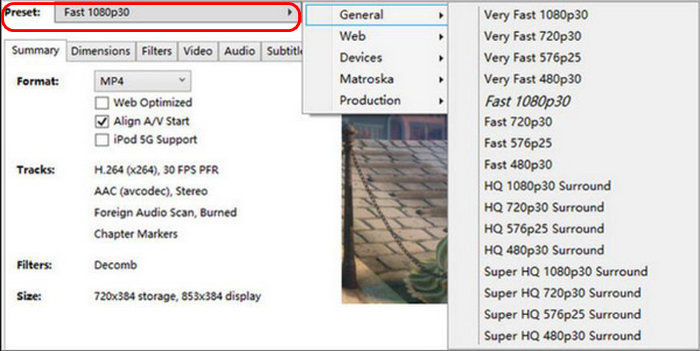
चरण 4. अगला कदम है आउटपुट फ़ाइल की गुणवत्ता तय करना। इसके लिए बस Preset बटन पर क्लिक करें और अपनी सेटिंग्स कस्टमाइज़ करें। उसके नीचे आपको Format दिखाई देगा। उस पर क्लिक करें और आउटपुट फॉर्मैट के रूप में MP4 चुनें।.
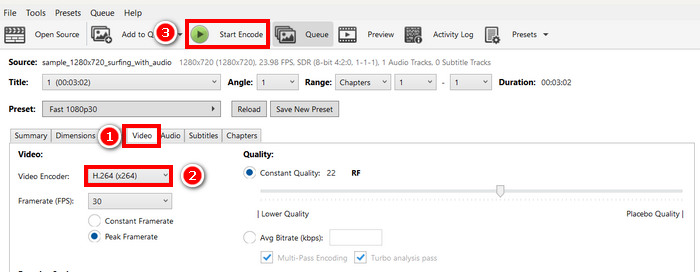
चरण 5. इसके बाद, Video टैब पर जाएँ, और Video Encoder पर क्लिक करके H.264 चुनें। अंत में, विंडो के ऊपर मौजूद Start Encode बटन पर क्लिक करें ताकि आपकी DVD को H.264 में रिप करना शुरू हो जाए।.
भाग 4. DVD को H.264 में बदलने के बारे में अक्सर पूछे जाने वाले प्रश्न
क्या DVD H.264 प्रारूपों का समर्थन करता है?
नहीं। डीवीडी H.264 फ़ॉर्मेट को सपोर्ट नहीं करतीं। हालाँकि, अगर आप वीडियो को H.264 फ़ॉर्मेट में स्टोर करना चाहते हैं, तो आपको FVC द्वारा चुने गए वीडियो कन्वर्टर अल्टीमेट, हैंडब्रेक और VLC जैसे वीडियो कन्वर्टर टूल का इस्तेमाल करके डीवीडी को रिप करके H.264 में कन्वर्ट करना होगा।
मुझे DVD को H.264 में क्यों परिवर्तित करना चाहिए?
H.264, MPEG-2 की तुलना में बेहतर संपीड़न और गुणवत्ता प्रदान करता है। यह वीडियो की स्पष्टता बनाए रखते हुए फ़ाइल आकार को कम करता है, जिससे यह डिजिटल स्टोरेज और स्ट्रीमिंग के लिए आदर्श बन जाता है।
H.264 और H.265 के बीच क्या अंतर है?
H.265 या HEVC नया और ज़्यादा कुशल है, जो H.264 की तुलना में बेहतर कम्प्रेशन प्रदान करता है। हालाँकि, H.265 को ज़्यादा प्रोसेसिंग पावर की ज़रूरत होती है और हो सकता है कि यह सभी डिवाइस पर सपोर्ट न करे।
निष्कर्ष
DVD को H.264 में कन्वर्ट करना सही वीडियो कन्वर्टर टूल के साथ बिल्कुल झंझट‑मुक्त हो जाता है। बस वह तरीका चुनें जो आपकी ज़रूरतों और संसाधनों के लिए सबसे उपयुक्त हो, और फिर दिए गए चरणों का ध्यान से पालन करें। यदि आप अपनी DVD को सुरक्षित करने और कन्वर्ट करने के लिए इंतज़ार नहीं कर पा रहे, तो अभी कन्वर्ज़न शुरू कर दें!
-
 मैकबुक पर डीवीडी कॉपी करने के 4 तरीके [शुरुआती गाइड]
 यदि आप सोच रहे हैं कि मैकबुक में डीवीडी की प्रतिलिपि कैसे बनाई जाए, तो इस लेख को पढ़ना जारी रखें और 4 सरल तरीकों से मार्गदर्शन प्राप्त करें जिन्हें आप आसानी से स्वयं आज़मा सकते हैं।
-
 DIY DVD स्टोरेज: DVD के लिए स्टोरेज बनाने के 6 तरीके
 क्या आप DIY DVD स्टोरेज बनाने के तरीके खोज रहे हैं? यह सुनिश्चित करने के लिए कि आपकी DVD सुरक्षित स्थान पर हैं और ज़रूरत पड़ने पर आसानी से उपलब्ध हैं, यह लेख पढ़ें।
-
 विंडोज़ और मैकओएस के लिए शीर्ष 5 सर्वश्रेष्ठ वीएचएस से डीवीडी कन्वर्टर्स
 क्या आपके घर में वीएचएस टेप का ढेर है और आप उन्हें सुरक्षित रखने के तरीके खोज रहे हैं? इस लेख में, 5 ऐसे टूल्स के बारे में जानें जिनकी मदद से आप वीएचएस को आसानी से डीवीडी में बदल सकते हैं।
