


 वीडियो कनवर्टर अंतिम
 स्क्रीन अभिलेखी
 वीडियो मरम्मत
आप फेसटाइम वीडियो कॉल कैसे रिकॉर्ड कर सकते हैं [त्वरित गाइड]
क्या आप भी उन लोगों में से हैं जो चाहते हैं कि वे सीधे और आसानी से फेसटाइम वीडियो कॉल रिकॉर्ड कर सकें? दुर्भाग्य से, फेसटाइम में ऐसा कोई बिल्ट-इन फ़ीचर नहीं है जिससे यूज़र्स अपनी कॉल रिकॉर्ड कर सकें। लेकिन ऐसा नहीं है कि सिर्फ़ फेसटाइम ही ऐसा करता है, क्योंकि इस तरह के फ़ीचर्स के मूल रूप से उपलब्ध न होने का एक कारण है। Apple यूज़र की गोपनीयता को प्राथमिकता देता है, इसलिए कॉल रिकॉर्ड करना डिफ़ॉल्ट रूप से एक विकल्प नहीं है। हालाँकि, इसका मतलब यह नहीं है कि आपकी किस्मत पूरी तरह से खराब है।
इस संक्षिप्त गाइड में, हम आपको दिखाएंगे कि अपने iPhone, iPad या Mac पर अपने डिवाइस की इन-बिल्ट स्क्रीन रिकॉर्डिंग फ़ीचर का उपयोग करके FaceTime वीडियो कॉल कैसे रिकॉर्ड करें। इसके अलावा, एक नए टूल के बारे में भी जानना न भूलें जो आपको FaceTime कॉल को आसानी और प्रभावी ढंग से स्क्रीन रिकॉर्ड करने में मदद कर सकता है। इसके लिए उत्साहित हैं? और जानने के लिए आगे पढ़ते रहें!

भाग 1. क्या आप फेसटाइम वीडियो कॉल रिकॉर्ड कर सकते हैं?
आप शायद पूछ रहे होंगे। क्या आप फेसटाइम वीडियो कॉल रिकॉर्ड कर सकते हैं? सच तो यह है कि फेसटाइम में बिल्ट-इन रिकॉर्डिंग फ़ीचर नहीं है। Apple ने इसे यूज़र्स की गोपनीयता और सुरक्षा की रक्षा के लिए इस तरह डिज़ाइन किया है, ताकि निजी बातचीत गोपनीय रहे।
फिर भी, यह समझना ज़रूरी है कि फेसटाइम कॉल रिकॉर्ड करने में कानूनी और नैतिक पहलू शामिल होते हैं। कई जगहों पर, रिकॉर्डिंग से पहले आपको दूसरे व्यक्ति को सूचित करना या उसकी सहमति लेना ज़रूरी होता है। इससे किसी भी तरह की निजता के उल्लंघन से बचने में मदद मिलती है और यह सुनिश्चित होता है कि सभी को पता हो कि कॉल रिकॉर्ड की जा रही है।
अगले भाग में, हम आपको दिखाएंगे कि गुणवत्ता या सुरक्षा से समझौता किए बिना अपने iPhone, iPad या Mac पर फेसटाइम वीडियो कॉल कैसे रिकॉर्ड करें।
भाग 2. iPhone या iPad पर फेसटाइम कॉल कैसे रिकॉर्ड करें?
iPhone या iPad पर फेसटाइम कॉल रिकॉर्ड करना बिल्ट-इन और एक्सटर्नल टूल्स की मदद से संभव है। हालाँकि फेसटाइम में डायरेक्ट रिकॉर्डिंग फ़ीचर नहीं है, लेकिन iOS डिवाइस में बिल्ट-इन स्क्रीन रिकॉर्डिंग फ़ीचर होता है जो आपके फेसटाइम वीडियो कॉल रिकॉर्ड कर सकता है।
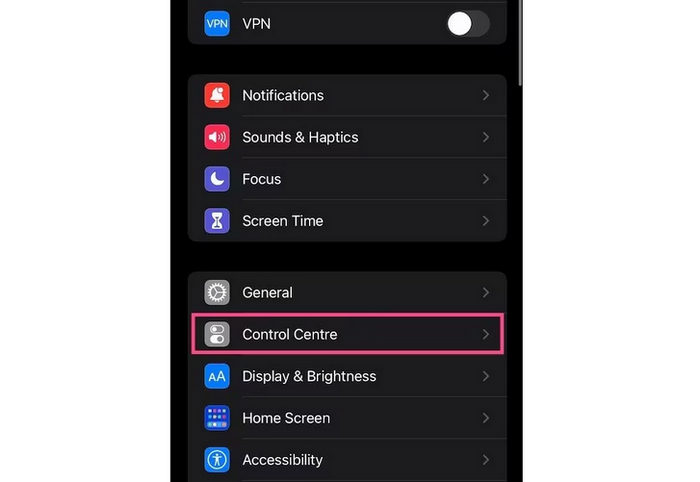
स्टेप 1। अपनी Settings ऐप में जाएँ और Control Center पर टैप करें।.
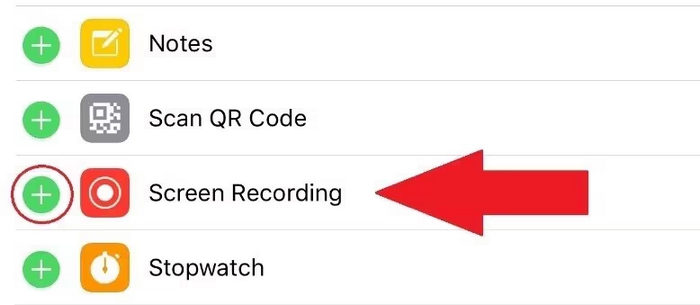
स्टेप 2। जाँचें कि Screen Recording Included Controls के अंतर्गत सूचीबद्ध है या नहीं। अगर नहीं है, तो इसे जोड़ने के लिए उसके बगल वाले प्लस आइकन पर टैप करें।.
स्टेप 3। Control Center खोलने के लिए स्क्रीन के ऊपर दाएँ कोने से नीचे की ओर स्वाइप करें या पुराने iPhones पर नीचे से ऊपर की ओर स्वाइप करें।.
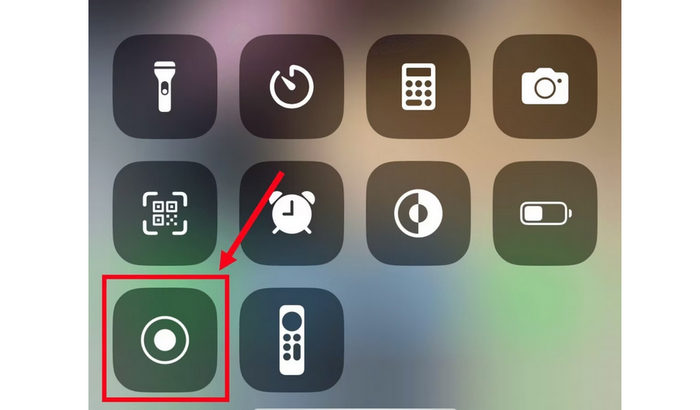
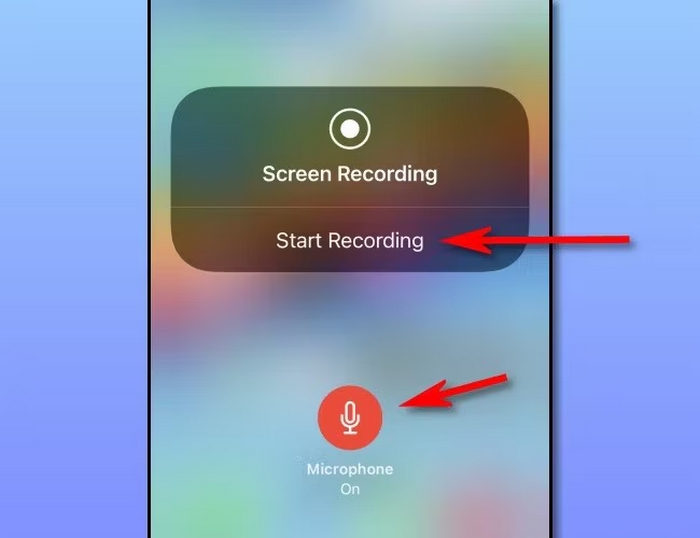
स्टेप 4। Screen Recording आइकन को प्रेस करके होल्ड करें, फिर Microphone पर टैप करके उसे ऑन करें। इससे आपका FaceTime ऑडियो भी रिकॉर्ड हो सकेगा।.
स्टेप 5। अंत में, Start Recording पर टैप करें, फिर FaceTime खोलें और कॉल शुरू करें। अब आपका iPhone बातचीत के दौरान वीडियो और आवाज, दोनों रिकॉर्ड करेगा।.
अगर आप iPad का इस्तेमाल फेसटाइम वीडियो कॉल रिकॉर्ड करने के लिए कर रहे हैं, तो यही तरीका आपके iPad पर भी काम करता है। इसके अलावा, इस तरीके से आप बिना किसी थर्ड-पार्टी ऐप की मदद के सीधे अपने डिवाइस से स्क्रीन और ऑडियो दोनों रिकॉर्ड कर सकते हैं। बस रिकॉर्डिंग शुरू करने से पहले यह सुनिश्चित कर लें कि आपका माइक्रोफ़ोन चालू हो ताकि आपके फेसटाइम कॉल की आवाज़ भी रिकॉर्ड हो सके। हालाँकि, कई बार इन डिवाइस का स्क्रीन रिकॉर्डिंग फ़ीचर भी रिकॉर्डिंग नहीं कर पाता, लेकिन फिर भी, फेसटाइम कॉल रिकॉर्ड करने का यह सबसे अच्छा और आसान तरीका है।
भाग 3. मैक पर फेसटाइम वीडियो कॉल कैसे रिकॉर्ड करें?
Mac पर FaceTime वीडियो कॉल रिकॉर्ड करना iPhone या iPad जितना ही आसान है। macOS में एक अंतर्निहित स्क्रीन रिकॉर्डिंग सुविधा है जो आपको बिना किसी अतिरिक्त सॉफ़्टवेयर इंस्टॉल किए, FaceTime कॉल सहित, पूरी स्क्रीन रिकॉर्ड करने की सुविधा देती है। यहाँ बताया गया है कि आप अपने Mac पर सीधे ध्वनि के साथ FaceTime वीडियो कॉल कैसे रिकॉर्ड कर सकते हैं:
स्टेप 1। सबसे पहले, आपको FaceTime ऐप खोलनी है और अपनी कॉल के लिए तैयार होना है।.
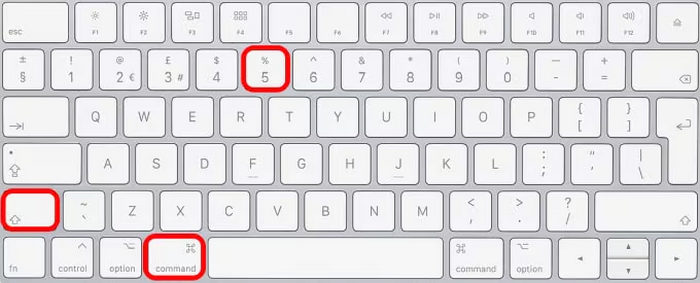
स्टेप 2। इसके बाद, अपने कीबोर्ड पर Command + Shift + 5 दबाएँ ताकि macOS स्क्रीन रिकॉर्डिंग टूलबार खुल जाए।.
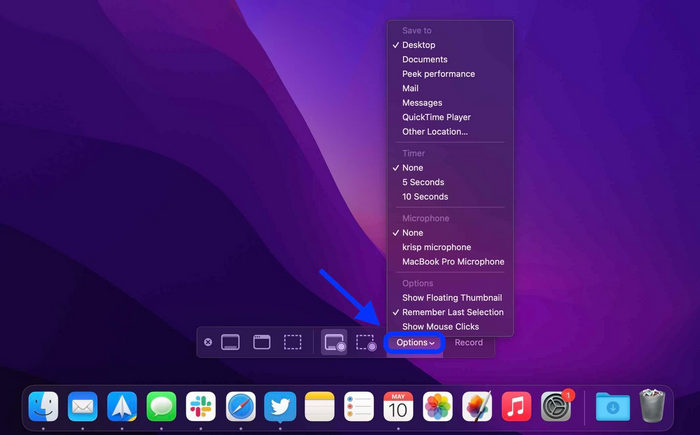
स्टेप 3। इसके बाद, Options पर क्लिक करें, फिर अपनी FaceTime कॉल के दौरान आवाज़ कैप्चर करने के लिए कोई माइक्रोफ़ोन चुनें। यदि ज़रूरत हो, तो आप अन्य रिकॉर्डिंग सेटिंग्स भी समायोजित कर सकते हैं।.
स्टेप 4। Record Entire Screen चुनें, फिर सुनिश्चित करें कि FaceTime विंडो दिख रही हो।
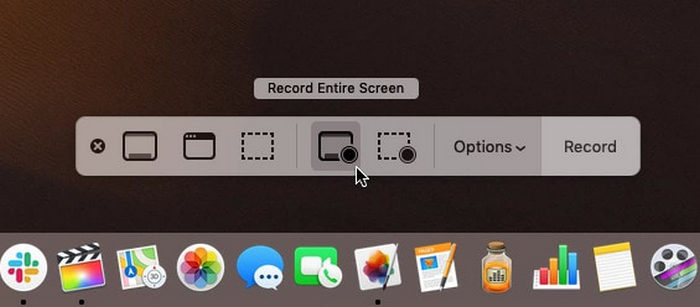
स्टेप 5। अंत में, अपनी FaceTime वीडियो कॉल को ऑडियो सहित कैप्चर करना शुरू करने के लिए Record बटन पर क्लिक करें। काम पूरा होने पर, रिकॉर्डिंग रोकने के लिए Command + Control + Escape दबाएँ। आपका वीडियो अपने‑आप आपके Mac पर सेव हो जाएगा।.
मैक पर फेसटाइम कॉल रिकॉर्ड करना आसान और विश्वसनीय है क्योंकि आप बिना किसी अतिरिक्त ऐप के वीडियो और ऑडियो दोनों रिकॉर्ड करने के लिए बिल्ट-इन स्क्रीन रिकॉर्डर का इस्तेमाल कर सकते हैं। हालाँकि, यह केवल बुनियादी रिकॉर्डिंग तक ही सीमित है, इसलिए अगर आप बाद में वीडियो को एडिट या बेहतर बनाना चाहते हैं, तो आपको एक और टूल की ज़रूरत होगी।
भाग 4. बोनस: आंतरिक और बाहरी ऑडियो के साथ फेसटाइम वीडियो कॉल रिकॉर्ड करने के लिए एक ऑनलाइन टूल
यदि आप ऐसा ऑनलाइन टूल ढूँढ रहे हैं जिसमें आंतरिक और बाहरी दोनों ऑडियो के साथ FaceTime वीडियो कॉल रिकॉर्ड करने की क्षमता हो, तो इसके लिए सबसे अच्छा टूल है FVC Free Screen Recorder। यह एक वेब‑आधारित स्क्रीन रिकॉर्डिंग टूल है, जो आपको सीधे ब्राउज़र से अपनी FaceTime वीडियो कॉल कैप्चर करने देता है। FVC Free के साथ, आप अपने सिस्टम साउंड, यानी आंतरिक ऑडियो, और माइक्रोफ़ोन, यानी बाहरी ऑडियो, दोनों को एक साथ रिकॉर्ड कर सकते हैं। इससे आपकी बातचीत की रिकॉर्डिंग साफ़ और पूरी तरह कैप्चर हो पाती है। इसे इस्तेमाल करना आसान है, यह किसी भी डिवाइस पर उपलब्ध है, और उन लोगों के लिए एकदम सही है जो एक ही टूल में लचीलापन और क्वालिटी चाहते हैं।.
मुख्य विशेषताएं:
• आपको अपनी संपूर्ण स्क्रीन, एक विशिष्ट विंडो या अपनी पसंद का एक कस्टम क्षेत्र रिकॉर्ड करने की सुविधा देता है।
• बिना किसी इंस्टॉलेशन के सीधे आपके वेब ब्राउज़र से उपयोग किया जा सकता है।
• वीडियो कॉल, मीटिंग, गेमप्ले या ऑनलाइन कक्षाओं की रिकॉर्डिंग के लिए आदर्श।
• रिकॉर्डिंग करते समय आपको टेक्स्ट, आकृतियाँ, हाइलाइट्स और एनोटेशन जोड़ने में सक्षम बनाता है।
• एक ही समय में सिस्टम ध्वनि और माइक्रोफ़ोन आवाज़ दोनों को कैप्चर करता है।
• लचीलेपन के लिए एकाधिक वीडियो और ऑडियो आउटपुट प्रारूपों का समर्थन करता है।
• उच्च परिभाषा (एचडी) गुणवत्ता में वीडियो रिकॉर्ड करता है।
• विंडोज़ और मैकओएस दोनों प्लेटफॉर्म पर सहजता से काम करता है।
FVC फ्री स्क्रीन रिकॉर्डर के साथ फेसटाइम वीडियो कॉल रिकॉर्ड करने के चरण:
स्टेप 1। सबसे पहले, आपको अपने ब्राउज़र पर FVC Free Screen Recorder ढूँढना होगा। कृपया ध्यान दें कि यह Windows और macOS दोनों के लिए उपलब्ध है।.
स्टेप 2। अब अपने FaceTime ऐप पर जाएँ और कॉल शुरू करें। उसके बाद, टूल के मुख्य इंटरफ़ेस में Start Recording पर क्लिक करें।.
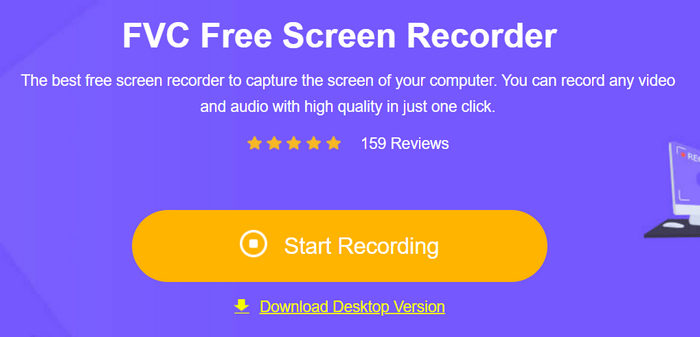
स्टेप 3। अंत में, वास्तव में रिकॉर्डिंग शुरू करने के लिए Record बटन पर क्लिक करें।.
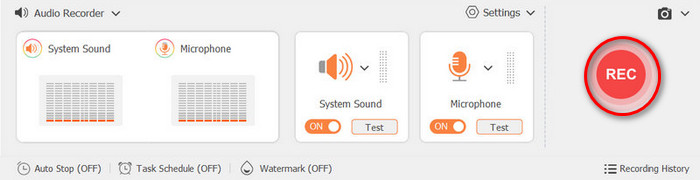
FaceTime वीडियो कॉल रिकॉर्ड करने के लिए FVC Free Screen Recorder को इन-बिल्ट टूल्स से बेहतर विकल्प बनाता है कि यह ज़्यादा कंट्रोल और लचीलापन देता है। डिफ़ॉल्ट स्क्रीन रिकॉर्डर्स, जो सिर्फ़ बुनियादी सुविधाएँ प्रदान करते हैं, के विपरीत यह ऑनलाइन टूल आपको आंतरिक और बाहरी दोनों ऑडियो रिकॉर्ड करने, अपनी रिकॉर्डिंग का क्षेत्र चुनने, FaceTime स्क्रीनशॉट लेने और रिकॉर्डिंग के दौरान रियल‑टाइम एनोटेशन जोड़ने की सुविधा देता है। यह कई फ़ॉर्मैट्स और उच्च‑गुणवत्ता वाले आउटपुट को भी सपोर्ट करता है, जिससे अपनी FaceTime रिकॉर्डिंग को सेव करना, शेयर करना या एडिट करना काफ़ी आसान हो जाता है।.
भाग 5. फेसटाइम वीडियो कॉल रिकॉर्डिंग के बारे में अक्सर पूछे जाने वाले प्रश्न
मेरे रिकॉर्ड किए गए फेसटाइम वीडियो कहां सहेजे गए हैं?
iPhone और iPad पर, आपकी रिकॉर्डिंग अपने आप फ़ोटो ऐप में सेव हो जाती हैं। Mac पर, फ़ाइल आमतौर पर आपके डेस्कटॉप पर सेव होती है, जब तक कि आप रिकॉर्डिंग सेटिंग में सेव लोकेशन न बदलें।
मेरी फेसटाइम रिकॉर्डिंग ऑडियो क्यों कैप्चर नहीं कर रही है?
अगर आपकी रिकॉर्डिंग में कोई आवाज़ नहीं आ रही है, तो हो सकता है कि शुरू करने से पहले माइक्रोफ़ोन बंद कर दिया गया हो। वीडियो और ध्वनि दोनों रिकॉर्ड करने के लिए स्क्रीन रिकॉर्डिंग आइकन को दबाकर रखें और माइक्रोफ़ोन ऑडियो विकल्प को चालू रखें।
क्या दूसरे व्यक्ति को पता चल सकता है कि मैंने फेसटाइम वीडियो कॉल रिकॉर्ड किया है?
नहीं, जब आप रिकॉर्डिंग शुरू करते हैं तो फेसटाइम दूसरे व्यक्ति को सूचित नहीं करता। हालाँकि, गोपनीयता का सम्मान करने और कानूनी दिशानिर्देशों का पालन करने के लिए रिकॉर्डिंग से पहले उनकी अनुमति लेना हमेशा बेहतर होता है।
निष्कर्ष
हालाँकि FaceTime में ऐसा कोई फ़ीचर नहीं है जो सीधे FaceTime वीडियो कॉल रिकॉर्ड कर सके, फिर भी उन्हें रिकॉर्ड करने के कुछ तरीके मौजूद हैं। लेकिन यह ज़रूरी है कि आप हमेशा दोनों पक्षों से अनुमति लें। इसके अलावा, अगर आपके लिए इन‑बिल्ट स्क्रीन रिकॉर्डिंग फ़ीचर अच्छी तरह काम नहीं कर रहा हो या सीमित लगे, तो आप FVC Free Screen Recorder आज़मा सकते हैं। तो फिर किस बात का इंतज़ार है? अपना डिवाइस उठाएँ और अपनी FaceTime वीडियो कॉल रिकॉर्ड करना शुरू करें।.
-
 मैक से बाहरी ऑडियो रिकॉर्ड करने के 2 पसंदीदा तरीके
 यदि आप सोच रहे हैं कि मैक से बाहरी ऑडियो कैसे रिकॉर्ड करें, तो इस लेख को पढ़ें और दो गुणवत्ता वाले ऑडियो रिकॉर्डिंग टूल द्वारा निर्देशित हों, जिन्हें आप आसानी से उपयोग कर सकते हैं।
-
 IPhone पर ऑडियो कैसे रिकॉर्ड करें, इस पर सर्वश्रेष्ठ तकनीकों में से 3
 क्या आपको iPhone पर ऑडियो ठीक से रिकॉर्ड नहीं कर पाने के कारण परेशानी हो रही है? फिर चरण और उपलब्ध टूल जानने के लिए इस लेख को पढ़ें।
-
 क्विक स्क्रीन रिकॉर्डिंग - मैक और पीसी पर ऑडियो के साथ रिकॉर्ड वीडियो
 मैक पर ऑडियो के साथ रिकॉर्डिंग स्क्रीन काम में आती है। अंतर्निहित खिलाड़ी, क्विकटाइम प्लेयर कर सकते हैं। उसकी पोस्ट पढ़ें और मैक और पीसी पर ध्वनि के साथ स्क्रीन पर कब्जा करने का तरीका जानें।
