


 वीडियो कनवर्टर अंतिम
 स्क्रीन अभिलेखी
 वीडियो मरम्मत
एमपीजी को जीआईएफ में बदलने के लिए सर्वश्रेष्ठ एमपीजी से जीआईएफ कन्वर्टर [बिना लागत और प्रीमियम संस्करण]
अपने प्रियजनों को अपनी भावनाओं को व्यक्त करने का सबसे अच्छा तरीका एक सार्थक संदेश बनाना है। लेकिन क्या आप जानना चाहते हैं कि अलग तरीके से व्यक्त करने के लिए क्या बेहतर है? आप एक जीआईएफ का उपयोग कर सकते हैं। ग्राफिक्स इंटरचेंज फॉर्मेट के रूप में भी जाना जाता है, ये वे चित्र हैं जिन्हें आप भेजते हैं लेकिन उन्हें अपग्रेड किया जाता है। ये चलती-फिरती छवियां सीधे या परोक्ष रूप से किसी के प्रति अपनी भावनाओं को व्यक्त करने के लिए बनाई गई हैं। क्या आप जानते हैं कि अधिकांश मैसेजिंग ऐप GIF के साथ-साथ हमारे बिल्ट-इन मैसेंजर का भी समर्थन करते हैं? लेकिन फोन के कुछ पुराने संस्करणों में, यह इस प्रारूप को प्रदान नहीं करता है। हालांकि जीआईएफ मजेदार है, हर समय आपको वह भावना प्रदान नहीं करेगा जिसे आप व्यक्त करना चाहते हैं।
तो, आप यहाँ यह जानने आए हैं कि अपना MPG को GIF फॉर्मेट में बदलने का सबसे अच्छा तरीका क्या है। अपना खुद का GIF बनाना कितना रोमांचक होता है, है न? यह खोजने की बजाय कि आपको क्या इस्तेमाल करना चाहिए, क्यों न आप अपना GIF खुद बनाएं और उसमें अपना पर्सनल टच जोड़ें। यह जानने का सबसे अच्छा तरीका कि यह कैसे करना है, इस लेख को पढ़ना है, क्योंकि इसमें इस काम के लिए पर्याप्त जानकारी, चरण और टूल दिए गए हैं। तो बिना समय गंवाए, आइए सीधे इस लेख की अहम जानकारियों पर आते हैं। इन कन्वर्टर्स की सूची के बारे में और जानने के लिए पढ़ते रहें।.

भाग 1. 4 एमपीजी को जीआईएफ प्रारूप पीसी या मैक में बदलने के लिए सबसे अच्छा उपकरण
1. FVC वीडियो कन्वर्टर अल्टीमेट
अगर आप अपना मज़ेदार मैसेज बिना बहुत ज़्यादा टाइप किए शेयर करना चाहते हैं, तो यह टूल आपकी मदद करेगा। यह टूल आपको mpg को animated gif में कन्वर्ट करने की सुविधा देता है और इसे FVC ने विकसित किया है। FVC Video Converter Ultimate यूज़र को किसी भी प्रकार के फॉर्मेट को उस प्लेएबल फॉर्मेट में बदलने देता है, जिसे आप इस्तेमाल करना चाहते हैं। शायद आप सोच रहे हैं कि आपने यह टूल क्यों चुना, क्या इसमें कुछ ख़ास है? हाँ, यह टूल मल्टी-पर्पज़ है। यह आपका सबसे भरोसेमंद रिपर, MV मेकर, कोलाज टूल और बहुत कुछ हो सकता है। इसका मतलब है कि यह टूल उन बहुत‑से कामों को कर सकता है, जो दूसरे टूल नहीं कर पाते। इसकी एक और कमाल की खासियत इसका अल्ट्राफास्ट कन्वर्ज़न है, जो आपकी वीडियो को बहुत कम समय में कन्वर्ट कर देता है। इस टूल का इस्तेमाल करना सीखने के लिए नीचे दिए गए स्टेप्स ध्यान से फ़ॉलो करें, ताकि आप अपनी मनचाही क्वालिटी में सफलतापूर्वक कन्वर्ज़न कर सकें।.
स्टेप 1. इस टूल को अपने PC या Mac पर इंस्टॉल करें। इंस्टॉलेशन के बाद दिए गए निर्देशों का पालन करें और टूल शुरू करने के लिए Finish पर क्लिक करें।.
फ्री डाउनलोडWindows 7 या बाद के संस्करण के लिएसुरक्षित डाउनलोड
फ्री डाउनलोडMacOS 10.7 या बाद के संस्करण के लिएसुरक्षित डाउनलोड
स्टेप 2. इंस्टॉलेशन की पूरी प्रक्रिया के बाद आपके स्क्रीन पर इस तरह का एक छोटा‑सा इंटरफ़ेस नज़र आएगा।.
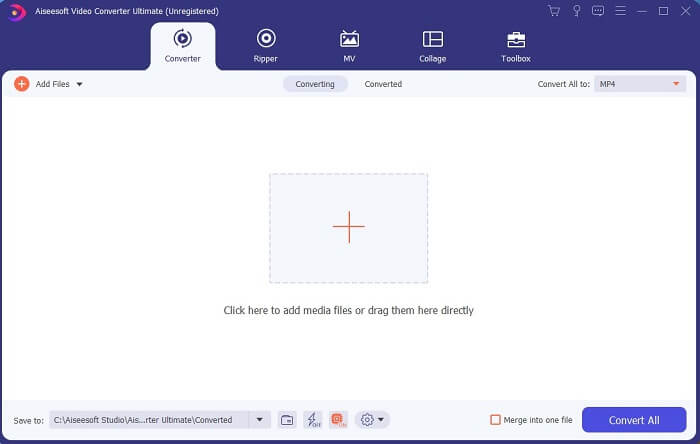
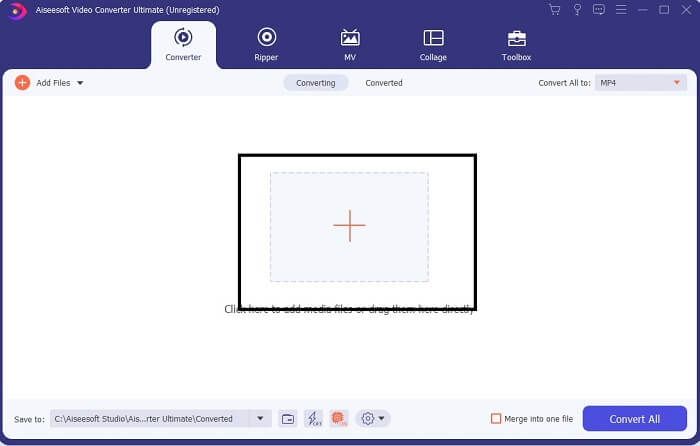
स्टेप 3. फ़ाइल जोड़ने के लिए प्लस के निशान पर क्लिक करें और कन्वर्ज़न शुरू करने के लिए Open पर क्लिक करें, या आप बस वीडियो फ़ाइल को ड्रैग‑एंड‑ड्रॉप करके भी टूल में ला सकते हैं। वीडियो की संख्या यहाँ मायने नहीं रखती।.
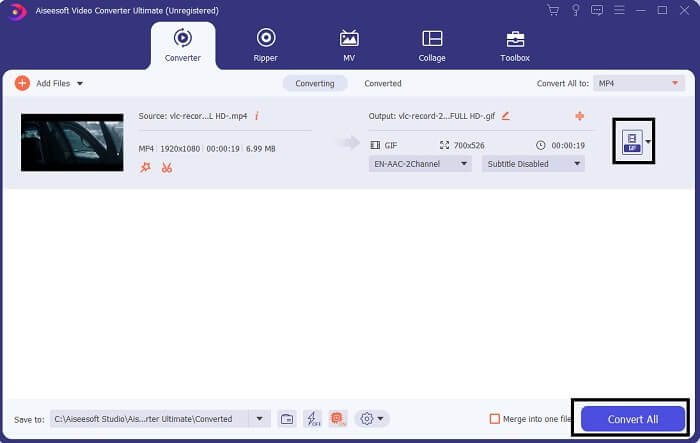
स्टेप 4. इंटरफ़ेस के ऊपर दाईं ओर स्थित ड्रॉप‑डाउन बटन पर क्लिक करें, नीचे स्क्रॉल करें और GIF फॉर्मेट चुनें। फिर अपनी मनचाही रेज़ोल्यूशन चुनें; यह Large, Medium या Small हो सकती है। अगर सब कुछ तैयार है, तो कन्वर्ज़न शुरू करने के लिए Convert All पर क्लिक करें।.
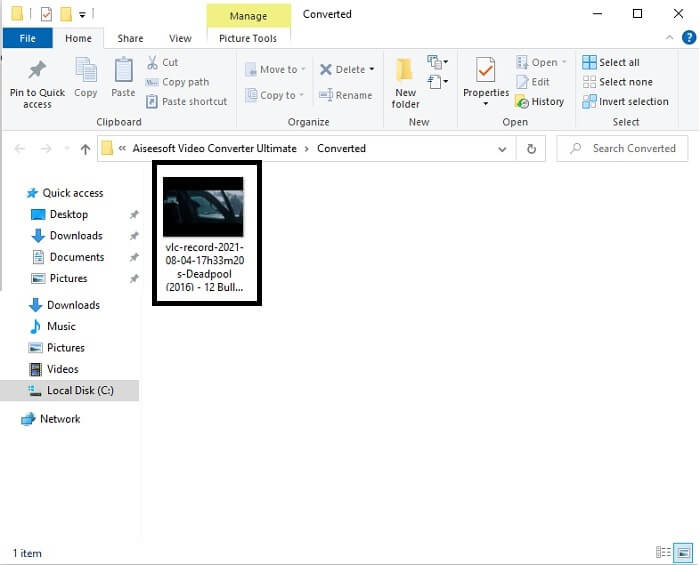
स्टेप 5. कन्वर्ज़न के बाद एक फ़ाइल मैनेजर आपके सामने पॉप‑अप होगा, जिसमें आपका अंतिम आउटपुट दिखेगा, और अब आप अपने GIF फॉर्मेट का आनंद ले सकते हैं। लेकिन आप यही स्टेप्स फ़ॉलो करके .gif फ़ाइल को .mpg फॉर्मेट में भी कन्वर्ट कर सकते हैं, बस फॉर्मेट बदलना होगा।.
2. FVC फ्री ऑनलाइन वीडियो कन्वर्टर
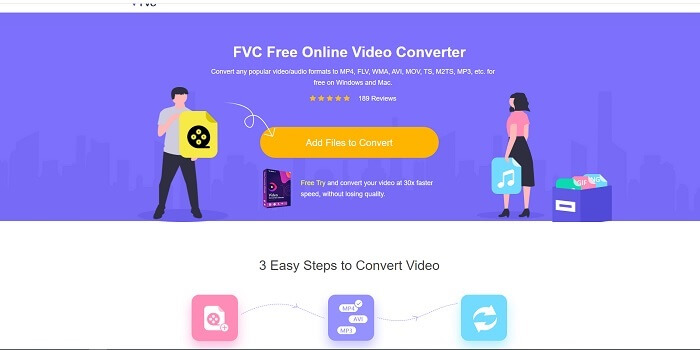
हो सकता है कि आप सोच रहे हों, क्या होगा यदि आपके पास पैसा नहीं है तो क्या मैं अभी भी पहले वाले के समान रूपांतरण का अनुभव कर सकता हूं? जवाब एक बड़ा मोटा हाँ है। FVC हमेशा अपने ग्राहकों के लिए सबसे अच्छा अनुभव प्रदान करता है जिनके पास पैसा नहीं है और उन लोगों के लिए भी जो अपना टूल आज़माना चाहते हैं। हालाँकि, यह उपकरण केवल सरल रूपांतरण करता है, इसलिए बहुत अधिक अपेक्षा न करें क्योंकि प्रीमियम संस्करण प्रदान कर सकता है। और यह कई वीडियो और ऑडियो प्रारूपों को तेजी से परिवर्तित नहीं कर सकता है।
लेकिन इसका दिया हुआ कन्वर्ज़न प्रोसेस दूसरे प्रीमियम और फ्री कन्वर्टर्स से कहीं बेहतर है। FVC Free Online Video Converter आपका दिन बचाने के लिए मौजूद है। इसके नाम से ही साफ है कि यह एक फ्री ऑनलाइन टूल है, जो आपको अधिकतम स्तर तक कन्वर्ज़न करने की सुविधा देता है। दूसरे कन्वर्टर्स के विपरीत, इस टूल में न तो विज्ञापन हैं, न ही कोई मालवेयर, न रजिस्ट्रेशन की ज़रूरत है, न लॉग‑इन और न ही इसे इस्तेमाल करने से पहले आपकी निजी जानकारी मांगी जाती है। अगर आप एक सिंपल कन्वर्टर ढूंढ रहे हैं, तो यह आपके लिए एकदम सही टूल है। यह टूल कन्वर्टर के रूप में कैसे काम करता है, यह जानने के लिए नीचे दिए गए स्टेप्स फ़ॉलो करें।.
स्टेप 1. इस लिंक पर क्लिक करके आधिकारिक वेबसाइट पर जाएं।.
स्टेप 2. वेब पेज कुछ इस तरह दिखेगा। फिर इस ऑनलाइन टूल को लॉन्च करने के लिए Add Files to Convert पर क्लिक करें।.
फ़ाइलों को बैच में कनवर्ट करने के लिए डेस्कटॉप संस्करण डाउनलोड करें।.
स्टेप 3. वह वीडियो चुनें जिसे आप कन्वर्ट करना चाहते हैं। वीडियो चुनने के बाद GIF फ़ाइल फॉर्मेट का चयन करें। अतिरिक्त जानकारी के तौर पर, आप बाद में चाहें तो अन्य वीडियो और ऑडियो फॉर्मेट भी चुन सकते हैं, उन्हें बाद में देख सकते हैं।.
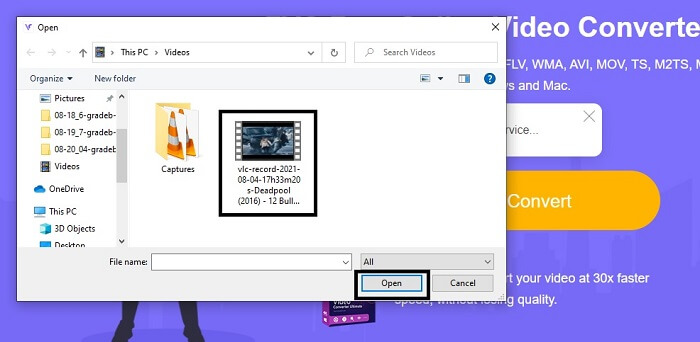
स्टेप 4. तय करें कि आप अंतिम आउटपुट को कहाँ सेव करना चाहते हैं। फिर अगर सब कुछ तैयार है, तो कन्वर्ज़न शुरू करने के लिए Convert पर क्लिक करें। कन्वर्ज़न पूरा होने में कुछ ही सेकंड लगेंगे।.
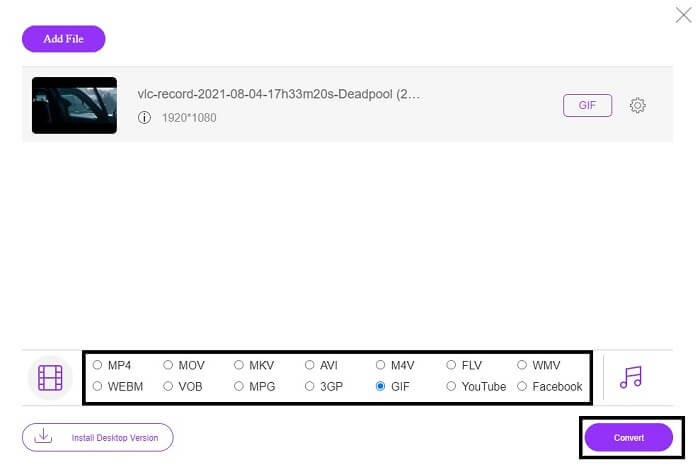
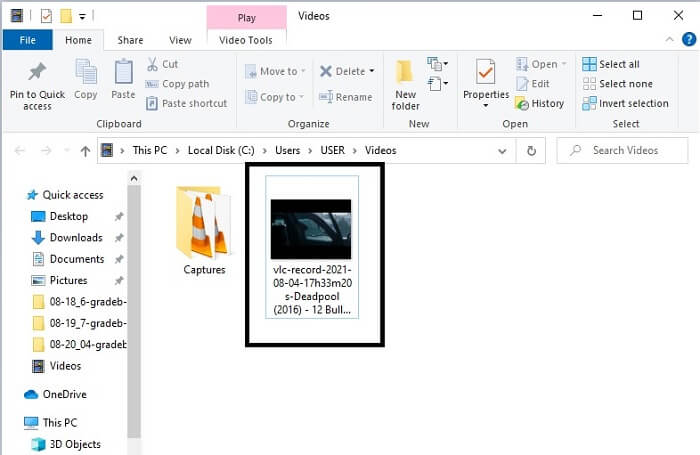
स्टेप 5. अपने सफल कन्वर्ज़न को चेक करने के लिए, आप फ़ाइल मैनेजर या फ़ाइल एक्सप्लोरर में अपनी कन्वर्ट की गई GIF फ़ाइल ढूंढ सकते हैं। उस पर क्लिक करें और आनंद लें।.
3. वीएलसी मीडिया प्लेयर
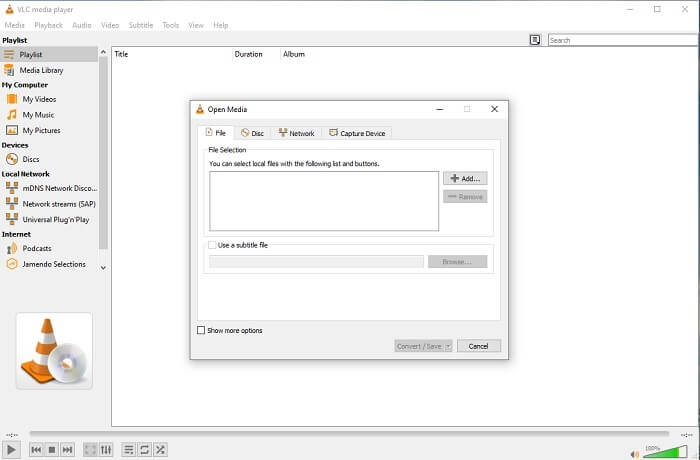
यह टूल सबसे शक्तिशाली मीडिया प्लेयर्स में से एक के रूप में जाना जाता है। लेकिन क्या आप जानते हैं कि VLC प्लेयर भी MPG को GIF में कन्वर्ट कर सकता है? हालांकि यह बहुत सीमित और केवल कुछ ही प्रचलित फॉर्मेट्स को सपोर्ट करता है। इसे बेहतरीन मीडिया प्लेयर के रूप में जाना जाता है, लेकिन इसका कन्वर्ज़न फ़ीचर आपके लिए सबसे अच्छा विकल्प नहीं है। अगर आप एक बेहतर कन्वर्टर चाहते हैं, तो आपको ऊपर दिए गए ऑनलाइन टूल को ही चुनना चाहिए, न कि इस टूल को। लेकिन अगर आप सिर्फ वीडियो देखना चाहते हैं, तो VLC Media Player आपका चुनाव होना चाहिए, क्योंकि दूसरा टूल वीडियो प्लेयर उपलब्ध नहीं कराता, उसका मुख्य उद्देश्य कन्वर्ज़न है।.
4. ज़मज़री
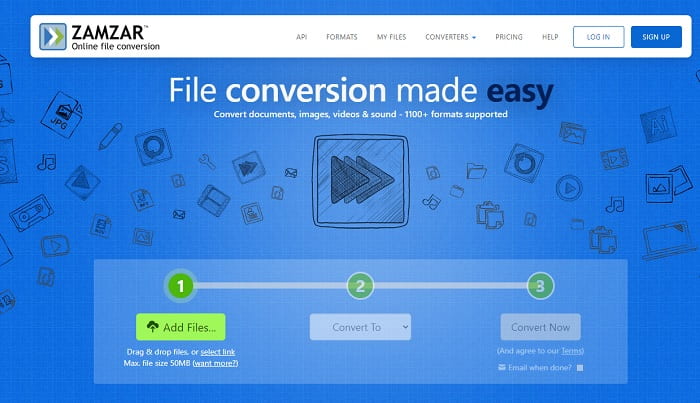
एक और ऑनलाइन टूल जो एक बेहतरीन रूपांतरण प्रदान करता है, वह है ज़मज़ार। किसी भी अन्य ऑनलाइन कनवर्टर की तरह, वे एक ही इंटरफ़ेस साझा करते हैं, और यह भी कि इसे कैसे परिवर्तित किया जाए, इस पर ऑन-पॉइंट निर्देश प्रदान करता है। लेकिन कनवर्ट करने और डाउनलोड करने की प्रक्रिया अलग है। हालांकि नि: शुल्क संस्करण, आप केवल अधिकतम 50 एमबी फ़ाइल आकार को परिवर्तित कर सकते हैं। क्योंकि वीडियो कन्वर्ट करने के बाद आपको इसे डाउनलोड करने के चरण में जाना होगा। यह उन लोगों के लिए बहुत परेशानी का सबब है जो अपना रूपांतरण छोड़ देते हैं और केवल उत्पाद के चलने का इंतजार करते हैं।
भाग 2. तुलना चार्ट
| टूल फ़ीचर/एस | FVC वीडियो कन्वर्टर अंतिम | FVC फ्री ऑनलाइन कन्वर्टर | VLC मीडिया प्लेयर | Zamzar |
| कनवर्टर |  | | | |
| संपादन उपकरण | |  | | |
| शक्तिशाली कनवर्टर | | | | |
| पंजीकरण की आवश्यकता | | | | |
| प्लेटफार्मों | डेस्कटॉप-आधारित ऐप | वेब आधारित ऐप | डेस्कटॉप-आधारित ऐप | वेब आधारित ऐप |
| मूल्य सीमा | $25.00 1 महीना/1 पीसी $55.20 1 पीसी के लिए एकमुश्त खरीदारी $119.00 लाइफ-टाइम 5 पीसी | यह एक मुफ़्त ऑनलाइन टूल है | यह एक मुफ़्त ऑनलाइन टूल है | मुफ़्त ऑनलाइन टूल लेकिन यह मासिक प्रीमियम भी प्रदान करता है। बुनियादी के लिए: $9 समर्थक के लिए: $16 व्यवसाय के लिए: $25 |
एमपीजी बनाम जीआईएफ
मूविंग पिक्चर एक्सपर्ट्स ग्रुप (एमपीईजी) द्वारा निर्मित, एमपीजी वीडियो, ऑडियो और मेटाडेटा जानकारी संग्रहीत करने के लिए एक सामान्य डिजिटल वीडियो प्रारूप है। इंटरनेट पर साझा करने के लिए फिल्में बनाते समय यह काफी उपयोगी है। MPG में उन फ़ाइलों में आमतौर पर MPEG-1 या MPEG-2 वीडियो/ऑडियो संपीड़न होता है।
जीआईएफ वेब ग्राफिक्स के लिए एक सामान्य छवि प्रारूप है। टेक्स्ट वाली छोटी छवियों और छवियों को सहेजने के अलावा, जीआईएफ वेबसाइटों पर बुनियादी एनिमेशन भी शामिल और प्रदर्शित कर सकता है। यह एक दोषरहित प्रारूप है, और जीआईएफ संपीड़न छवि स्पष्टता को कम नहीं करता है।
भाग 3. MPG से GIF के बारे में अक्सर पूछे जाने वाले प्रश्न
क्या फोटोशॉप का उपयोग करने और वीडियो को GIF में बदलने का कोई तरीका है?
हाँ, आप Photoshop की मदद से MPG को GIF में कन्वर्ट कर सकते हैं। लेकिन सिर्फ MPG फ़ाइल फॉर्मेट ही नहीं, आप किसी दूसरे फॉर्मेट को भी चुन सकते हैं और उसे GIF में बदल सकते हैं। इसकी एक और विशेषता यह है कि आप GIF को और बेहतर बनाने के लिए उसे एन्हांस भी कर सकते हैं। यह जानने के लिए यहाँ क्लिक करें कि MP4 को GIF में कैसे कन्वर्ट करें।.
जीआईएफ रिकॉर्ड करने के लिए सबसे अच्छा स्क्रीन रिकॉर्डर टूल कौन सा है?
इस काम के लिए आप जिस सबसे अच्छे स्क्रीन रिकॉर्डर टूल का इस्तेमाल कर सकते हैं, वह है FVC Screen Recorder। यह टूल केवल वीडियो रिकॉर्ड करने के लिए ही बेहतरीन नहीं है, बल्कि इसमें बेहतर क्वालिटी के गेमिंग अनुभव के लिए इन‑बिल्ट ऑडियो रिकॉर्डर और गेमप्ले रिकॉर्डर भी मौजूद है। हालांकि, इस टूल का इस्तेमाल करने से पहले इसके लिए भुगतान करना पड़ता है। लेकिन निराश मत हों, क्योंकि इसका एक ऑनलाइन टूल भी है जो रिकॉर्डिंग कर सकता है।.
जीआईएफ क्यों बनाया गया था?
GIF को कम स्टोरेज लेते हुए इमेज दिखाने के लिए बनाया गया था। GIF के जनक अमेरिकी कंप्यूटर वैज्ञानिक Steve Wilhite हैं, जिन्होंने टेक दिग्गज CompuServein की मदद से 1987 के आखिर में इसे विकसित किया। GIFs के बारे में ज़्यादा जानकारी पाने के लिए यहाँ क्लिक करें।.
निष्कर्ष
अंत में, अब जब आप जानते हैं कि अपने आप पर एक GIF कैसे बनाया जाता है, तो आप इसे बेहतर तरीके से आज़माएँ और आनंद लें। बस इस आसान टूल का उपयोग करके आप फर्क कर सकते हैं। वेब पर खोज करने के बजाय, अब आप एक प्रमाणित GIF निर्माता हैं। साथ ही, अब आप केवल इस लेख को पढ़कर विकसित अपने व्यक्तिगत स्पर्श और विशेषज्ञता के साथ अपनी भावनाओं को अपने तरीके से व्यक्त कर सकते हैं। आशा है कि आप अपने द्वारा बनाए गए बेहतर जीआईएफ के जीवन का आनंद ले सकते हैं और दुनिया के लिए अपना सर्वश्रेष्ठ जीआईएफ साझा कर सकते हैं।
-
 [गाइड] विंडोज/मैक पर M4V वीडियो को एनिमेटेड GIF में कैसे बदलें?
 यदि आप अपने पसंदीदा M4V वीडियो से एनिमेटेड GIF फाइल बनाना चाहते हैं, तो आप अनुकूलित सेटिंग्स के साथ M4V वीडियो को GIF में बदलने के 2 आसान और कुशल तरीके सीख सकते हैं।
-
 वेबएम से जीआईएफ - 3 मुफ्त वेबएम से जीआईएफ कन्वर्टर्स अपनी खुद की जीआईएफ बनाने के लिए
 क्या WebM एक GIF है? वीडियो को GIF में कैसे बदलें? क्या जीआईएफ कनवर्टर के लिए कोई मुफ्त वेबएम है? यह पोस्ट WebM को GIF में बदलने में आपकी मदद करने के लिए 3 निःशुल्क तरीके साझा करती है।
-
 फोटोशॉप/एफएफएमपीईजी के बिना एमकेवी वीडियो को एनिमेटेड जीआईएफ में कैसे बदलें
 अपने कंप्यूटर पर एमकेवी फिल्में डाउनलोड करने और देखने के बाद, आप कुछ अद्भुत पल दोस्तों के साथ या इंटरनेट पर जीआईएफ के रूप में साझा करना चाह सकते हैं। इस लेख में, आप एमकेवी को जीआईएफ में बदलने के 2 सबसे आसान तरीकों के बारे में जान सकते हैं।

