


 वीडियो कनवर्टर अंतिम
 स्क्रीन अभिलेखी
 वीडियो मरम्मत
 सुरक्षित डाउनलोड
WMA फ़ाइलें काटें: विंडोज़ और मैक उपयोगकर्ताओं के लिए अंतिम गाइड
ऑडियो फ़ाइलों को एडिट करना मज़ेदार है, लेकिन नहीं जब तक कि आपको लंबे WMA ट्रैक्स से निपटना न पड़े, जिन्हें ट्रिम करना लगभग नामुमकिन लगता है। चाहे आप पॉडकास्टर हों, संगीतकार हों या कोई ऐसा व्यक्ति जो ऑडियो के साथ छेड़छाड़ करना पसंद करता हो, WMA फ़ाइलों को काटना सही टूल और जानकारी के बिना एक कठिन काम लग सकता है। यह लेख Windows और Mac दोनों उपयोगकर्ताओं के लिए इस प्रक्रिया को सरल बनाने का लक्ष्य रखता है, आपको चरण-दर-चरण निर्देशों और बेहतरीन टूल्स के साथ मदद करता है ताकि आपका ऑडियो एडिटिंग सफ़र और सुगम व प्रभावी हो सके। ज़्यादा जानने के लिए यह लेख पढ़ें।.

भाग 1: विंडोज़/मैक पर WMA फ़ाइल को काटने का सबसे अच्छा तरीका
Windows और Mac दोनों पर WMA फ़ाइलों को काटने का सबसे अच्छा और अंतिम तरीका FVC द्वारा चुने गए Video Converter Ultimate के ज़रिए है। यह ऑल-इन वीडियो और ऑडियो कनवर्टर टूल WMA फ़ॉर्मैट्स के लिए, खासकर उन्हें काटने के लिए, बेहतरीन काम करता है। इस टूल में एक विशेष फीचर है जो ऑडियो फ़ाइलों को आसानी से ट्रिम कर देता है। यह खास तौर पर उनके लिए मददगार है जिन्हें बहुत लंबी WMA फ़ाइलों को छोटा करना हो या जिनमें अनचाहे हिस्से या सेगमेंट हों। इसके अलावा, इस टूल के साथ आप WMA फ़ाइल के उस हिस्से को मैन्युअल रूप से चुन सकते हैं जिसे आप काटना चाहते हैं, या फिर इसके फ़ास्ट स्लिप फीचर का उपयोग करके उन्हें ऑटोमैटिकली ट्रिम कर सकते हैं।.
चरण 1. सबसे पहले, अपने Mac या Windows कंप्यूटर पर Video Converter Ultimate डाउनलोड और इंस्टॉल करें।.
फ्री डाउनलोडWindows 7 या बाद के संस्करण के लिएसुरक्षित डाउनलोड
फ्री डाउनलोडMacOS 10.7 या बाद के संस्करण के लिएसुरक्षित डाउनलोड
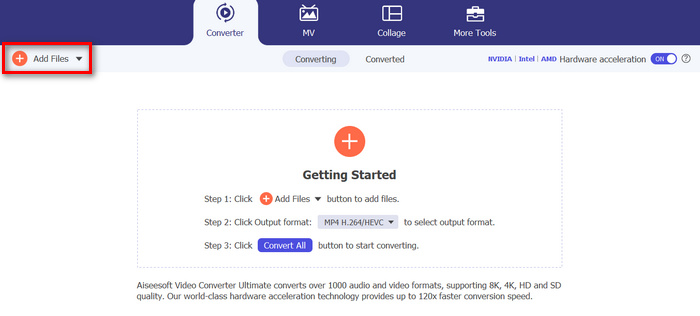
चरण 2. जिन WMA फ़ाइलों को आप काटना चाहते हैं उन्हें इम्पोर्ट करने के लिए Add Files बटन पर क्लिक करें।.
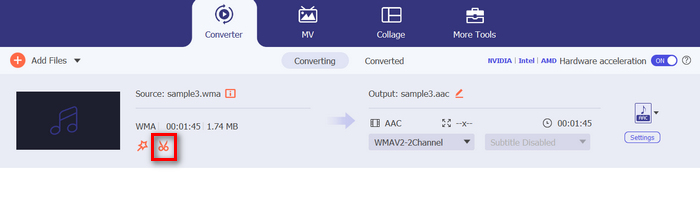
चरण 3. उसके बाद, Cut बटन पर क्लिक करें।.
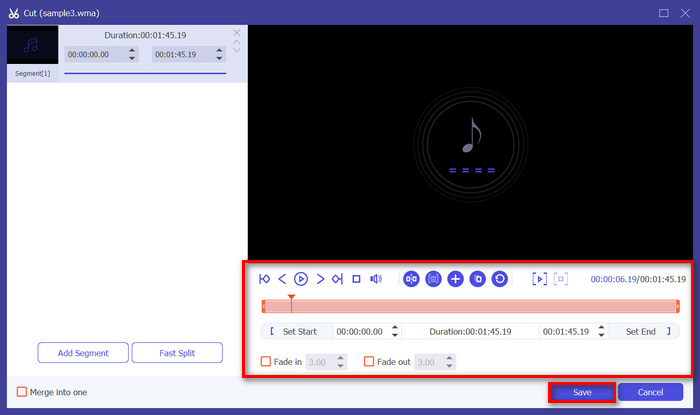
चरण 4. अपनी WMA फ़ाइलों को ट्रिम करने के लिए, आप यह मैन्युअल रूप से कर सकते हैं: क्लिप के स्टार्ट और एंड बार को आसानी से समायोजित या मूव करें, उन्हें बाएँ-दाएँ ड्रैग करें, या WMA फ़ाइल के उस हिस्से का स्टार्ट और एंड टाइम टाइप करें जिसे आप ट्रिम करना चाहते हैं।.
यह प्रक्रिया स्वचालित रूप से ऑडियो के उस भाग को उस समय के आधार पर काट देती है जब आप ट्रिमिंग शुरू और समाप्त करना चाहते हैं।
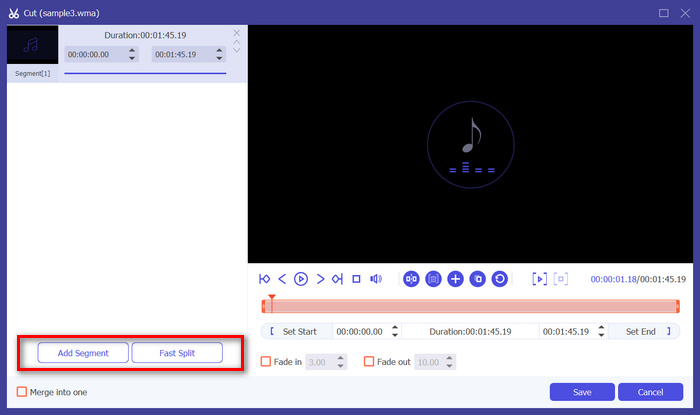
चरण 5. वहीं, अगर आप Fast Slip ट्रिमर फीचर का इस्तेमाल करके काटना चाहते हैं, तो आपको बस Add Segment बटन के बगल में स्थित Fast Slip बटन पर क्लिक करना होगा। फिर वह मोड चुनें जिसमें आप सेगमेंट को स्प्लिट करना चाहते हैं। अगर आप इसे एवरेज के हिसाब से स्प्लिट करना चुनते हैं, तो केवल संख्या बताएँ, लेकिन अगर आप समय के हिसाब से स्प्लिट करना चाहते हैं तो समय बताएँ। उसके बाद Save बटन पर क्लिक करें।.
चरण 6. अंत में, ट्रिम की गई WMA फ़ाइल को एक्सपोर्ट करने के लिए Convert All बटन पर क्लिक करें।.
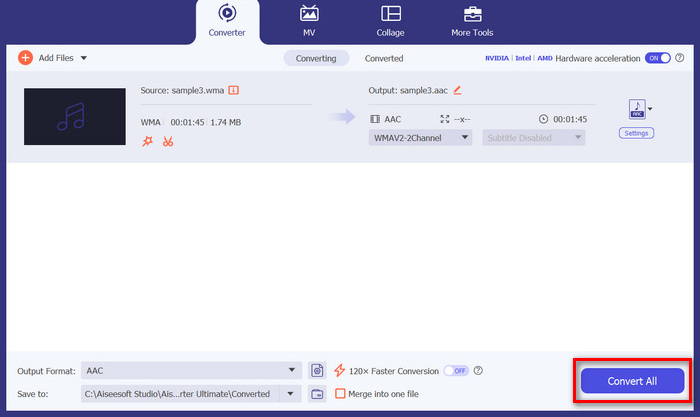
जब WMA फ़ाइलों को काटने की बात आती है, तो FVC द्वारा चुना गया यह वीडियो कन्वर्टर अल्टीमेट वास्तव में एक ज़रूरी समाधान है। इसका सरल और उपयोगकर्ता के अनुकूल इंटरफ़ेस यह सुनिश्चित करता है कि आप अपनी WMA फ़ाइलों को आसानी से और सटीक रूप से ट्रिम कर सकते हैं, और इसके विभिन्न ट्रिमिंग विकल्प आपको अपनी ऑडियो फ़ाइलों को आसानी से काटने के तरीके पर लचीलापन देते हैं।
भाग 2: WMA फ़ाइल को ऑनलाइन निःशुल्क काटें
ऑडियो ट्रिमर एक निःशुल्क टूल है जो उपयोगकर्ताओं को ऑडियो फ़ाइलों को तुरंत ट्रिम करने की अनुमति देता है। यह WMA सहित कई लोकप्रिय ऑडियो प्रारूपों का समर्थन करता है, जो इस टूल को सबसे अच्छे विकल्पों में से एक बनाता है यदि आप WMA फ़ाइलों को ऑनलाइन काटना पसंद करते हैं।
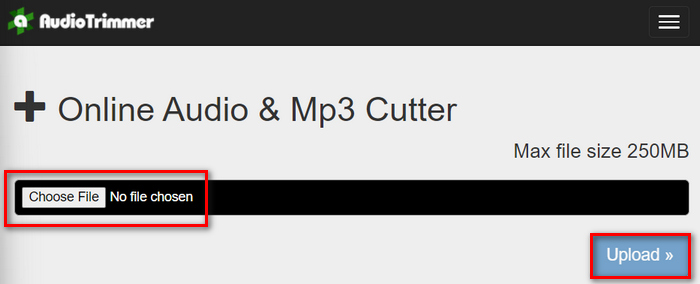
चरण 1. जिन WMA फ़ाइलों को आप काटना चाहते हैं उन्हें इम्पोर्ट करने के लिए Choose File बटन पर क्लिक करें और फिर Upload बटन पर क्लिक करें।.
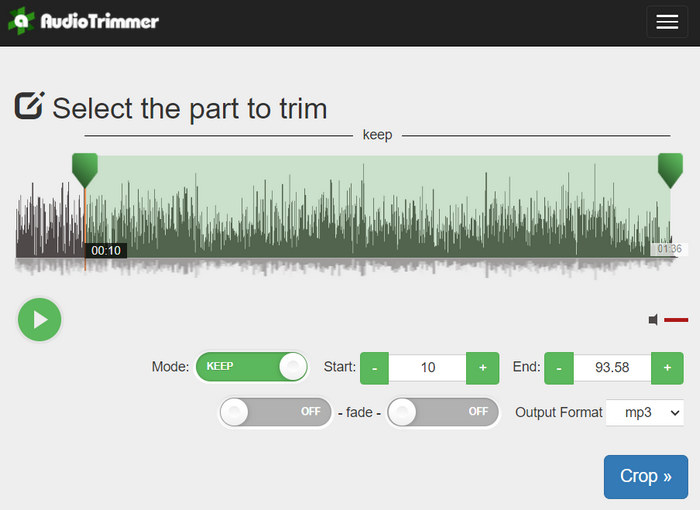
चरण 2. अब बस बार को नीचे की ओर स्लाइड करें और ऑडियो ट्रैक के उस हिस्से का चयन करें जिसे आप ट्रिम करना चाहते हैं। काम पूरा हो जाने पर Crop बटन पर क्लिक करें।.
चरण 3. अंत में, अपनी ट्रिम की हुई WMA फ़ाइल को सेव करने के लिए बस Download बटन पर क्लिक करें।.
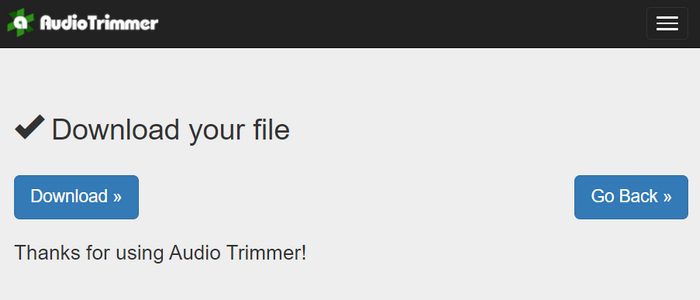
बस हो गया, और आप अपने क्लिप्स को WMA प्लेयर से देख सकते हैं कि आपने उन्हें सही तरह से काटा है या नहीं। इसके सरल और बेहद सहज इंटरफ़ेस की बदौलत, WMA फ़ाइलों को काटने में सिर्फ़ 3 स्टेप लगते हैं। हालाँकि यह ऑडियो फ़ाइलों को ट्रिम करने में आसानी देता है, लेकिन सभी यूज़र्स इस मुफ़्त ऑनलाइन टूल का आनंद नहीं ले सकते, क्योंकि यह 250MB से कम की फ़ाइलों को ही प्रोसेस करने तक सीमित है।.
भाग 3: VLC मीडिया प्लेयर के साथ WMA काटें
VLC मीडिया प्लेयर अपनी बहुमुखी प्रतिभा के कारण व्यापक रूप से इस्तेमाल किया जाने वाला ओपन-सोर्स मीडिया प्लेयर है। यह टूल WMA फ़ाइलों सहित कई तरह के ऑडियो और वीडियो फ़ॉर्मेट को सपोर्ट करता है। मीडिया चलाने, स्ट्रीमिंग करने और रिकॉर्ड करने की अपनी विशेषताओं के अलावा, इस टूल का इस्तेमाल WMA फ़ाइलों को काटने के लिए भी किया जा सकता है। इसके साथ, उपयोगकर्ता मैन्युअल रूप से प्लेबैक समय को बदलने की आवश्यकता के बिना वास्तविक समय में रिकॉर्डिंग करके आसानी से अनुभागों को ट्रिम कर सकते हैं।
चरण 1. VLC Media Player खोलें। जिस WMA फ़ाइल को आप ट्रिम करना चाहते हैं उसे बस ड्रैग और ड्रॉप कर दें।.
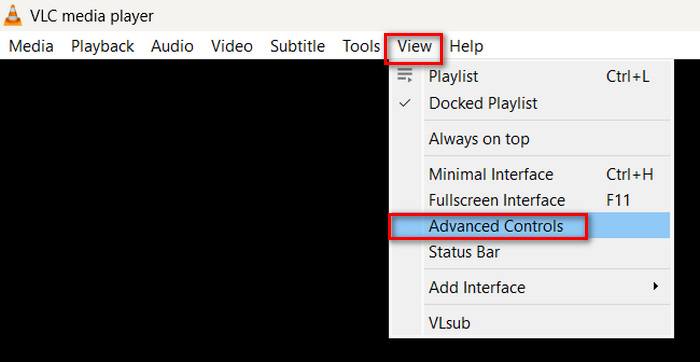
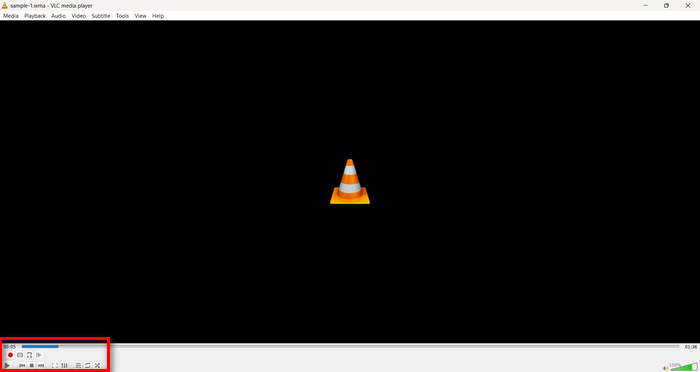
चरण 2. ऑडियो अपने आप चलना शुरू हो जाएगा। इसे थोड़ी देर के लिए पॉज़ करें, फिर View बटन पर क्लिक करें और Advanced Controls विकल्प को चेक करें। अब आपको प्लेबैक आइकन के ऊपर चार नए बटन दिखाई देंगे।.
चरण 3. प्रोग्रेस बार को उस पॉइंट तक खींचें जहाँ से आप अपना क्लिप शुरू करना चाहते हैं। अब बार को इस तरह समायोजित करें कि जहाँ से आप अपनी WMA फ़ाइल को ट्रिम करना चाहते हैं, वहीं से वह शुरू हो। जब हो जाए, तो प्ले करें और Record बटन पर क्लिक करें।.
चरण 4. जब आप उस हिस्से के अंत तक पहुँच जाएँ जिसे आप सेव करना चाहते हैं, तो रिकॉर्डिंग बंद करने के लिए फिर से Record बटन पर क्लिक करें।.
रिकॉर्डिंग के दौरान प्लेबैक समय बदलने के लिए प्रोग्रेस बार को खींचने से बचें, क्योंकि VLC को सेगमेंट को रियल टाइम में रिकॉर्ड करना होता है। अगर आपको यह टूल पसंद आता है, तो यहाँ दिए गए VLC के विकल्प ज़रूर देखें।.
भाग 4: WMA काटने के बारे में अक्सर पूछे जाने वाले प्रश्न
मैं ऑडियो फ़ाइल से कोई भाग कैसे काटूं?
ऑडियो फ़ाइल से कोई भाग काटने के लिए, आप Video Converter Ultimate जैसे टूल का उपयोग कर सकते हैं। ऐसा करने के लिए, आपको बस अपनी WMA फ़ाइल को आयात करना होगा, कट बटन पर क्लिक करना होगा, और प्रारंभ और समाप्ति समय को समायोजित करना होगा।
क्या WMA, MP3 से बेहतर है?
WMA अक्सर कम बिट रेट पर MP3 की तुलना में बेहतर साउंड क्वालिटी देता है, जिसके परिणामस्वरूप अच्छे ऑडियो क्वालिटी के साथ फ़ाइल साइज छोटा रहता है। हालाँकि, MP3 विभिन्न डिवाइस और प्लेटफ़ॉर्म पर कहीं ज़्यादा सपोर्टेड है। WMA और MP3 के बीच चुनाव आपकी क्वालिटी और कम्पैटिबिलिटी की ज़रूरतों पर निर्भर करता है। साथ ही, आप WMA to MP3 कनवर्टर टूल्स से WMA को MP3 में बदल भी सकते हैं, वह भी बहुत जल्दी।.
विंडोज मीडिया प्लेयर में ऑडियो फाइलों को कैसे ट्रिम करें?
विंडोज मीडिया प्लेयर के भीतर ऑडियो फ़ाइलों को ट्रिम करने के लिए, आपको SolveigMM WMP Trimmer Plugin Home Edition नामक प्लगइन का उपयोग करना होगा। यह प्लगइन उपयोगकर्ताओं को विंडोज मीडिया प्लेयर के इंटरफ़ेस के भीतर सीधे ऑडियो फ़ाइलों को आसानी से ट्रिम करने में सक्षम बनाता है, जो ऑडियो संपादन कार्यों के लिए एक सुविधाजनक समाधान प्रदान करता है।
निष्कर्ष
WMA फ़ाइलों को काटना तनावपूर्ण होने की ज़रूरत नहीं है। चाहे आप Video Converter Ultimate जैसा सॉफ़्टवेयर पसंद करें, Audio Trimmer जैसा ऑनलाइन टूल, या बहुआयामी VLC Media Player, Windows और Mac दोनों उपयोगकर्ताओं के लिए प्रभावी तरीके उपलब्ध हैं। अपने लिए सबसे उपयुक्त तरीका चुनें और आसानी से अपनी ऑडियो फ़ाइलों को एडिट करना शुरू करें। क्या आप अपनी ऑडियो एडिटिंग को आसान बनाने के लिए तैयार हैं? आज ही इन तरीकों में से किसी एक को आज़मा कर देखिए!
-
 FLV को WMA ऑडियो में बदलने के 2 तरीके [मुफ्त और ऑनलाइन]
 FLV वीडियो से WMA ऑडियो निकालना चाहते हैं? मैक ओएस एक्स और विंडोज 10/8/7 पर तेज रूपांतरण गति के साथ एफएलवी (फ्लैश वीडियो) को डब्लूएमए (विंडोज मीडिया ऑडियो) में बदलने के लिए यहां 2 मुफ्त डब्लूएमए ऑडियो एक्सट्रैक्टर्स हैं।
-
 शीर्ष चयन WMA मेटाडेटा संपादक जिन्हें आपको मिस नहीं करना चाहिए [2024]
 मैं WMA टैग संपादित क्यों नहीं कर सकता? उपयोगकर्ताओं में यह समस्या आम है' प्रश्न. लेकिन आज हम आपको WMA मेटा एडिटर देंगे जिनका उपयोग आप 2024 में कर सकते हैं।
-
 एमपी 3 ऑडियो (बैच रूपांतरण और बड़े आकार) के लिए MP4 कन्वर्ट करने के लिए 8 तरीके
 यदि आप MP4 वीडियो से एमपी 3 ऑडियो निकालना चाहते हैं, तो आप इस लेख की जांच कर सकते हैं और 8 समाधान प्राप्त कर सकते हैं। वहाँ आसानी से अपने फोन या कंप्यूटर पर एमपी 3 के लिए MP4 कन्वर्ट करने के लिए ऑनलाइन और ऑफलाइन तरीके हैं।
