


 वीडियो कनवर्टर अंतिम
 स्क्रीन अभिलेखी
 वीडियो मरम्मत
3GP को FLV में बदलने के प्रमुख और सहायक तरीके [सिद्ध]
ऑडियो और वीडियो फ़ाइलों को 3GP फ़ॉर्मेट में संग्रहीत किया जा सकता है, जो आम तौर पर 3G फ़ोनों में उपयोग किया जाता है। यह 2G और 4G फ़ोनों में भी काम करता है। इंटरनेट पर, यह MP4-आधारित कंटेनर मल्टीमीडिया फ़ाइलें भेजने और प्राप्त करने के लिए इस्तेमाल होता है। हालांकि, कई ऑनलाइन वीडियो और ऑडियो स्ट्रीमिंग सेवाएँ FLV का उपयोग करती हैं, जो एक फ़्लैश-संगत वीडियो कंटेनर है। Adobe Flash Player के अलावा, कई अन्य वीडियो प्लेयर भी FLV फ़ाइलें चला सकते हैं। 3GP फ़ाइलों को अधिक सुलभ और आकार में छोटा बनाने के लिए, उन्हें FLV में बदलने के कई सरल तरीके हैं। नीचे वे कन्वर्टर दिए गए हैं जिनका उपयोग आप 3GP को FLV में कन्वर्ट करने के लिए कर सकते हैं।.

भाग 1. 3GP को FLV में बदलने के लिए उत्कृष्ट तरीके [ऑफ़लाइन]
वीडियो कन्वर्टर अल्टीमेट गुणवत्ता का त्याग किए बिना 3GP फ़ाइलों को FLV में परिवर्तित करने के लिए एक आदर्श उपकरण है। प्रोग्राम की सुपरस्पीड तकनीक का उपयोग करके, उपयोगकर्ता बड़ी फ़ाइलों को भी मिनटों में परिवर्तित कर सकते हैं। इसके अतिरिक्त, ऐप आपको अपनी फ़ाइलों को संपादित करने की अनुमति देता है जैसा कि आप फिट देखते हैं: अपने वीडियो को क्रॉप, रोटेट और ट्रिम करें; रंग मापदंडों को समायोजित करें; वीडियो रिज़ॉल्यूशन और बिटरेट बदलें; या उपशीर्षक जोड़ें। IPhone, iPad, Android- आधारित डिवाइस, Xbox और PlayStation सहित सभी सबसे लोकप्रिय डिवाइस इस सॉफ़्टवेयर द्वारा समर्थित हो सकते हैं। अब आप इस सॉफ़्टवेयर का संक्षिप्त परिचय जानते हैं, अब आपके लिए यह समझने का समय है कि इस सॉफ़्टवेयर का उपयोग करके 3GP को FLV में कैसे परिवर्तित किया जाए।
स्टेप 1: नीचे दिए गए Free Download पर क्लिक करके पहले सॉफ़्टवेयर डाउनलोड करें। आपके पास इसे Windows या Mac पर डाउनलोड करने का विकल्प है। डाउनलोड करने के बाद, सॉफ़्टवेयर को अपने कंप्यूटर पर इंस्टॉल करें और इंस्टॉल होने के बाद स्क्रीन पर जो विंडो पॉप अप होगी, उसमें दिखाई देने वाले Start Now पर क्लिक करके इसे रन करें।.
फ्री डाउनलोडWindows 7 या बाद के संस्करण के लिएसुरक्षित डाउनलोड
फ्री डाउनलोडMacOS 10.7 या बाद के संस्करण के लिएसुरक्षित डाउनलोड
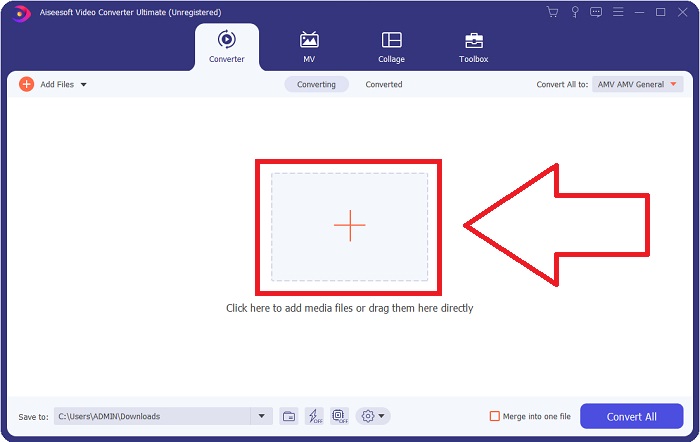
स्टेप 2: कन्वर्ज़न शुरू करने के लिए सबसे पहले आपको एक फ़ाइल अपलोड करनी होगी, और ऐसा करने के लिए, सॉफ़्टवेयर के इंटरफ़ेस के बीच में स्थित + बटन पर क्लिक करें, या आप अपने कंप्यूटर से वीडियो फ़ाइलों को आसानी से ड्रैग भी कर सकते हैं।.
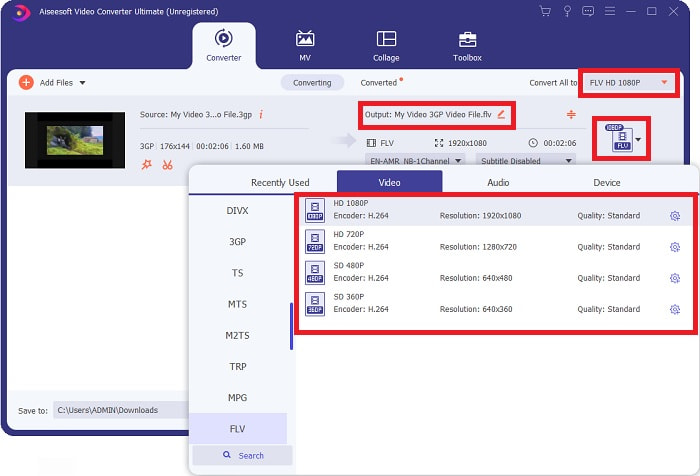
स्टेप 3: फ़ाइल अपलोड करने के बाद, अब आप अपनी स्क्रीन के दाएँ कोने पर स्थित फ़ॉर्मेट चयन में से FLV फ़ॉर्मेट चुन सकते हैं। आप अपनी पसंद की क्वालिटी चुन सकते हैं, क्योंकि यह आपके उपयोग के लिए सभी संभावित गुण (attributes) दिखाएगा।.
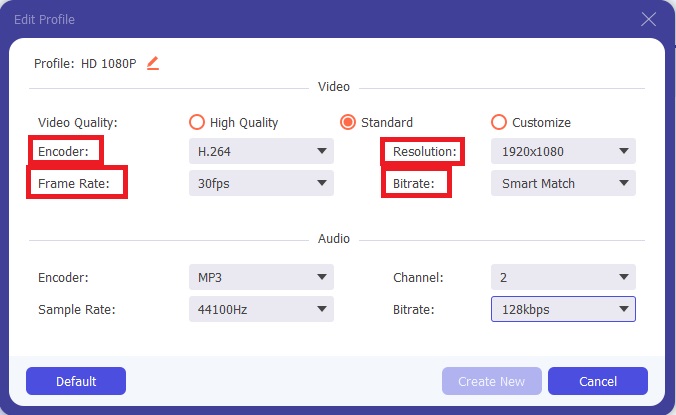
स्टेप 4: दी गई क्वालिटी विकल्पों के बावजूद, अगर आपकी पसंदीदा क्वालिटी विकल्पों में मौजूद नहीं है, तो आप अपनी मनचाही क्वालिटी स्वयं बना सकते हैं। गियर आइकन पर क्लिक करें और पॉप अप होने वाली विंडो में दिखने वाली सभी सेटिंग्स को समायोजित करें। रेज़ॉल्यूशन स्क्रीन डिस्प्ले क्वालिटी से संबंधित है और फ़्रेम रेट वीडियो प्लेबैक की आवृत्ति से; बिट रेट एक समय में एन्कोड किए जाने वाले डेटा की मात्रा के लिए होता है। अंत में, एन्कोडर वीडियो फ़ॉर्मेट की डिलीवरी के लिए होता है।.
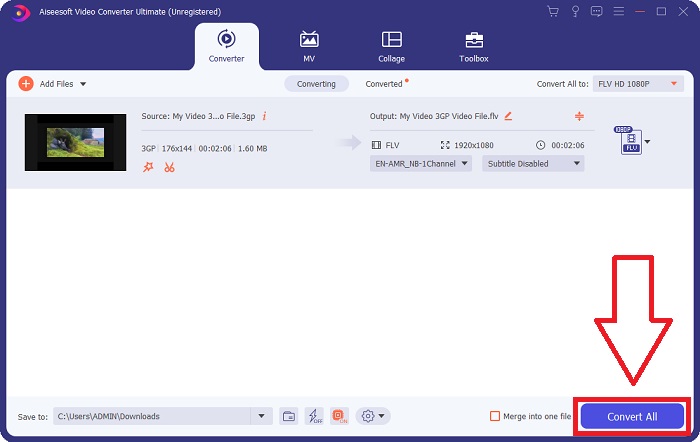
स्टेप 5: अंत में, जब आप अपने वीडियो आउटपुट के लिए सभी आवश्यक सेटिंग्स समायोजित कर लें, तब आप Convert All पर क्लिक करके इसे कन्वर्ट कर सकते हैं।.
भाग 2. 3GP को FLV में बदलने का एक और दिलचस्प तरीका [ऑनलाइन]
सॉफ़्टवेयर की बात यहीं तक; अब इस ऑनलाइन टूल के बारे में बात करते हैं, जो निश्चित रूप से आपको 3GP को FLV में कन्वर्ट करने में मदद कर सकता है। प्रस्तुत है Free Video Converter Online, जो कई फ़ॉर्मेट को सपोर्ट करता है, जिनमें 3GP और FLV भी शामिल हैं। आप अपने कंप्यूटर से सीधे फ़ाइल अपलोड करके कन्वर्ट कर सकते हैं। 500 MB से बड़ी फ़ाइल अपलोड करने के लिए भी आप इस ऑनलाइन टूल का उपयोग करके 3GP को FLV में कन्वर्ट कर सकते हैं। उपयोगकर्ता कन्वर्ज़न शुरू होने से पहले कई सेटिंग्स बदल सकते हैं। उदाहरण के लिए, आप ऑडियो कोडेक और ऑडियो की वॉल्यूम बदल सकते हैं। आप वीडियो रेज़ॉल्यूशन भी बदल सकते हैं। अब तक दी गई जानकारी के बाद, आइए उन सभी प्रक्रियाओं को सीखें जिन्हें आपको जानने की ज़रूरत है।.
स्टेप 1: यह ऑनलाइन टूल का लिंक है। इस पर क्लिक करें ताकि मुख्य वेबपेज आपके ब्राउज़र में खुल जाए। Add Files to Convert पर क्लिक करके वह लॉन्चर डाउनलोड करें, जिसका उपयोग आप इस ऑनलाइन टूल को चलाने के लिए करेंगे। लॉन्चर इंस्टॉल करें और फ़ाइल अपलोड करना शुरू करें।.
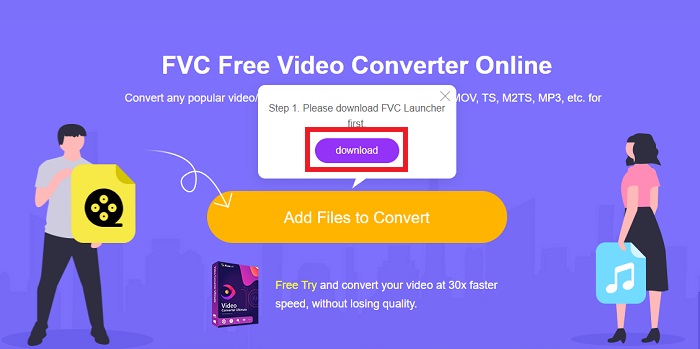
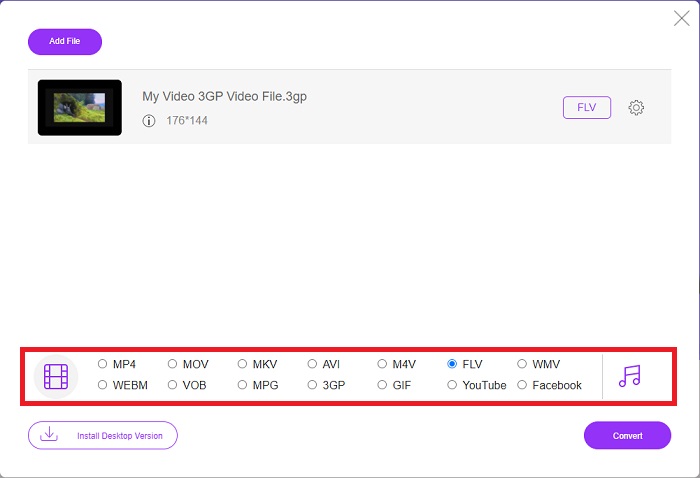
स्टेप 2: फ़ाइल अपलोड करने के लिए, फिर से Add Files to Convert पर क्लिक करें। फ़ाइल अपलोड करने के बाद, आप अब विंडो के निचले कोने में स्थित वीडियो फ़ॉर्मेट के चयन में से FLV वीडियो फ़ॉर्मेट चुन सकते हैं।.
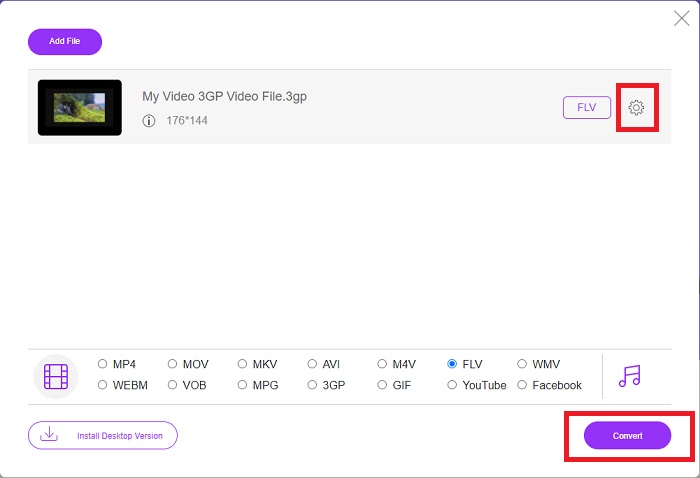
स्टेप 3: आप अपने वीडियो की क्वालिटी या अन्य विशिष्टताओं, जैसे रेज़ॉल्यूशन, फ़्रेम रेट या बिट रेट को भी संपादित कर सकते हैं। इसके लिए, विंडो के दाएँ कोने में, चुने गए वीडियो फ़ॉर्मेट के ठीक बगल में स्थित गियर आइकन पर क्लिक करें। जब आप अपने आउटपुट की सभी पसंदीदा सेटिंग्स समायोजित कर लें, तो Convert पर क्लिक करके अब आप फ़ाइल को कन्वर्ट कर सकते हैं।.
भाग 3. एक सिंहावलोकन: 3GP बनाम FLV
यदि आप कभी किसी ऑडियो और वीडियो क्लिप को 3GP प्रारूप में सहेजना चाहते हैं, तो आप सही जगह पर आए हैं! (3 जीपीपी)। ISO मीडिया फ़ाइल स्वरूप 3GPP, एक मल्टीमीडिया कंटेनर स्वरूप की नींव के रूप में कार्य करता है। H.263 या H.264 वीडियो स्ट्रीम और AMR-WB, AMR-WB+, AMR-NB, HE-AAC v1, AAC-LC, या एन्हांस्ड aacPlus ऑडियो स्ट्रीम सभी समर्थित हैं। आमतौर पर, 3GP फ़ाइलें वीडियो कैप्चर करने के लिए 3G मोबाइल फ़ोन का उपयोग करती हैं, लेकिन उपयोगकर्ता उन्हें कुछ 2G और 4G फ़ोन पर भी चला सकते हैं। यद्यपि 3GP फ़ाइलें अभी भी उपयोग में हैं, उनकी लोकप्रियता में गिरावट आई है क्योंकि अधिक कुशल वीडियो प्रारूपों ने 3GPP प्रारूप को प्रतिस्थापित कर दिया है।
हालांकि, Adobe Flash Video (FLV) कंटेनर प्रारूप में सहेजी गई वीडियो फ़ाइलें FLV दस्तावेज़ हैं। ऑडियो और वीडियो स्ट्रीम मानक फ्लैश की तरह ही एन्कोड कर सकते हैं। एसडब्ल्यूएफ प्रारूप और मेटाडेटा पैकेट में एक छोटा हेडर शामिल है। फ्लैश वीडियो एक्सपोर्टर प्लग-इन (एडोब एनिमेट के साथ उपलब्ध) या एक एप्लिकेशन जो एफएलवी फाइलों का समर्थन करता है, फ्लैश वीडियो सामग्री का उत्पादन कर सकता है और इसे एफएलवी फाइलों के रूप में निर्यात कर सकता है। Adobe Media Encoder वीडियो को QuickTime या Windows Media स्वरूपों में भी एन्कोड कर सकता है। अब जब आपके पास 3GP और FLV के बारे में एक विचार है, तो हम विशिष्ट मामलों में विवरण जानने के लिए एक तुलना चार्ट प्रदान करते हैं।
| दस्तावेज़ विस्तारण | 3GP | FLV |
| फाइल का प्रकार | आईएसओ मीडिया फ़ाइल | फ्लैश वीडियो फ़ाइल |
| द्वारा विकसित | तीसरी पीढ़ी की भागीदारी परियोजना | एडोब सिस्टम |
| पेशेवरों | मोबाइल उपयोगकर्ताओं के लिए वीडियो फ़ाइलों को साझा करना और संग्रहीत करना आसान है क्योंकि 3GP फ़ाइल स्वरूप वीडियो आकार और ऑडियो घटकों को कम करता है। हालाँकि 3GP डिज़ाइन किया गया फ़ाइल स्वरूप 3G-सक्षम डिवाइस का उपयोग करता है, कई 2G और 4G डिवाइस इस प्रारूप को चला सकते हैं। | उन वेबसाइटों के लिए जो एनीमेशन और इंटरैक्टिव तत्वों को शामिल करना चाहती हैं, Adobe Flash एक उत्कृष्ट विकल्प है। लंबी अवधि में इसका काफी असर हो सकता है। अपने चरम के दौरान, फ्लैश ने साधारण खेलों का इस्तेमाल किया। |
| विपक्ष | भले ही वीडियो और ऑडियो स्ट्रीम एक फ़ाइल, गुणवत्ता और कम रिज़ॉल्यूशन में संपीड़ित हो सकते हैं, उपयोगकर्ता अन्य प्रारूपों की तुलना में उपयोगकर्ता अनुभव में काफी सुधार कर सकते हैं, जैसे ऑडियो गुणवत्ता, स्क्रीन रिज़ॉल्यूशन, प्लेबैक गति इत्यादि। | बेशक, यह एक नुकसान है कि पिछले कुछ वर्षों में एफएलवी की लोकप्रियता कम हुई है। FLV सामग्री बनाने में बहुत समय और पैसा लगता है। फ्लैश की एक और कमी यह है कि इसे आईओएस उपकरणों पर नहीं देखा जा सकता है, जिससे नए प्रशंसकों को आकर्षित करने की इसकी क्षमता गंभीर रूप से सीमित हो जाती है। |
| कार्यक्रम वीडियो प्रारूप खोलते हैं | क्विकटाइम प्लेयर विंडोज मीडिया प्लेयर | वीएलसी मीडिया प्लेयर एडोब फ़्लैश प्लेयर |
भाग 4. 3GP से FLV रूपांतरण के बारे में अक्सर पूछे जाने वाले प्रश्न
क्या 3GP अच्छी गुणवत्ता है?
MP4 की तरह ही वेरिएबल बिट रेट और फ्रेम रेट सपोर्ट 3GP। 3GP फीचर फोन के लिए एक लोकप्रिय प्रारूप था जब वे अभी भी संचार का सबसे सामान्य रूप थे। हमें एक ऐसा वीडियो चाहिए जो छोटा हो क्योंकि अतीत में अंतरिक्ष एक विलासिता था। गुणवत्ता आलू-गुणवत्ता वाले कैमरों के बराबर है जो उस समय हमारे फोन में थे, इसलिए यह चौंकाने वाला नहीं है।
3GP क्यों नहीं चल रहा है?
अगर आपका डिफ़ॉल्ट मीडिया प्लेयर 3GP कोडेक को सपोर्ट नहीं करता है, तो इसके बजाय 3GP फ़ाइल को प्ले करें VLC Media Player पर आज़माएँ। VLC एक बेहतरीन ओपन-सोर्स वीडियो प्लेयर है क्योंकि यह लगभग हर तरह की वीडियो फ़ाइल चला सकता है। Windows और iOS के अलावा, VLC Linux और Android के लिए भी उपलब्ध है।.
क्या FLV एक उपयुक्त रिकॉर्डिंग प्रारूप है?
Adobe Flash Player FLV फ़ाइल फ़ॉर्मेट का उपयोग करता है। एक सार्वभौमिक रूप से समर्थित वीडियो फ़ॉर्मेट होने के कारण, यह सबसे व्यापक रूप से उपयोग किए जाने वाले फ़ॉर्मेटों में से एक है। YouTube जैसी ऑनलाइन वीडियो स्ट्रीमिंग प्लेटफ़ॉर्म FLV फ़ॉर्मेट का उपयोग करके लाभ उठाते हैं। यह बहुत सुविधाजनक है क्योंकि इनका फ़ाइल आकार छोटा होता है। यहाँ वे सबसे अच्छे FLV रिकॉर्डर दिए गए हैं जिन्हें आप आज़मा सकते हैं।.
निष्कर्ष
सामान्यतया, आपके लिए प्रदान किए गए सभी कन्वर्टर्स सबसे अच्छे और सबसे अधिक अनुशंसित सॉफ़्टवेयर और ऑनलाइन कन्वर्टर्स हैं जिन्हें आपको उपयोग करने पर विचार करना चाहिए। चूंकि उनके पास ये पेशेवर-वार और मैत्रीपूर्ण-उपयोगकर्ता विशेषताएं हैं, आप इन दोनों की तुलना अन्य सॉफ़्टवेयर और ऑनलाइन टूल से नहीं कर सकते। इसका उपयोग करने का आनंद लें, और इसका उपयोग करने के बाद समीक्षा करना न भूलें।
-
 3GP को AVI फॉर्मेट में बदलने के 4 सबसे प्रभावी तरीके [2025]
 क्या मैं अपनी 3GP फ़ाइलों को AVI में बदल सकता हूँ? ठीक है, आप इसे आसानी से परिवर्तित कर सकते हैं यदि आप उपलब्ध इन उपकरणों को आजमाते हैं क्योंकि हमने आपके 3GP से AVI रूपांतरण समस्या के सभी संभावित समाधान एकत्र किए हैं।
-
 VOB को FLV में बदलने के सर्वोत्तम तरीके [मुफ्त और ऑनलाइन शामिल]
 VOB फ़ाइल को FLV फ़ाइल में कनवर्ट करना चाहते हैं? आप डेस्कटॉप या ऑनलाइन कन्वर्टर्स के साथ कार्य को आसानी से पूरा कर सकते हैं। इस गाइड को पढ़ें और जानें कि VOB को FLV में आसानी से और जल्दी से कैसे बदला जाए।
-
 डेस्कटॉप और ऑनलाइन पर DAT को FLV में बदलने के शीर्ष 3 तरीके
 DAT को FLV में बदलना चाहते हैं लेकिन पता नहीं कैसे? हमारे अनुशंसित डीएटी से एफएलवी वीडियो कन्वर्टर्स की जांच करें और काम को आसानी से पूरा करने के लिए हमारे ठोस गाइड का पालन करें।
