


 वीडियो कनवर्टर अंतिम
 स्क्रीन अभिलेखी
 वीडियो मरम्मत
 सुरक्षित डाउनलोड
किसी भी FLV वीडियो फ़ाइल को YouTube में कनवर्ट और अपलोड कैसे करें
“मैंने अभी-अभी .flv एक्सटेंशन वाली एक वीडियो फ़ाइल अपलोड की, लेकिन मुझे चेतावनी संदेश मिला कि फ़ाइल फ़ॉर्मेट अमान्य है, मैं FLV को YouTube पर कैसे अपलोड करूँ?” FLV केवल एक फ़ाइल एक्सटेंशन नहीं है, बल्कि एक वीडियो कंटेनर भी है। इसका मतलब है कि एक FLV वीडियो फ़ाइल में अलग‑अलग वीडियो और ऑडियो कोडेक हो सकते हैं और उनमें से कुछ YouTube द्वारा समर्थित नहीं होते। यह लेख आपको बताएगा कि FLV को बिना किसी दिक्कत के YouTube पर कैसे अपलोड किया जाए।.

भाग 1: YouTube किस वीडियो और ऑडियो कोडेक का समर्थन करता है
Google के अनुसार, YouTube .mpg एक्सटेंशन के साथ प्रसारण प्रारूप के साथ-साथ DVD-संगत MPEG-2 स्ट्रीम को प्राथमिकता देता है। YouTube द्वारा समर्थित कोडेक्स में शामिल हैं:
- एमपीईजी -2
- ऑडियो कोडेक: एमपीईजी परत II या डॉल्बी एसी-3
- ऑडियो बिटरेट: 128 केबीपीएस या बेहतर
- एमपीईजी -4
- वीडियो कोडेक: 264
- ऑडियो कोडेक: एएसी
- ऑडियो बिटरेट: 128 केबीपीएस या बेहतर
इसके अलावा, YouTube केवल MP3 या PCM ऑडियो के साथ WAV कंटेनर, AAC ऑडियो के साथ MOV और FLAC ऑडियो का समर्थन करता है। YouTube सही कोडेक्स के साथ WMV, AVI, MOV, MP4 और FLV का समर्थन करता है।
जब एफएलवी की बात आती है, तो यूट्यूब एमपी3 और एएसी ऑडियो के साथ एडोब-एफएलवी1 वीडियो कोडेक के साथ एन्कोडेड वीडियो एक्सेस करता है। यदि आपके FLV वीडियो में असम्पीडित ऑडियो या ADPCM ऑडियो है, तो YouTube इसे स्वीकार नहीं करेगा।
इसके अलावा, YouTube पर FLV अपलोड करने के और भी नियम हैं:
- फ्रेम दर की सिफारिश करें: 24 से 60
- संकल्प की सिफारिश करें: 1080पी
- न्यूनतम अवधि: 33 सेकंड
भाग 2: FLV को YouTube में बदलने के सबसे आसान तरीके
तरीका 1: डेस्कटॉप पर FLV को YouTube में बदलें
यदि आप FLV को YouTube पर अपलोड करते समय त्रुटि का सामना करते हैं, तो सबसे पहले आपको किसी FLV कन्वर्टर की तलाश करनी चाहिए, जैसे कि FVC Free FLV Converter। यह आपको वीडियो और ऑडियो कोडेक के साथ‑साथ अन्य पैरामीटर भी समायोजित करने देता है, ताकि आप अपनी FLV फ़ाइलों को YouTube के नियमों के अनुरूप बना सकें। इसके अलावा, यह हार्डवेयर एक्सेलेरेशन और मल्टी‑थ्रेड तकनीक का उपयोग करके प्रदर्शन में सुधार करता है।.
YouTube के लिए सर्वश्रेष्ठ FLV कनवर्टर की मुख्य विशेषताएं
- 1. FLV के वीडियो और ऑडियो कोडेक्स को आसानी से एडजस्ट करें।
- 2. बैच एक बार में असीमित FLV वीडियो की प्रक्रिया करता है।
- 3. कनवर्ट करते समय वीडियो की गुणवत्ता को स्वचालित रूप से सुरक्षित रखें।
फ्री डाउनलोडWindows 7 या बाद के संस्करण के लिएसुरक्षित डाउनलोड
फ्री डाउनलोडMacOS 10.7 या बाद के संस्करण के लिएसुरक्षित डाउनलोड
डेस्कटॉप पर YouTube के लिए FLV कैसे बदलें
स्टेप 1: FLV फ़ाइलें जोड़ें
एक बार जब आप इसे अपने कंप्यूटर पर स्थापित कर लें तो सबसे अच्छा FLV कनवर्टर लॉन्च करें। ऊपरी बाईं ओर स्थित फ़ाइल जोड़ें मेनू पर क्लिक करें और उन FLV फ़ाइलों को जोड़ें जिन्हें आप YouTube पर अपलोड करना चाहते हैं।

स्टेप 2: कोडेक बदलें
नीचे दिए गए Output format के पास ड्रॉप‑डाउन मेन्यू पर क्लिक करके प्रोफ़ाइल डायलॉग खोलें। Search Profile बॉक्स में FLV टाइप करें और अपने कीबोर्ड पर Enter कुंजी दबाएँ। फिर उचित वीडियो और ऑडियो कोडेक वाले FLV फ़ॉर्मेट को चुनें।.
यदि आपकी FLV वीडियो बहुत लंबी है, तो बेहतर होगा कि आप उसे कई क्लिप में विभाजित कर लें और फिर YouTube पर अपलोड करें। आप वीडियो एडिटर विंडो खोलने के लिए Edit मेन्यू पर क्लिक कर सकते हैं।.

स्टेप 3: YouTube के लिए FLV कन्वर्ट करें
इसके बाद, नीचे जाएँ और Open Folder बटन पर क्लिक करें। आउटपुट वीडियो को सहेजने के लिए एक विशेष फ़ोल्डर चुनें। अंत में, तुरंत YouTube के लिए FLV कन्वर्ट करना शुरू करने के लिए Convert बटन पर क्लिक करें।.

तरीका 2: FLV को YouTube ऑनलाइन में बदलें
यदि आप अपने हार्ड डिस्क पर वीडियो कन्वर्टर सॉफ़्टवेयर इंस्टॉल नहीं करना चाहते, तो FVC Free Online Video Converter एक अच्छा वैकल्पिक समाधान है। यह पूरी तरह मुफ़्त है और किसी भी तरह की सीमा, जैसे वॉटरमार्क, नहीं लगाता। इसके अलावा, इसमें फ़ाइल आकार पर भी कोई प्रतिबंध नहीं है। नीचे दिए गए चरणों का पालन करें:
स्टेप 1: ब्राउज़र में https://www.free-videoconverter.net/free-online-video-converter/ पर जाएँ और लॉन्चर पाने के लिए Add Files to Convert बटन पर क्लिक करें।.

स्टेप 2: कई FLV फ़ाइलें अपलोड करने के लिए Add File बटन पर क्लिक करें। फिर प्रोफ़ाइल डायलॉग खोलने के लिए Gear आइकन दबाएँ। यहाँ आप Video Encoder और Audio Encoder समायोजित कर सकते हैं। पुष्टि करने के लिए OK दबाएँ।.

स्टेप 3: नीचे से YouTube द्वारा समर्थित फ़ॉर्मेट चुनें और FLV को YouTube के लिए कन्वर्ट करना शुरू करने के लिए Convert बटन पर क्लिक करें। प्रक्रिया पूरी हो जाने पर आउटपुट फ़ाइलें डाउनलोड करें।.
मत चूकें:
भाग 3: YouTube पर FLV कैसे अपलोड करें
कनवर्ट करने के बाद, आप अपनी FLV फ़ाइलें अब अपने कंप्यूटर पर YouTube पर अपलोड कर सकते हैं। हम यहां चरणों को साझा करते हैं, ताकि आप खो न जाएं।
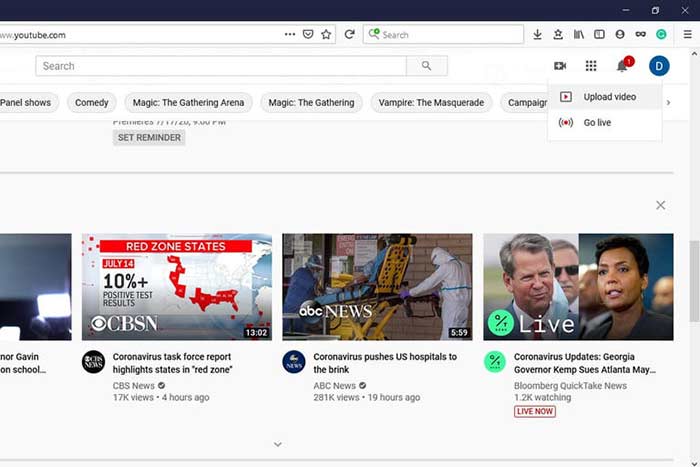
स्टेप 1: YouTube होमपेज पर जाएँ और अपने अकाउंट में साइन इन करें।.
स्टेप 2: Camcorder आइकन पर क्लिक करें और अपलोड पेज पर जाने के लिए Upload video चुनें।.
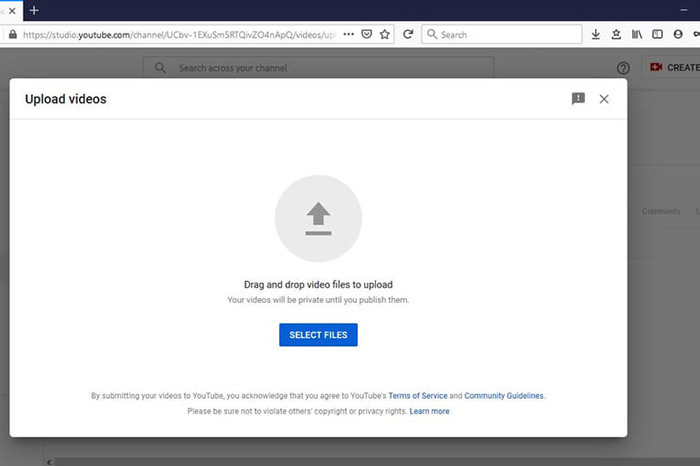
स्टेप 3: पेज पर बड़े Select Files बटन पर क्लिक करें, और फिर YouTube के लिए कन्वर्ट की गई FLV फ़ाइलें खोलें। या FLV फ़ाइलों को अपलोड करने के लिए उन्हें पेज पर ड्रैग और ड्रॉप करें।.
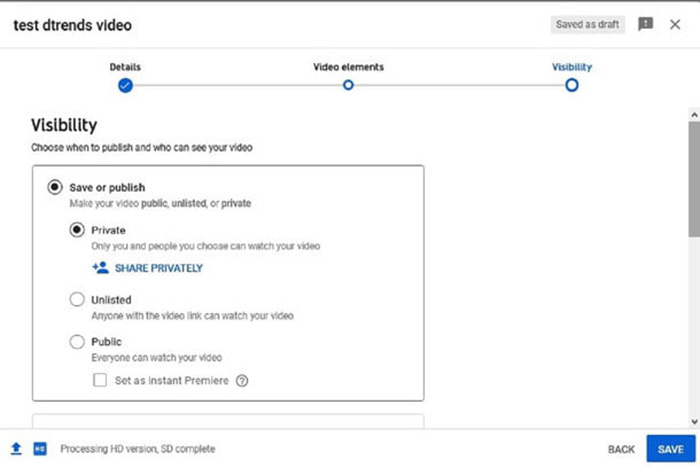
स्टेप 4: फिर प्राइवेसी सेटिंग तय करें। डिफ़ॉल्ट रूप से यह Public होती है, लेकिन आप इसे Private, Schedule या Unlisted में बदल सकते हैं।.
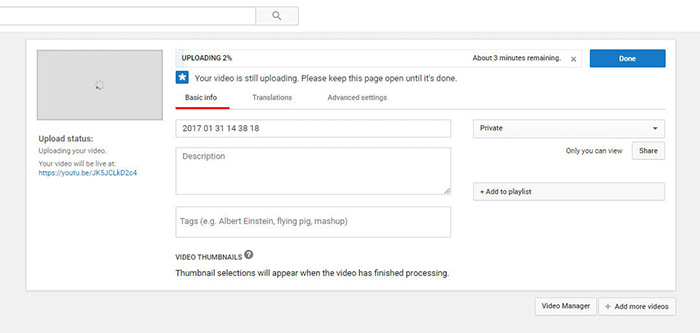
स्टेप 5: सेटिंग पूरी करने के बाद Save या Publish बटन पर क्लिक करें। इसके बाद आप Dashboard पेज पर पहुँच जाएँगे, जहाँ आप देख सकते हैं कि FLV आपकी YouTube अकाउंट पर अपलोड हो चुकी है।.
भाग 4: YouTube से FLV के बारे में अक्सर पूछे जाने वाले प्रश्न
क्या आप FLV को YouTube पर अपलोड कर सकते हैं?
हां और ना। YouTube FLV वीडियो प्रारूप का समर्थन करता है, लेकिन एक वीडियो कंटेनर के रूप में, आप केवल समर्थित वीडियो और ऑडियो कोडेक वाली FLV फ़ाइलें ही अपलोड कर सकते हैं; अन्यथा, यह विफलता होगी।
क्या मैं FLV में YouTube वीडियो डाउनलोड कर सकता हूं?
यदि YouTube वीडियो डाउनलोड बटन प्रदान करता है, तो आप उस पर क्लिक कर सकते हैं और आउटपुट स्वरूप के रूप में FLV का चयन कर सकते हैं।
YouTube के लिए कौन सा वीडियो प्रारूप सबसे अच्छा है?
MP4 YouTube के लिए सबसे अच्छा वीडियो प्रारूप है। Google H.256 वीडियो कोडेक और AAC ऑडियो कोडेक के साथ MP4 का उपयोग करने की अनुशंसा करता है। ऐसा इसलिए है क्योंकि यह छोटे फ़ाइल आकार के साथ उच्च गुणवत्ता का उत्पादन करता है। इसके अलावा, MOV, WMV, AVI, FLV, और 3GPP भी YouTube पर समर्थित हैं।
निष्कर्ष
इस गाइड ने आपको बताया है कि YouTube किन वीडियो प्रारूपों को स्वीकार करता है और बिना असफलता के YouTube पर FLV कैसे अपलोड करें। FVC फ्री FLV कन्वर्टर आपको YouTube के लिए FLV कन्वर्ट करने में मदद कर सकता है और आपको वीडियो और ऑडियो कोडेक्स को आसानी से समायोजित करने में सक्षम बनाता है। इसके लिए किसी तकनीकी कौशल की भी आवश्यकता नहीं होती है, इसलिए शुरुआती लोग जल्दी से इसमें महारत हासिल कर सकते हैं। यदि आप YouTube पर वीडियो अपलोड करते समय अन्य समस्याओं का सामना करते हैं, तो कृपया इस पोस्ट के नीचे एक संदेश छोड़ दें।
-
 कैसे एक पैसा चुकाने के बिना MP4 करने के लिए अपने FLV वीडियो फ़ाइलों को परिवर्तित करने के लिए
 यह मार्गदर्शिका आपकी FLV वीडियो फ़ाइलों को MP4 प्रारूप में विंडोज 10/8/7 / XP और मैक ओएस एक्स में परिवर्तित करने के लिए चार नि: शुल्क तरीके साझा करती है, ताकि आप किसी भी डिवाइस पर वीडियो का आनंद ले सकें।
-
 डेस्कटॉप और ऑनलाइन पर अपने FLV वीडियो को MP3 ऑडियो फाइलों में कैसे बदलें
 FLV को MP3 फ़ाइल में कैसे बदलें? आपको बस इस लेख को ध्यान से पढ़ने, अपनी पसंदीदा विधि खोजने और हमारे चरण-दर-चरण मार्गदर्शिका का पालन करने की आवश्यकता है जो आप चाहते हैं।
-
 FLV को WAV में बदलने के 3 मुफ्त तरीके
 मैं एक FLV फ़ाइल को कैसे परिवर्तित करूं? क्या वीएलसी यूट्यूब एफएलवी को डब्ल्यूएवी में बदल सकता है? यह पोस्ट बिना गुणवत्ता हानि के FLV को WAV में बदलने के 3 निःशुल्क तरीके बताती है।
