


 वीडियो कनवर्टर अंतिम
 स्क्रीन अभिलेखी
 वीडियो मरम्मत
 सुरक्षित डाउनलोड
इंस्टाग्राम न्यूज़फीड और रील्स पर GIF कमेंट कैसे करें
GIF या ग्राफ़िक इंटरचेंज फ़ॉर्मेट ऐसे ऐनिमेटेड और संयोजित चित्र या संपीड़ित वीडियो होते हैं जिन्हें आप अपनी सोशल मीडिया बातचीत में मज़ा और मनोरंजन जोड़ने के लिए उपयोग कर सकते हैं। कुछ लोग इन इमेज फ़ॉर्मैट्स को मीम्स के रूप में या पोस्ट पर हास्यपूर्ण अंदाज़ में रिएक्शन दिखाने के लिए भी इस्तेमाल करते हैं। लेकिन क्या आप जानते हैं कि 2012 में लोकप्रिय होने से पहले GIF इंटरनेट की दुनिया से लगभग गायब ही होने वाले थे? सौभाग्य से, जैसे‑जैसे सोशल मीडिया उपयोगकर्ता बढ़े, इन ऐनिमेटेड इमेजेज़ को विलुप्त होने से बचा लिया गया, क्योंकि बहुत‑से यूज़र उन्हें वर्चुअल कम्युनिकेशन को रोचक बनाने के लिए इस्तेमाल करते हैं। यह इंस्टाग्राम के इनबॉक्स और कमेंट बॉक्स सहित सोशल मीडिया ऐप्स पर छा चुका है। इसलिए, इस लेख में आप सीखेंगे कि Instagram पर GIF के साथ कमेंट कैसे करें.

भाग 1. क्या इंस्टाग्राम GIF का समर्थन करता है?
इंस्टाग्राम लोकप्रिय सोशल मीडिया ऐप्स में से एक है जहां लोग छोटे कैप्शन के साथ अपनी सौंदर्यपूर्ण तस्वीरें साझा और फ़्लेक्स कर सकते हैं। यह फोटो-शेयरिंग प्लेटफॉर्म उपयोगकर्ता के अनुभव को बेहतर बनाने के लिए लगातार विकसित हुआ है। ऐसी ही एक वृद्धि जीआईएफ का उपयोग है, जो उपयोगकर्ताओं को अपनी बातचीत में रचनात्मकता और अभिव्यक्ति की एक अतिरिक्त परत जोड़ने की अनुमति देती है। प्रारंभ में, ऐप का उद्देश्य केवल मज़ेदार GIF का उपयोग करके या सुंदर IG कहानियाँ बनाकर संदेश भेजना था। लेकिन अब, आप रील्स और न्यूज़फ़ीड पोस्ट पर पहले से ही GIF टिप्पणी कर सकते हैं।
इंस्टाग्राम ने यह फीचर कब लॉन्च किया?
इंस्टाग्राम कमेंट सेक्शन में GIF को पिछले मई 2023 में कंपनी के प्रमुख एडम मोसेरी ने मेटा सीईओ मार्क जुकरबर्ग के साथ लॉन्च किया था। इस नवीनतम सुविधा को पेश करने का दावा इंस्टाग्राम संस्थापकों और सह-मालिकों के लिए मील के पत्थर में से एक होने का दावा किया गया था। उन्होंने यह भी निपटाया कि वे आईजी पर इसके होने का इंतजार कैसे करते हैं क्योंकि जीआईएफ पर टिप्पणी करना वर्षों से फेसबुक टिप्पणी अनुभाग में सामान्य रहा है। इस उपलब्धि से आईजी उपयोगकर्ताओं के बीच अधिक जुड़ाव को प्रोत्साहित करने की उम्मीद है क्योंकि वे समाचार फ़ीड पोस्ट और रीलों पर टिप्पणी करने के लिए जीआईएफ का उपयोग कर सकते हैं।
क्या समर्थन पर कोई क्षेत्रीय प्रतिबंध है?
परीक्षण अवधि के दौरान IG की GIF टिप्पणी सुविधा अर्जेंटीना, आयरलैंड, इटली, जापान, मैक्सिको और संयुक्त राज्य अमेरिका तक सीमित थी। हालांकि मेटा ने यह खुलासा नहीं किया कि यह सुविधा सभी के लिए कब उपलब्ध होगी, उन्होंने वादा किया है कि अगर इस नई सुविधा ने प्लेटफॉर्म पर बहुत अधिक जुड़ाव हासिल कर लिया है, तो वे धीरे-धीरे इस सुविधा को दुनिया भर के उपयोगकर्ताओं के लिए पेश करेंगे। तदनुसार, इसके क्षेत्रीय प्रतिबंध के बारे में कहने वाला कोई डेटा भी नहीं है।
भाग 2. इंस्टाग्राम पर GIF कमेंट कैसे करें
यदि आप इस नई सुविधा को खोजने के लिए नए हैं, तो नीचे दिए गए चरण दिए गए हैं जिनका पालन करके आप इंस्टाग्राम पोस्ट पर जीआईएफ टिप्पणी कैसे कर सकते हैं (बशर्ते कि आपने अपना इंस्टाग्राम अकाउंट पहले ही अपडेट कर लिया हो):
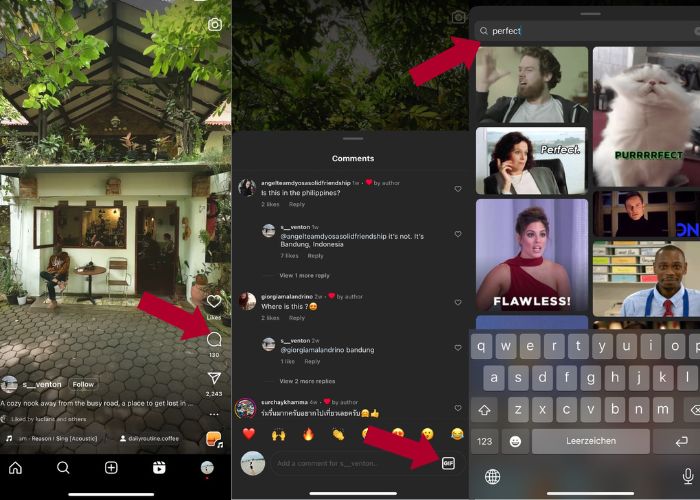
इंस्टाग्राम रील्स पर GIF कैसे कमेंट करें:
कदम 1. सबसे पहले, उस रील पर जाएँ जिसके साथ आप इंटरैक्ट करना चाहते हैं और Comment पर टैप करें।.
कदम 2. अगला, GIF के साथ कमेंट करने के लिए GIF बॉक्स पर टैप करें।.
कदम 3. फिर, कमेंट करने के लिए GIF कलेक्शन में से किसी एक को चुनें। आप अच्छी तरह ब्राउज़ कर सकते हैं या जिस विज़ुअल को जोड़ना चाहते हैं, उसका कीवर्ड टाइप कर सकते हैं।.
कदम 4. जब आपका चयन हो जाए, तो GIF पर टैप करें, और यह तुरंत भेज दिया जाएगा।.
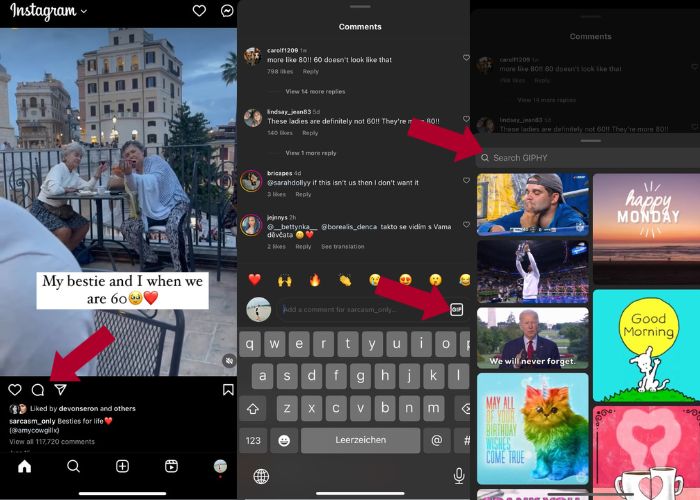
इंस्टाग्राम टिप्पणियों पर GIF कैसे पोस्ट करें:
कदम 1. अपने दोस्तों या अन्य IG यूज़र्स की न्यूज़फ़ीड पर जाएँ और उस फ़ोटो पर टैप करें जिसमें आप अपना GIF जोड़ना चाहते हैं, फिर Comment आइकन पर क्लिक करें।.
कदम 2. अगला, कमेंट बॉक्स में GIF आइकन पर टैप करें।.
कदम 3. कोई GIF खोजें या और अधिक GIF देखने के लिए नीचे स्क्रॉल करें, और जिस GIF को आपने चुना है, वह कमेंट सेक्शन में लौट आएगा; जाँच लें कि वह सफलतापूर्वक जोड़ दिया गया है।.
भाग 3. मैं इंस्टाग्राम पर GIFs पर टिप्पणी क्यों नहीं कर सकता?
यदि आप GIF का उपयोग करके अपने इंस्टाग्राम पर कोई टिप्पणी नहीं जोड़ सकते हैं, तो आप अपने ऐप को अपडेट करने का प्रयास कर सकते हैं। यदि, संयोग से, आप अभी भी जीआईएफ बटन नहीं ढूंढ पा रहे हैं, तो आपका देश उन क्षेत्रों में से एक हो सकता है जहां मेटा ने अभी तक यह नई सुविधा जारी नहीं की है। इसलिए आपको तब तक इंतजार करना होगा जब तक यह आपके देश तक न पहुंच जाए।
भाग 4. सर्वश्रेष्ठ जीआईएफ मेकर के साथ इंस्टाग्राम के लिए जीआईएफ कैसे बनाएं
अपने GIF को पर्सनलाइज़ करने के लिए, आपको अपनी MP4 फ़ॉर्मेट की वीडियो को GIF में कन्वर्ट करना होगा। आपको कई इमेजेज़ को ऐनिमेट करके भी GIF फ़ाइलें बनानी होंगी। इसके लिए Video Converter Ultimate आपकी मदद कर सकता है। यह सॉफ़्टवेयर एक संपूर्ण वीडियो एडिटिंग टूल है जो वीडियो को एडिट और कन्वर्ट करना आसान बनाता है। इसमें GIF Maker टूल है, जहाँ उपयोगकर्ता तुरंत ही अपने Instagram के लिए GIF बना सकते हैं। और Loop Animation फीचर की मदद से, आप हैरान रह जाएँगे कि यह ऐप स्थिर तस्वीरों को GIF में कैसे बदल सकता है।.
इसके अलावा, यह टूल आपके GIF को बेहतर बनाने के लिए आवश्यक संपादन टूल के साथ भी आता है - उनके कंट्रास्ट, संतृप्ति, चमक और रंग को संपादित करें। आप अपने GIF का मूड सेट करने के लिए इसके फ़िल्टर का भी उपयोग कर सकते हैं। और यदि आपके पास कोई लंबा वीडियो है, तो आप इस GIF मेकर का उपयोग करके उसे ट्रिम भी कर सकते हैं। इसके अलावा, यह सॉफ़्टवेयर आपको अपने GIF के आउटपुट स्वरूप और फ़्रेम दर को संशोधित करने देता है। और सबसे अच्छी बात यह है कि इस ऐप में शुरुआती लोगों के लिए एक सहज इंटरफ़ेस है।
और यदि आपको यह वीडियो कनवर्टर डराने वाला लगता है, तो आइए आपको दिखाते हैं कि वीडियो कनवर्टर अल्टीमेट का उपयोग करना कितना आसान है। बस नीचे दिए गए चरणों का पालन करें:
कदम 1. Video Converter Ultimate इंस्टॉल करें और लॉन्च करें
कन्वर्ज़न प्रक्रिया शुरू करने के लिए, नीचे दिए गए Free Download बटन पर क्लिक करके सॉफ़्टवेयर डाउनलोड करें और फिर उसे इंस्टॉल करें। इंस्टॉलेशन पूरा हो जाने के बाद, अपने कंप्यूटर पर प्रोग्राम लॉन्च करें, कॉन्फ़िगरेशन प्रक्रिया पूरा होने का इंतज़ार करें और शुरू करने के लिए Start Now पर क्लिक करें।.
Free DownloadWindows 7 या बाद के वर्ज़न के लिएसिक्योर डाउनलोड
Free DownloadMacOS 10.7 या बाद के वर्ज़न के लिएसिक्योर डाउनलोड
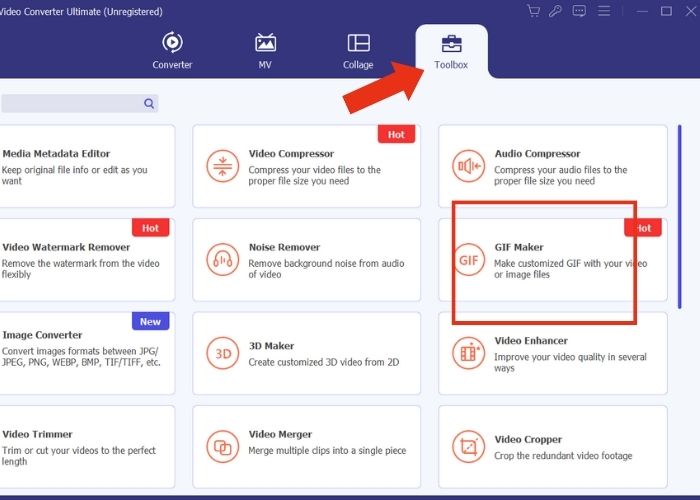
कदम 2. मीडिया अपलोड करें
ऐप के इंटरफ़ेस पर, Toolbox टैब पर जाएँ और टूलकिट को अच्छी तरह ब्राउज़ करके GIF Maker टूल खोजें। यहाँ से, यदि आप वीडियो को कन्वर्ट करना चाहते हैं तो Video to GIF पर हिट करें, या यदि आप कई इमेजेज़ को GIF में कन्वर्ट करना चाहते हैं तो Photo to GIF चुनें।.
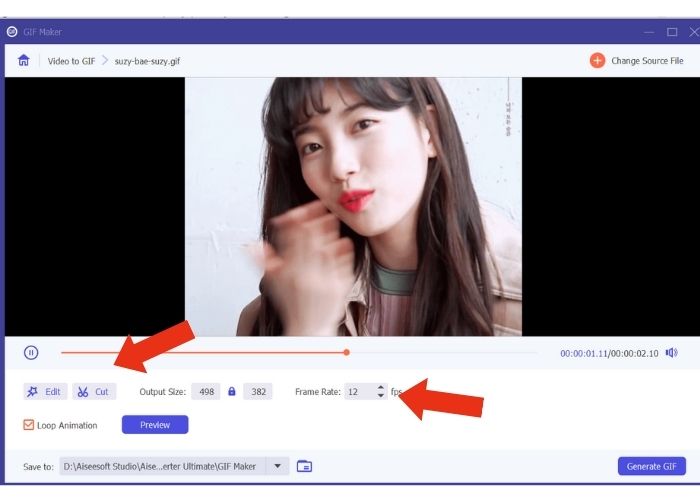
कदम 3. फ़ाइल संशोधित करें
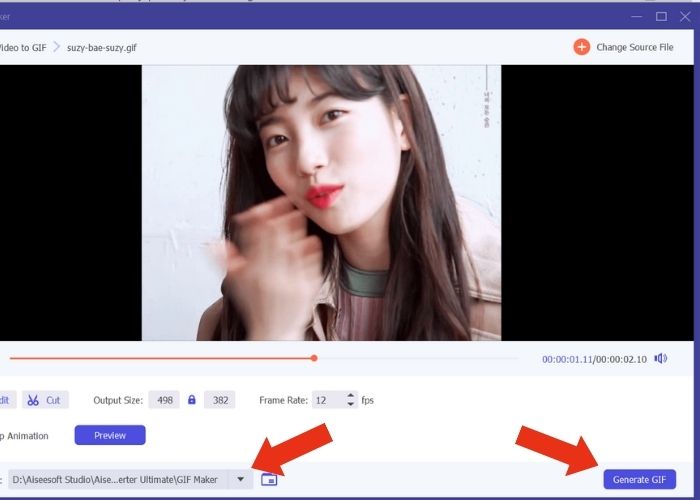
फ़ाइल जोड़ने के बाद, Output Size और Frame Rate को संशोधित कर के GIF की प्रॉपर्टी कॉन्फ़िगर करें। फिर, वीडियो के रंग की तीव्रता नियंत्रित करने या एन्हांसमेंट के लिए फ़िल्टर जोड़ने के लिए Edit पर हिट करें। अगला, कच्ची फ़ाइलों की लंबाई ट्रिम करने के लिए Cut पर क्लिक करें, क्योंकि अधिकांश GIF लगभग 6 सेकंड से अधिक नहीं होने चाहिए।.
कदम 4. आउटपुट एक्सपोर्ट करें और सेव करें
मीडिया को एक्सपोर्ट करने से पहले, वह फ़ाइल या फ़ोल्डर चुनें जहाँ आप अपना आउटपुट सेव करना चाहते हैं। फिर, Generate GIF बटन पर क्लिक करके GIF एक्सपोर्ट करें। जब तक टूल आपका GIF प्रोसेस कर रहा हो, थोड़ा इंतज़ार करें। पूरा होने पर, एक नई विंडो दिखाई देगी जहाँ आप अंतिम आउटपुट देख सकते हैं।.
भाग 5. इंस्टाग्राम कमेंट पर GIF कैसे अपलोड करें
अब जब आपके पास पहले से ही अपना GIF है, तो यह भाग आपको दिखाएगा कि GIPHY वेबसाइट पर कैसे अपलोड करें। यहां वे चरण दिए गए हैं जो आपको अवश्य करने चाहिए:
कदम 1. एक GIPHY अकाउंट बनाएँ।.
कदम 2. अपनी पहले से बनी हुई GIF इम्पोर्ट करें।.
कदम 3. टैग जोड़ें और Upload to GIPHY बटन पर क्लिक करें।.
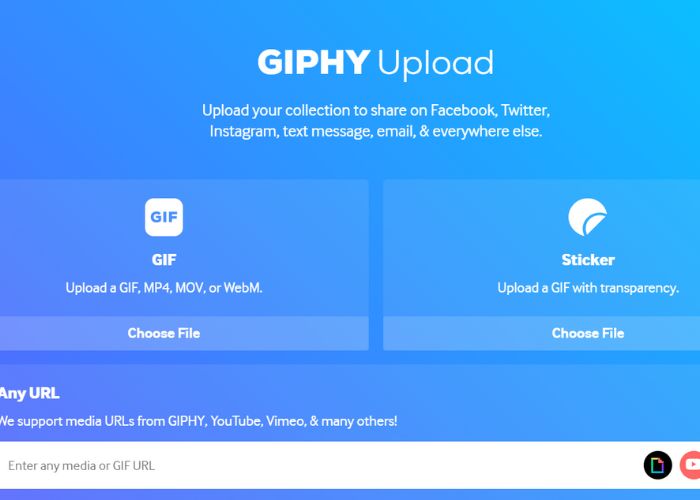
आपके GIF को आपके Instagram की GIPHY लाइब्रेरी में अपलोड होने से पहले कुछ दिनों तक प्रतीक्षा करें। यह एक परीक्षण और त्रुटि गतिविधि है, जबकि यह विधि आपके देश में काम नहीं कर सकती है।
अधिक पढ़ें:
डेस्कटॉप, iPhone या Android पर Instagram के लिए फ़ोटो का साइज़ बदलें
Windows और Mac पर सर्वश्रेष्ठ Animated GIF Looper से GIF को लूप करें
भाग 6. इंस्टाग्राम टिप्पणियों पर जीआईएफ कैसे पोस्ट करें के बारे में अक्सर पूछे जाने वाले प्रश्न
क्या आप इंस्टाग्राम प्रोफाइल पिक्चर के लिए GIF का उपयोग कर सकते हैं?
नहीं, वर्तमान में, इंस्टाग्राम पर GIF केवल उनकी स्टोरीज़, मैसेजिंग, रील्स पर कमेंट बॉक्स और न्यूज़ फ़ीड पोस्ट तक ही सीमित हैं।
क्या इंस्टाग्राम संदेशों में GIF दिखते हैं?
हाँ। GIFs इंस्टाग्राम संदेशों पर भी काम करते हैं।
क्या आप इंस्टाग्राम पर छवियों के साथ उत्तर दे सकते हैं?
मैसेजिंग के लिए, हाँ, यह हो सकता है। हालाँकि, रील्स और न्यूज़फ़ीड पर कहानियों और टिप्पणी बॉक्सों पर उत्तर देने की अभी भी अनुमति नहीं दी गई है।
आप अपने कैमरा रोल से अपनी इंस्टाग्राम स्टोरी पर GIF कैसे डालते हैं?
Instagram स्टोरी पर GIF पोस्ट करने का तरीका इस प्रकार है:
Video Converter Ultimate की मदद से अपनी वीडियो को GIF में कन्वर्ट करें और आउटपुट को कैमरा रोल में सेव करें। फिर उसे GIPHY साइट पर अपलोड करें और कुछ दिन इंतज़ार करें, जब तक कि वह लाइब्रेरी में दिखाई न देने लगे। आपने जो टैग डाला है, उसका उपयोग करके अपनी पहले से बनी GIF को खोजें।.
मैं इंस्टाग्राम पर किसी टिप्पणी का उत्तर क्यों नहीं दे सकता?
अभी के लिए, इंस्टाग्राम केवल न्यूज़फ़ीड पोस्ट और रीलों पर GIF टिप्पणी करने का समर्थन करता है। दुर्भाग्य से, यह अपने उपयोगकर्ताओं को GIF का उपयोग करके किसी टिप्पणी का उत्तर देने की अनुमति नहीं देता है।
निष्कर्ष
अब जब आपको पता चल गया है कि Instagram पोस्ट पर GIF के साथ कमेंट कैसे करें, तो आप अपने Instagram दोस्तों की न्यूज़फ़ीड और रील्स पर मज़ेदार GIF कमेंट करके और ज़्यादा जुड़ाव बना सकते हैं। आप बेहतरीन वीडियो कन्वर्टर – Video Ultimate Converter का इस्तेमाल करके खुद भी GIF बना सकते हैं। लेकिन ध्यान रखें कि GIF कमेंट्स का इस्तेमाल सीमित मात्रा में ही करें, नहीं तो आपको स्पैम के रूप में चिह्नित किया जा सकता है।.
-
 iPhone पर GIF को वीडियो के रूप में कैसे सहेजें, इस पर 5 सर्वश्रेष्ठ साइटें
 क्या मैं अपने iPhone में GIF सहेज नहीं सकता? इस पोस्ट पर बने रहें, और हम आपको iPhone में GIFs सेव करने के संभावित समाधान देंगे।
-
 [मुफ्त और भुगतान] जीआईएफ स्पीड चेंजर: 2023 के हॉट पिक्स
 क्या आप अपने द्वारा ऑनलाइन बनाए गए GIF से संतुष्ट नहीं हैं क्योंकि यह थकाऊ और धीमा है? यह आपका भाग्यशाली दिन होगा क्योंकि हम जीआईएफ स्पीड चेंजर और उन विवरणों के बारे में एक लेख प्रस्तुत करते हैं जो आपको इसका उपयोग करने और इसे मास्टर करने में मदद करते हैं।
-
 छवि और वीडियो पोस्ट करने से पहले एक Instagram फ़िल्टर कैसे जोड़ें और बनाएं
 Instagram पर फ़िल्टर क्या हैं? इसे कैसे लागू करें? एक कैसे बनाएं? इस पोस्ट में इन सवालों के सीधे-सीधे जवाब होंगे, तो इन्हें पढ़ें।
