


 वीडियो कनवर्टर अंतिम
 स्क्रीन अभिलेखी
 वीडियो मरम्मत
 सुरक्षित डाउनलोड
iPhone iMessage कीबोर्ड और अन्य GIF ऐप्स पर GIF कैसे भेजें
अब समय आ गया है कि आप दोस्तों के साथ अपनी टेक्स्ट बातचीत को मज़ेदार बनाएं और GIFs का उपयोग करके उसमें खेल-खिलंदड़ापन जोड़ें। ये प्यारी, छोटी, एनिमेटेड तस्वीरें और वीडियो चैट के दौरान लोगों के चेहरे पर मुस्कान ला सकते हैं। और चाहे आप किसी दोस्त को मैसेज कर रहे हों या किसी खास को, ये GIFs उन्हें ज़रूर मनोरंजन देंगे। और अगर आप अब तक GIFs के प्रशंसक नहीं हैं, तो यह लेख आपका विचार बदल दे और आपको सिखाए कि iPhone पर GIFs कैसे भेजें। और जानने के लिए आगे पढ़ें।.

भाग 1. iPhone iMessage ऐप पर GIF कैसे भेजें
मैसेजिंग ऐप्स के माध्यम से GIF भेजने के बहुत सारे तरीके हैं। इस भाग में, हम आपको iPhone पर GIF का उपयोग करने और भेजने के तरीके दिखाएंगे। चलो शुरू करो।
टेक्स्ट करते समय iPhone पर GIF भेजें
हम ज्यादातर GIFs सोशल मीडिया साइटों पर देखते हैं - इंस्टाग्राम और फेसबुक के कमेंट बॉक्स और मैसेंजर, वाइबर, व्हाट्सएप और अन्य मैसेजिंग ऐप से। इन ऐप्स और साइट्स की वजह से हम अक्सर टेक्स्ट मैसेजिंग के बारे में भूल जाते हैं। ऐसा हमारे द्वारा उपयोग की जाने वाली सोशल मीडिया साइटों की तुलना में इसकी सीमाओं के कारण हो सकता है।
हालाँकि, फ़ोन हाल ही में बहुत अपग्रेड हो रहे हैं, जबकि, पुराने स्कूल इमोजी से, वे अब अपने उपयोगकर्ताओं को सुंदर स्टिकर और मनोरंजक GIF भेजने दे सकते हैं। इन GIFs को कई तरीकों से भेजा जा सकता है। अधिक जानने के लिए आगे पढ़ें।
IPhone कीबोर्ड का उपयोग करके GIF भेजना
डिफ़ॉल्ट iPhone कीबोर्ड में GIF शामिल नहीं है, लेकिन आप GIF के लिए डिज़ाइन किए गए ऐप्स, जैसे #images का उपयोग करके GIF को शामिल कर सकते हैं। ये ऐप्स आपको टेक्स्ट करते समय iPhone कीबोर्ड के माध्यम से GIF भेजने की अनुमति देते हैं। यह जानने के लिए नीचे चरण दिए गए हैं:
स्टेप 1. अपनी मैसेजिंग ऐप खोलें।.
स्टेप 2. वहाँ से, GIF लाइब्रेरी खोलने के लिए लाल मैग्निफ़ाइंग ग्लास आइकन पर टैप करें।.
स्टेप 3. उसमें ब्राउज़ करें और जिस GIF को भेजना चाहते हैं, उस पर टैप करें।.
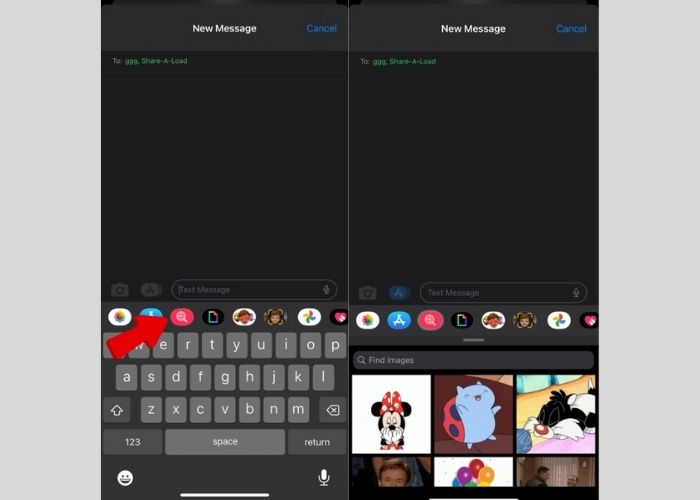
संदेश ऐप में iPhone पर GIF भेजने के लिए GIPHY का उपयोग करना
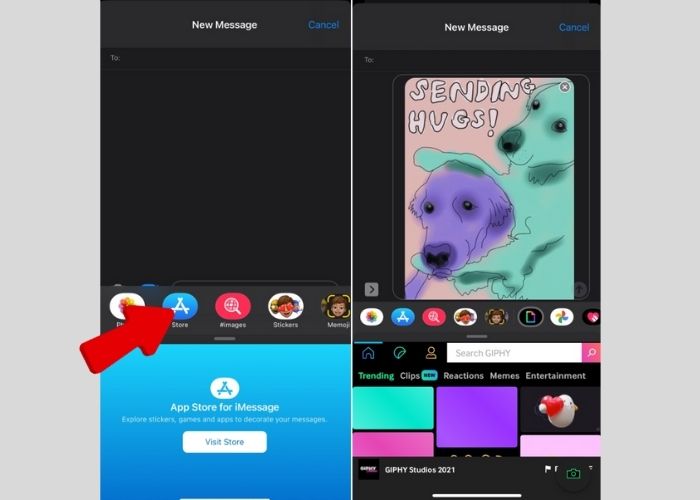
iPhones में अंतर्निहित GIF संग्रहण नहीं होता है; हालाँकि, यह GIPHY नामक लोकप्रिय GIF साइटों द्वारा संचालित है। यह साइट छवियों को एनिमेट करके उन्हें मज़ेदार और मनोरंजक GIF में बदलने के लिए जानी जाती है। उपयोगकर्ता इसे मज़ेदार और मनोरंजक बनाने के लिए वीडियो को काट-छांट कर बार-बार या लूप पर भी अपलोड कर सकते हैं। उस अर्थ में, यह भाग आपको GIPHY के साथ GIF भेजने में मदद करेगा:
स्टेप 1. मैसेजिंग ऐप पर जाएँ और एक नया मैसेज खोलें।.
स्टेप 2. फिर, App Store पर क्लिक करें और GIPHY डाउनलोड करें।.
स्टेप 3. इसके बाद, वापस मैसेजिंग में जाएँ, टूलबार पर स्वाइप करें और GIPHY खोलें।.
स्टेप 4. वहाँ से, जिस GIF को चाहते हैं उस पर क्लिक करें, टेक्स्ट जोड़ें और Send पर टैप करें।.
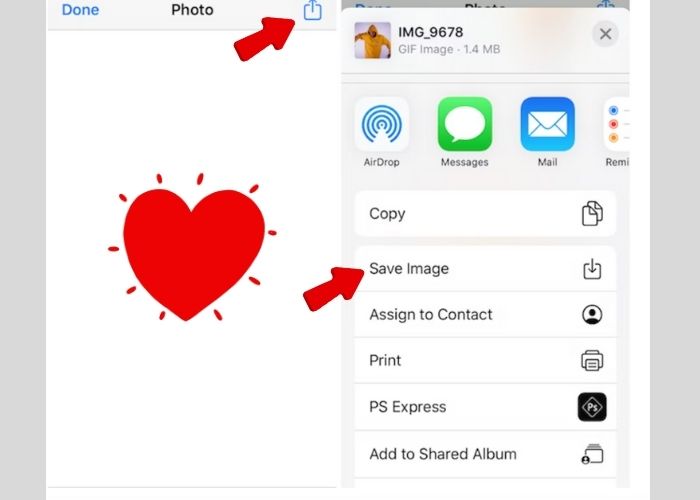
संदेशों में GIF कैसे सहेजें
यदि आपको कोई मनोरंजक GIF भेजा गया है, तो उसे अपने फोन पर सहेजने में संकोच न करें। हां, आप इसे सेव करके अपने दोस्तों को भेज सकते हैं और इससे उनका मनोरंजन भी कर सकते हैं। ऐसे:
स्टेप 1. मैसेजिंग ऐप में वह बातचीत खोलें जिसमें वह GIF हो जिसे आप सेव करना चाहते हैं।.
स्टेप 2. स्वाइप करके वह GIF ढूँढें जिसे आप सेव करना चाहते हैं।.
स्टेप 3. उस पर ज़ोर से (हार्ड) टैप करें जब तक एक पॉप‑अप विंडो न खुल जाए, और Save चुनें।.
सेव करने के बाद iPhone पर GIFs कहाँ संग्रहीत होती हैं?
अपने फ़ोन पर सबसे मज़ेदार GIF सहेजने के बाद, आप इसे अपने कैमरा रोल या फ़ोटो ऐप पर पा सकते हैं। इसे चलाने के लिए बस इसे टैप करें। आप इसका उपयोग भी कर सकते हैं और इसे अपने संपर्कों को भेज भी सकते हैं।
भाग 2. सर्वश्रेष्ठ ऑनलाइन वीडियो कनवर्टर के साथ iPhone के लिए GIF बनाएं
क्या आपके पास अपना कोई वीडियो है जिसे आप GIF में बदलना चाहते हैं? अब FVC Free Video Converter Online की मदद से अपने GIFs को पर्सनलाइज़ करना संभव है। यह उपयोगकर्ता‑अनुकूल कनवर्टर आपको किसी भी वीडियो फ़ॉर्मेट को दूसरे फ़ॉर्मेट में, जैसे MP4 को GIF में, सिर्फ तीन आसान चरणों में बदलने देता है। यह 30 गुना तेज़ कन्वर्ज़न स्पीड का दावा करता है और साथ ही उच्च‑गुणवत्ता वाला आउटपुट भी सुनिश्चित करता है। अगर आपको FLV, TS, MOV, WMV या MKV जैसे वीडियो फ़ॉर्मेट को किसी और फ़ॉर्मेट में कन्वर्ट करना हो, तो यह ऐप आपके लिए बिल्कुल सही है। आप वीडियो को MP3 में कन्वर्ट करके उनसे ऑडियो भी निकाल सकते हैं।.
इसके अलावा, FLV ऑनलाइन वीडियो कनवर्टर आपको उच्च गुणवत्ता वाले परिवर्तित मीडिया को सुनिश्चित करने के लिए अपने वीडियो या ऑडियो की सेटिंग्स को समायोजित करने में सक्षम बनाता है। यह यूट्यूब और फेसबुक जैसी लोकप्रिय वीडियो-स्ट्रीमिंग साइटों के वीडियो प्रारूपों का भी समर्थन करता है, जिससे जब आप इन प्लेटफार्मों पर अपलोड करते हैं तो दोषरहित वीडियो आउटपुट सुनिश्चित होता है। विशेष रूप से प्रभावशाली बात यह है कि यह साइट कष्टप्रद विज्ञापनों और पॉप-अप से मुक्त है, जो एक सहज वीडियो रूपांतरण अनुभव प्रदान करती है। इसके अलावा, आप वॉटरमार्क के बारे में चिंता किए बिना इस सेवा का मुफ्त में आनंद ले सकते हैं जो आपके वीडियो की गुणवत्ता को प्रभावित कर सकता है। हाँ, आप वॉटरमार्क-मुक्त रूपांतरित GIF का आनंद ले सकते हैं।
प्रक्रिया में आपका मार्गदर्शन करने के लिए, नीचे वे चरण दिए गए हैं जिनका आपको पालन करना होगा:
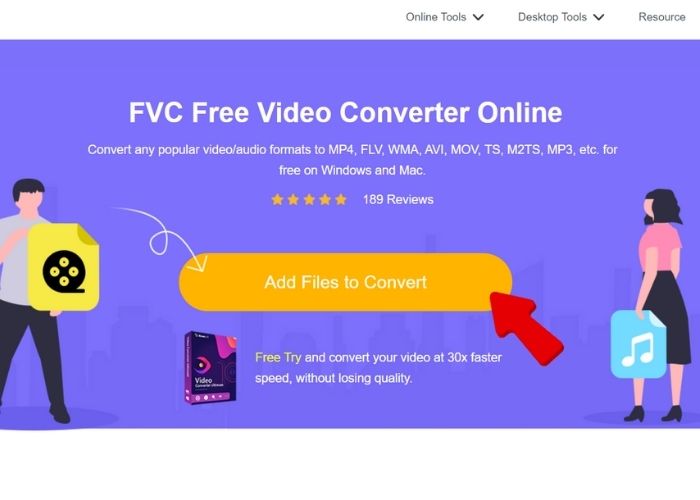
स्टेप 1. FVC Free Video Converter इंस्टॉल और लॉन्च करें
सबसे पहले, FVC Studio Free Video Converter की वेबसाइट पर जाएँ। फिर, मुख्य इंटरफ़ेस पर Add Files to Convert बटन पर क्लिक करके वह वीडियो अपलोड करें जिसे आप GIF में बदलना चाहते हैं। उसके बाद, फ़ाइल एक्सप्लोरर बॉक्स से वह वीडियो फ़ाइल चुनें जिसे आप GIF बनाना चाहते हैं और इंपोर्ट होने की प्रक्रिया पूरी होने का इंतज़ार करें।.
स्टेप 2. फ़ॉर्मेट बदलें
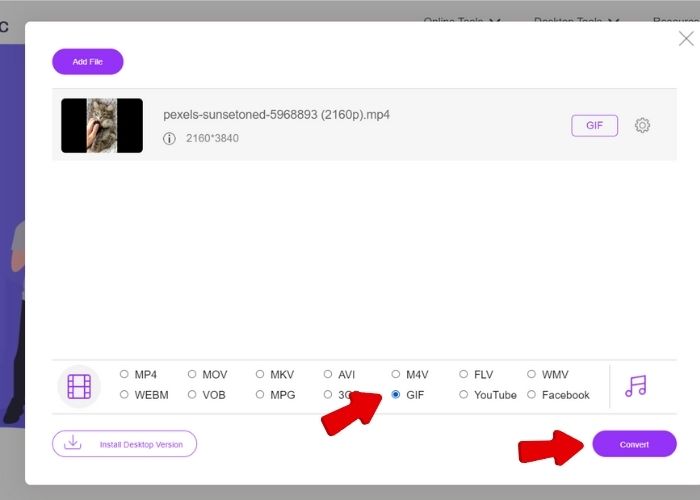
फ़ाइल अपलोड होने के बाद, उपलब्ध वीडियो फ़ॉर्मेट विकल्पों में से GIF चुनकर फ़ॉर्मेट बदलें और अपने वीडियो को GIF में बदलने के लिए Convert पर क्लिक करें। जैसे‑जैसे वीडियो प्रोसेस होगा, इंतज़ार करें, और आउटपुट अपने‑आप आपके पसंदीदा फ़ोल्डर में सेव हो जाएगा।.
स्टेप 3. आउटपुट चलाएँ
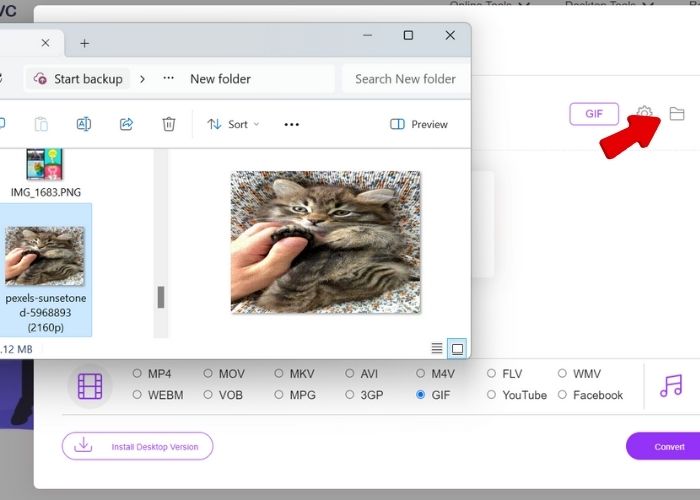
अपना परिवर्तित GIF चलाने के लिए, उस फ़ोल्डर पर जाएँ जहाँ आपने अपना परिवर्तित वीडियो सहेजा है। जीआईएफ देखें और अपने नए रूपांतरित जीआईएफ को चलाने के लिए डबल-क्लिक करें।
भाग 3. iPhone पर GIF भेजने में समस्या का निवारण
GIFs iPhones पर काम क्यों नहीं कर रहे हैं?
यदि आप इस बात से निराश हैं कि जीआईएफ आपके फोन पर काम क्यों नहीं कर रहा है, तो आप नीचे दिए गए कारणों की जांच कर सकते हैं, साथ में सहायक समाधानों की भी जांच कर सकते हैं जिन्हें आप आजमा सकते हैं:
इंटरनेट कनेक्शन. GIF भेजने और चलाने के लिए इंटरनेट की ज़रूरत होती है। इसलिए, अगर आप किसी को GIF नहीं भेज पा रहे हैं, तो जाँचें कि आपका WiFi कनेक्शन या मोबाइल डेटा सही से काम कर रहा है या नहीं।.
iMessage रीसेट करें और iPhone रीस्टार्ट करें. अगर पहले दो तरीकों के बाद भी आप GIFs का उपयोग नहीं कर पा रहे हैं, तो Settings > पर जाकर iMessage को ऑफ और फिर ऑन करके अपनी iMessage ऐप को रीसेट करने की कोशिश करें। उसके बाद अपना डिवाइस रीस्टार्ट करें और जाँचें कि क्या अब आप GIF भेज पा रहे हैं।.
MMS सेटिंग्स जाँचें. ऐसा करने के लिए, अपने iPhone की “Settings” में जाएँ और फिर “Messages” पर जाएँ। नीचे स्क्रॉल करें और अगर MMS सेटिंग्स ऑफ हैं तो उन्हें ऑन कर दें। इससे समस्या हल हो जानी चाहिए और आप GIFs भेज सकेंगे।.
मैं GIFs नहीं देख सकता; मै क्या करू?
iMessage प्रतिबंध. आप यह जाँच सकते हैं कि कहीं आपने गलती से मीडिया या वेब कंटेंट पर प्रतिबंध तो नहीं लगा दिया है। अगर ऐसा है, तो Settings > Screen Time > Content & Privacy Restrictions में जाकर इसे बदल सकते हैं।.
iOS 16 GIFs क्यों नहीं खोल सकता?
iOS अपडेट्स. जैसे अन्य ऐप्स को अपडेट करने पर होता है, कभी‑कभी नया अपडेट किया गया सॉफ़्टवेयर कुछ बग्स के साथ आता है जिन्हें ठीक करने की ज़रूरत होती है। ऐसे में बेहतर है कि आप अगले अपडेट का इंतज़ार करें। आपको iMessage से संबंधित ऐप्स को भी अपडेट करने पर विचार करना चाहिए।.
अपने iPhone को फ़ैक्टरी रीसेट करें. एक और तरीका यह है कि आप अपने डिवाइस को हार्ड रीसेट करें और बाद में सारी ऐप्स दोबारा इंस्टॉल करें। हालाँकि, ऐसा करते समय सावधानी बरतें, क्योंकि इससे आपके डिवाइस पर मौजूद सारा कंटेंट डिलीट हो जाएगा।.
यदि आप उपरोक्त सब कुछ करने के बाद भी अपने iPhone पर GIFs भेज और उपयोग नहीं कर सकते हैं, तो आपके देश में GIFs भेजना और प्राप्त करना प्रतिबंधित है। या फिर ये आपके iPhone मॉडल की वजह से भी हो सकता है.
अग्रिम पठन:
iPhone पर GIF को वीडियो के रूप में सेव करने के लिए 5 बेहतरीन साइटें
Instagram पर GIF के साथ कमेंट कैसे करें [स्टेप‑बाय‑स्टेप गाइड]
भाग 4. iPhone का उपयोग करके GIF भेजने के बारे में अक्सर पूछे जाने वाले प्रश्न
क्या मैं iPhone कीबोर्ड में GIF जोड़ सकता हूँ?
नहीं, डिफ़ॉल्ट रूप से, iPhones में अभी तक यह सुविधा नहीं है। हालाँकि, आप iPhone पर GIF का उपयोग करने का आनंद लेने के लिए इसके बजाय ऐप स्टोर पर डाउनलोड किए जा सकने वाले तृतीय-पक्ष कीबोर्ड का उपयोग कर सकते हैं।
iPhone व्हाट्सएप पर GIF कहाँ हैं?
यह चैटबॉक्स पर है. iMessage के विपरीत, जिसके लिए एक अन्य GIF-संबंधित ऐप की आवश्यकता होती है, WhatsApp की अपनी GIF लाइब्रेरी है। अपने संपर्कों को भेजने के लिए कागज़ जैसे आइकन पर क्लिक करें और GIF पर टैप करें।
मैं अपने iPhone कीबोर्ड पर GIF कैसे सक्षम करूं?
जैसा कि ऊपर बताया गया है, iPhone के कीबोर्ड में GIFs नहीं हैं, लेकिन आप GIFs के लिए समर्पित ऐप्स, जैसे #images और GIPHY को एकीकृत कर सकते हैं। आप इन्हें ऐप स्टोर पर डाउनलोड कर सकते हैं, और ये स्वचालित रूप से आपके iPhone कीबोर्ड के ऊपर टूलबार में जुड़ जाएंगे।
GIPHY काम क्यों नहीं कर रहा है?
फिर से, GIPHY आपके डिवाइस के अपडेट और अनुकूलता के आधार पर इंटरनेट द्वारा संचालित है। यह देखने के लिए अपने कनेक्शन और सॉफ़्टवेयर की जाँच करें कि क्या यह GIPHY का समर्थन करता है।
निष्कर्ष
iMessage पर GIFs कैसे भेजें सीखने से आपकी टेक्स्ट मैसेजिंग निश्चित रूप से अगले स्तर पर पहुँच जाएगी। यह लेख आपको हर बातचीत में थोड़ा चमक जोड़ने में मदद करता है। आशा है कि ये तरीके और समाधान आपको GIFs के साथ खेलने में मदद करेंगे ताकि आप अपने iPhone iMessage पर मनोरंजक बातचीत कर सकें।.
-
 शानदार अनुभव के लिए शीर्ष GIF कन्वर्टर्स का उपयोग करें
 इस आलेख में शीर्ष GIF कन्वर्टर्स खोजें। आसानी से वीडियो को GIF में बदलें और एनिमेशन के साथ अपनी सामग्री को उन्नत बनाएं।
-
 2025 में iPhone के लिए शीर्ष 6 अद्भुत GIF ऐप्स (समीक्षाएँ)
 यह पोस्ट आपको iPhone और कंप्यूटर के लिए सर्वश्रेष्ठ GIF क्रिएटर ऐप्स के बारे में बताएगी। उन्हें जांचें और जानें कि वे क्या पेशकश करते हैं।
-
 शीर्ष पायदान के 3डी जीआईएफ मेकर प्रोग्राम जिन्हें आप मिस नहीं करना चाहेंगे
 आपके द्वारा देखे जाने वाले प्रत्येक 3D GIF मेकर एप्लिकेशन को ढूंढना और उसका मूल्यांकन करना समय लेने वाला हो सकता है। सौभाग्य से, हमने एक सूची संकलित की है जिसे आप पढ़ सकते हैं।
