


 वीडियो कनवर्टर अंतिम
 स्क्रीन अभिलेखी
 वीडियो मरम्मत
 सुरक्षित डाउनलोड
Google डिस्क और विकल्पों पर HEIC को JPG में बदलना सीखें
HEIC, Apple का नया फ़ाइल स्वरूप है। यह नया छवि प्रारूप आपके चित्रों को आपके डिवाइस पर सहेजने का एक बेहतर तरीका है। इसके अलावा, HEIC आपकी छवि की उच्च गुणवत्ता बनाए रखते हुए उसे छोटा बनाता है। साथ ही, बहुत से लोग HEIC प्रारूप को पसंद करते हैं क्योंकि वे लाइव फ़ोटो के लिए एक उत्कृष्ट छवि प्रारूप हैं। हालाँकि, HEIC Apple उपकरणों द्वारा समर्थित है; इसलिए, यह कई प्लेटफार्मों पर संगत नहीं है। इसलिए, यदि आप एचईआईसी फाइलों का उपयोग करना चाहते हैं या एचईआईसी को अन्य प्लेटफॉर्म पर अपलोड करना चाहते हैं जो विंडोज का समर्थन करता है, तो आपको इसे जेपीजी फ़ाइल प्रारूप में परिवर्तित करना होगा, जो कई प्लेटफॉर्म और वेबसाइट्स का समर्थन करते हैं।
और क्या आप जानते हैं? Google Drive ने HEIC फ़ॉर्मेट को सपोर्ट करना शुरू कर दिया है ताकि iOS डिवाइस इस क्लाउड सर्विस का उपयोग करके अपनी फ़ाइलों का बैकअप ले सकें। और अगर आप यह पूछ रहे हैं कि क्या आप Google Drive पर HEIC को JPG में कनवर्ट कर सकते हैं, तो जवाब जानने के लिए नीचे पढ़ें।.

भाग 1। गूगल ड्राइव पर बिना नुकसान के एचईआईसी को जेपीजी में कैसे बदलें
Google डिस्क संभवतः सबसे अधिक ज्ञात क्लाउड संग्रहण सेवा उपलब्ध है। इस प्रोग्राम का उपयोग करके, आप किसी भी इमेज या वीडियो को स्टोर और पुनः प्राप्त कर सकते हैं जिसे आप अपलोड करना चाहते हैं। साथ ही, कई Apple डिवाइस उपयोगकर्ता अपने चित्रों या वीडियो को संग्रहीत करने के लिए Google ड्राइव का उपयोग करना पसंद करते हैं। इसके अलावा, यह प्रोग्राम आपके डिवाइस पर वह स्थान खाली कर सकता है जो एक बड़े फ़ाइल आकार में व्याप्त है। हालाँकि, Google ड्राइव छवियों या वीडियो को परिवर्तित नहीं कर सकता है। इसलिए, यदि आपने अपने ड्राइव पर एक HEIC फाइल अपलोड की है, तो आप इसे JPG फाइल फॉर्मेट में नहीं बदल सकते।
लेकिन इस भाग में, हम आपको अपनी HEIC इमेज को Google ड्राइव पर JPG में अपलोड करने की एक विधि दिखाएंगे। ध्यान दें कि यह केवल Google ड्राइव वेब संस्करण पर उपलब्ध है, ऐप संस्करण पर नहीं।
HEIC को JPG के रूप में डाउनलोड करके Google ड्राइव पर HEIC को JPG में कैसे बदलें:
चरण 1. शुरू करने के लिए, फोटोज़ ऐप पर जाएँ और वह HEIC फ़ाइल चुनें जिसे आप कनवर्ट करना चाहते हैं। फिर, शेयर आइकन पर टैप करें और Google Drive विकल्प चुनें।.
चरण 2. अपने iPhone डिवाइस को नेटवर्क से कनेक्ट करें ताकि फ़ोटो आपके अकाउंट में चली जाएँ।.
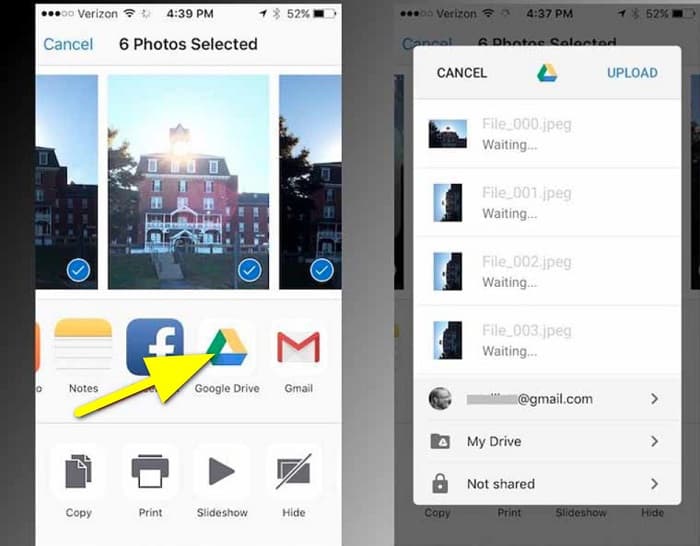
चरण 3. अगला, एक कंप्यूटर खोलें, ब्राउज़र खोलें और सर्च बॉक्स में Google Drive खोजें। उस अकाउंट से साइन इन करें जिसका उपयोग आपने अपनी HEIC इमेज का बैकअप लेने के लिए किया था।.
चरण 4. फिर, Google Drive पर HEIC इमेज पर क्लिक करें और उसे फुल रेज़ॉल्यूशन में खोलें। इसके बाद, फोटो पर राइट-क्लिक करें और Save image as पर क्लिक करें।.
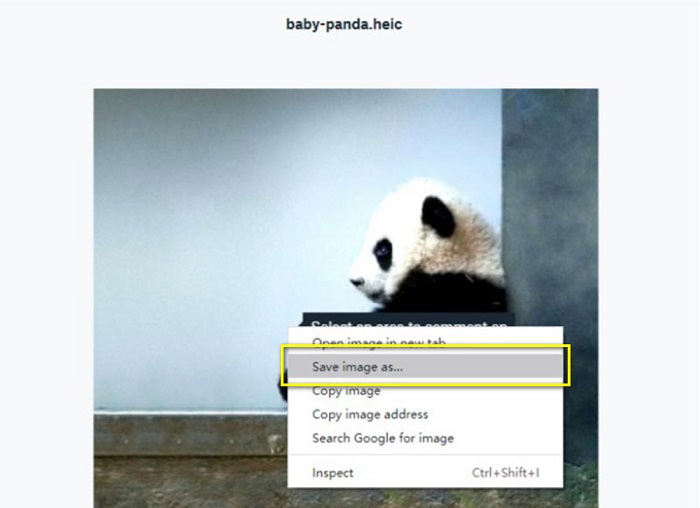
चरण 5. पॉप-अप मेन्यू पर, वह फ़ोल्डर चुनें जहाँ आप अपनी इमेज सेव करना चाहते हैं। फ़ाइल एक्सटेंशन को .jpg पर सेट करें, फिर बदलावों को सेव करने के लिए Save बटन पर क्लिक करें।.
भाग 2। Google ड्राइव वैकल्पिक पर HEIC को JPG में कैसे बदलें
चूंकि Google ड्राइव में छवियों या वीडियो को परिवर्तित करने की सुविधा नहीं है, इसलिए हम उसे खोजते हैं जिसका उपयोग आप अपनी HEIC छवियों को परिवर्तित करने के लिए कर सकते हैं। हालाँकि, कई रूपांतरण उपकरण बाजार में उपलब्ध हैं, सभी HEIC प्रारूप का समर्थन नहीं करते हैं। इसलिए, हमने HEIC छवि प्रारूपों का समर्थन करने वाले सबसे अद्भुत कनवर्टर के लिए वेब पर खोज की। इसके अलावा, हम HEIC को JPG में दोषरहित रूपांतरित करने के लिए इस छवि परिवर्तक का उपयोग करने पर चर्चा करेंगे।
JVC कनवर्टर करने के लिए FVC मुक्त HEIC
FVC Free HEIC to JPG Converter एक ऑनलाइन HEIC कनवर्टर है जिसे आप सभी वेब ब्राउज़र पर एक्सेस कर सकते हैं, जैसे Google, Internet Explorer और Safari। यह ऑनलाइन एप्लिकेशन HEIC से JPG कनवर्ज़न प्रक्रिया को सपोर्ट करता है, जिसे कई एप्लिकेशन सपोर्ट नहीं करते। इसके अलावा, आप अपने HEIC को JPG में कनवर्ट करते समय EXIF डेटा, जैसे डाइमेंशन, फ़ॉर्मेट, साइज, कैप्चर दिनांक/समय, एक्सपोज़र आदि, को बनाए रख सकते हैं। यह प्रोग्राम आपको गुणवत्ता खोए बिना HEIC इमेज कनवर्ट करने की अनुमति देता है। साथ ही, यह AI कनवर्ज़न मेथड का उपयोग करता है जो इमेज को स्वतः ही लॉसलेस तरीके से कनवर्ट करता है। इसके अलावा, इस ऑनलाइन टूल का एक फायदा यह है कि आप एक साथ दो या अधिक इमेज को बैच में कनवर्ट कर सकते हैं।.
FVC मुफ़्त HEIC से JPG कन्वर्टर के लिए आपको इसका उपयोग करने के लिए साइन-अप, सदस्यता लेने या तृतीय-पक्ष प्लग-इन का उपयोग करने की आवश्यकता नहीं है। और आपको अपने डेटा की सुरक्षा के बारे में चिंतित होने की आवश्यकता नहीं है क्योंकि यह 100% उपयोग करने के लिए सुरक्षित है। एफवीसी फ्री एचईआईसी को जेपीजी कन्वर्टर का उपयोग करके एचईआईसी को जेपीजी में बदलने का तरीका जानने के लिए नीचे दिए गए आसान चरणों को पढ़ें।
Google ड्राइव विकल्प पर HEIC को JPG में कैसे बदलें:
चरण 1. सबसे पहले, अपना वेब ब्राउज़र खोलें और सर्च बॉक्स में FVC Free HEIC to JPG Converter सर्च करें।.
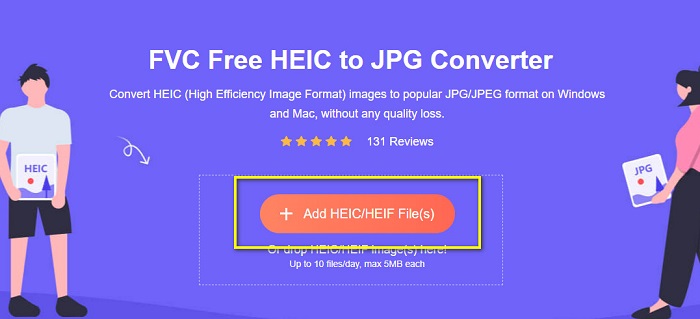
चरण 2. इसके बाद, उपयोग करने से पहले ऐप को लॉन्च करें। फिर, उसी इंटरफ़ेस पर Add HEIC/HEIF Files बटन पर क्लिक करें ताकि वह HEIC इमेज जोड़ सकें जिसे आप कनवर्ट करना चाहते हैं।.
चरण 3. FVC Free HEIC to JPG Converter आपके HEIC फ़ाइल अपलोड करने के बाद स्वतः ही आपकी इमेज को कनवर्ट कर देगा। आप इंटरफ़ेस के नीचे Finished आइकन देखेंगे।
चरण 4. अंत में, Download बटन पर क्लिक करके अपनी कनवर्ट की हुई इमेज डाउनलोड करें। फिर, अपने कंप्यूटर फ़ाइलों में अपना आउटपुट ढूँढें।.
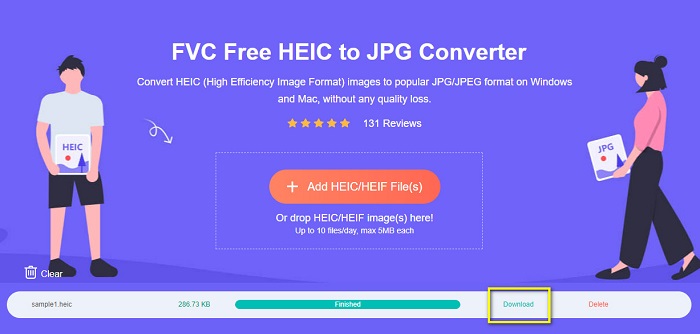
यह जितना आसान है, आप अपने कंप्यूटर पर अपने HEIC को JPG में आसानी से बदल सकते हैं।
ऐसीसॉफ्ट एचईआईसी कन्वर्टर
Aiseesoft HEIC Converter एक फ्री-टू-डाउनलोड एप्लिकेशन है जिसे आप उपयोग कर सकते हैं यदि आप सबसे अच्छा HEIC कनवर्टर खोज रहे हैं। इसके अलावा, यह प्रोग्राम आपको अपनी इमेज का EXIF डेटा बनाए रखते हुए HEIC को JPG में कनवर्ट करने की अनुमति देता है। यदि आप इसका साइज कम करना चाहते हैं तो आप अपनी इमेज की क्वालिटी भी बदल सकते हैं। साथ ही, यह बैच कनवर्ज़न प्रक्रिया को सपोर्ट करता है, जिससे आप दो या अधिक HEIC फ़ाइलों को एक साथ कनवर्ट कर सकते हैं। साथ ही, आप इसे Windows, Mac और Linux जैसे सभी मीडिया प्लेटफॉर्म पर फ्री में डाउनलोड कर सकते हैं।.
Aiseesoft HEIC कन्वर्टर एक उपयोगकर्ता के अनुकूल उपकरण है क्योंकि इसमें एक सहज उपयोगकर्ता इंटरफ़ेस है। इसके अलावा, यह HEIC, JPG और PNG जैसे मानक फ़ाइल स्वरूपों का समर्थन करता है। हालाँकि, इससे पहले कि आप इसकी अन्य सुविधाओं का उपयोग कर सकें, आपको पहले ऐप को खरीदना होगा।
Aiseesoft HEIC कन्वर्टर का उपयोग करके HEIC को JPG में कैसे बदलें:
चरण 1. अपने कंप्यूटर पर Aiseesoft HEIC Converter डाउनलोड करें। ऐप इंस्टॉल करने के बाद, इसे अपने डिवाइस पर रन करें।.
चरण 2. मुख्य इंटरफ़ेस पर Add HEIC बटन पर क्लिक करके वह HEIC इमेज इम्पोर्ट करें जिसे आप कनवर्ट करना चाहते हैं।.
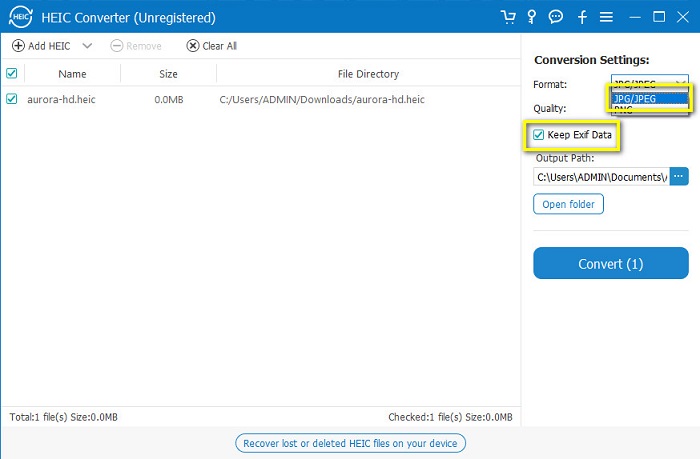
चरण 3. फिर, Format विकल्प पर अपने आउटपुट फ़ॉर्मेट के रूप में JPG/JPEG चुनें। Keep EXIF Data के बगल वाले बॉक्स पर टिक करना न भूलें।.
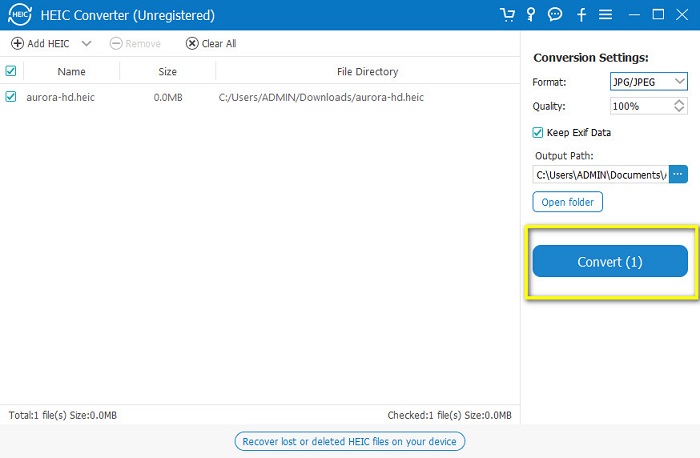
चरण 4. अंत में, अपने HEIC को JPG में कनवर्ट करना शुरू करने के लिए Convert बटन पर क्लिक करें। अपने कनवर्ज़न के पूरा होने की प्रतीक्षा करें, और बस! आपकी HEIC इमेज अब JPG इमेज बन गई है।.
भाग 3। Google ड्राइव पर HEIC को JPG में बदलने के बारे में अक्सर पूछे जाने वाले प्रश्न
Google डिस्क पर HEIC छवियों का प्रबंधन कैसे करें?
आप Google Photos के माध्यम से Google Drive पर अपनी HEIC इमेज को मैनेज कर सकते हैं। चूँकि Google ने Google Photos पर AI तकनीक को पेश किया है, अब आप अपनी फ़ोटो को व्यक्ति, श्रेणी या विषय के आधार पर मैनेज कर सकते हैं।.
मेरे फ़ोटो Google डिस्क पर HEIC के रूप में क्यों अपलोड किए जाते हैं?
Google डिस्क आपकी अपलोड की गई फ़ाइलों को HEIC के रूप में सहेजता है क्योंकि आपका ब्राउज़र केवल आपके कंप्यूटर पर आपकी छवि की पूर्वावलोकन प्रति सहेजता है.
क्या एचईआईसी जेपीजी प्रारूप से बेहतर है?
संपीड़न और छवि गुणवत्ता के संबंध में, HEIC JPG प्रारूपों से बेहतर है। HEIC आपको पारदर्शिता और व्यापक गतिशीलता के साथ अपनी छवि की गुणवत्ता बढ़ाने की अनुमति देता है।
निष्कर्ष
अब जब आपको पता चल गया है कि आप Google Drive ऐप पर HEIC को JPG में कनवर्ट नहीं कर सकते, तो आप वह तरीका अपना सकते हैं जिसमें आप वेब Google Drive पर अपनी HEIC इमेज को JPG के रूप में सेव करते हैं। हालाँकि, आप एक समय में केवल एक ही इमेज प्रोसेस कर सकते हैं और आपको ब्राउज़र पर काम करना होगा। इसलिए, हम FVC Free HEIC to JPG Converter का उपयोग करने की सलाह देते हैं, जो फ्री और उपयोग में आसान है।.
-
 2022 पर शीर्ष 4 बेहतर तरीकों का उपयोग करके HEIC को PDF में बदलें
 सर्वश्रेष्ठ एचईआईसी से पीडीएफ कनवर्टर के बारे में अधिक जानकारी जानने के लिए आप इस 2022 को डाउनलोड कर सकते हैं। आप इस लेख को पढ़ सकते हैं क्योंकि हमने उन पर एक समीक्षा प्रदान की है।
-
 सर्वश्रेष्ठ HEIC से JPG कन्वर्टर्स में से 5 इस 2022 को चुनता है
 HEIC से JPC कनवर्टर के साथ आप आसानी से छवि प्रारूप को पोर्टेबल JPG में बदल सकते हैं। जानना चाहते हैं कि ये 5 उपकरण क्या हैं? इस लेख को पढ़ें।
-
 बेस्ट फ्री और पेड HEIC कन्वर्टर आपको जरूर पता होना चाहिए [अपडेट किया गया 2022]
 क्या आप जानना चाहते हैं कि HEIC कनवर्टर क्या है? यदि ऐसा है, तो हम शीर्ष 5 निःशुल्क और सशुल्क HEIC कन्वर्टर्स शामिल करते हैं जिनका उपयोग आप HEIC प्रारूप को बदलने के लिए कर सकते हैं।
