


 वीडियो कनवर्टर अंतिम
 स्क्रीन अभिलेखी
 वीडियो मरम्मत
 सुरक्षित डाउनलोड
प्रिंटिंग के लिए पिक्चर को बड़ा करने के सबसे बेहतरीन तरीके
किसी तस्वीर को बड़ा दो तरीकों से किया जा सकता है। आप अपनी फोटो को अपस्केल करके यानी इमेज के पिक्सेल बढ़ाकर बड़ा कर सकते हैं। तस्वीर को बड़ा करने का एक दूसरा तरीका है फोटो के वास्तविक आकार या आयाम (डाइमेंशन) को बदलना। और इस गाइडपोस्ट में हम आपको फोटो बड़ा करने के ये दोनों तरीके दिखाएँगे। अपनी ज़रूरतों के अनुसार आप निश्चित रूप से अपने सवालों के जवाब जान पाएँगे। यह गाइडपोस्ट पढ़ें और जानें कि प्रिंट के लिए, ऑनलाइन और ऑफलाइन, इमेज को कैसे बड़ा करें।.

भाग 1. मुद्रण के लिए ऑनलाइन गुणवत्ता खोए बिना छवि बढ़ाएँ
जब आप पहली बार किसी छवि की गुणवत्ता बढ़ाने के बारे में सुनते हैं तो यह जटिल लगता है। लेकिन, इस पोस्ट को पढ़ने के बाद आपके लिए यह आसान जरूर हो जाएगा। ऐसे कई एप्लिकेशन हैं जो आपकी तस्वीर को बड़ा करने में आपकी मदद कर सकते हैं। लेकिन समस्या यह है कि इतने सारे हैं कि किसी एक को चुनना मुश्किल है। सौभाग्य से, हमें एक ऐसा एप्लिकेशन मिला है जो किसी छवि को आसानी से और मुफ्त में बड़ा करने में आपकी मदद कर सकता है।
FVC Free Image Upscaler एक बेहतरीन ऑनलाइन फोटो बड़ाने वाला ऐप्लिकेशन है, जिसे आप इंटरनेट पर इस्तेमाल कर सकते हैं। ऑनलाइन ऐप्लिकेशन की अच्छी बात यह है कि आपको इन्हें डाउनलोड नहीं करना पड़ता, जिससे आपके डिवाइस की स्टोरेज बचती है। आप इस ऑनलाइन टूल का इस्तेमाल करके अपनी तस्वीर को 2x, 4x, 6x या 8x तक बढ़ा सकते हैं। इसके अलावा, यह एआई तकनीक आधारित अपस्केलिंग प्रक्रिया का उपयोग करता है, जो अपने‑आप इमेज के कम‑क्वालिटी वाले हिस्सों को पहचानकर उन्हें बेहतर बनाता है।.
इसके अलावा, नौसिखिए आसानी से इस एप्लिकेशन का उपयोग कर सकते हैं क्योंकि इसमें एक सहज उपयोगकर्ता इंटरफ़ेस है। इसके अलावा, इसका एक पूर्वावलोकन प्रभाव है जो आपको इसे सहेजने से पहले अपने आउटपुट के परिणामों की जांच करने में सक्षम बनाता है। FVC फ्री इमेज अपस्केलर गूगल, फायरफॉक्स और सफारी जैसे सभी वेब ब्राउजर्स पर इस्तेमाल के लिए फ्री है।
एफवीसी फ्री इमेज अपस्केलर का उपयोग करके प्रिंटिंग के लिए तस्वीर को कैसे बड़ा करें
स्टेप 1. अपने वेब ब्राउज़र में जाएँ और सर्च बॉक्स में FVC Free Image Upscaler टाइप करें। आप सीधे मुख्य पेज पर जाने के लिए इस लिंक पर भी क्लिक कर सकते हैं।.
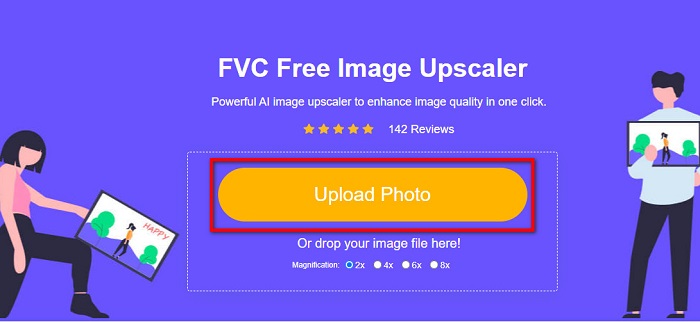
स्टेप 2. मुख्य यूज़र इंटरफेस पर, वह इमेज जोड़ने के लिए जिसे आप बड़ा करना चाहते हैं, Upload Photo बटन पर क्लिक करें। आप अपनी इमेज अपलोड करने के लिए ड्रैग‑ड्रॉप करने की प्रक्रिया भी इस्तेमाल कर सकते हैं।.
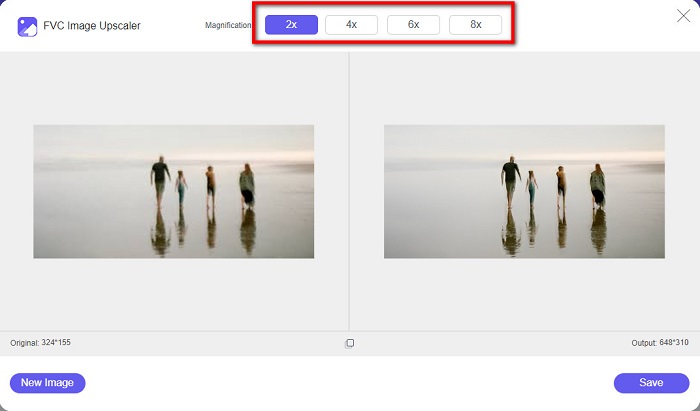
स्टेप 3. फ़ाइल अपलोड हो जाने के बाद, आप दूसरे इंटरफेस पर पहुँच जाएँगे। अब अपनी इमेज के लिए मनचाहा मैग्निफिकेशन चुनें। आप 2x, 4x, 6x और 8x में से चुन सकते हैं। आपकी इमेज की क्वालिटी जितनी कम होगी, आपको उतना ही ज़्यादा मैग्निफिकेशन चुनना चाहिए।.
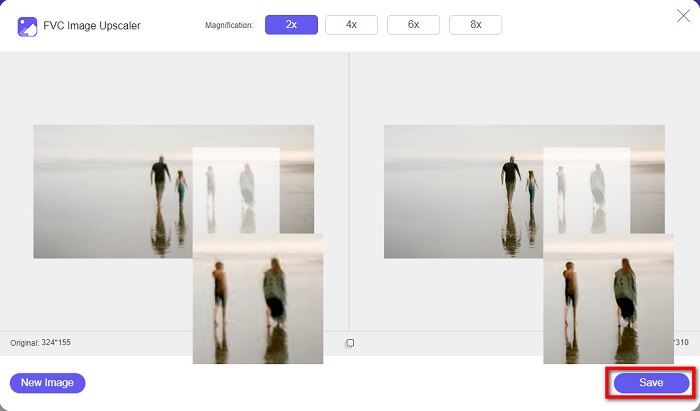
स्टेप 4. बाईं तरफ वाली इमेज पर कर्सर ले जाकर अपने बढ़ाए हुए चित्र का नतीजा देखें। बदलाव नज़र आ रहे हैं? अपना आउटपुट डिवाइस में सेव करने के लिए इंटरफेस के निचले दाएँ कोने पर स्थित Save बटन पर क्लिक करें।.
और FVC फ्री इमेज अपस्केलर का उपयोग करके ऑनलाइन प्रिंट करने के लिए तस्वीर को बड़ा करने के आसान उपाय हैं। पाई के रूप में आसान, है ना? लेकिन अगर आप अपनी छवि के आयामों को बदलकर किसी फोटो को बड़ा करना चाहते हैं, तो अगला भाग पढ़ें।
भाग 2। गुणवत्ता खोए बिना फ़ोटोशॉप में एक छवि कैसे बढ़ाई जाए
फ़ोटो को बड़ा करने का तरीका खोजते समय आपको शायद इस एप्लिकेशन का सामना करना पड़ा होगा। और Adobe Photoshop इंटरनेट पर सबसे प्रसिद्ध फोटो एडिटिंग एप्लिकेशन है। Adobe Photoshop का उपयोग मुख्य रूप से उन पेशेवरों द्वारा किया जाता है जो अक्सर छवियों को विभिन्न प्लेटफार्मों पर प्रकाशित करने के लिए संपादित करते हैं। इस एप्लिकेशन के टूल और विशेषताओं के साथ, आप निश्चित रूप से अद्भुत आउटपुट उत्पन्न कर सकते हैं। लेकिन क्या आप जानते हैं कि आप एडोब फोटोशॉप से इमेज को बड़ा भी कर सकते हैं। हां, आपने उसे सही पढ़ा है। गुणवत्ता खोए बिना चित्रों का विस्तार करने के लिए भी यह एक उपयुक्त उपकरण है। एडोब फोटोशॉप के साथ, आप रिज़ॉल्यूशन को बदलकर या अपनी छवि की चौड़ाई और ऊंचाई को मैन्युअल रूप से इनपुट करके अपनी छवि को बड़ा कर सकते हैं। हालाँकि Adobe Photoshop एक प्रो ऐप है, लेकिन इसके विस्तार की सुविधा का उपयोग करना सरल है। आगे की हलचल के बिना, ये फ़ोटोशॉप का उपयोग करके दोषरहित छवि को बड़ा करने के चरण हैं।
स्टेप 1. सबसे पहले अपने कंप्यूटर पर Adobe Photoshop डाउनलोड करें। यह लगभग सभी ऑपरेटिंग सिस्टम जैसे Windows और macOS पर उपलब्ध है। ऐप्लिकेशन इंस्टॉल हो जाने के बाद, वह इमेज इंपोर्ट करें जिसे आप बड़ा करना चाहते हैं।.
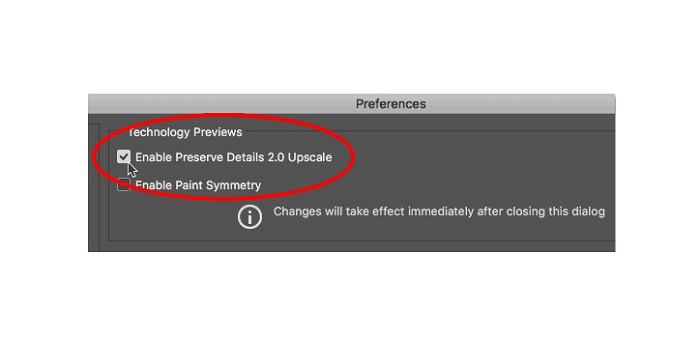
स्टेप 2. इसके बाद Preserve Details 2.0 को सक्षम करें। अगर आप Windows कंप्यूटर इस्तेमाल कर रहे हैं, तो Menu Bar में Edit पैनल पर जाएँ। यदि आप Mac डिवाइस इस्तेमाल कर रहे हैं, तो Photoshop CC मेनू में जाएँ, Preferences चुनें और Technology Previews बटन पर क्लिक करें। इससे Technology Previews विकल्प वाला Preferences डायलॉग बॉक्स खुलेगा। Enable Preserve Details 2.0 Upscale के सामने वाले बॉक्स पर टिक लगाएँ। फिर डायलॉग बॉक्स बंद करने के लिए OK पर क्लिक करें और Technology Previews से बाहर आ जाएँ।.
स्टेप 3. अब Image मेनू में जाकर Image Size विकल्प चुनकर Image Size डायलॉग बॉक्स खोलें।.
स्टेप 4. जब हम Photoshop में इमेज को बड़ा या अपस्केल करते हैं, तो हम इमेज के भौतिक आयामों को समायोजित करना चाहते हैं, यानी पिक्सेल जोड़ना या हटाना चाहते हैं। इसलिए, यह सुनिश्चित करें कि Resample विकल्प चुना हुआ हो।.
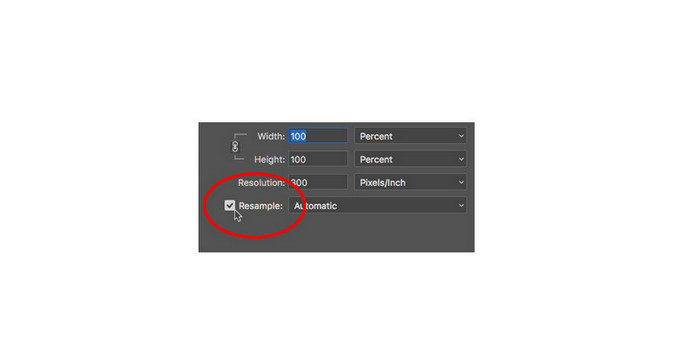
स्टेप 5. इसके बाद, अपनी फोटो की height और width बदलें; इसके लिए इमेज के लिए अपनी पसंद के डाइमेंशन दर्ज करें। डिफ़ॉल्ट मोड में चौड़ाई और ऊँचाई (width और height) आपस में लिंक होती हैं, इसलिए यदि आप इमेज की चौड़ाई बदलते हैं, तो ऊँचाई अपने‑आप उसी के अनुसार बदल जाएगी।.
स्टेप 6. और अंत में, Resample Method को Preserve Details 2.0 में बदलें। डिफ़ॉल्ट Resample Method, Automatic पर सेट होती है। लेकिन जब Resample Automatic पर हो, तो Photoshop इसे अपने‑आप नहीं चुनता। इसलिए, Resample को बदलने के लिए Automatic पर क्लिक करें और फिर Preserve Details 2.0 चुनें।.
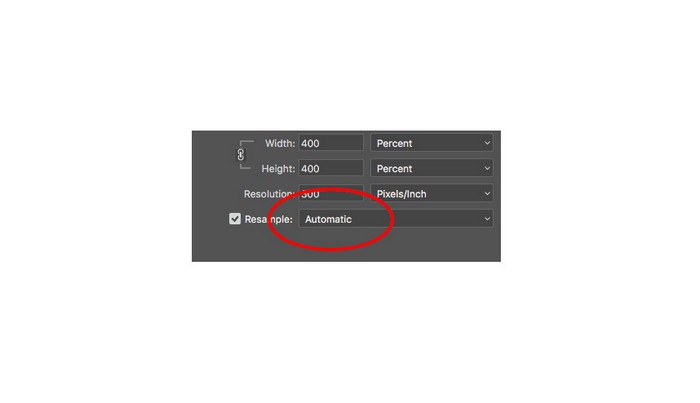
स्टेप 7. अब नतीजों का प्रीव्यू देखने का समय है। Preserve Details 2.0 चुनने के बाद, बाएँ तरफ का प्रीव्यू टैब अपडेट होगा और आपको दिखाएगा कि आपकी अपस्केल की हुई इमेज कैसी दिखेगी। इमेज के अलग‑अलग हिस्से देखने के लिए प्रीव्यू विंडो के अंदर अपने माउस से इमेज को ड्रैग करें।.
इन चरणों का पालन करके, आप निश्चित रूप से सीखेंगे कि गुणवत्ता खोए बिना प्रिंटिंग के लिए चित्र को कैसे बड़ा किया जाए।
संबंधित:
शीर्ष 7 सर्वश्रेष्ठ ऑनलाइन और ऑफलाइन फोटो एनलार्जर्स
शीर्ष 4 ऑफलाइन और ऑनलाइन GIF Enlarger जिन्हें आप मिस नहीं कर सकते
भाग 3। गुणवत्ता खोए बिना छवि को कैसे बढ़ाया जाए, इसके बारे में अक्सर पूछे जाने वाले प्रश्न
क्या मैं जेपीजी फ़ाइल का आकार ऑनलाइन बढ़ा सकता हूँ?
आप अपने JPG इमेज की फ़ाइल साइज को FVC Free Image Upscaler का उपयोग करके बदल सकते हैं। बस 6x या 8x मैग्निफिकेशन चुनें, ताकि आपके JPG इमेज का आकार बड़ा हो जाए।.
क्या एडोब फोटोशॉप पीएनजी फाइलों का समर्थन करता है?
हाँ। PNG फाइलें Adobe Photoshop सहित कई प्लेटफार्मों द्वारा समर्थित हैं। आप PNG, JPG, JPEG, BMP, और WebP जैसे Adobe Photoshop के साथ लगभग सभी छवि फ़ाइल स्वरूपों को आयात कर सकते हैं।
क्या मेरी छवि को बड़ा करने से इसका फ़ाइल आकार प्रभावित होता है?
हाँ ऐसा होता है। आपकी छवि का फ़ाइल आकार बढ़ जाता है क्योंकि आप अपनी छवि के पिक्सेल की कुल संख्या या प्रत्येक इंच में पिक्सेल की संख्या को समायोजित कर रहे हैं। लेकिन जब आप अपनी छवि की चौड़ाई और ऊंचाई कम करेंगे तो फ़ाइल का आकार भी छोटा होगा।
निष्कर्ष
और ये हैं वे तरीके जिनसे आप गुणवत्ता खोए बिना इमेज को बड़ा कर सकते हैं। चाहे ऑनलाइन तरीका चुनें या ऑफलाइन, आप अपनी इमेज को उसकी क्वालिटी से समझौता किए बिना बड़ा कर सकते हैं। लेकिन अगर आप तस्वीर को बड़ा करने का आसान तरीका चाहते हैं, तो हम FVC Free Image Upscaler का इस्तेमाल करने की सलाह देते हैं, जो एक यूज़र‑फ्रेंडली ऐप्लिकेशन है।.
-
 2 अलग-अलग तरीकों से इलस्ट्रेटर में इमेज का आकार कैसे बदलें
 इलस्ट्रेटर में छवि का आकार बदलने के सर्वोत्तम तरीके जानें। शुरू करने के लिए, अपने पीसी पर एडोब इलस्ट्रेटर ऐप डाउनलोड करें और खोलें, और इन सरल चरणों का पालन करें।
-
 वेब और ऑफलाइन पर इमेज को रीसाइज करने के 6 तरीके [100% वर्किंग]
 हमारे द्वारा यहां जोड़े गए ट्यूटोरियल के साथ, अब आप आसानी से अपने पसंदीदा आकार के आधार पर एक छवि का आकार बदल सकते हैं। इसे यहां करना सीखें!
-
 अपने iPhone पर मुफ्त और बिना किसी इंस्टॉलेशन के फोटो का आकार बदलने के सर्वोत्तम तरीके
 अपने iPhone पर किसी फ़ोटो का आकार बदलना सीखना मुश्किल हो सकता है। सौभाग्य से, यह आलेख चित्रों के आयाम को आसानी से बदलने के तरीके पर एक ट्यूटोरियल प्रदान करता है।
