


 वीडियो कनवर्टर अंतिम
 स्क्रीन अभिलेखी
 वीडियो मरम्मत
 सुरक्षित डाउनलोड
इन आसान तरीक़ों से तस्वीर को साफ़ करना सीखें
जब आप कोई तस्वीर कैप्चर करते हैं और वह धुंधली निकलती है, तो उसे एक दोष माना जाता है। और धुंधली तस्वीर होना बहुत असंतोषजनक लगता है। लेकिन सौभाग्य से, आजकल ढेरों ऐसे ऐप्लिकेशन मौजूद हैं जो आपकी तस्वीर को शार्प और अनब्लर करने में मदद कर सकते हैं। Adobe Photoshop प्रसिद्ध फोटो एडिटिंग ऐप्लिकेशन में से एक है, लेकिन यह शुरुआती लोगों के लिए अनुकूल नहीं है। इसलिए, हम आपको कुछ आसान तरीके बताएँगे जिनसे आप अपनी धुंधली तस्वीर की गुणवत्ता बेहतरीन बना सकते हैं। नीचे दिया गया लेख पढ़ें और आसान चरणों के साथ जानें कि तस्वीर को अधिक साफ कैसे बनाएं।.

भाग 1. ऑनलाइन तस्वीर को कैसे साफ़ करें
एआई तकनीक के उपयोग के साथ, अब कई ऑनलाइन इमेज अपस्केलर हैं जो आपकी छवि को स्वचालित रूप से तेज कर सकते हैं। अपने चित्र को स्पष्ट बनाने के लिए ऑनलाइन ऐप्स का उपयोग करना सुविधाजनक है क्योंकि आपको अपने डिवाइस पर कुछ भी डाउनलोड करने की आवश्यकता नहीं है। यह आपके डिवाइस पर संग्रहण स्थान भी बचाएगा क्योंकि आप इसे अपने ब्राउज़र पर एक्सेस कर सकते हैं।
यदि आप अपनी तस्वीर को शार्प या अधिक साफ बनाना चाहते हैं, तो FVC Free Image Upscaler सबसे प्रसिद्ध ऑनलाइन ऐप्लिकेशन में से एक है। इस टूल का उपयोग करना आसान है क्योंकि इसका यूज़र इंटरफेस बहुत सीधा‑सादा है। इसके अलावा, आप अपनी तस्वीर की गुणवत्ता को 2x, 4x, 6x और 8x तक बढ़ा सकते हैं। साथ ही, FVC Free Image Upscaler एआई (Artificial Intelligence) तकनीक का उपयोग करता है, जो आपकी तस्वीर के धुंधले हिस्सों को अपने‑आप पहचानकर उन्हें बेहतर करता है। इसके ज़रिए आप खोए हुए पिक्सेल, रंग के टेक्सचर और अन्य बारीक विवरणों को सटीक रूप से ठीक कर सकते हैं।.
इसके अलावा, यह पीएनजी, जेपीजी, जेपीईजी और वेबपी जैसे कई छवि प्रारूपों का समर्थन करता है। और इस ऑनलाइन टूल की सबसे अच्छी बात यह है कि इसे एक्सेस करने के लिए आपको किसी खाते की आवश्यकता नहीं है। यह उपयोग करने के लिए स्वतंत्र और उपयोग करने के लिए सुरक्षित भी है। और इसके बावजूद यह एक ऑनलाइन ऐप है, इसमें कोई भी परेशान करने वाले विज्ञापन नहीं हैं जो आपको विचलित कर सकते हैं, और यह उपयोग करने में तेज और कुशल है। इसलिए, यदि आप एक सुविधाजनक टूल की तलाश कर रहे हैं, तो FVC फ्री इमेज अपस्केलर सबसे अच्छा टूल है।
एफवीसी फ्री इमेज अपस्केलर का उपयोग करके तस्वीर को ऑनलाइन कैसे स्पष्ट करें:
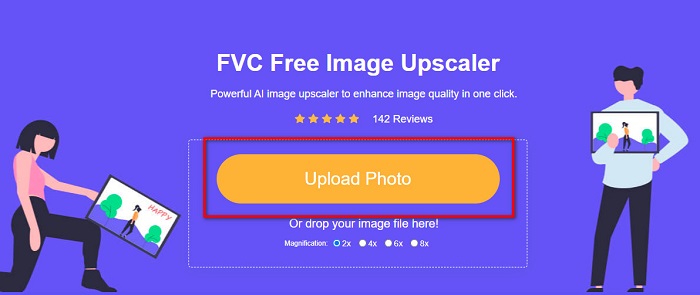
चरण 1. अपने कंप्यूटर पर ब्राउज़र खोलें और सर्च बॉक्स में FVC Free Image Upscaler खोजें। या आप दिए गए लिंक पर क्लिक करके सीधे ऐप के मुख्य पेज पर जा सकते हैं। ऐप शुरू करने के लिए Upload Photo बटन पर क्लिक करें।.
चरण 2.0 ऐप लॉन्च करने के बाद, जिस तस्वीर को आप अपस्केल/शार्प करना चाहते हैं, उसे जोड़ने के लिए फिर से Upload Photo पर क्लिक करें। आपके कंप्यूटर की फाइलें खुलेंगी, जहाँ से आप अपनी तस्वीर चुनकर ओपन कर सकते हैं।.
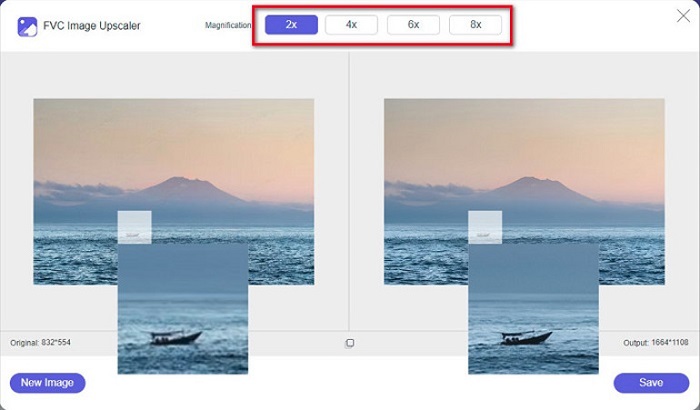
चरण 3. इसके बाद, अपनी पसंद के magnification प्रीसेट का चयन करें। जितना अधिक magnification होगा, आपकी तस्वीर उतनी ही ज़्यादा शार्प हो जाएगी। लेकिन ध्यान रखें कि गुणवत्ता बढ़ने के साथ‑साथ फाइल का आकार भी बढ़ेगा। आप 2x, 4x, 6x और 8x में से कोई भी magnification चुन सकते हैं।
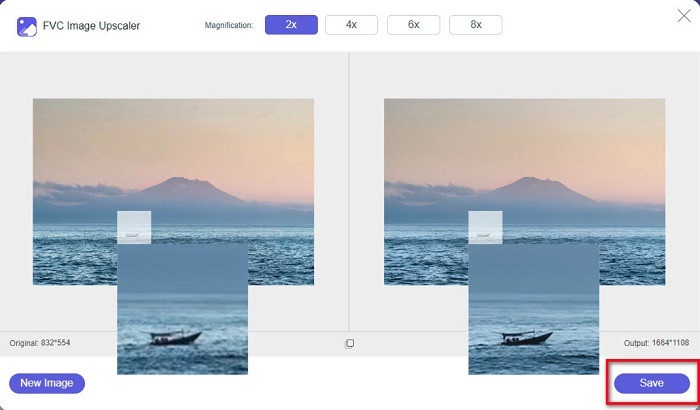
चरण 4. इंटरफेस के दाहिनी ओर आपको परिणाम दिखाई देंगे। और यदि आप अपने आउटपुट से संतुष्ट हैं, तो अपनी तस्वीर को डिवाइस पर सेव करने के लिए Save बटन पर क्लिक करें।.
बस अपनी इमेज के सेव होने का इंतज़ार करें, और वॉइला! अब आप अपनी अद्भुत तस्वीर दोस्तों के साथ या अन्य सोशल मीडिया प्लेटफॉर्म पर साझा कर सकते हैं।
भाग 2. कैसे एक तस्वीर स्पष्ट ऑफ़लाइन बनाने के लिए
जब आप अपनी छवि को तेज या संपादित करना चाहते हैं तो ऑफ़लाइन एप्लिकेशन का उपयोग करना भी अच्छा होता है। कई फोटो संपादन एप्लिकेशन ऑफ़लाइन हैं; उपयोग करने से पहले आपको उन्हें खरीदना होगा। लेकिन चिन्ता न करो; इस भाग में, हम एक निःशुल्क ऑफ़लाइन टूल प्रदान करेंगे जिसका उपयोग आप अपने डेस्कटॉप पर कर सकते हैं।
Paint.net सबसे ज़्यादा इस्तेमाल किए जाने वाले, मुफ्त और सुरक्षित फोटो एडिटिंग ऐप्लिकेशन में से एक है। यह ऑफ़लाइन टूल Adobe Photoshop की तुलना में अधिक आसान यूज़र इंटरफेस प्रदान करता है, जिसे अक्सर प्रोफ़ेशनल्स उपयोग करते हैं। भले ही इसका इंटरफेस साधारण है, यह फिर भी बेहतरीन परिणाम दे सकता है और आपकी धुंधली तस्वीर को शार्प करने में सक्षम है। इसके अलावा, इसमें अन्य एडिटिंग फीचर्स भी हैं जिनकी मदद से आप अपनी तस्वीर को और बेहतर बना सकते हैं। Paint.net के ज़रिए आप अपनी तस्वीर को शार्प कर सकते हैं, रंगों को सुधार सकते हैं और बैकग्राउंड जोड़ सकते हैं।.
इसके अलावा, स्लाइडर को घुमाकर, आप अपनी छवि की तीक्ष्णता चुन सकते हैं और इसके धुंधले हिस्सों को हटा सकते हैं। हालाँकि, यह केवल Windows उपकरणों पर उपलब्ध है। फिर भी, यदि आप इसे तेज करते हुए छवि को बड़ा बनाना चाहते हैं, तो आप पेंटनेट का उपयोग कर सकते हैं।
पेंट.नेट का उपयोग करके चित्र को बड़ा और स्पष्ट कैसे करें:
चरण 1. सबसे पहले, Paint.net को अपने डेस्कटॉप पर डाउनलोड और इंस्टॉल करें, और इंस्टॉलेशन पूरा होने के बाद इसे खोलें। फिर, File > Open पर क्लिक करके अपनी तस्वीर अपलोड करें।.
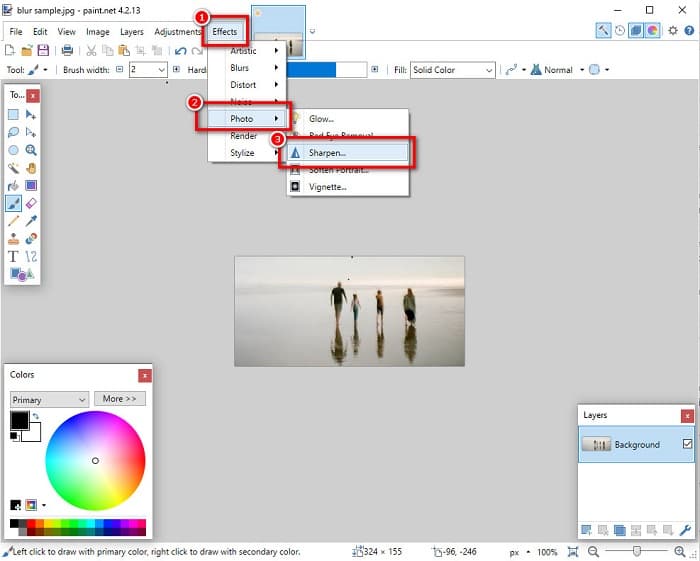
चरण 2. फिर, Effects > Photo > Sharpen पर जाएँ। एक नया टैब खुलेगा जहाँ आप अपनी तस्वीर की शार्पनेस को एडजस्ट करके उसे डिब्लर कर सकते हैं।.
चरण 3. Sharpen टैब में, अपनी पसंद की शार्पनेस चुनने के लिए स्लाइडर हेड को घुमाएँ। आप अपनी तस्वीर की शार्पनेस की मात्रा को संख्यात्मक रूप से चुनने के लिए up/down arrow पर भी क्लिक कर सकते हैं।.
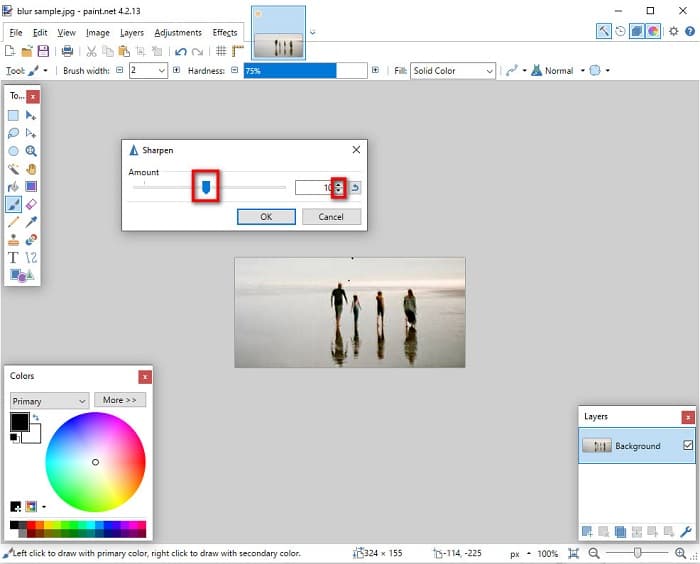
चरण 4. अंत में, OK बटन पर क्लिक करें और अपना आउटपुट डेस्कटॉप पर सेव करने के लिए File > Save पर जाएँ।.
भाग 3। कैसे अपने iPhone पर एक तस्वीर स्पष्ट बनाने के लिए
और यदि आपने अपने iPhone का उपयोग करके एक धुंधली छवि कैप्चर की है, तो आप अपने iPhone डिवाइस के लिए डिब्लरिंग ऐप का भी उपयोग कर सकते हैं। कई इमेज एडिटिंग ऐप्स जिन्हें आप ऐपस्टोर से डाउनलोड कर सकते हैं, आपकी इमेज को धुंधला करने में आपकी मदद कर सकते हैं। हालाँकि, सभी ऐप्स उपयोग करने के लिए स्वतंत्र नहीं हैं; उपयोग करने से पहले आपको उन्हें खरीदना होगा। सौभाग्य से, हमें एक डिब्लरिंग इमेज ऐप मिला जो ऐपस्टोर से उपयोग करने के लिए स्वतंत्र है। अपने iPhone डिवाइस पर तस्वीर को स्पष्ट कैसे करें, यह जानने के लिए इस अनुभाग को पूरी तरह से पढ़ें।
यदि आप यह सोच रहे हैं कि कौन‑सा मुफ्त फोटो एडिटिंग ऐप आपकी धुंधली तस्वीर को साफ कर सकता है, तो VSCO वही ऐप है जिसकी आपको तलाश है। VSCO एक प्रसिद्ध फोटो एडिटिंग ऐप्लिकेशन है, जिसे AppStore से डाउनलोड किया जा सकता है। इसके अलावा, जब आप VSCO की मदद से तस्वीर को अनब्लर करते हैं, तो कुछ सेटिंग्स पर विशेष ध्यान देना होता है। VSCO में तस्वीर को अनब्लर करने के लिए आपको अपनी इमेज की clarity, sharpness, contrast और exposure को एडजस्ट करना होगा। VSCO में अन्य एडिटिंग टूल भी हैं, जिनसे आप अपनी तस्वीरों को एडिट कर सकते हैं। साथ ही, यह iPhone के आम इमेज फॉर्मैट, जैसे HEIC और HEIF को सपोर्ट करता है। इस ऐप की एक छोटी कमी यह है कि यह केवल कुछ ही इमेज फॉर्मैट्स को सपोर्ट करता है और इसके अन्य एडिटिंग फीचर्स का उपयोग करने के लिए आपको इसे खरीदना पड़ता है।.
VSCO का उपयोग करके iPhone पर तस्वीर को कैसे स्पष्ट करें:
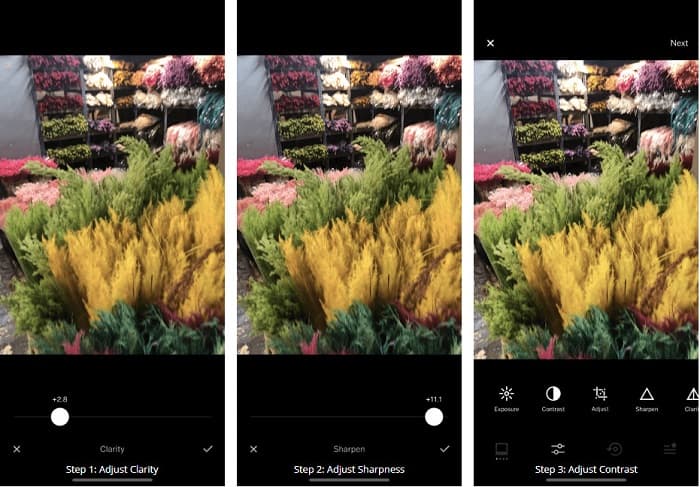
चरण 1. AppStore से VSCO इंस्टॉल करें, फिर अपने iPhone पर ऐप खोलें।.
चरण 2. अपनी तस्वीर खोलें, फिर Clarity पर जाएँ। Clarity विकल्प आपकी तस्वीर से बड़े पैमाने पर मौजूद नॉइज़ को हटाने में मदद करेगा। इंटरफेस के नीचे दिए गए Clarity स्लाइडर को हल्का‑सा सरकाएँ।.
चरण 3. अगला कदम आपकी तस्वीर की शार्पनेस को एडजस्ट करना है। Sharpen फ़ंक्शन आपकी तस्वीर में मनचाही crispiness हासिल करने में मदद करेगा। फिर, slider को हिलाकर आप तस्वीर के लिए चाही गई शार्पनेस चुन सकते हैं।.
चरण 4. जब आप अपनी तस्वीर की clarity और sharpness एडिट कर लें, तो अब Contrast को एडजस्ट करें। अपनी पसंद की रोशनी और गहराई चुनने के लिए Contrast विकल्प और Contrast slider को मूव करें।.
चरण 5. अंत में, अब हम आपकी तस्वीर की Exposure को थोड़ा बढ़ाएँगे ताकि इमेज कुछ‑कुछ उजली हो जाए। तस्वीर की Exposure बढ़ाने से आप Contrast के साथ गहराई को बैलेंस कर पाएँगे। बस इतना ही! इन सेटिंग्स को एडजस्ट करके आप अपनी धुंधली तस्वीर को अनब्लर कर सकते हैं। यह जानने के लिए यहाँ क्लिक करें कि iPhone पर तस्वीर का आकार कैसे बदलें।.
भाग 4. अपने Android पर तस्वीर को और अधिक स्पष्ट कैसे करें
Android पर ऐसे ऐप्स भी हैं जिनका उपयोग आप चित्र को स्पष्ट बनाने के लिए कर सकते हैं। इसलिए, यदि आप अपनी गैलरी में एक धुंधली तस्वीर सहेजना चाहते हैं, तो यह ऐप आपकी छवि को बढ़ाने में आपकी मदद कर सकता है। अपने Android डिवाइस पर छवि को धुंधला करने का तरीका जानने के लिए इस भाग को पढ़ें।
Remini ऐप (Android के लिए) शायद उन सबसे अच्छे फोटो एडिटिंग ऐप्स में से एक है, जिन्हें आप अपने Android डिवाइस पर इस्तेमाल कर सकते हैं। यह ऐप आपको अपनी तस्वीरों को एडिट करने और यहाँ तक कि धुंधली तस्वीर को साफ करने की सुविधा देता है। इसके अलावा, इसका उपयोग करना आसान है और यह मुफ्त है। Enhance विकल्प का उपयोग करके आप अपनी तस्वीर को अधिक साफ बना सकते हैं। हालाँकि, इस ऐप का उपयोग करने से पहले आपको एक अकाउंट बनाना होगा। और इसके Pro वर्ज़न में आप इस ऐप की उन्नत अनब्लरिंग सुविधाओं का उपयोग कर सकते हैं।.
Android के लिए Remini का उपयोग करके छवि को कैसे धुंधला करें:
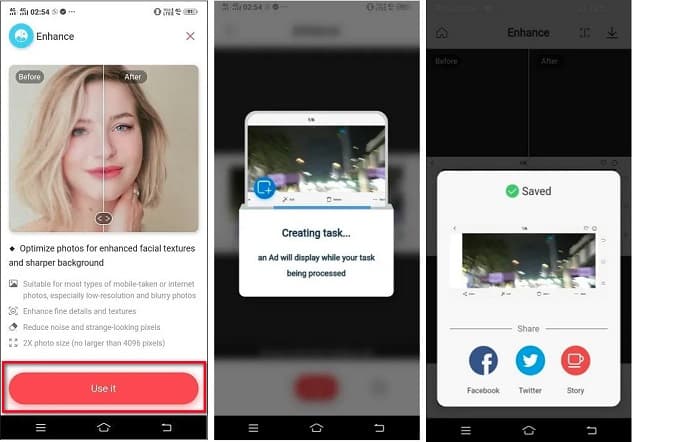
चरण 1. अपने Android डिवाइस पर Remini इंस्टॉल करें। ऐप इंस्टॉल होने के बाद, उसे तुरंत खोलें। ऐप के मुख्य यूज़र इंटरफेस पर, अपनी तस्वीर को अनब्लर करने की प्रक्रिया शुरू करने के लिए Use it बटन पर टैप करें।.
चरण 2. इसके बाद, तस्वीर चुनें और इंटरफेस के निचले हिस्से में स्थित red button पर क्लिक करें। यह एक task बनाएगा और प्रोसेसिंग के दौरान एक विज्ञापन दिखाएगा।.
चरण 3. इसके बाद, अंतिम आउटपुट दिखाई देगा, जहाँ आप अपनी तस्वीर के पहले और बाद के परिणाम की तुलना कर सकते हैं। और यदि आप अपने आउटपुट से संतुष्ट हैं, तो तस्वीर को सेव कर लें।.
भाग 5. चित्र को स्पष्ट बनाने के तरीके के बारे में अक्सर पूछे जाने वाले प्रश्न
क्या मैं छवि को धुंधला करने के लिए जीआईएमपी का उपयोग कर सकता हूं?
हाँ। जीआईएमपी एक अद्भुत फोटो संपादन सॉफ्टवेयर है जिसका उपयोग आप अपनी छवि को धुंधला करने के लिए कर सकते हैं। आप इस ऐप को अपने विंडोज डिवाइस पर भी डाउनलोड कर सकते हैं।
क्या छवि को धुंधला करने से फ़ाइल का आकार बढ़ जाता है?
हाँ। छवि को धुंधला करने का अर्थ है आपकी छवि की गुणवत्ता और रिज़ॉल्यूशन बढ़ाना। जब रेजोल्यूशन बढ़ता है तो आपकी इमेज का फाइल साइज भी बढ़ जाता है।
मैं अपनी छवि को धुंधला करने के लिए किस ऐप का उपयोग कर सकता हूं?
YouCam Perfect एक ऐसा एप्लिकेशन है जो आपकी छवि को धुंधला करने में आपकी मदद कर सकता है। इसकी एआई तकनीक से आप तुरंत अपनी इमेज को ब्लर कर सकते हैं।
निष्कर्ष
इस पोस्ट में हमने वह सब लिखा है जो आपको तस्वीर को अधिक साफ कैसे बनाएं के बारे में जानने की ज़रूरत है। इसलिए, यदि आप ऐसे ऐप्लिकेशन खोज रहे हैं जो आपको धुंधली तस्वीर को साफ करने की सुविधा दें, तो ऊपर दिए गए तरीके आपके लक्ष्य को हासिल करने में मदद करेंगे। लेकिन यदि आप एक आसान‑से‑उपयोग होने वाले ऑनलाइन टूल को तरजीह देते हैं, तो FVC Free Image Upscaler का उपयोग करें।.
-
 तथ्यात्मक PicResize समीक्षा आपको यह 2022 . अवश्य जानना चाहिए
 क्या आप जानना चाहते हैं कि क्या चित्र संपादित करने के लिए PicResize सबसे अच्छा विकल्प है? इस लेख को पढ़ें क्योंकि हम समग्र टूल की समीक्षा करते हैं।
-
 Waifu2x और वैकल्पिक के बारे में वह सब कुछ जो आपको जानना आवश्यक है
 Waifu2x के बारे में अधिक जानने की आवश्यकता है? यह लेख वह जानकारी प्रदान करता है जिसे इस ऐप और इसके विकल्प में हाइलाइट करने की आवश्यकता है।
-
 सर्वोत्तम समाधानों का उपयोग करके वेब के लिए छवि का अनुकूलन कैसे करें [त्वरित]
 वेब के लिए इमेज को ऑप्टिमाइज़ कैसे करें? आपको भरोसेमंद सॉफ्टवेयर और एक ट्यूटोरियल की आवश्यकता होगी; सारी जानकारी यहाँ है।
