


 वीडियो कनवर्टर अंतिम
 स्क्रीन अभिलेखी
 वीडियो मरम्मत
 सुरक्षित डाउनलोड
अपने कंप्यूटर पर इलस्ट्रेटर में छवियों का आकार कैसे बदलें
कई तरह के जटिल एडिट अब आम हो गए हैं, खासकर प्रो फोटो‑एडिटिंग ऐप्लिकेशन जैसे Adobe Illustrator के आने के बाद। लेकिन इन शक्तिशाली एडिटिंग ऐप्स से अभी भी साधारण एडिट करना संभव है। उदाहरण के लिए, अगर आप अपनी इमेज के डाइमेंशन बदलना चाहते हैं, तो आप अब भी Adobe Photoshop का इस्तेमाल कर सकते हैं। और क्या आप जानते हैं? आप Illustrator में भी दो तरीकों से इमेज का साइज़ बदल सकते हैं। एक तरीका है इमेज को मैन्युअली स्केल करना, और दूसरा तरीका है अपनी पसंद के संख्यात्मक मान (numerical values) टाइप करना। इस गाइडपोस्ट में हम आपको Illustrator में इमेज का साइज़ बदलने के इन दोनों तरीकों के बारे में बताएँगे।.

भाग 1। इलस्ट्रेटर में छवियों का आकार कैसे बदलें
Adobe Illustrator पेशेवरों द्वारा सबसे अधिक इस्तेमाल किया जाने वाला फोटो एडिटिंग सॉफ्टवेयर है। यह ऐप आपको इसके परिष्कृत डिजिटल ड्राइंग टूल्स का उपयोग करके असाधारण आउटपुट बनाने की अनुमति देता है। यह वेक्टर-आधारित चित्र, आइकन, टाइपोग्राफी, लोगो और बहुत कुछ बनाने के लिए एकदम सही है। इसके अलावा, इसमें कलर पैलेट बनाने, ग्रेडिएंट कलर स्कीम और शानदार इमेज आउटपुट के लिए अलग-अलग रंगों को मिलाने के लिए उन्नत रंग विकल्प हैं।
आप Adobe Illustrator के साथ बहुत कुछ कर सकते हैं। उल्लिखित विशेषताएं इलस्ट्रेटर द्वारा प्रदान की जाने वाली कई सुविधाओं में से कुछ हैं। और अगर आप पूछ रहे हैं कि क्या Adobe Illustrator आपकी छवि का आकार बदल सकता है, तो इसका उत्तर हाँ है। इलस्ट्रेटर में छवियों का आकार बदलने के चरणों को जानने के लिए इस भाग को लगातार पढ़ें।
इमेज स्केलर का उपयोग करके इलस्ट्रेटर में छवि का आकार कैसे बदलें
स्टेप 1. सबसे पहले आपको अपने कंप्यूटर पर Adobe Illustrator डाउनलोड करना होगा। ऐप डाउनलोड और इंस्टॉल करने के बाद, इसे अपने डिवाइस पर रन करें। फिर Illustrator में अपनी इमेज खोलने के लिए File > Open पर जाएँ। आप चाहें तो पहले से खुले हुए आर्टबोर्ड पर अपनी इमेज को कॉपी‑पेस्ट भी कर सकते हैं।.
स्टेप 2. फिर Selection Tool (कीबोर्ड पर Cmd + V) चुनें और अपनी इमेज पर क्लिक करके उसे सेलेक्ट करें। सेलेक्ट करने के बाद, आपकी इमेज के कोनों पर हैंडल दिखाई देंगे। ये हैंडल नीली आउटलाइन वाले छोटे‑छोटे सफेद वर्गों की तरह दिखते हैं। इन हैंडल की मदद से आप अपनी इमेज का स्केल/साइज़ बदल सकते हैं, उसे घुमा सकते हैं (rotate) या तिरछा (shear) कर सकते हैं।.
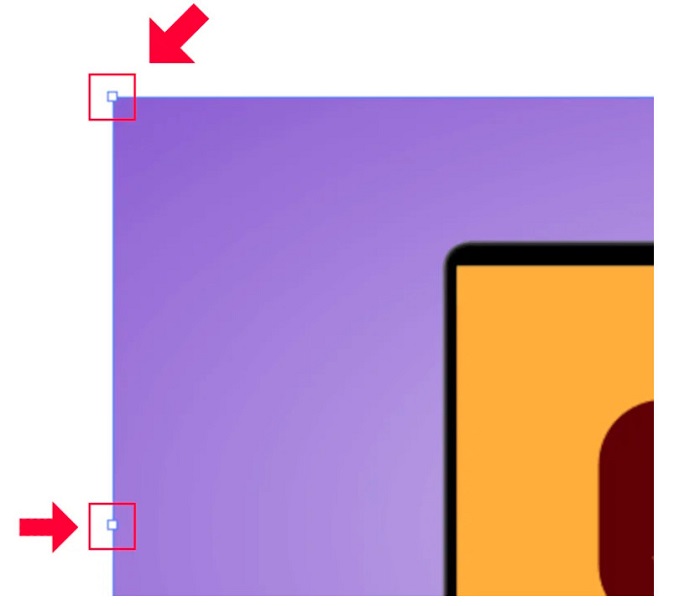
स्टेप 3. स्केल करके इमेज का साइज़ बदलने के लिए, किसी भी हैंडल को पकड़कर (hold and drag) अपनी पसंद के साइज़ तक खींचें। साथ ही, आप कीबोर्ड पर Shift दबाकर और कर्सर मूव करके इमेज का आस्पेक्ट रेशियो लॉक भी कर सकते हैं।.
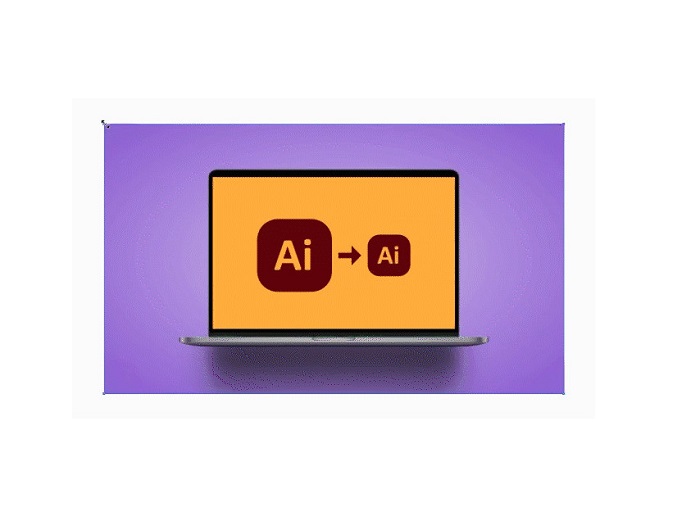
अपनी पसंद के आधार पर अपनी छवि का आकार बदलने के बाद, अब आप हैंडल पर क्लिक करके रिलीज़ कर सकते हैं।
संख्यात्मक मानों को समायोजित करके किसी छवि का आकार बदलने के लिए Adobe Illustrator का उपयोग कैसे करें
अब, हम आपको सिखाएंगे कि चयन टूल का उपयोग करके अपनी छवि को मैन्युअल रूप से स्केल करने के बजाय ट्रांसफ़ॉर्म मेनू का उपयोग करके संख्यात्मक मानों को इनपुट करके अपनी फ़ोटो का आकार कैसे बदलना है।
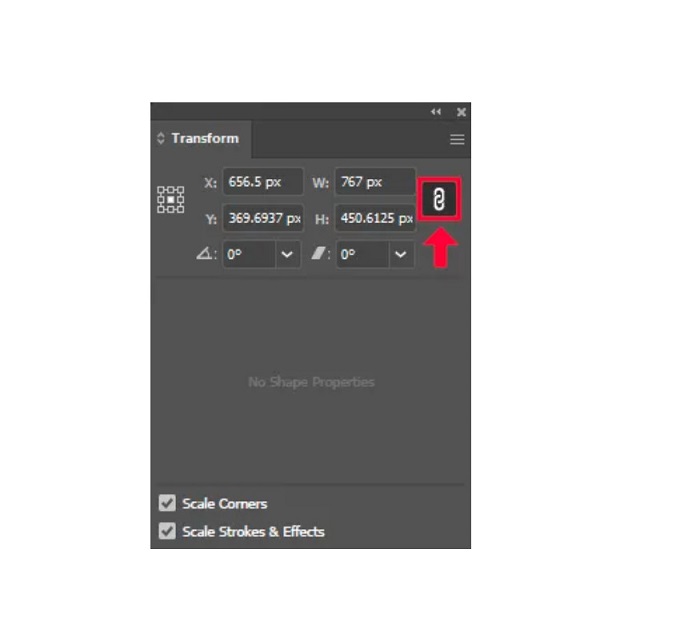
स्टेप 1. जब Adobe Illustrator आपके डिवाइस पर खुल जाए, तो Windows > Transform पर क्लिक करके Transform मेनू खोलें। आप कीबोर्ड पर Shift + F8 दबाकर भी यह मेनू खोल सकते हैं। Transform मेनू कुछ इस तरह दिखाई देता है:.
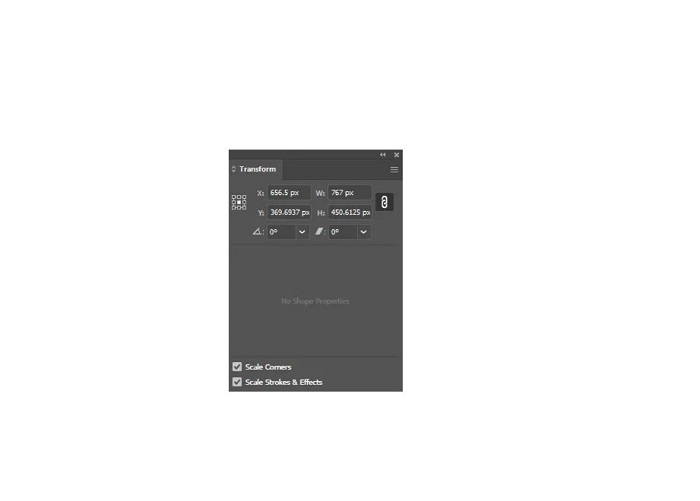
Transform मेनू आपको आपके ऑब्जेक्ट की पोज़िशन X और Y अक्ष के अनुसार बदलने की सुविधा देता है। इसी मेनू का उपयोग करके आप अपनी इमेज को घुमा (rotate) सकते हैं, तिरछा (shear) कर सकते हैं और संख्यात्मक मान डालकर उसका साइज़ बदल सकते हैं।.
स्टेप 2. इसके बाद Selection Tool का उपयोग करके उस इमेज को सेलेक्ट करें जिसका साइज़ आप बदलना चाहते हैं। फिर Transform मेनू में Width और Height को उस साइज़ के अनुसार बदलिए जो आप अपनी फोटो के लिए चाहते हैं। यहाँ W अक्षर चौड़ाई (width) को और H अक्षर ऊँचाई (height) को दर्शाता है।.
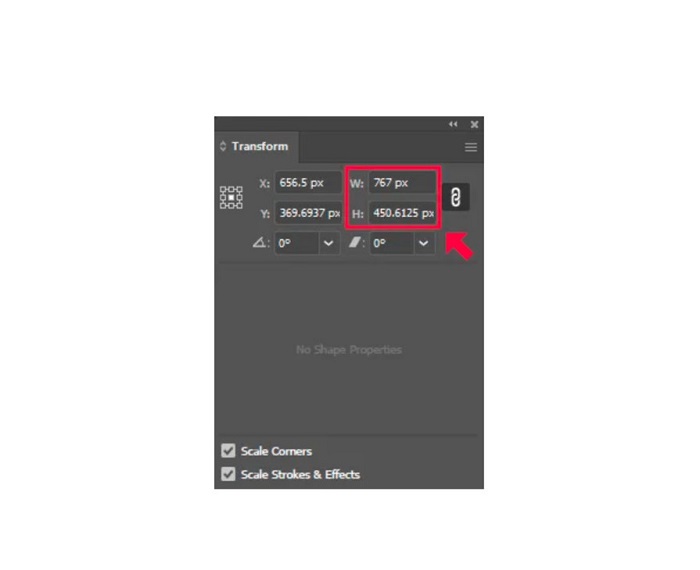
स्टेप 3. यह भी उपयोगी होगा कि आप Chain आइकन पर क्लिक करके अपनी फोटो का आस्पेक्ट रेशियो लॉक कर दें, जो ऊँचाई और चौड़ाई के पास होता है। जब आप Chain विकल्प चुनते हैं और इमेज की ऊँचाई बदलते हैं, तो चौड़ाई अपने आप उसी अनुपात में बदल जाती है।.
टिप. आप अपनी इमेज की डिफ़ॉल्ट यूनिट ऑफ़ मेज़रमेंट भी बदल सकते हैं। Illustrator में डिफ़ॉल्ट यूनिट pixels (px) होती है। आप यूनिट को इस तरह बदल सकते हैं:
◆ सेंटीमीटर (सेमी)
◆ मिलीमीटर (मिमी)
◆ इंच (में)
◆ प्रतिशत (%)
इमेज की यूनिट ऑफ़ मेज़रमेंट बदलने के लिए, अपने माप की संख्या के बाद यूनिट टाइप करें। जब आप इमेज के संख्यात्मक मान और यूनिट बदल लें, तो कीबोर्ड पर Enter दबाएँ।.
अब हम आपकी इमेज को एक्सपोर्ट करेंगे। Selection Tool से इमेज को सेलेक्ट करें, उस पर राइट‑क्लिक करें और Export Selection विकल्प चुनें।.
Export Selection विकल्प चुनने के बाद Export for Screens मेनू दिखाई देगा। यह मेनू आपको आपकी रीसाइज़ की हुई इमेज को उपयोगी फ़ॉर्मैट में सेव करने देता है।.
थंबनेल के नीचे आप अपना आउटपुट प्रीव्यू कर सकते हैं और फ़ाइल का नाम अपनी पसंद के अनुसार बदल सकते हैं। फिर Export to पैनल में फ़ोल्डर आइकन पर क्लिक करके अपने आउटपुट के लिए लोकेशन चुनें। यह भी सुनिश्चित करें कि Scale फ़ील्ड 1x पर सेट हो। उसके बाद अपना आउटपुट फ़ॉर्मैट चुनें। सलाह दी जाती है कि आप PNG या JPG फ़ॉर्मैट इस्तेमाल करें।.
और अंत में, अपना आउटपुट सेव करने के लिए Export Asset बटन पर क्लिक करें।.
कमाल है, है ना? एडोब इलस्ट्रेटर आपको अपनी छवियों को अपने दिल की सामग्री में संपादित करने देता है। यह हिस्सा भी उत्तर है यदि आप खोजते हैं कि विरूपण के बिना इलस्ट्रेटर में छवियों का आकार कैसे बदलना है। हालाँकि, यह ऐप उपयोगकर्ता के अनुकूल उपकरण नहीं है क्योंकि इसमें उपयोग में आसान इंटरफ़ेस नहीं है। इसलिए, यदि आप उपयोग में आसान एप्लिकेशन का उपयोग करके अपनी छवि का आकार बदलना/बढ़ाना चाहते हैं, तो अगले भाग को अच्छी तरह से पढ़ें।
भाग 2। इलस्ट्रेटर के लिए ऑनलाइन विकल्प
Adobe Illustrator एक ऑफ़लाइन टूल है, और यह मुफ़्त नहीं है। इसलिए, यदि आप एक शानदार छवि रीसाइज़र का उपयोग करना चाहते हैं जो मुफ़्त है और जो आपकी छवि को बढ़ाने में मदद करेगा, तो उस ट्यूटोरियल का अनुसरण करें जिसे हम नीचे प्रस्तुत करेंगे।
FVC Free Image Upscaler एक ऑनलाइन इमेज अपस्केलर है जो आपकी कम‑क्वालिटी वाली तस्वीर को बेहतर बनाने में मदद कर सकता है। यह ऑनलाइन टूल आपकी इमेज को 2x, 4x, 6x और 8x तक बड़ा (magnify) कर सकता है। इसके अलावा, यह AI (Artificial Intelligence) तकनीक का उपयोग करता है, जो आपकी इमेज के कम‑क्वालिटी वाले हिस्सों को अपने‑आप पहचानकर उन्हें बेहतर बनाता है। यह JPEG, JPG, PNG और BMP सहित सभी इमेज फ़ॉर्मैट को सपोर्ट करता है। साथ ही, इसका उपयोग सुरक्षित है और यह पूरी तरह मुफ़्त है। और इसके साधारण यूज़र इंटरफ़ेस की वजह से आप आसानी से अपनी इमेज का साइज़ बदल/अपस्केल कर सकते हैं।.
FVC फ्री इमेज अपस्केलर का उपयोग करके किसी छवि का आकार कैसे बदलें:
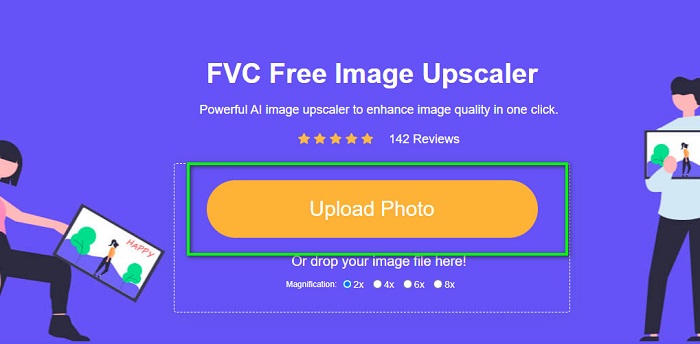
स्टेप 1. अपने ब्राउज़र पर FVC Free Image Upscaler सर्च करें, या सीधे उनकी मुख्य पेज पर जाने के लिए इस लिंक पर क्लिक करें। फिर सॉफ़्टवेयर के मुख्य इंटरफ़ेस पर Upload Photo बटन पर क्लिक करें ताकि यह ऐप आपके डिवाइस पर शुरू हो सके।.
स्टेप 2. फिर से Upload Photo बटन पर क्लिक करके उस इमेज को इम्पोर्ट करें जिसे आप अपस्केल करना चाहते हैं।.
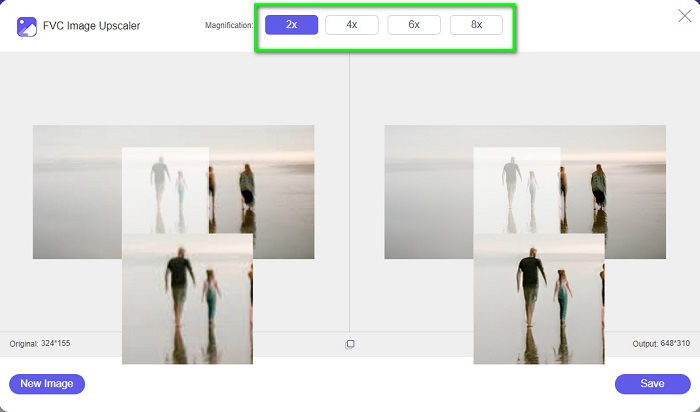
स्टेप 3. जब आपकी फोटो अपलोड हो जाए, तो अपनी इमेज के लिए मनचाहा मैग्निफिकेशन प्रीसेट चुनें। आप 2x, 4x, 6x और 8x में से चुन सकते हैं।.
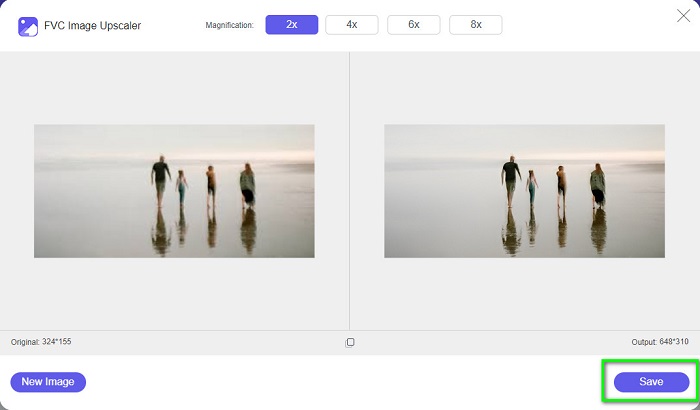
स्टेप 4. आखिर में, Save बटन पर क्लिक (टिक) करके अपना आउटपुट अपने डिवाइस पर सेव करें।.
संबंधित:
GIMP का उपयोग करके इमेज का साइज़ कैसे बदलें: चरण दर चरण प्रक्रिया
Facebook के लिए फोटो का साइज़ कैसे बदलें [तेज़ और आसान चरण]
भाग 3. अक्सर पूछे जाने वाले प्रश्न इलस्ट्रेटर में छवि का आकार बदलने के तरीके के बारे में
Adobe Illustrator छवियों का आकार क्यों नहीं बदलेगा?
आप इलस्ट्रेटर में एक छवि का आकार नहीं बदल सकते क्योंकि बाउंडिंग बॉक्स शायद सक्रिय नहीं है। बाउंडिंग बॉक्स चालू करने के लिए, देखें > बाउंडिंग बॉक्स दिखाएं पर जाएं. इसे सक्रिय करके, अब आप इलस्ट्रेटर में अपनी छवि का आकार बदल सकते हैं।
क्या मैं गुणवत्ता खोए बिना इलस्ट्रेटर में एक छवि का आकार बदल सकता हूँ?
हाँ। एक तरीका है जिससे आप Adobe Illustrator के साथ अपनी छवि का आकार बदल सकते हैं। हालाँकि, अधिकांश समय, जब आप स्केलर का उपयोग करके किसी छवि का आकार बदलते हैं, तो आपकी छवि की गुणवत्ता प्रभावित होगी।
क्या Adobe Illustrator मुफ़्त है?
नहीं। Adobe Illustrator मुफ्त नहीं है। इस शक्तिशाली फोटो एडिटिंग ऐप का उपयोग करने से पहले, आपको इसे $20.99 प्रति माह में खरीदना होगा।
निष्कर्ष
आपने हमारे बताए हुए तरीकों का पालन करके Illustrator में इमेज का साइज़ बदलना सीख लिया है। इसमें भले ही कई स्टेप्स लगते हों, लेकिन इसे इस्तेमाल करना और आज़माना फ़ायदेमंद है। Adobe Illustrator की समस्या यह है कि यह मुफ़्त नहीं है और इसका इंटरफ़ेस जटिल है। इसलिए, अगर आप कोई ज़्यादा सुविधाजनक और मुफ़्त इमेज रीसाइज़र चाहते हैं, तो FVC Free Image Upscaler का उपयोग करें।.
-
 छवि का आकार कैसे बदलें - Adobe छवि का आकार बदलें [ऑनलाइन और ऑफलाइन]
 यदि आप Adobe आकार बदलने वाली छवि खोज रहे हैं, तो हमारे पास आपके लिए समाधान है। अपने पीसी पर एडोब का उपयोग करके छवियों का आकार बदलने का तरीका जानने के लिए इस पोस्ट को अच्छी तरह से देखें।
-
 बेस्ट फोटो रिसाइज़र ऐप ऑनलाइन, ऑफलाइन, एंड्रॉइड और आईफोन
 सबसे अच्छे फोटो रीसाइज़र ऐप कौन से हैं? अपनी फ़ाइल को बढ़ाने या उसका आकार बदलने के लिए उपयोग किए जा सकने वाले शीर्ष पांच सबसे शक्तिशाली फोटो रीसाइज़र ऐप्स को जानने के लिए पृष्ठ पर क्लिक करें
-
 आपके द्वारा उपयोग किए जाने वाले सभी वेब ब्राउज़रों के लिए शीर्ष 7 पिक्सेल एन्हांसर
 यदि आप उपयोग करने के लिए सर्वश्रेष्ठ पिक्सेल एन्हांसर जानना चाहते हैं, तो आप इस पोस्ट को बेहतर तरीके से देख सकते हैं। यह लेख सभी वेब ब्राउज़रों के लिए सात सर्वश्रेष्ठ फोटो पिक्सेल एन्हांसर्स की सूची देता है।
