


 वीडियो कनवर्टर अंतिम
 स्क्रीन अभिलेखी
 वीडियो मरम्मत
3GP को MOV में बदलने के लिए आपको जिन सरल चरणों का पालन करना होगा
उपयोगकर्ता MOV फ़ाइल, जो एक मल्टीमीडिया कंटेनर फ़ाइल है, में वीडियो, ऑडियो, इफेक्ट्स या टेक्स्ट (जैसे सबटाइटल्स) स्टोर कर सकते हैं। हालाँकि, थर्ड जेनरेशन पार्टनरशिप प्रोजेक्ट (3GPP) द्वारा बनाई गई 3GP फ़ॉर्मेट का उद्देश्य 3G मोबाइल फ़ोनों के बीच और इंटरनेट पर ऑडियो‑वीडियो डेटा का प्रसारण करना है। इन दोनों वीडियो फ़ॉर्मेट में अंतर हैं, लेकिन इनके बीच तुलना और वे कन्वर्टर जो 3GP को MOV में कन्वर्ट कर सकते हैं, उनके बारे में विस्तार से जानने के लिए इस लेख को पूरा पढ़ें। अपनी सोच को तैयार करें और आइए गहराई से समझें!

भाग 1. 3GP और MOV के बारे में परिचय
थर्ड जनरेशन पार्टनरशिप प्रोजेक्ट (3GPP) 3GP एक वीडियो फ़ाइल स्वरूप है जिसे उपयोगकर्ता 3G का समर्थन करने वाले उपकरणों पर चला सकते हैं। H.263 या H.264 कोडेक और AMR या AAC-आधारित ऑडियो स्ट्रीम, जो वीडियो डेटा के हानिपूर्ण संपीड़न के लिए आदर्श हैं, इस पैकेज में शामिल हैं। 3G नेटवर्क और मल्टीमीडिया उपकरणों के लिए, इस ISO मानक वीडियो प्रारूप का फ़ाइल आकार छोटा है जो इसे वीडियो साझा करने के लिए आदर्श बनाता है। भले ही इसे शुरू में 3G उपकरणों के लिए डिज़ाइन और इरादा किया गया था, फिर भी यह आधुनिक 4G उपकरणों और ऑपरेटिंग सिस्टम पर आसानी से चलता है।
हालाँकि, MOV एक Apple-निर्मित वीडियो प्रारूप है। उपयोगकर्ता इस प्रकार के फ़ाइल कंटेनर में वीडियो और मल्टीमीडिया फ़ाइलों को संग्रहीत कर सकते हैं। क्योंकि Apple ने इसे विकसित किया है, यह केवल Apple उत्पादों या क्विकटाइम वीडियो प्लेयर के साथ संगत है। वीडियो डेटा MOV फ़ाइलों में कम से कम या बिना किसी संपीड़न के उच्च बिटरेट पर संग्रहीत होता है। बड़े फ़ाइल आकार के कारण, फिर भी, वे उत्कृष्ट गुणवत्ता के हैं।
ये इन दो वीडियो प्रारूपों का एक संक्षिप्त विवरण है। आप सभी कन्वर्टर्स का सामना करेंगे, या तो सॉफ्टवेयर या ऑनलाइन टूल, जो आपके 3GP वीडियो फॉर्मेट को आगे पढ़ने के लिए MOV में बदलने में आपकी मदद कर सकते हैं।
भाग 2. सर्वश्रेष्ठ कनवर्टर जो मैक पर 3GP को MOV में बदलने में मदद करता है
यह लेख आपको बेहतरीन सॉफ़्टवेयर से परिचित कराएगा, जिन पर 3GP वीडियो फ़ाइलों को MOV में कन्वर्ट करने के लिए विचार किया जा सकता है। Video Converter Ultimate एक मुफ़्त‑डाउनलोड टूल है, जो Windows और Mac दोनों पर उपलब्ध है और सिर्फ़ एक मिनट में 3GP को MOV में कन्वर्ट कर सकता है। बेहतरीन फ़ीचर्स के अलावा यह सॉफ़्टवेयर उन कई वीडियो फ़ॉर्मेट का भी समर्थन करता है जिन्हें अन्य सॉफ़्टवेयर या ऑनलाइन कन्वर्टर सपोर्ट नहीं करते।.
आप भाग्यशाली हैं क्योंकि इन सुविधाओं के अलावा, इसमें वीडियो-बढ़ाने वाले टूल भी हैं जो आपके वीडियो की गुणवत्ता को सुलभ तरीकों से बेहतर बना सकते हैं। अब जब आपने इस सॉफ़्टवेयर का संक्षिप्त विवरण सीख लिया है, तो अब आप उन सभी प्रक्रियाओं को सीखने के लिए आगे बढ़ सकते हैं, जिनका पालन करने के लिए आपको रूपांतरण प्रक्रिया को ठीक से निष्पादित करने की आवश्यकता है।
स्टेप 1. सबसे पहले, आपको इस चरण के नीचे दिए गए Free Download बटन पर क्लिक करके सॉफ़्टवेयर डाउनलोड करना होगा। यह सॉफ़्टवेयर Windows और Mac दोनों पर उपलब्ध है, इसलिए इसे दोनों ऑपरेटिंग सिस्टम पर इस्तेमाल करने की चिंता करने की ज़रूरत नहीं है। सॉफ़्टवेयर डाउनलोड करने के बाद आप इसे इंस्टॉल कर सकते हैं और अपने कंप्यूटर पर चलाने के लिए Start Now पर क्लिक करें।.
फ्री डाउनलोडWindows 7 या बाद के संस्करण के लिएसुरक्षित डाउनलोड
फ्री डाउनलोडMacOS 10.7 या बाद के संस्करण के लिएसुरक्षित डाउनलोड
स्टेप 2. सॉफ़्टवेयर चलाने के बाद, इसका इंटरफ़ेस आपकी स्क्रीन पर दिखाई देगा, जिसमें कन्वर्टर फ़ीचर के साथ‑साथ इस सॉफ़्टवेयर में उपलब्ध अन्य फ़ीचर्स भी दिखेंगे।.
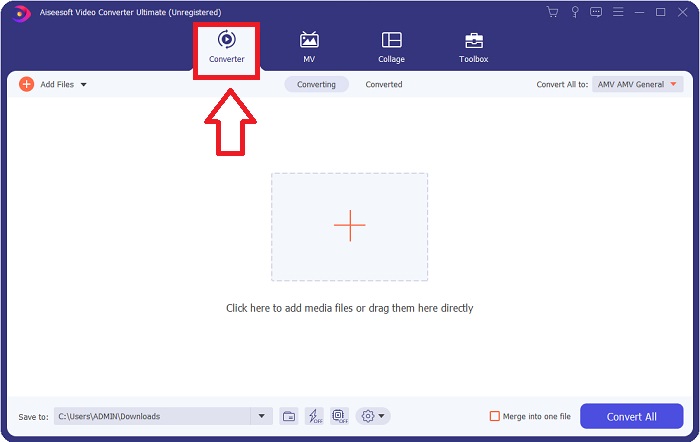
स्टेप 3. अब आप इस सॉफ़्टवेयर में वह वीडियो फ़ाइल अपलोड करना शुरू कर सकते हैं जिसे आप कन्वर्ट करना चाहते हैं, इसके लिए + आइकन पर क्लिक करें या फिर आप अपनी डेस्कटॉप से फ़ाइलों को ड्रैग भी कर सकते हैं।.

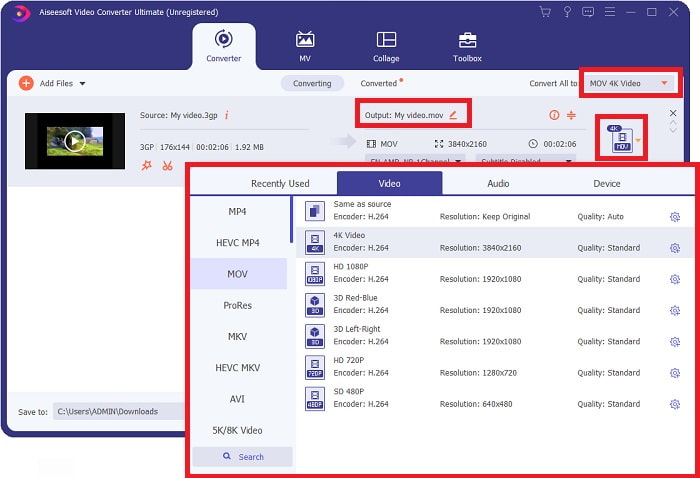
स्टेप 4: इंटरफ़ेस के दाएँ कोने पर मौजूद फ़ॉर्मेट चयन आइकन पर क्लिक करें। इसके बाद, नेविगेट करके MOV फ़ॉर्मेट चुनें, फिर अपने कन्वर्टेड वीडियो फ़ाइल पर लागू करने के लिए पसंदीदा रेज़ोल्यूशन चुनें। इसके अतिरिक्त, आप गियर आइकन पर क्लिक करके वीडियो की क्वालिटी या आउटपुट को भी कस्टमाइज़ कर सकते हैं।.
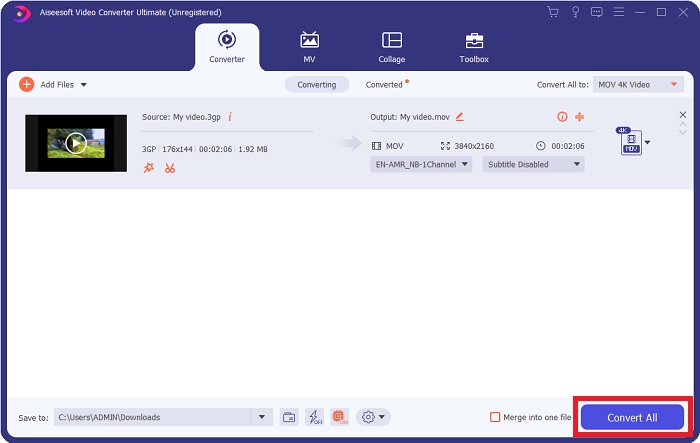
स्टेप 5. जिस फ़ाइल को आप कन्वर्ट करना चाहते हैं, उसकी वीडियो क्वालिटी को प्रभावित करने वाले सभी विवरणों को कस्टमाइज़ करने के बाद, अब आप Convert All बटन पर क्लिक करके फ़ाइल को कन्वर्ट कर सकते हैं।.
भाग 3. अन्य सुझाव! 3GP को MOV ऑनलाइन में कैसे बदलें
यह एक और विकल्प है जिस पर आपको तब ज़रूर विचार करना चाहिए जब आप किसी वीडियो को जल्दी‑जल्दी कन्वर्ट करना चाहते हों और सिर्फ़ फ़ाइल कन्वर्ट करने के लिए कोई सॉफ़्टवेयर डाउनलोड करने का समय न हो। पेश है Free Video Converter Online, जो इंटरनेट पर उपलब्ध बेहतरीन ऑनलाइन कन्वर्टर है और जिसके फीचर लगभग Video Converter Ultimate जैसे ही हैं। उदाहरण के लिए, यह किसी भी अन्य ऑनलाइन टूल की तुलना में तेज़ी से फ़ाइल कन्वर्ट कर सकता है और यह कई तरह के वीडियो फ़ॉर्मेट को सपोर्ट भी करता है। चूँकि यह टूल इस्तेमाल करने में आसान है, इसलिए इसे इस्तेमाल करने के लिए किसी ट्यूटोरियल की ज़रूरत नहीं है, लेकिन शुरुआती उपयोगकर्ताओं के लिए यहाँ कुछ प्रक्रियात्मक दिशा‑निर्देश दिए गए हैं जिनका पालन करना होगा:
स्टेप 1: इस लिंक पर क्लिक करके Free Video Converter Online के मुख्य वेबपेज पर जाएँ।.
स्टेप 2: जब आप Free Video Converter Online के मुख्य वेबपेज पर हों, तब आप Add Files to Convert पर क्लिक करके अपने कंप्यूटर से फ़ाइलें अपलोड कर सकते हैं।.
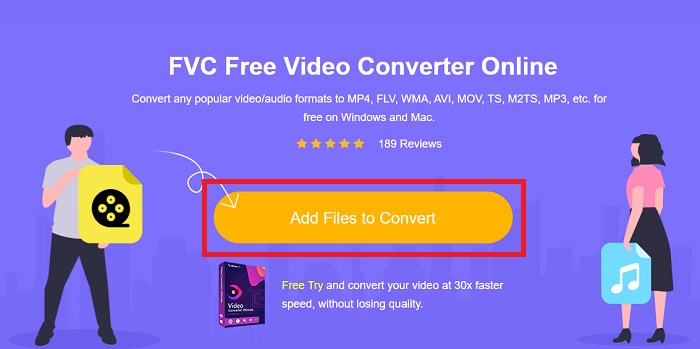
स्टेप 3: जिस फ़ाइल को आप कन्वर्ट करना चाहते हैं उसे चुनने के बाद, आपकी स्क्रीन पर एक और विंडो दिखाई देगी जिसमें आपकी फ़ाइल और नीचे सभी उपलब्ध फ़ॉर्मेट दिखाई देंगे। वीडियो फ़ॉर्मेट चयन में MOV चुनें।.
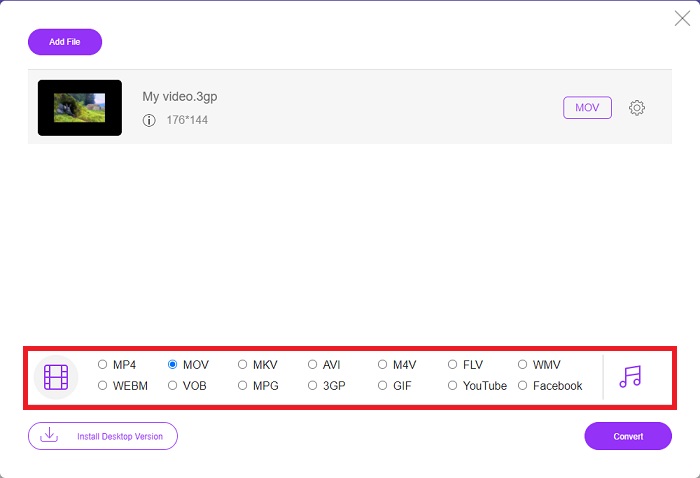
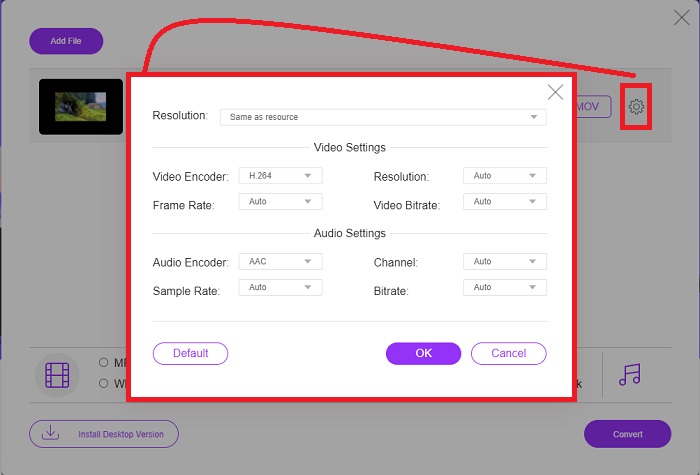
स्टेप 4: आप गियर आइकन पर क्लिक करके और रेज़ोल्यूशन, वीडियो एन्कोडर और वीडियो आउटपुट की फ्रेम रेट को समायोजित करके अपने वीडियो को कस्टमाइज़ भी कर सकते हैं।.
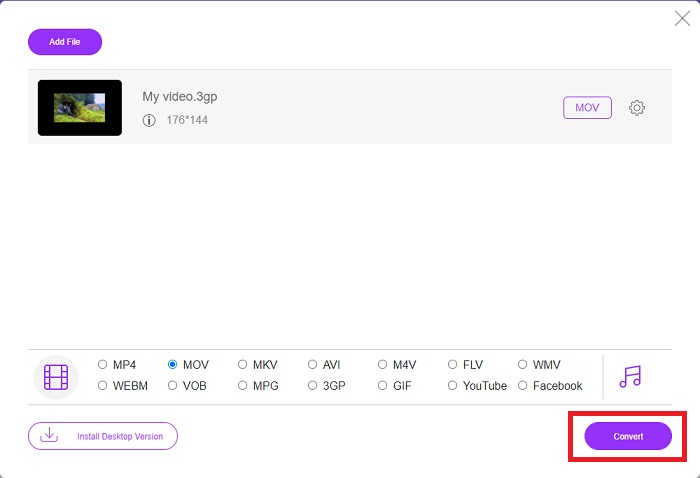
स्टेप 5: वीडियो आउटपुट के सभी विवरणों को समायोजित और कस्टमाइज़ करने के बाद, आप अब Convert पर क्लिक करके फ़ाइल को कन्वर्ट कर सकते हैं।.
भाग 4. 3GP को MOV में बदलने के बारे में अक्सर पूछे जाने वाले प्रश्न
एमओवी के फायदे और नुकसान क्या हैं?
Apple, MOV द्वारा विकसित एक वीडियो फ़ाइल स्वरूप व्यापक रूप से उपयोग किया जाता है। MOV फ़ाइलों में वीडियो, ऑडियो, उपशीर्षक, टाइमकोड, और बहुत कुछ सहित कई प्रकार के मीडिया होते हैं। QuickTimePlayer के Mac और Windows दोनों संस्करण समर्थित हैं। MOV फ़ाइलें कंप्यूटर पर बहुत अधिक स्थान लेती हैं क्योंकि वे उच्च गुणवत्ता वाले वीडियो होते हैं।
क्या 3GP एक उपयुक्त वीडियो प्रारूप है?
आपके कंप्यूटर डेस्कटॉप या पोर्टेबल मीडिया प्लेयर पर वीडियो स्ट्रीमिंग के लिए MP4 प्रारूप को प्राथमिकता दी जाती है क्योंकि यह उच्च रिज़ॉल्यूशन वीडियो का समर्थन कर सकता है। दूसरी ओर, 3GP का उपयोग उस डिवाइस के लिए केवल 3G-डिज़ाइन किए गए नेटवर्क फ़ोन पर ही किया जाना चाहिए।
क्या 3GP हानिपूर्ण या दोषरहित है?
3GP, जिसका पूरा नाम Third Generation Partnership Project (3GPP) है, एक वीडियो फ़ाइल फ़ॉर्मेट है जिसे 3G‑सक्षम डिवाइस सपोर्ट करते हैं और इसका नाम इसके निर्माता के नाम पर रखा गया है। इसमें वीडियो स्ट्रीम H.263 या H.264 कोडेक से एन्कोड की जाती हैं और ऑडियो स्ट्रीम AMR या AAC कोडेक से एन्कोड की जाती हैं, जिससे यह लॉसी वीडियो कम्प्रेशन के लिए आदर्श बनती है। यदि आपकी 3GP फ़ाइलें बहुत बड़ी हैं, तो आप आगे पढ़ सकते हैं और यह सीख सकते हैं कि कैसे आसानी से 3GP फ़ाइलों को कम्प्रेस किया जाए।.
निष्कर्ष
जैसे ही चर्चा समाप्त होती है, 3GP को MOV ऑफ़लाइन या ऑनलाइन परिवर्तित करने के लिए ऊपर बताए गए विभिन्न विकल्प हैं। ये दो सबसे अच्छे विकल्प हैं जिन पर आप किसी फ़ाइल को परिवर्तित करने पर विचार कर सकते हैं, वे केवल उपयोग किए जाने वाले प्लेटफ़ॉर्म में भिन्न होते हैं, लेकिन वे आपको फ़ाइल को पुनर्स्थापित करने में लगभग एक आसान एहसास देते हैं।
-
 3GP को AVI फॉर्मेट में बदलने के 4 सबसे प्रभावी तरीके [2025]
 क्या मैं अपनी 3GP फ़ाइलों को AVI में बदल सकता हूँ? ठीक है, आप इसे आसानी से परिवर्तित कर सकते हैं यदि आप उपलब्ध इन उपकरणों को आजमाते हैं क्योंकि हमने आपके 3GP से AVI रूपांतरण समस्या के सभी संभावित समाधान एकत्र किए हैं।
-
 एनिमेटेड GIF को MOV फॉर्मेट में बदलने के लिए सर्वश्रेष्ठ GIF कनवर्टर [2025]
 वीडियो फ़ाइल की गुणवत्ता को प्रभावित किए बिना अपने GIF को MOV प्रारूप में आसानी से परिवर्तित करें। चरणों और विभिन्न उपकरणों के साथ भी।
-
 आसान चरणों और उपकरणों के साथ AVI को MOV में कैसे बदलें
 क्या आप जानना चाहते हैं कि AVI को खेलने योग्य MOV में कैसे बदला जाए? यह कैसे करना है और एक सफल रूपांतरण के लिए युक्तियों को जानने के लिए आपको इस लेख का अनुसरण करना चाहिए।
