


 वीडियो कनवर्टर अंतिम
 स्क्रीन अभिलेखी
 वीडियो मरम्मत
 सुरक्षित डाउनलोड
डेस्कटॉप और ऑनलाइन पर MOV वीडियो को FLV फॉर्मेट में कैसे बदलें
MOV एक फ़ाइल एक्सटेंशन भी है और एक वीडियो फ़ॉर्मैट भी। MOV एक्सटेंशन वाली फ़ाइल Apple QuickTime मूवी फ़ाइल होती है। यह iOS और Mac पर अच्छे से काम करती है। इसके अलावा, Windows 10 में भी इसका संबंधित कोडेक शामिल है। हालांकि, इसे ऑनलाइन वितरण के लिए डिज़ाइन नहीं किया गया है। इसलिए, YouTube या अन्य वेबसाइटों पर पोस्ट करने से पहले आपको MOV को FLV में कनवर्ट करना होता है। यह लेख आपको ऐसा करने के दो बेहतरीन तरीकों के बारे में बताएगा।.

भाग 1: पीसी/मैक पर MOV को FLV में कैसे बदलें
आप लगभग सभी MOV फ़ाइलों को QuickTime में खोल सकते हैं, लेकिन यह MOV को FLV फ़ॉर्मैट में नहीं बदल सकता। इसलिए, आपको एक वीडियो कनवर्टर की ज़रूरत होगी, जैसे कि FVC Free FLV Converter। भले ही यह मुफ़्त है, फिर भी आपको इसमें कई उपयोगी सुविधाएँ मिलेंगी जो आम तौर पर केवल प्रोफ़ेशनल सॉफ़्टवेयर में होती हैं।.
सबसे अच्छे मुफ़्त MOV से FLV कनवर्टर की मुख्य विशेषताएँ
- 1. असीमित MOV फ़ाइलों को बैच में FLV प्रारूप में कनवर्ट करें।
- 2. कनवर्ट करते समय वीडियो और ऑडियो गुणवत्ता को सुरक्षित रखें।
- 3. अनुकूलित रिज़ॉल्यूशन जैसी विभिन्न प्रकार की बोनस सुविधाएँ प्रदान करें।
फ्री डाउनलोडWindows 7 या बाद के संस्करण के लिएसुरक्षित डाउनलोड
फ्री डाउनलोडMacOS 10.7 या बाद के संस्करण के लिएसुरक्षित डाउनलोड
कहने की जरूरत नहीं है कि अपनी एमओवी फाइलों को डेस्कटॉप पर एफएलवी में मुफ्त में बदलने का यह सबसे अच्छा विकल्प है।
बैच में MOV को FLV में कैसे बदलें
चरण 1: MOV फ़ाइलें जोड़ें
इसे अपने कंप्यूटर पर इंस्टॉल करने के बाद सबसे अच्छा MOV से FLV कनवर्टर लॉन्च करें। आप आधिकारिक वेबसाइट से यह सॉफ़्टवेयर मुफ़्त में डाउनलोड कर सकते हैं। होम इंटरफ़ेस में Add File(s) बटन पर क्लिक करके वे MOV फ़ाइलें खोलें जिन्हें आप कनवर्ट करना चाहते हैं। इसके बाद वीडियो लाइब्रेरी पैनल में दिखाई देंगे। आप यहाँ वीडियो को प्रीव्यू और एडिट कर सकते हैं।.

चरण 2: आउटपुट स्वरूप सेट करें
आउटपुट फ़ॉर्मैट बदलने के लिए, नीचे दिए गए Output format विकल्प पर क्लिक करें और उसे फैलाएँ। General Video टैब में जाएँ, नीचे स्क्रॉल करें और FLV या संबंधित फ़ॉर्मैट चुनें। आप प्रोफ़ाइल डायलॉग में रेज़ोल्यूशन और अन्य पैरामीटर भी बदल सकते हैं। Gear आइकन पर क्लिक करें, और प्रोफ़ाइल डायलॉग पॉप अप हो जाएगा।.

चरण 3: MOV को FLV में बदलें
Output folder बॉक्स के बगल में Open Folder बटन पर क्लिक करें और परिणाम सेव करने के लिए कोई विशेष डायरेक्टरी चुनें। अंत में, Convert बटन पर क्लिक करें और बाक़ी काम MOV से FLV कनवर्टर खुद कर देगा। कुछ ही मिनटों में, आपको अपनी चुनी हुई लोकेशन में FLV फ़ाइलें मिल जाएँगी।.

भाग 2: MOV को FLV ऑनलाइन में बदलने का सबसे अच्छा तरीका
आज हमारे पास वीडियो फ़ाइलों को एडिट और कनवर्ट करने के पहले से कहीं ज़्यादा तरीके हैं। उदाहरण के लिए, FVC Free Online Video Converter एक वेब-आधारित MOV से FLV ऑनलाइन कनवर्टर है। यह आपको बिना रजिस्ट्रेशन के कई MOV फ़ाइलों को मुफ़्त में हैंडल करने देता है। साथ ही, इसमें फ़ाइल साइज लिमिट, वॉटरमार्क आदि की कोई पाबंदी नहीं है। यदि आपको केवल कभी‑कभार MOV को FLV में कनवर्ट करना हो, तो नीचे दिए गए चरणों का पालन करें।.
चरण 1: अपने ब्राउज़र में https://www.free-videoconverter.net/free-online-video-converter/ पर जाएँ। यह Chrome, Firefox और अन्य ब्राउज़र्स पर उपलब्ध है। Add Files to Convert बटन पर क्लिक करके लॉन्चर डाउनलोड करें।.
फ़ाइलों को बैच में कनवर्ट करने के लिए डेस्कटॉप संस्करण डाउनलोड करें।.
चरण 2: लॉन्चर पॉप अप होते ही Add File बटन पर क्लिक करें। वे MOV फ़ाइलें अपलोड करें जिन्हें आप अपनी हार्ड ड्राइव से कनवर्ट करना चाहते हैं। लॉन्चर के नीचे दिए गए फ़ॉर्मैट सेक्शन में FLV चुनें।.
टिप: यदि आपको रेज़ोल्यूशन बदलने की ज़रूरत हो, तो Settings आइकन पर क्लिक करके सेटिंग्स डायलॉग खोलें और आसानी से बदलाव कर लें।.
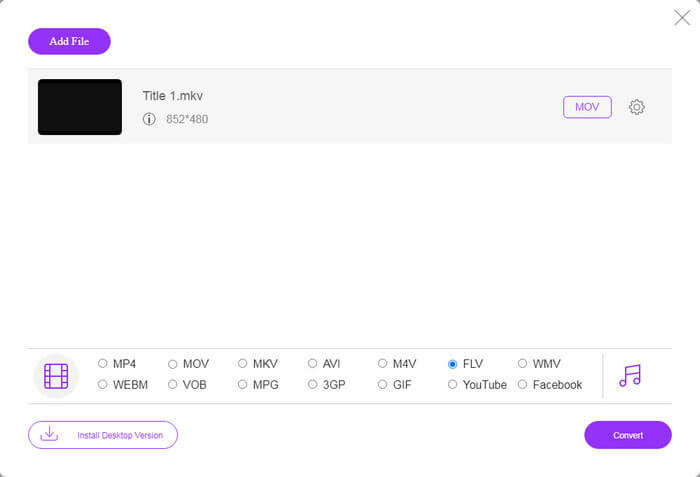
चरण 3: Convert बटन दबाएँ ताकि ऑनलाइन MOV से FLV कनवर्ज़न शुरू हो सके। हमारे शोध के अनुसार, यह काम पूरा होने में थोड़ा ही समय लेता है। असली समय आपकी इंटरनेट कनेक्शन पर निर्भर करता है। फिर FLV फ़ाइलें अपने कंप्यूटर पर डाउनलोड कर लें।.
यह भी देख सकते हैं:
MOV को MP4 में कैसे कनवर्ट करें
MOV बनाम FLV
MOV प्रारूप का उपयोग मूवी, टीवी शो, लघु वीडियो क्लिप या होम मूवी को संग्रहीत करने के लिए किया जा सकता है। यह वास्तव में QuickTime फ़ाइल स्वरूप (QTFF) में सहेजा जाता है, जिसे Apple द्वारा 1991 में पेश किया गया था। MOV फ़ाइलों का उपयोग अक्सर तब किया जाता है जब लोग उच्च गुणवत्ता वाले वीडियो को सहेजना चाहते हैं।
Adobe Flash Player ने FLV का उपयोग मूवी और टीवी शो जैसी वीडियो सामग्री वितरित करने के लिए किया। आजकल, Adobe अब प्लेयर विकसित नहीं करता है और सुरक्षा कारणों से उपयोगकर्ताओं को इसे अनइंस्टॉल करने की अनुशंसा करता है। हालांकि, आप अभी भी कई गैर-एडोब/मैक्रोमीडिया कार्यक्रमों पर एफएलवी प्रारूप का उपयोग कर सकते हैं।
भाग 3: MOV को FLV में बदलने के बारे में अक्सर पूछे जाने वाले प्रश्न
मैं मैक पर MOV को FLV में कैसे बदलूँ?
मैक पर तृतीय-पक्ष वीडियो कन्वर्टर्स के बिना MOV को FLV में कनवर्ट करने का कोई तरीका नहीं है। हालाँकि, मैक के लिए बहुत सारे MOV से FLV कन्वर्टर्स हैं। आप MOV से FLV फ़ाइलें बनाने के लिए वेब ऐप्स का भी उपयोग कर सकते हैं।
क्या वीएलसी एमओवी को एफएलवी में बदल सकता है?
हां, वीएलसी विंडोज, मैक, लिनक्स पर एमओवी को एफएलवी में बदलने में सक्षम है। वीएलसी का सबसे बड़ा फायदा मुफ्त है। नकारात्मक पक्ष जटिल वर्कफ़्लो है। वास्तव में, कनवर्ट करने की सुविधा मेनू बार में गहराई से छिपी हुई है।
कौन सा बेहतर है, एमओवी या एफएलवी?
उत्तर आपके उद्देश्य पर निर्भर करता है। आईओएस या मैक पर खेलने या संपादित करने के लिए, एमओवी अन्य प्रारूपों से बेहतर है। हालाँकि, FLV छोटे फ़ाइल आकार का उत्पादन कर सकता है और इंटरनेट पर अच्छी तरह से काम कर सकता है।
निष्कर्ष
इस गाइड ने आपकी MOV वीडियो फ़ाइलों को FLV प्रारूप में बदलने के सर्वोत्तम तरीकों के बारे में बात की है। सौभाग्य से, काम करने के कम से कम दो तरीके हैं। सबसे पहले, आप वेब वीडियो कनवर्टर ऐप के साथ MOV को FLV में बदल सकते हैं। यदि आपको अधिक उन्नत सुविधाओं की आवश्यकता है, तो FVC मुक्त FLV कनवर्टर आपकी आवश्यकता को पूरा कर सकता है। इसके अलावा, यह कंप्यूटर पर उपयोग करने के लिए पूरी तरह से मुफ़्त है। अधिक समस्याएं? कृपया इस पोस्ट के नीचे अपना संदेश छोड़ कर हमसे संपर्क करें।
-
 पीसी/मैक पर WMV फ़ाइलों को FLV में बदलने के 2 सबसे आसान तरीके Way
 आप WMV को FLV में कैसे बदल सकते हैं? सबसे पहले, आपको हमारी सिफारिश को पढ़ने और अपनी पसंदीदा विधि खोजने की जरूरत है, और फिर काम को जल्दी से करने के लिए हमारे गाइड का पालन करें।
-
 डेस्कटॉप/ऑनलाइन पर TS को FLV में बदलने के लिए 4 सत्यापित तरीके
 आप डिफ़ॉल्ट रूप से अपने कंप्यूटर या मोबाइल पर TS नहीं खोल सकते। वीडियो फ़ाइलों को देखने का एकमात्र तरीका हमारे ठोस गाइड के साथ TS को FLV या अन्य प्रारूपों में बदलना है।
-
 एमटीएस को एफएलवी फ्री और ऑनलाइन में बदलने के 3 समाधान
 MTS को FLV में बदलना चाहते हैं? यहां 3 मुफ्त एमटीएस से एफएलवी कनवर्टर सॉफ्टवेयर हैं जिन्हें आप मैक ओएस एक्स और विंडोज 10/8/7 पर एमटीएस को एफएलवी में बदलने का प्रयास कर सकते हैं।

