


 वीडियो कनवर्टर अंतिम
 स्क्रीन अभिलेखी
 वीडियो मरम्मत
आसान उपकरण जिन्हें आपको जानना आवश्यक है जो SWF को MOV में परिवर्तित करते हैं [हल]
वीडियो और वेक्टर‑आधारित ऐनिमेशन Adobe Flash सॉफ़्टवेयर से बनाए गए SWF फ़ाइलों में पाए जाते हैं। ShockWave Format, Small Web Format का ही दूसरा नाम है, जो इसका पूरा संक्षिप्त रूप है। SWF फ़ाइलों का आम तौर पर उपयोग इंटरनेट पर मल्टीमीडिया सामग्री को प्रभावी ढंग से वितरित करने के लिए किया जाता है। छोटी वेब एप्लिकेशन के लिए ActionScript बहुत उपयोगी होते हैं, जिन्हें इसी फ़ॉर्मैट में संग्रहीत किया जा सकता है। यदि आप यह सोच रहे हैं कि क्या कोई मुफ़्त SWF से MOV कनवर्टर उपलब्ध है, क्योंकि आप दिए गए फ़ॉर्मैट की फ़ाइल चला नहीं पा रहे हैं, तो यह लेख आपके लिए बिल्कुल सही है, क्योंकि इसमें वीडियो फ़ाइलों को कनवर्ट करने के लिए सबसे अच्छे और प्रभावी टूल्स बताए गए हैं। आइए शुरू करें!
भाग 1. प्रस्तावना: SWF और MOV
SWF एक फ़ाइल प्रकार है जिसका उपयोग इंटरनेट पर टेक्स्ट, वीडियो, वेक्टर ग्राफ़िक्स और ActionScript ट्रांसफ़र करने के लिए किया जाता है। SWF फ़ाइलों का उपयोग करने के लिए Adobe Flash Player की आवश्यकता होती है। SWF फ़ाइल फ़ॉर्मैट को एक संसाधन‑कुशल ट्रांसफ़र फ़ॉर्मैट के रूप में डिज़ाइन किया गया है, जिसे न केवल ग्राफ़िक्स भेजने के लिए बल्कि एंटी‑एलियसिंग और ऑन‑स्क्रीन डिस्प्ले इत्यादि के लिए भी इस्तेमाल किया जा सकता है। एंटी‑एलियसिंग बिटमैप और उनसे जुड़े गुणों, जैसे इंटरऐक्टिव बटन, शेडिंग और ऐनिमेशन आदि को तेज़ी से रेंडर करने के लिए अत्यंत महत्वपूर्ण है।.
लेकिन MOV फ़ाइलें Apple QuickTime Movie एनकोडिंग गाइडलाइंस और डेटा कंप्रेशन मानकों का उपयोग करके एनकोड की जाती हैं, और इस फ़ॉर्मैट में तैयार वीडियो फ़ाइलों का एक्सटेंशन .mov होता है। डिजिटल मूवी और अन्य वीडियो क्लिप के लिए मानक और कंप्रेशन मानदंड पूरी तरह Apple द्वारा विकसित किए गए हैं। क्योंकि इन MOV फ़ाइलों को क्रॉस‑कम्पैटिबिलिटी सपोर्ट के साथ एनकोड किया जाता है, इन्हें Mac और Windows‑आधारित डिजिटल वीडियो प्लेयर दोनों पर चलाया जा सकता है। Windows Media Player में भी इन MOV फ़ाइलों के प्लेबैक की सुविधा शामिल है, और इन्हें Mac तथा Windows दोनों प्लेटफ़ॉर्म पर Apple QuickTime Player या VLC Media Player का उपयोग करके खोला और देखा जा सकता है।.
| दस्तावेज़ विस्तारण | SWF | MOV |
| फाइल का प्रकार | शॉकवेव फ्लैश मूवी | ऐप्पल क्विकटाइम मूवी |
| द्वारा विकसित | एडोब सिस्टम्स | सेब |
| पेशेवरों | वेब एनिमेशन को स्वतंत्र रूप से स्क्रिप्ट योग्य दृश्य प्रारूप के उपयोग से संभव बनाया गया है। क्योंकि ग्राफ़िक्स वेक्टर-आधारित हैं, उन्हें बिना किसी कठिनाई के आकार दिया जा सकता है। थोड़े समय में लोड; | प्रत्येक फ़ाइल में उच्च गुणवत्ता वाले ऑडियो और वीडियो घटक होते हैं जो स्वतंत्र ट्रैक पर सहेजे जाते हैं और समय और सामग्री दोनों के लिए संपादित किए जा सकते हैं। फाइलों को कई अलग-अलग मुफ्त वीडियो प्लेयर द्वारा देखा जा सकता है। |
| विपक्ष | गहन CPU उपयोग; एक SWF वीडियो तब तक नहीं चलाया जा सकता जब तक कि कंप्यूटर पर फ़्लैश प्लग-इन स्थापित नहीं हो जाता; अन्य चीजों के अलावा, इसे बनाने में महंगा सॉफ्टवेयर लगता है; | QuickTime वातावरण अधिक स्थिर प्रदर्शन प्रदान करता है; फिर भी, a.mov फ़ाइल को खोलने के लिए एक विशिष्ट कोडेक की आवश्यकता हो सकती है। |
भाग 2। एसडब्ल्यूएफ को एमओवी में परिवर्तित करने में उपयोग करने के लिए 3 प्रभावी उपकरण
विकल्प 1. मुफ्त वीडियो कनवर्टर ऑनलाइन
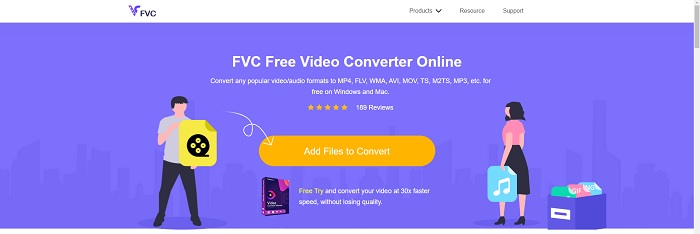
FVC Free Video Converter Online से अनेक प्रकार के वीडियो और ऑडियो फ़ॉर्मैट को कनवर्ट करना संभव है। उच्च‑गुणवत्ता वाले वीडियो को आसानी से MP4, FLV और WMV जैसे कोडेक में बिना गुणवत्ता खोए कनवर्ट किया जा सकता है। कई वीडियो या ऑडियो फ़ाइलों को कनवर्ट करते समय भी गुणवत्ता घटने की चिंता नहीं होती। यह मुफ़्त वीडियो कनवर्टर टूल अपनी कन्वर्ज़न और एडिटिंग क्षमता के लिए जाना जाता है, जो उपयोगकर्ताओं को अपनी पसंद के अनुसार वीडियो को कस्टमाइज़ करने की सुविधा देता है।.
पेशेवरों
- यह कई वीडियो फ़ाइल स्वरूपों का समर्थन करता है।
- परिवर्तित आउटपुट उच्च गुणवत्ता वाले हैं।
विपक्ष
- चूंकि यह एक ऑनलाइन वेब टूल है, इसलिए बड़े फ़ाइल आकार के वीडियो को कनवर्ट करने के लिए इसे तेज़ कनेक्शन की आवश्यकता होती है।
विकल्प 2. ऑनलाइन फ्री कन्वर्ट
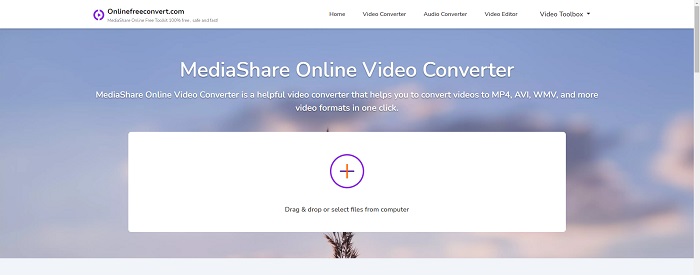
अपने वीडियो को ट्रांसकोड करते समय, यह मुफ्त ऑनलाइन एप्लिकेशन सबसे अच्छा विकल्प है। यह एप्लिकेशन चीजों को सरल और उपयोग में आसान रखने के लिए दो विकल्प प्रदान करता है: फ़ाइल प्रकार और रिज़ॉल्यूशन। इस ऑनलाइन कनवर्टर का उपयोग करने के लिए ऑन-स्क्रीन निर्देशों का पालन करें।
पेशेवरों
- इसमें एक सुलभ और उपयोगकर्ता के अनुकूल इंटरफेस है।
- यह अन्य उपकरण प्रदान करता है जो वीडियो की गुणवत्ता को बढ़ा सकते हैं।
विपक्ष
- इसमें कई वीडियो प्रारूप नहीं हैं जो इसका समर्थन करते हैं।
विकल्प 3. कोई भी रूपांतरण
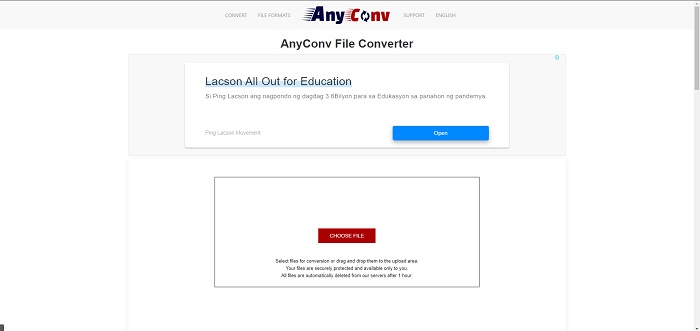
AnyConv एक डच यूजर इंटरफेस के साथ एक ऑनलाइन कनवर्टर है। यहां तक कि इस एप्लिकेशन का व्यावसायिक संस्करण भी निःशुल्क है। AnyConv में 60-फ़ाइल-प्रति-घंटे रूपांतरण प्रतिबंध भी शामिल है। ऑनलाइन कनवर्टर का उपयोग करके, आप 50 एमबी आकार तक की फ़ाइलों को परिवर्तित कर सकते हैं और 300 से अधिक विभिन्न आउटपुट स्वरूपों में से चुन सकते हैं।
पेशेवरों
- इसमें प्रारूपों की एक विस्तृत श्रृंखला है; यह दस्तावेज़ों जैसे गैर-वीडियो और ऑडियो प्रारूपों का भी समर्थन करता है।
- यह इस कनवर्टर का उपयोग करने के लिए दिशा-निर्देश प्रदान करता है।
विपक्ष
- यह ऐसे विज्ञापन दिखाता है जो रूपांतरण प्रक्रिया या सामग्री को स्वयं सहायता या अनुकूल नहीं करते हैं।
भाग 3. मैक पर SWF को MOV में कैसे बदलें
यह लेख Mac उपयोगकर्ताओं के लिए Video Converter Ultimate प्रस्तावित करता है जो SWF को MOV में कनवर्ट करना चाहते हैं। इस सॉफ़्टवेयर के Windows और Mac दोनों संस्करण मुफ़्त डाउनलोड के लिए उपलब्ध हैं। इसका आसान‑से‑उपयोग टूल और सरल इंटरफ़ेस होने के कारण इसे बहुत से लोग इस्तेमाल कर सकते हैं। इस प्रोग्राम की मदद से आप लगभग एक मिनट में एक वीडियो फ़ॉर्मैट से दूसरे में फ़ाइल कनवर्ट कर सकते हैं, जो इसे अन्य कन्वर्ज़न ऐप्लिकेशन और इंटरनेट संसाधनों से अलग बनाता है। इसके अतिरिक्त, इस सॉफ़्टवेयर में कई और अतिरिक्त सुविधाएँ भी हैं जो आपके वीडियो को और बेहतर बनाने में मदद करती हैं। मान लेते हैं कि आपने सॉफ़्टवेयर का विवरण पढ़ लिया है, तो चलिए शुरू करते हैं:
स्टेप 1. डाउनलोड प्रक्रिया शुरू करने के लिए, नीचे दिए गए Free Download आइकन पर बस राइट‑क्लिक करें। यह सॉफ़्टवेयर Windows और Mac दोनों ऑपरेटिंग सिस्टम पर चलने वाली मशीनों के साथ संगत है। सॉफ़्टवेयर डाउनलोड करने के बाद, आप इसे इंस्टॉल कर सकते हैं और मुख्य स्क्रीन पर मौजूद Start Now बटन चुनकर इसका उपयोग शुरू कर सकते हैं।.
फ्री डाउनलोडWindows 7 या बाद के संस्करण के लिएसुरक्षित डाउनलोड
फ्री डाउनलोडMacOS 10.7 या बाद के संस्करण के लिएसुरक्षित डाउनलोड
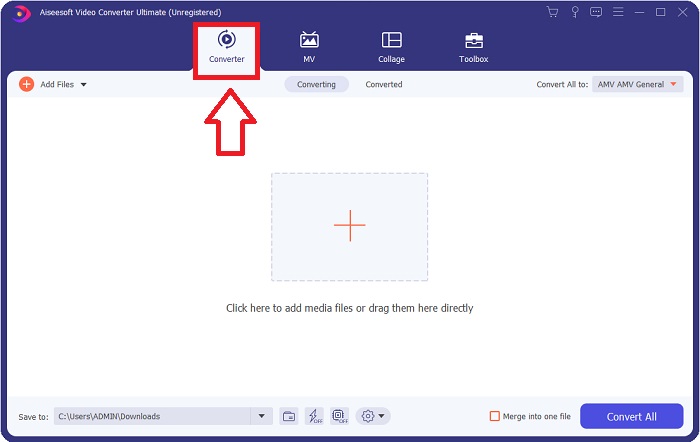
स्टेप 2. सॉफ़्टवेयर डाउनलोड करने के बाद, आपको इसे लॉन्च करना चाहिए। जब सॉफ़्टवेयर पहली बार खोला जाएगा, तो यह जानकारी एक विंडो में प्रदर्शित होगी।.
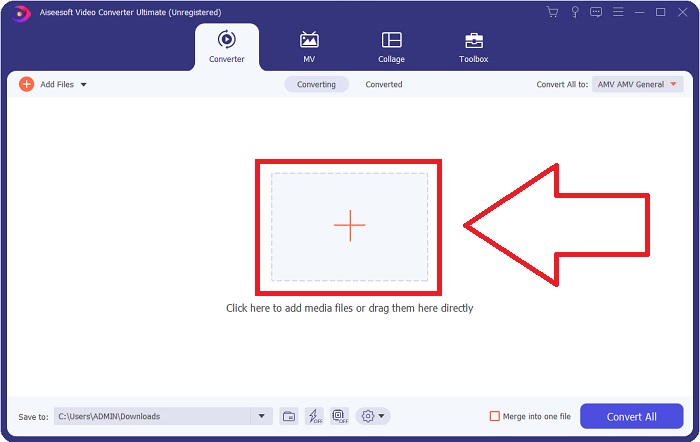
स्टेप 3. कन्वर्ज़न प्रक्रिया की शुरुआत उन फ़ाइलों को कनवर्टर में लोड करने से होती है जिन्हें आप कनवर्ट करना चाहते हैं। कन्वर्ज़न प्रक्रिया शुरू करने के लिए, जिस वीडियो को आप कनवर्ट करना चाहते हैं उसे + चिन्ह पर ड्रैग और ड्रॉप करें।.
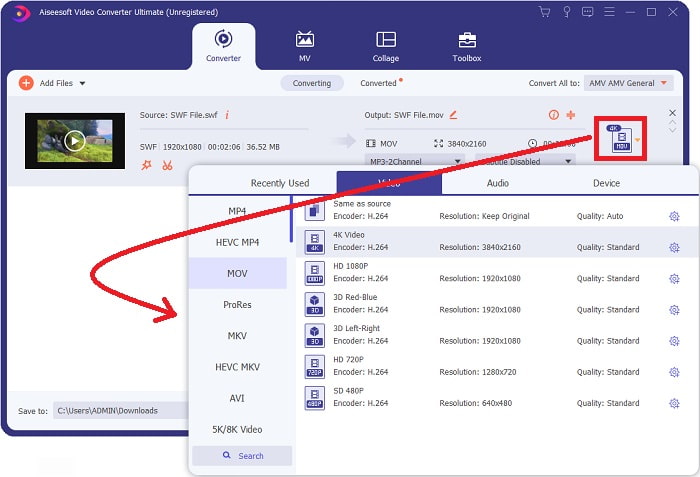
स्टेप 4. स्क्रीन के ऊपरी‑दाएँ हिस्से में एक विकल्प मेनू दिखाई देता है, जहाँ से आप वीडियो फ़ॉर्मैट चुन सकते हैं। जो ड्रॉप‑डाउन सूची दिखाई देगी, उसमें से वीडियो फ़ॉर्मैट के रूप में MOV चुनें। आपके द्वारा चुनी गई MOV फ़ाइल के आधार पर, आप विभिन्न वीडियो गुणवत्ता विकल्पों में से चुन सकेंगे। यदि आपकी इच्छित वीडियो आउटपुट उपलब्ध नहीं है, तो आप Windows में गुणवत्ता सेटिंग्स समायोजित कर सकते हैं। ऊपरी‑दाएँ कोने में गियर आइकन चुनकर आप डिस्प्ले की फ़्रेम दर और ऑडियो गुणवत्ता समायोजित कर सकते हैं। बदलाव करने के बाद उन्हें सहेजने के लिए Create New बटन का उपयोग करें।.
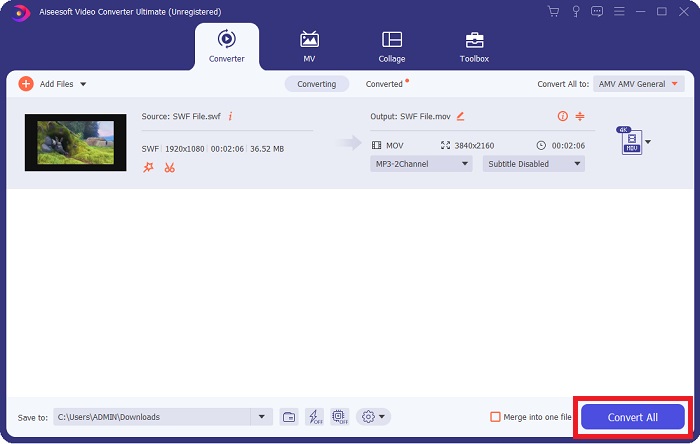
स्टेप 5. जब आप वीडियो की एडिटिंग पूरी कर लें और वह कन्वर्ज़न के लिए तैयार हो जाए, तो कन्वर्ज़न प्रक्रिया शुरू करने के लिए Convert All पर क्लिक करें।.
संबंधित:
भाग 4. SWF से MOV रूपांतरण के बारे में अक्सर पूछे जाने वाले प्रश्न
क्या एसडब्ल्यूएफ एक वीडियो प्रारूप है?
वीडियो और वेक्टर-आधारित एनिमेशन SWF फ़ाइलों में पाए जा सकते हैं, जो Adobe Flash सॉफ़्टवेयर के साथ बनाए गए हैं। हालाँकि, इसे Shockwave Format के रूप में भी जाना जाता है, जो SWF का पूर्ण संक्षिप्त नाम है। मूल रूप से मैक्रोमीडिया द्वारा विकसित, यह फ़ाइल स्वरूप अब Adobe के स्वामित्व में है।
क्या SWF फाइलें सुरक्षित हैं?
विशेष रूप से, फ्लैश विभिन्न प्रकार की कमजोरियों की एक विस्तृत विविधता के लिए प्रवण है। इस तथ्य के कारण कि SWF फ़ाइल क्लाइंट के लिए डाउनलोड की जाती है और उनके कंप्यूटर पर चलती है, आपका सर्वर कोई ख़तरा नहीं है। हालाँकि, भले ही आप मैलवेयर के लिए SWF फ़ाइलों की जाँच करने का प्रयास करें, आपको केवल न्यूनतम सुरक्षा प्राप्त होगी।
कौन सा ब्राउज़र अभी भी फ्लैश 2021 का समर्थन करता है?
Adobe Flash ब्राउज़र की अगली प्रमुख रिलीज़ Firefox 84 में पदावनत कर दिया जाएगा। गति और सुरक्षा में सुधार करने के लिए, फ़ायरफ़ॉक्स 85 (26 जनवरी, 2021 को रिलीज़ के लिए निर्धारित) एडोब फ्लैश के लिए समर्थन को हटा देगा।
निष्कर्ष
अंत में, इस लेख में जिन सभी बातों पर चर्चा की गई है, उन्हें ऊपर बताए गए सॉफ़्टवेयर का उपयोग करते समय अच्छी तरह लागू किया जाना चाहिए। Video Converter Ultimate से आप वीडियो फ़ाइलों को आसानी से कनवर्ट कर सकते हैं और समग्र रूप से बेहतर गुणवत्ता वाला परिणाम प्राप्त कर सकते हैं। इंटरनेट पर उपलब्ध अन्य टूल या सॉफ़्टवेयर की तुलना में यह सॉफ़्टवेयर आपको सरल और सुलभ अनुभव के साथ बेहतरीन नतीजा देता है।.
-
 MP4 के लिए SWF: नि: शुल्क कन्वर्ट SWF MP4 ऑनलाइन और पीसी के लिए
 Adobe Flash Player के बिना SWF फ़ाइल कैसे खोलें? नि: शुल्क शीर्ष 3 एसडब्ल्यूएफ को MP4 कनवर्टर में ले जाएं और एसडब्ल्यूएफ को एमपी 3 और पीसी / मैक पर 3 चरणों में मुफ्त में बदलें।
-
 [२ समाधान] SWF को GIF फ़ाइलों में आसानी से मुफ्त में कैसे बदलें
 जब आप फ्लैश सॉफ़्टवेयर के माध्यम से जीआईएफ प्रारूप निर्यात करने में विफल होते हैं, तो आप पहले फाइलों को एसडब्ल्यूएफ प्रारूप में सहेजने का प्रयास कर सकते हैं। फिर आप इस लेख से SWF को GIF फ़ाइलों में बदलने के 2 आसान तरीके सीख सकते हैं।
-
 एनिमेटेड GIF को MOV फॉर्मेट में बदलने के लिए बेस्ट GIF कन्वर्टर [2021]
 वीडियो फ़ाइल की गुणवत्ता को प्रभावित किए बिना अपने GIF को MOV प्रारूप में आसानी से परिवर्तित करें। चरणों और विभिन्न उपकरणों के साथ भी।
