


 वीडियो कनवर्टर अंतिम
 स्क्रीन अभिलेखी
 वीडियो मरम्मत
 सुरक्षित डाउनलोड
AAC को MP3 में बदलें और इसके विपरीत सभी प्लेटफॉर्म के लिए सर्वश्रेष्ठ टूल के साथ
ऑडियो फाइलें आधुनिक समाज का एक अनिवार्य घटक बन गई हैं। हम मनोरंजन, शिक्षा और संचार के उद्देश्यों के लिए संगीत, पॉडकास्ट, ऑडियोबुक और वॉयस मेमो जैसी विभिन्न प्रकार की ऑडियो फाइलों पर निर्भर हैं। मौजूद ऑडियो प्रारूपों की बहुतायत को देखते हुए, ऐसी फ़ाइल का पता लगाना चुनौतीपूर्ण साबित हो सकता है जो हमारे सभी उपकरणों के साथ सार्वभौमिक रूप से संगत हो। AAC और MP3 आमतौर पर उपयोग किए जाने वाले दो ऑडियो संपीड़न प्रारूप हैं।
यह पोस्ट AAC को MP3 और MP3 को AAC में बदलने की प्रक्रिया प्रदर्शित करेगी, जिससे विभिन्न डिवाइसों और प्लेटफ़ॉर्मों के अनुरूप ऑडियो फ़ाइलों का अनुकूलन किया जा सके। इसमें प्रत्येक फ़ॉर्मेट के फ़ायदों का गहन विश्लेषण, रूपांतरण के लिए सबसे प्रभावी टूल, तथा आपकी ऑडियो फ़ाइलों के अनुकूलन में सहायक विस्तृत दिशानिर्देश शामिल होंगे। यदि आपको स्टोरेज बचाने के लिए फ़ाइलों को कंप्रेस करना हो या बेहतर कम्पैटिबिलिटी की आवश्यकता हो, तो आगे पढ़ें।.

भाग 1. एएसी बनाम एमपी3 तुलना
कौन सा प्रारूप लेना है या नहीं, इस पर एक सूचित निर्णय लेने के लिए, यहां एक तुलना तालिका है जो आपकी सहायता करेगी।
| एएसी | एमपी 3 | |
| गुणवत्ता | आम तौर पर कम बिटरेट पर एमपी3 से बेहतर गुणवत्ता | कम बिटरेट पर एएसी से कम गुणवत्ता |
| फ़ाइल का साइज़ | समान बिटरेट पर MP3 से छोटा फ़ाइल आकार | समान बिटरेट पर AAC से बड़ा फ़ाइल आकार |
| बिटरेट रेंज | आमतौर पर 8-230kbps की सीमा होती है | आमतौर पर 8-320 केबीपीएस के बीच होता है |
| अनुकूलता | अधिकांश आधुनिक उपकरणों और सॉफ़्टवेयर पर व्यापक रूप से समर्थित | अधिकांश उपकरणों और सॉफ़्टवेयर पर व्यापक रूप से समर्थित, लेकिन कुछ पुराने उपकरण समर्थन नहीं कर सकते हैं |
| नमूना दर | आमतौर पर 8-96 kHz से होता है | आमतौर पर 8-48kHz से होता है |
भाग 2। विंडोज और मैक पर AAC को MP3 या MP3 को AAC में बदलने के लिए गाइड
1. FVC वीडियो कन्वर्टर अल्टीमेट
FVC Video Converter Ultimate एक मज़बूत और उपयोगकर्ता‑अनुकूल सॉफ़्टवेयर है, जिसे वीडियो कन्वर्ज़न के लिए डिज़ाइन किया गया है। यह आपको वीडियो और ऑडियो दोनों प्रकार की फ़ाइलों को कई फ़ॉर्मेट में कन्वर्ट करने में सक्षम बनाता है। साथ ही, आप AAC को MP3 और MP3 को AAC के साथ‑साथ अनेक अन्य ऑडियो और वीडियो फ़ॉर्मेट में भी आसानी से कन्वर्ट कर सकते हैं।.
इसके अलावा, यह विभिन्न प्रकार की पूरक कार्यात्मकताएं प्रदान करता है, जिसमें बैच प्रोसेसिंग, तेजी से रूपांतरण दर और एक उपयोगकर्ता के अनुकूल इंटरफेस शामिल है जो उपयोग में आसानी की सुविधा देता है। साथ ही, सॉफ्टवेयर इनपुट और आउटपुट स्वरूपों की एक विस्तृत श्रृंखला का समर्थन करता है, जिसमें AAC, MP3, WAV, FLAC जैसे लोकप्रिय ऑडियो प्रारूप और कई अन्य शामिल हैं। वांछित आउटपुट गुणवत्ता प्राप्त करने के लिए आप अपनी रूपांतरण सेटिंग्स को भी अनुकूलित कर सकते हैं, जैसे बिटरेट, नमूना दर और चैनल। देखें कि यह AAC से MP3 कन्वर्टर कैसे काम करता है।
स्टेप 1. सॉफ़्टवेयर प्राप्त करें
कृपया प्रदान किए गए विकल्पों में से एक इंस्टॉलर का चयन करके वीडियो कन्वर्टर अल्टीमेट को इसकी आधिकारिक वेबसाइट से डाउनलोड करें। इसके बाद, एक सफल स्थापना प्राप्त करने के लिए सभी संकेतों के माध्यम से आगे बढ़ें। कृपया कार्यक्रम को निष्पादित करने के लिए आगे बढ़ें और इसकी विशेषताओं का अन्वेषण करें।
Free DownloadWindows 7 या बाद के वर्ज़न के लिएसिक्योर डाउनलोड
Free DownloadMacOS 10.7 या बाद के वर्ज़न के लिएसिक्योर डाउनलोड
स्टेप 2. ऑडियो फ़ाइल(फ़ाइलें) अपलोड करें
वीडियो (ऑडियो फ़ाइल) अपलोड करने के लिए Add Files या प्लस साइन आइकॉन पर टैप करें, फिर अपनी फ़ाइलों में से ऑडियो फ़ाइल को ढूँढें। फ़ाइल को सॉफ़्टवेयर में इम्पोर्ट करने के लिए उस पर डबल‑क्लिक करें। एक और तरीका यह है कि वीडियो को सीधे अपनी फ़ाइलों से खींचकर (ड्रैग करके) प्रोग्राम में छोड़ (ड्रॉप) दें।.
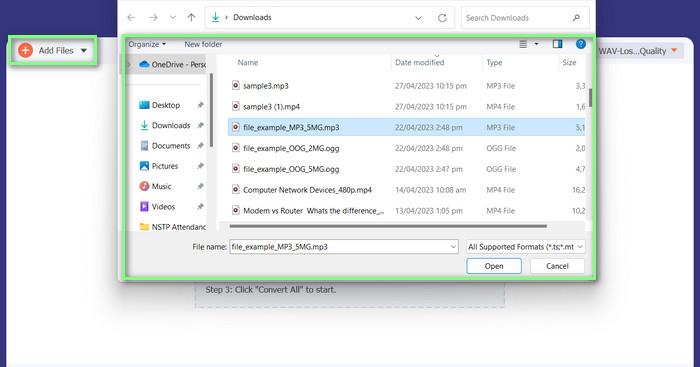
स्टेप 3. ऑडियो फ़ॉर्मेट बदलें और कन्वर्ट करें
यह स्पष्ट है कि ऑडियो फ़ाइल का फ़ॉर्मेट MP3 है। अब हम इसे AAC में कन्वर्ट करेंगे। कृपया टूल के इंटरफ़ेस के दाएँ ऊपरी कोने में स्थित Convert All to विकल्प तक पहुँचें। इसके बाद, Audio टैब पर जाएँ और AAC फ़ॉर्मेट ढूँढें। तत्पश्चात, Convert All विकल्प चुनकर कन्वर्ज़न प्रक्रिया प्रारंभ करें।.
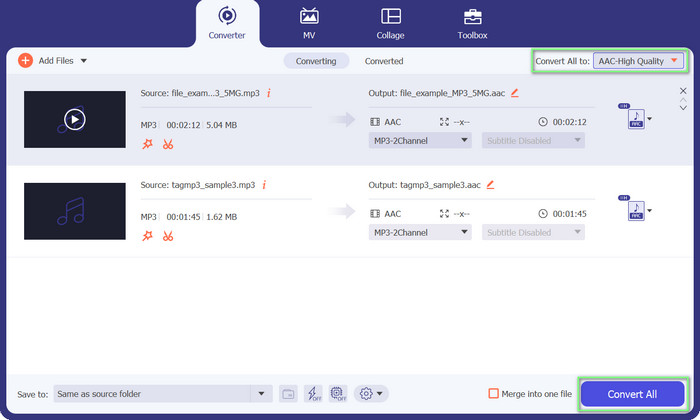
पेशेवरों
- इसमें फाइलों का बैच रूपांतरण है।
- यह ऑडियो ट्रैक के बिटरेट, आवृत्ति और चैनलों की संख्या को संशोधित कर सकता है।
- यह एक ऑडियो फ़ाइल मेटाडेटा संपादक के साथ आता है।
विपक्ष
- कुछ और अस्पष्ट फ़ाइल स्वरूपों के लिए सीमित समर्थन।
2. मुफ्त एमपी3 कन्वर्टर ऑनलाइन
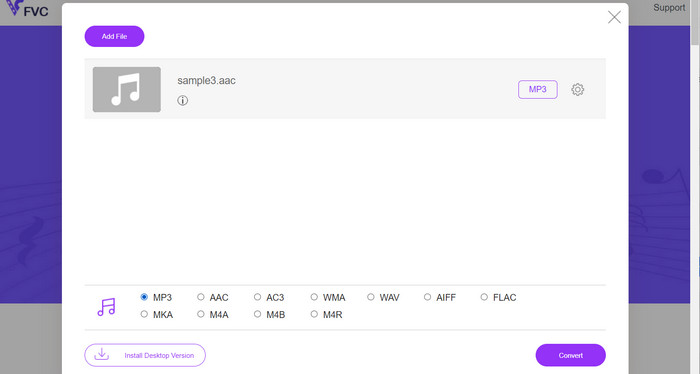
Free MP3 Converter Online की मदद से आप अपनी ऑडियो फ़ाइलों को कई अलग‑अलग फ़ॉर्मेट में कन्वर्ट कर सकते हैं, जिनमें AAC और MP3 जैसे लोकप्रिय फ़ॉर्मेट भी शामिल हैं। ध्यान दें कि आप वास्तव में अपनी कन्वर्ज़न सेटिंग्स को कस्टमाइज़ कर सकते हैं। यानी आप बिटरेट, सैंपल रेट और चैनल्स को एडजस्ट कर सकते हैं ताकि आपको बिल्कुल वैसी आउटपुट क्वालिटी मिले जैसी आप चाहते हैं। काफ़ी बढ़िया है, है ना? इसके अलावा, आप AAC को MP3 और MP3 को AAC में बिना किसी सॉफ़्टवेयर पर पैसा खर्च किए कन्वर्ट कर सकते हैं, क्योंकि यह एक फ्री टूल है। क्या आपने ऑनलाइन इस AAC से MP3 कन्वर्टर को इस्तेमाल करने की गाइड देखी है? यह बहुत ही आसान है!
स्टेप 1. FVC की Free MP3 Converter Online पेज पर जाएँ: https://www.freevideoconverter.online/audio-converter।.
स्टेप 2. जिस AAC फ़ाइल को बदलना है, उसे चुनने के लिए Add Files to Convert बटन पर क्लिक करें। आप फ़ाइल को पेज पर निर्धारित स्थान में खींचकर (ड्रैग‑एंड‑ड्रॉप) भी डाल सकते हैं।.
स्टेप 3. फ़ाइल अपलोड हो जाने के बाद, Audio format के अंतर्गत ड्रॉप‑डाउन विकल्प से MP3 चुनें, ताकि यही वह फ़ॉर्मेट हो जिसमें आप फ़ाइल को कन्वर्ट करना चाहते हैं।.
स्टेप 4. वैकल्पिक रूप से, आप Settings आइकॉन पर क्लिक करके आउटपुट के लिए बिटरेट, सैंपल रेट और चैनल विकल्प जैसी सेटिंग्स बदल सकते हैं। कन्वर्ज़न प्रक्रिया शुरू करने के लिए Convert बटन पर क्लिक करें।.
पेशेवरों
- यह विभिन्न इनपुट और आउटपुट ऑडियो प्रारूपों का समर्थन करता है।
- उपयोग करने के लिए नि: शुल्क।
विपक्ष
- कोई उन्नत ऑडियो संपादन सुविधाएँ नहीं, जैसे वॉल्यूम सामान्यीकरण।
3. एफएफएमपीईजी
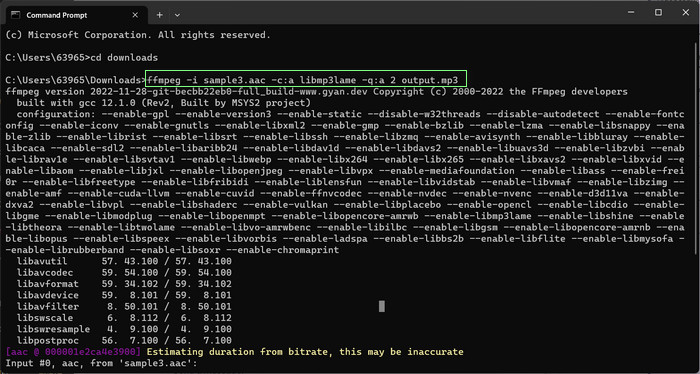
यदि आप AAC से MP3 कन्वर्टर फ्री प्रोग्राम में हैं, तो आपको FFmpeg को नहीं छोड़ना चाहिए। ऑडियो और वीडियो को प्रोसेस करने के लिए यह टूल वास्तव में बहुत अच्छा है। आप इसका उपयोग AAC को MP3 और MP3 को AAC में आसानी से बदलने के लिए कर सकते हैं। सुनो! यदि आप कमांड लाइन का उपयोग करने में सहज हैं, तो आपको यह पसंद आएगा कि आप इस टूल का उपयोग करके ऑडियो रूपांतरण के साथ कितना लचीलापन और अनुकूलन प्राप्त कर सकते हैं। उस ने कहा, नीचे AAC से MP3 FFmpeg रूपांतरण ट्यूटोरियल देखें:
स्टेप 1. अपने कंप्यूटर पर टर्मिनल खोलें। cd कमांड का उपयोग करके उस फ़ोल्डर में जाएँ जहाँ इनपुट ऑडियो फ़ाइल स्थित है।.
स्टेप 2. AAC को MP3 में कन्वर्ट करने के लिए यह कमांड इस्तेमाल करें: ffmpeg -i input.aac -c:a libmp3lame -q:a 2 output.mp3
यह आदेश 2 की गुणवत्ता सेटिंग के साथ, input.aac फ़ाइल लेगा और उसे libmp3lame कोडेक का उपयोग करके एक आउटपुट.mp3 फ़ाइल में रूपांतरित कर देगा। वांछित आउटपुट गुणवत्ता प्राप्त करने के लिए आप गुणवत्ता सेटिंग को आवश्यकतानुसार समायोजित कर सकते हैं।
MP3 को AAC में कन्वर्ट करने के लिए यह कमांड उपयोग करें: ffmpeg -i input.mp3 -c: a aac -b: a 128k output.aac
यह आदेश input.mp3 फ़ाइल लेगा और इसे AAC कोडेक का उपयोग करके 128k की बिटरेट के साथ एक आउटपुट.aac फ़ाइल में बदल देगा। वांछित आउटपुट गुणवत्ता प्राप्त करने के लिए आप आवश्यकतानुसार बिटरेट समायोजित कर सकते हैं।
पेशेवरों
- सभी के लिए सुलभ।
- लचीलापन और अनुकूलन का एक उच्च स्तर।
विपक्ष
- यह प्रभावी ढंग से उपयोग करने के लिए कुछ तकनीकी ज्ञान की मांग करता है।
4. आईट्यून्स
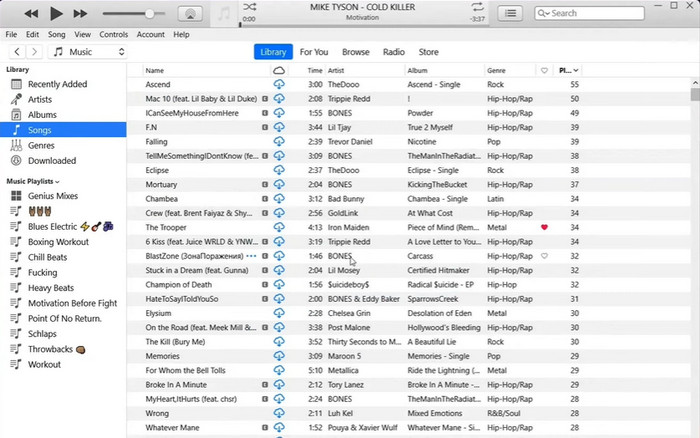
एक प्रारूप से दूसरे प्रारूप में ऑडियो फ़ाइल रूपांतरण, जैसे MP3 से AAC और AAC से MP3, iTunes की एक अंतर्निहित क्षमता है। इसका प्राथमिक कार्य संगीत प्रबंधन और प्लेबैक है, लेकिन इसका उपयोग वीडियो देखने और पॉडकास्ट और ऑडियोबुक सुनने के लिए भी किया जा सकता है।
स्टेप 1. अपने पर्सनल कंप्यूटर पर iTunes लॉन्च करें। फिर Edit मेन्यू से Preferences विकल्प चुनें।.
स्टेप 2. Preferences विंडो में Import Settings तक पहुँचने के लिए General टैब पर जाएँ और Import Settings बटन चुनें।.
स्टेप 3. Import Settings इंटरफ़ेस के भीतर, आप Import Using ड्रॉप‑डाउन मेन्यू से AAC Encoder या MP3 Encoder में से कोई एक चुन सकते हैं, जो भी फ़ॉर्मेट आप कन्वर्ज़न के लिए चाहते हैं।.
स्टेप 4. Import Settings विंडो को बंद करने के लिए OK विकल्प चुनें। अब अपने iTunes लाइब्रेरी से वे MP3 या AAC फ़ाइलें चुनें जिन्हें आप कन्वर्ट करना चाहते हैं।.
स्टेप 5. फ़ाइल का AAC/MP3 संस्करण बनाने के लिए, उपयोगकर्ताओं को File मेन्यू में जाकर Convert विकल्प चुनना चाहिए, और फिर अपनी Import Settings के अनुसार Create AAC/MP3 version चुनें। इस तरह iTunes में AAC को MP3 में कन्वर्ट करना बेहद आसान है।.
पेशेवरों
- यह मैक पर AAC से MP3 कन्वर्टर के रूप में बेहतर काम करता है।
- उपभोक्ता - अनुकूल इंटरफ़ेस।
विपक्ष
- यह एक संसाधन-गहन सॉफ्टवेयर है।
भाग 3. iOS और Android पर AAC को MP3 या MP3 को AAC में कैसे बदलें
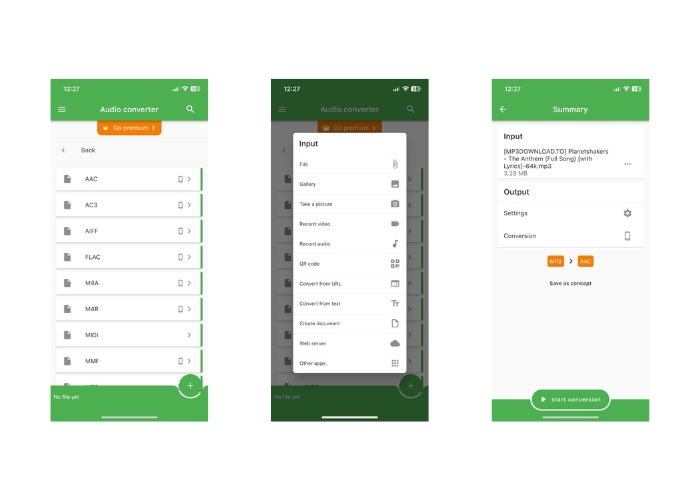
फ़ाइल कनवर्टर आईओएस और एंड्रॉइड ऑपरेटिंग सिस्टम दोनों पर पहुंच योग्य है और एएसी और एमपी3 जैसे विविध ऑडियो फ़ाइल स्वरूपों के रूपांतरण की सुविधा प्रदान करता है। इस प्रकार, यदि आप AAC से MP3 Android या iOS कन्वर्टर की तलाश कर रहे हैं, तो और न देखें। सॉफ्टवेयर एक उपयोगकर्ता के अनुकूल अनुभव प्रदान करता है और त्वरित और प्रभावी फ़ाइल रूपांतरण की सुविधा के लिए एक सुव्यवस्थित इंटरफ़ेस प्रस्तुत करता है।
स्टेप 1. अपने iOS या Android डिवाइस पर File Converter ऐप इंस्टॉल करें।.
स्टेप 2. ऐप लॉन्च करें और कन्वर्ज़न प्रकारों की सूची में से Audio converter विकल्प चुनें। उसके बाद, उपलब्ध विकल्पों में से आउटपुट फ़ॉर्मेट के रूप में AAC चुनें।.
स्टेप 3. यदि आप बिटरेट या अन्य कन्वर्ज़न सेटिंग्स को समायोजित करना चाहते हैं, तो Settings बटन पर टैप करके ऐसा कर सकते हैं।.
स्टार्ट 4. आउटपुट फ़ॉर्मेट और सेटिंग्स चुनने के बाद, कन्वर्ज़न प्रक्रिया शुरू करने के लिए start conversion बटन पर टैप करें।.
अधिक पढ़ें:
ऑडियो क्वालिटी को सुरक्षित रखते हुए FLAC को MP3 में कन्वर्ट करें
किसी भी ऑडियो को आसानी से काटने के लिए 5 MP3 कटर [2023 अपडेटेड]
भाग 4. एमपी3 और एएसी को परिवर्तित करने के बारे में अक्सर पूछे जाने वाले प्रश्न
क्या कॉपीराइट ऑडियो फाइलों को कनवर्ट करना कानूनी है?
कॉपीराइट धारक की अनुमति के बिना कॉपीराइट की गई ऑडियो फ़ाइलों को परिवर्तित करना आम तौर पर कानूनी नहीं है।
क्या मुफ़्त रूपांतरण टूल का उपयोग करने की कोई सीमाएँ हैं?
कुछ मुफ्त रूपांतरण उपकरणों में आपके द्वारा परिवर्तित की जा सकने वाली फ़ाइलों के आकार या संख्या की सीमाएँ हो सकती हैं और उनके पास सीमित अनुकूलन विकल्प भी हो सकते हैं।
क्या मैं AAC और MP3 के अलावा ऑडियो फाइलों को अन्य प्रारूपों में परिवर्तित कर सकता हूँ?
हाँ, कई अन्य ऑडियो फ़ाइल स्वरूप हैं जिन्हें आप परिवर्तित कर सकते हैं, जिनमें WAV, FLAC, OGG, और बहुत कुछ शामिल हैं।
निष्कर्ष
AAC और MP3 फ़ॉर्मेट के बीच कन्वर्ज़न करने की क्षमता, विभिन्न मीडिया प्लेयरों और डिवाइसों के उपयोग वाली परिस्थितियों में बेहद महत्वपूर्ण साबित हो सकती है। AAC को MP3 या MP3 को AAC में कन्वर्ट करने के लिए कई टूल उपलब्ध हैं, और प्रत्येक के अपने‑अपने अलग फ़ायदे और कमियाँ हैं।.
-
 5 समर्पित AAC मेटाडेटा संपादक जिन्हें आपको जानना चाहिए [2023]
 सबसे आम पिक AAC मेटाडेटा संपादक जानें, जिसका आप इस लेख में उपयोग कर सकते हैं। आपको तथ्य देने के लिए सभी टूल को चुना गया है और उनकी गहराई से समीक्षा की गई है।
-
 उन्नत ध्वनि गुणवत्ता के लिए MP3 को M4A में कैसे बदलें
 हमारे विशेषज्ञ टिप्स और ट्रिक्स के साथ MP3 को M4A में परिवर्तित करके अपनी संगीत फ़ाइलों की गुणवत्ता में सुधार करें। हमारा गाइड चरण-दर-चरण निर्देश और अनुशंसित सॉफ़्टवेयर प्रदान करता है।
-
 विंडोज और मैक के लिए असाधारण एमपी3 से एआईएफएफ कन्वर्टर्स
 यह ट्यूटोरियल विश्वसनीय टूल का उपयोग करके एमपी3 को एआईएफएफ में बदलने के प्रत्येक चरण के माध्यम से आपका मार्गदर्शन करेगा। अधिक जानने के लिए उन पर जाएँ।
