


 वीडियो कनवर्टर अंतिम
 स्क्रीन अभिलेखी
 वीडियो मरम्मत
 सुरक्षित डाउनलोड
MOV to MP3 - MOV से एमपी 3 फाइल्स को आसानी से निकालने के लिए 4 बेस्ट तरीके
यदि आप एक वीडियो से पृष्ठभूमि संगीत फ़ाइल को निकालना चाहते हैं, तो मूल गुणवत्ता के साथ MOV को एमपी 3 में कैसे बदलें? MOV अधिकांश उपकरणों के लिए अक्सर उपयोग किया जाने वाला वीडियो प्रारूप है, आप MOV से आसानी से एमपी 3 फ़ाइलों को निकालने के 4 सबसे कुशल तरीकों के बारे में अधिक जान सकते हैं। अब अपनी आवश्यकता के अनुसार वांछित विधि का चयन करें।

भाग 1: 5 सर्वश्रेष्ठ तरीके MOV को आसानी से एमपी 3 में बदलें
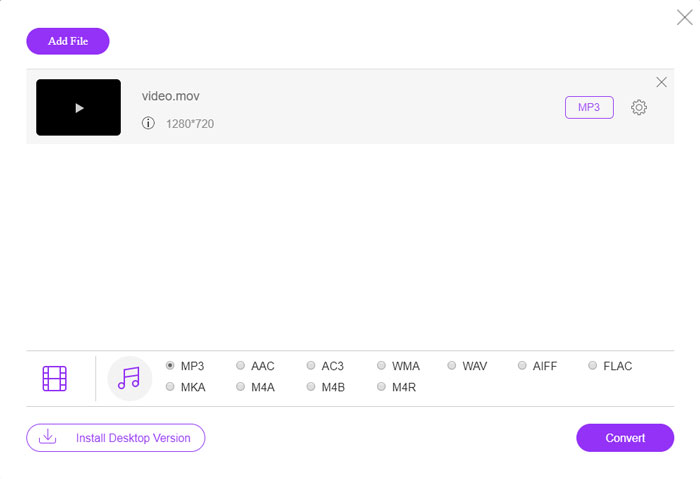
विधि 1: MOV को MP3 ऑनलाइन कैसे कन्वर्ट करें
FVC फ्री ऑनलाइन वीडियो कन्वर्टर एक बहुउद्देशीय ऑनलाइन MOV से MP3 कन्वर्टर है, जो आपको अधिकांश वीडियो/ऑडियो फ़ाइलों को कन्वर्ट करने, ऑडियो और वीडियो सेटिंग्स समायोजित करने, और बिना किसी वॉटरमार्क या आकार सीमा के, स्थिर और सुरक्षित रूप से कन्वर्ज़न करने में सक्षम बनाता है।.
चरण 1. किसी भी वेब ब्राउज़र पर ऑनलाइन वीडियो कन्वर्टर पर जाएँ, फिर आप जिन MOV फ़ाइलों को कन्वर्ट करना चाहते हैं उन्हें लोड करने के लिए Add Files to Convert बटन पर क्लिक कर सकते हैं। इसके लिए पहले से PKG प्रोग्राम इंस्टॉल होना आवश्यक है।.

चरण 2. जब आप MOV फ़ाइल इम्पोर्ट कर लें, तो आप यूज़र इंटरफ़ेस के भीतर ऑडियो मेनू से MP3 चुन सकते हैं। इसके अलावा, आप सैंपल रेट, ऑडियो चैनल और अन्य सेटिंग्स भी समायोजित कर सकते हैं।.

चरण 3. इसके बाद, आप MOV को MP3 में कन्वर्ट करने के लिए Convert बटन पर क्लिक कर सकते हैं। इच्छित वीडियो प्राप्त करने में कुछ सेकंड लगेंगे। फिर आप MP3 फ़ाइल को अपने कंप्यूटर पर डाउनलोड कर सकते हैं या सोशल मीडिया वेबसाइट पर साझा कर सकते हैं।.
विधि 2: विंडोज पर एमपी 3 को एमओवी कैसे चालू करें
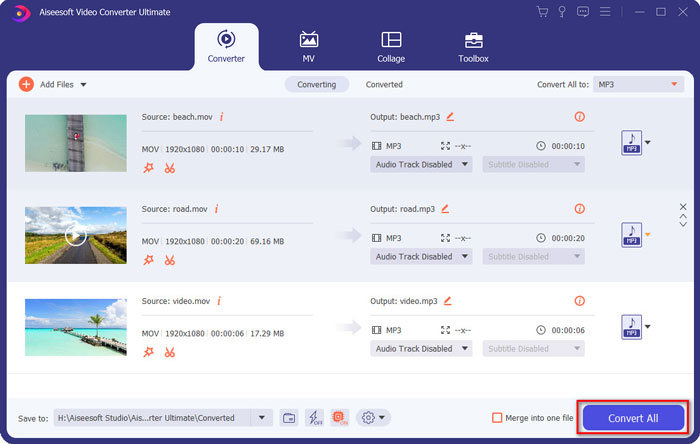
जब आप विंडोज़ और मैक पर मूल गुणवत्ता के साथ MOV को MP3 में बदलना चाहते हैं, तो FVC वीडियो कन्वर्टर अल्टीमेट वीडियो प्रारूपों में से अधिकांश को ट्रांसकोड करने के लिए MP3 कनवर्टर के लिए वांछित MOV है, ऑडियो / वीडियो सेटिंग्स को ट्विस्ट करता है, आउटपुट फाइलों को संपादित करता है या लागू भी करता है। आसानी के साथ कई वीडियो फिल्टर।
- 1. मूल गुणवत्ता के साथ MOV को MP3, WAV, WMA और अन्य में कनवर्ट करें।
- 2. वीडियो कोडेक, नमूना दर, ऑडियो बिटरेट और अन्य ऑडियो सेटिंग्स को ट्विक करें।
- 3. वीडियो-संपादन सुविधा प्रदान करें, जैसे कि क्लिप, ट्रिम, MOV मर्ज करें और फ़िल्टर लागू करें।
- 4. 70x तेज गति के साथ वीडियो फ़ाइलों को परिवर्तित करने के लिए उन्नत हार्डवेयर त्वरण।
चरण 1. MOV से MP3 कन्वर्टर डाउनलोड और इंस्टॉल करें, फिर आप अपने कंप्यूटर पर प्रोग्राम लॉन्च कर सकते हैं। Add Files विकल्प पर क्लिक करके MP4 फ़ाइलें लोड करें या वीडियो को सीधे प्रोग्राम में ड्रैग करें।.
फ्री डाउनलोडWindows 7 या बाद के संस्करण के लिएसुरक्षित डाउनलोड
फ्री डाउनलोडMacOS 10.7 या बाद के संस्करण के लिएसुरक्षित डाउनलोड

चरण 2. जब आप MP4 वीडियो इम्पोर्ट कर लें, तो आप ऑडियो मेनू चुनकर MP3 को आउटपुट फ़ॉर्मैट के रूप में चुन सकते हैं। उसके बाद, आप बिटरेट, सैंपल रेट आदि जैसी प्रोफ़ाइल सेटिंग्स समायोजित कर सकते हैं।.

चरण 3. कन्वर्ट की गई फ़ाइलों के लिए एक गंतव्य फ़ोल्डर चुनें। फिर आप अपनी आवश्यकता के अनुसार कंप्यूटर पर MOV को MP3 में बदलना शुरू करने के लिए मुख्य इंटरफ़ेस पर Convert All बटन पर क्लिक कर सकते हैं।.
विधि 3: Android पर MOV को MP3 में कैसे बदलें
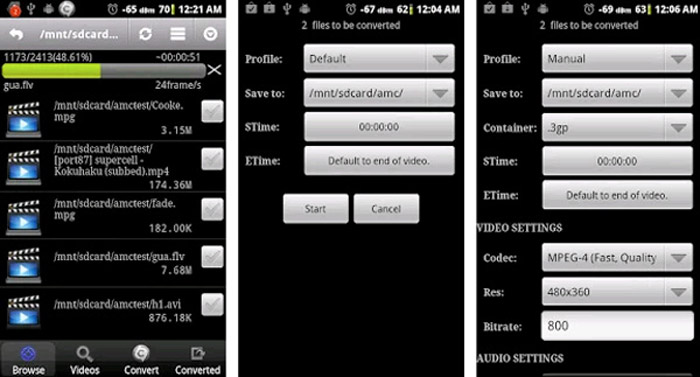
यदि आपके पास अपने Android उपकरणों पर कुछ MOV फ़ाइलें हैं, तो आपको वीडियो को कंप्यूटर पर स्थानांतरित करने की आवश्यकता नहीं है, वीडियो कनवर्टर Android MP3 कनवर्टर ऐप के लिए एक अनुशंसित सरल MOV है जो MOV वीडियो को कुछ ही क्लिक में वांछित ऑडियो में बदल देता है।
चरण 1. जब आप MP3 कन्वर्टर इंस्टॉल कर लें, तो आप ऐप खोलकर अपने Android गैलरी से MOV ब्राउज़ और ऐड कर सकते हैं। फिर आप ऊपर दिए गए Refresh आइकन पर टैप कर सकते हैं।.
चरण 2. इसके बाद आप MOV फ़ाइल से बैकग्राउंड म्यूज़िक को ट्रिम करने के लिए STime और ETime चुन सकते हैं और कन्वर्ज़न से पहले सैंपल रेट तथा अन्य सेटिंग्स समायोजित कर सकते हैं।.
चरण 3. इसके बाद, आप Convert टैब पर जा सकते हैं और कोडेक सूची से आउटपुट फ़ॉर्मैट के रूप में MP3 का चयन कर सकते हैं। MOV से MP3 कन्वर्ज़न प्रक्रिया शुरू करने के लिए Start बटन पर क्लिक करें।.
विधि 4: iOS पर MP3 में MOV कैसे कन्वर्ट करें
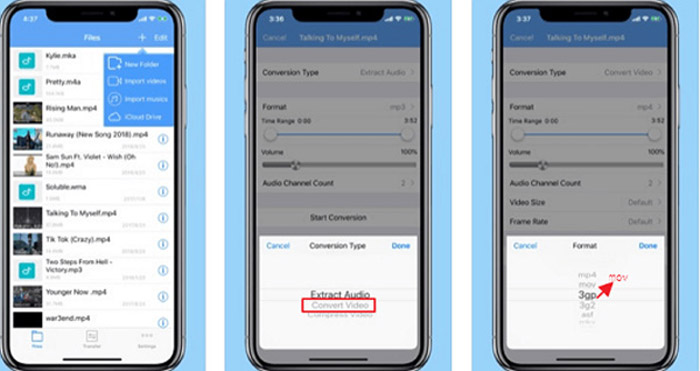
मीडिया कनवर्टर आपके iPhone और iPad के लिए MP3 कनवर्टर ऐप के लिए एक MOV है। इसमें एक अंतर्निहित मीडिया प्लेयर है जो आपको अधिकांश वीडियो और ऑडियो प्रारूपों को चलाने में सक्षम बनाता है। इसके अलावा, आप आसानी से एक ज़िप और RAR के साथ ऑडियो फ़ाइल को संपीड़ित कर सकते हैं।
चरण 1. यदि आपने पहले से MOV से MP3 कन्वर्टर इंस्टॉल कर रखा है, तो आप इसे अपने iOS डिवाइस पर लॉन्च कर सकते हैं। जब आप MOV फ़ाइलें लोड कर लें, तो आप Extract Audio विकल्प पर टैप कर सकते हैं।.
चरण 2. इनपुट फ़ॉर्मैट के रूप में MOV और आउटपुट फ़ॉर्मैट के रूप में MP3 फ़ाइल चुनें। इसके बाद, आप अपनी आवश्यकताओं के अनुसार सैंपल रेट आदि जैसी ऑडियो सेटिंग्स समायोजित कर सकते हैं।.
चरण 3. इसके बाद, आप MOV को MP3 में कन्वर्ट करना शुरू करने के लिए Convert बटन पर क्लिक कर सकते हैं। जब आपको इच्छित फ़ाइल मिल जाए, तो आप फ़ोटो से अपने डिवाइस पर कन्वर्ट की गई MP3 फ़ाइल एक्सपोर्ट कर सकते हैं।.
भाग 2: MOV को विन / मैक पर एमपी 3 में बदलने के बारे में अक्सर पूछे जाने वाले प्रश्न
1. क्या सभी उपकरणों के लिए MOV को MP3 में बदलने का एक बहुमुखी तरीका है?
VLC Media Player मीडिया प्लेयर से अधिक है। आप अपने कंप्यूटर और स्मार्टफ़ोन पर MOV को MP3 में भी बदल सकते हैं। इसके अलावा, आप विभिन्न सेटिंग्स को भी बदल सकते हैं और कुछ मूल संपादन सुविधाओं के साथ वीडियो संपादित कर सकते हैं। लेकिन आपको एक संतुष्ट आउटपुट प्राप्त करने के लिए एक पेशेवर वीडियो कनवर्टर का उपयोग करना होगा।
2. MOV परिवर्तित करने के लिए सर्वश्रेष्ठ आउटपुट स्वरूप, MP3 या WAV कौन सा है?
जब आप MOV को MP3 में परिवर्तित करते हैं, तो आप अधिकांश उपकरणों के लिए ऑडियो प्रारूप का उपयोग कर सकते हैं। अपने कंप्यूटर या अन्य संगत मीडिया प्लेयर से ऑडियो फ़ाइलों को निकालने के लिए, आप अपनी आवश्यकता के अनुसार आउटपुट प्रारूप के रूप में WAV ऑडियो चुन सकते हैं।
3. MP3 कन्वर्टर के लिए वांछित ऑनलाइन MOV कैसे चुनें?
यदि आपको केवल एमपी 3 कनवर्टर के लिए एक ऑनलाइन एमओवी चुनने की आवश्यकता है, तो आपको रूपांतरण से पहले आकार की सीमा, वॉटरमार्क, खाता पंजीकरण और अधिक अन्य पर विशेष ध्यान देना चाहिए। FVC मुफ्त ऑनलाइन वीडियो कनवर्टर एक बहुमुखी है जो बिना किसी सीमा के ऑडियो फाइलों को निकालता है।
निष्कर्ष
MOV वीडियो से MP3 निकालने के लिए, आप लेख से एमपी 4 कन्वर्टर्स के लिए 4 सर्वश्रेष्ठ MOV के बारे में अधिक जान सकते हैं। चाहे आपको कंप्यूटर पर एमपी 3 में वीडियो ट्रांसकोड करने की आवश्यकता हो, या अपने आईओएस / एंड्रॉइड डिवाइस पर आसानी से MOV फ़ाइलों को बदलना हो, आप लेख से अपनी आवश्यकता के अनुसार वांछित समाधान चुन सकते हैं।
-
 कैसे डेस्कटॉप और ऑनलाइन पर एमपी 3 के लिए अपने OGG संगीत फ़ाइलें कन्वर्ट करने के लिए
 कंप्यूटर या मोबाइल डिवाइस पर सुनने के लिए अपनी OGG फ़ाइलों को MP3 फॉर्मेट में कैसे बदलें? यहां हम इसे डेस्कटॉप या ऑनलाइन पर करने के लिए 5 सबसे आसान तरीके साझा करते हैं।
-
 विंडोज / मैक / iPhone / Android / ऑनलाइन पर एमपी 3 के लिए MP4 कन्वर्ट करने के लिए कैसे
 यदि आप MP4 वीडियो से एमपी 3 ऑडियो निकालना चाहते हैं, तो आप इस लेख की जांच कर सकते हैं और 8 समाधान प्राप्त कर सकते हैं। वहाँ आसानी से अपने फोन या कंप्यूटर पर एमपी 3 के लिए MP4 कन्वर्ट करने के लिए ऑनलाइन और ऑफलाइन तरीके हैं।
-
 विंडोज, मैक, आईफोन और एंड्रॉइड पर एमओवी फाइलें कैसे संपीड़ित करें
 यह लेख दिखाता है कि अपने फोन या कंप्यूटर पर क्विकटाइम एमओवी वीडियो को विवरण में कैसे संपीड़ित करें। यदि आपका MOV वीडियो भेजने, साझा करने या सहेजने के लिए बहुत बड़ा है, तो आप यहां 4 व्यावहारिक समाधान प्राप्त कर सकते हैं।
