


 वीडियो कनवर्टर अंतिम
 स्क्रीन अभिलेखी
 वीडियो मरम्मत
 सुरक्षित डाउनलोड
एमपी3 को एआईएफएफ में कैसे बदलें: आदर्श दृष्टिकोण ऑनलाइन और ऑफलाइन
एक एमपी3 फ़ाइल को एआईएफएफ फ़ाइल प्रारूप में परिवर्तित करना सहायक हो सकता है यदि आपको पेशेवर ऑडियो उत्पादन या संग्रह उद्देश्यों के लिए दोषरहित, उच्च गुणवत्ता वाले ऑडियो प्रारूप की आवश्यकता है। AIFF फ़ाइल एक असम्पीडित ऑडियो फ़ाइल है जो रिकॉर्डिंग की मूल ध्वनि गुणवत्ता को संरक्षित करती है, जिससे यह रिकॉर्डिंग, मिश्रण और मास्टरिंग के लिए आदर्श बन जाती है।
इस गाइड में, हम आपको Windows और Mac के लिए उपलब्ध विभिन्न सॉफ्टवेयर टूल का उपयोग करके MP3 फ़ाइल को AIFF फ़ाइल में बदलने के चरणों से परिचित कराएँगे। इस गाइड की मदद से आप आसानी से अपनी MP3 फ़ाइलों को AIFF में बदल सकते हैं और अपनी रिकॉर्डिंग की मूल साउंड क्वालिटी को बनाए रख सकते हैं।.

भाग 1. एआईएफएफ की तुलना एमपी3 से करें
नीचे दी गई तालिका एआईएफएफ और एमपी3 के बीच मुख्य अंतरों को सारांशित करती है।
| एआइएफएफ | एमपी 3 | |
| ध्वनि गुणवत्ता | दोषरहित ऑडियो प्रारूप, उच्च गुणवत्ता | हानिपूर्ण ऑडियो प्रारूप, एआईएफएफ से कम गुणवत्ता |
| फाइल का आकार | बड़ा फ़ाइल आकार | छोटा फ़ाइल आकार |
| दबाव | असम्पीडित ऑडियो प्रारूप | संपीड़ित ऑडियो प्रारूप |
| अनुकूलता | उपकरणों और सॉफ्टवेयर के साथ सीमित संगतता | अधिकांश उपकरणों और सॉफ़्टवेयर के साथ व्यापक रूप से संगत |
| प्रयोग | पेशेवर ऑडियो उत्पादन के लिए आदर्श | संगीत को ऑनलाइन स्ट्रीमिंग, साझा करने और संग्रहीत करने के लिए आदर्श |
| मेटाडाटा | एम्बेडेड मेटाडेटा का समर्थन करें | एम्बेडेड मेटाडेटा का समर्थन करें |
| लाइसेंसिंग | मालिकाना प्रारूप | खुला स्वरूप |
भाग 2. वीडियो कन्वर्टर अल्टीमेट का उपयोग करके एमपी3 को एआईएफएफ में बदलें
वीडियो कन्वर्टर अल्टीमेट एक प्रभावी सॉफ्टवेयर टूल है जो MP3 फ़ाइलों को मूल साउंड क्वालिटी खोए बिना AIFF फ़ॉर्मेट में बदल सकता है। यह प्रोग्राम, चाहे आपका डिवाइस इंटरनेट से कनेक्ट हो या न हो, तेज़ी से कन्वर्ज़न प्रक्रिया कर सकता है। इसके अलावा, इस ऐप्लिकेशन का उपयोगकर्ता‑अनुकूल इंटरफ़ेस इसे सीधा और बिना झंझट के बनाता है। इस सॉफ्टवेयर में अतिरिक्त फीचर भी हैं जिनका उपयोग करके आप चरण-दर-चरण प्रक्रिया के ज़रिए MP3 को AIFF में बदलना सीख सकते हैं।.
स्टेप 1. ऐप का नवीनतम संस्करण प्राप्त करें
ऑडियो फ़ाइलों को कन्वर्ट करना शुरू करने के लिए पहला कदम कार्यक्रम का नवीनतम संस्करण प्राप्त करना है। उपलब्ध किसी भी फ्री डाउनलोड बटन पर क्लिक करें और ऐप्लिकेशन को अपने कंप्यूटर पर इंस्टॉल करें।.
Free DownloadWindows 7 या बाद के वर्ज़न के लिएसिक्योर डाउनलोड
Free DownloadMacOS 10.7 या बाद के वर्ज़न के लिएसिक्योर डाउनलोड
स्टेप 2. MP3 फ़ाइलों को टूल में जोड़ें
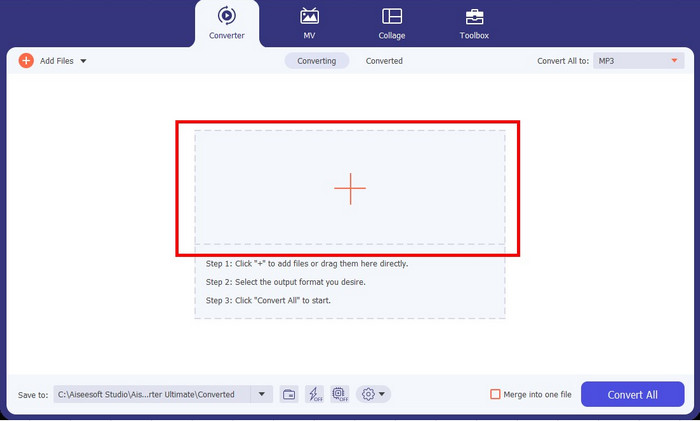
सॉफ्टवेयर लॉन्च करने के बाद, इंटरफ़ेस के केंद्र में स्थित प्लस चिन्ह वाले बटन को ढूँढें और उस पर क्लिक करें। इससे आपको अपने लोकल फ़ोल्डर से MP3 फ़ाइलों का चयन करने और उन्हें आगे की प्रोसेसिंग के लिए प्रोग्राम में इम्पोर्ट करने के लिए कहा जाएगा।.
स्टेप 3. AIFF को आउटपुट फ़ॉर्मेट के रूप में चुनें
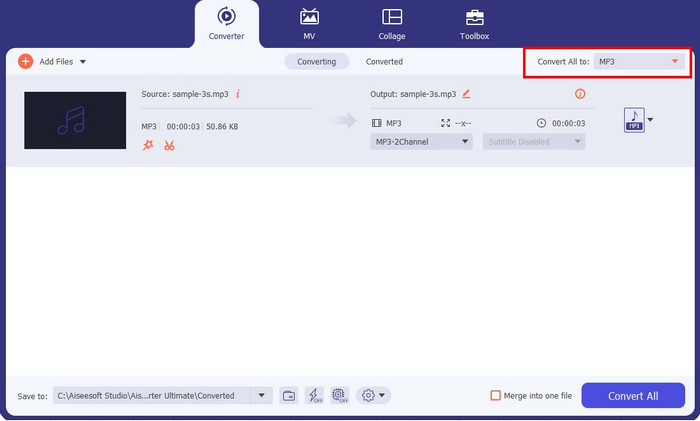
जब आप अपनी MP3 फ़ाइलें इम्पोर्ट कर लें, तो प्रोफ़ाइल ड्रॉपडाउन मेनू में जाएँ और ऑडियो टैब का चयन करें। वहाँ से बाएँ तरफ़ के पैनल में उपलब्ध ऑडियो फ़ॉर्मेट की सूची में से AIFF चुनें। इसके अतिरिक्त, आउटपुट फ़ाइल के लिए इच्छित गुणवत्ता चुनें।.
स्टेप 4. कन्वर्ज़न शुरू करें
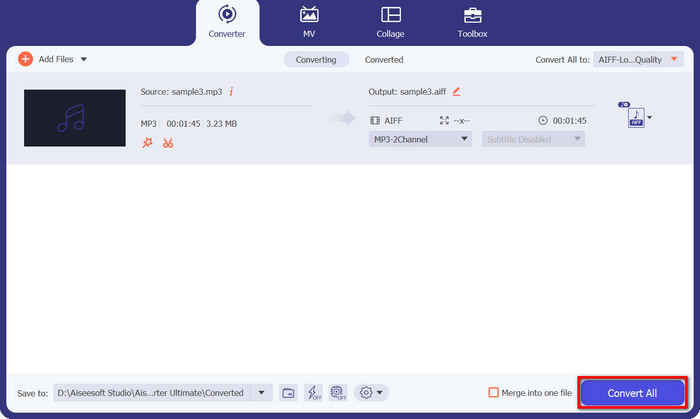
उपयुक्त आउटपुट फ़ॉर्मेट और क्वालिटी चुनने के बाद, इंटरफ़ेस के बाएँ हिस्से पर दिख रहे कन्वर्ट ऑल बटन पर क्लिक करके कन्वर्ज़न प्रक्रिया शुरू करें। प्रोग्राम उसके बाद आपकी MP3 फ़ाइलों को AIFF में बदलना शुरू कर देगा। कन्वर्ज़न पूरा होने पर, आप उसी पेज पर टैब को चेक करके आउटपुट फ़ाइल की जाँच कर सकते हैं।.
भाग 3. मुफ्त एमपी3 कन्वर्टर ऑनलाइन का उपयोग करके एमपी3 को एआईएफएफ में बदलें
1. क्लाउड कन्वर्ट
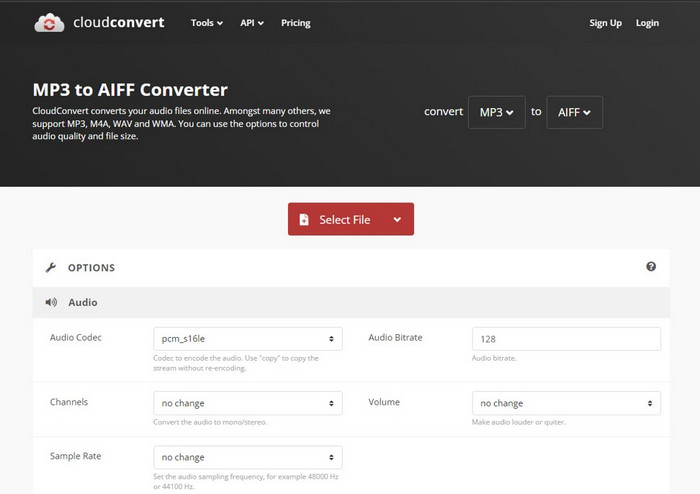
CloudConvert एक ऑनलाइन टूल है जो MP3 फाइलों को AIFF फॉर्मेट में बदल सकता है। MP3 के अलावा, यह MP3, M4A, WAV, और WMA जैसे अन्य प्रारूपों में कनवर्ट करने की क्षमता प्रदान करता है, जिससे आपको वांछित आउटपुट स्वरूप का चयन करने की स्वतंत्रता मिलती है। इसके अतिरिक्त, उपकरण आपको अपनी प्राथमिकताओं के अनुसार ऑडियो गुणवत्ता और फ़ाइल आकार को अनुकूलित करने की अनुमति देता है। इसके अलावा, CloudConvert आपको दस्तावेज़ों, वीडियो, ई-पुस्तकों, अभिलेखागार और छवियों सहित विभिन्न फ़ाइल प्रकारों को परिवर्तित करने में सक्षम बनाता है। CloudConvert का उपयोग करने का एक महत्वपूर्ण लाभ यह है कि यह iPhones, iPad और Android जैसे मोबाइल उपकरणों के साथ संगत है, जिससे आप चलते-फिरते फ़ाइलों को परिवर्तित कर सकते हैं। एमपी3 को एआईएफएफ में ऑनलाइन बदलने के लिए, नीचे दिए गए निर्देशों का पालन करें।
स्टेप 1. सबसे पहले, अपने कंप्यूटर पर किसी भी वेब ब्राउज़र के ज़रिए टूल की आधिकारिक वेबसाइट पर जाएँ।.
स्टेप 2. मुख्य पेज से लाल रंग के SELECT FILE बटन पर क्लिक करें।.
स्टेप 3. फ़ाइलें अपलोड करने के बाद, उपलब्ध विकल्पों में से आउटपुट फ़ॉर्मेट के रूप में AIFF चुनें।.
स्टेप 4. कन्वर्ज़न प्रक्रिया शुरू करने के लिए Convert button पर क्लिक करें।.
पेशेवरों
- इसके लिए किसी सॉफ्टवेयर इंस्टालेशन की जरूरत नहीं है।
- इंटरनेट कनेक्शन का उपयोग करके, आप इसे किसी भी डिवाइस से एक्सेस कर सकते हैं।
विपक्ष
- अपलोड और डाउनलोड गति इंटरनेट कनेक्शन से प्रभावित हो सकती है।
- कुछ ऑनलाइन परिवर्तकों के पास फ़ाइल आकार सीमा हो सकती है।
2. ज़मज़ार
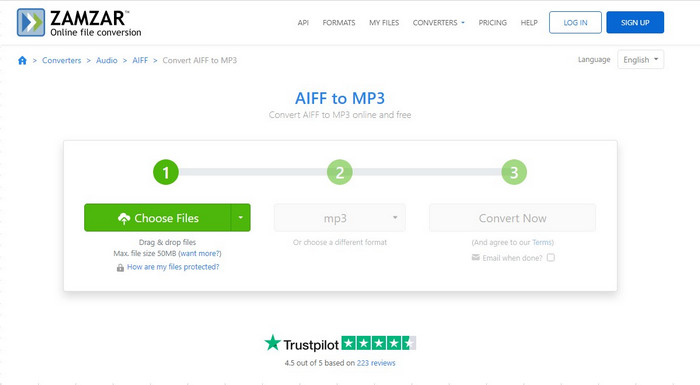
ज़मज़ार एक अत्यधिक प्रभावी ऑनलाइन उपकरण है जो एमपी3 फ़ाइलों को एआईएफएफ प्रारूप में परिवर्तित करने के लिए उपयोग करने के लिए स्वतंत्र है। यह सुविधाजनक अपलोड विकल्प प्रदान करता है, जिससे आप ड्रॉपबॉक्स और Google ड्राइव जैसे स्थानीय और क्लाउड-आधारित स्टोरेज समाधानों से फ़ाइलें आयात कर सकते हैं। निःशुल्क उपयोगकर्ताओं के लिए अधिकतम अपलोड सीमा 50 एमबी है, लेकिन यदि आपको बड़ी फ़ाइलों को परिवर्तित करने की आवश्यकता है, तो आपको एक खाते के लिए पंजीकरण करने की आवश्यकता हो सकती है। इसके अलावा, अन्य ऑडियो कंप्रेशन विकल्प भी उपलब्ध हैं जिनका आप लाभ उठा सकते हैं। ज़मज़ार का उपयोग कैसे करना है, यह जानने के लिए कृपया नीचे दिए गए निर्देशों का संदर्भ लें।
स्टेप 1. प्रोग्राम के वेब ब्राउज़र पर जाएँ, फिर अपनी फ़ाइलें अपलोड करने के लिए हरे रंग के Choose Files बटन को दबाएँ, या ड्रॉपडाउन मेनू का उपयोग करके URL, Box, Dropbox, Google Drive या OneDrive जैसे विभिन्न विकल्पों से अपलोड चुनें।.
स्टेप 2. यह हो जाने के बाद, फ़ॉर्मेट विकल्प को ड्रॉपडाउन करें और MP3 format पर क्लिक करें। आप फ़ॉर्मेट विकल्प के बगल में दिए गए ड्रॉपडाउन आइकन पर क्लिक करके बदलाव कर सकते हैं।.
स्टेप 3. अंत में, MP3 से AIFF में कन्वर्ट करना शुरू करने के लिए Convert बटन पर क्लिक करें।.
पेशेवरों
- यह उपयोगकर्ताओं को वेबसाइट छोड़े बिना फाइलों को बदलने और डाउनलोड करने की अनुमति देता है।
- क्लाउड-आधारित रूपांतरण उपकरण।
विपक्ष
- आपके अपलोड और डाउनलोड की गति भिन्न हो सकती है।
- इसमें आपके द्वारा परिवर्तित की जा सकने वाली फ़ाइलों के आकार पर प्रतिबंध लगाया गया है।
भाग 4. ITunes का उपयोग करके MP3 को AIFF में बदलें
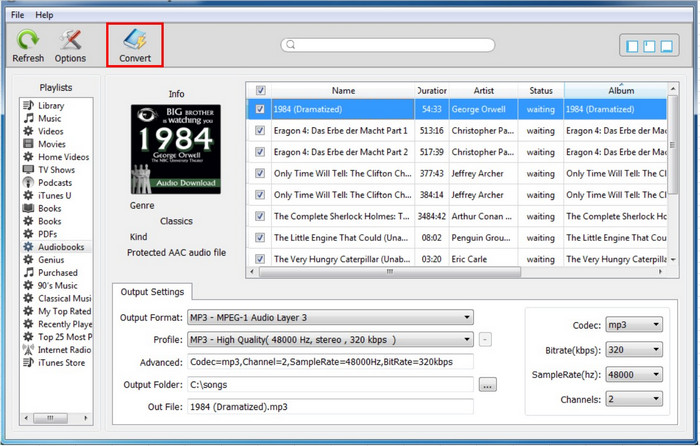
आप मैक और विंडोज कंप्यूटरों पर एमपी3 फाइलों को एआईएफएफ प्रारूप में बदलने के लिए ऐप्पल द्वारा विकसित मीडिया प्लेयर और लाइब्रेरी सॉफ्टवेयर आईट्यून्स का उपयोग कर सकते हैं। ITunes का उपयोग करके MP3 को AIFF में बदलने के लिए नीचे दिए गए चरण:
स्टेप 1. अपने कंप्यूटर पर iTunes ओपन करें।.
स्टेप 2. iTunes मेनू पर क्लिक करें और Preferences (Mac) चुनें या (Windows पर) Edit पर क्लिक करके फिर Preferences चुनें।.
स्टेप 3. प्रेफ़रेंसेज़ विंडो में General टैब और Import Settings बटन पर क्लिक करें।.
स्टेप 4. Import Settings विंडो में Import Using के बगल वाले ड्रॉपडाउन मेनू से AIFF Encoder चुनें।.
स्टेप 5. बदलाव सहेजने के लिए OK पर क्लिक करें।.
स्टेप 6. जिस MP3 फ़ाइल को आप कन्वर्ट करना चाहते हैं उसे iTunes में ड्रैग और ड्रॉप करें।.
स्टेप 7. MP3 फ़ाइल पर राइट‑क्लिक करें और Create AIFF Version चुनें। iTunes MP3 फ़ाइल की एक कॉपी AIFF फ़ॉर्मेट में बनाएगा और उसे आपकी iTunes लाइब्रेरी में जोड़ देगा।.
स्टेप 8. कन्वर्ट की गई AIFF फ़ाइल ढूँढने के लिए, फ़ाइल पर राइट‑क्लिक करें और (Mac पर) Show in Finder या (Windows पर) Show in Windows Explorer चुनें।.
पेशेवरों
- अधिकांश मैक और विंडोज कंप्यूटर पर प्री-इंस्टॉल्ड।
- इसका एक सरल और उपयोग में आसान इंटरफ़ेस है।
- अपनी संगीत लाइब्रेरी प्रबंधित कर सकते हैं और प्लेलिस्ट बना सकते हैं।
विपक्ष
- यह केवल सीमित संख्या में ऑडियो प्रारूपों का समर्थन कर सकता है।
- अन्य समर्पित ऑडियो रूपांतरण सॉफ़्टवेयर की तुलना में धीमा हो सकता है।
- परिवर्तित फ़ाइल में उच्चतम गुणवत्ता नहीं हो सकती है।
अधिक पढ़ें:
Mac और PC पर AIFF को MP3 में बदलने के 4 बेहतरीन तरीके
MP3 को OGG में कनवर्ट करें और बेहतर साउंड क्वालिटी का आनंद लें
भाग 5. एमपी3 और एआईएफएफ के अक्सर पूछे जाने वाले प्रश्न
MP3 और AIFF के फ़ाइल आकार में क्या अंतर है?
एमपी3 फाइलें आम तौर पर एआईएफएफ फाइलों की तुलना में आकार में बहुत छोटी होती हैं, क्योंकि वे संकुचित होती हैं। AIFF फ़ाइलें बड़ी होती हैं क्योंकि वे असम्पीडित होती हैं और उनमें अधिक ऑडियो डेटा होता है।
क्या एआईएफएफ फाइलें सभी ऑडियो प्लेयर और उपकरणों के साथ संगत हैं?
अधिकांश ऑडियो प्लेयर और डिवाइस एआईएफएफ फाइल चला सकते हैं, लेकिन कुछ पुराने डिवाइस प्रारूप का समर्थन नहीं कर सकते हैं। संगतता सुनिश्चित करने के लिए अपने डिवाइस या प्लेयर के विनिर्देशों की जांच करना सबसे अच्छा है।
एमपी3 को एआईएफएफ में कनवर्ट करते समय क्या गुणवत्ता में कोई कमी है?
एमपी3 जैसे हानिपूर्ण ऑडियो प्रारूप को एआईएफएफ जैसे दोषरहित प्रारूप में परिवर्तित करते समय, संपीड़न और डीकंप्रेसन प्रक्रिया के कारण गुणवत्ता में कुछ कमी हो सकती है। हालांकि, चूंकि एआईएफएफ दोषरहित प्रारूप है, इसलिए अन्य संकुचित प्रारूपों की तुलना में गुणवत्ता हानि आम तौर पर न्यूनतम है। यह नोट करना महत्वपूर्ण है कि रूपांतरण गुणवत्ता रूपांतरण प्रक्रिया के दौरान उपयोग किए गए सॉफ़्टवेयर और सेटिंग्स पर निर्भर करती है।
निष्कर्ष
इस पोस्ट में समीक्षा किए गए सभी ऐप्लिकेशन प्रभावी रूप से MP3 को AIFF में बदल सकते हैं। आम तौर पर, डेस्कटॉप ऐप्लिकेशन अधिक आकर्षक होता है क्योंकि इसे इंटरनेट कनेक्शन की ज़रूरत नहीं होती। इससे आप अपने इंटरनेट कनेक्शन से स्वतंत्र होकर कन्वर्ज़न प्रक्रिया कर सकते हैं।.
-
 शीर्ष 4 निःशुल्क एआईएफएफ ध्वनि रिकॉर्डर जो उच्च गुणवत्ता वाले ऑडियो का उत्पादन करते हैं
 यह लेख एआईएफएफ और कुछ सबसे लोकप्रिय उपकरणों के बारे में बात करता है जिनका उपयोग आप उच्च गुणवत्ता वाले एआईएफएफ प्रारूप का उत्पादन करने के लिए कर सकते हैं।
-
 एएमआर को एमपी3 में कैसे बदलें [ऑनलाइन और ऑफलाइन]
 कठिन समय हो रहा है क्योंकि .amr फ़ाइलें आपके डेस्कटॉप पर नहीं चलाई जा सकती हैं? फिर AMR को MP3 फॉर्मेट में बदलने का तरीका जानने के लिए इस लेख को पढ़ें।
-
 Windows और Mac पर MP3 मेटाडेटा को ठीक करने और संपादित करने के लिए 4 सर्वोत्तम तरीके
 MP3 मेटाडेटा को आसानी से संपादित करने के रहस्यों को जानना चाहते हैं? यह ब्लॉग आपको अलग-अलग तकनीकों के साथ अलग-अलग टूल सिखाएगा, जिन तक आप आसानी से पहुंच सकते हैं।
