


 वीडियो कनवर्टर अंतिम
 स्क्रीन अभिलेखी
 वीडियो मरम्मत
 सुरक्षित डाउनलोड
शीर्ष MP3 से M4A कन्वर्टर्स: तेज और आसान ऑडियो रूपांतरण
क्या आप कम-गुणवत्ता वाले ऑडियो से संतुष्ट नहीं हैं जो आपके पसंदीदा गीतों के साथ न्याय नहीं कर पाता? अब समय आ गया है कि आप MP3 से M4A कनवर्ज़न की शक्ति के साथ अपना ऑडियो अनुभव अपग्रेड करें! अपने ऑडियो फ़ाइलों को M4A में बदलकर, आप अपनी म्यूज़िक लाइब्रेरी की असली क्षमता को अनलॉक कर सकते हैं और खुद फर्क सुन सकते हैं। इस गाइड पोस्ट में, हम आपको MP3 से M4A कनवर्ज़न के फ़ायदों से परिचित कराएँगे और आपको सर्वश्रेष्ठ सॉफ़्टवेयर कनवर्टर सुझाएँगे, ताकि पूरा कनवर्ज़न प्रोसेस बिना किसी रुकावट के पूरा हो सके। तैयार हो जाइए अपने ऑडियो अनुभव को बदलने और अपने संगीत का पहले से कहीं अधिक आनंद लेने के लिए।.

भाग 1. MP3 को M4A में बदलने के सर्वोत्तम तरीके
यहाँ MP3 से M4a में कुछ बेहतरीन ऑडियो कन्वर्टर्स दिए गए हैं। एक ऑफ़लाइन तरीका है, जो एक डेस्कटॉप ऐप है, और दूसरा ऑनलाइन टूल है, जो एक वेब-आधारित प्रोग्राम है। अधिक जानने के लिए उन्हें देखें।
1. वीडियो कनवर्टर अल्टीमेट
वीडियो कनवर्टर अल्टिमेट एक लचीला सॉफ़्टवेयर है जो ऑडियो और वीडियो कनवर्ज़न के लिए ढेरों सुविधाएँ प्रदान करता है। जब बात MP3 से M4A कनवर्ट करने की आती है, तो वीडियो कनवर्टर अल्टिमेट एक बेहतरीन विकल्प है, जो उपयोगकर्ताओं को अपनी ऑडियो फ़ाइलों को बदलने के लिए एक सरल और सीधी प्रक्रिया देता है। यह टूल ऑडियो के कई फ़ॉर्मैट्स को सपोर्ट करता है, और इसकी उन्नत ऑडियो कोडेक तकनीक उच्च-गुणवत्ता वाला आउटपुट सुनिश्चित करती है। चाहे आपको निजी या पेशेवर उपयोग के लिए ऑडियो फ़ाइलें कनवर्ट करनी हों, वीडियो कनवर्टर अल्टिमेट इस प्रक्रिया को तेज़ बना देता है, ताकि आप सबसे ज़रूरी चीज़ पर ध्यान दे सकें – अपनी उच्च-गुणवत्ता वाली ऑडियो फ़ाइलों का आनंद लेने पर।.
कदम 1. प्रोग्राम प्राप्त करें और इंस्टॉल करें
शुरू करने के लिए, किसी एक फ्री डाउनलोड बटन का चयन करें और फिर ऑन-स्क्रीन निर्देशों का पालन करते हुए फ़ाइल को अपने कंप्यूटर पर सेव करें। अगला कदम है ऐप शुरू करना और इसके सहज नियंत्रणों से खुद को परिचित करना।.
Free DownloadWindows 7 या बाद के वर्ज़न के लिएसिक्योर डाउनलोड
Free DownloadMacOS 10.7 या बाद के वर्ज़न के लिएसिक्योर डाउनलोड
कदम 2. ऑडियो फ़ाइलें जोड़ें
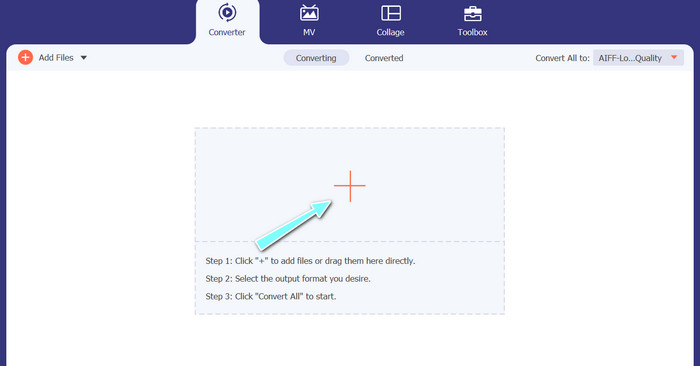
अब, मुख्य इंटरफ़ेस से प्लस साइन चुनें और उस स्थान पर जाएँ जहाँ वह ऑडियो फ़ाइल है जिसे आप कनवर्ट करना चाहते हैं। फ़ाइल अपलोड होने के बाद उसका प्रीव्यू यूज़र इंटरफ़ेस पर दिखाई देगा। अगर आप बैच में MP3 से M4A कनवर्ट करना चाहते हैं, तो आप फ़ाइलों वाला पूरा फ़ोल्डर अपलोड कर सकते हैं।.
कदम 3. आउटपुट फ़ॉर्मैट चुनें
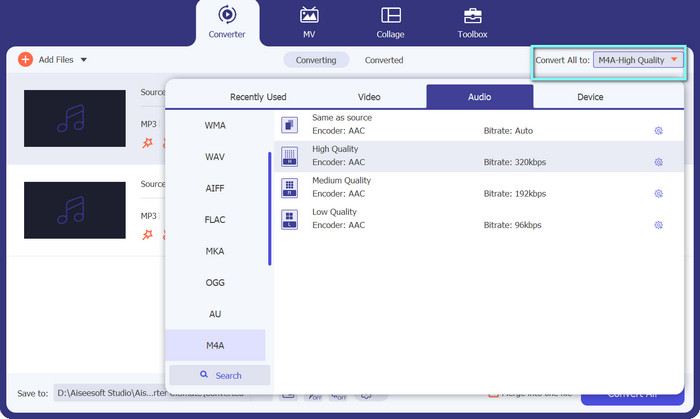
अब, प्रोफ़ाइल मेनू (टूल के दाएँ ऊपरी हिस्से में स्थित) में ऑडियो टैब पर क्लिक करके आउटपुट फ़ॉर्मैट चुनें। आप MP3 या M4A फ़ॉर्मैट का उपयोग करके MP3 में या उससे कनवर्ट कर सकते हैं।.
कदम 4. आउटपुट सेव करें
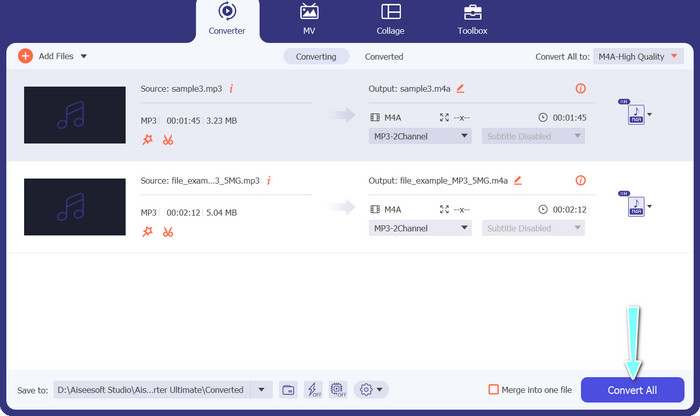
स्क्रीन के निचले हिस्से में गंतव्य फ़ोल्डर चुनें। जब आप कनवर्ज़न शुरू करने के लिए तैयार हों, तो कनवर्ट ऑल बटन पर क्लिक करें।.
2. मुफ्त वीडियो कन्वर्टर ऑनलाइन
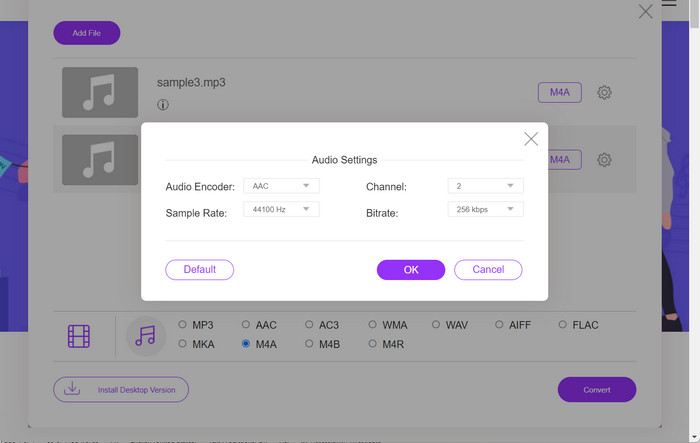
किसी दूसरे प्रोग्राम के लिए जगह नहीं है? चिंता न करें, आप एक ऑनलाइन टूल का उपयोग कर सकते हैं जिससे बिना कोई प्रोग्राम डाउनलोड किए फ़ाइलें कनवर्ट की जा सकती हैं। फ्री वीडियो कनवर्टर ऑनलाइन वेब-आधारित ऐप आपको सीधे अपने ब्राउज़र से कनवर्ट करने में सक्षम बनाता है। इसके अलावा, यह वीडियो और ऑडियो दोनों फ़ाइलों के लिए बहुत से फ़ॉर्मैट सपोर्ट करता है। साथ ही, आप इस ऑनलाइन टूल से बल्क कनवर्ज़न भी कर सकते हैं। इसके ऊपर, ऑडियो फ़ाइल के आउटपुट को कस्टमाइज़ करना भी इस टूल की एक बेहतरीन सुविधा है। देखें यह MP3 से M4A ऑनलाइन कनवर्टर कैसे काम करता है।.
कदम 1. फ्री वीडियो कनवर्टर ऑनलाइन का उपयोग शुरू करने के लिए, पहले अपना पसंदीदा वेब ब्राउज़र खोलें और सीधे इसकी वेबसाइट पर जाएँ।.
कदम 2. फिर, Add Files to Convert बटन पर क्लिक करके वह MP3 फ़ाइल चुनें जिसे आप M4A में कनवर्ट करना चाहते हैं।.
कदम 3. ऑडियो फ़ॉर्मैट विकल्प से M4A को अपना वांछित आउटपुट फ़ाइल फ़ॉर्मैट चुनें। M4A फ़ाइल की आउटपुट क्वालिटी या बिटरेट को भी बदला जा सकता है।.
कदम 4. कनवर्ज़न की प्रक्रिया शुरू करने के लिए कनवर्ट बटन पर क्लिक करें। इस तरह आप MP3 को ऑनलाइन M4A में कनवर्ट कर सकते हैं।.
भाग 2। विंडोज पर MP3 को M4A में बदलें
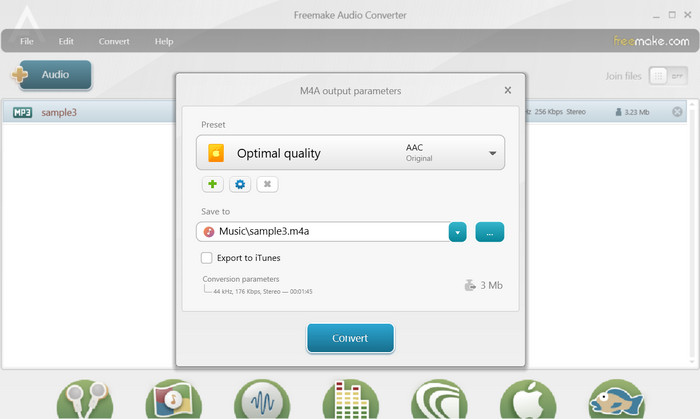
फ्रीमेक ऑडियो कन्वर्टर एक मुफ्त और उपयोग में आसान प्रोग्राम है जो उपयोगकर्ताओं को ऑडियो फाइलों को M4A, MP3, WAV और अन्य सहित विभिन्न प्रारूपों में परिवर्तित करने की अनुमति देता है। इसके सरल ड्रैग-एंड-ड्रॉप इंटरफ़ेस के साथ, उपयोगकर्ता आसानी से अपनी एमपी3 फ़ाइलें जोड़ सकते हैं और उन्हें बिना किसी जटिल सेटिंग्स या कॉन्फ़िगरेशन के एम4ए में परिवर्तित कर सकते हैं। उपकरण में अनुकूलन विकल्पों की एक श्रृंखला भी है, जिससे उपयोगकर्ता वांछित आउटपुट गुणवत्ता प्राप्त करने के लिए बिटरेट और नमूना दर जैसे मापदंडों को समायोजित कर सकते हैं। कुल मिलाकर, यह आपके द्वारा उपयोग किए जा सकने वाले सर्वश्रेष्ठ एमपी3 से एम4ए कन्वर्टर्स में से एक है।
कदम 1. अपने Windows कंप्यूटर पर Freemake Audio Converter डाउनलोड और इंस्टॉल करें।.
कदम 2. प्रोग्राम चालू करें और अपने MP3 फ़ाइल(फ़ाइलों) को जोड़ने के लिए +Audio बटन पर क्लिक करें।.
कदम 3. प्रोग्राम विंडो के निचले हिस्से में उपलब्ध फ़ॉर्मैट्स की सूची से M4A चुनें। आउटपुट फ़ाइल के लिए इच्छित क्वालिटी सेटिंग्स चुनने हेतु ड्रॉप-डाउन मेनू का उपयोग करें।.
कदम 4. वह आउटपुट फ़ोल्डर चुनें जहाँ आप अपनी कनवर्ट की गई फ़ाइल को सेव करना चाहते हैं। अंत में, कनवर्ज़न प्रक्रिया शुरू करने के लिए कनवर्ट बटन पर क्लिक करें।.
भाग 3. मैक पर MP3 को M4A में बदलें
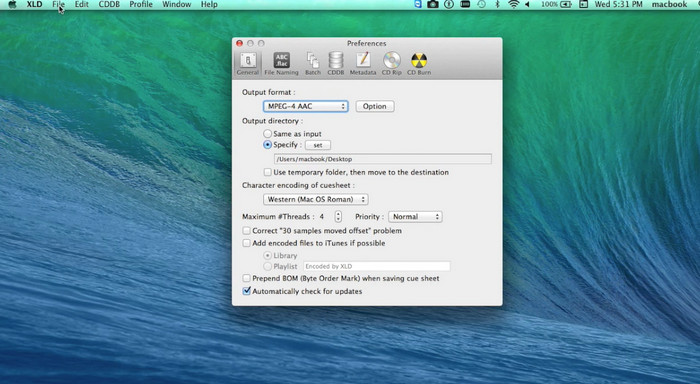
XLD एक मुफ्त और उपयोग में आसान प्रोग्राम है जो मैक उपयोगकर्ताओं को M4A, MP3, FLAC, और अन्य सहित ऑडियो फ़ाइलों को विभिन्न प्रारूपों में बदलने की अनुमति देता है। इसके सरल ड्रैग-एंड-ड्रॉप इंटरफ़ेस के साथ, उपयोगकर्ता आसानी से अपनी एमपी3 फ़ाइलें जोड़ सकते हैं और उन्हें बिना किसी जटिल सेटिंग्स या कॉन्फ़िगरेशन के एम4ए में परिवर्तित कर सकते हैं। XLD अनुकूलन विकल्पों की एक श्रृंखला भी प्रदान करता है, जिससे उपयोगकर्ता वांछित आउटपुट गुणवत्ता प्राप्त करने के लिए बिटरेट और नमूना दर जैसे मापदंडों को समायोजित कर सकते हैं।
कदम 1. अपने Mac कंप्यूटर पर XLD डाउनलोड और इंस्टॉल करें।.
कदम 2. प्रोग्राम चालू करें और अपने MP3 फ़ाइल(फ़ाइलों) को प्रोग्राम में जोड़ने के लिए Open बटन पर क्लिक करें।.
कदम 3. प्रोग्राम प्रेफ़रेंसेज़ में उपलब्ध फ़ॉर्मैट्स की सूची से M4A चुनें। आउटपुट फ़ाइल के लिए इच्छित क्वालिटी सेटिंग्स चुनने के लिए आप ड्रॉप-डाउन मेनू का उपयोग कर सकते हैं।.
कदम 4. अब, वह आउटपुट फ़ोल्डर चुनें जहाँ आप अपनी कनवर्ट की गई फ़ाइल को सेव करना चाहते हैं। अंत में, कनवर्ज़न प्रक्रिया शुरू करने के लिए कनवर्ट बटन दबाएँ। इस तरह आप Mac पर मुफ़्त में MP3 को M4A में कनवर्ट कर सकते हैं।.
भाग 4. Android पर MP3 को M4A में बदलें
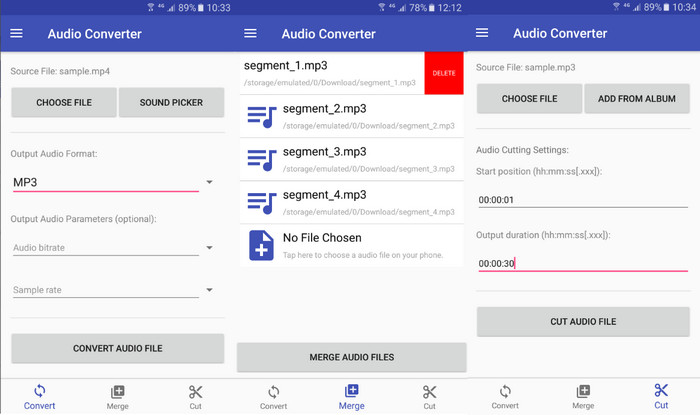
जब ऑडियो फाइलों को परिवर्तित करने की बात आती है, तो ऑनलाइन-Convert.com द्वारा मुफ्त और सीधा एंड्रॉइड सॉफ्टवेयर ऑडियो कन्वर्टर को हराना मुश्किल है। उपयोगकर्ता M4A में रूपांतरण प्रक्रिया शुरू करने के लिए अपनी MP3 फ़ाइलों को प्रोग्राम के इंटरफ़ेस में ड्रैग और ड्रॉप कर सकते हैं। ऑडियो कन्वर्टर में बिटरेट और सैंपलिंग रेट जैसी सेटिंग्स बदलकर ऑडियो फाइल की आउटपुट क्वालिटी को एडजस्ट किया जा सकता है। यहाँ Android पर MP3 को M4A में बदलने के चरण दिए गए हैं:
कदम 1. अपने Android डिवाइस पर Google Play Store से Online-Convert.com का Audio Converter डाउनलोड और इंस्टॉल करें। ऐप लॉन्च करें और Convert Audio बटन पर टैप करें।.
कदम 2. फिर, इनपुट फ़ॉर्मैट के रूप में MP3 और आउटपुट फ़ॉर्मैट के रूप में M4A चुनें।.
कदम 3. अब, अपने MP3 फ़ाइल(फ़ाइलों) को ऐप में जोड़ने के लिए Select Files बटन पर टैप करें। अंत में, कनवर्ज़न प्रक्रिया शुरू करने के लिए Start Conversion बटन पर टैप करें। यह इतना आसान है! अब आपने सीख लिया है कि Android पर MP3 को M4A में कैसे कनवर्ट करें।.
भाग 5. iOS पर MP3 को M4A में बदलें
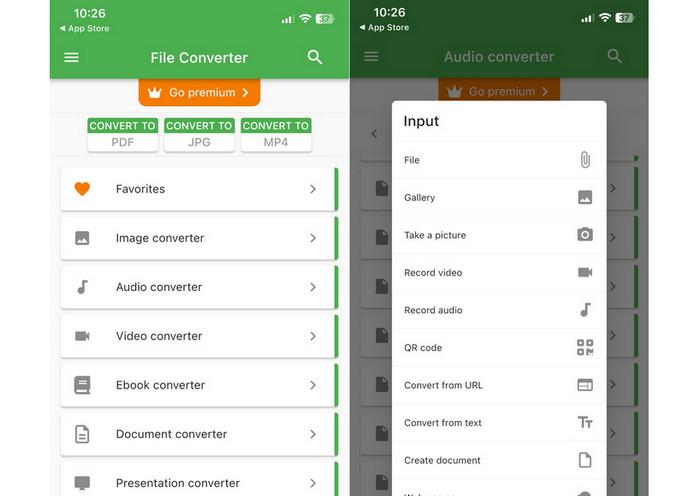
एमपी3 जैसी ऑडियो फाइलों को फाइल कन्वर्टर फ्री, एक फ्री और सरल आईओएस सॉफ्टवेयर की मदद से अधिक पोर्टेबल और दोषरहित एम4ए फॉर्मेट में बदला जा सकता है। इसका सीधा डिजाइन किसी के लिए भी एमपी3 फाइलों को लोड करना और किसी भी सेटिंग या सेटअप के साथ गड़बड़ किए बिना उन्हें एम4ए में परिवर्तित करना आसान बनाता है।
कदम 1. फ़ाइल कनवर्टर फ्री App Store पर उपलब्ध है और इसे मुफ़्त में डाउनलोड और उपयोग किया जा सकता है। प्रोग्राम शुरू करें और ऑडियो टैब पर टैप करें।.
कदम 2. इनपुट और आउटपुट दोनों फ़ॉर्मैट के लिए MP3 और Apple के AAC फ़ॉर्मैट के रूप में M4A चुनें। ड्रॉप-डाउन मेनू से इच्छित आउटपुट फ़ाइल क्वालिटी का चयन करें। किसी MP3 को प्रोग्राम में इम्पोर्ट करने के लिए Add File बटन चुनें।.
कदम 3. कनवर्ज़न प्रक्रिया शुरू करने के लिए कनवर्ट बटन पर क्लिक करें।.
भाग 6. एमपी3 को एम4ए में बदलने के बारे में अक्सर पूछे जाने वाले प्रश्न
क्या मैं विंडोज मीडिया प्लेयर का उपयोग करके MP3 को M4A में बदल सकता हूँ?
हाँ, आप Windows Media Player का उपयोग करके MP3 को M4A में कनवर्ट कर सकते हैं, लेकिन इसके लिए कुछ अतिरिक्त चरणों की आवश्यकता होती है क्योंकि Windows Media Player में M4A को मूल रूप से सपोर्ट नहीं किया जाता। या फिर, आप आसानी से किसी Windows Media Player के विकल्प का उपयोग कर सकते हैं।.
क्या MP3 को M4A में बदलने से ऑडियो गुणवत्ता में कोई कमी आएगी?
MP3 को M4A में बदलने से दो प्रारूपों द्वारा उपयोग किए जाने वाले संपीड़न एल्गोरिदम में अंतर के कारण ऑडियो गुणवत्ता में थोड़ी कमी हो सकती है।
क्या मैं M4A को वापस MP3 में बदल सकता हूँ?
हाँ, बहुत से ऑडियो कनवर्ज़न प्रोग्राम और टूल आपको आवश्यकता पड़ने पर M4A को MP3 में कनवर्ट करने की अनुमति देते हैं। हालाँकि, यह ध्यान रखें कि फ़ॉर्मैट्स के बीच बार‑बार कनवर्ट करने से क्वालिटी में गिरावट आ सकती है।.
निष्कर्ष
MP3 से M4A कनवर्ज़न उन सभी के लिए एक मूल्यवान प्रक्रिया है जो अपनी ऑडियो फ़ाइलों की क्वालिटी और कम्पैटिबिलिटी को बेहतर बनाना चाहते हैं। इस चर्चा में बताए गए चरणों और सुझावों का पालन करके, आप आसानी से अपनी MP3 फ़ाइलों को M4A में कनवर्ट कर सकते हैं और किसी भी डिवाइस पर उच्च-गुणवत्ता वाला ऑडियो आनंद ले सकते हैं।.
-
 मुफ्त और ऑनलाइन | विंडोज / मैक पर MP4 को M4A में कैसे कन्वर्ट करें
 मैं MP4 को M4A ऑनलाइन कैसे परिवर्तित करूं? क्या मैं MP4 फाइल से ऑडियो निकाल सकता हूं? इस पोस्ट को पढ़ें, और आपको MP4 से M4A में रूपांतरण के बारे में सभी उत्तर मिलेंगे।
-
 सर्वश्रेष्ठ उपकरण जिनका उपयोग आप एमपी3 को एम4आर फाइलों में कनवर्ट करने के लिए कर सकते हैं
 एक कन्वर्टर की तलाश है जो आपकी MP3 फाइल को आपके iPhone या iPad के लिए बैच द्वारा M4R रिंगटोन में बदल सके? कुछ बेहतरीन खोजने के लिए लेख के माध्यम से पढ़ें।
-
 5 MP3 कटर किसी भी ऑडियो को आसानी से काटने के लिए [2023 अपडेटेड]
 क्या आपको ऑडियो ट्रिम करने के लिए MP3 कटर की आवश्यकता है? उस स्थिति में, इस लेख को पढ़ें क्योंकि हम वे उपकरण प्रदान करते हैं जिन पर आप निर्भर हो सकते हैं जो ऑडियो के लिए आसान कटिंग प्रदान करते हैं।
