


 वीडियो कनवर्टर अंतिम
 स्क्रीन अभिलेखी
 वीडियो मरम्मत
 सुरक्षित डाउनलोड
वीएलसी प्लेयर को ठीक करने के लिए 4 उपयोगी टिप्स एमकेवी नहीं चलाएंगे
MKV (Matroska वीडियो फ़ाइल) एक निःशुल्क और ओपन मल्टीमीडिया फ़ाइल फ़ॉर्मेट है। लेकिन इसे Windows Media Player और QuickTime Player जैसे कई प्रचलित प्लेयर्स द्वारा सपोर्ट नहीं किया जाता। इसलिए आप MKV चलाने के लिए लोकप्रिय VLC Media Player का सहारा ले सकते हैं। हालाँकि, अनेक उपयोगकर्ताओं को VLC player won’t play MKV की समस्या का सामना करना पड़ा है।.

MKV प्लेबैक से जुड़ी समस्याएँ अलग‑अलग हो सकती हैं, जैसे आपकी MKV फ़ाइल के ऑडियो ट्रैक का लेट चलना, प्लेबैक रुक‑रुक कर चलना, धुँधली इमेज, और इंटरफ़ेस से जुड़ी कई तरह की बग्स वगैरह। इस पोस्ट में हम आपके साथ MKV files won’t play on VLC समस्या को हल करने के लिए 4 उपयोगी टिप्स साझा करना चाहते हैं।.
भाग 1। वीएलसी प्लेयर को ठीक करने के लिए प्राथमिकताएं निर्धारित करें एमकेवी नहीं चलाएगा
वीएलसी एक बहुत लोकप्रिय मीडिया फाइल प्लेइंग टूल है जो एमकेवी, एमपी4, एवीआई, एफएलवी, एमपी3, एएसी, एम4ए, एफएलएसी, आदि और वीसीडी, ऑडियो सीडी और डीवीडी सहित अधिकांश डिजिटल वीडियो और ऑडियो प्रारूपों का समर्थन कर सकता है।
वीएलसी मीडिया प्लेयर लाखों उपयोगकर्ताओं को आकर्षित करता है क्योंकि यह आपके पास मौजूद किसी भी मीडिया फाइल को चला सकता है। लेकिन वीएलसी प्लेयर एमकेवी फाइलों को नहीं चलाएगा समय-समय पर समस्या होती है। अगर वीएलसी प्लेयर सिर्फ आपकी एमकेवी या एचडी एमकेवी फाइल को छोड़ देता है, तो आप इसे ठीक करने के लिए कस्टम प्राथमिकताएं दे सकते हैं।
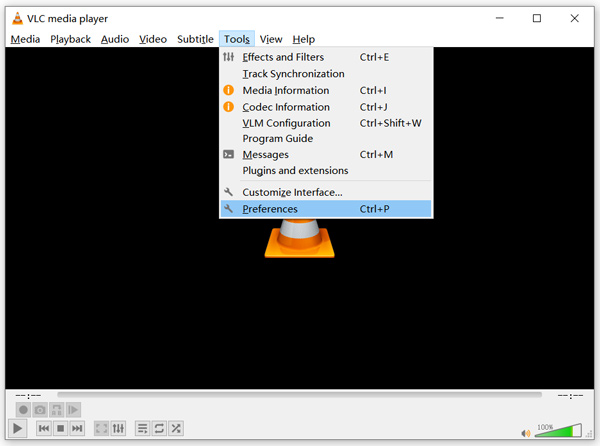
स्टेप 1: VLC Media Player खोलें और Tools मेनू चुनें। ड्रॉप‑डाउन सूची में से Preferences विकल्प चुनें।.
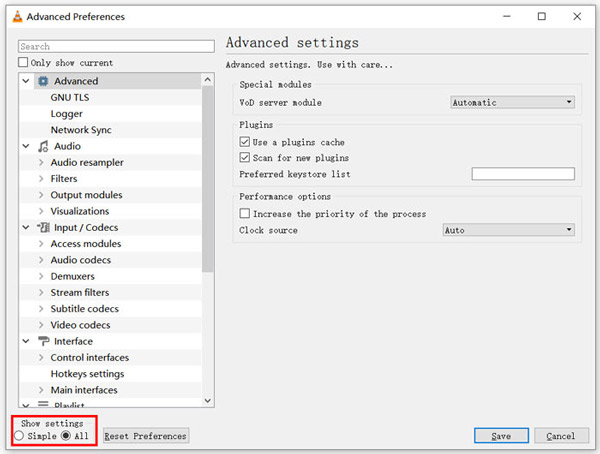
स्टेप 2: डायलॉग विंडो के बाएँ निचले कोने में Show settings के तहत All को टिक करें। ऐसा करने पर Advanced Preferences विंडो दिखेगी।.
स्टेप 3: बाएँ तरफ से Input/Codecs सेक्शन चुनें, और फिर दाएँ तरफ File Caching(ms) ऑप्शन ढूँढें। इसे खोजने के लिए आपको नीचे स्क्रोल करना पड़ सकता है।.
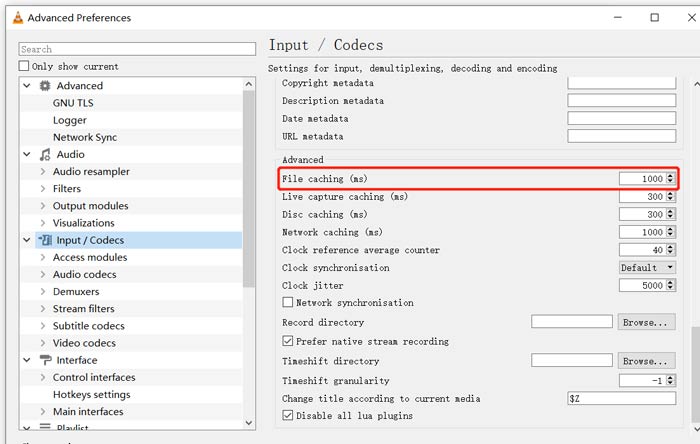
स्टेप 4: File Caching को 1000 पर सेट करें और फिर अपनी कार्रवाई की पुष्टि करने के लिए Save बटन पर क्लिक करें। इसके बाद आप VLC को पुनः शुरू करें और अपनी MKV फ़ाइल को दोबारा चलाएँ।.
भाग 2। प्लेयर को ठीक करने के लिए वीएलसी को अपडेट या पुन: स्थापित करें एमकेवी नहीं चलाएगा
यदि वीएलसी प्लेयर नहीं चलाएगा तो एमकेवी समस्या अभी भी मौजूद है, आप इसे नवीनतम संस्करण में अपग्रेड करना चुन सकते हैं। आपको पता होना चाहिए कि, एक नया संस्करण हमेशा पुराने संस्करणों की कई बगों को ठीक करेगा। आप अपने वीएलसी मीडिया प्लेयर को अपडेट करने के लिए नीचे दिए गए चरणों का पालन कर सकते हैं।
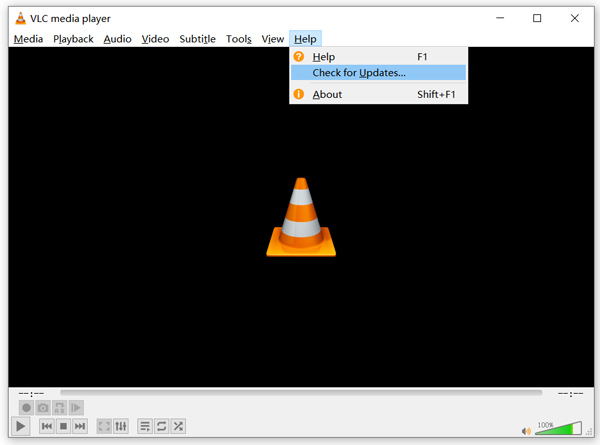
VLC खोलें और Help मेनू पर क्लिक करें। ड्रॉप‑डाउन सूची से Check for Updates विकल्प चुनें। VLC यह जाँचने लगेगा कि कोई उपलब्ध अपडेटेड वर्ज़न है या नहीं। फिर आप निर्देशों का पालन करके VLC को इसके नवीनतम वर्ज़न में अपग्रेड कर सकते हैं।.
आप सीधे अपने कंप्यूटर से VLC को अनइंस्टॉल भी कर सकते हैं, और फिर इसकी आधिकारिक वेबसाइट VideoLAN पर जाकर सही वर्ज़न इंस्टॉल कर सकते हैं। जब नया VLC Media Player इंस्टॉल हो जाए, तो आप अपनी MKV फ़ाइल चलाकर देख सकते हैं कि क्या अब वह सामान्य रूप से चल रही है।.
भाग 3. एमकेवी बजाते समय वीएलसी प्लेयर नो साउंड को ठीक करने के लिए ऑडियो सक्षम करें
यदि आपका वीएलसी मीडिया प्लेयर एमकेवी फाइल चला सकता है लेकिन कोई आवाज नहीं है, तो आपको जांचना चाहिए कि इसकी ऑडियो सेटिंग्स सही हैं या नहीं।
स्टेप 1: VLC के मेनू बार में Tools विकल्प चुनें। ड्रॉप‑डाउन मेनू से Preferences चुनें। इसके बाद आप Simple Preferences विंडो पर पहुँच जाएँगे।.
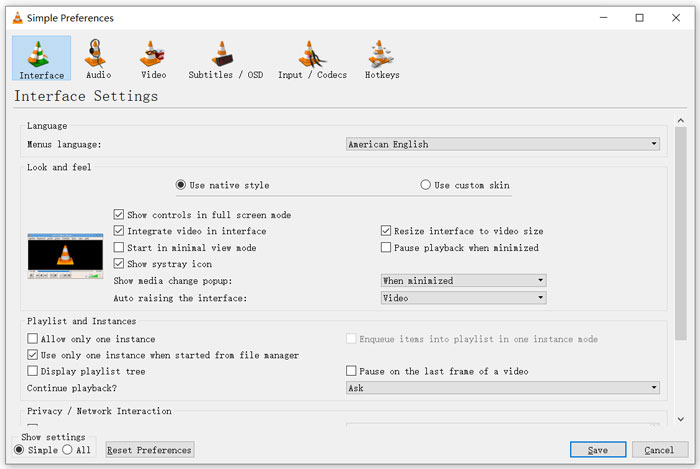
स्टेप 2: Audio टैब पर क्लिक करें, और फिर Enable Audio विकल्प को चेक करें। इस चरण के दौरान आप अपनी आवश्यकता के अनुसार Output Module, HDMI/SPDIF audio passthrough और Device को भी कस्टमाइज़ कर सकते हैं। बदलावों को सहेजने के लिए Save बटन पर क्लिक करें।.
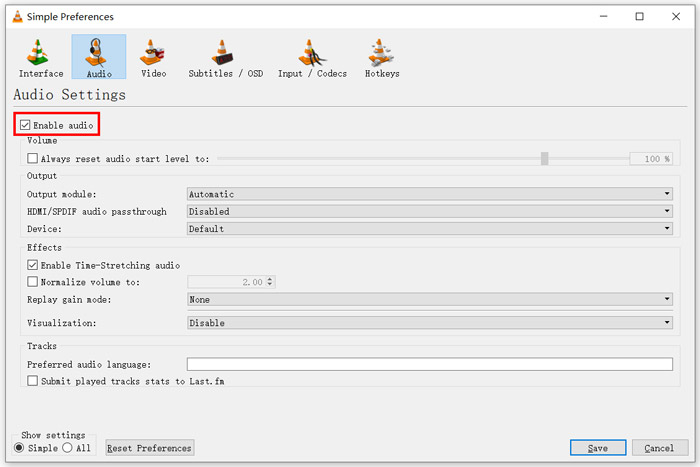
अब आप VLC के मुख्य इंटरफ़ेस पर लौट आएँगे, जहाँ आप Media पर क्लिक करके Open File चुन सकते हैं और अपनी MKV फ़ाइल चला सकते हैं।.
भाग 4. एमकेवी फाइलों को चलाने के लिए एक वीएलसी प्लेयर वैकल्पिक चुनें Select
जब आप MKV फ़िल्में देखना चाहें, तो VLC के स्थान पर कोई दूसरा प्लेयर भी चुन सकते हैं। आप लोकप्रिय Free Online Video Player को आज़मा सकते हैं। चाहे आप Windows 10/8/7 PC का उपयोग कर रहे हों या Mac का, आप किसी भी MKV फ़ाइल को उच्च गुणवत्ता के साथ चलाने के लिए इस पर भरोसा कर सकते हैं।.
यह मुफ्त ऑनलाइन प्लेयर 4K, 1080p/720p HD, SD वीडियो, 3D वीडियो और ऑडियो फ़ाइलों को सुचारू रूप से चलाने की क्षमता रखता है। MKV के अलावा, यह MP4, MOV, FLV, AVI, MPEG, WMV, WMA, AAC, MP3 और अन्य सहित कई अन्य स्वरूपों का भी समर्थन करता है।
स्टेप 1: जब आप MKV फ़ाइलें देखना चाहें, तो आप इस Free Online Video Player साइट पर जा सकते हैं। यह Chrome, IE, Firefox और Safari जैसे किसी भी वेब ब्राउज़र के साथ संगत है। MKV चलाने के लिए एक छोटा लॉन्चर तेज़ी से इंस्टॉल करने हेतु Play Now बटन पर क्लिक करें।.
स्टेप 2: इंस्टॉलेशन पूरा होने पर यह फ्री ऑनलाइन MKV फ़ाइल प्लेयर अपने‑आप शुरू हो जाएगा। अपनी MKV फ़ाइल इम्पोर्ट करने के लिए Open File बटन पर क्लिक करें। यहाँ आप DVD मूवी देखने के लिए Open Disc पर भी क्लिक कर सकते हैं।.
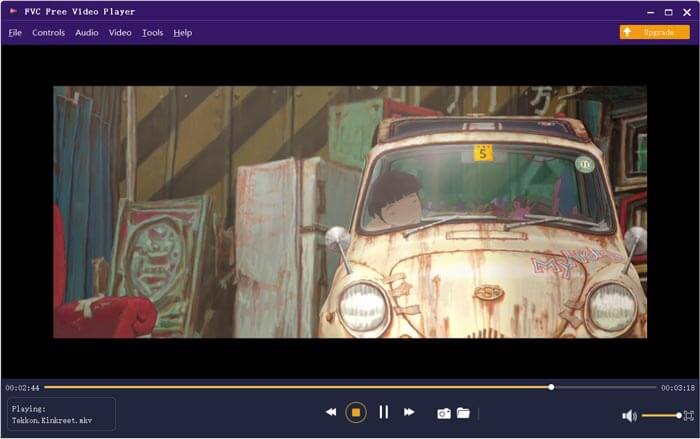
इसके बाद आपकी MKV वीडियो अपने‑आप चलने लगेगी। आपको MKV प्लेबैक पर पूरा नियंत्रण दिया जाता है। VLC Media Player की तुलना में, यह MKV फ़ाइलों का आनंद लेने का एक आसान तरीका देता है। यह फ्री ऑनलाइन MKV प्लेयर बेहतरीन साउंड अनुभव के लिए DTS-HD और Dolby TrueHD दोनों को सपोर्ट करता है।.
भाग 5. वीएलसी प्लेयर के अक्सर पूछे जाने वाले प्रश्न एमकेवी नहीं चलाएंगे
क्या स्मार्ट टीवी एमकेवी फाइलों को चलाता है?
हाँ। सोनी और सैमसंग जैसे कई स्मार्ट टीवी जो एमकेवी फाइलों का समर्थन कर सकते हैं। आप अपने MKV को बाहरी हार्ड ड्राइव या UBS डिवाइस के माध्यम से चला सकते हैं
वीएलसी मीडिया प्लेयर के साथ डीवीडी कैसे चलाएं?
जब आप VLC के साथ DVD चलचित्र चलाना चाहते हैं, तो आपको सबसे पहले DVD डिस्क को अपने कंप्यूटर डिस्क ड्राइव में सम्मिलित करना चाहिए। वीएलसी खोलें, मेनू बार पर मीडिया पर क्लिक करें और फिर ओपन डिस्क चुनें। इस डीवीडी मूवी को वीएलसी में ब्राउज़ करें और लोड करें और इसे चलाएं।
वीएलसी पर हार्डवेयर एक्सेलेरेशन डिकोडिंग को कैसे निष्क्रिय करें?
वीएलसी मीडिया प्लेयर पर हार्डवेयर एक्सेलेरेशन डिकोडिंग को अक्षम करने के लिए, आपको टूल्स मेनू से प्रेफरेंस पर जाना चाहिए। इनपुट/कोडेक श्रेणी और फिर कोडेक चुनें। हार्डवेयर-त्वरित डिकोडिंग विकल्प का पता लगाएँ और इसे वहाँ अक्षम करें।
निष्कर्ष
जब आप VLC player won’t play MKV problem का सामना करें, तो आप सीधे किसी दूसरे प्लेयर, जैसे कि सुझाए गए Free Online Video Player का उपयोग करके अपनी MKV फ़ाइलें देख सकते हैं। साथ ही, आप VLC Media Player को अपग्रेड करने या इसकी विभिन्न सेटिंग्स को कस्टमाइज़ करने का विकल्प भी चुन सकते हैं, ताकि समस्या दूर हो सके।.
-
 MKV को MOV में बदलने के लिए नि: शुल्क और व्यावसायिक तरीके
 मैं मैक पर एमकेवी को एमओवी में कैसे बदल सकता हूं? क्या iMovie MKV पढ़ सकता है? MOV प्रारूप का क्या अर्थ है? यह पोस्ट एमकेवी को एमओवी को मुफ्त ऑनलाइन और पेशेवर वीडियो कन्वर्टर्स में बदलने में आपकी मदद करने के लिए 2 सरल तरीके बताती है।
-
 कैसे खो गुणवत्ता के बिना MKTS के लिए M2TS कन्वर्ट करने के लिए
 मूल गुणवत्ता को बनाए रखते हुए M2TS को MKV में बदलना चाहते हैं? यह पोस्ट आपको M2TS को MKV में दोषरहित रूप से बदलने के लिए स्वतंत्र और ऑनलाइन तरीके दिखाता है।
-
 वीएलसी मीडिया प्लेयर - एक संक्षिप्त समीक्षा वीडियो प्लेयर और विंडोज़ और मैक पर सर्वश्रेष्ठ विकल्प
 वीएलसी मीडिया प्लेयर पर ऑडियो काम क्यों नहीं कर रहा है? यदि आप लोकप्रिय मीडिया प्लेयर के बारे में अधिक जानना चाहते हैं, तो आप समीक्षा और लेख के सर्वोत्तम विकल्पों के बारे में अधिक जान सकते हैं।
