


 वीडियो कनवर्टर अंतिम
 स्क्रीन अभिलेखी
 वीडियो मरम्मत
 सुरक्षित डाउनलोड
विंडोज़ और मैक कंप्यूटरों के लिए शीर्ष एएमवी स्क्रीन रिकॉर्डर
एक्शन मीडिया वीडियो को एएमवी के नाम से भी जाना जाता है। यह एक वीडियो फ़ाइल प्रारूप है जिसे विशेष रूप से MP4 को एक सार्वभौमिक प्रारूप के रूप में बदलने के लिए तैयार किया गया है जिसे अधिकांश मीडिया खिलाड़ियों के लिए चलाया जा सकता है। यदि आप एवीआई प्रारूप से परिचित हैं, तो यह इसका एक संशोधित और बेहतर संस्करण है। इस फ़ाइल स्वरूप में एक संपीड़ित वीडियो है। एएमवी प्रारूप आर्थिक रूप से निर्मित खिलाड़ियों और उपकरणों को वीडियो चलाने की अनुमति देने के लिए बनाया गया है। हालाँकि, प्रदान की गई प्रारंभिक फ़ाइल कम है क्योंकि फ़्रेम दर कम है। इसके बावजूद, आप अभी भी अपने आउटपुट वीडियो को प्रस्तुत करते समय इसे एक अच्छे वैकल्पिक प्रारूप के रूप में मान सकते हैं।
सापेक्ष रूप से, आप एक स्क्रीन रिकॉर्डर का उपयोग करने पर भी विचार कर सकते हैं, जो आपको आसानी से AMV फ़ाइल में वीडियो रेंडर करने में मदद कर सकता है। वास्तव में, बहुत‑से टूल हैं जो यह काम आपके लिए कर सकते हैं। अन्यथा, हमेशा AMV फ़ाइल होना ज़रूरी नहीं है। बस यह जानना अच्छा है कि अब ऐसी फ़ाइल मौजूद है। इसी कारण, हमने Android और कंप्यूटर प्लेटफ़ॉर्म के लिए कुछ .amv वीडियो रिकॉर्डर सूचीबद्ध किए हैं। अधिक जानने के लिए आप नीचे दी गई सूची देख सकते हैं।.

भाग 1. शीर्ष ऑनलाइन एएमवी रिकॉर्डर
1. एफवीसी फ्री स्क्रीन रिकॉर्डर
जब हम ऑनलाइन उपलब्ध मुफ़्त टूल्स की बात करते हैं, तो आपके मन में सीमित सुविधाएँ, वॉटरमार्क और असुरक्षा जैसी बातें आ सकती हैं। हालाँकि यह कई बार सही भी होता है, लेकिन सभी मुफ़्त स्क्रीन रिकॉर्डर एक जैसे नहीं होते। कुछ टूल्स ने इस धारणा को तोड़ा है और इन समस्याओं के समाधान दिए हैं। FVC Free Screen Recorder उन्हीं में से एक है। यह टूल निश्चित रूप से आपकी स्क्रीन रिकॉर्डिंग की ज़रूरतों के मामले में आपको अधिक आज़ादी देगा। समायोज्य फ़्रेम साइज़ के साथ आप अपनी पसंद का आस्पेक्ट रेशियो चुन सकते हैं और अपनी रिकॉर्डिंग को व्यक्तिगत बना सकते हैं। साथ ही, बिटरेट भी समायोज्य है। बिटरेट भी महत्वपूर्ण है, क्योंकि इससे आप उस वीडियो की गुणवत्ता को नियंत्रित कर सकते हैं जिसे आप रेंडर कर रहे हैं। इस बेहतरीन टूल के बारे में सीखने के लिए और भी बहुत‑कुछ है।.
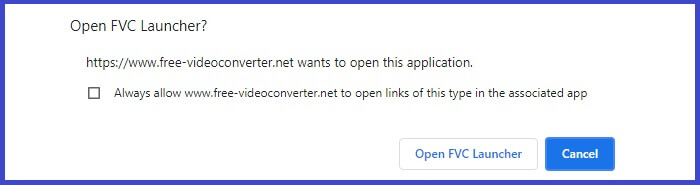
स्टेप 1. ऐप लॉन्च करने के लिए आधिकारिक वेबपेज https://www.free-videoconverter.net/free-screen-recorder/ पर जाएँ। ऐप चालू करने के लिए Start Recording बटन पर क्लिक करें।.
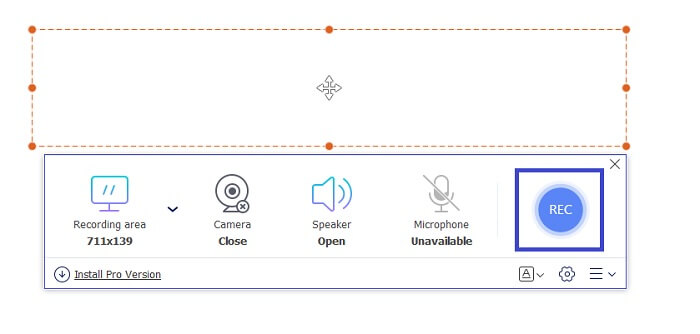
स्टेप 2. टूल लॉन्च होने के बाद, डॉटेड फ़्रेम को खिसकाकर रिकॉर्डिंग का आस्पेक्ट रेशियो समायोजित करें, जब तक कि आपको मनचाहा वीडियो साइज़ न मिल जाए। फिर रिकॉर्डिंग शुरू करने के लिए REC पर क्लिक करें।.
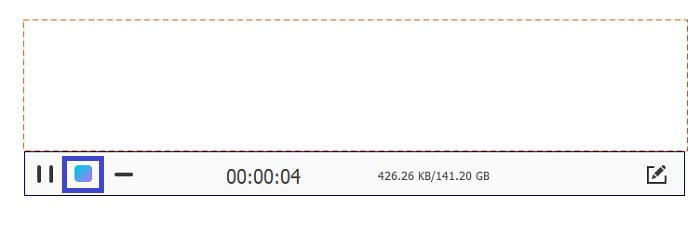
स्टेप 3. रिकॉर्डिंग के दौरान, रीयल‑टाइम एनोटेशन सक्षम करने के लिए पेंसिल आइकन पर क्लिक करें, जहाँ आप आकार, रेखाएँ और टेक्स्ट जोड़ सकते हैं। जब आप रिकॉर्डिंग पूरी कर लें, तो रिकॉर्डिंग रोकने के लिए Blue square बटन पर क्लिक करें।.
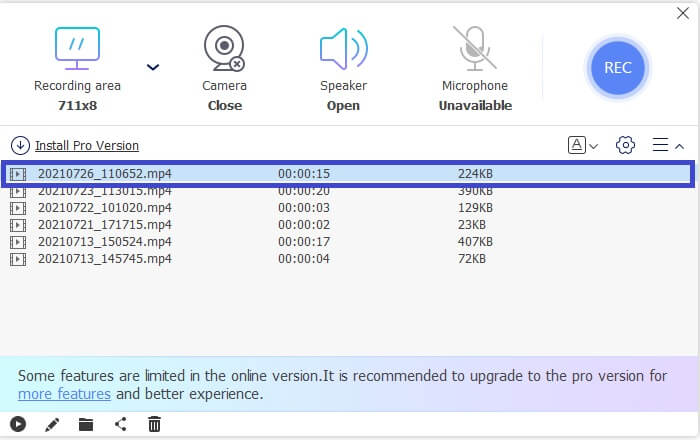
स्टेप 4. आपने जो फ़ाइल रिकॉर्ड की है उसे देखने के लिए, मुख्य इंटरफ़ेस के निचले हिस्से में दिख रहे फ़ाइल नाम पर क्लिक करें। प्ले करने के लिए उस पर डबल‑क्लिक करें।.
पेशेवरों
- असीमित रिकॉर्डिंग।
- कोई अवधि सीमा नहीं।
- उच्च गुणवत्ता वाले वीडियो आउटपुट के लिए एडजस्टेबल बिटरेट।
- वीडियो ट्रिमिंग समर्थित।
विपक्ष
- इसमें स्वतः उत्पन्न उपशीर्षक का अभाव है।
2. स्क्रीनकास्ट-ओ-मैटिक
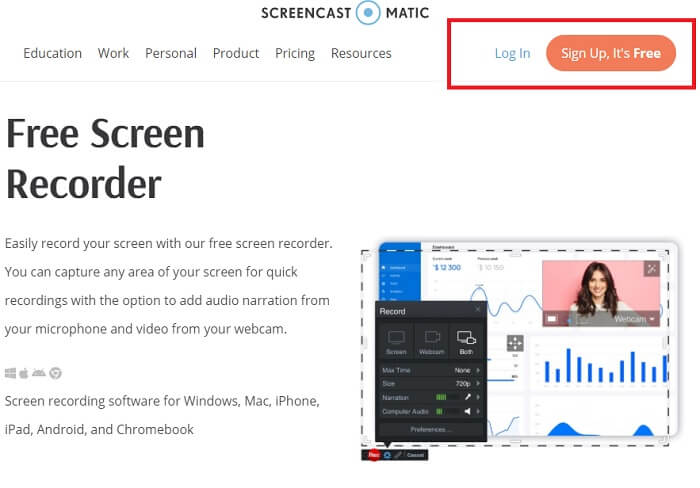
Screencast-O-Matic के साथ अपनी रिकॉर्डिंग को वैयक्तिकृत करें और आयातित वीडियो और रिकॉर्ड किए गए वीडियो के मिश्रण और मिलान का अनुभव करें। उल्लेख नहीं है, यह एक ऑनलाइन टूल है जो स्क्रीनशॉट कर सकता है, आपको स्वचालित कैप्शन के साथ स्क्रीन पर आकर्षित करने की अनुमति देता है, और एक ही समय में ऑडियो रिकॉर्ड कर सकता है। आप अपना वीडियो रिकॉर्ड करते समय कथन या उपशीर्षक जोड़ना चुन सकते हैं। यह मुख्य रूप से वीडियो ट्यूटोरियल निर्माताओं और पैसे बचाने वालों के लिए मददगार है। इस मुफ्त ऐप का एकमात्र नकारात्मक पहलू पंजीकरण प्रक्रिया है। यह लंबा है। इस बीच, यहां बताया गया है कि आप इसका उपयोग कैसे कर सकते हैं।
स्टेप 1. मुख्य पेज पर जाएँ और एक अकाउंट के लिए रजिस्टर करें।.
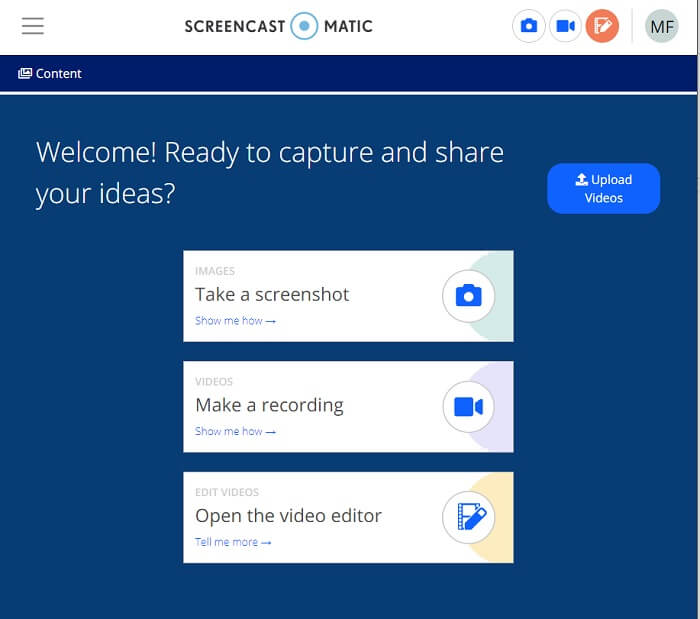
स्टेप 2. साइन‑अप करने के बाद, आप उस पेज पर पहुँचेंगे जहाँ आपसे पूछा जाएगा कि आप कौन‑सी कार्रवाई करना चाहते हैं। Make a Recording चुनें।.
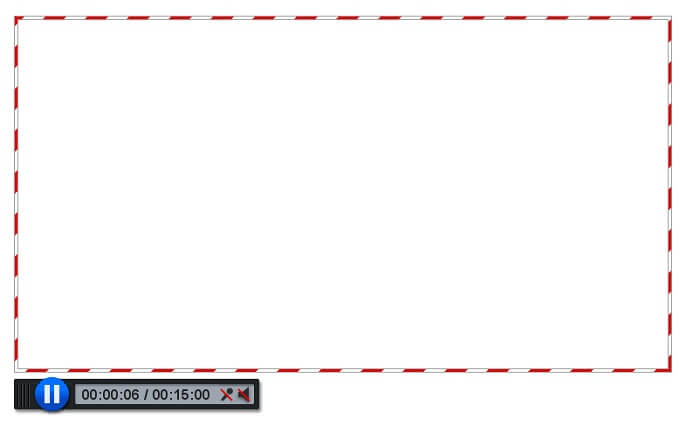
स्टेप 3. इसके बाद टूल दिखाई देगा। रिकॉर्डिंग शुरू करने के लिए लाल REC बटन पर क्लिक करें। रिकॉर्डिंग रोकने के लिए भी आपको वही बटन क्लिक करना होगा।.
यदि आप उन सुविधाओं से संतुष्ट नहीं हैं जो ये दो अद्भुत मुफ्त ऐप्स दे सकते हैं, तो आप अपने लिए पेश किए गए अगले टूल को पढ़ना जारी रख सकते हैं। इस बार हम उन प्रीमियम टूल्स के बारे में बात करेंगे जिन्हें आप अपने पीसी पर डाउनलोड कर सकते हैं।
भाग 2. शीर्ष डेस्कटॉप एएमवी रिकॉर्डर
1. एफवीसी स्क्रीन रिकॉर्डर
पहला डेस्कटॉप टूल FVC स्क्रीन रिकॉर्डर है। यह आपके कंप्यूटर स्क्रीन, सिस्टम ऑडियो को रिकॉर्ड करने और पृष्ठभूमि शोर के बिना ऑनलाइन स्ट्रीमिंग पर कब्जा करने की क्षमता रखता है। यह टूल कंप्यूटर के सिस्टम साउंड को रिकॉर्ड करता है, इसका मतलब है कि ऑडियो क्वालिटी बहुत संतोषजनक है। व्यापक रूप से समर्थित प्रारूपों के अलावा, यह उपकरण ऑनलाइन गेमिंग स्ट्रीमिंग के लिए त्वरण तकनीक का समर्थन करता है। कोई वॉटरमार्क नहीं, केवल गुणवत्ता रिकॉर्डिंग। आप केवल तभी सर्वश्रेष्ठ प्राप्त करते हैं जब आप इस उपकरण का उपयोग करते हैं। HD गुणवत्ता, दोषरहित ऑडियो, लाइव स्ट्रीमिंग के दौरान सुगम रिकॉर्डिंग और त्वरण। आपकी रिकॉर्डिंग आवश्यकताओं के लिए आपको जो कुछ भी चाहिए वह यहां है। इसके अलावा, एक विंडो लॉक सुविधा है जो आपको केवल एक विशिष्ट विंडो रिकॉर्ड करने की अनुमति देती है। साथ ही उपकरण का उपयोग करना आसान है, नीचे दिए गए बटन पर क्लिक करके आरंभ करें।
मुफ़्त डाउनलोडWindows 7 या उससे बाद के लिएसुरक्षित डाउनलोड
मुफ़्त डाउनलोडMacOS 10.7 या उससे बाद के लिएसुरक्षित डाउनलोड
स्टेप 1. रिकॉर्डिंग शुरू करने के लिए Video Recorder बटन पर क्लिक करें।
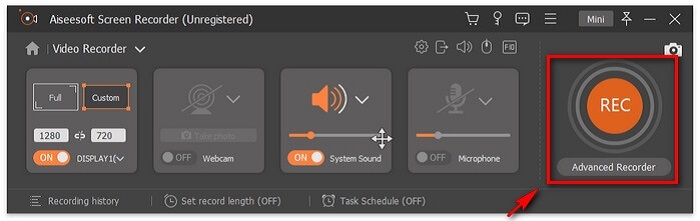
स्टेप 2. रिकॉर्डिंग शुरू करें और रिकॉर्डिंग के दौरान स्क्रीन पर एनोटेशन जोड़ें।.
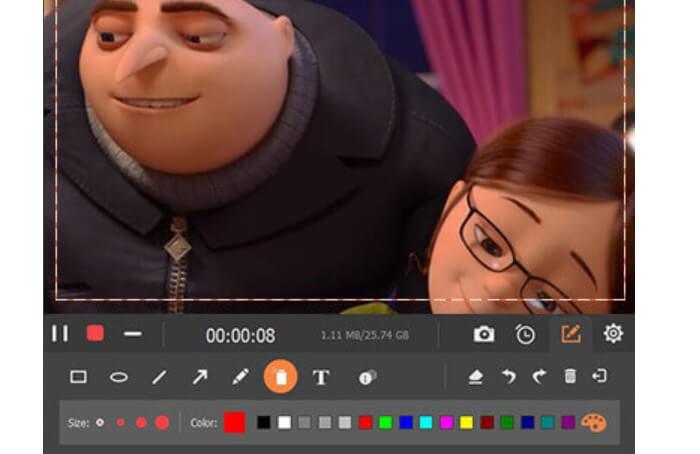
स्टेप 3. अंत में, Red Square बटन पर क्लिक करके रिकॉर्डिंग रोकें।.

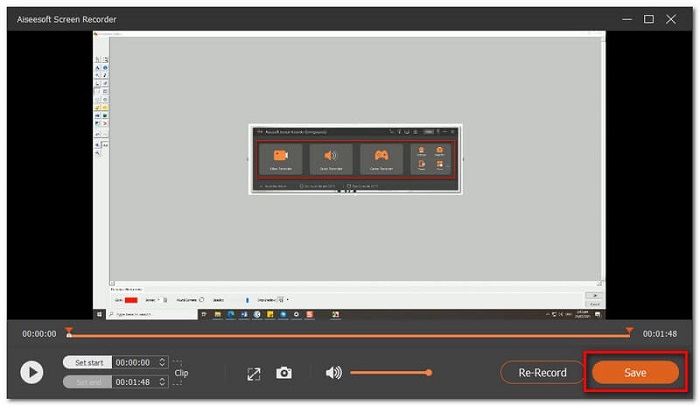
स्टेप 4. अब एक और स्क्रीन पॉप‑अप होगी। Re-Record और Save में से एक विकल्प चुनें।
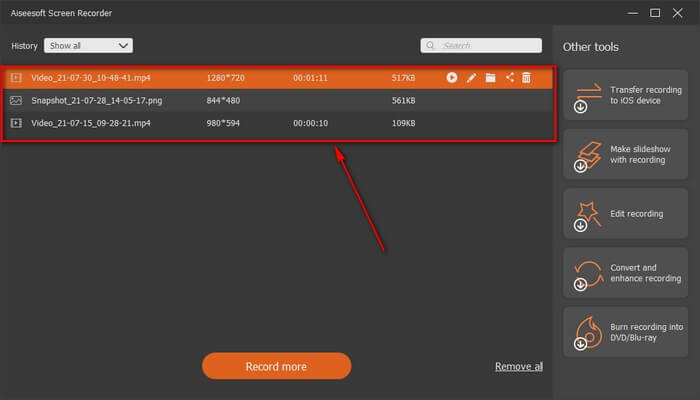
स्टेप 5. अगली दिखाई देने वाली विंडो में रिकॉर्ड की गई फ़ाइल को खोजें।.
2. बांदीकैम
अंत में हमारे पास बैंडिकैम है। जब स्क्रीन रिकॉर्डिंग की बात आती है तो यह सबसे विश्वसनीय उपकरणों में से एक है। एक कारण यह है कि टूल का इंटरफ़ेस बहुत सीधा है। सभी सेटिंग्स जिन्हें आपको जांचना है और सुविधाएं एक स्क्रीन पर दी गई हैं। जैसे ही आप टूल लॉन्च करते हैं, आप तुरंत सभी सेटिंग्स और सुविधाओं को देख सकते हैं। वास्तव में एक उपयोगकर्ता के अनुकूल इंटरफेस की वास्तविक परिभाषा। यहां तक कि इस तरह की तकनीक का नौसिखिया भी आसानी से सामना कर सकता है। आपको यह दिखाने के लिए कि क्या कहा गया है, यहां बताया गया है कि आप इसका उपयोग कैसे कर सकते हैं।
स्टेप 1. टूल की आधिकारिक वेबसाइट पर जाएँ और ऐप को डाउनलोड व इंस्टॉल करें।.
स्टेप 2. इंटरफ़ेस के ऊपर दाईं ओर मौजूद REC बटन पर क्लिक करें। फिर टूल आपसे फ़्रेम साइज़ समायोजित करने के लिए कहेगा।.
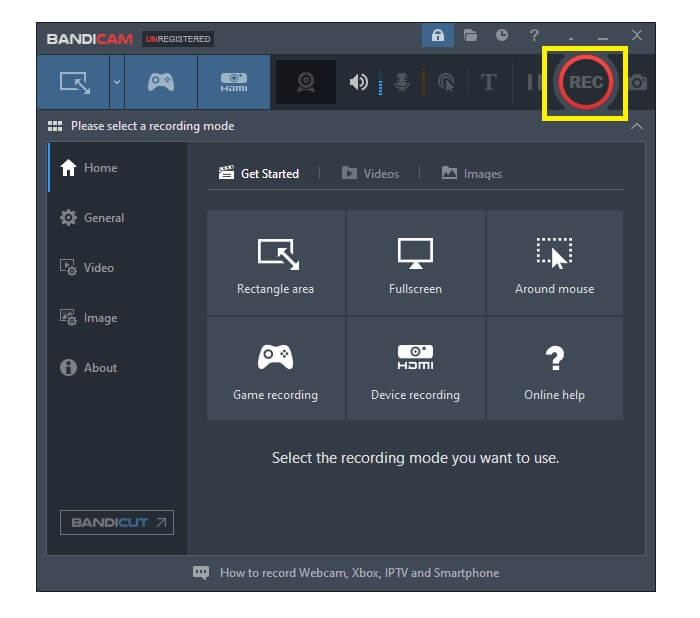
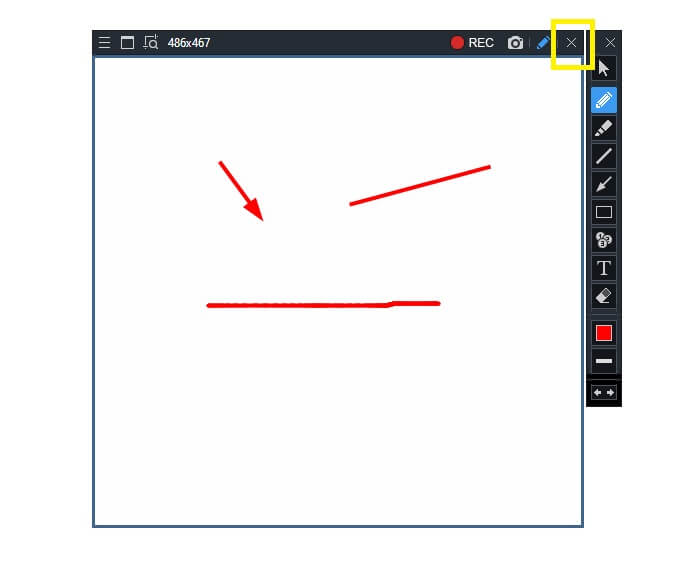
स्टेप 3. वहाँ से रिकॉर्डिंग करते समय ही एनोटेट करना शुरू करें। रिकॉर्डिंग समाप्त करने के लिए दाएँ कोने में मौजूद X बटन पर क्लिक करें।.
लिखे गए सभी उपकरण वास्तव में सहायक हैं। Bandicam सादगी और उपयोगिता का प्रतिनिधित्व करता है। इस बीच, Screencast-O-Matic बहुमुखी है। दूसरी ओर, FVC स्क्रीन रिकॉर्डर मुफ्त और प्रीमियम दोनों उपकरण प्रदान कर सकता है जो पूरी तरह से सूचीबद्ध उपकरणों से आगे निकल जाते हैं। लॉक विंडो फीचर विशेष रूप से एक फायदा है क्योंकि यह मल्टीटास्किंग और दक्षता की अनुमति देता है। कोई अन्य स्क्रीन रिकॉर्डर यह क्षमता नहीं कर सकता, यह केवल एफवीसी स्क्रीन रिकॉर्डर के साथ है।
और पढ़ें:
1. MP4 को AMV में कैसे कन्वर्ट करें
2. बड़े AMV फ़ाइलों को कैसे कंप्रेस करें
भाग 3. एएमवी रिकॉर्डर के बारे में अक्सर पूछे जाने वाले प्रश्न
मैं अपने पीसी पर एएमवी फाइल क्यों नहीं खोल सकता?
इसके कई कारण हैं। हालांकि सबसे आम है, फ़ाइल में आपके कंप्यूटर पर उपयुक्त सॉफ़्टवेयर का अभाव है। एक ऑनलाइन डाउनलोड करें।
MP4 प्लेयर फॉर्मेट एरर नहीं खेल रहा है, और इसे कैसे ठीक करें?
यह बहुत आसान है। .amv फ़ाइल को नवीनतम फ़ॉर्मेट में बदल दें। इसे कन्वर्ट करें। यदि आप इसे कन्वर्ट करना चाहते हैं, तो नीचे दिए गए निर्देशों का पालन करें:
1. इस लिंक पर जाएँ https://www.free-videoconverter.net/free-online-video-converter/।
2. लॉन्चर खोलें और अपनी फ़ाइल अपलोड करें।
3. अपनी पसंद का फ़ॉर्मेट चुनें। हो जाने पर फ़ाइल जल्द ही रेंडर हो जाएगी।
4. रिकॉर्ड की गई फ़ाइल पाने के लिए डाउनलोड बटन पर क्लिक करें।.
मैं किसी फ़ाइल को सॉफ़्टवेयर के साथ कैसे संबद्ध करूँ?
इसे करने के दो तरीके हैं। एक, AMV फ़ाइल चुनें, फिर Choose default program और उसके बाद Browse चुनें। दूसरा तरीका है किसी फ़ाइल को Windows Registry में रजिस्टर करना।.
निष्कर्ष
निष्कर्ष निकालने के लिए, एएमवी उस प्रारूप को जानना अच्छा है जिसे आप उपयोग करने पर विचार कर सकते हैं, लेकिन उन लोगों के लिए अनुशंसित नहीं है जो अच्छी गुणवत्ता वाले वीडियो चाहते हैं। साथ ही, AMV स्क्रीन रिकॉर्डर की सूची केवल AMV तक ही सीमित नहीं है, बल्कि MP4, MOV, और भी बहुत कुछ जैसे अधिक प्रारूप तैयार कर सकती है।
-
 विंडोज और मैक के लिए शीर्ष 5 सर्वश्रेष्ठ माउस और कीबोर्ड रिकॉर्डर
 यहां शीर्ष पांच सर्वश्रेष्ठ माउस और कीबोर्ड रिकॉर्डर प्रोग्राम हैं जो आपके माउस आंदोलनों और कीबोर्ड क्लिक को बचा सकते हैं, और घटनाओं को दोहरा सकते हैं।
-
 AVI फ़ाइल के रूप में स्क्रीन वीडियो पर कब्जा करने के लिए शीर्ष 4 नि: शुल्क AVI स्क्रीन रिकॉर्डर
 उच्च गुणवत्ता वाली AVI फ़ाइलों में स्क्रीन रिकॉर्ड करने के लिए, लेख इस पोस्ट में शीर्ष 4 मुक्त AVI स्क्रीन रिकॉर्डर को पहचानता है और साझा करता है। तदनुसार वांछित खोजने के लिए अधिक विवरण जानें।
-
 विंडोज और मैक के लिए उपलब्ध शीर्ष 6 मुफ्त WAV रिकॉर्डर
 इस लेख में हमारे द्वारा साझा किए गए सर्वश्रेष्ठ WAV रिकॉर्डिंग सॉफ़्टवेयर में कई प्रकार की उपयोगी विशेषताएं हैं, जो आपको पेशेवरों की तरह ऑडियो और आवाज़ कैप्चर करने में मदद करती हैं।
