


 वीडियो कनवर्टर अंतिम
 स्क्रीन अभिलेखी
 वीडियो मरम्मत
क्रोम, विंडोज और मैक कंप्यूटर के लिए उपयुक्त शीर्ष 4 FLV रिकॉर्डर
क्या आपने कभी सोचा है कि आपके द्वारा देखे जाने वाले वीडियो वेब पर क्या चलते हैं? अधिकांश HTML 5 वेबसाइट वीडियो चलाने के लिए WebM प्रारूप का उपयोग करती हैं। WebM के अलावा FLV का भी उपयोग किया जा रहा है। विशेष रूप से वे मुफ्त मूवी और टीवी मुफ्त साइट दिखाते हैं। आपको कैसे पता चलेगा कि यह एक FLV फ़ाइल है? आमतौर पर, यदि वीडियो नहीं चलेगा, तो आपको एक त्रुटि संदेश दिखाई देगा जो कहता है कि Adobe Flash Player इंस्टॉल करें। इन दिनों, FLV फ़ाइलों में कई वीडियो एम्बेड किए गए हैं। लेकिन जब आप अपने बिल्ट-इन रिकॉर्डर या किसी अन्य रिकॉर्डर का उपयोग करके वीडियो रिकॉर्ड करते हैं, तो वीडियो की गुणवत्ता में बदलाव की संभावना अधिक होती है।
तो, बेहतर होगा कि आप ऐसा रिकॉर्डर इस्तेमाल करें जो FLV फ़ाइलें भी बना सके, या फिर ऐसा रिकॉर्डर जो फ़ाइल फॉर्मेट कोई भी हो लेकिन गुणवत्ता बेहतर दे सके। यदि आपको इस बात की चिंता है कि वीडियो की गुणवत्ता बदल जाएगी, तो ऐसे FLV रिकॉर्डर खोजें जिन्हें इस्तेमाल करने के लिए रजिस्ट्रेशन की आवश्यकता नहीं होती।.

भाग 1. उपयोगकर्ता की सर्वश्रेष्ठ पसंद - FVC स्क्रीन रिकॉर्डर
ऑनलाइन दिखने वाले FLV रिकॉर्डर्स में, FVC Screen Recorder सर्वश्रेष्ठ में से एक है, या सरल शब्दों में कहें तो यह बिल्कुल बेहतरीन है। उपयोगकर्ताओं की माँगें कई बार उस स्तर से ज़्यादा होती हैं जो उत्पाद दे सकता है, और हर उत्पाद सबसे अच्छा विकल्प नहीं हो सकता। दूसरे ग्राहक भी अपने लिए सबसे अच्छा उत्पाद ढूँढ रहे होते हैं। FVC Screen Recorder हज़ार से भी ज़्यादा प्रीमियम रिकॉर्डर्स से बेहतर साबित होता है, खासकर आपके मौजूदा रिकॉर्डर की तुलना में। इसकी निर्बाध रिकॉर्डिंग परफ़ॉर्मेंस के साथ, आप जिस वीडियो को रिकॉर्ड करना चाहते हैं उससे अधिकतम लाभ उठा सकते हैं। साथ ही, आप वीडियो की बिट रेट और फ़्रेम रेट बदल सकते हैं, जिससे वीडियो की गुणवत्ता और बेहतर हो जाती है। इसलिए यह ज़रूरी है कि आप इस बेहतरीन FLV रिकॉर्डर की समीक्षा पर नज़र रखें। इस बीच, इस टूल का उपयोग करने के लिए यहाँ एक आसान-से-समझ आने वाला गाइड दिया गया है।.
स्टेप 1. नीचे दिए गए डाउनलोड बटन का उपयोग करके ऐप प्राप्त करें। इसे इंस्टॉल करें और गाइड का पालन करें जब तक कि ऐप लॉन्च न हो जाए।.
मुफ़्त डाउनलोडWindows 7 या उसके बाद के वर्ज़न के लिएसुरक्षित डाउनलोड
मुफ़्त डाउनलोडMacOS 10.7 या उसके बाद के वर्ज़न के लिएसुरक्षित डाउनलोड
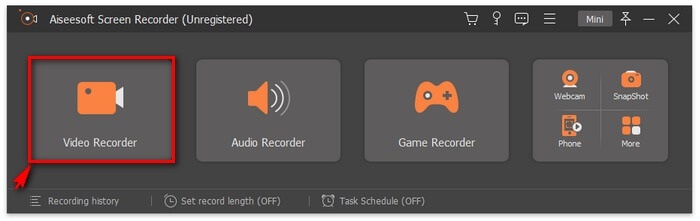
स्टेप 2. टैब्स में से चुनें। चूँकि हम वीडियो रिकॉर्ड करने की कोशिश कर रहे हैं, इसलिए Video Recorder पर क्लिक करें। इसके बाद एक डॉटेड फ़्रेम तैरते हुए बार के साथ दिखाई देगा।.
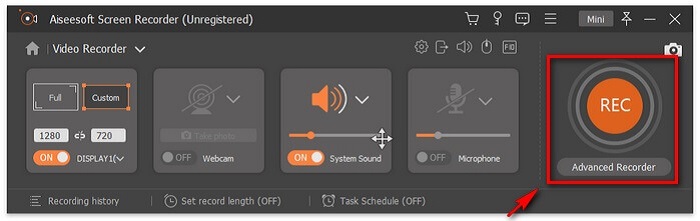
स्टेप 3. स्क्रीन का आस्पेक्ट रेशियो सेट करने के लिए डॉटेड फ़्रेम को समायोजित करें, फिर रिकॉर्डिंग शुरू करने के लिए REC बटन पर क्लिक करें।.
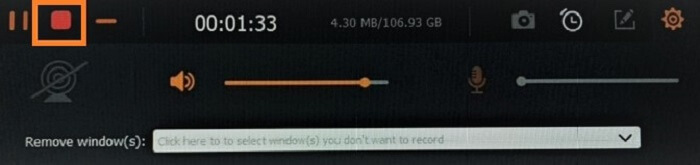
स्टेप 4. रिकॉर्डिंग रोकने के लिए, फ़्लोटिंग बार पर लाल Square बटन पर क्लिक करें। वहाँ से एक और विंडो पॉप-अप होगी। यहीं पर आप यह चुन सकते हैं कि आउटपुट से संतुष्ट न होने पर फ़ाइल सेव करनी है या दोबारा रिकॉर्ड करना है।.
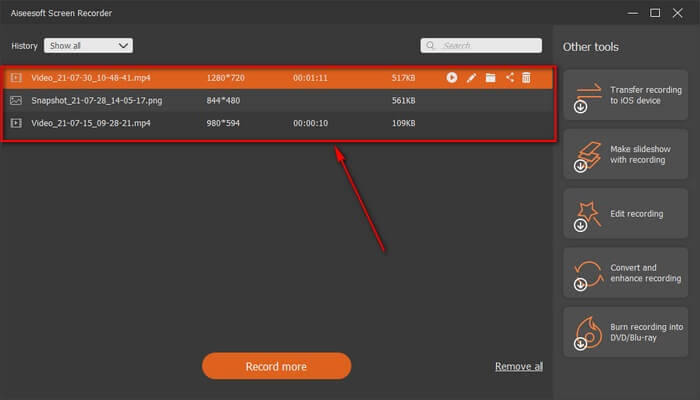
स्टेप 5. मान लीजिए आपने फ़ाइल सेव कर ली, अगली विंडो आपको वह फ़ाइल लोकेशन चुनने देगी जहाँ इसे सेव किया जाएगा। फ़ोल्डर चुनें और Next पर क्लिक करें।.
भाग 2. अन्य मुफ्त FLV वीडियो रिकॉर्डर
सभी ब्राउज़रों के लिए FLV रिकॉर्डर - FVC फ्री स्क्रीन रिकॉर्डर
यह तथ्य अच्छी तरह से जाना जाता है कि FVC Free Screen Recorder हल्का है और फिर भी इसमें शक्तिशाली फ़ीचर्स हैं। तो, यदि आप एक शुरुआती हैं जो मज़े के लिए रिकॉर्ड करना चाहते हैं तो आप इसे इस्तेमाल कर सकते हैं, या यदि आप एक प्रोफ़ेशनल हैं जो बिज़नेस मीटिंग रिकॉर्ड करना चाहते हैं, तब भी यह काम करेगा। इस रिकॉर्डर की सबसे अच्छी विशेषता यह है कि आप अपनी स्क्रीन के किसी भी हिस्से को बिना टूल के फ़्लोटिंग बार से परेशान हुए रिकॉर्ड कर सकते हैं। यह अपने-आप सिर्फ़ स्क्रीन को ही रिकॉर्ड करता है। Lock-in screen फ़ीचर की मदद से जितने चाहें स्क्रीनशॉट लें, आपको कोई व्यवधान नहीं होगा। बिना और बात किए, अब देखते हैं कि इस FLV रिकॉर्डर का उपयोग कैसे करें। आपको नीचे दिए गए स्टेप्स का पालन करना होगा।.
स्टेप 1. FVC Free Screen Recorder की आधिकारिक वेबसाइट पर जाएँ और ऐप लॉन्च करें।.
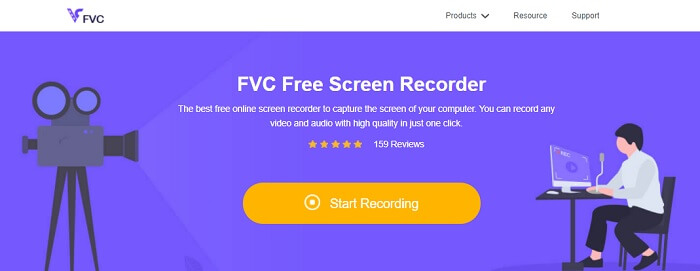
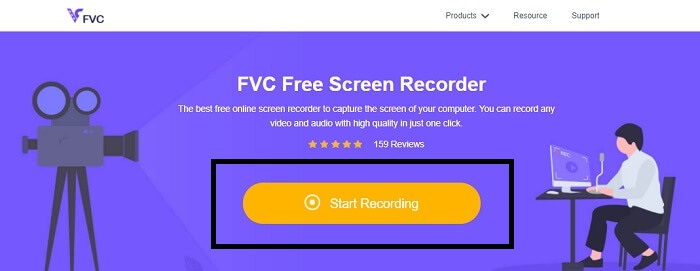
स्टेप 2. Start Recording पर क्लिक करके टूल लॉन्च करें और अगले स्टेप पर जाएँ।.
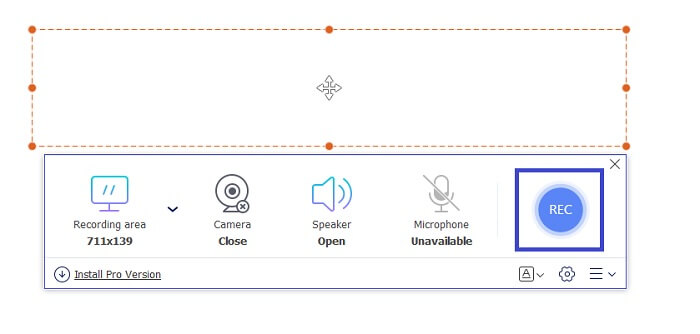
स्टेप 3. इसके टूलबार में, सेटिंग्स बदलने के लिए gear बटन पर क्लिक करें और उन्हें अपनी ज़रूरत के अनुसार समायोजित करें। यदि आप अब Preferences मेन्यू में हैं, तो Output ढूँढें और वीडियो फ़ॉर्मेट को अपनी पसंद के अनुसार बदलें। सब कुछ सेट हो जाने पर OK पर क्लिक करें।.
स्टेप 4. फ़्लोटिंग टूलबार पर, अब आप स्क्रीन के फ़्रेम रेशियो को समायोजित कर सकते हैं। साथ ही, Webcam ऑन करके अपने चेहरे की प्रतिक्रिया भी जोड़ें। System Sound प्रोग्राम की प्राकृतिक आवाज़ जोड़ने के लिए इस्तेमाल होता है। और अंत में, माइक्रोफ़ोन ऑन करके अपनी आवाज़ जोड़ें। FLV रिकॉर्डिंग शुरू करने के लिए REC बटन पर क्लिक करें।.
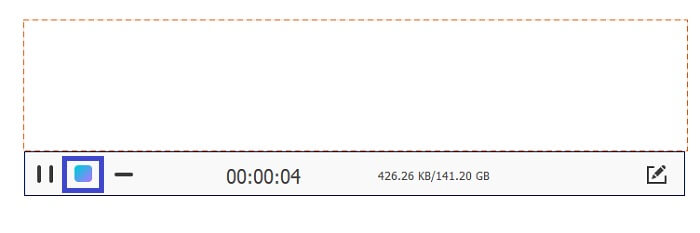
स्टेप 5. FLV रिकॉर्डिंग समाप्त करने के लिए, रोकने हेतु cube बटन पर क्लिक करें। उसके बाद, Save और Next पर क्लिक करें। आपकी सभी रिकॉर्डिंग्स History list में होती हैं।.
क्रोम के लिए FLV रिकॉर्डर - SCREEN.IO
यदि आप अपनी ड्राइव में अतिरिक्त फ़ाइलें डाउनलोड नहीं करना चाहते हैं तो आप इस अंतर्निहित क्रोम रिकॉर्डर का उपयोग कर सकते हैं। क्रोम के लिए यह FLV रिकॉर्डर पूरे वेब में एक टन लोगों की मदद करता है। इसलिए, यदि आप अपने स्टोरेज में जगह बचाने के शौक़ीन हैं तो आपको यह SCREEN.IO ज़रूर आज़माना चाहिए। हालांकि उपकरण विशेष सुविधाएँ प्रदान नहीं करता है जो किसी अन्य रिकॉर्डर के समान हैं। लेकिन इसकी रिकॉर्डिंग क्षमता बहुत ही मानक है। यदि हम क्रोम रिकॉर्डर और डेस्कटॉप रिकॉर्डर की तुलना करते हैं, तो डेस्कटॉप रिकॉर्डिंग करने का प्रभावी तरीका है क्योंकि अगर इंटरनेट कनेक्शन बाधित हो गया है तो आपको कोई आपत्ति नहीं होगी।
विंडोज़ के लिए एफएलवी रिकॉर्डर - वीएलसी मीडिया प्लेयर
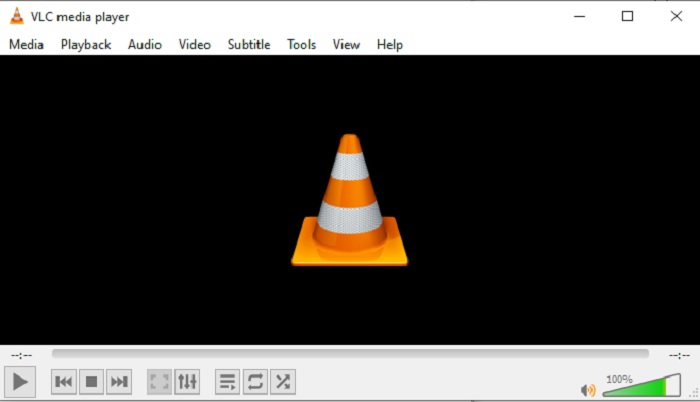
VLC Media Player न सिर्फ़ शहर का सबसे अच्छा मीडिया प्लेयर माना जाता है, बल्कि इसमें रिकॉर्डिंग, कन्वर्ट करना और अन्य कई फ़ीचर्स भी हैं। हालाँकि यह बेहतरीन मीडिया प्लेयर है, लेकिन बताए गए सभी फ़ीचर्स अपने आप में सबसे अच्छे नहीं हैं। और कुछ मामलों में, कुछ वीडियो या ऑडियो फ़ॉर्मेट यहाँ प्ले नहीं हो पाते क्योंकि उनके कोडेक्स प्रॉप्राइटरी होते हैं। इसलिए, इसके बजाय आप VLC Media Player Alternative का उपयोग कर सकते हैं जो फ़ाइल प्रॉप्राइटरी होने पर भी उसे सपोर्ट करता है।.
मैक के लिए FLV रिकॉर्डर - OBS Studio
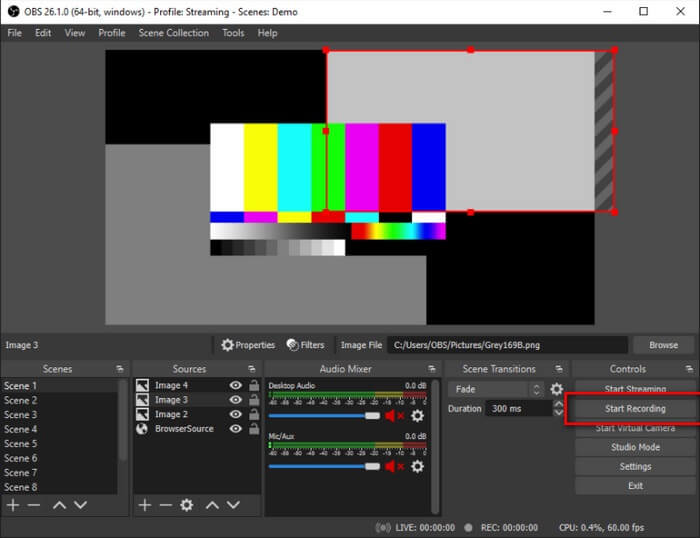
शायद आप सोच रहे हों कि हम Mac उपयोगकर्ताओं को भूल गए। यह Mac के लिए FLV रिकॉर्डर सूची में सबसे शक्तिशाली रिकॉर्डर्स में से एक है, क्योंकि आप इसमें स्ट्रीमिंग भी कर सकते हैं। इसकी बेहतरीन विशेषताओं के बावजूद, यदि आप रिकॉर्डिंग में नए हैं तो यह टूल अपने-आप में थोड़ा डराने वाला लग सकता है, क्योंकि टूल खोलते ही इंटरफ़ेस पर बहुत सारी चीज़ें दिखती हैं।.
भाग 3. FLV वीडियो रिकॉर्डर के बारे में अक्सर पूछे जाने वाले प्रश्न
FLV फ़ाइल, क्या इसे मेरे पीसी पर डाउनलोड करना सुरक्षित है?
वास्तव में, यह वह फ़ाइल नहीं है जिसके बारे में हम बात कर रहे हैं जब सुरक्षा की बात आती है। FLV फ़ाइलें वीडियो साझाकरण साइटों में एम्बेड की जाती हैं, इसलिए आपका प्रश्न यह होना चाहिए कि मैं कैसे पहचान सकता हूं कि मैं जिस साइट से वीडियो डाउनलोड कर रहा हूं उसमें मैलवेयर नहीं है? अपने पीसी के लिए एक सेफगार्ड का उपयोग करें। आप ऑनलाइन ढेर सारे सॉफ्टवेयर डिफेंडर और स्कैनर पा सकते हैं। लेकिन फाइल ही सुरक्षित है। जब तक वे इसमें मैलवेयर नहीं डालते, यह सुरक्षित है।
कौन सा प्रोग्राम FLV फाइलें खोल सकता है?
बहुत से मीडिया प्लेयर उपलब्ध हैं, लेकिन मैं जो सुझाव दूँगा वह है VLC प्लेयर। यह प्लेयर बहुउद्देश्यीय है और लगभग सभी फ़ाइल फ़ॉर्मेट्स चला सकता है, चाहे वे अनकंप्रेस्ड हों या कंप्रेस्ड। और लोकप्रिय FLV प्लेयर्स पाने के लिए यहाँ क्लिक करें।.
FLV फ़ाइलों के क्या लाभ हैं?
FLV का पहला बड़ा लाभ छोटे आकार में उच्च गुणवत्ता वाले वीडियो बनाने की क्षमता है। स्वभाव से, फ़ाइल लचीली होती है। क्यों? आप ऑनलाइन कन्वर्टर्स का उपयोग करके भी इस फाइल को आसानी से एक अलग फॉर्मेट में बदल सकते हैं।
भाग 4. तुलना चार्ट
| विशेषताएं | FVC स्क्रीन रिकॉर्डर | FVC फ्री स्क्रीन रिकॉर्डर | VLC मीडिया प्लेयर | ओबीएस स्टूडियो |
| स्क्रीन अभिलेखी |  | | | |
| ऑडियो रिकॉर्डर | | | | |
| एफएलवी का समर्थन करता है | | | | |
| मल्टीमीडिया प्लेयर |  | | | |
| समायोज्य बिट दर और फ्रेम दर | | | | |
निष्कर्ष
सूचीबद्ध सभी उपकरण FLV वीडियो रिकॉर्ड करने और सर्वोत्तम संभव वीडियो गुणवत्ता तैयार करने में सहायक हैं। साथ ही, यदि आप निश्चित नहीं हैं कि किस टूल का उपयोग करना है, तो आप लिखे गए तुलना चार्ट को देख सकते हैं। लेकिन सूचीबद्ध FLV रिकॉर्डर के बीच। विंडो लॉक-इन सुविधा के कारण FVC स्क्रीन रिकॉर्डर में अधिक बढ़त है।
-
 2021 का सबसे उपयोगी OGG रिकॉर्डर [निःशुल्क और ऑनलाइन]
 यह राइट-अप सर्वश्रेष्ठ ओजीजी रिकॉर्डिंग टूल के बारे में बात करता है जो आपको ओजीजी ऑडियो रिकॉर्डिंग करने में मदद करते हैं। उपयोगकर्ता के लिए अधिक विस्तृत जानकारी जोड़ने के लिए इसे पढ़ते रहें।
-
 पीसी और मैक के लिए शीर्ष 5 सर्वश्रेष्ठ M4B रिकॉर्डर सॉफ्टवेयर [मुफ्त और भुगतान]
 M4B रिकॉर्डिंग MPEG-4 ऑडियो बुक फ़ाइल के लिए हानिपूर्ण संपीड़ित है। कुछ पहलुओं में M4A और M4B लगभग सामान्य हैं लेकिन उनमें अंतर है। यह क्या है यह जानने के लिए लेख पढ़ें।
-
 सभी ऑपरेटिंग सिस्टम के लिए उपलब्ध शीर्ष 5 सर्वश्रेष्ठ एएमआर रिकॉर्डर टूल
 जानना चाहते हैं कि एएमआर प्रारूप क्या है और सबसे अच्छा एएमआर रिकॉर्डर क्या है जिसे आपको चुनना चाहिए जो एक अद्भुत रिकॉर्डिंग प्रदान करेगा।
