


 वीडियो कनवर्टर अंतिम
 स्क्रीन अभिलेखी
 वीडियो मरम्मत
 सुरक्षित डाउनलोड
वेब लॉन्च रिकॉर्डर - डाउनलोड किए बिना ऑनस्क्रीन गतिविधियों को कैप्चर करने के 4 निःशुल्क तरीके
क्या लोकप्रिय गेम वीडियो, वीडियो कॉल लॉग, कॉन्फ़्रेंस वीडियो जैसे वीडियो रिकॉर्ड करने और उन्हें अपने संग्रह के रूप में सहेजने का कोई आसान तरीका है? स्क्रीन वीडियो कैप्चर करने के लिए फ्री वेब लॉन्च रिकॉर्डर हमेशा प्रारंभिक विकल्प होते हैं, जो ऑनस्क्रीन गतिविधियों को कैप्चर करने के लिए वेब-आधारित सेवाएं हैं। स्क्रीन-रिकॉर्डिंग सुविधा को ऑनलाइन लॉन्च करने के लिए उत्कृष्ट वेब लॉन्च रिकॉर्डर के बारे में अधिक जानें।

भाग 1: शीर्ष 4 नि:शुल्क ऑनलाइन वेब लॉन्च रिकॉर्डर
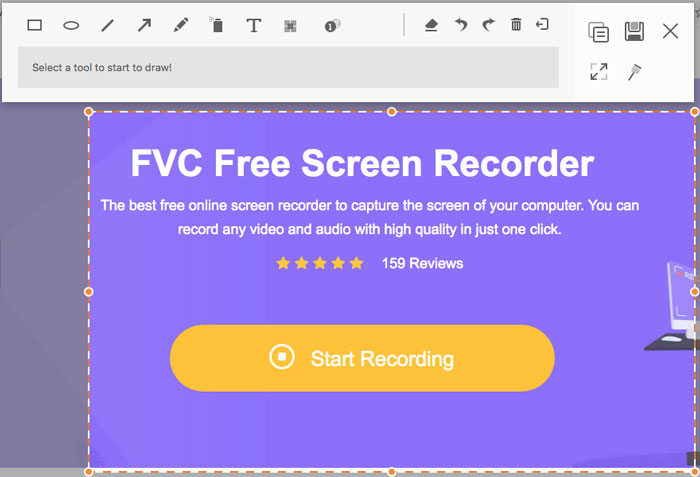
टॉप 1: एफवीसी फ्री स्क्रीन रिकॉर्डर
FVC फ्री स्क्रीन रिकॉर्डर किसी भी वेब ब्राउज़र पर उपलब्ध एक मुफ़्त वेब लॉन्च रिकॉर्डर है। यह आपको बिना वॉटरमार्क जोड़े किसी भी वीडियो और ऑडियो को रिकॉर्ड करने की सुविधा देता है। आप रिकॉर्डिंग क्षेत्र को कस्टमाइज़ कर सकते हैं, जैसे पूरा स्क्रीन या वीडियो रिकॉर्डिंग के लिए उसका एक हिस्सा। इसके अलावा, यह रिकॉर्ड की गई फ़ाइलों को MP4 और WMV जैसे अलग‑अलग फ़ॉर्मेट में एक्सपोर्ट कर सकता है।.
1. पंजीकरण या अन्य सीमाओं के बिना मुफ्त ऑनलाइन स्क्रीन रिकॉर्डर।
2. स्क्रीन रिकॉर्डिंग को एनोटेट करने के लिए रीयल-टाइम लाइन और टेक्स्ट जोड़ें।
3. अपने स्क्रीनकास्ट में वेबकैम और माइक्रोफ़ोन ऑडियो डालें।
4. रिकॉर्डिंग इतिहास सूची से सभी पिछली रिकॉर्डिंग फ़ाइलें देखें।
शीर्ष 2: स्क्रीनकास्ट-ओ-मैटिक
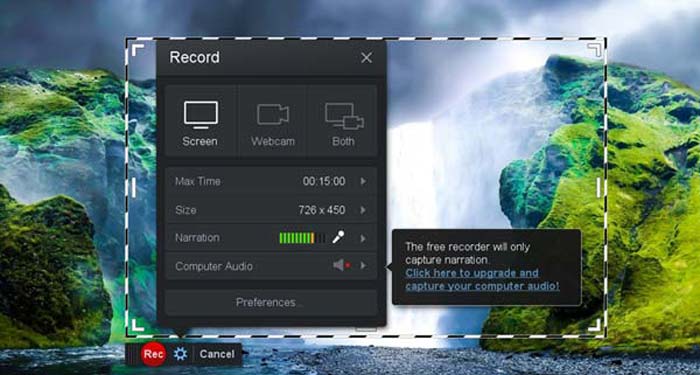
Screencast-O-Matic एक वेब‑आधारित स्क्रीन रिकॉर्डर है जो आपकी स्क्रीन के किसी भी हिस्से को आसानी से रिकॉर्ड कर सकता है। यह आपको वीडियो होस्टिंग प्लेटफ़ॉर्म पर सीधे वीडियो अपलोड करने की सुविधा देता है। इसके अलावा, आप स्क्रिप्ट टूल्स, ऑटोमेटेड कैप्शन और कई अन्य फ़ीचर भी इस्तेमाल कर सकते हैं।.
पेशेवरों
- 1. रिकॉर्डिंग क्षेत्र को अनुकूलित करें, जैसे कि संपूर्ण स्क्रीन या उसका कोई भाग।
- 2. रिकॉर्डिंग को Screencast-O-Matic, Google Drive, आदि पर अपलोड करें।
- 3. ऑडियो कथन, स्टॉक संगीत और कैप्शन, और अधिक आसानी से जोड़ें।
विपक्ष
- 1. रिकॉर्डिंग की गुणवत्ता काफी अच्छी नहीं है।
- 2. इस ऑनलाइन स्क्रीन रिकॉर्डर की समय सीमा है।
शीर्ष 3: क्लिपचैम्प
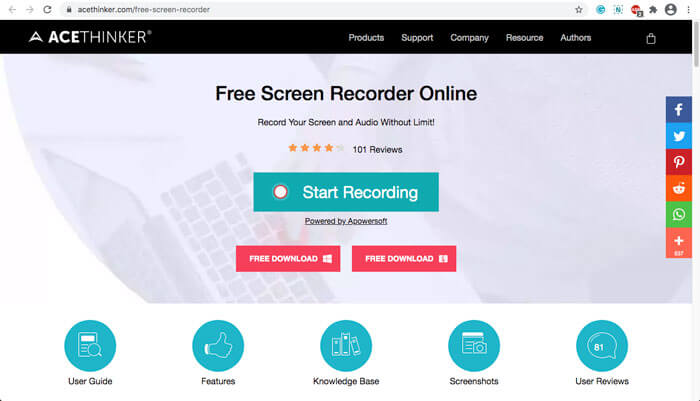
Clipchamp एक बहुत ही सुविधाजनक मुफ़्त ऑनलाइन वेब लॉन्च रिकॉर्डर है। आप इसका उपयोग वीडियो रिकॉर्ड करने और अपलोड करने के लिए कर सकते हैं, और वीडियो को कंप्रेस भी कर सकते हैं बिना मूल गुणवत्ता खोए। इसमें बाहरी माइक्रोफ़ोन सपोर्ट, अलग‑अलग रिज़ॉल्यूशन आदि जैसे कई फ़ंक्शन भी मौजूद हैं।.
पेशेवरों
- 1. पूरी स्क्रीन, एक प्रीसेट रिकॉर्डिंग क्षेत्र, या एक अनुकूलित एक रिकॉर्ड करें।
- 2. आपको रिकॉर्ड किए गए वीडियो को अन्य लोकप्रिय वीडियो प्रारूपों में बदलने में सक्षम बनाता है।
- 3. यह एक माइक्रोफोन से नैरेशन और वॉयस-ओवर के साथ वीडियो कैप्चर कर सकता है।
विपक्ष
- 1. पूर्ण कार्यक्षमता के लिए प्रो संस्करण में अपग्रेड करना होगा।
- 2. ऑनलाइन मीडिया लाइब्रेरी में सीधे रिकॉर्डिंग संपादित नहीं कर सकते।
भाग 2: वेब लॉन्च रिकॉर्डर के साथ स्क्रीन कैप्चर कैसे करें
जब वेब लॉन्च रिकॉर्डर के ज़रिए स्क्रीन वीडियो कैप्चर करने की बात आती है, तो उदाहरण के तौर पर FVC फ्री स्क्रीन रिकॉर्डर को लें। नीचे दिए गए चरणों के ज़रिए आप विस्तृत प्रक्रिया जान सकते हैं।.
स्टेप 1: जब आपको स्क्रीन को मुफ़्त में कैप्चर करना हो, तो आप वेब लॉन्च रिकॉर्डर पर जाएँ और होम पेज पर मौजूद Start Recording बटन पर क्लिक करें। इससे वेब लॉन्च रिकॉर्डर के लिए एक लॉन्चर डाउनलोड होगा। प्रोग्राम इंस्टॉल करें और उसे अपने कंप्यूटर पर शुरू करें।.
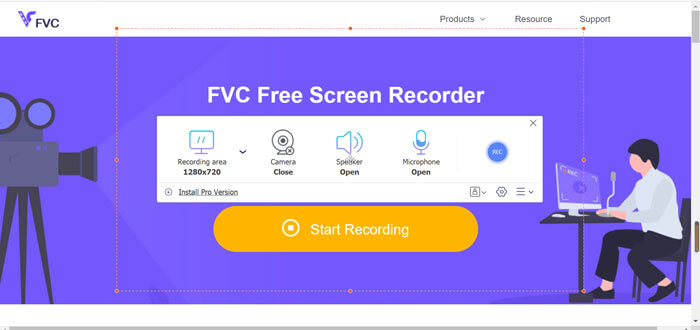
स्टेप 2: एप्लिकेशन शुरू करने के बाद आप इसकी रिकॉर्डिंग सेटिंग्स देख सकते हैं। यहाँ आप Recording area विकल्प पर क्लिक करके फुल स्क्रीन या आंशिक स्क्रीन रिकॉर्डिंग चुन सकते हैं, या Speaker मेनू को ऑन करके ऑडियो फ़ाइलें रिकॉर्ड कर सकते हैं। अगर आपको नैरेशन के साथ वीडियो रिकॉर्ड करना है, तो बस Webcam विकल्प को ऑन कर दें।.
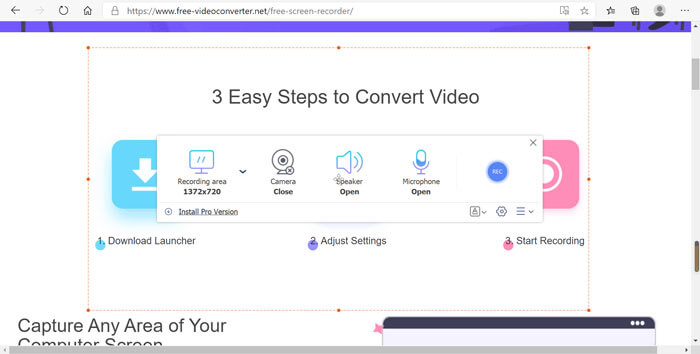
स्टेप 3: अगर आपको और फ़ाइल सेटिंग्स बदलनी हों, तो वेब लॉन्च रिकॉर्डर के निचले दाएँ कोने में मौजूद Gear आइकन पर क्लिक करके विकल्पों को कस्टमाइज़ करें। पॉप‑अप सेटिंग्स विंडो में आप रिकॉर्ड की गई फ़ाइलों का स्टोरेज लोकेशन और आउटपुट फ़ाइल का फ़ॉर्मेट बदल सकते हैं।.
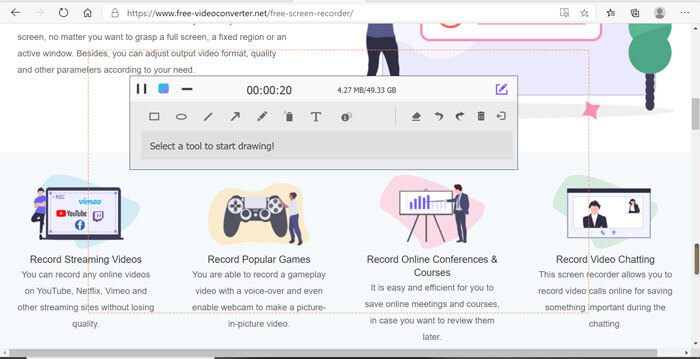
स्टेप 4: फिर रिकॉर्डिंग शुरू करने के लिए REC बटन पर क्लिक करें। जब रिकॉर्डिंग पूरी हो जाए, तो पूरी प्रक्रिया समाप्त करने के लिए Stop बटन पर क्लिक करें। रिकॉर्ड किए गए वीडियो की सूची खोलने और मैनेज करने के लिए वेब लॉन्च रिकॉर्डर के नीचे मौजूद तीन‑लाइन वाले आइकन पर क्लिक करें।.
भाग 3: वेब लॉन्च रिकॉर्डर के बारे में अक्सर पूछे जाने वाले प्रश्न
1. मैं वेबकैम के साथ स्क्रीन कैसे रिकॉर्ड कर सकता हूं?
जब वेब लॉन्च रिकॉर्डर सक्रिय हो जाता है, तो आप इंटरफ़ेस पर वेबकैम फ़ंक्शन को ढूँढकर सक्रिय कर सकते हैं, फिर वेबकैम विंडो का आकार समायोजित करें, मुख्य इंटरफ़ेस पर वापस आएँ और REC आइकन पर क्लिक करें, ताकि आप इन‑बिल्ट वेबकैम के ज़रिए फ़ुटेज रिकॉर्ड करना शुरू कर सकें।.
2. मेरी स्क्रीन रिकॉर्डिंग में ध्वनि क्यों नहीं है?
कार्यक्रम के मुख्य इंटरफ़ेस पर सिस्टम ध्वनि और माइक्रोफ़ोन के विकल्प हैं। रिकॉर्डिंग से पहले आप उन्हें चालू करना भूल सकते हैं। रिकॉर्डिंग से पहले, सुनिश्चित करें कि यह विकल्प सक्षम है ताकि आप ध्वनि के साथ रिकॉर्ड किए गए वीडियो प्राप्त कर सकें।
3. YouTube पर मेरे वीडियो कैसे अपलोड करें?
निःशुल्क वेब लॉन्च रिकॉर्डर प्रारंभ करें, इंटरफ़ेस के निचले दाएं कोने में तीन-पंक्ति आइकन ढूंढें और क्लिक करें। फिर पॉप-अप रिकॉर्डिंग सूची से वह वीडियो ढूंढें जिसे आप अपलोड करना चाहते हैं और नीचे शेयर आइकन पर क्लिक करें। अंत में, मीडिया प्लेटफॉर्म से वीडियो का चयन करें, और रिकॉर्ड किए गए वीडियो को किसी भी प्लेटफॉर्म पर आसानी से साझा किया जा सकता है।
निष्कर्ष
संक्षेप में, यह लेख बाजार में 4 सबसे लोकप्रिय मुफ्त ऑनलाइन वेब लॉन्च रिकॉर्डर पेश करता है, और सर्वश्रेष्ठ ऑनलाइन ऐप में से एक, एफवीसी फ्री स्क्रीन रिकॉर्डर की वीडियो रिकॉर्डिंग विधि का विस्तार से परिचय देता है। यह गुणवत्ता को नुकसान पहुंचाए बिना वीडियो और ऑडियो को मुफ्त में रिकॉर्ड करने में आपकी मदद कर सकता है।
-
 6 सर्वश्रेष्ठ WAV रिकॉर्डर जिन्हें आपको डेस्कटॉप और ऑनलाइन पर मिस नहीं करना चाहिए
 इस लेख में हमारे द्वारा साझा किए गए सर्वश्रेष्ठ WAV रिकॉर्डिंग सॉफ़्टवेयर में कई प्रकार की उपयोगी विशेषताएं हैं, जो आपको पेशेवरों की तरह ऑडियो और आवाज़ कैप्चर करने में मदद करती हैं।
-
 क्विक स्क्रीन रिकॉर्डिंग - मैक और पीसी पर ऑडियो के साथ रिकॉर्ड वीडियो
 मैक पर ऑडियो के साथ रिकॉर्डिंग स्क्रीन काम में आती है। अंतर्निहित खिलाड़ी, क्विकटाइम प्लेयर कर सकते हैं। उसकी पोस्ट पढ़ें और मैक और पीसी पर ध्वनि के साथ स्क्रीन पर कब्जा करने का तरीका जानें।
-
 DU रिकॉर्डर 2021 की समीक्षा करें: सुरक्षा और मूल्य और कार्य और उपयोग और रेटिंग
 DU रिकॉर्डर iPhone और Android के लिए एक स्क्रीन और ऑडियो रिकॉर्डर है। क्या यह डाउनलोड करने लायक है? क्या ये सुरक्षित है? पूर्ण समीक्षा पढ़ें यह देखने के लिए कि क्या ऐप आपके लिए सही है।
