


 वीडियो कनवर्टर अंतिम
 स्क्रीन अभिलेखी
 वीडियो मरम्मत
 सुरक्षित डाउनलोड
उच्च गुणवत्ता में वेबएम वीडियो रिकॉर्ड करने के लिए शीर्ष 5 वेबएम रिकॉर्डर
WEBM फ़ाइल एक्सटेंशन आमतौर पर वेब ब्राउज़र द्वारा उपयोग किया जाता है। इनमें से ज़्यादातर आधुनिक ब्राउज़र होते हैं, जैसे Google Chrome, Opera, Firefox, Safari और Edge। सामान्यतः ये ब्राउज़र HTML5 वेबसाइट्स होते हैं जो वीडियो लाइव स्ट्रीमिंग को सपोर्ट करते हैं। इसका एक अच्छा उदाहरण YouTube, Twitch और अन्य मीडिया प्लेटफ़ॉर्म हैं। यह 360p से लेकर सबसे ऊँचे रेज़ॉल्यूशन तक वीडियो को सपोर्ट करता है। अगर हम इस फ़ॉर्मैट की तुलना करें, तो यह MKV, MOV और MP4 की तरह एक कम्प्रेस्ड फ़ॉर्मैट है। अंतर फ़ॉर्मैट की फ़ाइल सामग्री में होता है। Windows और Mac दोनों इस विशेष फ़ाइल को चला सकते हैं, बशर्ते प्लेयर में सही कोडेक्स और प्लग-इन लगे हों। इस बीच, यदि आप WebM फ़ाइलें रिकॉर्ड या प्राप्त करने का बेहतर तरीका ढूँढ रहे हैं, तो नीचे दिए गए बेहतरीन WebM रिकॉर्डर्स की सूची देखें।.

भाग 1. सर्वश्रेष्ठ वेबएम रिकॉर्डर: एफवीसी स्क्रीन रिकॉर्डर
FVC स्क्रीन रिकॉर्डर के साथ तीन आसान चरणों में स्नैपशॉट लेने, अपनी स्क्रीन रिकॉर्ड करने और WebM वीडियो फ़ाइलों को रिकॉर्ड करने का सबसे आसान तरीका प्राप्त करें। Windows और Mac के लिए यह .webm स्क्रीन रिकॉर्डर YouTube, Skype कॉल और लाइव स्ट्रीमिंग जैसी WebM साइटों को रिकॉर्ड कर सकता है, और अन्य साइटें WebM प्रारूप का समर्थन करती हैं। वीडियो की गुणवत्ता से समझौता किए बिना अपने गेमप्ले की लाइव स्ट्रीमिंग कैप्चर करें। साथ ही वीडियो, ऑडियो और माइक्रोफ़ोन रिकॉर्ड करने में सक्षम होना। कोई पृष्ठभूमि शोर की गारंटी नहीं है क्योंकि यह सिस्टम ध्वनियों को रिकॉर्ड करता है। तो, FVC स्क्रीन रिकॉर्डिंग के साथ अपने वीडियो ट्यूटोरियल के लिए निर्बाध रिकॉर्डिंग और उत्कृष्ट संपादन सुविधाओं का अनुभव करें। दूसरी ओर, यहां बताया गया है कि आप टूल का उपयोग कैसे करते हैं।
चरण 1. नीचे दिए गए डाउनलोड बटन का उपयोग करके FVC Screen Recorder डाउनलोड करें।.
मुफ़्त डाउनलोडWindows 7 या उससे बाद के लिएसुरक्षित डाउनलोड
मुफ़्त डाउनलोडMacOS 10.7 या उससे बाद के लिएसुरक्षित डाउनलोड
चरण 2. सेट‑अप विज़ार्ड को फ़ॉलो करने के बाद ऐप इंस्टॉल करें और लॉन्च करें।.
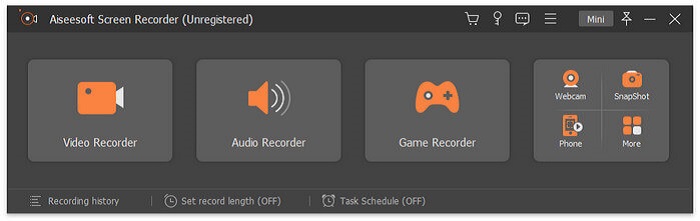
चरण 3. जब फ़्लोटिंग बार दिखाई दे, तो Video Recorder पर क्लिक करें।.
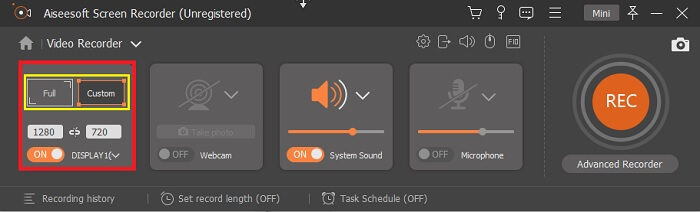
इसके बाद एक और विंडो दिखाई देगी। इस बार Custom या Full Screen पर क्लिक करें। अगर आप Custom चुनते हैं, तो फ़्रेम का साइज़ अपनी इच्छानुसार समायोजित करें।.
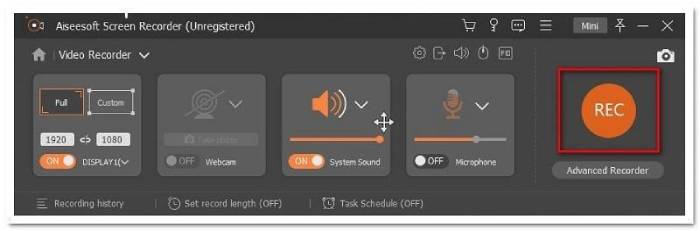
चरण 4. रिकॉर्डिंग शुरू करने के लिए REC बटन पर क्लिक करें और सामान्य रूप से अपना काम करें।.
फिर आप एनोटेट कर सकते हैं, तीर जोड़ सकते हैं और रिकॉर्डिंग को टेक्स्ट कर सकते हैं।
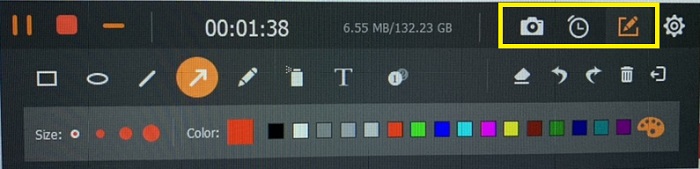
चरण 5. फिर रिकॉर्डिंग रोकने के लिए लाल वर्गाकार बटन पर क्लिक करें। इसके बाद एक नई विंडो खुलेगी जो आपको सेव करने या दोबारा रिकॉर्ड करने के बीच चुनने देगी। रिकॉर्डिंग देखने के लिए फ़्लोटिंग बार के निचले हिस्से में सूची की जाँच करें।.
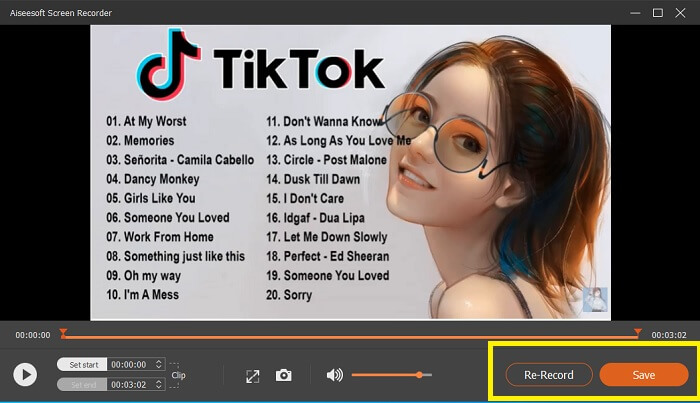
भाग 2. आपके कंप्यूटर के लिए अन्य लोकप्रिय WEBM रिकॉर्डर
1. एफवीसी फ्री स्क्रीन रिकॉर्डर
विशेष विशेषता: मैलवेयर से मुक्त। 100% सुरक्षित
यदि पहला टूल आपको संतुष्ट नहीं करता, तो शायद आप किसी व्यावहारिक विकल्प की तलाश में हैं। FVC Free Screen Recorder आपका आदर्श टूल है यदि आप बिना कोई पैसा खर्च किए बेहतरीन फ़ीचर्स का पूरा उपयोग करना चाहते हैं। हालाँकि मुफ़्त टूल्स आम तौर पर प्रीमियम टूल्स की तुलना में कम गुणवत्ता देते हैं, यह टूल इस स्तर को थोड़ा ऊँचा कर देता है। यह उच्च गुणवत्ता वाले वीडियो और बेहद साफ़ ऑडियो तैयार कर सकता है, जबकि यह मुफ़्त है। इसके अतिरिक्त, इसे इस्तेमाल करना आसान है। इसके बारे में और जानने के लिए नीचे दिए गए चरणों का पालन करें।.
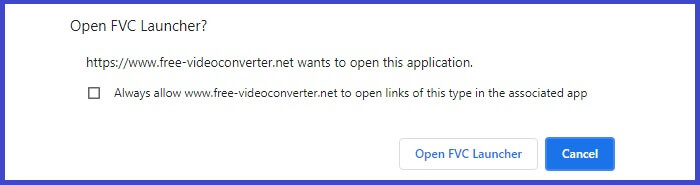
चरण 1. अपने पीसी पर वेब ब्राउज़र का उपयोग करके ऐप लॉन्च करें। आप कौन‑सा ब्राउज़र इस्तेमाल कर रहे हैं, इससे फ़र्क नहीं पड़ता, यह टूल इतना लचीला है कि कहीं से भी एक्सेस किया जा सकता है। सीधे आधिकारिक वेबपेज पर जाने के लिए इस लिंक पर क्लिक करें।.
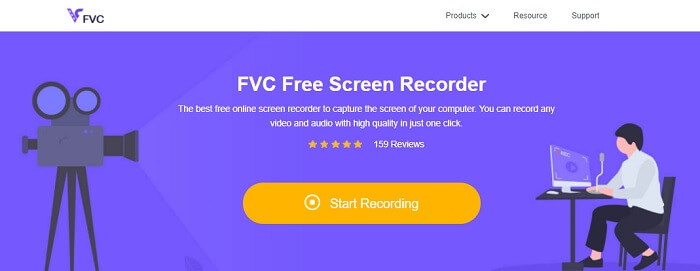
चरण 2. Start Recording बटन पर क्लिक करके टूल लॉन्च करें।.
चरण 3. टूल लॉन्च करने के बाद आपको फ़्लोटिंग बार दिखाई देगा। फ़्रेम को समायोजित करके अस्पेक्ट रेशियो बदलें और फिर REC बटन पर क्लिक करके रिकॉर्डिंग शुरू करें।.
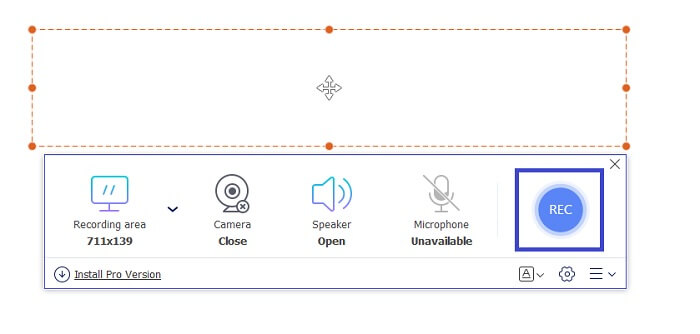
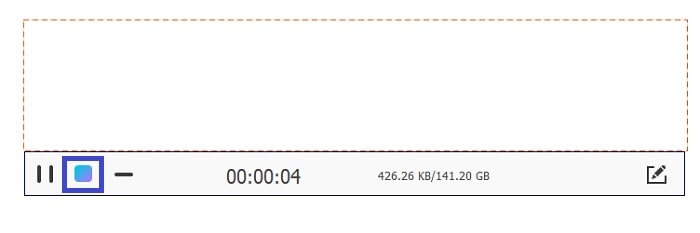
चरण 4. वहीं, रिकॉर्डिंग रोकने के लिए नीचे दी गई तस्वीर में दिखाए गए वर्गाकार बटन पर क्लिक करें।.
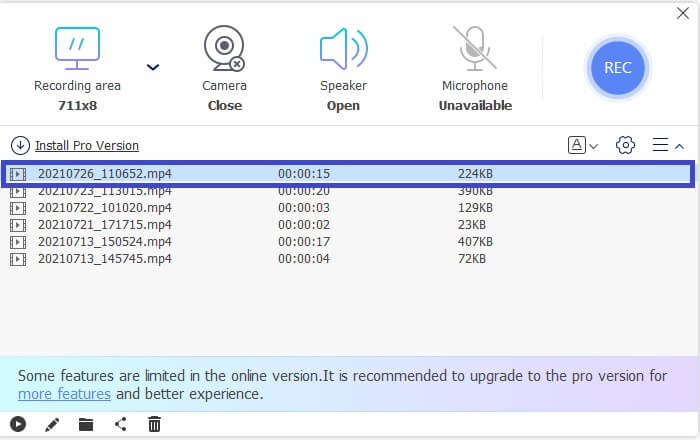
चरण 5. आपने जो फ़ाइल रिकॉर्ड की है उसे देखने के लिए फ़्लोटिंग टूलबार के नीचे दी गई सूची देखें।.
पेशेवरों
- 100% मैलवेयर से सुरक्षित है।
- यह पहलू अनुपात, बिटरेट और फ़्रेम दर को समायोजित करने में लचीला है।
- पिक्चर इन पिक्चर समर्थित है।
विपक्ष
- यह हार्डवेयर त्वरण का समर्थन नहीं करता है।
2. टिनी टेक
विशेष विशेषता: सहयोग या रिमोट कार्य का समर्थन करती है।.
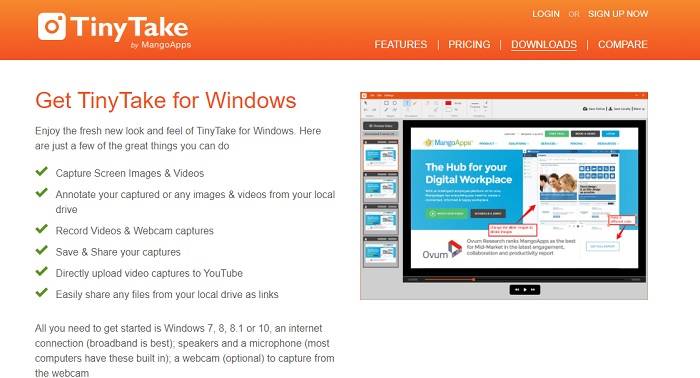
टाइनीटेक मैंगो एप्स द्वारा विकसित एक वीडियो रिकॉर्डिंग और फ्री स्क्रीन कैप्चरिंग टूल है। टिनी टेक सरल स्क्रीन कैप्चरिंग या पेशेवर या व्यक्तिगत मीटिंग रिकॉर्ड करने के लिए बेहतरीन समाधान प्रदान करता है। इस टूल को लोकप्रिय बनाने वाली यह सहयोग सुविधा है जहां आप दूरस्थ रूप से काम कर सकते हैं, फ़ाइल बल्क शेयरिंग कर सकते हैं, एनोटेशन सुविधाओं और दीर्घकालिक भंडारण का उपयोग कर सकते हैं, और गैलरी (ऑनलाइन) कर सकते हैं।
पेशेवरों
- यह आपके स्थानीय ड्राइव से छवियों और वीडियो को कैप्चर कर सकता है।
- इसे सीधे YouTube पर साझा करें।
- रिकॉर्डिंग करते समय टिप्पणी करें।
विपक्ष
- कोई लॉक-इन विंडो सुविधा नहीं।
3. स्क्रीनकास्ट-ओ-मैटिक
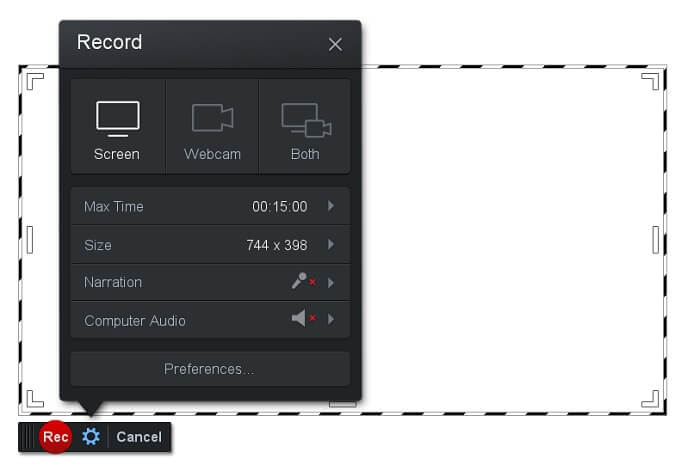
विशेष विशेषता: टूल का इंटरफ़ेस उपयोग और नेविगेट करने में आसान है। काफ़ी सीधा‑सादा।.
Screencast-O-Matic उन सॉफ़्टवेयरों में से एक है जिसका उपयोग कई लोग सामान्यतः करते हैं। यह जो कर सकता है वह है रजिस्ट्रेशन के बाद आपके कंप्यूटर स्क्रीन को मुफ़्त में रिकॉर्ड करना। मुफ़्त टूल का उपयोग करने के लिए अकाउंट बनाना सुझाया जाता है। इसके अलावा, डेवलपर ने इसमें एक फ़ीचर जोड़ा है जिससे आप एक्सपोर्ट करने से पहले सीधे वीडियो एडिट कर सकते हैं। प्रेरणा पाने और अपने वीडियो को बेहतर बनाने के लिए आप टूल की बिल्ट‑इन स्टॉक लाइब्रेरी का सहारा ले सकते हैं। साथ ही स्क्रीनशॉट लें और अपनी सारी सामग्री अपने सोशल मीडिया अकाउंट पर साझा करें।.
पेशेवरों
- इसमें क्लाउड होस्टिंग फीचर है।
- संपादन के लिए एक वीडियो अपलोड करें।
- मेजबान सामग्री।
विपक्ष
- पंजीकरण की आवश्यकता।
4. स्क्रीनकास्टिफाइ
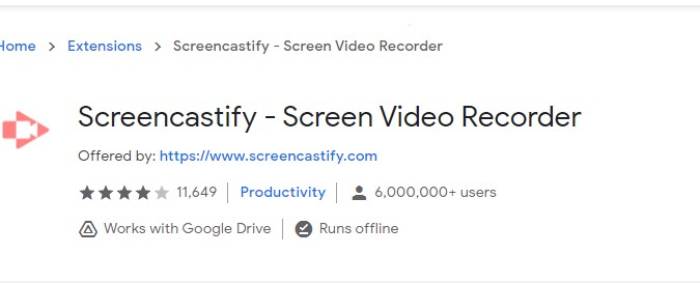
विशेष विशेषता: वेब ब्राउज़र एक्सटेंशन
आइए सूची में थोड़ी विविधता दें। Screencastify एक वेब-निर्भर टूल है जो विशेष रूप से क्रोम ब्राउज़र का एक्सटेंशन है। यह ज्यादातर शिक्षकों और छात्रों द्वारा उपयोग किया जाता है। मुख्य रूप से टूल की सादगी और एनोटेशन क्षमता के कारण जो शिक्षक और छात्र को कक्षा में केंद्रित रखता है। अधिकांश लोग जो उडेमी और ऐसी शिक्षण साइटों के माध्यम से अध्ययन कर रहे हैं, वे इस स्क्रीन रिकॉर्डर का उपयोग करते हैं। यदि आप भी ऐसा ही कर रहे हैं, तो आप इसका उपयोग करने पर विचार कर सकते हैं। इस बीच, यहां टूल के बारे में अधिक विस्तृत जानकारी दी गई है।
पेशेवरों
- सभी मीडिया प्लेटफॉर्म के साथ संगत।
- मेजबान सामग्री।
- संपादन के लिए एक वीडियो अपलोड करें।
विपक्ष
- हालाँकि यह एक आसान पहुँच है क्योंकि यह ब्राउज़र पर निर्भर है, यह नुकसानदेह भी हो सकता है।
- इसे इस्तेमाल करने के लिए बहुत सारी अनुमतियों की आवश्यकता होती है।
भाग 3. WebM रिकॉर्डर के बारे में अक्सर पूछे जाने वाले प्रश्न
मेरी वेबएम फाइल क्यों नहीं खुलेगी?
मैं आपकी उलझन समझता हूँ, आप सोच रहे होंगे कि आप आधुनिक ब्राउज़र इस्तेमाल कर रहे हैं फिर भी वीडियो नहीं चल रहा। क्या आपने जाँच की है कि आप ब्राउज़र का नवीनतम संस्करण चला रहे हैं या नहीं? अगर नहीं, तो कृपया अपडेट करें। यह उन सबसे आम कारणों में से एक है जिनकी वजह से वीडियो नहीं चलता। लेकिन ध्यान दें, ये WebM फ़ाइल द्वारा समर्थित कुछ संस्करण हैं: Chrome 6, Firefox 4 और Internet Explorer 9 तथा उससे ऊपर के संस्करण। या आप इसे खोलने में मदद के लिए WebM प्लेयर्स का उपयोग भी कर सकते हैं।.
मैं अपने Mac पर WebM वीडियो क्यों नहीं चला सकता?
मैं मैक ओएस एक्स प्लगइन के लिए वीएलसी प्लेयर या वीएलसी डाउनलोड करने की अत्यधिक अनुशंसा करता हूं। इसमें 64-बिट इंटेल प्रोसेसर होना चाहिए।
भाग 4. तुलना चार्ट
| विशेषता | FVC स्क्रीन रिकॉर्डर (प्रीमियम) | FVC स्क्रीन रिकॉर्डर फ्री | टाइनीटेक | स्क्रीनकास्ट-o-matic | स्क्रीनकास्टिफाई |
| ऑडियो और वीडियो रिकॉर्डिंग |  | | | | |
| वीडियो संपादन सुविधा | | |  | | |
| लॉक-इन विंडो फ़ीचर | | | | | |
| टिप्पणी सुविधा | | | | | |
| वेबएम समर्थित | | | | | |
| मैलवेयर सुरक्षित | | | | | |
| समायोज्य बिटरेट और पहलू अनुपात | | | | | |
निष्कर्ष
इस आलेख में समीक्षा किए गए सभी WebM रिकॉर्डिंग टूल विश्वसनीय और कुशल हैं। आपको बस यह देखना है कि कौन सा टूल आपके पीसी और आपके ऑपरेटिंग सिस्टम की आवश्यकताओं के अनुरूप होगा। वेब-आधारित ऐप का उपयोग करके अधिकांश लोग सुरक्षित जमीन पर चले जाएंगे। लेकिन यह अभी भी तय करने के लिए आपकी कॉल है।
-
 निष्पक्ष Cinch की समीक्षा ऑडियो रिकॉर्डर और सर्वश्रेष्ठ वैकल्पिक
 सेंचुरी ऑडियो रिकॉर्डर स्ट्रीमिंग साइटों से संगीत डाउनलोड करने का सबसे अच्छा तरीका है। बस निष्पक्ष समीक्षा और लेख से सर्वश्रेष्ठ विकल्प के बारे में अधिक जानें।
-
 विंडोज और मैक के लिए शीर्ष 5 सर्वश्रेष्ठ माउस और कीबोर्ड रिकॉर्डर
 यहां शीर्ष पांच सर्वश्रेष्ठ माउस और कीबोर्ड रिकॉर्डर प्रोग्राम हैं जो आपके माउस आंदोलनों और कीबोर्ड क्लिक को बचा सकते हैं, और घटनाओं को दोहरा सकते हैं।
-
 AVI फ़ाइल के रूप में स्क्रीन वीडियो पर कब्जा करने के लिए शीर्ष 4 नि: शुल्क AVI स्क्रीन रिकॉर्डर
 उच्च गुणवत्ता वाली AVI फ़ाइलों में स्क्रीन रिकॉर्ड करने के लिए, लेख इस पोस्ट में शीर्ष 4 मुक्त AVI स्क्रीन रिकॉर्डर को पहचानता है और साझा करता है। तदनुसार वांछित खोजने के लिए अधिक विवरण जानें।
