


 वीडियो कनवर्टर अंतिम
 स्क्रीन अभिलेखी
 वीडियो मरम्मत
 सुरक्षित डाउनलोड
विंडोज मीडिया प्लेयर में स्क्रीन कैप्चर करने के 4 तरीके
Windows Media Player एक लोकप्रिय प्लेयर है जो आपको तरह‑तरह की मीडिया फ़ाइलें चलाने देता है। इस प्लेयर में फ़ोटो देखना, म्यूज़िक प्लेयर, वीडियो देखना और म्यूज़िक कलेक्शन को व्यवस्थित करना जैसी सुविधाएँ मौजूद हैं। Windows Media Player का उपयोग करने से यूज़र्स को मीडिया से जुड़े कई काम करने में मदद मिलती है, और इस लेख में हम Windows Media Player में स्क्रीन कैप्चर कैसे करें इस पर रोशनी डाल रहे हैं। किसी फ़िल्म का यादगार दृश्य, किसी ट्यूटोरियल का हिस्सा, या कोई मज़ेदार पल प्लेयर में चलाकर आप उसे अपनी सुविधानुसार स्क्रीनशॉट लेकर सहेज सकते हैं। हालांकि, कई यूज़र्स शायद इस बहुउद्देश्यीय प्लेयर में मौजूद बिल्ट‑इन टूल्स और तकनीकों के बारे में नहीं जानते, जिनकी मदद से स्क्रीनशॉट लिया जा सकता है। इस लेख के अंत तक पढ़ते रहें, यहाँ आप Windows Media Player में स्क्रीन कैप्चर करने के चार आसान और प्रभावी तरीके सीखेंगे, जिनमें सॉफ़्टवेयर, शॉर्टकट कीज़, स्निपिंग टूल और इसके बिल्ट‑इन टूल का उपयोग शामिल है, जो आपको इन पलों को आसानी से कैप्चर करने की सुविधा देता है।.
भाग 1. विंडोज मीडिया प्लेयर में स्क्रीनशॉट कैसे लें
Windows Media Player में स्क्रीनशॉट लेना आसान है और इसे करने या इसके बारे में सीखने में आपका ज़्यादा समय नहीं लगेगा। ऐसा करने के कई तरीके हैं, और Windows 11 या उससे पहले के वर्ज़न में मीडिया प्लेयर्स का स्क्रीनशॉट लेने का अनुशंसित तरीका FVC द्वारा चुने गए Screen Recorder जैसे सॉफ़्टवेयर टूल्स का उपयोग है। यह सॉफ़्टवेयर एक बहुउद्देश्यीय टूल है, जिसे हर तरह की मीडिया, खासतौर पर Windows Media Player की स्क्रीन कैप्चर करने की ज़रूरत को ध्यान में रखकर बनाया गया है। इस सॉफ़्टवेयर से यूज़र्स स्क्रीन पर होने वाले काम कर सकते हैं और एक ही जगह पर वीडियो, ऑडियो और गेम्स रिकॉर्ड कर सकते हैं, जबकि दूसरे टूल्स अक्सर किसी एक ही फीचर पर फोकस करते हैं। इसके अलावा, यह सॉफ़्टवेयर यूज़र‑फ्रेंडली और समय बचाने वाली सुविधाएँ प्रदान करता है। इसके एडिटिंग टूल्स की मदद से यूज़र्स लिए गए स्क्रीनशॉट्स को तुरंत ही आसानी से एडिट कर सकते हैं।.
स्टेप 1. सबसे पहले इस स्क्रीनशॉट टूल को अपने कंप्यूटर पर डाउनलोड और इंस्टॉल करें। इंस्टॉलेशन प्रक्रिया पूरी होने के बाद सॉफ़्टवेयर खोलें।.
मुफ़्त डाउनलोडWindows 7 या उससे बाद के लिएसुरक्षित डाउनलोड
मुफ़्त डाउनलोडMacOS 10.7 या उससे बाद के लिएसुरक्षित डाउनलोड
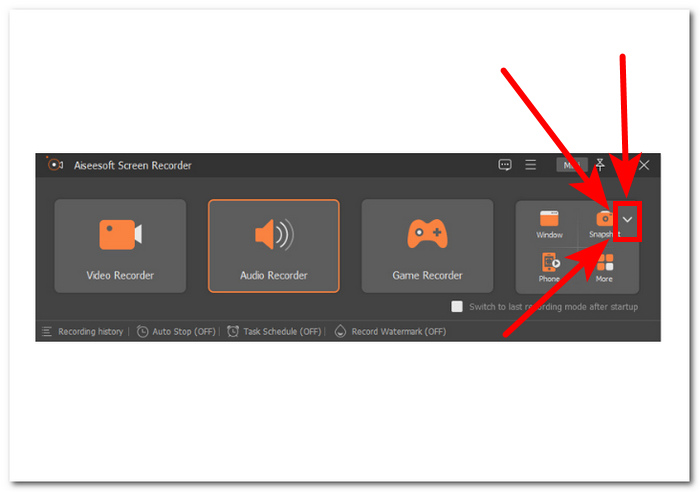
स्टेप 2. सॉफ़्टवेयर खुलने पर, आपको दाहिनी तरफ़ एक Snapshot आइकन के साथ नीचे की ओर तीर वाला बटन दिखेगा। आगे बढ़ने के लिए इस बटन पर क्लिक करें।.
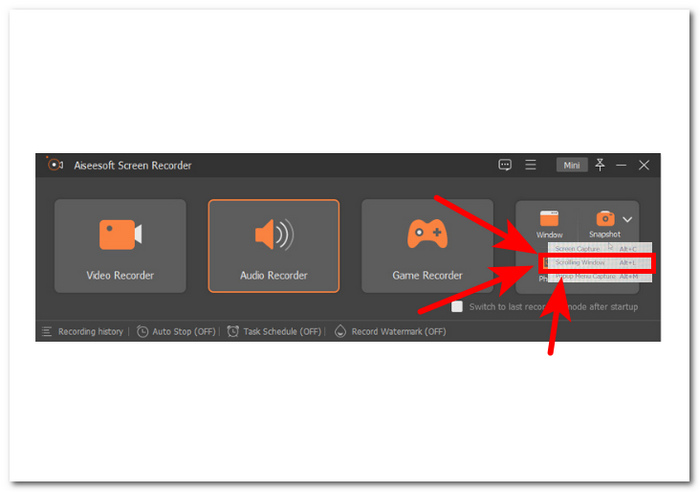
स्टेप 3. ड्रॉप‑डाउन मेनू में से Scrolling Window विकल्प चुनें। वैकल्पिक रूप से, आप अपने कीबोर्ड पर Alt+L शॉर्टकट का उपयोग कर सकते हैं।.
स्टेप 4. Scrolling Window विकल्प चुनने के बाद सॉफ़्टवेयर अपने‑आप स्क्रीनशॉट ले लेगा। अब आप नीचे स्क्रोल करते हुए वह सारी जानकारी कैप्चर कर सकते हैं जिसकी आपको ज़रूरत है। सॉफ़्टवेयर पेज या डॉक्युमेंट की पूरी लंबाई कैप्चर करेगा, जिससे आप इसे ज़रूरत के अनुसार सेव या शेयर कर सकते हैं।.
FVC द्वारा अनुशंसित स्क्रीन रिकॉर्डर एक भरोसेमंद उपकरण है जिसका उपयोग विंडोज मीडिया प्लेयर पर वीडियो का स्क्रीनशॉट लेने के लिए किया जा सकता है। यह सॉफ्टवेयर मैक और विंडोज दोनों डिवाइस पर मुफ्त में उपलब्ध है, जो एक विस्तृत उपयोगकर्ता आधार सुनिश्चित करता है। स्क्रीन रिकॉर्डिंग और कैप्चरिंग सुविधाओं की अपनी विविधता के साथ, यह स्क्रीनशॉट टूल उन लोगों के लिए एकदम सही है जिन्हें अपने कंप्यूटर स्क्रीन को कैप्चर करने के लिए एक विश्वसनीय और बहुउद्देश्यीय टूल की आवश्यकता है।
भाग 2. विंडोज शॉर्टकट के साथ विंडोज मीडिया प्लेयर में स्क्रीनशॉट
यदि आप Windows Media Player का उपयोग कर रहे हैं और आपको स्क्रीनशॉट लेने की आवश्यकता है, तो किसी भी तृतीय-पक्ष टूल को डाउनलोड करने की आवश्यकता नहीं है। Windows Media Player से वीडियो से चित्र कैप्चर करने के लिए, आप अपने द्वारा देखे जा रहे वीडियो का स्क्रीनशॉट जल्दी और आसानी से कैप्चर करने के लिए शॉर्टकट कुंजियों का उपयोग कर सकते हैं। यह संदर्भ के लिए या दूसरों के साथ साझा करने के लिए वीडियो से स्थिर छवि प्राप्त करने का एक शानदार तरीका हो सकता है। बस उपयुक्त शॉर्टकट कुंजियों का उपयोग करें और आपका स्क्रीनशॉट दस्तावेज़ या छवि संपादन सॉफ़्टवेयर में आसानी से स्थानांतरित करने के लिए सहेजा जाएगा।
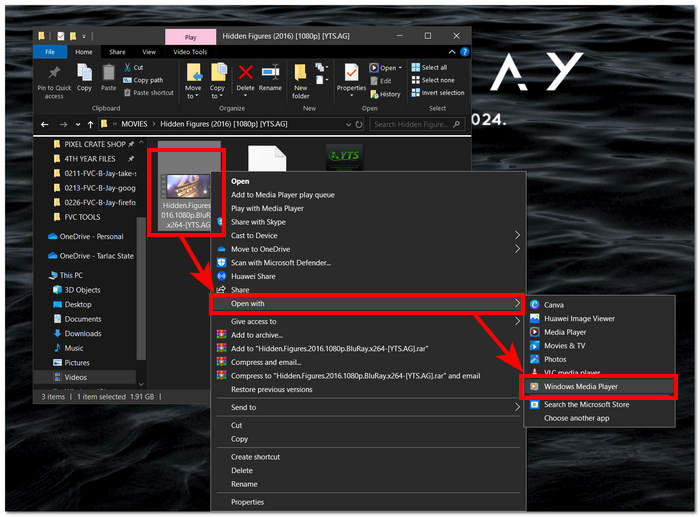
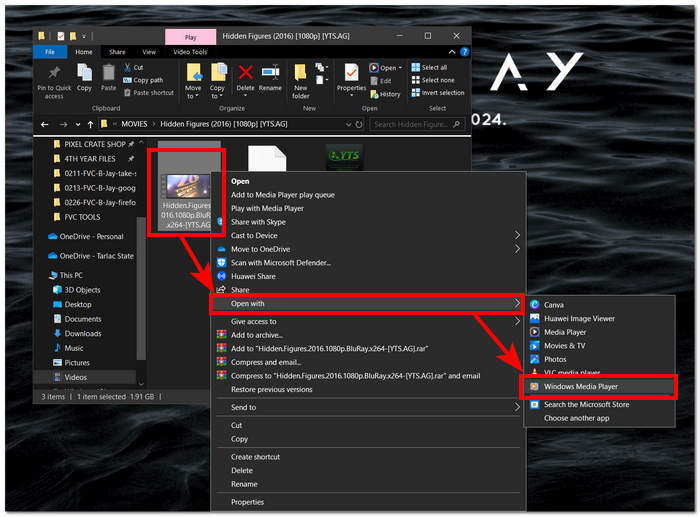
स्टेप 1. शुरू करने के लिए अपने कंप्यूटर पर Windows Media Player लॉन्च करें। वह वीडियो चुनें जिसका आप स्क्रीनशॉट लेना चाहते हैं।.
स्टेप 2. वीडियो में जिस फ़्रेम को आप स्क्रीनशॉट के रूप में कैप्चर करना चाहते हैं, उस सटीक जगह पर पहुँचकर Pause बटन पर क्लिक करके वीडियो रोक दें।.
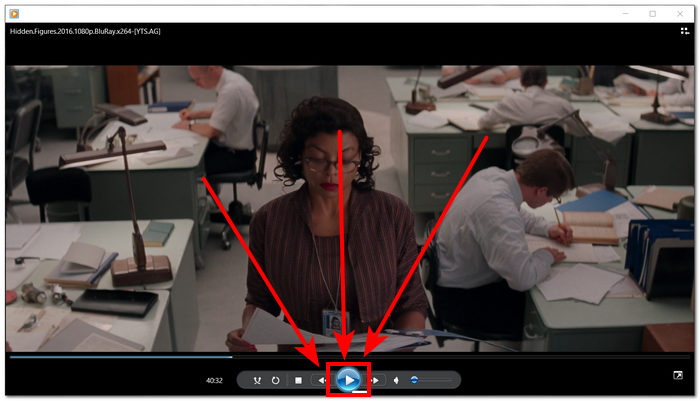
स्टेप 3. अपने कीबोर्ड पर PrtScn बटन खोजें और उसे दबाएँ। इससे आपकी स्क्रीन का स्क्रीनशॉट लिया जाएगा और एक इमेज फ़ाइल के रूप में सेव हो जाएगा। (PrtSc के बिना स्क्रीनशॉट कैसे लें?)
स्टेप 4. स्क्रीनशॉट अपने‑आप आपके कंप्यूटर की डिफ़ॉल्ट स्टोरेज लोकेशन में सेव हो जाएगा। इसे ढूँढने के लिए उस पॉप‑अप विंडो पर ध्यान दें जिस पर screenshot saved लिखा होगा।.
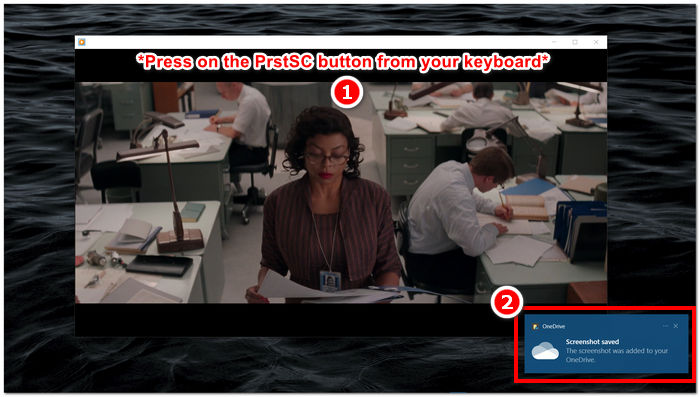
विंडोज मीडिया प्लेयर में स्क्रीनशॉट लेते समय, शॉर्टकट कुंजियों का उपयोग करने से उपयोगकर्ताओं का समय बच सकता है और किसी टूल का उपयोग करने की आवश्यकता समाप्त हो सकती है। हालाँकि यह तरीका उन लोगों के लिए कुशल और लाभदायक है जो जल्दी में हैं, लेकिन यह ध्यान रखना महत्वपूर्ण है कि यह स्क्रीनशॉट के किसी भी संपादन की अनुमति नहीं देता है।
भाग 3. स्निपिंग टूल के साथ विंडोज मीडिया प्लेयर में स्क्रीनशॉट कैसे लें
यदि आप विंडोज मीडिया प्लेयर पर वीडियो चलाते समय स्क्रीनशॉट लेना चाहते हैं, तो आप बिना किसी अतिरिक्त सॉफ़्टवेयर को इंस्टॉल किए आसानी से ऐसा कर सकते हैं। विंडोज स्निपिंग टूल, जो पहले से ही सभी विंडोज डिवाइस में बिल्ट-इन है, का उपयोग मीडिया प्लेयर पर वीडियो प्लेबैक विंडो सहित आपकी स्क्रीन के किसी भी हिस्से का स्क्रीनशॉट लेने के लिए किया जा सकता है। यह सुविधा तब काम आ सकती है जब आपको संदर्भ या साझा करने के उद्देश्य से वीडियो से जल्दी से स्थिर छवि कैप्चर करने की आवश्यकता हो।
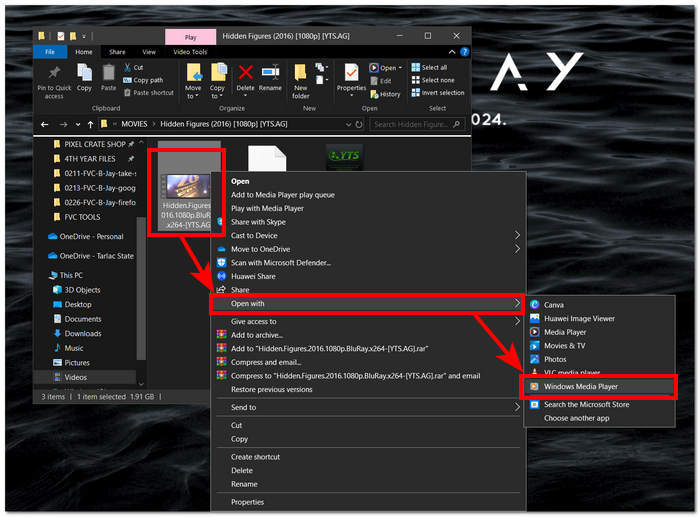
स्टेप 1. वह वीडियो, जिसका आप स्क्रीनशॉट लेना चाहते हैं, उसे Windows Media Player में खोलें।.
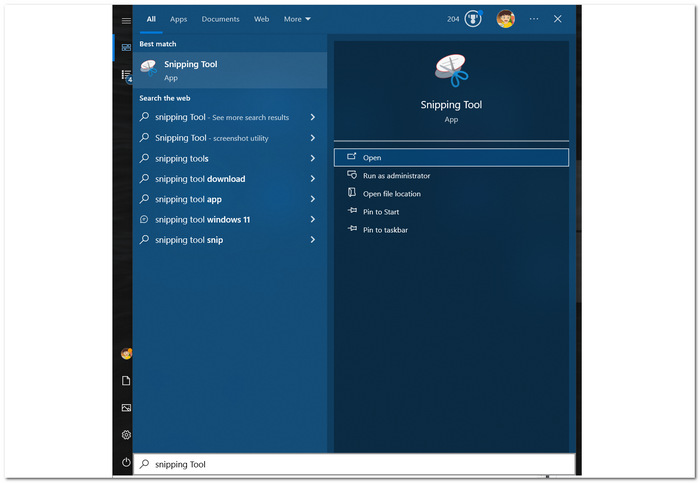
स्टेप 2. अपने Windows डिवाइस पर Snipping Tool खोजें, इसके लिए Start मेनू में इसे सर्च करें और फिर इसे खोलें।.
स्टेप 3. इसके इंटरफ़ेस पर, Mode सेक्शन के अंतर्गत Window Snip पर क्लिक करें, फिर मैन्युअल रूप से उस हिस्सा चुनें जिसका आप स्क्रीनशॉट लेना चाहते हैं।.
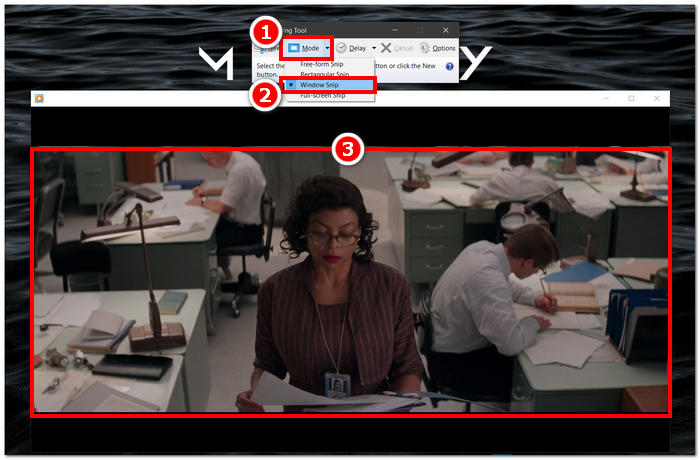
स्टेप 4. क्षेत्र पर क्लिक करने के बाद एक नई विंडो खुलेगी, जहाँ आप स्क्रीनशॉट पर टिप्पणी (annotate) कर सकते हैं और उसे अपने कंप्यूटर में सेव कर सकते हैं।.
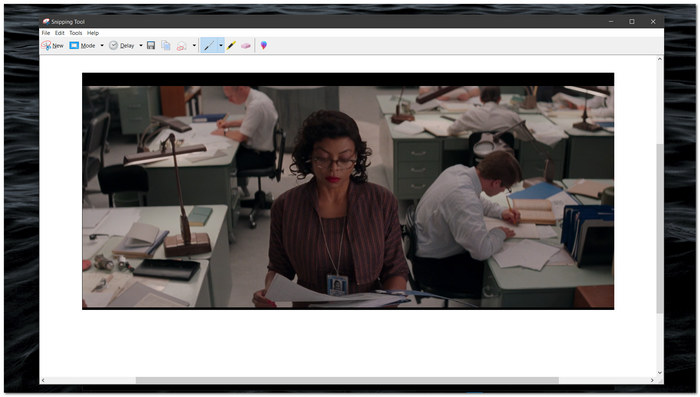
विंडोज मीडिया प्लेयर में वीडियो देखते समय स्क्रीनशॉट कैप्चर करना आसान हो गया है, विंडोज स्निपिंग टूल की मूल क्षमताओं की बदौलत। विंडोज स्निपिंग टूल का लाभ उठाकर, उपयोगकर्ता अपने मीडिया अनुभव को बेहतर बना सकते हैं और सामग्री को कैप्चर करने और साझा करने की प्रक्रिया को सहज बना सकते हैं।
भाग 4. विंडोज मीडिया प्लेयर में इसके अंतर्निहित टूल के साथ स्क्रीनशॉट कैसे लें
विंडोज मीडिया प्लेयर में बिल्ट-इन फीचर नहीं है, जिसके कारण यह यूजर को प्लेयर के अंदर स्क्रीनशॉट लेने की अनुमति नहीं देता है। हालाँकि, विंडोज मीडिया प्लेयर में स्क्रीनशॉट लेने के लिए ऊपर बताई गई शॉर्टकट कुंजियों के अलावा एक शॉर्टकट कुंजी का भी इस्तेमाल किया जा सकता है।
स्टेप 1. Windows Media Player में चल रहे वीडियो का स्क्रीनशॉट लेने के लिए, पहले वीडियो को प्लेयर में खोलें।.
स्टेप 2. जिस क्षण को आप कैप्चर करना चाहते हैं, उस सटीक समय पर प्लेयर को पहले Pause करना ज़रूरी है।.
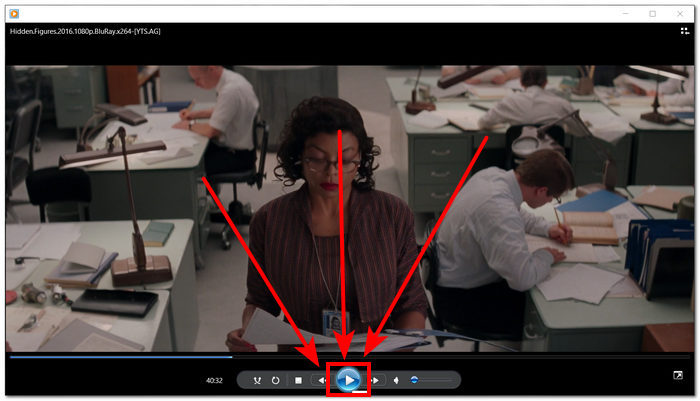
स्टेप 3. अपने कंप्यूटर पर रुके हुए वीडियो का स्क्रीनशॉट लेने के लिए आप कीबोर्ड पर Windows Logo + Shift + S का संयोजन कुंजी (कम्बिनेशन की) इस्तेमाल कर सकते हैं।.
स्टेप 4. जिस हिस्से का आप स्क्रीनशॉट लेना चाहते हैं उसे मैन्युअल रूप से चुनने के बाद, इमेज अपने‑आप आपके क्लिपबोर्ड में सेव हो जाएगी। आप इसे आसानी से अपनी पसंद के ईमेल, मैसेजिंग प्लेटफ़ॉर्म या नोट‑टेकिंग ऐप में पेस्ट करके इस्तेमाल कर सकते हैं।.
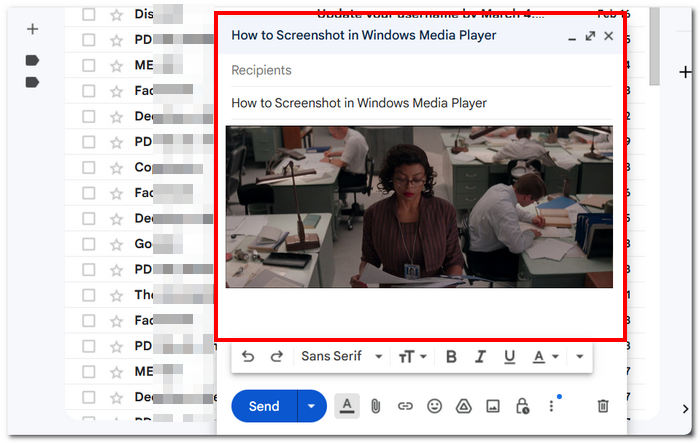
विंडोज मीडिया प्लेयर में स्क्रीनशॉट लेने के लिए बिल्ट-इन सुविधा नहीं हो सकती है। हालाँकि, VLC स्क्रीनशॉट के विपरीत, यह अभी भी एक विश्वसनीय और शक्तिशाली मीडिया प्लेयर है, यह देखते हुए कि यह मुफ़्त है और आपके डिवाइस पर पहले से इंस्टॉल है।
भाग 5. विंडोज मीडिया प्लेयर में स्क्रीनशॉट लेने के बारे में अक्सर पूछे जाने वाले प्रश्न
क्या मैं बिना किसी अतिरिक्त सॉफ्टवेयर का उपयोग किए विंडोज मीडिया प्लेयर में स्क्रीनशॉट ले सकता हूं?
विंडोज मीडिया प्लेयर में बिना किसी अतिरिक्त सॉफ़्टवेयर के स्क्रीनशॉट लेना संभव है। विंडोज में स्निपिंग टूल नामक एक बिल्ट-इन टूल है जो आपको विंडोज मीडिया प्लेयर में वीडियो प्लेबैक विंडो सहित आपकी स्क्रीन के किसी भी हिस्से का स्क्रीनशॉट लेने की अनुमति देता है।
क्या मैं बेहतर स्क्रीनशॉट लेने के लिए स्निपिंग टूल की सेटिंग्स को अनुकूलित कर सकता हूँ?
स्निपिंग टूल अनुकूलन योग्य सेटिंग्स प्रदान करता है, जैसे कि डिफ़ॉल्ट मोड (उदाहरण के लिए, आयताकार स्निप, फ्री-फॉर्म स्निप), कैप्चर करने से पहले विलंब, तथा वह प्रारूप जिसमें स्क्रीनशॉट सहेजे जाते हैं (उदाहरण के लिए, PNG, JPEG)।
क्या विंडोज मीडिया प्लेयर में स्क्रीनशॉट लेने का कोई तेज़ तरीका है?
ऐसे थर्ड-पार्टी स्क्रीनशॉटिंग टूल उपलब्ध हैं जो स्क्रीनशॉट लेने के लिए अधिक उन्नत सुविधाएँ और तेज़ तरीके प्रदान करते हैं। यदि आपको विंडोज मीडिया प्लेयर का उपयोग करते समय अक्सर स्क्रीनशॉट लेने की आवश्यकता होती है, तो आप इन विकल्पों का पता लगा सकते हैं।
क्या मैं पूर्ण स्क्रीन मोड में चल रहे वीडियो का स्क्रीनशॉट ले सकता हूँ?
हां, वीडियो फुल-स्क्रीन मोड में चलने के दौरान भी स्क्रीनशॉट लेने के लिए स्निपिंग टूल का उपयोग करना संभव है। बस स्निपिंग टूल पर स्विच करें और वीडियो वाले स्क्रीन के वांछित क्षेत्र को कैप्चर करें।
विंडोज मीडिया प्लेयर में उच्च गुणवत्ता वाले स्क्रीनशॉट लेने के लिए अनुशंसित विधि क्या है?
विंडोज मीडिया प्लेयर में उच्च-गुणवत्ता वाले स्क्रीनशॉट लेने के लिए अनुशंसित विधि सॉफ़्टवेयर विधि का उपयोग करना है। यह टूल उपयोगकर्ताओं को वीडियो प्लेबैक विंडो सहित स्क्रीन के विशिष्ट क्षेत्रों को चुनने और कैप्चर करने की अनुमति देता है, जिससे स्क्रीनशॉट में स्पष्टता और सटीकता सुनिश्चित होती है। सॉफ़्टवेयर टूल की सुविधाओं का लाभ उठाकर, उपयोगकर्ता बिना किसी तृतीय-पक्ष सॉफ़्टवेयर की आवश्यकता के आसानी से स्पष्ट और विस्तृत स्क्रीनशॉट ले सकते हैं।
निष्कर्ष
हमने Windows Media Player में स्क्रीनशॉट कैप्चर करने के अलग‑अलग तरीकों की जाँच की है, जिनमें सॉफ़्टवेयर‑आधारित समाधान से लेकर Snipping Tool और शॉर्टकट कीज़ जैसे बिल्ट‑इन टूल्स शामिल हैं। ये तकनीकें आसानी से उपयोग की जा सकती हैं और यूज़र्स को अपने मीडिया अनुभवों के महत्वपूर्ण पलों को बिना किसी मेहनत के सहेजने और साझा करने की शक्ति देती हैं। यहाँ बताए गए फ़ीचर्स की मदद से यूज़र्स Windows Media Player के उपयोग के साथ‑साथ स्क्रीन कैप्चर को सहज रूप से जोड़ सकते हैं और अपने मीडिया इंटरैक्शन को और बेहतर बना सकते हैं।.
-
 फ़ायरफ़ॉक्स पर आसानी से स्क्रॉलिंग स्क्रीनशॉट कैसे लें
 फ़ायरफ़ॉक्स पर स्क्रीनशॉट को स्क्रॉल करना सीखें ताकि पूरे वेब पेज को तुरंत कैप्चर किया जा सके। इस सुविधा का उपयोग कैसे करें, यह जानने के लिए हमारे आसान चरण-दर-चरण ट्यूटोरियल का पालन करें।
-
 अपनी हथेली पर सैमसंग S23 का स्क्रीनशॉट कैसे लें
 सैमसंग S23 पर स्क्रीनशॉट लेने के तरीके के बारे में आपको जो कुछ भी जानना चाहिए, वह सब यहां दिया गया है, ताकि सहज स्क्रीन कैप्चर अनुभव के लिए फ्लैगशिप डिवाइस सुविधाओं का अधिकतम उपयोग किया जा सके।
-
 विंडोज मीडिया प्लेयर में कुशलतापूर्वक स्क्रीनशॉट कैसे लें
 विंडोज मीडिया प्लेयर में आसानी से स्क्रीनशॉट कैप्चर करने के सबसे सरल तरीके खोजें। हमारे विस्तृत गाइड के साथ अपने स्क्रीन कैप्चर अनुभव को बेहतर बनाएँ।
