


 वीडियो कनवर्टर अंतिम
 स्क्रीन अभिलेखी
 वीडियो मरम्मत
 सुरक्षित डाउनलोड
वीएलसी मीडिया प्लेयर में आसानी से स्क्रीनशॉट लें
वीडियो देखते समय स्क्रीनशॉट लेना यादगार पलों को संभाल कर रखने या उपयोगी जानकारी निकालने का एक सुविधाजनक तरीका है। यह किसी खास पल को वीडियो से अलग करके सहेजने का माध्यम बन जाता है। VLC Media Player एक उपयोगकर्ता‑अनुकूल वीडियो प्लेयर है जो Windows, macOS और Linux पर काम करता है। VLC सटीकता के साथ फ़्रेम कैप्चर करने की इनबिल्ट सुविधा प्रदान करता है। कई अन्य मीडिया प्लेयर्स के विपरीत, VLC यह प्रक्रिया बहुत आसान कर देता है, जहाँ वांछित इमेज लेने के लिए सिर्फ कुछ क्लिक या की‑स्ट्रोक की ज़रूरत होती है। इस फ़ीचर में महारत हासिल करके उपयोगकर्ता अपने पसंदीदा वीडियो से तेज़ी से स्नैपशॉट्स का कलेक्शन तैयार कर सकते हैं। इस लेख में हम चरण‑दर‑चरण प्रक्रिया देखेंगे कि VLC में स्क्रीनशॉट कैसे लें, ताकि उपयोगकर्ता VLC Media Player की स्क्रीनशॉट क्षमताओं का बेहतर उपयोग कर सकें और आसानी से अपना मल्टीमीडिया अनुभव समृद्ध कर सकें। कीबोर्ड शॉर्टकट और मेनू के ज़रिए स्क्रीनशॉट लेने, VLC की खूबियों और सीमाओं तथा वैकल्पिक सॉफ़्टवेयर के बारे में जानने के लिए लेख पढ़ते रहें।.

भाग 1. VLC में स्क्रीनशॉट कैसे लें
VLC मीडिया प्लेयर में स्क्रीनशॉट लेना शॉर्टकट कुंजियों या मेनू विकल्पों का उपयोग करके आसानी से किया जाता है। आप अपने वीडियो से फ़्रेम को आसानी से कैप्चर करने के लिए दोनों तरीकों का उपयोग कर सकते हैं। बस कुछ कीस्ट्रोक्स के साथ, आप अपने पसंदीदा क्षणों के स्नैपशॉट कैप्चर और सहेज सकते हैं। VLC की बहुमुखी स्क्रीनशॉट सुविधा आपके मल्टीमीडिया अनुभव को बढ़ाती है, जिससे आप यादगार दृश्यों को आसानी से संरक्षित कर सकते हैं।
शॉर्टकट कुंजियों के माध्यम से VLC में स्क्रीनशॉट लेने के चरण:
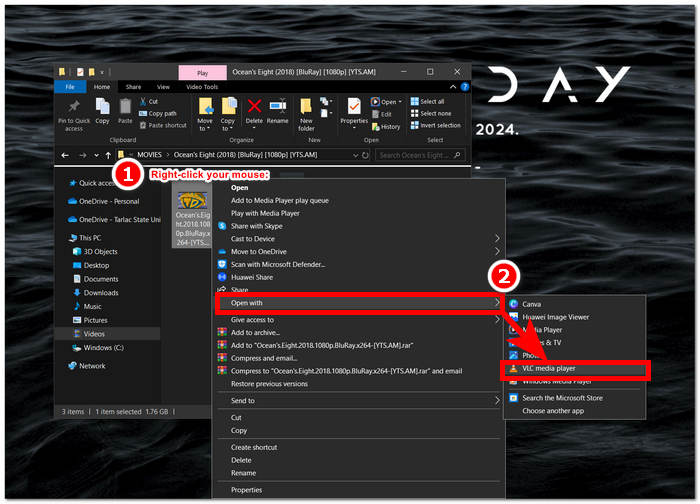
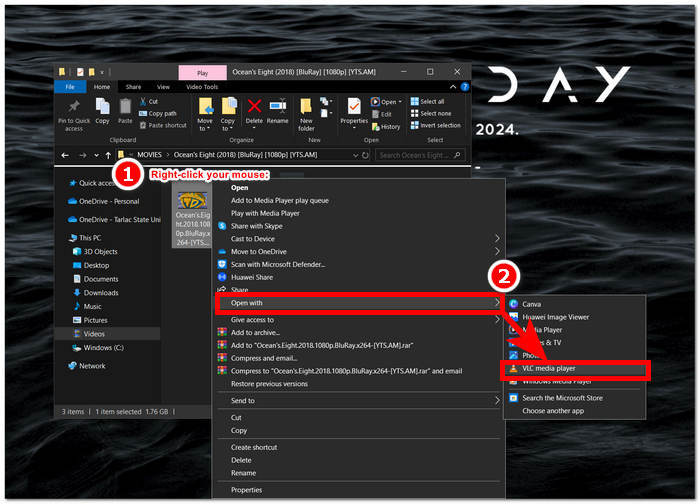
चरण 1. अपने डेस्कटॉप पर वीडियो पर राइट‑क्लिक करें और VLC Media Player चुनकर उसे खोलें।.
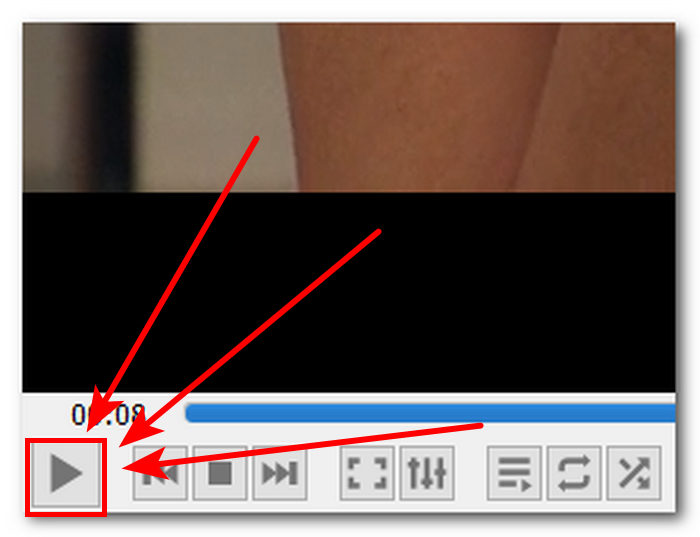
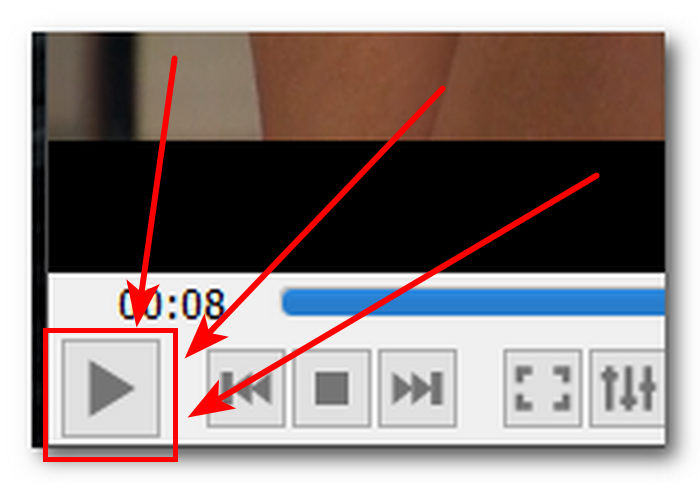
चरण 2. अपना वीडियो चलाएँ या उस हिस्से तक जाएँ जहाँ आप स्क्रीनशॉट लेना चाहते हैं और Pause बटन पर क्लिक करें।.
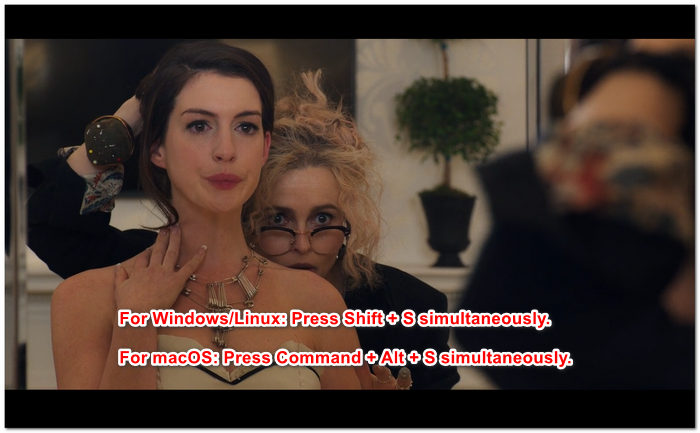
चरण 3. Windows/Linux पर शॉर्टकट कीज़ से स्क्रीन लेने के लिए एक साथ Shift + S दबाएँ, जबकि macOS पर Command + Alt + S दबाएँ।.
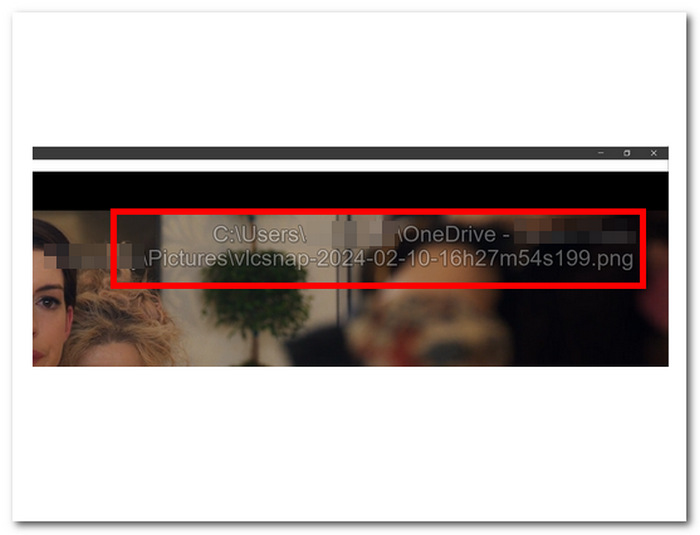
चरण 4. जैसे ही आप शॉर्टकट कीज़ दबाएँगे, आपकी स्क्रीन के दाएँ कोने में एक टेक्स्ट दिखाई देगा जो VLC स्क्रीनशॉट फ़ोल्डर के लोकेशन की जानकारी देगा। बस उसे फॉलो करें, और आप अपने सभी स्क्रीनशॉट्स देख पाएँगे।.
मेनू के माध्यम से VLC में स्क्रीनशॉट लेने के चरण:
चरण 1. अपने डेस्कटॉप पर VLC Media Player से अपना वीडियो ढूँढें और खोलें।.
चरण 2. स्क्रीन के निचले‑बाएँ हिस्से में स्थित Pause बटन पर क्लिक करें और वीडियो को उस फ्रेम पर रोकें, जिसका आप स्क्रीनशॉट लेना चाहते हैं।.
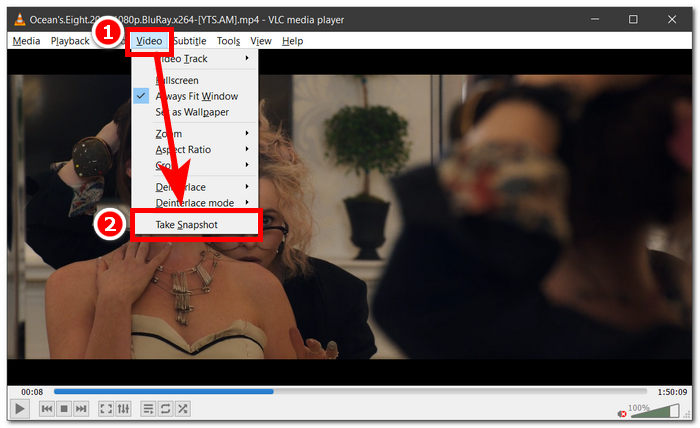
चरण 3. जब आपका वीडियो रुक जाए, तो मीडिया प्लेयर के ऊपर‑बाएँ कोने में स्थित Video settings पर क्लिक करें।.
चरण 4. सेटिंग में Take Snapshot विकल्प ढूँढें और उस पर क्लिक करें, इससे आपके वीडियो का स्क्रीनशॉट ले लिया जाएगा।.
आप कौन‑सा तरीका चुनते हैं यह मायने नहीं रखता, क्योंकि VLC आपको आसानी से स्क्रीनशॉट लेने देता है, जिससे उपयोगकर्ता बहुत कम मेहनत में वीडियो से अपने पसंदीदा पलों को सहेज सकते हैं। चाहे आप VLC स्क्रीनशॉट शॉर्टकट कीज़ इस्तेमाल करना पसंद करें या मेनू विकल्पों को, स्नैपशॉट लेते समय VLC एक सुचारु अनुभव की गारंटी देता है।.
भाग 2. वीएलसी स्क्रीनशॉट की ताकत और सीमाएं
वीएलसी स्क्रीनशॉट निस्संदेह वीएलसी मीडिया प्लेयर में चलाए गए किसी भी प्रकार के वीडियो को स्क्रीनशॉट करने के दो तरीके प्रदान करते हैं। वीएलसी मीडिया प्लेयर अपनी खूबियों में चमकता है और उपयोगकर्ताओं को इसकी सीमाओं पर संदेह हो सकता है। इसलिए, हमने नीचे वीएलसी मीडिया प्लेयर की कुछ खूबियों और सीमाओं को सूचीबद्ध किया है।
VLC स्क्रीनशॉट की खूबियाँ:
◆ स्नैपशॉट कैप्चर करने के लिए उपयोग में आसान और आसानी से उपलब्ध इंटरफ़ेस प्रदान किया गया है।
◆ अतिरिक्त सुविधा के लिए शॉर्टकट कुंजियाँ और मेनू विकल्प दोनों उपलब्ध हैं।
◆ छवि प्रारूप और गुणवत्ता समायोजित करने के लिए अनुकूलन सेटिंग्स उपलब्ध हैं।
◆ पसंदीदा क्षणों को सहजता से संरक्षित करें और मल्टीमीडिया अनुभव को बढ़ाएं।
VLC स्क्रीनशॉट की सीमाएँ:
◆ कैप्चर की गई छवियों को परिष्कृत करने के लिए उन्नत संपादन उपकरण उपलब्ध नहीं हैं।
◆ समर्पित स्क्रीनशॉट सॉफ़्टवेयर इस टूल की तुलना में उच्च स्तर की सटीकता प्रदान कर सकता है।
◆ कॉपीराइट सुरक्षा के कारण एन्क्रिप्टेड डीवीडी या ब्लू-रे डिस्क का स्क्रीनशॉट लेना संभव नहीं है।
◆ विशेष स्क्रीनशॉट टूल की तुलना में, इसमें सीमित नियंत्रण और अनुकूलन है।
◆ अधिक जटिल संपादन आवश्यकताओं के लिए, उपयोगकर्ताओं को बाहरी सॉफ़्टवेयर का उपयोग करने की आवश्यकता हो सकती है।
◆ यह उपकरण मुख्य रूप से बुनियादी स्क्रीनशॉट आवश्यकताओं के लिए उपयुक्त है, न कि उन्नत संपादन कार्यों के लिए।
वीएलसी मीडिया प्लेयर स्क्रीनशॉट ने शायद केवल स्क्रीनशॉट लेने का रास्ता अपनाया है और अन्य सुविधाओं को शामिल नहीं किया है जिनकी उपयोगकर्ता को किसी अन्य उद्देश्य के लिए आवश्यकता हो सकती है। ध्यान दें कि वीएलसी मीडिया प्लेयर एक वीडियो प्लेयर है और स्क्रीनशॉट सॉफ़्टवेयर टूल नहीं है। इसलिए यह एक बुनियादी स्क्रीनशॉट ही करता है।
भाग 3. वीएलसी स्क्रीनशॉट का सबसे अच्छा विकल्प
Screen Recorder एक ऐसा सॉफ़्टवेयर है जो उपयोगकर्ताओं को वीडियो के पसंदीदा फ़्रेम्स के स्क्रीनशॉट लेने की सुविधा देता है। यह सॉफ़्टवेयर उन्नत सुविधाओं से लैस है और Video Recorder, Audio Recorder तथा Game Recorder के रूप में इस्तेमाल किया जा सकता है। इस टूल में बेहतरीन स्क्रीन रिकॉर्डिंग और स्क्रीनशॉट क्षमताएँ हैं, जो Windows और Mac कंप्यूटर पर उपलब्ध हैं। एक शक्तिशाली सॉफ़्टवेयर होने के नाते, यह ऐसे फीचर्स देता है जो VLC Media Player के स्क्रीनशॉट फ़ीचर की क्षमताओं से आगे हैं। जैसे Scrolling Window, जो आपको किसी लंबे पोस्ट को एक ही फ्रेम में कैप्चर करने देता है, जो वेबसाइट और दस्तावेज़ पढ़ने वालों के लिए उपयोगी है; इसी तरह Popup Menu Capture, जो आपको किसी भी तरह की मेनू विंडो का स्क्रीनशॉट बिना किसी झंझट के लेने देता है।.
चरण 1. Screen Recorder की वेबसाइट पर जाएँ, सॉफ़्टवेयर को डाउनलोड करें और इंस्टॉल करें।.
मुफ़्त डाउनलोडWindows 7 या उससे बाद के लिएसुरक्षित डाउनलोड
मुफ़्त डाउनलोडMacOS 10.7 या उससे बाद के लिएसुरक्षित डाउनलोड
चरण 2. डेस्कटॉप पर, सॉफ़्टवेयर इंस्टॉलेशन पूरा होने के बाद ऐप को लॉन्च करें।.
चरण 3. सॉफ़्टवेयर इंटरफ़ेस में Snapshot बटन पर क्लिक करें, ताकि आप अपनी स्क्रीन का स्क्रीनशॉट ले सकें।.
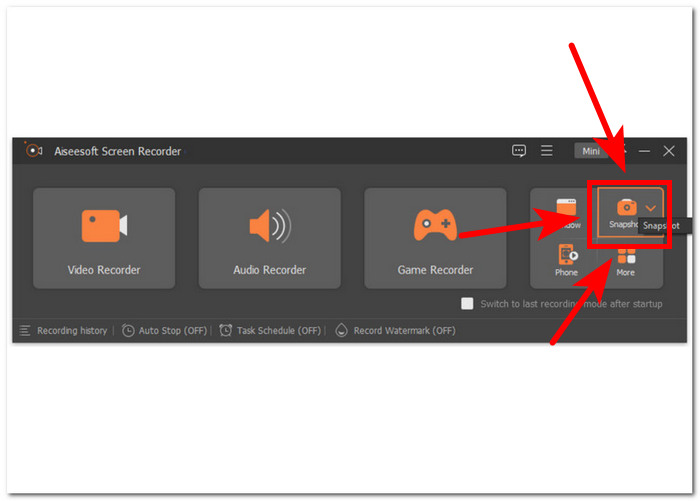
चरण 4. आपके पास मनचाहा स्क्रीनशॉट एरिया चुनने की आज़ादी है, चाहे वह कोई सक्रिय विंडो हो या फ्रीहैंड क्षेत्र। एरिया चुन लेने के बाद आप Save पर क्लिक कर सकते हैं, ताकि स्नैपशॉट को उपयुक्त इमेज फ़ॉर्मैट में सहेजा जा सके।.
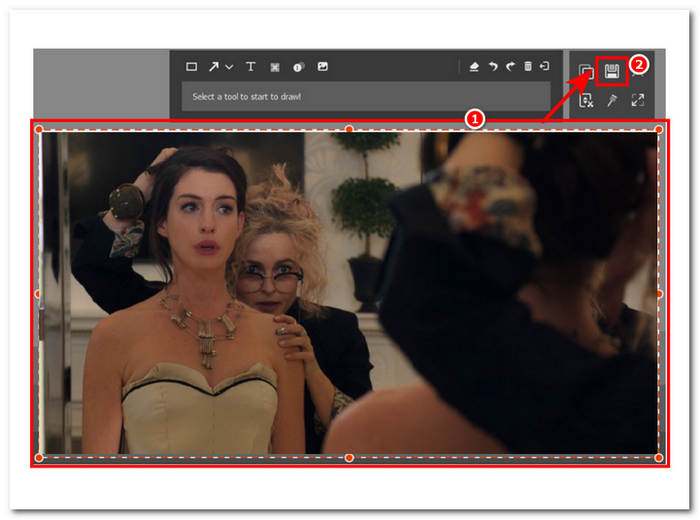
निष्कर्ष में, Aiseesoft स्क्रीन रिकॉर्डर एक बहुमुखी सॉफ्टवेयर है जब स्क्रीन रिकॉर्डिंग और स्क्रीनशॉट जैसे कार्यों पर विचार किया जाता है। VLC मीडिया प्लेयर और Aiseesoft स्क्रीन रिकॉर्डर आपके कीबोर्ड का उपयोग करके आसानी से स्क्रीनशॉट लेने के लिए शॉर्टकट कुंजी नियंत्रण प्रदान करते हैं। स्क्रीनशॉट लेने के मामले में दोनों ही बेहतरीन परिणाम देते हैं, लेकिन Aiseesoft स्क्रीन रिकॉर्डर केवल स्क्रीनशॉट लेने से कहीं अधिक है, जैसा कि सॉफ़्टवेयर में पाए जाने वाले इसके फीचर्स से पता चलता है।
भाग 4. वीएलसी मीडिया प्लेयर में स्क्रीनशॉट लेने के बारे में अक्सर पूछे जाने वाले प्रश्न
वीएलसी स्क्रीनशॉट के लिए डिफ़ॉल्ट स्थान कहां है?
VLC स्क्रीनशॉट डिफ़ॉल्ट रूप से आपके कंप्यूटर पर पिक्चर्स फ़ोल्डर में स्थान सहेजता है। इसे बदलने के लिए, टूल्स > प्रेफरेंस > वीडियो पर जाएँ और वीडियो स्नैपशॉट निर्देशिका के अंतर्गत एक नया फ़ोल्डर चुनें।
क्या मैं एक पंक्ति में कई स्क्रीनशॉट कैप्चर कर सकता हूँ?
हां, आप प्रत्येक वांछित फ्रेम के लिए प्रक्रिया को दोहराकर कई स्क्रीनशॉट कैप्चर कर सकते हैं। हालाँकि, निर्दिष्ट अंतराल पर स्वचालित रूप से कई स्क्रीनशॉट कैप्चर करने के लिए कोई अंतर्निहित सुविधा नहीं है।
क्या VLC स्ट्रीमिंग वीडियो के स्क्रीनशॉट कैप्चर करने का समर्थन करता है?
हां, आप ऊपर बताए गए तरीके का इस्तेमाल करके VLC मीडिया प्लेयर में स्ट्रीमिंग वीडियो के स्क्रीनशॉट कैप्चर कर सकते हैं। बस वीडियो को मनचाहे समय पर पॉज़ करें और स्नैपशॉट लें। हालाँकि, याद रखें कि स्क्रीनशॉट की क्वालिटी स्ट्रीमिंग सोर्स और आपके इंटरनेट कनेक्शन की स्पीड पर निर्भर हो सकती है।
क्या वीएलसी मीडिया प्लेयर में स्क्रीनशॉट लेने की कोई सीमाएँ हैं?
एक सीमा यह है कि आप कॉपीराइट सुरक्षा उपायों के कारण एन्क्रिप्टेड डीवीडी या ब्लू-रे डिस्क के स्क्रीनशॉट कैप्चर नहीं कर सकते हैं। इसके अतिरिक्त, VLC की स्क्रीनशॉट सुविधा कुछ वीडियो कोडेक्स या स्ट्रीमिंग स्रोतों के साथ सुचारू रूप से काम नहीं कर सकती है, जिसके परिणामस्वरूप संभावित संगतता समस्याएँ हो सकती हैं।
क्या मैं फुल-स्क्रीन मोड में वीडियो के स्क्रीनशॉट ले सकता हूँ?
हां, आप VLC मीडिया प्लेयर में फुल-स्क्रीन मोड में चल रहे वीडियो के स्क्रीनशॉट कैप्चर कर सकते हैं। बस अपने कीबोर्ड पर Shift + S दबाएं या वीडियो के फुल-स्क्रीन मोड में होने पर मेनू बार से वीडियो > स्नैपशॉट लें पर जाएं। यह आपको फुल-स्क्रीन प्लेबैक से बाहर निकले बिना विशिष्ट फ़्रेम के स्क्रीनशॉट कैप्चर करने की अनुमति देता है।
निष्कर्ष
अंत में, VLC Media Player में स्क्रीनशॉट कैप्चर करना वीडियो से यादगार पलों को संभाल कर रखने या महत्वपूर्ण जानकारी निकालने का एक सरल तरीका प्रदान करता है। VLC का उपयोगकर्ता‑अनुकूल इंटरफ़ेस इसे अलग‑अलग प्लेटफ़ॉर्म पर उपयोगकर्ताओं के बीच एक लोकप्रिय वीडियो प्लेयर बनाता है। चाहे आप शॉर्टकट कीज़ इस्तेमाल करें या मेनू विकल्प, VLC इस प्रक्रिया को आसान बना देता है, जिससे उपयोगकर्ता अपने पसंदीदा दृश्यों के स्नैपशॉट्स बिना किसी परेशानी के कैप्चर और सेव कर सकें। लेकिन जो उपयोगकर्ता और उन्नत सुविधाएँ चाहते हैं, जैसे सटीक एडिटिंग या स्क्रॉलिंग विंडो कैप्चर करना, उनके लिए Aiseesoft Screen Recorder जैसा वैकल्पिक सॉफ़्टवेयर एक व्यापक समाधान प्रदान करता है। VLC स्क्रीनशॉट की खूबियों, सीमाओं और विकल्पों को समझकर उपयोगकर्ता अपने मल्टीमीडिया अनुभव को बेहतर बना सकते हैं और अपनी स्क्रीनशॉट ज़रूरतों को अधिक कुशलता से संभाल सकते हैं।.
-
 विंडोज 10/11 में आसानी से स्क्रॉलिंग स्क्रीनशॉट कैसे लें
 विंडोज 10/11 पर स्क्रॉलिंग स्क्रीनशॉट सीखकर स्क्रीन कैप्चर की पूरी क्षमता का लाभ उठाएँ। उपयोग करने के लिए इन उपयोगी सॉफ़्टवेयर और वेब एक्सटेंशन के बारे में जानें।
-
 मैक पर मिनटों में स्क्रॉलिंग स्क्रीनशॉट कैसे लें
 आंशिक कैप्चर से संतुष्ट न हों! मैक पर स्क्रॉलिंग स्क्रीनशॉट लेने के सरल चरणों को जानें। कुछ ही समय में आसानी से पूरे वेब पेज या दस्तावेज़ कैप्चर करें।
-
 विंडोज मीडिया प्लेयर में कुशलतापूर्वक स्क्रीनशॉट कैसे लें
 विंडोज मीडिया प्लेयर में आसानी से स्क्रीनशॉट कैप्चर करने के सबसे सरल तरीके खोजें। हमारे विस्तृत गाइड के साथ अपने स्क्रीन कैप्चर अनुभव को बेहतर बनाएँ।
