


 वीडियो कनवर्टर अंतिम
 स्क्रीन अभिलेखी
 वीडियो मरम्मत
 सुरक्षित डाउनलोड
सर्वोत्तम टूल का उपयोग करके HEIC फ़ोटो को ठीक करने के सबसे सरल तरीके
HEIC फ़ोटो ऐसे इमेज फ़ॉर्मेट हैं जिन्हें Windows खोल नहीं सकता। हालाँकि ये उच्च गुणवत्ता वाले रेज़ोल्यूशन और छोटे फ़ाइल आकार के कारण काफ़ी प्रचलित हैं, इन्हें आप मूल रूप से सिर्फ़ Apple डिवाइस पर ही खोल सकते हैं। इसके अलावा, अगर आपकी इमेज का डेटा खो गया है या वह ख़राब (डैमेज) हो गई है, तो आपको ऐसे टूल की ज़रूरत होगी जो आपकी इमेज को ठीक करे और खोया हुआ डेटा वापस लाए। यह लेख आपको आपके Windows पीसी पर HEIC इमेज खोलने के लिए सबसे अच्छा टूल बताएगा और यह भी बताएगा कि HEIC फ़ोटो को कैसे ठीक करें वह भी बिना किसी मेहनत के।.

भाग 1. अपने विंडोज पीसी पर अपनी HEIC छवि को कैसे ठीक करें और देखें
आप अपने विंडोज पीसी पर अपनी एचईआईसी छवि नहीं देख सकते, भले ही आपकी छवि क्षतिग्रस्त न हो। तो, आपके लिए सबसे अच्छा विकल्प उन उपकरणों का उपयोग करना है जो आपकी HEIC छवि को देख सकते हैं या इसे अन्य छवि प्रारूपों में परिवर्तित कर सकते हैं जो कि Windows समर्थित है, जैसे JPG और PNG। इसलिए, हम आपके लिए आपके विंडोज पीसी पर एक HEIC छवि देखने और अपनी HEIC छवि को JPG छवि प्रारूप में बदलने के लिए सर्वोत्तम उपकरण प्रस्तुत करेंगे।
एक कनवर्टर का प्रयोग करें
Aiseesoft HEIC कनवर्टर एक ऑनलाइन HEIC कनवर्टर है जो आपको अपनी HEIC छवि को JPG या PNG छवि प्रारूप में बदलने की अनुमति देता है। इस टूल में एक सरल यूजर इंटरफेस है जो इसे यूजर-फ्रेंडली टूल बनाता है। इसके अलावा, आप अपनी HEIC छवि को परिवर्तित करते समय अपनी छवि की गुणवत्ता बदल सकते हैं। यह आपकी छवि के EXIF डेटा को अन्य छवि प्रारूपों में परिवर्तित करने के बीच भी रख सकता है। इसके अलावा, आप इस टूल का उपयोग बिना किसी भुगतान के HEIC छवियों को JGP में बदलने के लिए कर सकते हैं।
स्टेप 1. अपने पीसी पर Aiseesoft HEIC Converter डाउनलोड करें। इंस्टॉलेशन प्रक्रिया को फ़ॉलो करें और ऐप खोलें।.
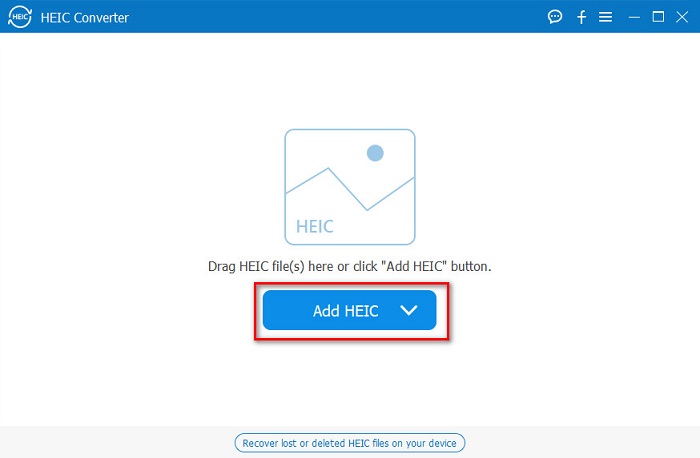
स्टेप 2. सॉफ़्टवेयर के मुख्य इंटरफ़ेस पर अपनी HEIC इमेज अपलोड करने के लिए Add HEIC बटन पर क्लिक करें।.
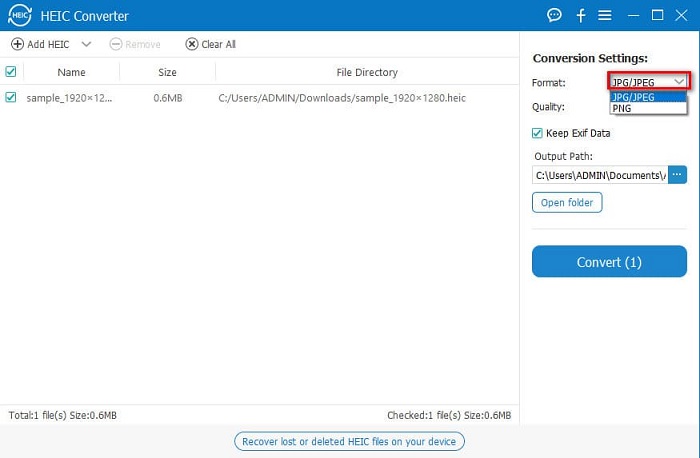
स्टेप 3. अब, Format के बगल में दिए गए ड्रॉप‑डाउन बटन पर क्लिक करके आउटपुट फ़ॉर्मेट चुनें। फिर JPG/JPEG इमेज फ़ॉर्मेट चुनें।.
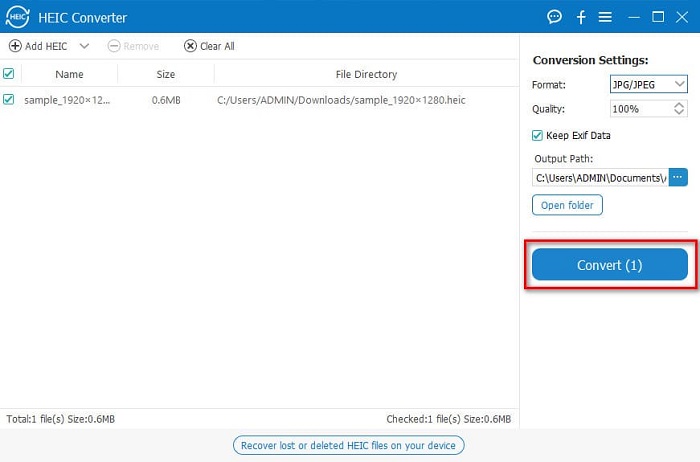
स्टेप 4. आख़िर में, अपनी HEIC इमेज को JPG इमेज फ़ॉर्मेट में बदलने के लिए Convert बटन पर क्लिक करें।.
इन आसान चरणों का पालन करके, आप अपनी HEIC छवि को अपने Windows डिवाइस पर देखने के लिए JPG छवि प्रारूप में परिवर्तित कर सकते हैं।
आप FVC HEIC कनवर्टर भी आज़मा सकते हैं, जिसमें Aiseesoft कनवर्टर जितनी ही शक्तिशाली विशेषताएं हैं:
फ्री डाउनलोडWindows 7 या बाद के संस्करण के लिएसुरक्षित डाउनलोड
फ्री डाउनलोडMacOS 10.7 या बाद के संस्करण के लिएसुरक्षित डाउनलोड
संबंधित:
HEIC को PNG में कैसे कनवर्ट करें
JPG को HEIC में कैसे कनवर्ट करें
एक दर्शक का प्रयोग करें
1. HEIC Image Viewer Decoder
HEIC Image Viewer Decoder एक HEIC व्यूअर ऐप है जो आपको अपनी HEIC इमेज ऑनलाइन देखने की सुविधा देता है। HEIC इमेज को देखने या डिकोड करने के बाद, आप इसे PNG या JPG इमेज फ़ॉर्मेट में सेव कर सकते हैं। इसके अलावा, इसका इंटरफ़ेस काफ़ी सरल है, जिससे आप आसानी से अपनी HEIC इमेज देख सकते हैं।.
स्टेप 1. अपने ब्राउज़र पर HEIC Image Viewer Decoder सर्च करें। फिर मुख्य सॉफ़्टवेयर इंटरफ़ेस पर, अपनी HEIC इमेज को आयताकार बॉक्स पर ड्रॉप करें या Choose Files बटन पर क्लिक करें।.

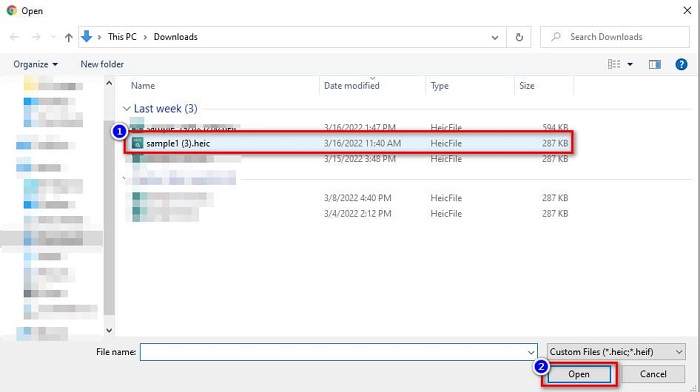
स्टेप 2. इसके बाद आपके कंप्यूटर के फ़ोल्डर दिखाई देंगे, जहाँ से आप अपनी HEIC इमेज ढूँढकर सेलेक्ट करें और फिर Open पर क्लिक करें।.
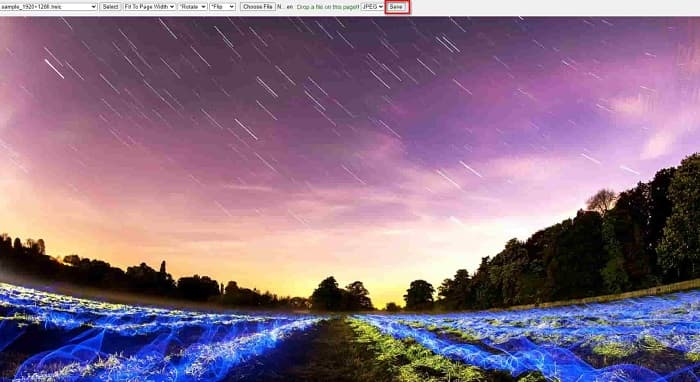
स्टेप 3. HEIC इमेज अपलोड करने के बाद, आप अपनी इमेज देख सकते हैं। फिर, अपनी HEIC इमेज को JPG इमेज फ़ॉर्मेट में सेव करने के लिए Save बटन पर क्लिक करें।.
2. CompressJPG.net
CompressJPG.net एक ऑनलाइन HEIC व्यूअर है जिसका सॉफ़्टवेयर इंटरफ़ेस काफ़ी सहज (इंट्यूटिव) है। यह मोबाइल, Windows और टैबलेट डिवाइस पर उपलब्ध है। इसके अलावा, HEIC इमेज देखने के लिए इसमें फ़ाइल साइज की कोई लिमिट नहीं है। हालाँकि, क्योंकि यह वेब‑आधारित ऐप्लिकेशन है, अगर आपका इंटरनेट कनेक्शन धीमा है तो लोडिंग प्रक्रिया भी धीमी हो सकती है। फिर भी, बहुत से लोग अपनी HEIC इमेज देखने के लिए इस ऑनलाइन टूल का इस्तेमाल करते हैं।.
स्टेप 1. अपने ब्राउज़र पर CompressJPG.net सर्च करें, फिर सर्च रिज़ल्ट पेज पर दिखाई देने वाली साइट पर क्लिक करें। मुख्य सॉफ़्टवेयर इंटरफ़ेस पर Choose Files बटन पर क्लिक करें।.

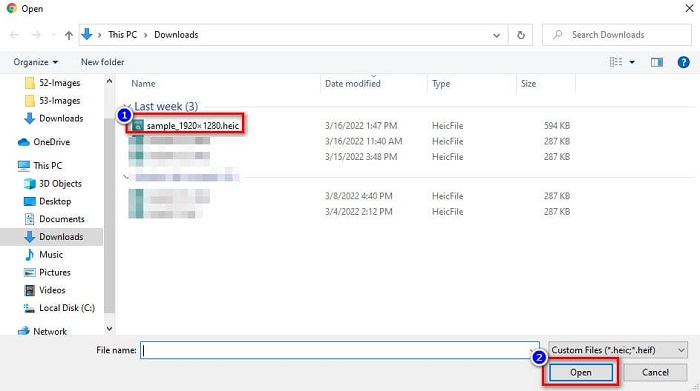
स्टेप 2. इसके बाद आपके कंप्यूटर की फ़ाइलें दिखाई देंगी; वहाँ से अपनी HEIC इमेज ढूँढकर सेलेक्ट करें। HEIC इमेज सेलेक्ट करने के बाद, उसे अपलोड करने के लिए Open बटन पर क्लिक करें।.
स्टेप 3. अब आप अपनी HEIC इमेज को अपने Windows पीसी पर देख सकते हैं।.

आसान है ना? ऊपर बताए गए ऑनलाइन टूल्स का अनुसरण और उपयोग करके, आप आसानी से अपने विंडोज पीसी पर अपनी एचईआईसी छवि देख सकते हैं।
भाग 2. क्षतिग्रस्त HEIC छवि को ठीक करें
यदि आपकी HEIC छवि आपके Apple डिवाइस पर नहीं खुल सकती है, तो कुछ गड़बड़ है। सबसे आम समस्या जो बहुत से लोगों का सामना करती है वह है डेटा की हानि। जब ऐसा होता है, तो इसका मतलब है कि आपकी छवि फ़ाइल क्षतिग्रस्त है। तो आपको क्या करना चाहिए एक ऐसे टूल का उपयोग करें जो आपके खोए हुए डेटा को रिकवर कर सके। इस भाग में, आप सीखेंगे कि अपनी HEIC छवि के डेटा को कैसे पुनर्स्थापित करें।
ईज़ीयूएस डेटा रिकवरी विज़ार्ड का उपयोग करें
EaseUS Data Recovery Wizard एक सॉफ़्टवेयर टूल है जो आपको आपके खोए हुए डेटा में से 2GB तक रिकवर करने की सुविधा देता है। यह टूल यूज़र‑फ़्रेंडली है क्योंकि इसका यूज़र इंटरफ़ेस काफ़ी सरल है। इसके अलावा, यह टूल आपके डिवाइस की स्टोरेज को स्कैन कर सकता है और खोई हुई फ़ाइलों की सूची ढूँढ कर दिखा सकता है। हालाँकि आप इसे मुफ़्त में इस्तेमाल कर सकते हैं, लेकिन ट्रायल वर्ज़न केवल डैमेज फ़ाइलों को ढूँढ सकता है, उन्हें रिकवर नहीं कर सकता। इसलिए, आपको ऐप्लिकेशन का प्रो वर्ज़न ख़रीदना होगा। फिर भी, यह इंटरनेट पर मिलने वाले सबसे ज़्यादा इस्तेमाल किए जाने वाले डेटा रिकवरी टूल्स में से एक है।.
पेशेवरों
- यह आपके खोए हुए डेटा को 2GB तक रिकवर कर सकता है।
- इसमें एक सहज यूजर इंटरफेस है।
- विंडोज और मैक सहित लगभग सभी मीडिया प्लेटफॉर्म पर उपलब्ध है।
विपक्ष
- खोए हुए डेटा को पुनर्प्राप्त करने के लिए आपको प्रो संस्करण खरीदना होगा।
रिकुवा का प्रयोग करें
एक और डेटा रिकवरी टूल जिसे आपको ज़रूर आज़माना चाहिए वह है Recuva। इस ऐप्लिकेशन का सॉफ़्टवेयर इंटरफ़ेस इस्तेमाल करने में आसान है, जिसकी वजह से यह शुरुआती यूज़र्स के लिए भी उपयुक्त है। इस टूल की ख़ास बात यह है कि यह उन फ़ाइलों को भी रिकवर कर सकता है जो स्थायी रूप से डिलीट हो चुकी हैं और जिन्हें ऑपरेटिंग सिस्टम ने फ्री स्पेस के रूप में मार्क कर दिया है। इसके अलावा, यह आपके USB फ़्लैश ड्राइव, हार्ड ड्राइव, मेमोरी कार्ड आदि से डेटा रिकवर कर सकता है। यह 32‑bit और 64‑bit दोनों वर्ज़न में उपलब्ध है।.
पेशेवरों
- इसमें एक साधारण जीयूआई है।
- यह आपको यूएसबी फ्लैश ड्राइव, हार्ड ड्राइव, मेमोरी कार्ड और अन्य स्टोरेज डिवाइस पर डेटा पुनर्प्राप्त करने की अनुमति देता है।
- यह आपकी उन फाइलों को डीप स्कैन कर सकता है जिन्हें ढूंढना मुश्किल है।
विपक्ष
- इसकी अनूठी विशेषताओं तक पहुँचने से पहले प्रीमियम ऐप खरीदें।
भाग 3. HEIC फ़ोटो को कैसे ठीक करें के बारे में अक्सर पूछे जाने वाले प्रश्न
तृतीय पक्ष टूल का उपयोग किए बिना HEIC छवि क्या खोल सकती है?
चूंकि Apple HEIC इमेज विकसित करता है, आप किसी भी Apple डिवाइस पर HEIC इमेज को मूल रूप से देख सकते हैं।
क्या मैं Mac पर अपनी HEIC छवि का डेटा पुनर्प्राप्त कर सकता हूं?
हाँ आप कर सकते हैं। आप अपनी छवि के खोए हुए डेटा को पुनर्प्राप्त करने के लिए या यदि आपकी HEIC छवि क्षतिग्रस्त है, तो ऊपर बताए गए टूल का भी उपयोग कर सकते हैं।
क्या मैं अन्य छवि प्रारूपों को HEIC छवि में परिवर्तित कर सकता हूं?
हाँ। कुछ उपकरण आपको अन्य छवि प्रारूपों जैसे JGP और PNG को HEIC में बदलने की अनुमति देते हैं। तो, जेपीजी और पीएनजी छवियों को एचईआईसी छवियों में परिवर्तित करना संभव है।
निष्कर्ष
कुल मिलाकर, ऊपर बताए गए टूल्स का इस्तेमाल करें तो HEIC फ़ोटो को ठीक करना ज़्यादा मुश्किल नहीं है। इन टूल्स की मदद से आप अपनी इमेज का खोया हुआ डेटा वापस पा सकते हैं और डैमेज को ठीक कर सकते हैं। लेकिन अगर आपकी HEIC इमेज बिल्कुल ठीक है और आप उसे Windows डिवाइस पर देखना चाहते हैं, तो आपके लिए सबसे अच्छा तरीका यह है कि आप अपनी HEIC इमेज को Aiseesoft HEIC Converter का इस्तेमाल करके JPG फ़ाइल फ़ॉर्मेट में कनवर्ट कर लें।.
-
 सर्वश्रेष्ठ कन्वर्टर्स का उपयोग करके आसानी से HEIC को RAW में बदलें
 HEIC को RAW में कैसे बदलें? यह लेख आपको सर्वश्रेष्ठ ऑनलाइन और ऑफलाइन कन्वर्टर्स का उपयोग करके HEIC को RAW में बदलने का सबसे अच्छा तरीका देता है।
-
 CopyTrans HEIC समीक्षा, सुविधाएँ और विकल्प
 यदि आप जानना चाहते हैं कि CopyTrans HEIC क्या कर सकता है, तो हम आपको टूल की सुविधाएँ, लाभ और विकल्प प्रदान करते हैं।
-
 सर्वश्रेष्ठ HEIC व्यूअर ऑनलाइन और ऑफलाइन [फ्री]
 यदि आप सर्वश्रेष्ठ HEIC व्यूअर की तलाश में हैं, तो हमारे पास वह है जिसकी आप तलाश कर रहे हैं। इन उपकरणों का उपयोग करके अपनी HEIC छवि मुफ्त में देखें।
