


 वीडियो कनवर्टर अंतिम
 स्क्रीन अभिलेखी
 वीडियो मरम्मत
 सुरक्षित डाउनलोड
JPG/JPEG क्या है और छवियों को JPG में कैसे बदलें
आजकल JPG, PNG और GIF फ़ाइल फ़ॉर्मेट सबसे लोकप्रिय फ़ॉर्मेट हैं। जब बात आपकी वेबसाइट या सोशल नेटवर्क पोस्ट पर इमेज इस्तेमाल करने की आती है, तो आमतौर पर आपको इन्हीं फ़ाइलों से सामना होता है। यह ध्यान में रखना ज़रूरी है कि इन सभी की क्षमताएँ अलग–अलग होती हैं। इसका मतलब है कि हर एक के अपने विशिष्ट फीचर हैं। लेकिन, इस पोस्ट में हम JPG/JPEG फ़ाइल फ़ॉर्मेट पर ध्यान केंद्रित करेंगे। आप इसकी परिभाषा, क्षमताएँ, और JPG/JPEG फ़ाइलें कैसे खोलें, यह सीखेंगे। साथ ही, आप यह भी जानेंगे कि किसी ऑनलाइन टूल की मदद से इमेज को JPG/JPEG फ़ॉर्मेट में बदलने का सबसे अच्छा तरीका क्या है।.

भाग 1. जेपीजी या जेपीईजी के बारे में जानकारी
जेपीजी/जेपीईजी प्रारूप क्या है
इमेज को कंप्रेस करते समय जेपीजी इमेज फाइल फॉर्मेट सबसे अच्छी फाइल होती है। जेपीजी उपयोगकर्ताओं के लिए एक लोकप्रिय फ़ाइल है। वे इसका इस्तेमाल तस्वीरों और इंटरनेट ग्राफिक्स के लिए करते हैं। साथ ही, इसे जेपीईजी या जेपीजी फाइलों के रूप में जाना जाता है। जेपीईजी का पूरा नाम ज्वाइंट एक्सपर्ट्स ग्रुप है। यह समूह इस लोकप्रिय छवि फ़ाइल को बनाता है। इसके अलावा, अधिकांश बिटमैप छवियों में एक .jpg फ़ाइल एक्सटेंशन होता है। मुख्य कारण फाइलों के आकार को कम करना है। जेपीजी एक हानिकारक प्रारूप है, जो छवि गुणवत्ता को प्रभावित करता है जब आप इसे बहुत अधिक संपीड़ित करते हैं। यह प्रारूप सभी कार्यक्रमों में उपलब्ध है। इस तरह, आपको यह सोचने की ज़रूरत नहीं है कि इस फ़ाइल को विभिन्न प्रोग्राम या डिवाइस पर कैसे खोलें। इसका कम्प्रेशन एल्गोरिथम फ़ाइल के आकार को कम करता है। यह इन दिनों लोकप्रिय होने के कारणों में से एक है। इस तरह, वेबसाइटों पर कहानी बनाना, साझा करना और तस्वीरें पोस्ट करना अधिक इत्मीनान से है। अतिरिक्त जानकारी के लिए, जब वेबसाइटें JPEG फ़ाइल को नहीं पहचानती हैं, तो आप ऐसे उदाहरणों का सामना कर सकते हैं। उदाहरण के लिए, कुछ फोटो दर्शक और संपादक केवल .JPG फ़ाइल वाली छवि खोलेंगे। सबसे अच्छा उपाय जो आप कर सकते हैं वह है फ़ाइल एक्सटेंशन का नाम बदलना। आप JPEG फ़ाइल को JPG फ़ाइल में बदल सकते हैं। इस तरह, वेबसाइट छवि को पहचान सकती है।
इसके अलावा, जेपीजी फाइल के फायदे हैं जिन्हें आपको जानने की जरूरत है। जेपीजी एक उच्च-रिज़ॉल्यूशन छवि है। इसकी उच्च परिभाषा इस छवि फ़ाइल के महान लाभों में से एक है। यह 16 मिलियन रंगों के साथ 24-बिट रंगों का समर्थन करता है। कुछ टूल का उपयोग करके उच्च-स्तरीय संपादन लागू करने के बाद भी रिज़ॉल्यूशन अभी भी उत्कृष्ट रहेगा। इसके अलावा, जेपीजी आकार में छोटा है। अन्य छवि फ़ाइल स्वरूपों की तुलना में, इसका एक आदर्श फ़ाइल आकार है। भले ही इसका आकार छोटा हो, यह छवि की गुणवत्ता और रिज़ॉल्यूशन को प्रभावित नहीं करता है। फायदे जानने के बाद, आपको अधिक जागरूकता के लिए इसके नुकसान जानने की जरूरत है। जेपीजी पर शूटिंग करते समय, आपको कैमरे के प्रोसेसर और रंग विविधताओं को सीमित करना चाहिए। यह फ़ाइल स्तरित छवियों का भी समर्थन नहीं करती है। यदि आप एक छवि को संपादित करने की योजना बना रहे हैं और एक अतिरिक्त परत की जरूरत है, तो जेपीजी इसके लिए सही प्रारूप नहीं है।
भाग 2। जेपीजी/जेपीईजी फाइल को कैसे खोलें
अगर आपको अपने डिवाइस पर अपनी जेपीजी फाइल खोलने में परेशानी हो रही है, तो यह हिस्सा आपकी मदद करेगा। क्या आप जानना चाहते हैं कि विंडोज 11, एंड्रॉइड और आईफोन पर जेपीजी फाइल कैसे खोलें? आप नीचे दिए गए निर्देशों का पालन कर सकते हैं।
विंडोज यूजर्स के लिए
स्टेप 1: अपने कीबोर्ड पर Ctrl + E दबाएँ ताकि फ़ाइल एक्सप्लोरर खुल जाए। इसका आइकन नीली क्लिप वाली फ़ोल्डर जैसा होता है।.
स्टेप 2: Quick access फ़ोल्डर पैनल पर जाएँ। फिर, Download विकल्प में जाएँ ताकि आप वह JPG फोटो देख सकें जो आपने सेव की है।.
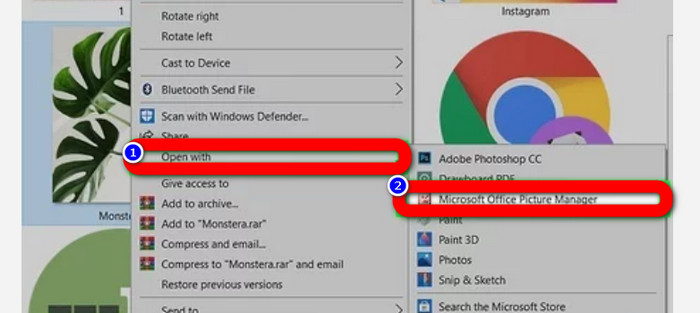
स्टेप 3: जब आपको JPG/JPEG फ़ाइलें दिखाई दे जाएँ, तो उन्हें Photos के अलावा किसी और प्रोग्राम से खोलें। खोलने के लिए फोटो पर राइट‑क्लिक करें, Open with विकल्प पर क्लिक करें और प्रोग्राम चुनें।.
Android उपयोगकर्ताओं के लिए
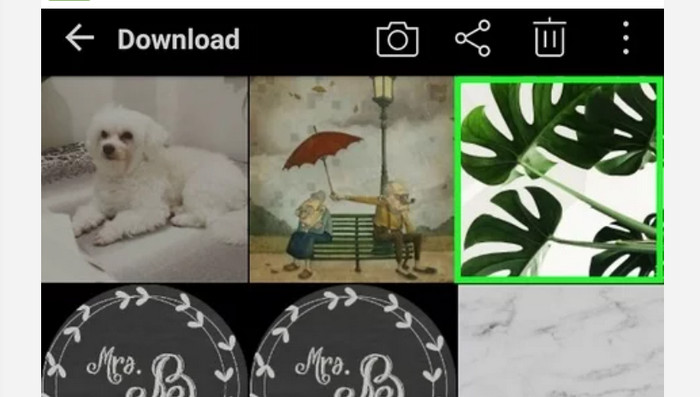
स्टेप 1: अपने Android डिवाइस से Gallery एप्लिकेशन खोलें।.
स्टेप 2: कैमरा एल्बम खोलें ताकि आप अपने फ़ोन के कैमरे से खींची गई तस्वीरें देख सकें। आपके फ़ोन में और भी तरह‑तरह के एल्बम होते हैं।.
स्टेप 3: अगर आपको बहुत सारी तस्वीरें दिख रही हैं, तो किसी एक फोटो पर टैप करें ताकि वह फुल‑स्क्रीन मोड में खुल जाए। इस तरह आप अपनी JPG/JPEG इमेज देख सकते हैं।.
आईफोन यूजर्स के लिए
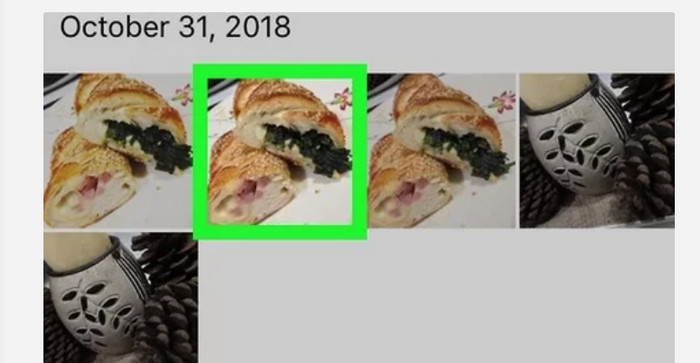
स्टेप 1: अपने iPhone पर Photos ऐप पर टैप करें। इस ऐप में आपके कैमरे और इंटरनेट से ली गई सारी इमेज रहती हैं। इस ऐप का आइकन एक रंगीन फूल जैसा दिखता है।.
स्टेप 2: Photos एप्लिकेशन लॉन्च करने के बाद, आपको वहाँ सभी फोटो दिखाई देंगी। साथ ही, Android फ़ोन की तरह, आपको इस एप्लिकेशन के अंदर अलग‑अलग एल्बम भी मिलेंगे।.
स्टेप 3: इमेज को फुल‑स्क्रीन में खोलने के लिए उस पर टैप करें। इस तरह आप इमेज को ज़्यादा साफ़‑साफ़ देख सकते हैं। इमेज खोलने के अलावा, आप Photos एप्लिकेशन में फोटो को एडिट भी कर सकते हैं। अपनी इमेज बेहतर बनाने के लिए आप कई आइकन का इस्तेमाल कर सकते हैं।.
भाग 3। छवियों को जेपीजी में कनवर्ट करने के लिए उत्कृष्ट विधि
FVC Free Image Converter एक ऐसा टूल है जिसे आप ऑनलाइन इमेज को JPG में कन्वर्ट करने के लिए इस्तेमाल कर सकते हैं। यह कुछ ही क्लिक में आपकी इमेज को कन्वर्ट करने में मदद करता है। साथ ही, यह JPG, PNG, GIF, TIFF और अन्य कई इनपुट फ़ॉर्मेट को सपोर्ट करता है। इसलिए अब आपको इस बात की चिंता नहीं रहेगी कि कोई खास टूल या डिवाइस आपकी इमेज नहीं खोल पा रहा है। उन्हें कन्वर्ट करने के लिए इस ऑनलाइन पिक्चर कन्वर्टर का उपयोग करें। यह ओरिजिनल फोटो की बेहतरीन क्वालिटी को भी बनाए रखता है। प्रक्रिया के बाद, आपको ओरिजिनल और कन्वर्ट की गई फ़ाइल में कोई फर्क नज़र नहीं आएगा। इसके अलावा, यह इमेज कन्वर्टर इस्तेमाल करने में आसान है। यह कन्वर्शन की एक समझने में आसान प्रक्रिया प्रदान करता है, जिससे यह शुरुआती उपयोगकर्ताओं के लिए भी उपयुक्त है। यह बैच में भी इमेज कन्वर्ट करने में सक्षम है। इस तरह आप एक साथ कई फ़ाइलें कन्वर्ट कर सकते हैं। आप इस एप्लिकेशन को Google, Safari, Mozilla, Explorer और अन्य कई ब्राउज़र पर भी एक्सेस कर सकते हैं। अंत में, यह ऐप हर यूज़र की प्राइवेसी की गारंटी देता है। इमेज डाउनलोड और कन्वर्ट करने के बाद, यह इमेज कन्वर्टर आपकी फोटो अपने‑आप डिलीट कर देता है।.
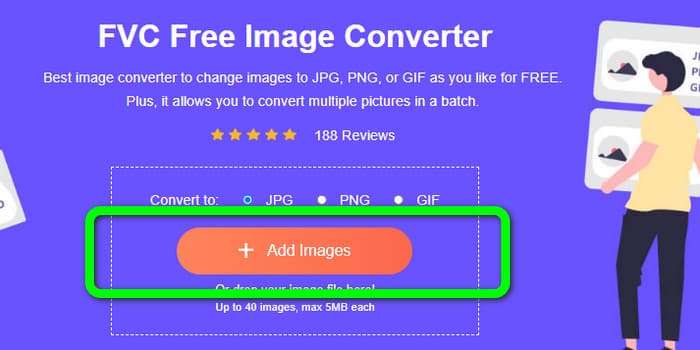
स्टेप 1: सबसे पहले FVC Free Image Converter वेबसाइट पर जाएँ। फ़ॉर्मेट विकल्पों में जाकर JPG फ़ाइल फ़ॉर्मेट चुनें।.
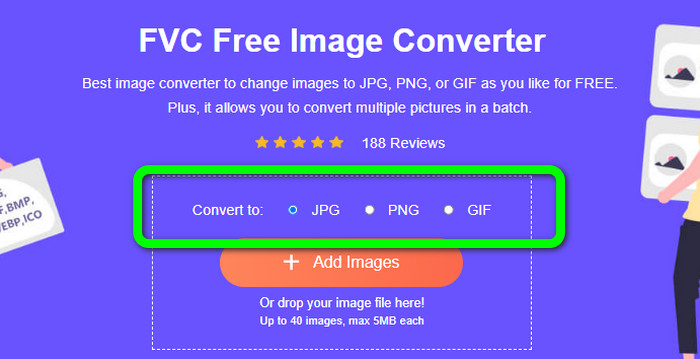
स्टेप 2: जिस फोटो को आप कन्वर्ट करना चाहते हैं, उसे अपलोड करने के लिए Add Images बटन पर क्लिक करें। अगर आप बैच कन्वर्शन करना चाहते हैं, तो दोबारा Add Images पर क्लिक करें।.
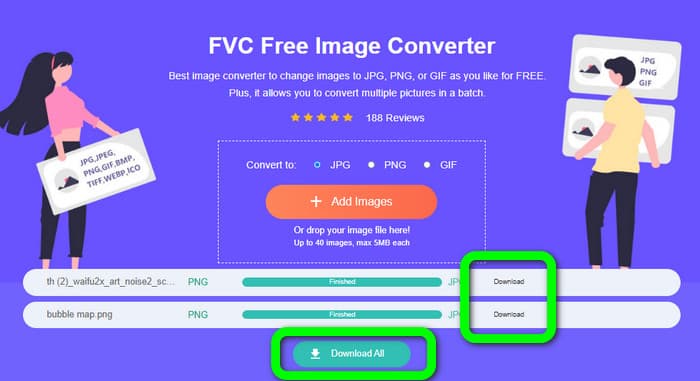
स्टेप 3: जब कन्वर्शन प्रक्रिया पूरी हो जाए, तो उन्हें एक‑एक करके सेव करने के लिए Download बटन पर क्लिक करें। अगर आप उन्हें एक साथ सेव करना चाहते हैं, तो Download All बटन पर क्लिक करें।.
से संबंधित:
JPEG बनाम JPG बनाम PNG के अंतर के बारे में पूरी जानकारी
8 चौंका देने वाले इमेज कन्वर्टर [पूरी जानकारी]
भाग 4. जेपीजी/जेपीईजी फाइल के बारे में अक्सर पूछे जाने वाले प्रश्न
1. मुझे कैसे पता चलेगा कि मेरी फोटो जेपीजी फाइल है?
आप अपने फाइल फोल्डर पर फोटो पर राइट-क्लिक कर सकते हैं। इसके बाद प्रॉपर्टीज ऑप्शन में जाएं। सामान्य मेनू पर नेविगेट करें और अपनी छवि का फ़ाइल प्रकार देखें।
2. JPEG इमेज को कितनी अच्छी तरह कंप्रेस करता है?
भली प्रकार। पूर्ण-रंगीन फ़ोटो के लिए असम्पीडित डेटा 24 बिट/पिक्सेल है। सबसे लोकप्रिय दोषरहित संपीड़न विधियाँ ऐसे डेटा को औसतन 2: 1 के बारे में संकुचित कर सकती हैं। जेपीईजी प्रत्यक्ष नुकसान के बिना 10:1 से 20:1 संपीड़न प्राप्त कर सकता है। यह भंडारण की आवश्यक मात्रा को प्रति पिक्सेल 1-2 बिट तक कम कर देता है। छोटे डेटा के साथ, 30:1 से 50:1 संपीड़न दोषों को कम करने के लिए व्यावहारिक है। जबकि आर्काइव इंडेक्स जैसे निम्न-गुणवत्ता वाले उपयोग सापेक्ष आसानी से 100:1 को संकुचित कर सकते हैं। एक संपीड़ित छवि जेपीईजी का 100: 1 अनुपात पूर्ण-रंग, एक-दसवें-स्केल छवि के समान स्थान का उपयोग करता है। थंबनेल से कहीं अधिक विवरण होने के बावजूद, यह करता है।
3. फोटोशॉप पर जेपीजी फाइल कैसे खोलें?
अपने कंप्यूटर पर फोटोशॉप लॉन्च करें। फाइल> ओपन ऑप्शन पर जाएं। फ़ोल्डर फ़ाइल आपकी स्क्रीन पर पॉप अप हो जाएगी। जेपीजी फाइल चुनें और ओके पर क्लिक करें। इसके बाद आपको फोटोशॉप में JPG इमेज फाइल दिखाई देगी।
निष्कर्ष
इस लेख में आपको बताया गया कि JPG/JPEG किसका संक्षिप्त रूप है, साथ ही इसकी परिभाषा और फीचर भी समझाए गए। बोनस के तौर पर, हमने आपको इमेज को JPG फ़ॉर्मेट में कन्वर्ट करने का सबसे आसान तरीका भी बताया, जो है FVC Free Image Converter का इस्तेमाल। तो अब देर किस बात की? अपनी इमेज को आसानी से JPG फ़ॉर्मेट में कन्वर्ट करने के लिए इस टूल का उपयोग करें।.
-
 ऑनलाइन और ऑफलाइन छवियों को जेपीजी में कैसे परिवर्तित करें, इसके तरीके
 क्या आप किसी कारण से फ़ाइल को जेपीजी प्रारूप में कनवर्ट करना चाहते हैं? तब तो यह लेख तुम्हारे लिए है। हम आपको अपनी छवि को जेपीजी में बदलने का सबसे अच्छा तरीका सिखाएंगे
-
 छवियों को आसानी से पीएनजी प्रारूप में बदलने के लिए उपयोगी तरीके
 क्या आप अपनी छवि को पीएनजी के रूप में सहेजने का सबसे अच्छा तरीका ढूंढ रहे हैं? यह गाइडपोस्ट आपको ऑनलाइन और ऑफलाइन छवियों को पीएनजी में बदलने के लिए उत्कृष्ट समाधान प्रदान करता है
-
 6 प्रभावी ऑफ़लाइन और ऑनलाइन तरीकों के साथ HEIC को JPG में बदलें
 क्या आप जानना चाहते हैं कि HEIC को JPG में कैसे बदलें? इस मामले में, हम 6 ऑनलाइन और ऑफलाइन तरीके जोड़ते हैं जिनका उपयोग आप इस कार्य को पूरी तरह से समाप्त करने और संभालने के लिए कर सकते हैं।
