


 वीडियो कनवर्टर अंतिम
 स्क्रीन अभिलेखी
 वीडियो मरम्मत
गुणवत्ता हानि के बिना मैक/विंडोज/लिनक्स पर एम4वी को एमकेवी में बदलने के 3 प्रभावी तरीके
मुझे उन M4V वीडियो को चालू करने की आवश्यकता है जिन्हें मैंने iTunes पर डाउनलोड किया था। मैक पर M4V को MKV में बदलने और बाद में इसे अपने टीवी पर उपयोग करने का कोई विचार आया?
यह समस्या काफ़ी आम है, खासकर iTunes से डाउनलोड किए गए M4V वीडियो में, क्योंकि यह फ़ॉर्मेट Apple की Fair Play Policy के तहत आता है और संरक्षित (प्रोटेक्टेड) होता है। इसलिए आप .m4v वीडियो को बिना कनवर्ट किए दूसरे डिवाइस पर तुरंत नहीं चला सकते। यह लेख आपको उन कन्वर्टर्स के बारे में तथ्य बताएगा जिनका इस्तेमाल करके आप M4V फ़ॉर्मेट को सफलतापूर्वक बदल सकते हैं। बिना और देर किए, आइए सीखते हैं कि Mac या Windows पर M4V को MKV में कैसे बदलें।.

भाग 1. मैक और विंडोज पर iTunes M4V को MKV में बदलें [सबसे ज्यादा पसंद किया गया]
बाज़ार में कई फ्री M4V से MKV कन्वर्टर्स उपलब्ध हैं जिन्हें आप डाउनलोड कर सकते हैं, और इनमें से एक है FVC Video Converter Ultimate। लेकिन यह अल्टीमेट टूल अन्य कन्वर्टर्स की तुलना में ज़्यादा असरदार कन्वर्ज़न देता है, क्योंकि इसमें बिजली-सी तेज़ कन्वर्ज़न स्पीड, कन्वर्ट करने के लिए फ़ाइलों की अनलिमिटेड अपलोड क्षमता और सहज (इंट्यूटिव) इंटरफ़ेस है। क्या आप इस अल्टीमेट कन्वर्टर से प्रभावित हैं? या आप इसके बारे में और जानना चाहते हैं? अगर हाँ, तो नीचे दिए गए मुख्य फ़ीचर वे हैं जिन्हें आप इस कन्वर्टर को पाने पर देखेंगे।.

FVC वीडियो कन्वर्टर अंतिम
2,999,368+ डाउनलोड- यह कई iTunes M4V को MKV या 200+ मीडिया फॉर्मेट जैसे MOV, AVI, MP4, आदि में बदल सकता है।
- अल्ट्रा-फास्ट रूपांतरण के साथ, आपके M4V को तुरंत बदलने की आपकी प्रक्रिया
- आपके वीडियो को और भी बेहतर बनाने के लिए उन्नत संपादन सुविधाएँ उपलब्ध हैं।
- टूलबॉक्स के अंतर्गत कंप्रेस, आकार बदलने, GIF मेकर आदि के लिए अद्भुत सुविधाएँ सेट करें।
फ्री डाउनलोडWindows 7 या बाद के संस्करण के लिएसुरक्षित डाउनलोड
फ्री डाउनलोडMacOS 10.7 या बाद के संस्करण के लिएसुरक्षित डाउनलोड
क्या यह आश्चर्यजनक नहीं है कि ये सभी सुविधाएँ एक उपकरण पर कैसे हो सकती हैं? आइए अधिक समय बर्बाद न करें और यह निर्धारित करें कि यह उपकरण नीचे दिए चरणों का पालन करके आपके iTunes M4V को MKV में प्रभावी रूप से कैसे परिवर्तित करता है।
स्टेप 1. सबसे पहले नीचे दिए गए डाउनलोड बटन पर क्लिक करके इस अल्टीमेट कन्वर्टर को अपने ड्राइव पर डाउनलोड करें। आप जो प्लेटफ़ॉर्म उपयोग कर रहे हैं उसे चुनें, इंस्टॉलेशन प्रक्रिया का पालन करें, और आगे बढ़ने के लिए Start Now दबाएँ। ध्यान रखें, दिक्कतों से बचने के लिए आपको टूल के इंटरफ़ेस से अच्छी तरह परिचित होना ज़रूरी है।.
फ्री डाउनलोडWindows 7 या बाद के संस्करण के लिएसुरक्षित डाउनलोड
फ्री डाउनलोडMacOS 10.7 या बाद के संस्करण के लिएसुरक्षित डाउनलोड
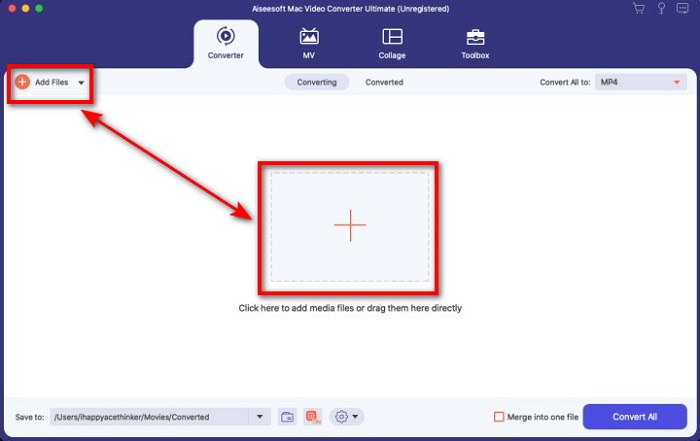
स्टेप 2. इंटरफ़ेस पर Add Files या + बटन पर क्लिक करके M4V फ़ाइल अपलोड करें। इसके बाद आपके स्क्रीन पर एक कंप्यूटर फ़ोल्डर खुलेगा, उसमें से .m4v फ़ाइल ब्राउज़ करें और Open दबाएँ।.
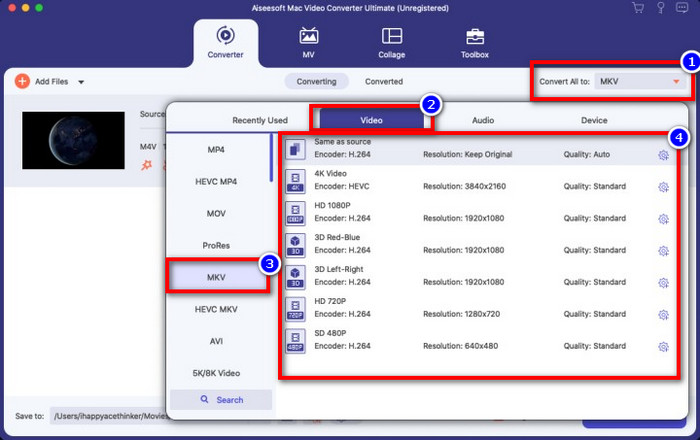
स्टेप 3. Convert All to के अंतर्गत MKV फ़ॉर्मेट चुनें और उस पर क्लिक करें।.
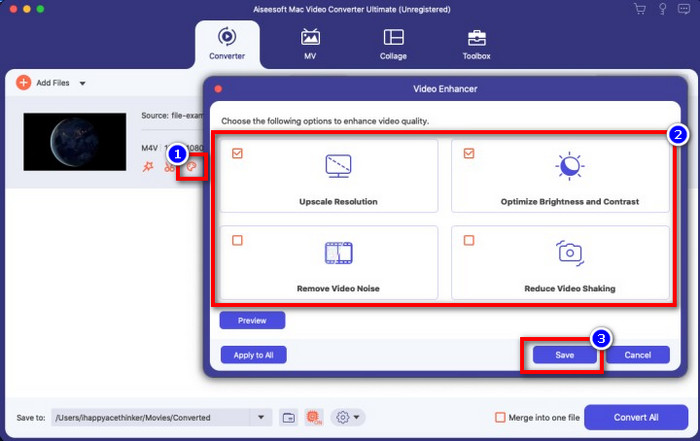
ऐच्छिक (Optional). अब तक इसकी प्रभावशीलता बिना किसी शक के बेहतरीन साबित हो रही है। लेकिन क्या आप जानते हैं कि यह टूल वीडियो एन्हांसर भी देता है? अगर आप enhance video विकल्प पर क्लिक करेंगे तो एक डायलॉग बॉक्स दिखाई देगा; उसमें अपने वीडियो में जिस‑जिस चीज़ को सुधारना चाहते हैं, उनके आगे वाली box पर टिक करें, और लागू करने के लिए Save पर क्लिक करें।.
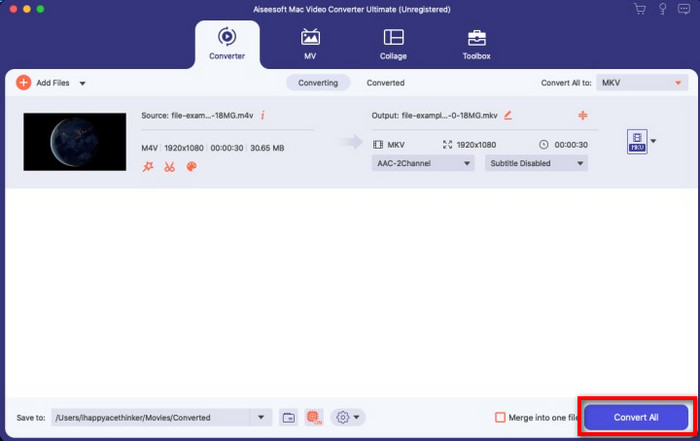
स्टेप 4. Convert All बटन पर क्लिक करते ही थोड़े समय में कन्वर्ज़न शुरू हो जाएगा। बस हो गया; अब आपके वीडियो की फ़ाइल एक्सटेंशन .mkv हो चुकी है।.
भाग 2. M4V को MKV ऑनलाइन में बदलें
क्या आप M4V फ़ाइलों को कन्वर्ट करने के लिए पैसे नहीं देना चाहते और उसकी बजाय M4V को MKV में ऑनलाइन कन्वर्ट करना चाहते हैं? अगर ऐसा है, तो FVC Free Video Converter Online एक ऑनलाइन कन्वर्टर है जो वेब पर भी आपके कन्वर्ज़न प्रोसेस की दक्षता की गारंटी देता है। यह कन्वर्टर बिना इसे ख़रीदे या डाउनलोड किए काम पूरा कर सकता है। साथ ही, इसे उपयोग करने के लिए न तो विज्ञापन हैं और न ही रजिस्ट्रेशन की ज़रूरत। हालाँकि यह कन्वर्टर मुफ़्त है, लेकिन यहाँ दिए गए फ़ीचर सिर्फ़ कन्वर्ट करने पर केंद्रित हैं। अल्टीमेट टूल के विपरीत, यह व्यापक और अद्भुत अतिरिक्त फ़ीचर नहीं देता। फिर भी, अगर आपको अपनी M4V फ़ाइलों को ऑनलाइन कन्वर्ट करना हो, तो इस कन्वर्टर का उपयोग करें और नीचे दिए गए चरणों की नकल करें।.
स्टेप 1. कृपया इस लिंक पर क्लिक करके FVC Free Video Converter Online खोलें।.
स्टेप 2. जिस M4V फ़ाइल को कन्वर्ट करना है, उसे लॉन्च और अपलोड करने के लिए Add Files to Convert विकल्प दबाएँ।.
फ़ाइलों को बैच में कनवर्ट करने के लिए डेस्कटॉप संस्करण डाउनलोड करें।.
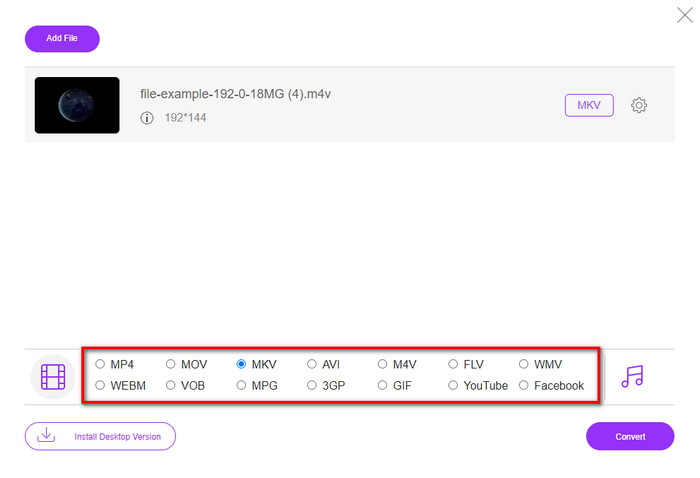
स्टेप 3. नीचे दिए गए विकल्पों में से MKV फ़ॉर्मेट या कोई अन्य मनचाहा फ़ॉर्मेट चुनें।.
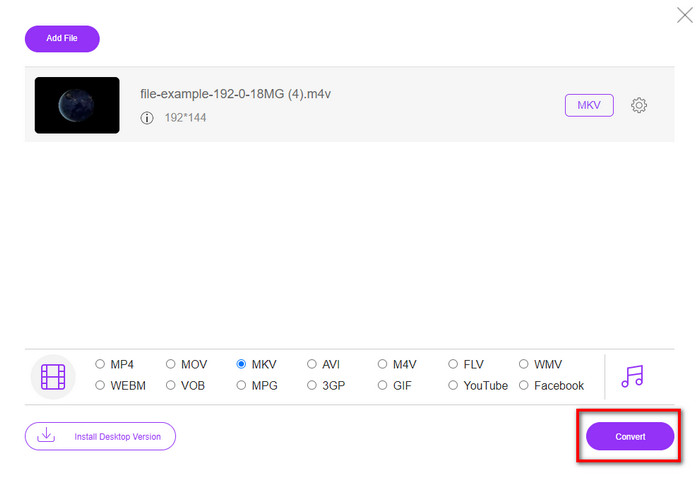
स्टेप 4. प्रक्रिया शुरू करने के लिए Convert पर क्लिक करें।.
भाग 3. M4V को MKV में मुफ्त में बदलें
Handbrake भी अन्य कन्वर्टर्स की तरह तेज़ और प्रभावी कन्वर्ज़न प्रक्रिया प्रदान करता है। हालाँकि, यह टूल जिन फ़ॉर्मेट्स को सपोर्ट करता है, वे सीमित हैं, यानी आपके पास आउटपुट फ़ॉर्मेट चुनने के लिए बहुत ज़्यादा विकल्प नहीं होते। लेकिन अगर आप Handbrake के ज़रिए M4V को MKV में कन्वर्ट करना चाहते हैं, तो नीचे दिए गए चरणों को अपनाएँ।.
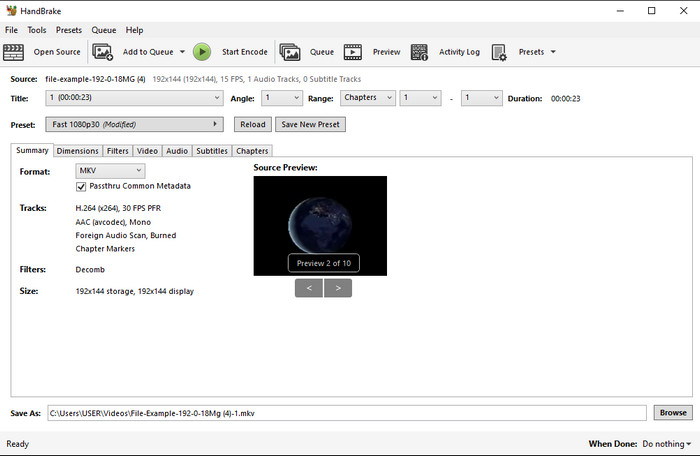
स्टेप 1. अपने डेस्कटॉप पर Handbrake डाउनलोड करें। .m4v फ़ाइल को इंटरफ़ेस पर ड्रैग और ड्रॉप करके अपलोड करें। आप File पर क्लिक करके भी कंप्यूटर फ़ोल्डर से फ़ाइल ढूँढकर Open दबा सकते हैं।.
स्टेप 2. Format पर क्लिक करें और MKV चुनें।.
स्टेप 3. कन्वर्ज़न प्रक्रिया शुरू करने के लिए Start Encode पर क्लिक करें।.
भाग 4. M4V और MKV के बीच समानताएं और अंतर क्या हैं?
इससे पहले कि हम M4V और MKV की तुलना करें, आइए इन दोनों प्रारूपों के बीच समानता का पता लगाएं। M4V और MKV दोनों मीडिया सामग्री और तत्वों के लिए कंटेनर हैं। साथ ही, इन दो प्रारूपों को सर्वश्रेष्ठ वीडियो गुणवत्ता में से एक को संग्रहीत करने के लिए जाना जाता है, जैसे कि एचडी वीडियो या 4k। और वे मेटाडेटा जैसे तत्वों को रखने के लिए भी बड़े हैं। इसके अलावा, नीचे दिए गए विवरण नीचे दिए गए दो प्रारूपों के बीच अंतर हैं।
M4V MP4 प्रारूप के समान है; हालाँकि, यह प्रारूप DRM प्रतिलिपि सुरक्षा के अंतर्गत है, जिसका अर्थ है कि आप इसका स्वतंत्र रूप से उपयोग नहीं कर सकते। लेकिन सभी M4V फ़ाइलों में Apple सुरक्षा नहीं है क्योंकि कुछ डाउनलोड करने योग्य M4V के पास अनधिकृत लाइसेंस है, इसलिए सुनिश्चित करें कि आप अपने सिस्टम को संक्रमित करने वाले दुर्भावनापूर्ण वायरस से बचने के लिए iTunes पर .m4v फ़ाइल डाउनलोड करें। हालांकि प्रारूप की एक सीमा है, फिर भी आप इस प्रारूप का उपयोग कई मीडिया प्लेयर पर iTunes पर डाउनलोड किए गए वीडियो को देखने के लिए कर सकते हैं। इसके अलावा, यदि आपको मैक पर संरक्षित डिज़ाइन की आवश्यकता है, तो यह प्रारूप सबसे अच्छा विकल्प है।
इसके विपरीत, MKV एक फ़ाइल में कई मीडिया सामग्री और तत्वों को समाहित करने के लिए विशिष्ट है। यह क्षमता केवल MKV पर उपलब्ध है, क्योंकि यह प्रारूप उपयोग करने के लिए स्वतंत्र है, और यह M4V की तुलना में अधिक लचीला है। इसके अलावा, मैक या विंडोज पर M4V को MKV में बदलने के कई कारण हैं, और उनमें से एक वीडियो फ़ाइल को अप्रतिबंधित बनाना है।
एम4वी बनाम एमकेवी
M4V Apple द्वारा विकसित किया गया है, जो MPEG 4 का भी उपयोग करता है। M4V फ़ाइलों का उपयोग अक्सर Apple iTunes स्टोर से डाउनलोड किए गए उन वीडियो को संग्रहीत करने के लिए किया जाता है, जैसे संगीत वीडियो, टीवी एपिसोड, आदि। आपको कुछ M4V फ़ाइलें कॉपी-संरक्षित मिल सकती हैं क्योंकि यह उपयोग करता है Apple का फेयरप्ले DRM कॉपीराइट संरक्षण।
2002 में जारी किया गया Matroska मल्टीमीडिया कंटेनर प्रारूप, एक ओपन-सोर्स प्रारूप है जिसमें कई वीडियो, ऑडियो, छवि और उपशीर्षक ट्रैक शामिल हो सकते हैं। तो, आप इसका उपयोग लघु वीडियो क्लिप, टीवी शो और फिल्मों को आसानी से स्टोर करने के लिए कर सकते हैं। यह एनीमे फैन-सबबिंग के लिए काफी लोकप्रिय है।
भाग 5. M4V से MKV रूपांतरण के बारे में अक्सर पूछे जाने वाले प्रश्न
संपादन के लिए कौन सा बेहतर है, M4V या MOV?
ये दोनों बताए गए फ़ॉर्मेट Apple के फ़ॉर्मेट्स में से हैं, इसलिए आप देखेंगे कि M4V और MOV के बीच बहुत बड़ा अंतर नहीं है। हालाँकि, एडिटिंग के लिए MOV कहीं बेहतर है, क्योंकि इस फ़ॉर्मेट में अक्सर वीडियो प्लेबैक की कई सीरीज़ होती हैं, जो प्रोफ़ेशनल एडिटिंग के लिए बेहतरीन विकल्प है। शायद आप सोच रहे हों कि एडिटिंग के लिए आपको अपनी M4V फ़ाइल को MOV में बदल लेना चाहिए। अगर ऐसा है, तो M4V को MOV में कन्वर्ट करने के बारे में विस्तार से जानने के लिए इस लिंक पर क्लिक करें।.
क्या M4V और MP4 समान हैं?
M4V और MP4 संरचना और वीडियो गुणवत्ता के मामले में बहुत समान हैं। लेकिन Apple Play सुरक्षा के कारण, M4V में समर्थन का एक छोटा दायरा है, और आप .m4v एक्सटेंशन में केवल एक वीडियो नहीं चला सकते हैं या संपादित नहीं कर सकते हैं।
M4V का समर्थन करने वाले मीडिया प्लेयर कौन से हैं?
DRM प्रोटेक्शन की वजह से बहुत से मीडिया प्लेयर्स इस तरह के फ़ॉर्मेट को सपोर्ट नहीं करते। तो अगर आप किसी MKV प्लेयर की तलाश कर रहे हैं, तो आपको ढूँढने और आज़माने में काफ़ी समय लग सकता है। लेकिन अगर आप यह लेख पढ़ रहे हैं, तो आप सभी प्लेटफ़ॉर्म पर उपलब्ध शीर्ष 5 MKV मीडिया प्लेयर्स को डाउनलोड या उपयोग कर सकते हैं।.
निष्कर्ष
इस लेख में बताए गए तीनों टूल्स आपको निश्चित रूप से वह प्रभावी कन्वर्ज़न देंगे जो आप चाहते हैं, बशर्ते आप दिए गए चरणों का पालन करें। यद्यपि इन कन्वर्टर्स में बहुत सी समानताएँ हैं, फिर भी इनमें कई अंतर भी हैं। अगर आप ऊपर दी गई जानकारी पढ़ते हैं, तो आप इन तीनों टूल्स के बारे में बहुत कुछ जान जाएँगे। मान लीजिए आप एक ही बार में बेहतरीन कन्वर्ज़न पाना चाहते हैं और फिर भी कन्वर्ज़न की दक्षता बनाए रखना चाहते हैं, तो हम FVC Video Converter Ultimate की सिफ़ारिश करेंगे। अविश्वसनीय लग रहा है? वास्तव में ऐसा ही है, इसलिए इसे अपने डेस्कटॉप पर डाउनलोड करें और ख़ुद आज़माएँ।.
-
 M4V को MP3 कन्वर्टर - M4V फाइल्स से MP3 निकालने के 4 बेस्ट तरीके
 जब आप एमपी 4 ऑडियो को एम 4 वी वीडियो से आसानी से निकालना चाहते हैं, तो आप लेख से वांछित ऑडियो फाइलें प्राप्त करने के लिए एमपी 4 कन्वर्टर्स के लिए 4 सर्वश्रेष्ठ एम 4 वी के बारे में अधिक जान सकते हैं।
-
 [गाइड] विंडोज/मैक पर M4V वीडियो को एनिमेटेड GIF में कैसे बदलें?
 यदि आप अपने पसंदीदा M4V वीडियो से एनिमेटेड GIF फाइल बनाना चाहते हैं, तो आप अनुकूलित सेटिंग्स के साथ M4V वीडियो को GIF में बदलने के 2 आसान और कुशल तरीके सीख सकते हैं।
-
 मैक पर iTunes M4V को AVI में कनवर्ट करने के लिए 3 वीडियो कन्वर्टर प्रोग्राम का उपयोग किया जाता है
 एमकेवी को एवीआई प्रारूप में बदलने का कोई विचार नहीं है? जैसा कि हम इस लेख को पढ़ना जारी रखते हैं, हम 3 उपकरण जानेंगे जो इस फ़ाइल प्रारूप को बदलने में आपकी मदद कर सकते हैं।

