


 वीडियो कनवर्टर अंतिम
 स्क्रीन अभिलेखी
 वीडियो मरम्मत
प्रत्येक विस्तृत चरण के साथ वीडियो में टेक्स्ट कैसे जोड़ें, इस पर सर्वश्रेष्ठ मार्गदर्शिका
क्या आप वीडियो ट्यूटोरियल बनाना चाहते हैं? सिद्धांत रूप से, उपयोगकर्ता अक्सर ऊब जाते हैं, खासकर जब वे ऐसा वीडियो ट्यूटोरियल देखते हैं जिसे फ़ॉलो करना मुश्किल हो। भले ही आपके पास बेहतरीन कंटेंट हो, उपयोगकर्ता को आपका वीडियो थोड़ा कम आकर्षक लग सकता है, और कुछ ही मिनटों में उनकी भागीदारी ख़त्म हो सकती है। लेकिन क्या आप जानते हैं कि आप अपने वीडियो में टेक्स्ट जोड़कर उसे उपयोगकर्ताओं के लिए ज़्यादा आकर्षक बना सकते हैं? तो फिर, एक बार इसे आज़मा कर देखें। और आपको वीडियो में टेक्स्ट जोड़ने में मदद करने के लिए, आपको इस लेख का पूरा भाग पढ़ते हुए आगे बढ़ते रहना होगा।.

भाग 1। अल्टीमेट टूल का उपयोग करके वीडियो में टेक्स्ट जोड़ने का सबसे पेशेवर तरीका
अधिकतर ब्लॉगर और कंटेंट क्रिएटर टेक्स्ट के साथ बेहतरीन वीडियो बनाना पसंद करते हैं, और Video Converter Ultimate के साथ आप भी एक उत्कृष्ट वीडियो बना सकते हैं। यह टूल ऐसे एडिटिंग फ़ीचर्स को सपोर्ट करता है जिन्हें आप अपने वीडियो पर टेक्स्ट जोड़ने के बाद भी इस्तेमाल करना पसंद करेंगे। साथ ही, यह आपके वीडियो को और ज़्यादा आकर्षक बना सकता है ताकि कुछ ही क्लिक में वह अविश्वसनीय रूप से सुंदर दिखे। क्या आप इस टूल से हैरान नहीं हैं? हम भी इससे काफ़ी प्रभावित हैं। जल्दी से टेक्स्ट जोड़ने के लिए, नीचे दिए गए चरणों के अनुसार कुछ ही क्लिक में वीडियो में टेक्स्ट जोड़ना सफलतापूर्वक पूरा करें।.
Ultimate टूल के साथ वॉटरमार्क के रूप में वीडियो में टेक्स्ट जोड़ने के चरण
चरण 1. प्रोग्राम को अपने Windows या Mac ड्राइव पर डाउनलोड करें; फिर टूल को जल्दी से इंस्टॉल करें और लॉन्च करें। नीचे जो गाइड हम लिखते हैं, उसे आपके लिए फ़ॉलो करना और समझना आसान है।.
फ्री डाउनलोडWindows 7 या बाद के संस्करण के लिएसुरक्षित डाउनलोड
फ्री डाउनलोडMacOS 10.7 या बाद के संस्करण के लिएसुरक्षित डाउनलोड
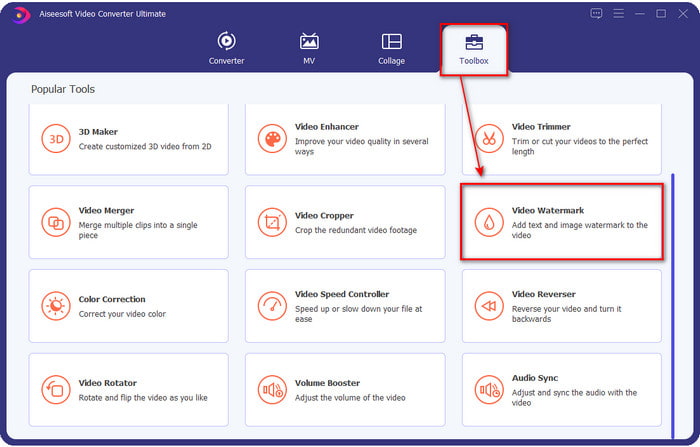
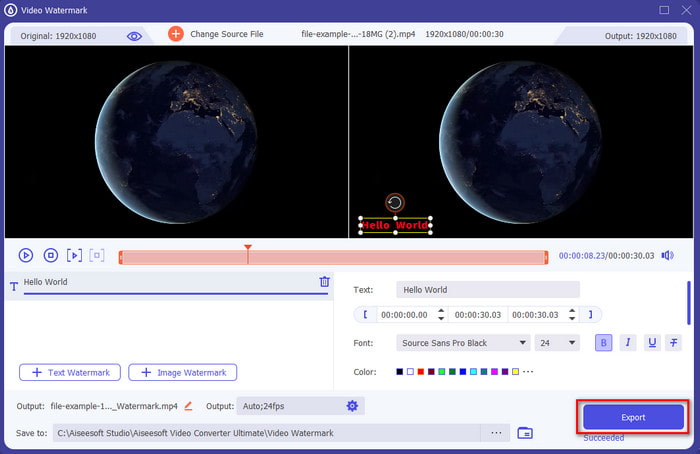
चरण 2. Toolbox सेक्शन पर, Video Watermark को ढूंढें और उसे अभी खोलें।.
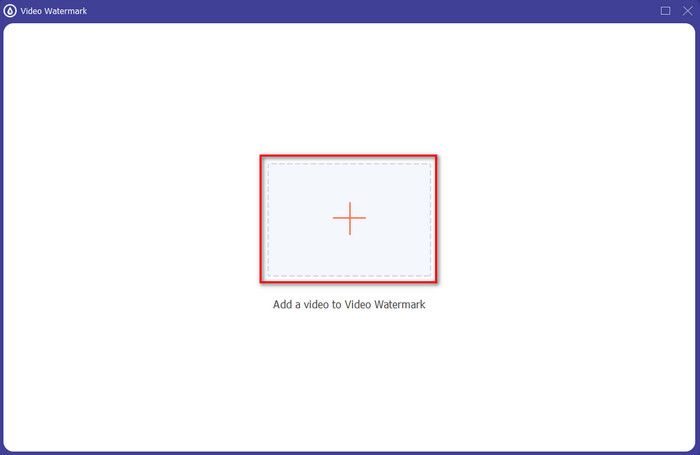
चरण 3. + बटन दबाएँ, और हार्ड ड्राइव की फ़ाइल फ़ोल्डर खुल जाएगी। अपने फ़ोल्डर में फ़ाइल को खोजें और Open पर टिक करें ताकि उन्हें वॉटरमार्किंग क्यू में जोड़ सकें।.
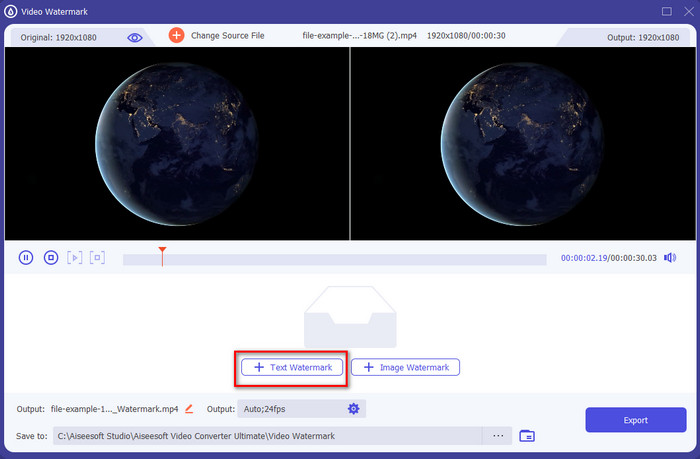
चरण 4. नई विंडो के निचले मध्य भाग में, Text Watermark पर क्लिक करें ताकि वीडियो पर टेक्स्ट ओवरले कर सकें।.
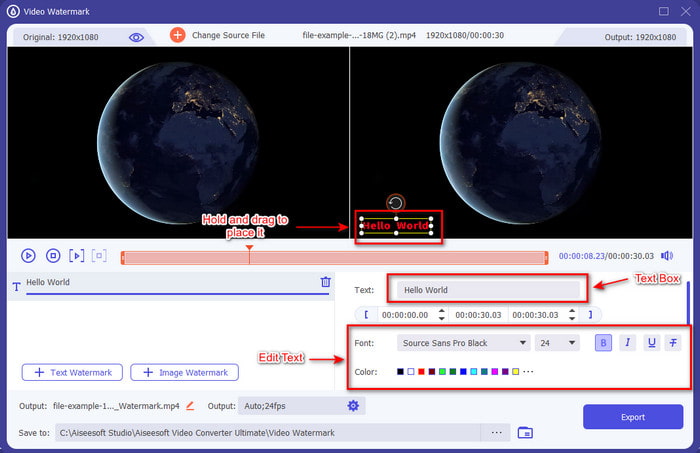
चरण 5. इस पर क्लिक करने के बाद, टेक्स्ट बॉक्स में टेक्स्ट जोड़ें, फिर अपनी इच्छा के अनुसार फ़ॉन्ट स्टाइल, रंग और आकार बदलें। टेक्स्ट वॉटरमार्क को Hold करें और ड्रैग करें, और उसे वीडियो के अंदर कहीं भी रखें।.
चरण 6. फ़ाइल को अपने ड्राइव पर सफलतापूर्वक डाउनलोड करने के लिए Export बटन दबाएँ। इसे एक्सपोर्ट करने में एक मिनट से भी कम समय लगेगा क्योंकि यह टूल अल्ट्रा-फास्ट प्रोसेस को सपोर्ट करता है। ता-दा! आपने अब अपने वीडियो पर टेक्स्ट वॉटरमार्क जोड़ने का काम इतनी आसानी से पूरा कर लिया है।.
पेशेवरों
- यह आपके वीडियो को बनाने और अन्य टूल की तुलना में बेहतर टेक्स्ट जोड़ने के लिए उन्नत संपादन सुविधाओं का समर्थन करता है।
- विंडोज और मैक जैसे प्लेटफॉर्म पर हर स्थिति में अनुकूल।
- यह 200+ वीडियो प्रारूपों का समर्थन करता है जिन्हें आप MP4, AVI, MOV, MKV, WMV, FLV और अन्य में अपलोड और निर्यात कर सकते हैं।
विपक्ष
- उपकरण खरीदना आवश्यक है।
संबंधित:
भाग 2। आईओएस उपकरणों में वीडियो पर टेक्स्ट जोड़ने या डालने का सुविधाजनक तरीका
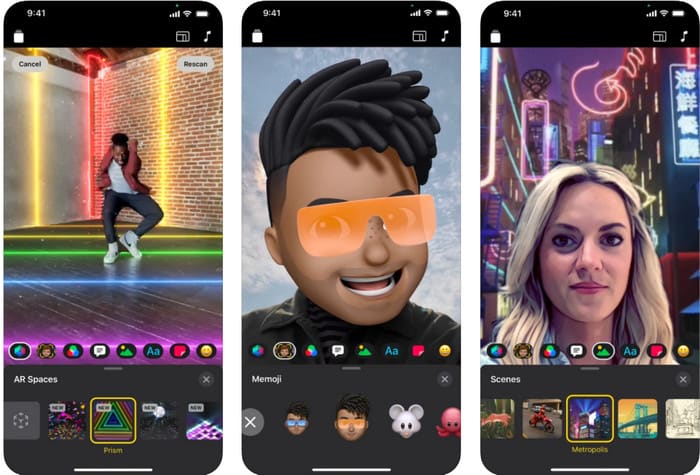
आप iPhone या iPad पर वीडियो में टेक्स्ट जोड़ने के लिए Clips का उपयोग कर सकते हैं। यह टूल वीडियो रिकॉर्ड करने और एडिट करने के लिए एक पूरा पैक उपलब्ध कराता है। साथ ही, यदि आपको इसकी ज़रूरत है, तो यह टूल आपके App Store पर मुफ़्त में डाउनलोड के लिए उपलब्ध है। हालाँकि टूल मुफ़्त है, लेकिन आप इसे Android पर इस्तेमाल नहीं कर सकते क्योंकि वह इसे सपोर्ट नहीं करता। इसलिए नीचे दिए गए चरण Android उपयोगकर्ताओं के लिए नहीं हैं।.
चरण 1. अपने iOS डिवाइस पर Clips डाउनलोड करें और उसे खोलें।.
चरण 2. multi-image आइकन पर क्लिक करें, फिर Photos पर जाएँ, अपनी गैलरी में वीडियो ढूंढें, फ़ाइल पर क्लिक करें, फिर Add और अंत में Add to Project दबाएँ।.
चरण 3. वीडियो पर टैप करें और Effects पर क्लिक करें; उसके अंतर्गत, Aa पर क्लिक करें ताकि आप जोड़ने के लिए एनिमेटेड टेक्स्ट चुन सकें, और फिर वह टेक्स्ट टाइप करें जो आप जोड़ना चाहते हैं। Export बटन पर क्लिक करें, फिर Save Video चुनें।.
पेशेवरों
- यह अर्ध-उन्नत संपादन सुविधाओं का समर्थन करता है।
- किसी भी आईओएस डिवाइस पर डाउनलोड करने के लिए नि: शुल्क।
- यह न केवल संपादन बल्कि रिकॉर्डिंग का भी समर्थन करता है।
विपक्ष
- इसके द्वारा प्रदान की जाने वाली कुछ संपादन सुविधाओं में बग और गड़बड़ियां अभी भी हो रही हैं।
- का नया संस्करण पिछले वाले की तुलना में अधिक खराब हो गया।
भाग 3. वेब पर किसी वीडियो में टेक्स्ट जोड़ने का निःशुल्क तरीका
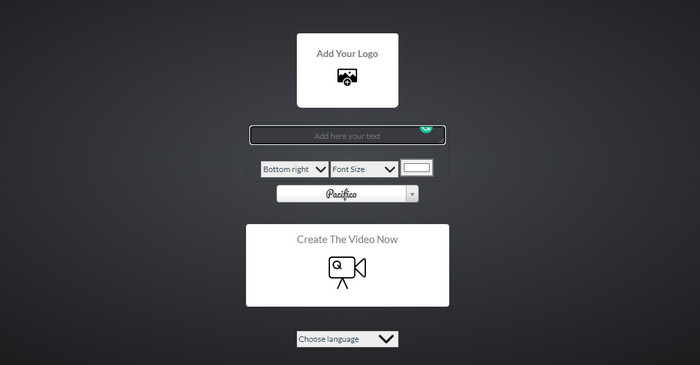
क्या आप ऑनलाइन वीडियो में टेक्स्ट जोड़ना चाहते हैं? ठीक है, आप इसे मुफ्त में Voice2v.com के लिए उपयोग कर सकते हैं। यह वेब टूल किसी भी MP4 वीडियो पर मुफ्त में टेक्स्ट वॉटरमार्क आसानी से जोड़ने का समर्थन करता है। हालाँकि यह टूल फ्री एडिंग वॉटरमार्क को सपोर्ट करता है, लेकिन आप वॉटरमार्क को प्रस्तुत किए गए विकल्पों के अलावा कहीं भी स्वतंत्र रूप से नहीं रख सकते हैं। लेकिन अगर आप चाहें तो नीचे दिए गए चरणों का पालन कर सकते हैं।
चरण 1. अपना ब्राउज़र खोलें और voice2v.com की आधिकारिक वेबसाइट ढूंढें।
चरण 2. Upload Your Video पर क्लिक करें ताकि आप वह वीडियो जोड़ सकें जिस पर आप वॉटरमार्क लगाना चाहते हैं।.
चरण 3. टेक्स्ट बॉक्स में, वह वॉटरमार्क टाइप करें जो आप चाहते हैं, और वॉटरमार्क की जगह, फ़ॉन्ट स्टाइल, आकार और रंग बदलने के लिए ड्रॉप-डाउन बटन पर क्लिक करें। Create The Video Now पर क्लिक करें, फिर उसे डाउनलोड करने के लिए तीन डॉट्स वाली लाइन पर क्लिक करें।.
पेशेवरों
- ऐप या सॉफ्टवेयर को डाउनलोड करने की जरूरत नहीं है।
- सभी ब्राउज़रों में उपयोग करने के लिए नि: शुल्क।
- सरल लेकिन प्रभावी संपादन सुविधाएँ।
विपक्ष
- वॉटरमार्क कहां है यह देखने के लिए इसका कोई पूर्वावलोकन फलक नहीं है।
- आप जहां चाहें वहां वॉटरमार्क स्वतंत्र रूप से नहीं रख सकते।
भाग 4. वीडियो में टेक्स्ट जोड़ने के बारे में अक्सर पूछे जाने वाले प्रश्न
क्या मैं टेक्स्ट वॉटरमार्क पर एनीमेशन जोड़ सकता हूँ?
हां, आप कर सकते हैं, लेकिन सभी संपादक टेक्स्ट वॉटरमार्क पर एनिमेशन का समर्थन नहीं करते हैं। इसलिए, यदि आप एक एनीमेशन टेक्स्ट वॉटरमार्क जोड़ना चाहते हैं, तो उस टूल का उपयोग करें जो एनिमेशन वॉटरमार्क का समर्थन करने वाली सुविधाओं का एक पेशेवर सेट प्रदान करता है।
टेक्स्ट वॉटरमार्क के लिए सबसे अच्छी जगह कहाँ है?
यदि आप मामूली गड़बड़ी चाहते हैं, तो आप वॉटरमार्क को वीडियो के किनारों पर रख सकते हैं। लेकिन अगर आप अपने काम में अतिरिक्त सुरक्षा जोड़ने जा रहे हैं, तो आप वीडियो के मध्य भाग पर वॉटरमार्क जोड़ सकते हैं। यह आपकी आवश्यकताओं के आधार पर अच्छा काम करता है।
क्या टेक्स्ट वॉटरमार्क वीडियो के मूल फ़ाइल आकार को बढ़ाता है?
सबसे पहले, वॉटरमार्क वीडियो से मूल वीडियो का फ़ाइल आकार बदल जाएगा। फ़ाइल का आकार बढ़ जाएगा क्योंकि आप वीडियो में एक और तत्व जोड़ते हैं। लेकिन यह जोड़ वीडियो के फ़ाइल आकार को इस तरह से प्रभावित नहीं करेगा कि यह इसके आकार को दोगुना कर देगा। और यदि आप कभी भी पाते हैं कि आपके वीडियो का फ़ाइल आकार दोगुना हो गया है, तो इसका मतलब है कि आपने जिस टूल का उपयोग टेक्स्ट वॉटरमार्क जोड़ने के लिए किया था, वह करता है न कि आप।
निष्कर्ष
कुल मिलाकर, हमारे द्वारा चुने गए ये उपकरण हैंडपिक्स हैं, जिसका अर्थ है कि हम केवल उन सर्वोत्तम टूल का चयन करते हैं जिनका उपयोग आप टेक्स्ट वॉटरमार्क जोड़ने के लिए कर सकते हैं। अंतर के साथ, टूल आपके वीडियो पर टेक्स्ट को वॉटरमार्क के रूप में जोड़ने पर एक उल्लेखनीय प्रभाव डालता है।
हालाँकि इन उपकरणों में अलग-अलग विशेषताएं हैं, फिर भी हम सोचते हैं कि वीडियो कन्वर्टर अल्टीमेट ने हमें एक संपादक से अधिक बनने का मौका दिया। क्योंकि यह उपकरण उपयोगकर्ताओं और स्वयं उपकरण के लिए एक ठोस संबंध बनाता है, चरणों को देखकर, हम कह सकते हैं कि उपकरण अपने उपयोगकर्ताओं को वॉटरमार्क के रूप में पाठ जोड़ने में कम परेशानी में डालता है लेकिन आनंददायक है। क्या यह आपका ध्यान आकर्षित करता है? ठीक है, अगर ऐसा होता है, तो टूल को अपने डेस्कटॉप पर डाउनलोड करें और इसका उपयोग करने का आनंद लें!
-
 कैसे अपने कंप्यूटर / फोन पर मुफ्त में वीडियो के लिए ऑडियो और संगीत जोड़ें
 यह लेख मुफ्त में वीडियो में ऑडियो जोड़ने के 4 आसान तरीके दिखाता है। कोई फर्क नहीं पड़ता कि आप अपने वीडियो में कौन सा ऑडियो ट्रैक जोड़ना चाहते हैं, आप यहाँ संतोषजनक परिणाम प्राप्त कर सकते हैं।
-
 GIF को वीडियो फॉर्मेट में बदलें: GIF मेम्स को वीडियो में बदलें [2021]
 निर्धारित करें कि नीचे सूचीबद्ध टूल की सहायता से GIF को वीडियो प्रारूप में कैसे रूपांतरित किया जाए। कौन सा चुनें और सीखें कि इसे कैसे करना है, क्योंकि हम उन पर पर्याप्त सबूत इकट्ठा करते हैं।
-
 Android और iOS उपकरणों के लिए वीडियो ऐप्स के लिए अद्भुत GIF
 क्या आप जानते हैं कि आप जीआईएफ को अपने फोन का उपयोग करके किसी भी वीडियो प्रारूप में परिवर्तित कर सकते हैं? अपने Android या iOS पर सर्वश्रेष्ठ ऐप्स चुनें।
