


 वीडियो कनवर्टर अंतिम
 स्क्रीन अभिलेखी
 वीडियो मरम्मत
विस्तृत चरणों के साथ iMovie पर वॉटरमार्क जोड़ने की कला में महारत हासिल करें
Mac पर आप जिन बेहतरीन एडिटर्स का उपयोग कर सकते हैं, उनमें से एक iMovie है। यह टूल Mac उपयोगकर्ताओं के लिए एक बहुत ही सहज इंटरफ़ेस प्रदान करता है। हालांकि यह टूल उत्कृष्ट और मैनेज करने में आसान है, फिर भी कुछ उपयोगकर्ता इसे इस्तेमाल करने पर ट्यूटोरियल की तलाश करते हैं। तो, यदि आप Mac उपयोगकर्ता हैं और सीखना चाहते हैं कि iMovie में वीडियो पर वॉटरमार्क कैसे जोड़ें, तो आप नीचे दिए गए गाइड को फ़ॉलो कर सकते हैं और इस टूल के ज़रिए बेहतरीन परिणाम पा सकते हैं।.

भाग 1। मैकोज़ पर iMovie में वीडियो में वॉटरमार्क कैसे जोड़ें पर ट्यूटोरियल
हम पहले ही iMovie पेश कर चुके हैं, इसलिए आगे के विवरण आपको सिखाएंगे कि iMovie में किसी वीडियो पर वॉटरमार्क कैसे लगाया जाए। जोड़ने का तरीका जानने के लिए, आप नीचे दी गई विस्तृत मार्गदर्शिका का अनुसरण कर सकते हैं, और कृपया पूरे विचार को समझने के लिए इसे अच्छी तरह से पढ़ें।
स्टेप 1. अपने Mac पर iMovie लॉन्च करें, और यदि आप इसे नहीं ढूंढ़ पा रहे हैं, तो आप तेज़ी से Finder में जाकर इसे सर्च कर सकते हैं।.
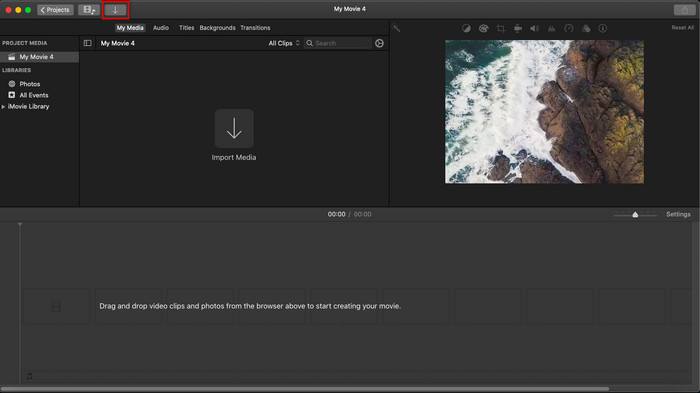
स्टेप 2. जिस वीडियो और इमेज को आप वॉटरमार्क के रूप में उपयोग करना चाहते हैं, उन्हें अपलोड करने के लिए Import बटन पर क्लिक करें। वीडियो और इमेज फ़ाइल को नीचे Timeline में ड्रैग करें, ठीक वैसे ही जैसे इमेजेज़ को करते हैं। ध्यान रखें कि वीडियो टाइमलाइन में सबसे ऊपर हो। इमेज को ड्रैग करने, साइज बदलने आदि के ज़रिए कुछ समायोजन कर लें।.
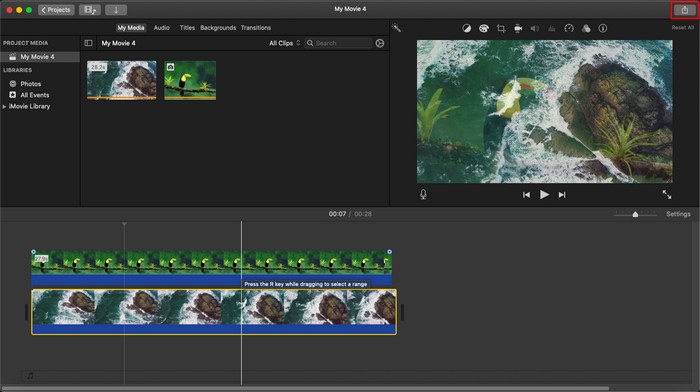
स्टेप 3. अगर आप समायोजन से संतुष्ट हैं, तो ऊपर‑दाएँ हिस्से में Export पर क्लिक करें, फिर Export File चुनें।.
पेशेवरों
- यह किसी भी Apple डिवाइस जैसे macOS और iOS डिवाइस में उपयोग करने के लिए स्वतंत्र है।
- कच्चे वीडियो को अच्छा दिखाने के लिए उनमें त्वरित संपादन करें।
- औसत संपादन कार्यों तक आवश्यक उपलब्ध हैं।
विपक्ष
- यह कम प्रारूप का समर्थन करता है, इसलिए यदि आप यहां वीडियो संपादित करना चाहते हैं, तो आपको इसे MOV या Apple उपकरणों के साथ संगत किसी भी प्रारूप में बदलना होगा।
- पेशेवर संपादन के लिए कम समर्थन।
भाग 2. मैक कंप्यूटर पर वीडियो पर वॉटरमार्क का उपयोग करने और कम परेशानी में डालने के लिए सबसे अच्छा टूल
यदि आपको iMovie पर वॉटरमार्क जोड़ना कठिन लग रहा है, तो आप इसकी बजाय सबसे अच्छे विकल्पों में से एक, Video Converter Ultimate का उपयोग कर सकते हैं। यह टूल आपके वीडियो पर वॉटरमार्क जोड़ने का एक और भी आसान तरीका प्रदान करता है। ज़रा सोचिए: अगर iMovie उपयोग में आसान है, तो यह अल्टीमेट टूल उससे भी ज़्यादा सुलभ है। उपयोग में आसान होने के बावजूद, यह जो अंतिम आउटपुट देता है, वह बेहतरीन होता है, और iMovie पर इसका एक फ़ायदा यह है कि यह अधिक इमेज फ़ॉर्मैट्स को सपोर्ट करता है जिन्हें आप अपलोड के लिए उपयोग कर सकते हैं। और जानना चाहते हैं? तो नीचे दी गई विशेषताओं को पढ़ें, जिन्हें हमने आपके लिए पेश किया है।.

FVC वीडियो कन्वर्टर अंतिम
5,689,200+ डाउनलोड- संपूर्ण संपादन सुविधाएँ प्रदान करता है जिनका उपयोग आप अपने वीडियो को अन्य की तुलना में अधिक उत्कृष्ट बनाने के लिए कर सकते हैं।
- यह वीडियो को तुरंत आयात और निर्यात करने के लिए अल्ट्रा-फास्ट प्रक्रियाओं और हार्डवेयर त्वरण का समर्थन करता है।
- यह MOV, MKV, AVI, MP4, FLV, RMVB, और अधिक जैसे वीडियो प्रारूपों का समर्थन करता है।
- सबसे अच्छा अनुभव रखने के लिए इसका एक बहुत ही इंटरैक्टिव इंटरफ़ेस है।
- विंडोज और मैक जैसे सभी डेस्कटॉप प्लेटफॉर्म पर उपलब्ध है।
फ्री डाउनलोडWindows 7 या बाद के संस्करण के लिएसुरक्षित डाउनलोड
फ्री डाउनलोडMacOS 10.7 या बाद के संस्करण के लिएसुरक्षित डाउनलोड
क्या इन सभी सुविधाओं का एक ही उपकरण पर होना आश्चर्यजनक नहीं है? यदि हम एक ही पृष्ठ पर हैं, तो आइए iMovie में किसी वीडियो को वॉटरमार्क कैसे करें, लेकिन अंतिम टूल के साथ अधिक सरल तरीके से विवरण में खुदाई करें।
अल्टीमेट टूल के साथ वीडियो पर वॉटरमार्क कैसे डालें, इस पर चरण
स्टेप 1. अपने Mac पर सॉफ़्टवेयर डाउनलोड करें, इंस्टॉलेशन प्रक्रिया को फ़ॉलो करें और टूल लॉन्च करने के लिए Start Now दबाएँ।.
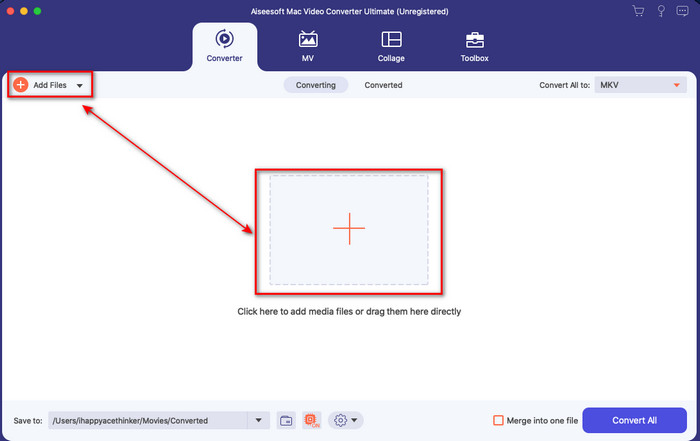
स्टेप 2. जिस वीडियो फ़ाइल को आप जोड़ना चाहते हैं, उसे अपलोड करने के लिए + बटन या Add Files पर क्लिक करें। जो फ़ोल्डर आपकी स्क्रीन पर दिखाई देगा, उसमें से वीडियो ढूंढ़ें और उसे अपलोड करने के लिए Open दबाएँ।.
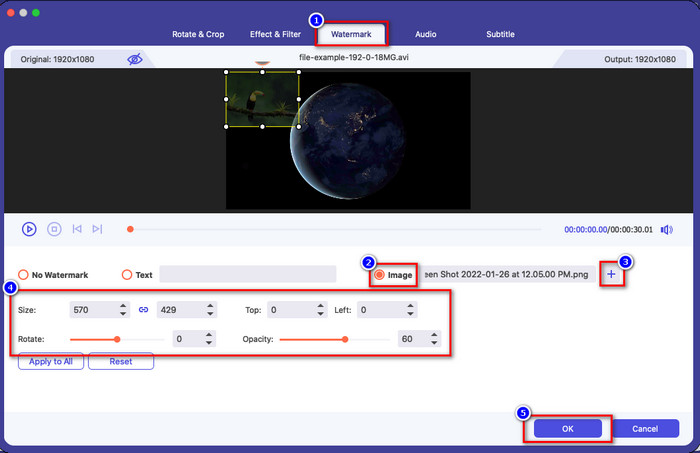
स्टेप 3. टूल के इंटरफ़ेस पर एडिटिंग विंडो खोलने के लिए wand बटन पर क्लिक करें। फिर Watermark सेक्शन पर क्लिक करें, Image पर टिक लगाएँ, और अपनी पसंद की इमेज जोड़ने के लिए + बटन दबाएँ। उसके बाद, इमेज की opacity समायोजित करें या उसे rotate करें और किए गए बदलावों को सुरक्षित करने के लिए OK पर क्लिक करें।.
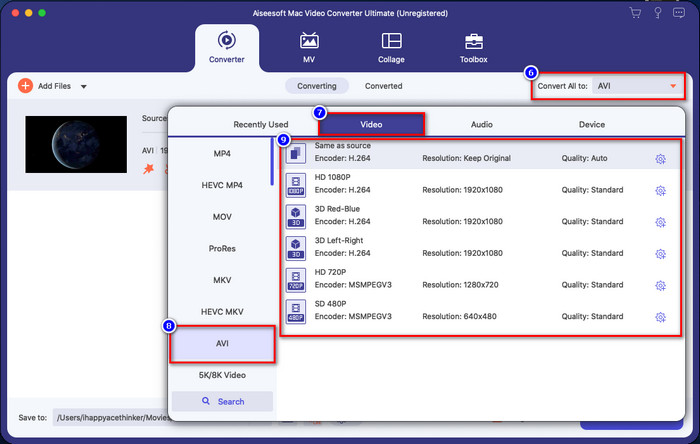
वैकल्पिक. यदि आप फ़ॉर्मैट बदलना चाहते हैं, तो Convert All to पर क्लिक करें, सूची में उपलब्ध फ़ॉर्मैट में से चुनें और उस पर क्लिक करें। यदि आप फ़ॉर्मैट नहीं बदलना चाहते, तो आप अंतिम स्टेप पर आगे बढ़ सकते हैं।.
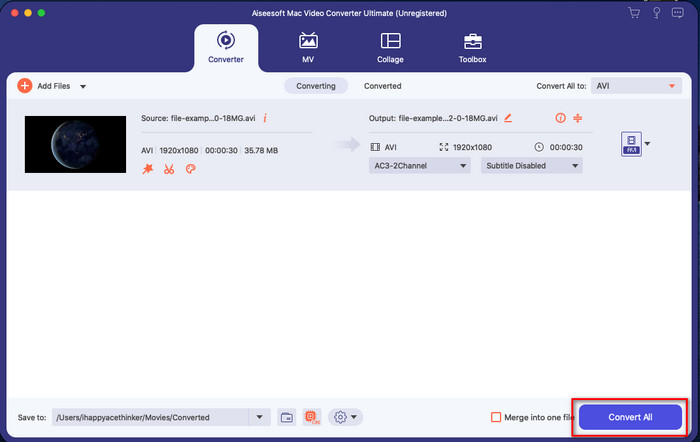
स्टेप 4. वॉटरमार्क वाले वीडियो को एक्सपोर्ट करने के लिए Convert All पर क्लिक करें। इसकी अल्ट्रा‑फ़ास्ट कन्वर्ज़न प्रक्रिया के कारण आपको ज़्यादा इंतज़ार नहीं करना पड़ेगा। इस तरह, आप एक मिनट से भी कम समय में अपने वीडियो पर इमेज वॉटरमार्क जोड़ चुके होंगे।.
पेशेवरों
- यह किसी भी उपयोगकर्ता के लिए सबसे अच्छा विकल्प है, जिसके पास संपादित करने के बारे में बहुत कम या कोई जानकारी नहीं है।
- यह अधिक वीडियो प्रारूपों का समर्थन करता है जिन्हें आप समय बचाने और इसे परिवर्तित करने से बचने के लिए अपलोड कर सकते हैं।
- डाउनलोड करने के लिए विंडोज या मैक जैसे सभी प्लेटफॉर्म पर उपलब्ध है।
विपक्ष
- यह डाउनलोड करने के लिए स्वतंत्र नहीं है, लेकिन यह बहुत महंगा नहीं है।
- इसे अपने ड्राइव पर डाउनलोड करना आवश्यक है।
भाग 3. iMovie पर वॉटरमार्क जोड़ने के बारे में अक्सर पूछे जाने वाले प्रश्न
क्या iMovie उपयोग करने के लिए स्वतंत्र है?
हाँ, अगर आप Apple प्रोडक्ट का उपयोग करते हैं तो iMovie फ्री है, लेकिन यदि आप Android या Windows इस्तेमाल करते हैं तो आप इसे डाउनलोड नहीं कर सकते। ध्यान रखें कि iMovie दूसरे प्लेटफ़ॉर्म पर उपलब्ध नहीं है। तो अगर आप अपने डेस्कटॉप या फ़ोन पर, जो Apple नहीं है, iMovie डाउनलोड करते हैं, तो संभव है कि वह iMovie जितना प्रभावी काम न करे या फिर उससे भी बुरा, उस फ़ाइल में वायरस हो। इससे बचने के लिए, आप यहाँ क्लिक करके यह लेख पढ़ सकते हैं और iMovie के विकल्पों के बारे में जान सकते हैं।.
क्या iMovie मैक पर सबसे अच्छा संपादक है?
हम कह सकते हैं कि यह सर्वश्रेष्ठ में से एक है, लेकिन सर्वश्रेष्ठ नहीं है, क्योंकि विभिन्न संपादक कई संपादन सुविधाएँ प्रदान करते हैं जो आपको iMovie पर नहीं मिल सकती हैं। हालाँकि इसमें कुछ मायनों में कमी है, फिर भी यह एक शीर्ष-संपादक है जिसका उपयोग आप अपने मैक पर मुफ्त में व्लॉगिंग, व्यवसाय, प्रचार और बहुत कुछ के लिए वीडियो संपादन करने के लिए कर सकते हैं।
iMovie पर वीडियो निर्यात करने के बाद, क्या इसमें वॉटरमार्क होता है?
आज तक, वीडियो का वॉटरमार्क निर्यात किए गए वीडियो में नहीं है। तो, आप डाउनलोड किए गए वीडियो का आनंद ले सकते हैं जिन्हें आप iMovie पर बिना किसी कष्टप्रद वॉटरमार्क के संपादित करते हैं।
क्या मैं iMovie पर .avi वीडियो का उपयोग कर सकता हूं?
iMovie बहुत व्यापक फ़ॉर्मैट रेंज को सपोर्ट नहीं करता, लेकिन आप यहाँ क्लिक करके यह लेख पढ़ सकते हैं और जान सकते हैं कि आप क्या कर सकते हैं ताकि आपकी AVI फ़ाइल iMovie के साथ संगत हो सके।.
निष्कर्ष
यह लेख पहले ही साबित कर चुका है कि आप Apple द्वारा उपलब्ध कराए गए बिल्ट‑इन एडिटर का उपयोग कर सकते हैं और हमारे दिए गए आसान स्टेप्स से वीडियो पर वॉटरमार्क जोड़ सकते हैं। हालाँकि आप iMovie को मुफ़्त में इस्तेमाल कर सकते हैं, फिर भी हम मानते हैं कि किसी भी दिन इस काम के लिए Video Converter Ultimate सबसे अच्छा टूल है। तो, यदि आप मदद चाहते हैं, तो ऊपर दिए गए डाउनलोड बटन पर क्लिक करके आप इसे अपने Mac या Windows पर डाउनलोड कर सकते हैं।.
-
 गुणवत्ता खोए बिना एमपीईजी को डब्लूएमवी में बदलने के 3 तरीके
 क्या आप अपने पसंदीदा प्लेयर पर अपने वीडियो देखना चाहते हैं, लेकिन यह वीडियो के प्रारूप का समर्थन नहीं करता है? इस लेख को पढ़ें क्योंकि हम आपको MPEG को WMV में बदलने के सबसे कुशल तरीके प्रदान करते हैं।
-
 F4V को WMV में बदलने के लिए पसंदीदा कन्वर्टर विकल्पों में से 2 [2022]
 क्या आप उन उपयोगकर्ताओं में से एक हैं जो F4V को WMV में बदलने का सबसे अच्छा तरीका ढूंढ रहे हैं? यदि ऐसा है, तो इसे कैसे करना है और उपलब्ध टूल क्या हैं, यह जानने के लिए इस लेख को पढ़ने का प्रयास करें।
-
 सर्वश्रेष्ठ एमएक्सएफ से डब्ल्यूएमवी कन्वर्टर्स मुफ्त में एमएक्सएफ को डब्ल्यूएमवी में बदलने के लिए
 अपनी MXF फ़ाइल को WMV प्रारूप में बदलने का सबसे आसान तरीका जानना चाहते हैं? यदि आप यह पता लगाने के लिए तैयार हैं कि यह कैसे करना है, तो आपको इस लेख को ध्यान से पढ़ना चाहिए।
