


 वीडियो कनवर्टर अंतिम
 स्क्रीन अभिलेखी
 वीडियो मरम्मत
 सुरक्षित डाउनलोड
फ़ोटोशॉप में वॉटरमार्क जोड़ने के लिए सरल गाइड
आजकल, वॉटरमार्क लगाना बेहद ज़रूरी होता जा रहा है। इतने सारे लोग ऑनलाइन डिजिटल सामग्री शेयर और इस्तेमाल कर रहे हैं कि आपके काम को बिना क्रेडिट दिए रीपोस्ट करना आसान हो जाता है। वॉटरमार्क आपकी सामग्री को सुरक्षित रखने में मदद करता है क्योंकि यह दिखाता है कि यह मूल है और आपकी है।
अब, अगर आप फ़ोटोशॉप इस्तेमाल कर रहे हैं और सोच रहे हैं कि क्या आप इसके ज़रिए वीडियो में वॉटरमार्क लगा सकते हैं? जी हाँ! फ़ोटोशॉप के साथ, आप टाइमलाइन पैनल का इस्तेमाल करके अपने वीडियो में वॉटरमार्क लगा सकते हैं। हालाँकि यह मुख्य रूप से एक इमेज एडिटिंग टूल है, लेकिन यह बेसिक वीडियो लेयर्स को सपोर्ट करता है, जिससे आप पूरे वीडियो क्लिप में वॉटरमार्क लगा सकते हैं। बस ध्यान रखें कि यह छोटे और हल्के एडिटिंग के लिए आदर्श है। अगर आप लंबे या ज़्यादा जटिल वीडियो पर काम कर रहे हैं, तो एक खास वीडियो एडिटर का इस्तेमाल ज़्यादा कारगर हो सकता है।
इस गाइड में, हम आपको बताएँगे कि Photoshop में वॉटरमार्क कैसे जोड़ें, तो आइए शुरू करें!

भाग 1. फ़ोटोशॉप में वॉटरमार्क कैसे बनाएं?
फ़ोटोशॉप से, आप आसानी से अपनी पसंद का कोई भी वॉटरमार्क बना सकते हैं। यह एक बेहतरीन टूल है जिससे आप इन्हें अपनी डिजिटल सामग्री पर कभी भी आसानी से लगा सकते हैं। फ़ोटोशॉप में वॉटरमार्क बनाने की चरण-दर-चरण मार्गदर्शिका नीचे दी गई है:
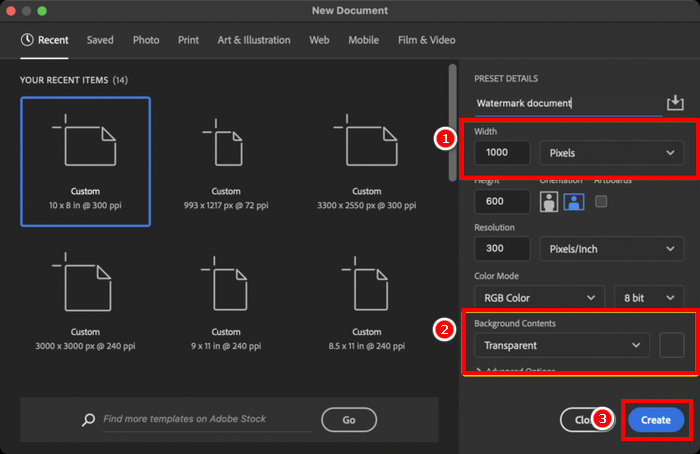
चरण 1. Photoshop खोलें और पारदर्शी बैकग्राउंड के साथ एक नया डॉक्युमेंट बनाएँ। सबसे अच्छा होगा कि डॉक्युमेंट की चौड़ाई 1000 px हो। सब सेट हो जाने पर नीचे दिए गए Create बटन पर क्लिक करें।.
चरण 2. टेक्स्ट वॉटरमार्क के लिए अपना नाम या ब्रांड लिखने हेतु Type Tool का उपयोग करें, या अपना सिग्नेचर बनाने के लिए Brush Tool से ड्रॉ करें। रंग को सफेद सेट करें।.
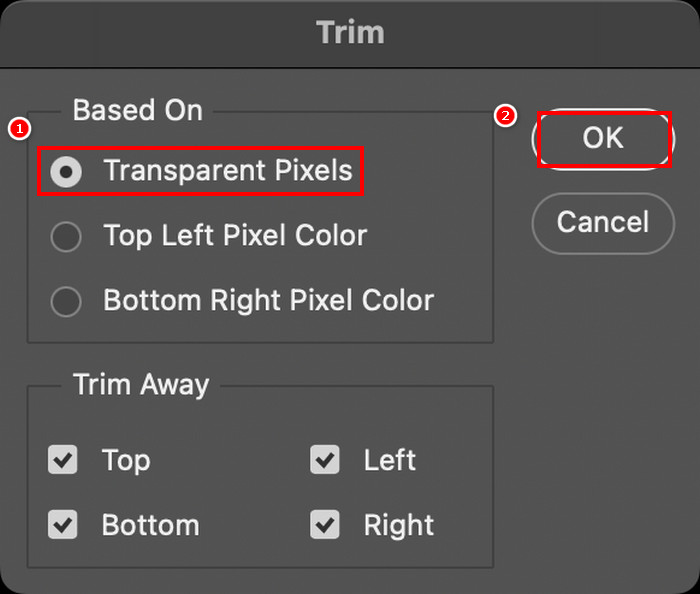
चरण 3. Image टैब पर जाएँ, Trim चुनें, Transparent Pixels चुनें, और अतिरिक्त खाली जगह हटाने के लिए OK पर क्लिक करें।.
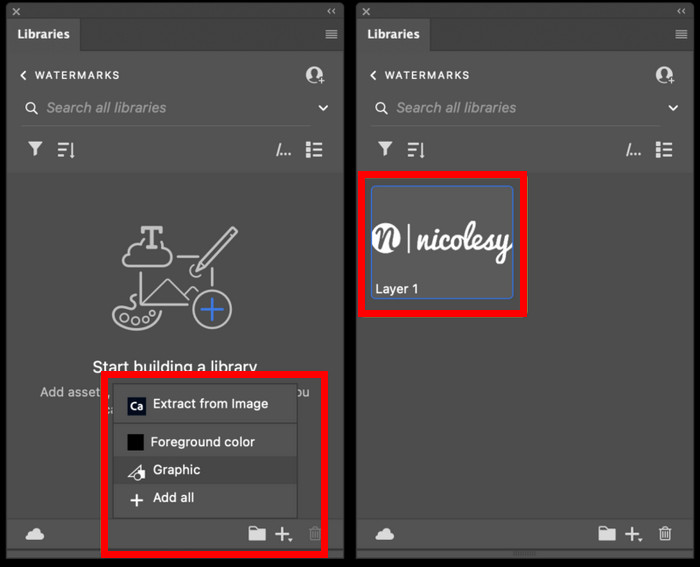
चरण 4. इसके बाद, Libraries पैनल खोलें, Create New Library पर क्लिक करें, उसे नाम दें, और Create पर क्लिक करें।.
चरण 5. Libraries पैनल में + आइकन पर क्लिक करें और Graphic चुनें ताकि आप अपना वॉटरमार्क सेव कर सकें और उसे कभी भी आसानी से एक्सेस कर सकें।.
फ़ोटोशॉप में वॉटरमार्क बनाने का यह सिर्फ़ एक तरीका है, लेकिन आप इसे अपनी पसंद के अनुसार डिज़ाइन कर सकते हैं, चाहे वह एक बोल्ड लोगो हो, एक सूक्ष्म हस्ताक्षर हो, या एक साधारण नाम हो। मुख्य बात यह है कि इसे विशिष्ट रूप से अपना बनाएँ और जब भी आपको अपनी सामग्री की सुरक्षा की आवश्यकता हो, उपयोग के लिए तैयार रखें।
भाग 2. फ़ोटोशॉप में वीडियो में वॉटरमार्क कैसे जोड़ें?
अब जब आप फ़ोटोशॉप में वॉटरमार्क बनाना जानते हैं, तो अब इसे इस्तेमाल करने का समय आ गया है। इस भाग में, हम आपको फ़ोटोशॉप के बुनियादी वीडियो संपादन टूल का उपयोग करके वीडियो में वॉटरमार्क जोड़ने का तरीका दिखाएंगे। हालाँकि फ़ोटोशॉप एक पूर्ण वीडियो संपादक नहीं है, फिर भी यह वॉटरमार्क ओवरले करने जैसे सरल कार्यों को संभाल सकता है। लेकिन ध्यान रखें कि फ़ोटोशॉप शुरुआती लोगों के लिए उपयुक्त नहीं है क्योंकि इसका इंटरफ़ेस जटिल है और जो उपयोगकर्ता इसके अभ्यस्त नहीं हैं उन्हें यह थोड़ा परेशान कर सकता है। आपको सही मार्गदर्शन देने के लिए, नीचे दी गई चरण-दर-चरण प्रक्रिया का पालन करें:
चरण 1. यदि आपके कंप्यूटर पर Photoshop नहीं है, तो पहले उसे डाउनलोड और इंस्टॉल करें। ध्यान रखें कि यह सॉफ्टवेयर Windows और macOS दोनों के लिए उपलब्ध है।.
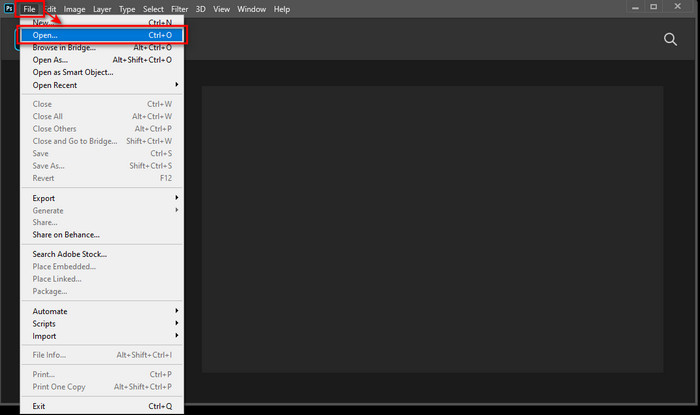
चरण 2. Photoshop में फिर से जाएँ, File टैब पर क्लिक करें और Open चुनें। इसके बाद, वह वीडियो खोजें और चुनें जिस पर आप वॉटरमार्क जोड़ना चाहते हैं। फ़ाइल जोड़ने के बाद नीचे Timeline दिखाई देगा।.
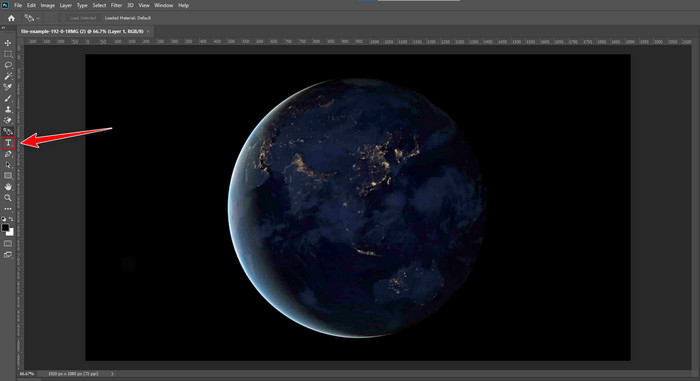
चरण 3. इसके बाद, इंटरफ़ेस के बाएँ पैनल में Text टूल के लिए T आइकन खोजें। अपने वॉटरमार्क के लिए टेक्स्ट लिखना शुरू करने के लिए वीडियो पर कहीं भी क्लिक करें। आगे बढ़ने से पहले, फॉन्ट स्टाइल, आकार, रंग और अन्य सेटिंग्स को एडजस्ट करके अपने वॉटरमार्क का रूप अपनी पसंद के अनुसार कस्टमाइज़ कर सकते हैं।.
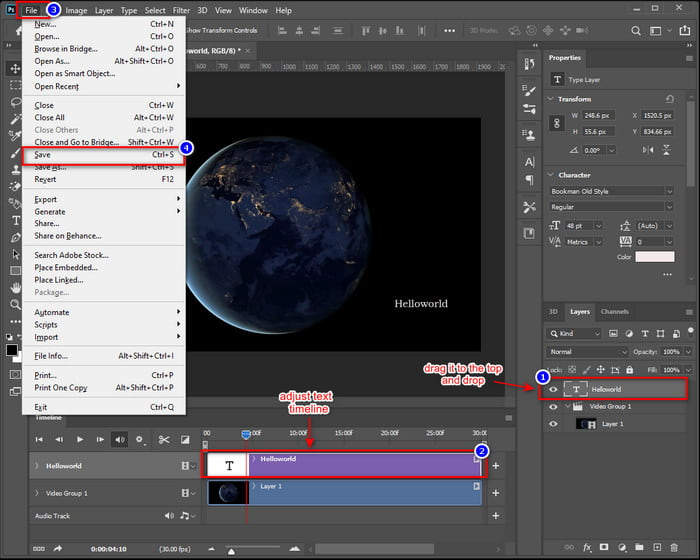
चरण 4. Layers पैनल में, वीडियो के ऊपर दिखाने के लिए Text layer को Video Group के ऊपर खींचकर रखें। फिर Timeline पैनल में वापस जाएँ और टेक्स्ट कितनी देर तक दिखाई दे, यह तय करने के लिए उसके स्टार्ट या एंड पॉइंट को ड्रैग करके समायोजित करें। जब सब हो जाए, तो File मेनू में जाकर Save पर क्लिक करें ताकि आपके बदलाव सेव हो जाएँ।.
Photoshop की मदद से आप वाकई में किसी भी वीडियो पर वॉटरमार्क जोड़ सकते हैं। लेकिन बात यह है कि यह हर किसी के लिए आसान नहीं है। इसका लर्निंग कर्व इतना तेज़ है कि शुरुआती उपयोगकर्ताओं को इंटरफ़ेस काफी जटिल लग सकता है। यदि आप Photoshop में लेयर्स, टाइमलाइन और टेक्स्ट टूल जैसी चीज़ों से परिचित नहीं हैं, तो इन्हें समझने और अपनाने में समय लग सकता है।
भाग 3. फ़ोटोशॉप में वीडियो में इमेज वॉटरमार्क कैसे जोड़ें [अंतिम तरीका]
चूँकि वीडियो पर वॉटरमार्क जोड़ने के मामले में Photoshop शुरुआती उपयोगकर्ताओं के लिए ज़्यादा अनुकूल नहीं है, इसलिए ऐसे वैकल्पिक टूल भी हैं जिन्हें यूज़र्स आज़मा सकते हैं। FVC Video Converter Ultimate एक बेहतर विकल्प है। यह कन्वर्टर टूल सिर्फ वीडियो और ऑडियो को कन्वर्ट ही नहीं करता, बल्कि इसका उपयोग वीडियो पर इमेज वॉटरमार्क जोड़ने के लिए भी किया जा सकता है।.
FVC में एक टूलबॉक्स है जहाँ आपको कई उपयोगी सुविधाएँ मिलेंगी, और वीडियो वॉटरमार्क उनमें से एक है। इस टूल से, आप आसानी से अपना वीडियो अपलोड कर सकते हैं, अपनी इमेज वॉटरमार्क लगा सकते हैं, और उसे स्क्रीन पर अपनी इच्छानुसार कहीं भी रख सकते हैं। कोई जटिल लेयर या टाइमलाइन नहीं, बस एक सरल और उपयोगकर्ता-अनुकूल इंटरफ़ेस जो काम को झटपट पूरा कर देता है। यह उन लोगों के लिए एकदम सही है जो फ़ोटोशॉप की कठिन शिक्षा के बिना तेज़ परिणाम चाहते हैं। नीचे FVC के साथ फ़ोटोशॉप में वीडियो में इमेज वॉटरमार्क जोड़ने का चरण-दर-चरण निर्देश दिया गया है।
चरण 1. सबसे पहले, आपको अपने कंप्यूटर पर FVC Video Converter Ultimate डाउनलोड और इंस्टॉल करना होगा। कृपया ध्यान दें कि यह Windows और macOS दोनों के साथ संगत है।.
फ्री डाउनलोडWindows 7 या बाद के संस्करण के लिएसुरक्षित डाउनलोड
फ्री डाउनलोडMacOS 10.7 या बाद के संस्करण के लिएसुरक्षित डाउनलोड
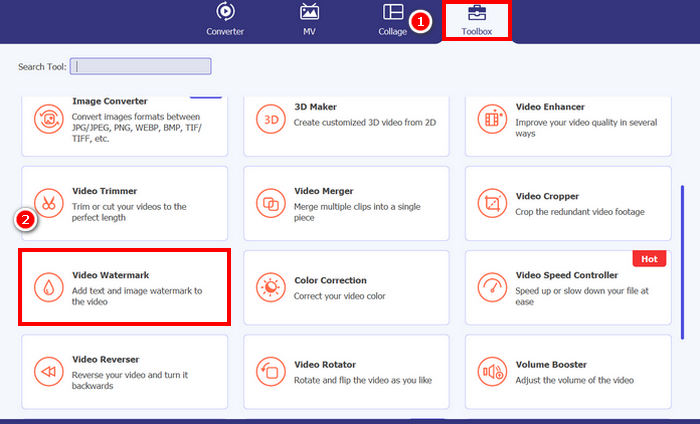
चरण 2. टूल लॉन्च करें, Toolbox टैब पर क्लिक करें, और वहाँ से Video Watermark चुनें।.
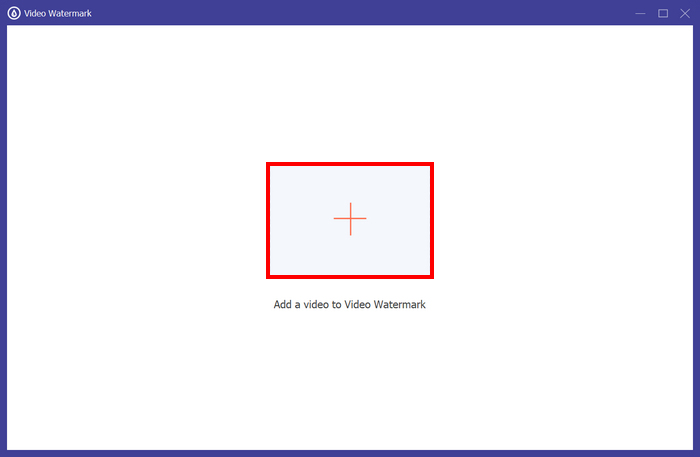
चरण 3. इसके बाद, Add a Video to Video Watermark पर क्लिक करें और वह वीडियो चुनें जिस पर आप इमेज वॉटरमार्क जोड़ना चाहते हैं।.
चरण 4. अब, + Image Watermark चुनें और वह इमेज जोड़ें जिसे आप अपने वीडियो के वॉटरमार्क के रूप में उपयोग करना चाहते हैं। वहाँ से आप इसे एडजस्ट कर सकते हैं। काम पूरा हो जाने पर Export बटन पर क्लिक करें।.
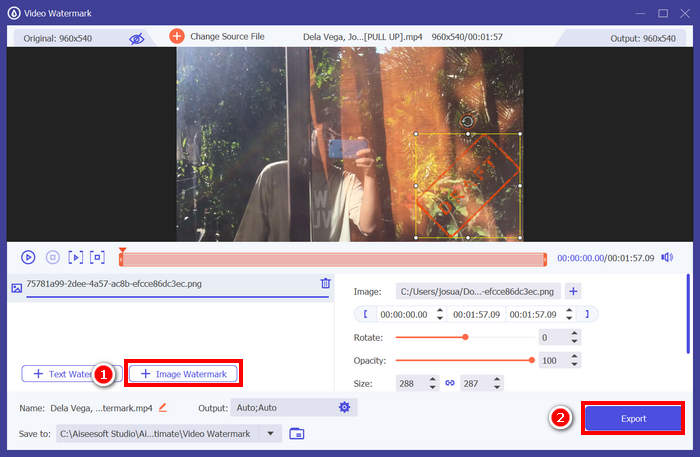
देखिए, FVC वीडियो कन्वर्टर अल्टीमेट के वीडियो वॉटरमार्क टूल से आप आसानी से किसी वीडियो में इमेज वॉटरमार्क जोड़ सकते हैं। यह वाकई सभी के लिए है, यहाँ तक कि शुरुआती लोगों के लिए भी। प्रक्रिया बेहद आसान है। आपको बस अपना वीडियो अपलोड करना है, वॉटरमार्क डालना है, उसका आकार और स्थिति समायोजित करनी है, और आपका काम हो गया।
यदि ज़रूरत पड़े तो यह जानने के लिए यहाँ क्लिक करें कि वीडियो का वॉटरमार्क कैसे हटाएँ।.
भाग 4. फ़ोटोशॉप में वॉटरमार्क जोड़ने के बारे में अक्सर पूछे जाने वाले प्रश्न
क्या वॉटरमार्क जोड़ना ठीक है?
जी हाँ, वॉटरमार्क लगाना आपकी सामग्री की सुरक्षा का एक सामान्य और स्वीकार्य तरीका है। यह आपकी डिजिटल सामग्री को पहचान देने के लिहाज से मददगार है, जहाँ सामग्री हथियाना आम बात है।
क्या वीडियो में वॉटरमार्क जोड़ने के लिए फ़ोटोशॉप शुरुआती लोगों के लिए अनुकूल है?
बिल्कुल नहीं। हालाँकि फ़ोटोशॉप वीडियो में वॉटरमार्क जोड़ सकता है, लेकिन इसका इंटरफ़ेस और वीडियो एडिटिंग वर्कफ़्लो शुरुआती लोगों के लिए जटिल हो सकता है। यह उन उपयोगकर्ताओं के लिए ज़्यादा उपयुक्त है जो लेयर्स और टाइमलाइन से पहले से परिचित हैं।
क्या मैं फ़ोटोशॉप में अपने वॉटरमार्क के स्वरूप को अनुकूलित कर सकता हूँ?
बिल्कुल। फ़ोटोशॉप आपको अपने वॉटरमार्क के फ़ॉन्ट, आकार, रंग, अपारदर्शिता और प्लेसमेंट पर पूरा नियंत्रण देता है, चाहे वह टेक्स्ट-आधारित हो या इमेज-आधारित।
निष्कर्ष
अब जब आपको पता चल गया है कि Photoshop में वॉटरमार्क कैसे जोड़ें, तो इसकी अहमियत समझना भी ज़रूरी है। Photoshop में वॉटरमार्क जोड़ना आपके वीडियो कंटेंट की सुरक्षा करने और उस पर अपना स्वामित्व दिखाने का एक उपयोगी तरीका है। शुरुआत में यह प्रक्रिया, खासकर नए यूज़र्स के लिए, कुछ जटिल लग सकती है, लेकिन Photoshop आपको बड़ी सटीकता के साथ कस्टम वॉटरमार्क बनाने और लागू करने की लचीलापन देता है। और अगर आप कोई आसान विकल्प ढूँढ रहे हैं, तो FVC Video Converter Ultimate जैसे टूल अधिक सीधा और सरल समाधान प्रदान करते हैं। तो फिर किस बात का इंतज़ार है? आइए शुरू करें!
-
 पेशेवर तरीके से वीडियो से वॉटरमार्क हटाने के 5 तरीके
 किसी वीडियो को पेशेवर दिखाने के लिए उससे वॉटरमार्क निकालने की आवश्यकता है? खैर, इस लेख को पढ़ें क्योंकि हम इसे कैसे करना है पर एक ट्यूटोरियल जोड़ते हैं!
-
 MP4 वीडियो से वॉटरमार्क हटाने के लिए आप 2 बेहतरीन ऐप्स का उपयोग कर सकते हैं
 यह लेख आपको विंडोज और मैक जैसे अपने उपकरणों का उपयोग करके MP4 वीडियो से वॉटरमार्क हटाने के तरीके के बारे में सरल और आसान तरीके प्रदान करेगा।
-
 3 सिद्ध तरीकों से निर्यात किए गए वीडियो पर एनिमोटिका वॉटरमार्क निकालें
 क्या आपने कभी सोचा है कि क्या आपके द्वारा निर्यात किए गए वीडियो पर एनिमोटिका वॉटरमार्क हटाना संभव है? यह आलेख एक कैसे-करें प्रदान करता है।
