


 वीडियो कनवर्टर अंतिम
 स्क्रीन अभिलेखी
 वीडियो मरम्मत
iMovie में वीडियो पर छवि जल्दी से जोड़ने के सरल तरीके
वीडियो में छवियाँ जोड़ना संदेश को दर्शकों तक और बेहतर ढंग से पहुँचाने के सबसे अच्छे तरीकों में से एक बन गया है। ज़्यादातर वीडियो एडिटर आपको तेज़ी से किसी वीडियो पर इमेज ओवरले करने में मदद कर सकते हैं, और अगर आप Apple उपयोगकर्ता हैं, तो हो सकता है कि आप पहले से ही iMovie का सामना कर चुके हों। यह आपके Apple डिवाइस पर इस्तेमाल किए जाने वाले सबसे अच्छे एडिटरों में से एक के रूप में जाना जाता है। इसके अलावा, साधारण Apple उपयोगकर्ताओं को iMovie का इस्तेमाल करना चुनौतीपूर्ण लगता है, क्योंकि उन्होंने पहले कभी यह ऐप इस्तेमाल नहीं किया होता। तो अब, अगर आप भी वही Apple उपयोगकर्ता हैं जिसे इसे इस्तेमाल करने में दिक्कत हो रही है और आप वीडियो में इमेज जोड़ना चाहते हैं, तो आप यह लेख पढ़ सकते हैं—नीचे दी गई जानकारी पढ़ेंगे, तो iMovie में वीडियो पर इमेज कैसे जोड़ें सीखना बहुत आसान है।.

भाग 1. iMovie [Mac] में वीडियो पर किसी चित्र को ओवरले कैसे करें
यदि आपके पास Mac पर iMovie है, तो आप इसका उपयोग कर सकते हैं और छवि को वीडियो में जोड़ सकते हैं। तो अब, अगर आप वीडियो iMovie पर फोटो लगाना सीखना चाहते हैं, तो नीचे दिए गए स्टेप्स आपकी मदद करेंगे।
स्टेप 1. Finder पर iMovie खोजें, फिर उस पर क्लिक करके उसे खोलें।.
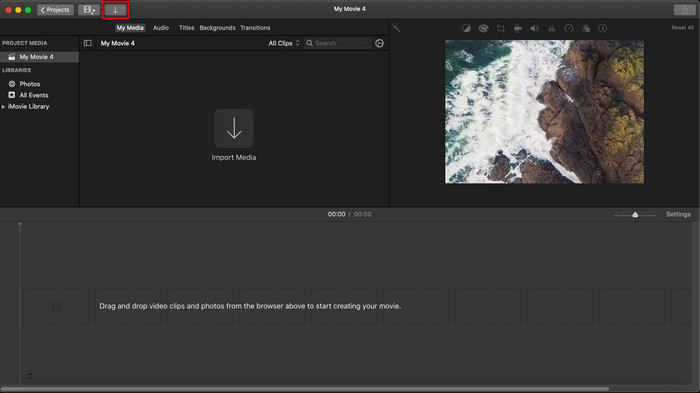
स्टेप 2. iMovie के ऊपर‑बाएँ हिस्से में मौजूद Import बटन पर क्लिक करें ताकि आप वीडियो और इमेज को आसानी से इम्पोर्ट कर सकें। फिर डाले गए मीडिया फ़ाइल को Timeline पर ड्रैग और प्लेस करें।.
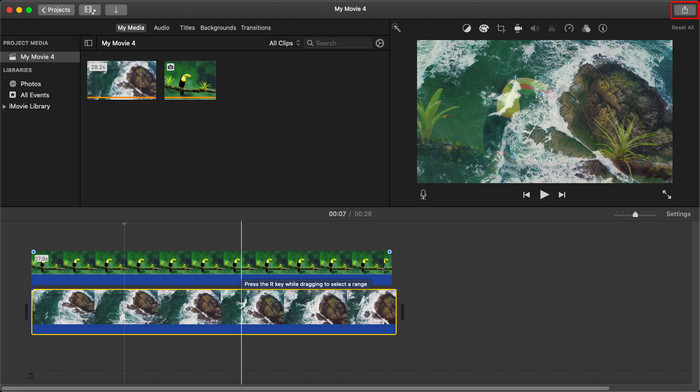
स्टेप 3. इम्पोर्ट की गई इमेज और उसकी अवधि (ड्यूरेशन) को समायोजित करें। उसके बाद, फ़ाइल को अपने कंप्यूटर पर डाउनलोड करने के लिए Export पर क्लिक करें।.
हमने यहां जो चरण प्रस्तुत किए हैं, वे iMovie का उपयोग करने के व्यावहारिक अनुभव से हैं। यदि टूल में कोई अपडेट है या कुछ परिवर्तन शीघ्र ही होते हैं तो चरण भिन्न हो सकते हैं।
भाग 2. iMovie [iOS] के साथ वीडियो पर फ़ोटो कैसे डालें
क्या होगा यदि आप एक आईओएस डिवाइस का उपयोग करते हैं और एक वीडियो में एक छवि जोड़ने के लिए संपादक के रूप में iMovie का उपयोग करना चाहते हैं? क्या यह संभव है? अच्छा, हाँ, यह है। हम आपको नीचे दिए गए चरणों के साथ विवरण पढ़कर iPhone पर iMovie वीडियो में एक तस्वीर डालने का तरीका सिखा सकते हैं।
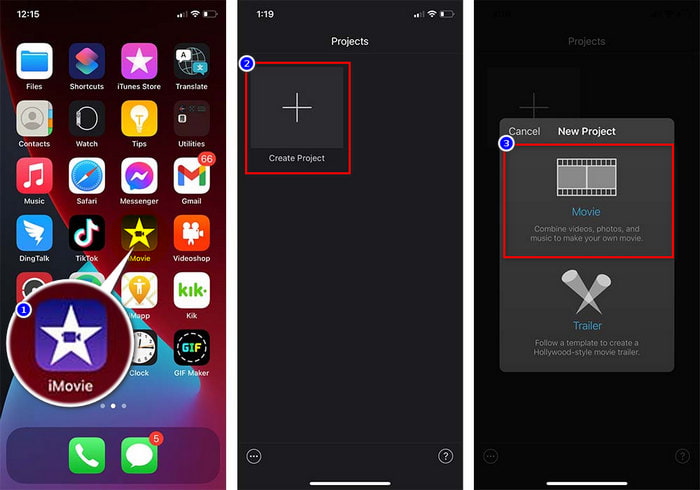
स्टेप 1. अपने iOS डिवाइस पर iMovie ऐप चलाएँ, Create Project पर क्लिक करें, फिर Movie चुनें। अपनी लाइब्रेरी में मौजूद वीडियो को जोड़ें।.
स्टेप 2. वीडियो पर इमेज वॉटरमार्क जोड़ने के लिए + बटन पर क्लिक करें। लाइब्रेरी में उसे खोजें, उस पर क्लिक करें, three-dotted line दबाएँ, और Green/Blue Screen चुनें। बैकग्राउंड को अपने‑आप हटाने के लिए इमेज पर टैप करें।.
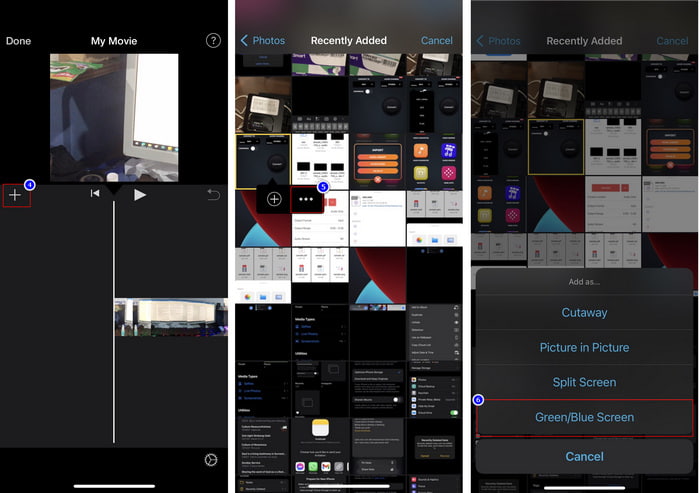
स्टेप 3. Done दबाएँ, फिर Export पर क्लिक करें और Save Videos चुनें।.
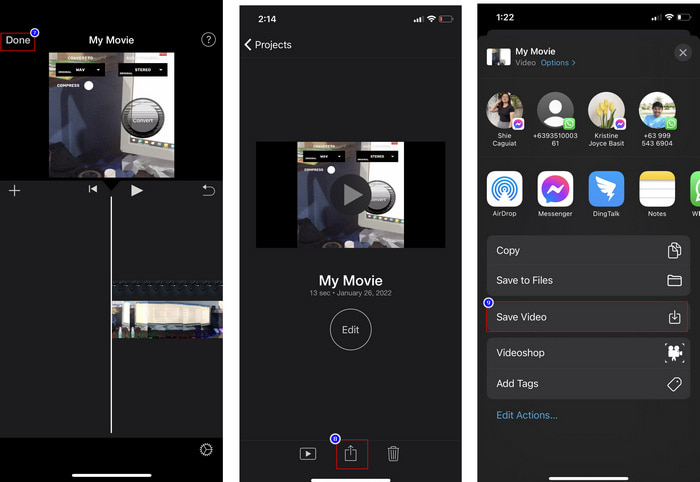
हमारे द्वारा यहां प्रस्तुत किए गए सभी चरण iOS पर iMovie का उपयोग करने के व्यावहारिक अनुभव से हैं। लेकिन अगर संपादक ऐप पर जल्द ही कोई अपडेट होता है तो कुछ चरण बदल सकते हैं।
भाग 3. मैक पर सर्वश्रेष्ठ वीडियो वॉटरमार्क सॉफ्टवेयर के साथ वीडियो में फोटो डालने का सबसे आसान उपाय
क्या आपको भी iMovie में वीडियो पर फोटो जोड़ने में ऐसी ही दिक्कतें आ रही हैं? तो Video Converter Ultimate का इस्तेमाल करके देखिए, क्योंकि यह टूल iMovie का सबसे बेहतरीन विकल्प है। इसकी कुल परफ़ॉर्मेंस की पहले से ही उन लाखों उपयोगकर्ताओं ने सराहना की है जिन्होंने इसे आज़माया है। भले ही उनके वीडियो से जुड़ी समस्याएँ अलग‑अलग हों, फिर भी वे उन्हें हल करने के लिए इसी अल्टिमेट टूल को चुनते हैं। साथ ही, इस टूल की मदद से आप वीडियो से जुड़ा लगभग हर काम कर सकते हैं, जैसे कट करना, इमेज जोड़ना, मर्ज करना, क्रॉप करना आदि। समस्या जो भी हो, यह उसका वन‑स्टॉप समाधान है। समस्या हल करना चाहते हैं? तो नीचे दिए गए स्टेप्स को फ़ॉलो करें, जिन्हें हमने आपके लिए सरल तरीक़े से लिखा है।.
विशेषताएँ:
◆ अंतिम टूल कई प्रारूपों का समर्थन करता है, इसलिए आपका प्रारूप अपलोड करना मुश्किल नहीं होगा।
यह समझने में आसान इंटरफ़ेस का समर्थन करता है जिससे कुछ ही सेकंड में किसी भी वीडियो में छवियों को शीघ्रता से जोड़ा जा सकता है।
यह उपयोगकर्ताओं को सभी प्लेटफार्मों में आनंद लेने की अनुमति देने के लिए मैक और विंडोज जैसे विभिन्न प्लेटफार्मों का समर्थन करता है।
स्टेप 1. नीचे दिए गए डाउनलोड बटन पर क्लिक करके इस टूल को डाउनलोड करें, फिर तुरंत इसे इंस्टॉल करें और इंस्टॉलेशन के बाद इसे खोलें।.
फ्री डाउनलोडWindows 7 या बाद के संस्करण के लिएसुरक्षित डाउनलोड
फ्री डाउनलोडMacOS 10.7 या बाद के संस्करण के लिएसुरक्षित डाउनलोड
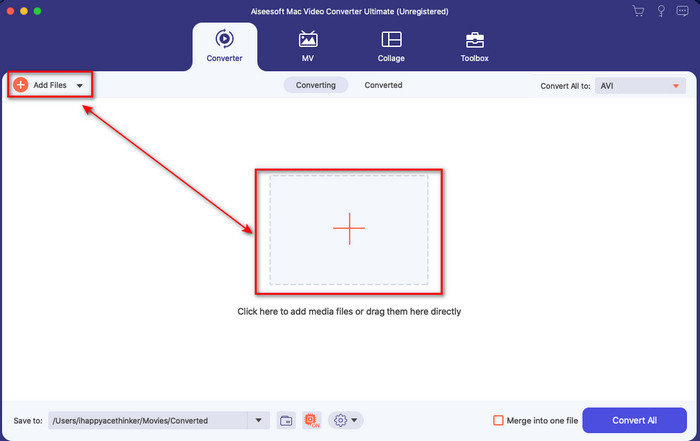
स्टेप 2. इसे खोलने के बाद, वीडियो फ़ाइल इम्पोर्ट करने के लिए दिख रहे + बटन को दबाएँ। उसके बाद एक फ़ोल्डर खुलेगा, उसमें वीडियो फ़ाइल को चुनें और Open पर क्लिक करें।.
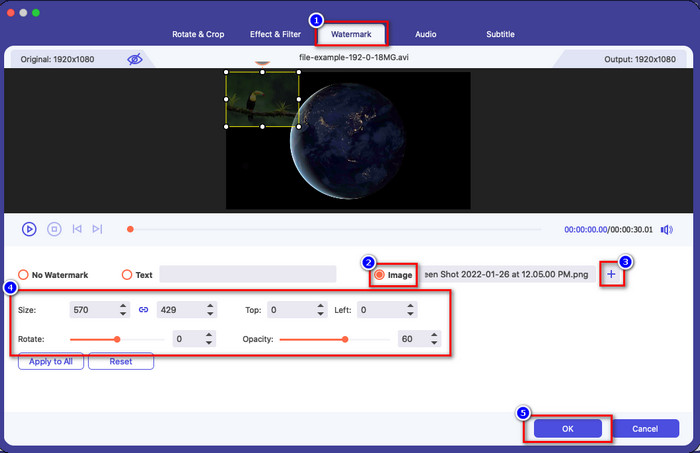
स्टेप 3. कन्वर्टर की एडिटिंग विंडो खोलने के लिए wand बटन दबाएँ। Watermark पर जाएँ, इमेज पर क्लिक करें, फिर इमेज अपलोड करने के लिए add दबाएँ। साथ ही, आप अपनी ज़रूरत के अनुसार इमेज की opacity बदल सकते हैं या उसे rotate कर सकते हैं, और बदलाव लागू करने के लिए OK पर क्लिक करें।.
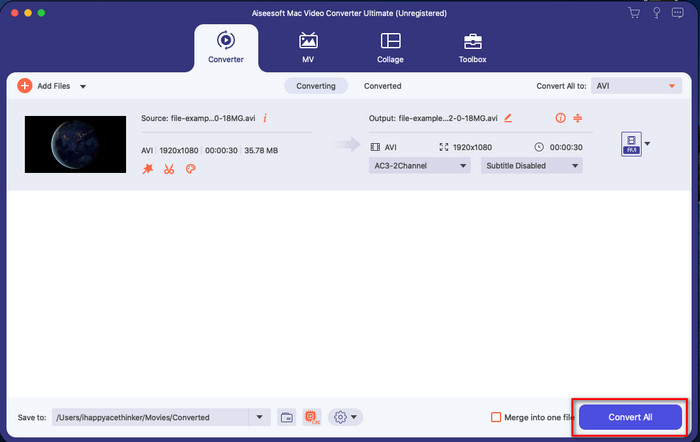
स्टेप 4. वीडियो फ़ाइल को एक्सपोर्ट करने के लिए Convert All बटन पर क्लिक करें। एक्सपोर्टिंग प्रक्रिया पूरी होने के बाद यह आपके कंप्यूटर के फ़ोल्डर में सेव हो जाएगा, और इतनी आसानी से अब आपके वीडियो पर वॉटरमार्क इमेज होगी। तो अब, क्या आप Video Converter Ultimate की क्षमता पर यक़ीन करते हैं? आपने वीडियो पर इमेज वॉटरमार्क इतनी जल्दी जोड़ लिया।.
संबंधित:
वीडियो में सबटाइटल्स कैसे जोड़ें
भाग 4. iMovie में वीडियो पर तस्वीरें जोड़ने के बारे में अक्सर पूछे जाने वाले प्रश्न
क्या iMovie वीडियो में जोड़े गए इमेज की संख्या की कोई सीमा है?
अब तक, हमें iMovie का उपयोग करते समय वीडियो पर एकाधिक छवियों को जोड़ने में कोई असुविधा नहीं हुई। हालाँकि, यदि आप वीडियो पर बहुत अधिक चित्र जोड़ते हैं, तो निर्यात प्रक्रिया में समय लगता है, लेकिन अनुभव के अनुसार यह क्रैश नहीं होगा।
iMovie पर मैं किन छवि प्रारूपों का उपयोग कर सकता हूं?
iMovie कई स्थिर-छवि प्रारूप का समर्थन करता है जैसे कि BMP, PNG, JPG या JPEG, HEIF, PSD, RAW TIFF और TGA, लेकिन यदि आप एक एनिमेटेड छवि चाहते हैं, तो आप GIF का उपयोग कर सकते हैं। हालाँकि ये प्रारूप बहुत अधिक हैं, फिर भी यह सभी छवि प्रारूपों जैसे EXIF, WebP और समान का समर्थन नहीं करता है।
मुझे आईमूवी का उपयोग क्यों करना चाहिए?
Apple उपयोगकर्ताओं के लिए, iMovie लघु फिल्म, विज्ञापन, व्लॉग, और बहुत कुछ बनाने के लिए सबसे अच्छे विकल्पों में से एक है; ये सभी मुफ्त में हैं। संपादक एक अर्ध-उन्नत इंटरफ़ेस प्रदान करता है जिससे उपयोगकर्ताओं को एक उन्नत इंटरफ़ेस या टूल कैसा दिखता है, इसका व्यावहारिक अनुभव प्राप्त होता है। साथ ही, सॉफ्टवेयर कम तकनीकी है, लेकिन यह विशिष्ट है। ऐसे संपादक को देखना आम बात नहीं है जो उपयोग करने के लिए कम तकनीकी प्रदान करता है, लेकिन यह आपको एक समर्थक बनने में मदद कर सकता है और कुछ विशेष-तकनीक उन्नत टूल जोड़ सकता है।
निष्कर्ष
आख़िरकार, हम यह कह सकते हैं कि अब हमारे पास iMovie में वीडियो पर आसानी से फ़ोटो जोड़ने के लिए पर्याप्त जानकारी है। Apple के इस बेहतरीन टूल के साथ, आप यहाँ काफ़ी जटिल एडिटिंग भी कर सकते हैं। हालाँकि, आपकी ज़रूरत की हर फ़ंक्शन iMovie में मौजूद नहीं है, लेकिन आप सभी प्लेटफ़ॉर्म पर आसान‑से‑इस्तेमाल होने वाला एडिटर पाने के लिए Video Converter Ultimate का उपयोग कर सकते हैं। शायद आप सोच रहे हों कि आपको यह अल्टिमेट टूल क्यों इस्तेमाल करना चाहिए? जब बात इस अल्टिमेट टूल की हो, तो बहुत ज़्यादा व्याख्या की ज़रूरत नहीं, क्योंकि हमने ऊपर पहले ही उसके प्रमाण रख दिए हैं। तो अब आपको क्या करना चाहिए? आप डाउनलोड बटन पर क्लिक करके इस अल्टिमेट टूल का ख़ुद अनुभव लें और अपनी समस्या का समाधान करें।.
-
 Android और iOS पर 5 सर्वाधिक पिक ऑडियो रिकॉर्डर ऐप्स [2022 अपडेट किया गया]
 आपको नहीं पता कि आपको किस ऑडियो रिकॉर्डर ऐप का उपयोग करना चाहिए? यदि हां, तो यह लेख आपको यह चुनने में मदद करेगा कि कौन सा ऐप आपके ऑडियो रिकॉर्डिंग कार्य में आपकी सहायता करेगा।
-
 IOS पर वॉयस मेमो - पेशेवरों, विपक्ष, सुविधाओं और 4 सर्वश्रेष्ठ प्रतिस्थापन
 वॉयस मेमो क्या है? क्या यह आईओएस पर सबसे अच्छा ऑडियो रिकॉर्डर है? क्या आप उस प्रश्न का उत्तर ढूंढते हैं? इसलिए, अधिक जानने के लिए इस लेख का पूरा दायरा पढ़ें।
-
 एमओडी फ़ाइल को एक नए प्रारूप में बदलने के लिए 7 नवीनतम मुफ्त एमओडी कन्वर्टर्स
 आप किस मॉड कन्वर्टर्स का उपयोग कर सकते हैं? एक ही सवाल सोच रहे हो? तो यहां हम सात उपकरण प्रदान कर रहे हैं जिनका उपयोग आप अपनी एमओडी फाइलों को परिवर्तित करने के लिए कर सकते हैं।
