


 वीडियो कनवर्टर अंतिम
 स्क्रीन अभिलेखी
 वीडियो मरम्मत
 सुरक्षित डाउनलोड
बेस्ट वॉटरमार्क रिमूवल टूल्स के साथ एनिमेकर वॉटरमार्क कैसे निकालें
क्या आपने कभी अपने वीडियो को संपादित करने के लिए एनिमेकर का उपयोग करने की कोशिश की है? यदि आपने नहीं किया है, तो आपको अपना मौका नहीं गंवाना चाहिए। यह मंच कई डिजाइनरों, एनिमेटरों, शुरुआती, पेशेवरों, सामग्री निर्माताओं और अन्य लोगों को शीघ्र ही एक एनिमेटेड फिल्म बनाने की अनुमति देता है। और हाँ, यह एक संपूर्ण उपकरण है; आपके लिए आवश्यक सभी टेम्पलेट यहां उपलब्ध हैं। सभी एनीमेशन और लाइव-एक्शन सुविधाओं के साथ, आपको वॉटरमार्क और सीमाओं के साथ परेशानी के बिना इसे नियमित रूप से उपयोग करने के लिए सॉफ़्टवेयर खरीदना होगा।
क्या आप उदास हैं क्योंकि आप यह सॉफ्टवेयर खरीद नहीं पा रहे हैं? अच्छी बात यह है कि यहाँ जिन टूल्स को हम जोड़ रहे हैं, वे आपके द्वारा बनाई गई ऐनिमेशन से उसमें जुड़ा वॉटरमार्क हटा सकते हैं। यहाँ हम आपको सिखाएँगे कि Animaker का वॉटरमार्क कैसे हटाएँ वो भी 5 मिनट से कम समय में। इस लेख को पढ़ते रहें ताकि आप पूरी तरह समझ सकें; बाद में आपको पता चलेगा कि हमने इन्हें ही क्यों चुना है।.

भाग 1. विंडोज, मैकओएस और ऑनलाइन पर एनिमेकर वॉटरमार्क कैसे निकालें [नि: शुल्क और भुगतान]
क्या एनिमेकर में वॉटरमार्क होता है? हां, यह आपके द्वारा यहां संपादित किए गए एनिमेटेड वीडियो पर वॉटरमार्क जोड़ता है, खासकर यदि आप व्यावसायिक संस्करण का उपयोग नहीं कर रहे हैं। यदि आप वाणिज्यिक संस्करण खरीदते हैं तो यह जो वॉटरमार्क जोड़ता है, उससे बचा जा सकता है, लेकिन यदि आप खर्च नहीं करना चाहते हैं, तो आपको हमारे द्वारा नीचे जोड़े गए वॉटरमार्क रिमूवर का उपयोग करना चाहिए।
FVC वीडियो कन्वर्टर अल्टीमेट [Windows और macOS]
मान लीजिए आपको वॉटरमार्क से प्रभावी तरीके से निपटने के लिए एक मज़बूत टूल की ज़रूरत है। तब आपको FVC Video Converter Ultimate चुनना होगा। यह टूल हर तरह के डेस्कटॉप पर उपलब्ध है, चाहे आप Windows उपयोगकर्ता हों या Mac। इस टूल की मदद से आप Animaker पर बनाई गई अपनी ऐनिमेटेड वीडियो का वॉटरमार्क बिना कोई निशान छोड़े प्रभावी रूप से हटा सकते हैं। भले ही आपको इस तरह की समस्या से निपटने का अनुभव न हो, फिर भी आपको यह सॉफ्टवेयर इस्तेमाल करना चाहिए क्योंकि यह उपयोग में आसान है और इसका इंटरफ़ेस बहुत सहज है।.
न केवल यह उपकरण एक प्रभावी वॉटरमार्क हटानेवाला है, बल्कि यह एक अलग उद्देश्य के लिए एक प्रभावी समग्र उपकरण भी है। आप अपने डेस्कटॉप पर इस टूल को डाउनलोड करके देख सकते हैं कि इसकी अन्य कार्यक्षमता क्या है। यदि आप वीडियो प्राप्त करना चाहते हैं, तो इसे बिना वॉटरमार्क के एनिमेकर पर निर्यात करें; नीचे दी गई प्रक्रिया का पालन करें।
चरण 1. इस मल्टीपर्पज़ टूल को पाने के लिए डाउनलोड बटन पर क्लिक करें और Windows या Mac के लिए इसका संस्करण प्राप्त करें। सॉफ्टवेयर इंस्टॉल करें, फिर इस टूल को खोलने के लिए Start Now पर क्लिक करें।.
फ्री डाउनलोडWindows 7 या बाद के संस्करण के लिएसुरक्षित डाउनलोड
फ्री डाउनलोडMacOS 10.7 या बाद के संस्करण के लिएसुरक्षित डाउनलोड
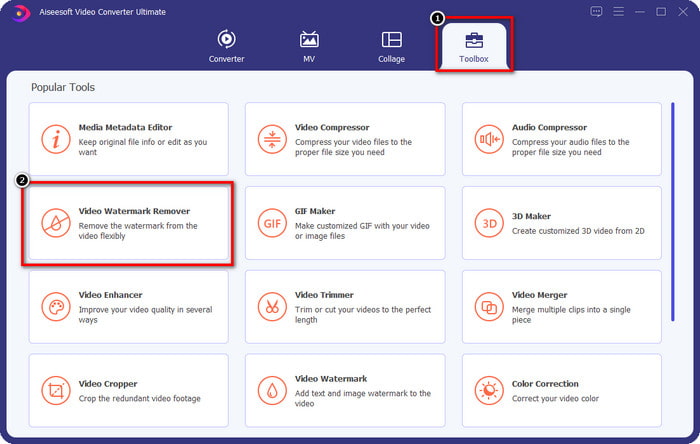
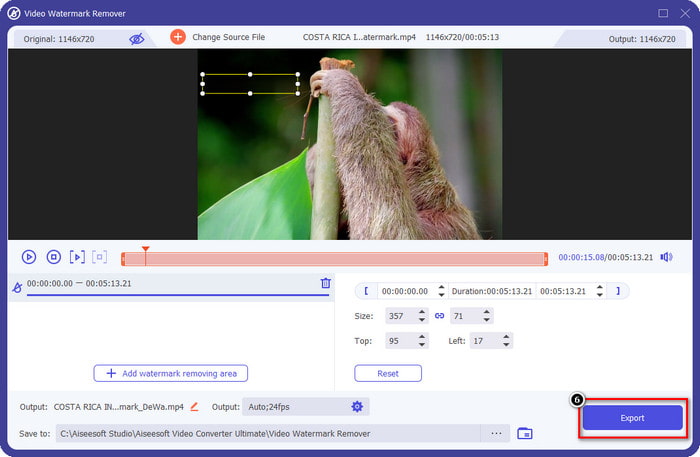
चरण 2. इंटरफ़ेस के ऊपरी बाएँ हिस्से में Toolbox पर क्लिक करें और Video Watermark Remover खोलें। Toolbox के अंदर आपको इस टूल के अन्य फीचर्स और फ़ंक्शन भी दिखाई देंगे।.
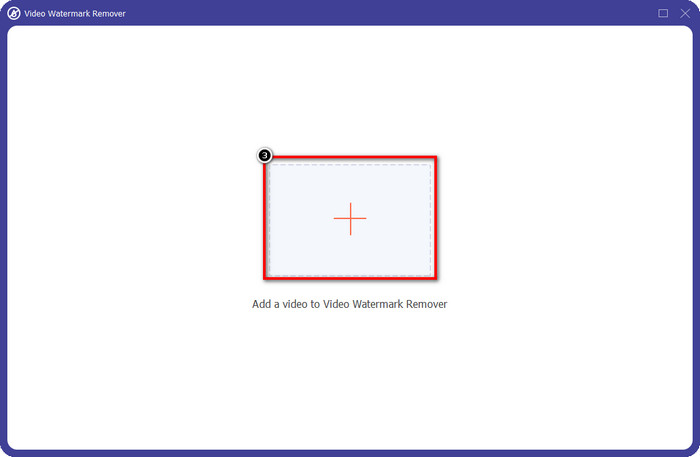
चरण 3. Animaker पर बनाई गई अपनी ऐनिमेटेड वीडियो अपलोड करने के लिए + आइकन पर क्लिक करें। अपने लोकल ड्राइव से फ़ाइल चुनें, उस पर क्लिक करें, और फिर Open दबाएँ।.
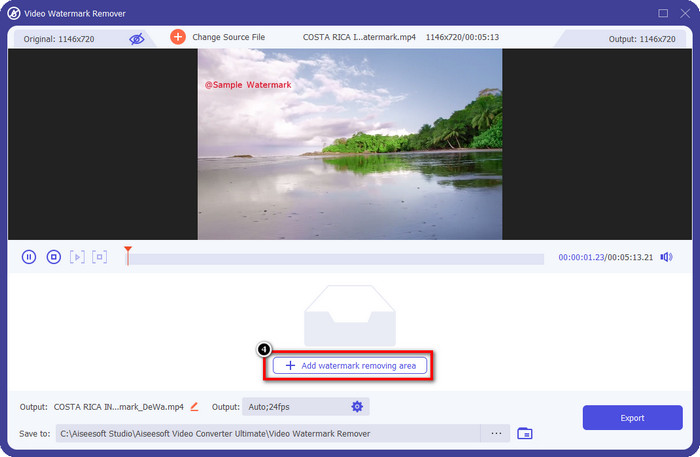
चरण 4. वॉटरमार्क रिमूवर का उपयोग जारी रखने के लिए Add Watermark Removing Area पर क्लिक करें।.
चरण 5. वॉटरमार्क हटाने का असर लाने के लिए चयन बॉक्स को उस हिस्से पर रखें जहाँ वॉटरमार्क मौजूद है।.
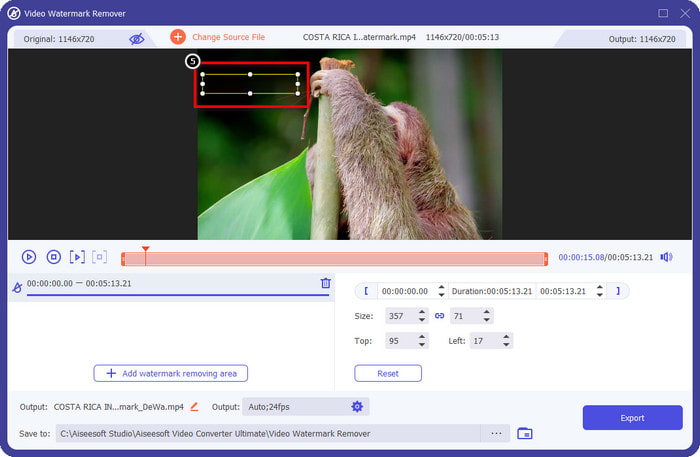
चरण 6. वीडियो को Animaker वॉटरमार्क के बिना डाउनलोड करने के लिए Export दबाएँ। आसान है न? इसके सहज इंटरफ़ेस की वजह से वॉटरमार्क हटाने के लिए इसे चुनना सबसे अच्छा विकल्प बन जाता है।.
123 APPS के ज़रिए वीडियो से लोगो हटाएं [ऑनलाइन]
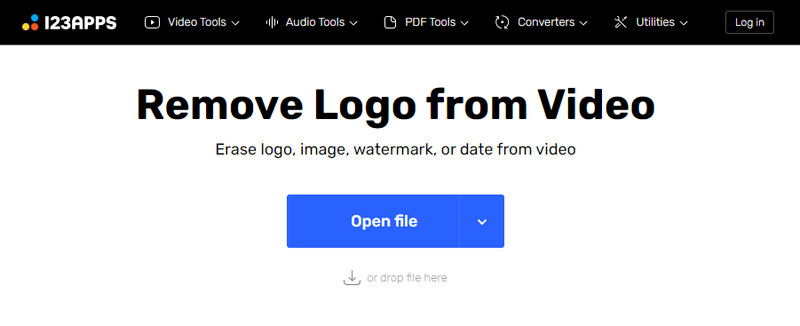
123 APPS के ज़रिए वीडियो से लोगो हटाएँ आपको अपने वीडियो के वॉटरमार्क को इसकी हटाने वाली सुविधाओं के ज़रिए प्रभावी रूप से संभालने देता है। जिस तरह के वॉटरमार्क रिमूवर आप डाउनलोड करते हैं, उसके विपरीत, इस वॉटरमार्क रिमूवर को अपने डिवाइस पर इस्तेमाल करने के लिए आपको कोई इंस्टॉलर की ज़रूरत नहीं होती क्योंकि यह वेब पर उपलब्ध है। साथ ही, इसका उपयोग सुरक्षित है; इसलिए यह एक भरोसेमंद वॉटरमार्क रिमूवर बन गया है जो वीडियो पर लगे वॉटरमार्क से निपट सकता है। क्या आप इस ऑनलाइन वॉटरमार्क रिमूवर का इस्तेमाल करके Animaker वॉटरमार्क रहित वीडियो पाना चाहते हैं? नीचे दिए गए चरण आपको यह करना सिखाएँगे।.
चरण 1. ऑनलाइन वॉटरमार्क रिमूवर खोलने के लिए अपना वेब ब्राउज़र खोलें।.
चरण 2. आधिकारिक वेबसाइट पर Open File पर क्लिक करें, ताकि आप वह वीडियो अपलोड कर सकें जिसका आप उपयोग करना चाहते हैं और जिससे आप वॉटरमार्क हटाना चाहते हैं।.
चरण 3. उस क्षेत्र का चयन करें जहाँ आपके वीडियो पर वॉटरमार्क है।.
चरण 4. वॉटरमार्क रहित ऐनिमेटेड वीडियो डाउनलोड करने के लिए Save बटन पर क्लिक करें।.
गिलिसॉफ्ट वीडियो वॉटरमार्क रिमूवल टूल [विंडोज]
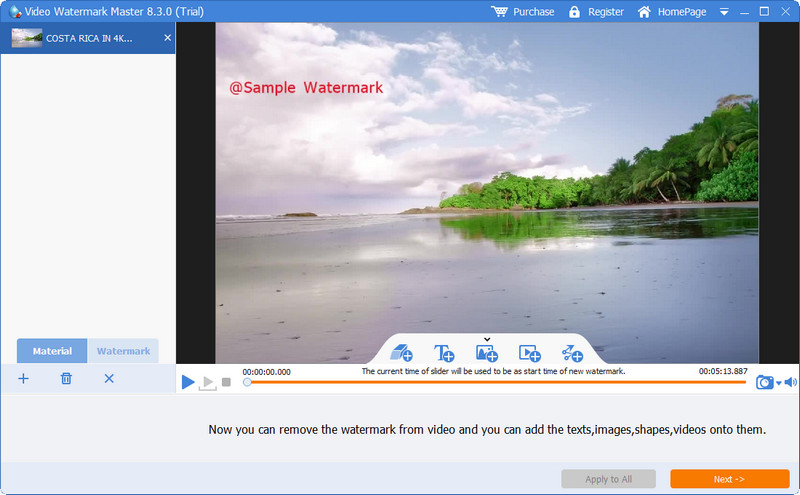
Gilisoft Video Watermark Removal Tool एक Windows वॉटरमार्क रिमूवर है, जिसे आप Animaker पर बनाई गई अपनी ऐनिमेटेड फिल्म से वॉटरमार्क हटाने के लिए इस्तेमाल कर सकते हैं। यह एक टूल है जिसे आपको अपने Windows सिस्टम पर डाउनलोड करना होगा ताकि आप अपने लोकल ड्राइव पर सेव वीडियो से वॉटरमार्क हटा सकें। Mac उपयोगकर्ताओं के लिए, यह सॉफ्टवेयर आपके ऑपरेटिंग सिस्टम पर उपलब्ध नहीं है। इसकी मदद से आप ज़रूरत पड़ने पर इमेज, टेक्स्ट और शेप के रूप में नया वॉटरमार्क भी जोड़ सकते हैं। आगे पढ़ते रहें ताकि आप जान सकें कि Windows पर Animaker की वीडियो से वॉटरमार्क कैसे हटाया जाए।.
चरण 1. Windows पर वॉटरमार्क रिमूवल टूल डाउनलोड करें, सेट‑अप प्रक्रिया का पालन करें, फिर Launch Video Watermark Master पर क्लिक करें।.
चरण 2. Animaker पर मुफ्त में, वॉटरमार्क सहित एडिट की गई ऐनिमेटेड वीडियो इम्पोर्ट करने के लिए Add File/s दबाएँ।.
चरण 3. वॉटरमार्क हटाने वाला क्षेत्र जोड़ने के लिए eraser आइकन पर क्लिक करें और उसे उस हिस्से पर लागू करें जहाँ वॉटरमार्क है।.
चरण 4. यदि आप वीडियो पर हटाने वाला क्षेत्र लगाना पूरा कर चुके हैं, तो Next पर क्लिक करें; उसके बाद आपकी स्क्रीन पर एक छोटी विंडो दिखाई देगी। यहाँ आप फ़ॉर्मेट समायोजित कर सकते हैं, चाहें तो आउटपुट फ़ोल्डर बदल सकते हैं, और फिर प्रक्रिया शुरू करने के लिए Start पर क्लिक करें।.
अधिक पढ़ें:
अपनी इमेज से B612 वॉटरमार्क कैसे हटाएँ
WOW Slider वॉटरमार्क मुफ़्त में कैसे हटाएँ
भाग 2. एनिमेकर वॉटरमार्क कैसे निकालें पर अक्सर पूछे जाने वाले प्रश्न
मैं एनिमेकर पर अन्य टेम्प्लेट का उपयोग क्यों नहीं कर सकता?
ऐसा इसलिए है क्योंकि मुफ्त संस्करण में एनिमेकर पर उपलब्ध टेम्प्लेट तक सीमित पहुंच है। प्रीमियम टेम्प्लेट अपंजीकृत एनिमेकर के लिए उपलब्ध नहीं हैं; यदि आप प्रो संस्करण तक पहुंच चाहते हैं, तो आपको इस उपकरण द्वारा प्रदान की जाने वाली मूल्य निर्धारण योजनाओं को देखना होगा।
मैं एनिमेकर के मुफ्त संस्करण पर कितनी बार टेम्पलेट डाउनलोड कर सकता हूं?
एनिमेकर का मुफ्त संस्करण उपयोगकर्ताओं को प्रत्येक पर वॉटरमार्क के साथ पांच बार एनिमेटेड वीडियो बनाने और डाउनलोड करने की अनुमति देता है। मान लीजिए आप इस प्लेटफॉर्म के साथ और अधिक एनिमेटेड वीडियो बनाना चाहते हैं। उस स्थिति में, आपको मूल, स्टार्टर, प्रो या एंटरप्राइज़ संस्करण खरीदना होगा।
मैं एनिमेकर पर 6 मिनट का एनिमेटेड वीडियो क्यों नहीं बना सकता?
मान लीजिए कि आप एनिमेकर के मुफ्त संस्करण का उपयोग कर रहे हैं। उस स्थिति में, आपको 6 मिनट लंबे वीडियो को अपलोड करने या बनाने में परेशानी होगी। आप इस टूल में किसी योजना का लाभ उठाकर या लंबाई की सीमाओं के बिना वीडियो बनाने के लिए FVC वीडियो कन्वर्टर अल्टीमेट का उपयोग करके इस समस्या को हल कर सकते हैं।
निष्कर्ष
तो आप किस टूल का उपयोग करना पसंद करते हैं? अब आप यहां उन टूल का चयन कर सकते हैं जो आपने प्रत्येक पर विवरण पढ़ लिए हैं, और हमने आपको सिखाया है कि प्रत्येक पर एनिमेकर वॉटरमार्क कैसे हटाया जाए। क्या चुनना है इसके साथ परेशानी है? यदि हां, तो FVC वीडियो कन्वर्टर अल्टीमेट चुनना सबसे सुरक्षित सॉफ्टवेयर है जिसका आप उपयोग कर सकते हैं। क्योंकि यह विभिन्न समस्याओं में प्रभावी ढंग से काम करता है, एक बार जब आप इस उपकरण का लाभ उठा लेते हैं, तो आप; आपके वीडियो पर मौजूद किसी भी वॉटरमार्क के बारे में अब और चिंता करने की आवश्यकता है। यदि आप विंडोज और मैक पर अंतिम सॉफ्टवेयर चुनते हैं तो समाधान आपके हाथ में है।
-
 वीडियो पर वाइवा वीडियो वॉटरमार्क हटाने के 3 तरीके [जल्दी से तेज़ तरीका]
 वीडियो पर वाइवा वीडियो वॉटरमार्क हटाने के लिए आपको एक समर्पित वॉटरमार्क रिमूवर की आवश्यकता होगी। इसके बारे में और जानने के लिए इस लेख को पढ़ें!
-
 Renderforest निर्यात किए गए वीडियो से वॉटरमार्क हटाने के लिए अंतिम उपकरण
 रेंडरफॉरेस्ट से वॉटरमार्क हटाने के लिए आपको अपने डिवाइस पर वॉटरमार्क रिमूवर की आवश्यकता होगी, आपके द्वारा उपयोग किए जा सकने वाले सभी उपकरण यहां हैं।
-
 प्रभावी प्लेस इट वॉटरमार्क रिमूवर की पूरी समीक्षा [2022]
 प्लेस इट वॉटरमार्क रिमूवर जिसकी हम यहां समीक्षा करते हैं, वे प्रभावी उपकरण हैं जिनका उपयोग आप उस वीडियो पर वॉटरमार्क को हटाने के लिए कर सकते हैं जिसे आप प्लेस इट पर निर्यात करते हैं।
