


 वीडियो कनवर्टर अंतिम
 स्क्रीन अभिलेखी
 वीडियो मरम्मत
 सुरक्षित डाउनलोड
वीडियो पर वॉटरमार्क का उपयोग करने और हटाने के लिए 3 शटरस्टॉक वॉटरमार्क रिमूवर
क्या आप अपने प्रोजेक्ट के लिए उच्च‑गुणवत्ता वाले, लाइसेंस प्राप्त Shutterstock वीडियो चाहते हैं, लेकिन उन पर Shutterstock का वॉटरमार्क है? Shutterstock वॉटरमार्क रिमूवर की मदद से आप डाउनलोड किए गए वीडियो पर लगा वॉटरमार्क आसानी से हटा सकते हैं। पेशेवर और व्यक्तिगत दोनों ही स्तर पर हमें अपने वीडियो पर वॉटरमार्क पसंद नहीं होता, क्योंकि यह पूरे वीडियो की अवधारणा खराब कर देता है। तो, यदि आप Shutterstock वॉटरमार्क से छुटकारा पाना चाहते हैं, तो इस लेख में दी गई जानकारी और संक्षिप्त ट्यूटोरियल को आगे पढ़ते रहें।.

भाग 1. बाजार में अल्टीमेट वॉटरमार्क रिमूवर के साथ शटरस्टॉक वॉटरमार्क कैसे निकालें [संपादक की पसंद]
FVC Video Converter Ultimate आपको आपके सेव किए गए वीडियो से Shutterstock वॉटरमार्क हटाने में सटीक रूप से मदद और मार्गदर्शन दे सकता है। यह एक ऑल‑इन‑वन समाधान है, जिसे आप Windows और Mac पर डाउनलोड कर सकते हैं, ताकि अपने वीडियो को एडजस्ट कर सकें, जैसे कि वॉटरमार्क हटाना। भले ही यह एक ऑल‑राउंडर सॉफ़्टवेयर है, फिर भी इसके डेवलपर ने इस प्रोग्राम को उपयोगकर्ता‑अनुकूल और सरल बनाए रखा है ताकि कोई भी व्यक्ति, जिसके पास बहुत अधिक तकनीकी ज्ञान न हो, इसे आसानी से इस्तेमाल कर सके।.
एक बार जब आप इस संपादक का उपयोग करते हैं, तो निम्न-स्तरीय कौशल के साथ भी, आप अंत में एक शीर्ष आउटपुट प्राप्त कर सकते हैं। अभी भी हमारे द्वारा जोड़ी गई जानकारी से आश्वस्त नहीं हैं? इसे साबित करने के लिए, हम आपको इस वीडियो एडिटर से मुफ्त में शटरस्टॉक वॉटरमार्क हटाना सिखाएंगे।
चरण 1. आपने जो वीडियो डाउनलोड किया है, उस पर से वॉटरमार्क हटाने के लिए, सबसे पहले आपको इस एडिटर को डाउनलोड करना होगा। इसके लिए अपने ऑपरेटिंग सिस्टम के लिए उपयुक्त डाउनलोड बटन पर क्लिक करें। एक छोटा‑सा इंस्टॉलेशन प्रोसेस होगा, जिसे आपको पूरा करना होगा; उसके बाद आप सॉफ़्टवेयर का उपयोग शुरू कर सकते हैं।.
फ्री डाउनलोडWindows 7 या बाद के संस्करण के लिएसुरक्षित डाउनलोड
फ्री डाउनलोडMacOS 10.7 या बाद के संस्करण के लिएसुरक्षित डाउनलोड
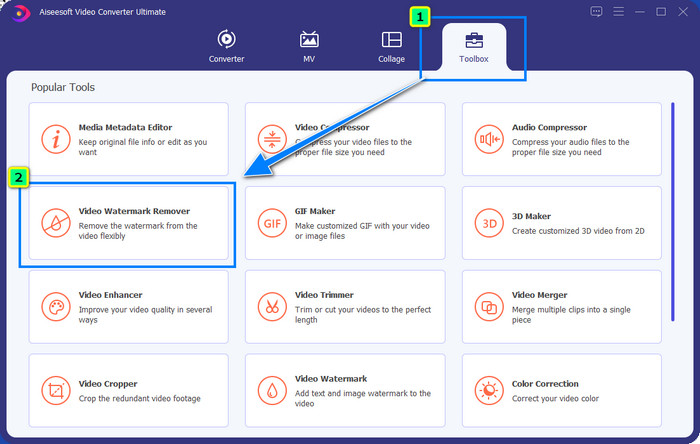
चरण 2. अगला कदम है Video Watermark Remover का उपयोग करना; आप यह फीचर Toolbox के अंदर पा सकते हैं। जैसा कि आप देख सकते हैं, आप अपनी पसंद के अनुसार इमेजरी पाने के लिए कई एडिटिंग फीचर्स और फ़ंक्शंस का उपयोग कर सकते हैं।.
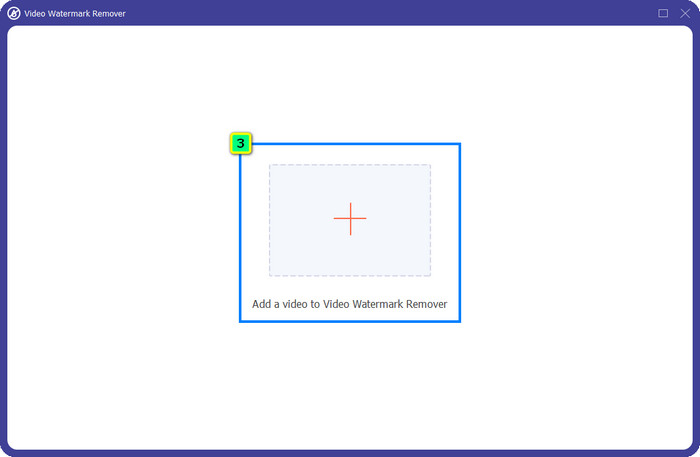
चरण 3. प्लस आइकन पर क्लिक करें, और आपकी स्क्रीन पर एक फ़ाइल मैनेजर दिखाई देगा। वॉटरमार्क वाला वीडियो फ़ाइल चुनें, फिर उसे अपलोड करने के लिए Open पर क्लिक करें।.
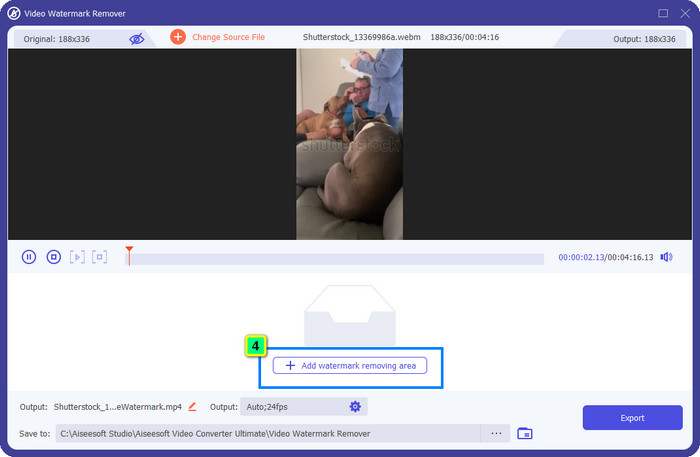
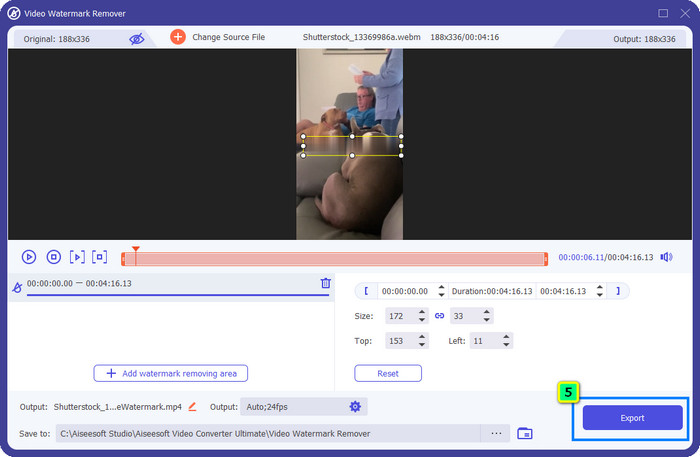
चरण 4. आपने जो वीडियो अपलोड किया है, उस पर से वॉटरमार्क मिटाने के लिए Add Watermark Removing Area दबाएँ, और एक नई विंडो खुलेगी।.
चरण 5. इस भाग में आपके वीडियो पर एक चौकोर बॉक्स दिखाई देगा; उसे वॉटरमार्क पर रखें। आप इसे रीसाइज़, ड्रैग, छोटा या बड़ा कर सकते हैं, ताकि यह उस वॉटरमार्क पर ठीक‑ठीक फिट हो जाए, जिसे आप हटाना चाहते हैं।.
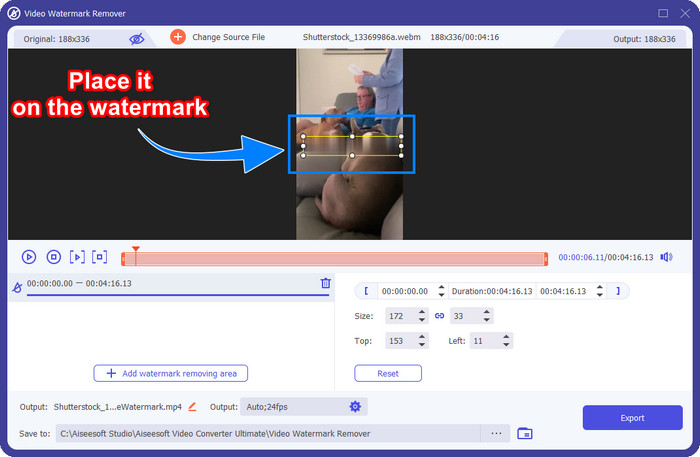
चरण 6. अंत में, Export बटन पर क्लिक करें, ताकि आपके डिवाइस पर Shutterstock वीडियो का अंतिम आउटपुट डाउनलोड हो सके। अब आप इसे बिना वॉटरमार्क की चिंता किए एंजॉय कर सकते हैं, क्योंकि इसे हटा दिया गया है।.
भाग 2. ऑनलाइन शटरस्टॉक वॉटरमार्क कैसे हटाएं
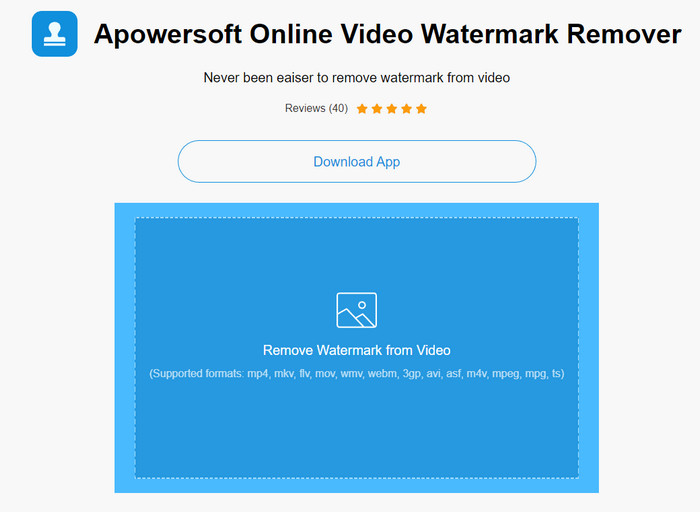
क्या आपको अपने डेस्कटॉप पर वॉटरमार्क रिमूवर डाउनलोड करने का विचार पसंद नहीं? अगर ऐसा है, तो आप Apowersoft Online Watermark Remover का उपयोग कर सकते हैं, और हम आपको बताएँगे कि Shutterstock वॉटरमार्क को ऑनलाइन कैसे हटाएँ। यह उन सभी के लिए एक बेहतरीन विकल्प है, जिन्हें अपने वीडियो या इमेज से वॉटरमार्क हटाने की ज़रूरत है। हम इसे इसलिए शामिल कर रहे हैं क्योंकि यह सॉफ़्टवेयर आसानी से उपलब्ध है और आपके पास मौजूद विभिन्न ऑपरेटिंग सिस्टम के साथ कम्पैटिबल भी है।.
ऑफ़लाइन उपकरणों के विपरीत, आपको उनका उपयोग करने के लिए एक स्थिर और मजबूत इंटरनेट कनेक्शन की आवश्यकता होगी। जैसा कि हम वादा करते हैं, शटरस्टॉक द्वारा छोड़े गए वॉटरमार्क को हटाने के लिए इस वॉटरमार्क रिमूवर का उपयोग करने का ट्यूटोरियल नीचे दिया गया है।
चरण 1. अपने पसंदीदा सर्च इंजन का उपयोग करते हुए Apowersoft Online Watermark Remover की आधिकारिक वेबसाइट खोलें, फिर वीडियो फ़ाइल अपलोड करने के लिए दाएँ तरफ दिए गए + बटन पर क्लिक करें।.
चरण 2. वीडियो पर मौजूद Shutterstock वॉटरमार्क पर selection box रखें।.
चरण 3. इसके बाद, वॉटरमार्क हटाने और परिणाम देखने के लिए Erase पर क्लिक करें।.
चरण 4. Shutterstock वीडियो को बिना वॉटरमार्क के पाने के लिए Download File पर क्लिक करें।.
भाग 3. फोटोशॉप [भुगतान] का उपयोग करके शटरस्टॉक वॉटरमार्क कैसे निकालें
कई उपयोगकर्ता पूछते हैं कि Photoshop का उपयोग करके Shutterstock वॉटरमार्क कैसे हटाएँ, और हम इसमें आपकी मदद करेंगे! Adobe Photoshop एक प्रोफेशनल वॉटरमार्क‑रिमूविंग फीचर सपोर्ट करता है, जिसका आप ज़रूर उपयोग करना पसंद करेंगे। इस लेख में बताए गए सॉफ़्टवेयर की तरह यह भी काम तो कर देता है; हालांकि, इसकी पद्धति फ्रेम‑बाय‑फ्रेम वॉटरमार्क हटाने की है। इसका मतलब है कि आपको वीडियो के हर फ्रेम से वॉटरमार्क हटाने में समय लगाना पड़ेगा; वीडियो जितना लंबा होगा, फ्रेम उतने ज़्यादा होंगे। यदि आप जानना चाहते हैं कि यह टूल कैसे काम करता है, तो नीचे दिए गए जानकारीपूर्ण चरणों को पढ़ें।.
चरण 1. एप्लिकेशन को अपने डेस्कटॉप पर डाउनलोड करें, फिर File पर क्लिक करें। इसके अंदर, अपने कंप्यूटर पर सेव किया गया वीडियो अपलोड करने के लिए Open दबाएँ।.
चरण 2. बाईं ओर से Magic Wand Tool चुनें, फिर उस वॉटरमार्क पर क्लिक करें जिसे आप हटाना चाहते हैं। यह फीचर फ्रेम पर मौजूद वॉटरमार्क को अपने‑आप ट्रेस कर लेगा।.
चरण 3. Edit पर जाएँ और वॉटरमार्क ट्रेस करने के बाद Content-Aware Fill दबाएँ।.
चरण 4. Content-Aware Fill खोलने के बाद यह आपके द्वारा पहले चुने गए वॉटरमार्क को अपने‑आप हटाएगा, फिर OK दबाएँ।.
अधिक पढ़ें:
Shootproof वॉटरमार्क हटाने के आसान तरीके
Bandicam वॉटरमार्क को आसानी से कैसे हटाएँ [3 प्रभावी तरीके]
भाग 4. शटरस्टॉक वॉटरमार्क को हटाने के बारे में अक्सर पूछे जाने वाले प्रश्न
फोटोशॉप के बिना शटरस्टॉक वॉटरमार्क कैसे हटाएं?
आप अपने वीडियो से जुड़ी शटरफोटो को हटाने के लिए FVC वीडियो कन्वर्टर अल्टीमेट का उपयोग कर सकते हैं। इसमें एक शक्तिशाली वॉटरमार्क इरेज़र है जिसे आप आज़माना पसंद करेंगे। इसे फोटोशॉप की तरह प्रभावी ढंग से करने के लिए इस लेख में हमारे द्वारा जोड़े गए चरणों का पालन करें।
क्या शटरस्टॉक वॉटरमार्क को क्रॉप करना वीडियो पर काम करेगा?
यदि आप आयाम बदलकर वीडियो का आकार बदलना चाहते हैं, तो आप ऑनलाइन और ऑफलाइन कई वीडियो संपादकों की मदद से वीडियो को क्रॉप कर सकते हैं। चूंकि शटरस्टॉक का वॉटरमार्क बीच में है, इसलिए बेहतर है कि क्रॉपिंग सुविधाओं का उपयोग न करें। मदद के लिए यहां कई वॉटरमार्क रिमूवर हैं; आप हमारे द्वारा जोड़े गए ट्यूटोरियल को पढ़ और कॉपी कर सकते हैं ताकि आप उस पर धब्बा छोड़े बिना प्रभावी ढंग से मिटा सकें।
क्या शटरस्टॉक वॉटरमार्क को हटाना कानूनी है?
शटरस्टॉक का वॉटरमार्क हटाना कानूनी नहीं है, लेकिन अगर आप इसे गैर-व्यावसायिक के लिए उपयोग करना चाहते हैं, तो आप वॉटरमार्क रिमूवर की मदद से कर सकते हैं। यदि आप इसे व्यावसायिक उद्देश्यों के लिए उपयोग करने जा रहे हैं तो शटरस्टॉक पर अपनी मनचाही तस्वीर खरीदना बेहतर है; हालांकि यह आपको महंगा पड़ेगा, यह कम से कम आपको इसका उपयोग करने के कानूनी अधिकार देगा।
निष्कर्ष
अब आप जान गए हैं कि इस लेख में शामिल सॉफ़्टवेयर की मदद से Shutterstock वॉटरमार्क कैसे हटाएँ। तो, आप कौन‑सा सॉफ़्टवेयर चुनेंगे – पेड, फ्री ऑनलाइन या अल्टीमेट सॉफ़्टवेयर? आपका जो भी चुनाव हो, आप Shutterstock फोटो को बिना प्रोडक्ट लोगो के प्राप्त कर सकते हैं। लेकिन अगर आप हमसे पूछें कि हमें क्या इस्तेमाल करना चाहिए, तो बिना किसी संदेह के हम FVC Video Converter Ultimate को चुनेंगे, क्योंकि यह काम को सबसे अधिक संतोषजनक तरीके से पूरा करता है। अल्टीमेट वॉटरमार्क रिमूवर होने के बावजूद, इसे इस्तेमाल करना अब भी आसान है। तो, यदि आप इस सॉफ़्टवेयर को आज़माना चाहते हैं, तो इसे अपने डेस्कटॉप पर पाने के लिए डाउनलोड बटन पर क्लिक करें।.
-
 Renderforest निर्यात किए गए वीडियो से वॉटरमार्क हटाने के लिए अंतिम उपकरण
 रेंडरफॉरेस्ट से वॉटरमार्क हटाने के लिए आपको अपने डिवाइस पर वॉटरमार्क रिमूवर की आवश्यकता होगी, आपके द्वारा उपयोग किए जा सकने वाले सभी उपकरण यहां हैं।
-
 WOW स्लाइडर वॉटरमार्क को हटाने के आसान चरण [हल]
 WOW स्लाइडर एक शानदार स्लाइड शो बनाने के लिए एक ऐप है। हालाँकि, यह अपने आउटपुट पर वॉटरमार्क एम्बेड करता है। WOW स्लाइडर वॉटरमार्क को निकालने का तरीका जानने के लिए नीचे पढ़ें।
-
 कैसे मुफ्त में पावर डायरेक्टर वॉटरमार्क से छुटकारा पाएं [पूर्ण]
 पावर डायरेक्टर वॉटरमार्क से मुफ्त में कैसे छुटकारा पाएं? वॉटरमार्क को खत्म करने के लिए सबसे अच्छा उपकरण यहाँ हैं इसलिए इसे पढ़कर सीखें।
