


 वीडियो कनवर्टर अंतिम
 स्क्रीन अभिलेखी
 वीडियो मरम्मत
 सुरक्षित डाउनलोड
मूल ग्राफ़ से वॉटरमार्क को प्रभावी रूप से ग्राफ़ पर कैसे निकालें
आपको जटिल गणितीय या वैज्ञानिक डेटा के लिए, जिसे शब्दों में पूरी तरह व्यक्त करना मुश्किल हो, टेम्पलेट बनाने के लिए Origin Graph का उपयोग करना पड़ सकता है। यह सॉफ्टवेयर पहले से ही छात्रों, शोधकर्ताओं, प्रोफेसरों, व्यावसायिक लोगों और उन अन्य उपयोगकर्ताओं की मदद कर चुका है जिन्हें अपना खुद का ग्राफ बनाना होता है। इसके भीतर मौजूद टेम्पलेट्स के सेट में से आप चुन सकते हैं और ऐसा आकर्षक ग्राफ बना सकते हैं जो दर्शकों का ध्यान खींच ले। यदि आप इसका मुफ़्त संस्करण इस्तेमाल करते हैं, तो आपको जो समस्या आ सकती है वह यह है कि यह अंतिम आउटपुट पर टेक्स्ट वॉटरमार्क जोड़ देता है। क्या आपको इस वॉटरमार्क से निपटने में परेशानी हो रही है? अब चिंता छोड़िए! क्योंकि हम आपके लिए समाधान लेकर आए हैं। यहाँ हम Origin Graph से वॉटरमार्क हटाने के उपयोगी तरीके बताएँगे, ताकि आप उस ग्राफ को Word या PowerPoint प्रेज़ेंटेशन में बेझिझक इस्तेमाल कर सकें।.

भाग 1। ऑनलाइन इमेज वॉटरमार्क रिमूवर के साथ मूल ग्राफ़ से वॉटरमार्क कैसे निकालें
FVC Free Watermark Remover Online एक बेहतरीन टेक्स्ट वॉटरमार्क रिमूवर है, जिसकी मदद से आप Origin Graph का वॉटरमार्क हटा सकते हैं। यह टूल आपकी छवियों (इमेजेज़) से किसी भी ऑब्जेक्ट को हटाने के लिए बेहद प्रभावी है, ताकि वॉटरमार्क हटाने के बाद वे और अधिक प्रोफेशनल दिखें। हम यह भरोसा दिला सकते हैं कि यह एक समर्पित वॉटरमार्क रिमूवर है जिस पर आप इस तरह की समस्या आने पर निर्भर कर सकते हैं। क्या आप सोच रहे हैं कि इस टूल का इस्तेमाल करना आसान है या नहीं? अब चिंता छोड़िए! क्योंकि नीचे दिए गए चरणों का पालन करके आप Origin Graph द्वारा जोड़े गए इमेज के टेक्स्ट वॉटरमार्क से छुटकारा पा सकते हैं।.
चरण 1. ऑनलाइन इमेज वॉटरमार्क रिमूवर खोलने के लिए आप इस लिंक पर क्लिक कर सकते हैं; यह सीधे एक नए टैब में खुलेगा जहाँ आप इस टूल तक पहुँच सकते हैं।.
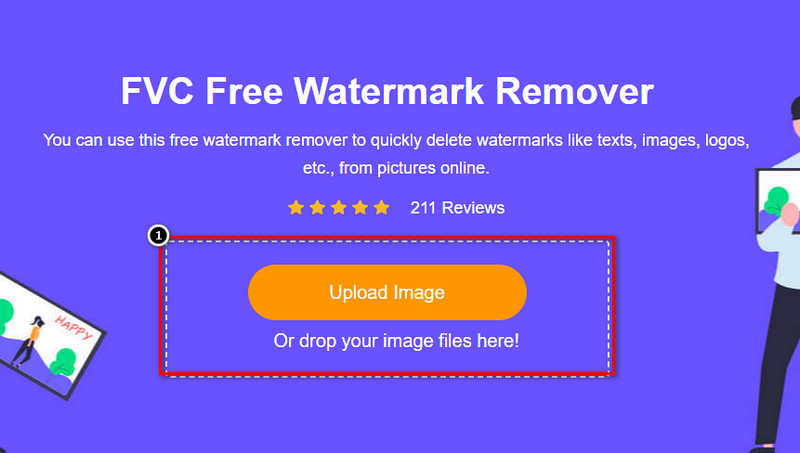
चरण 2. यहाँ वॉटरमार्क वाली फोटो जोड़ने के लिए Upload Image दबाएँ, फ़ोल्डर में उस फोटो फ़ाइल को ढूँढें और Open पर क्लिक करें, ताकि वह सफलतापूर्वक अपलोड हो जाए।.
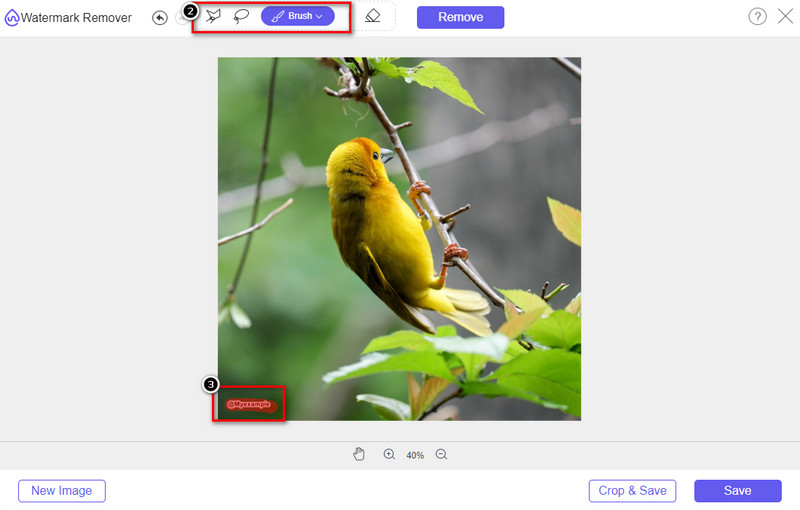
चरण 3. वॉटरमार्क को हाईलाइट करने के लिए आप तीन टूल्स में से किसी का भी उपयोग कर सकते हैं; हालाँकि इनका काम करने का तरीका अलग है, लेकिन प्रभावशीलता समान है। एक टूल चुनें, फिर इमेज के उस हिस्से को हाईलाइट करें जहाँ वॉटरमार्क मौजूद है।.
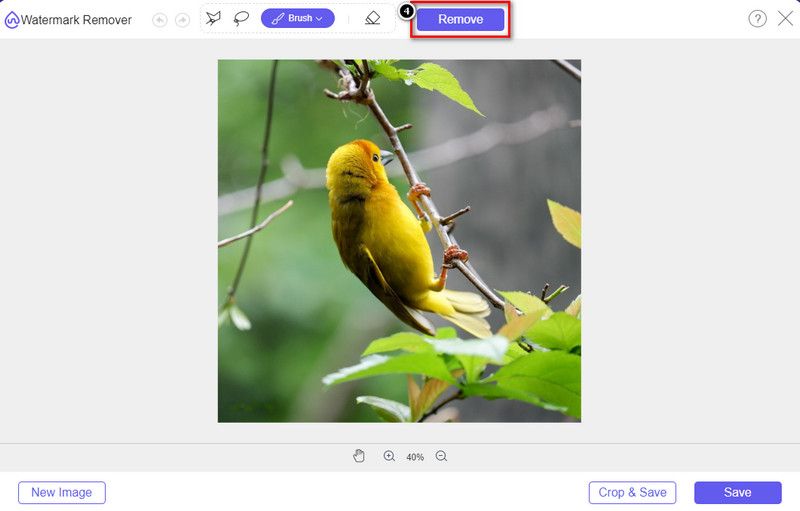
चरण 4. वॉटरमार्क को टूल से हाईलाइट करने के बाद ज़रूर Remove आइकन पर क्लिक करें। यह चरण बहुत ज़रूरी है ताकि जब आप इमेज को एक्सपोर्ट करें, तो वह बिना वॉटरमार्क के हो।.
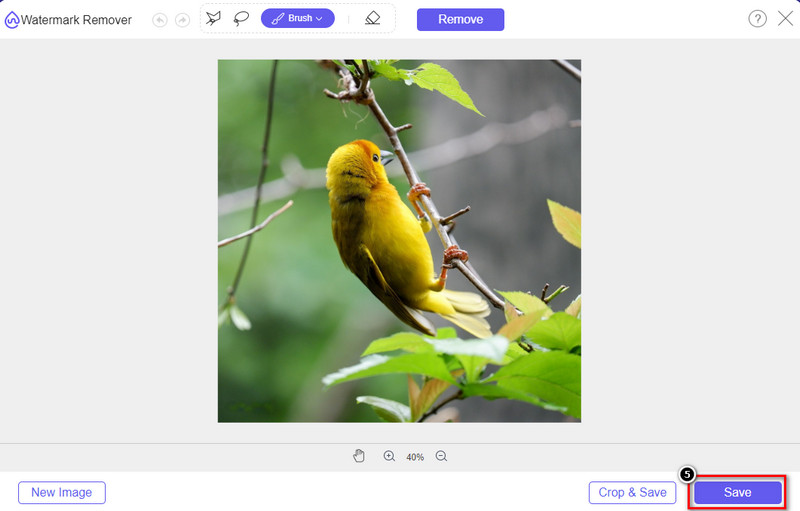
चरण 5. एक्सपोर्ट प्रक्रिया शुरू करने के लिए अब आप Save बटन पर क्लिक कर सकते हैं। प्रक्रिया पूरी होने तक इंतज़ार करें, फिर आप इमेज को देख सकते हैं जिसमें Origin Graph का वॉटरमार्क उस हिस्से से गायब होगा।.
पेशेवरों
- एक मुफ़्त वेब-आधारित इमेज वॉटरमार्क रिमूवर जिस पर आप पहुँच सकते हैं।
- यह एआई-टेक्नोलॉजी सपोर्ट के साथ वॉटरमार्क हटाने पर कुशलता से काम करता है।
- यह आपके स्थानीय ड्राइव पर मौजूद विभिन्न प्रकार के छवि प्रारूपों का समर्थन करता है।
- निर्यात की गई छवियों पर कोई वॉटरमार्क नहीं जोड़ा जाता है।
विपक्ष
- काम करने के लिए इंटरनेट कनेक्टिविटी की जरूरत है।
- इसका फोकस वॉटरमार्क हटाने पर है और कुछ नहीं।
भाग 2। वॉटरमार्क के बिना मूल से वर्ड या पावरपॉइंट में ग्राफ़ कैसे कॉपी करें
लेख के इस भाग में, हम आपको वह प्रक्रिया देंगे जो आपको वॉटरमार्क के बिना ओरिजिनल ग्राफ़ पर आपके द्वारा बनाए गए ग्राफ़ को जोड़ने के लिए जानने की आवश्यकता होगी। Microsoft Word और PowerPoint पर बिना वॉटरमार्क के आपके द्वारा बनाए गए ग्राफ़ को सफलतापूर्वक जोड़ने के लिए इसका पालन करें।
इसके विशाल फ़ाइल आकार के कारण आपको कम से कम 1.9GB खाली करने की आवश्यकता होगी। 1.9GB फ़ाइल में, आप अपनी आवश्यकता के अनुसार सहायता प्राप्त कर सकते हैं, लेकिन यदि आप सहायता नहीं चाहते हैं, तो आप .zip या .exe के माध्यम से इसका 652 MB संस्करण डाउनलोड कर सकते हैं।
वॉटरमार्क के बिना मूल ग्राफ़ पर ग्राफ़ बनाने के चरण:
चरण 1. सबसे पहले, Origin Graph को उसकी आधिकारिक वेबसाइट पर जाकर अपने ऑपरेटिंग सिस्टम पर डाउनलोड करें। फिर यह टूल खोलें और वह ग्राफ बनाना शुरू करें जो आप बनाना चाहते हैं।.
चरण 2. सॉफ़्टवेयर लॉन्च करने के बाद, ज़रूरत के अनुसार टेबल के मान (values) जोड़ें। यहाँ आप और भी वेरिएबल्स जोड़ सकते हैं और उतनी ही संख्या में ग्राफ़ बना सकते हैं।.
अतिरिक्त: आप Plot पर क्लिक करके अन्य ग्राफ़ देख सकते हैं जिनका आप उपयोग कर सकते हैं, जैसे Basic 2D, Bar, Statistical आदि।.
चरण 3. File पर क्लिक करें, फिर Save दबाकर आपने जो ग्राफ बनाया है उसे एक्सपोर्ट करें।.
चरण 4. आप भाग 1 में दिए गए चरणों का पालन कर सकते हैं और FVC Free Watermark Remover Online की मदद से Origin Graph से वॉटरमार्क हटाने का ट्यूटोरियल देख सकते हैं।.
वॉटरमार्क के बिना वर्ड पर ग्राफ़ का उपयोग कैसे करें:
चरण 1. अपने डेस्कटॉप पर Word ऐप खोलें, फिर Blank Page पर क्लिक करें। यदि आपने पहले से Word डॉक्यूमेंट बनाया है, तो उस फ़ाइल को खोल लें।.
चरण 2. Insert सेक्शन में जाएँ, फिर Pictures पर क्लिक करें। अपने लोकल ड्राइव में ग्राफ फ़ाइल को खोजें, उस पर एक बार क्लिक करें और फिर Open दबाकर उसे Word में अपलोड करें।.
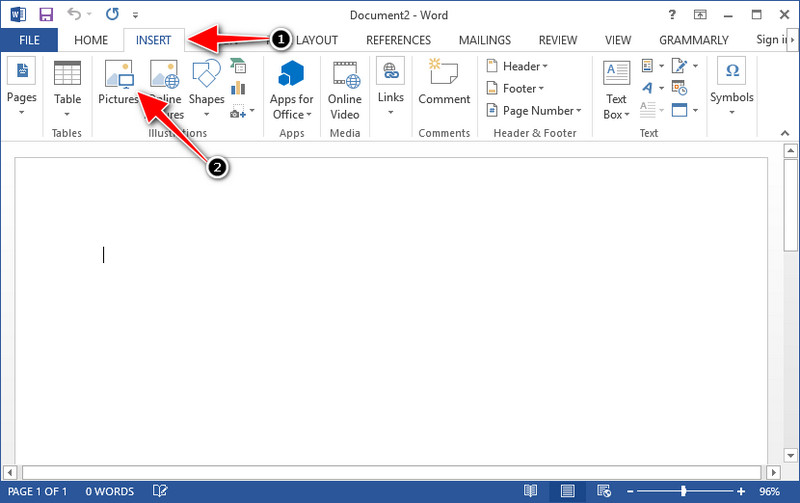
चरण 3. यह अपने‑आप उस Word डॉक्यूमेंट में लोड हो जाएगा जिसे आपने खोला या बनाया है; अब आप Word के भीतर इमेज को पकड़कर (ड्रैग करके) अपनी पसंद की जगह पर रख सकते हैं।.
वॉटरमार्क के बिना पावरपॉइंट पर ग्राफ़ का उपयोग कैसे करें:
चरण 1. अपने कंप्यूटर पर PowerPoint लॉन्च करें और Blank Presentation पर क्लिक करें। आप बाईं तरफ़ अपने हाल के प्रेज़ेंटेशन भी देख सकते हैं। यदि कोई ऐसी फ़ाइल है जिसमें आपको ग्राफ जोड़ना है, तो उसे खोलने के लिए उस पर क्लिक करें।.
चरण 2. Insert दबाएँ और फिर Picture पर क्लिक करें ताकि आप Origin Graph में बनाया गया इमेज ग्राफ स्लाइड में जोड़ सकें।.
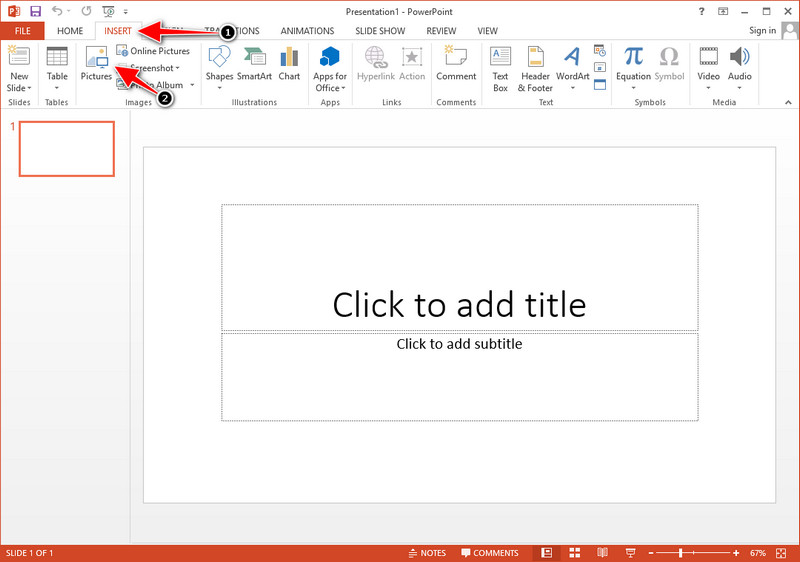
चरण 3. ग्राफ इमेज को समायोजित (एडजस्ट) करें और स्लाइड पर मनचाही जगह पर रखें।.
अधिक पढ़ें:
अपनी इमेज से B612 वॉटरमार्क कैसे हटाएँ
WOW Slider वॉटरमार्क मुफ़्त में कैसे हटाएँ
भाग 3. मूल ग्राफ़ से वॉटरमार्क निकालने के तरीके पर अक्सर पूछे जाने वाले प्रश्न
उत्पत्ति प्रो कितना है?
व्यक्तिगत उपयोगकर्ताओं के लिए, आप $435 के लिए मूल ग्राफ़ का प्रीमियम संस्करण प्राप्त कर सकते हैं। आप ओरिजिन लैब पर इसके आधिकारिक स्टोर पर जा सकते हैं।
मैं मूल ग्राफ़ को आधिकारिक तौर पर कहाँ से डाउनलोड कर सकता हूँ?
उत्पत्ति ग्राफ़ डाउनलोड करने के लिए उत्पत्ति लैब पर जाएँ। इससे पहले कि आप अपने डेस्कटॉप पर सॉफ़्टवेयर डाउनलोड कर सकें, यह प्रश्न पूछेगा। उसके बाद, फ़ाइल को डाउनलोड करने के लिए दो विकल्प होंगे, यदि आप इसे .exe या zip के रूप में मदद से डाउनलोड करना चाहते हैं या नहीं।
क्या एक्सेल और ओरिजिन एक ही हैं?
एक्सेल और ओरिजिन में डेटा को व्यवस्थित करने, गणना करने और लेबल को परिभाषित करने के लिए एक स्प्रेडशीट-जैसी जीयूआई है। हालाँकि, एक्सेल कई कॉलम और पंक्तियों को शामिल करने पर ध्यान केंद्रित करता है जिनका आप उपयोग कर सकते हैं। लेकिन उत्पत्ति के साथ, यह उन विशेषताओं को व्यवस्थित करने के लिए है जो एक सेल सूत्र के बजाय एक स्तंभ सूत्र का उपयोग करते हैं जैसे कि एक्सेल क्या समर्थन करता है।
निष्कर्ष
अब जब आप सीख चुके हैं कि मूल ग्राफ़ से वॉटरमार्क कैसे हटाया जाता है, तो यह आपके द्वारा बनाए गए ग्राफ़ का उपयोग करने और इसे पेशेवर रूप से प्रस्तुत करने का समय है। यदि आपका उद्देश्य इसे वर्ड या पावरपॉइंट पर उपयोग करना है, तो आप इसे कैसे करना है यह जानने के लिए भाग 2 पढ़ सकते हैं। इस उपकरण के साथ वॉटरमार्क को हटाना अब तक सबसे अधिक वांछित है जो छवियों पर वॉटरमार्क को हटाना चाहता है। इस टूल से समस्या का समाधान हो जाता है। अगर इस लेख ने आपकी मदद की है, तो कृपया नीचे 5-सितारा छोड़ दें।
-
 विस्तृत चरणों में Pixlr के साथ वॉटरमार्क कैसे निकालें [प्रभावी]
 जानना चाहते हैं कि Pixlr से वॉटरमार्क कैसे हटाया जाए? यदि हां, तो इसे कैसे करना है और आपके द्वारा उपयोग किए जा सकने वाले विकल्पों के बारे में जानने के लिए नीचे पढ़ना जारी रखें।
-
 3 सिद्ध तरीकों से निर्यात किए गए वीडियो पर एनिमोटिका वॉटरमार्क निकालें
 क्या आपने कभी सोचा है कि क्या आपके द्वारा निर्यात किए गए वीडियो पर एनिमोटिका वॉटरमार्क हटाना संभव है? यह आलेख एक कैसे-करें प्रदान करता है।
-
 वीडियो पर वीडियोशॉप वॉटरमार्क हटाने के नि: शुल्क तरीके [आसानी से]
 VideoShop वॉटरमार्क हटाने के लिए, आपके डिवाइस को वॉटरमार्क रिमूवर की आवश्यकता होगी। ये क्या हैं, जानने के लिए इस लेख को पढ़ें।
