


 Video Converter Ultimate
 Snimač zaslona
 Video popravak
Kako ubrzati TikTok videozapise na Tiktoku ili koristiti drugi alternativni softver
Jedna od najbrže rastućih aplikacija za video zabavu koju možete koristiti na svom mobitelu je TikTok. Iako je TikTok objavljen 2016., unutar samo nekoliko mjeseci od izlaska postao je iznimno popularan. Jedan od čestih efekata koji se ovdje koristi je ubrzavanje videa kako bi se stvorio poseban vizualni dojam. Ako ste i vi jedan od onih koji to žele naučiti, na pravom ste mjestu. U nastavku ćemo obraditi različite alate koji će vam pomoći da naučite kako ubrzati video na TikToku.

Dio 1. Kako ubrzati video na TikToku
Kao što je već rečeno, TikTok je postao jedna od najpoznatijih platformi za kratke video isječke, pa se uređivanje videa ovdje može obaviti vrlo jednostavno. Imajte na umu da video možete ubrzati već tijekom snimanja, a ne tek nakon što je video gotov. Također, ako pokušate ubrzati video na TikToku, morat ćete otprilike procijeniti konačnu brzinu, bez da unaprijed znate je li to upravo ona koju želite postići. Međutim, ako ne želite preuzimati dodatne alate trećih strana za ubrzavanje videa, TikTok će obaviti posao. Stoga slijedite korake u nastavku kako biste ubrzali video na TikToku.
Koraci kako snimiti ubrzani video na TikToku:
Korak 1. Najprije preuzmite TikTok na svoj mobitel i pokrenite ga kada završi postupak preuzimanja.
Korak 2. Dodirnite znak + kako biste započeli snimanje. Zatim kliknite „add sound” kako biste umetnuli pozadinsku glazbu i, po želji, filtre. Sada, da biste ubrzali video, kliknite Speed i odaberite neku od ponuđenih opcija. Za početak snimanja pritisnite okruglu tipku, a ponovno je pritisnite ako želite zaustaviti snimanje.
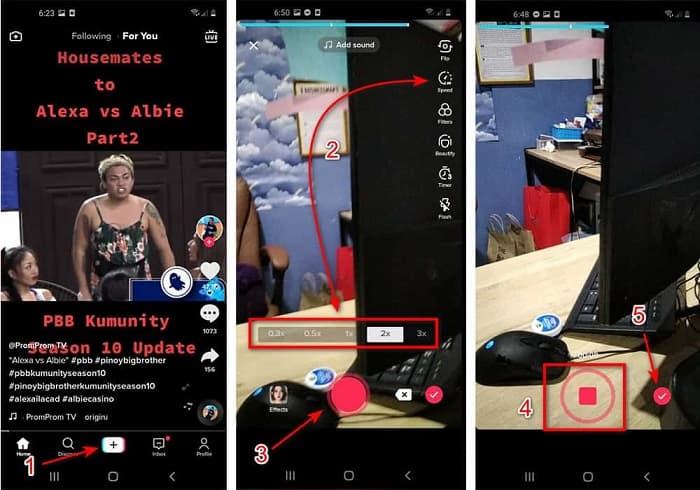
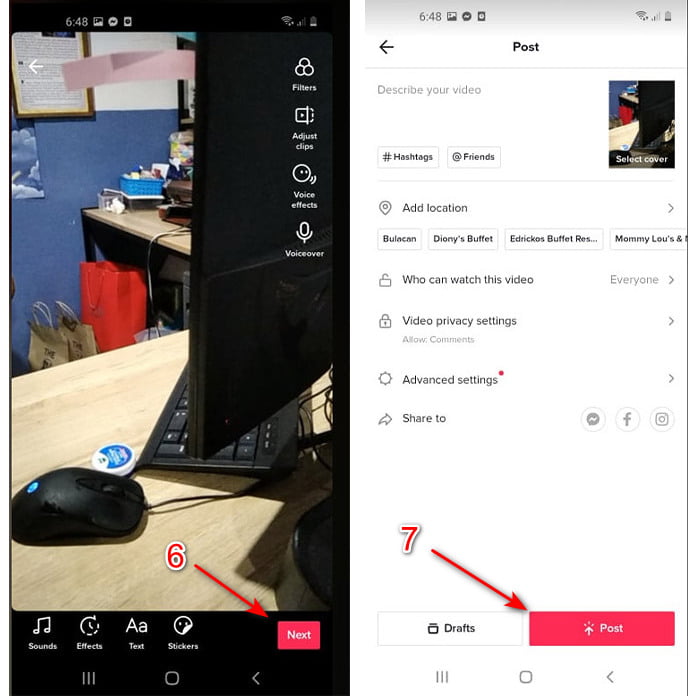
Korak 3. Kako biste pregledali video, pritisnite gumb check i kliknite Next. Potom kliknite Post da biste ga objavili na TikToku.
Dio 2. Kako ubrzati bilo koji TikTok video na Video Converter Ultimate
Za razliku od ugrađene funkcije uređivanja koju vam pruža TikTok, Video Converter Ultimate omogućuje vam da ručno ubrzate video, ali na jednostavniji način. Osim toga, dok ubrzavate video, imate pregled kako biste vidjeli odgovara li brzina vašem ukusu. Štoviše, ovaj izvanredni softver korisnicima već omogućuje korištenje naprednih profesionalnih opcija uređivanja, ali kroz pojednostavljene korake. Zbog naprednih značajki koje nudi, za ovaj alat trebate platiti nekoliko dolara. No ne trebate brinuti jer vas to neće koštati tisuće, pa čak ni stotinu. Ako želite znati koje pogodnosti ili ključne značajke dobivate s ovim alatom, pogledajte popis u nastavku.
Najbolje ključne značajke koje ćete pronaći u Video Converter Ultimateu:
◆ Ovo je softver neovisan o platformi što znači da ga možete preuzeti na svoje računalo, Mac ili Linux.
◆ Sve napredno uređivanje, konverter, GIF maker i više dostupni su u ovom alatu.
◆ Upotrebljivost alata vrlo je zgodna za svakoga, čak i za profesionalce ili početnike u uređivanju.
◆ Omogućuje korisnicima da izraze svoju kreativnu stranu kroz različite značajke uređivanja koje su dostupne ovdje.
◆ Iako se alat plaća, ipak je jeftiniji i vrlo pristupačan svakome tko ga želi isprobati.
Dakle, ako sada želite znati kako ubrzati TikTok videe ovim sjajnim alternativnim uređivačem, pročitajte i slijedite upute u nastavku kako biste postigli potpuni uspjeh.
Koraci kako ubrzati videe za TikTok pomoću Video Converter Ultimatea:
Korak 1. Da biste koristili softver, najprije ga morate preuzeti na svoje računalo ili Mac. Zatim ga instalirajte, obavite jednostavnu početnu konfiguraciju i kliknite „Finish” za nastavak.
Besplatno preuzimanjeZa Windows 7 ili novijiSigurno preuzimanje
Besplatno preuzimanjeZa MacOS 10.7 ili novijiSigurno preuzimanje
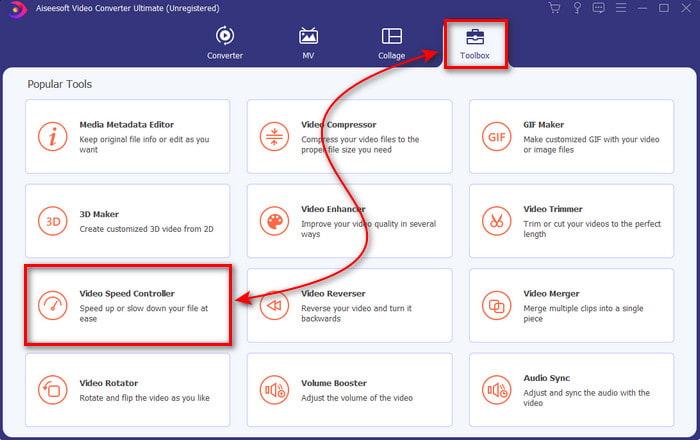
Korak 2. Pritisnite Toolbox i odaberite Video Speed Controller u tom izborniku.
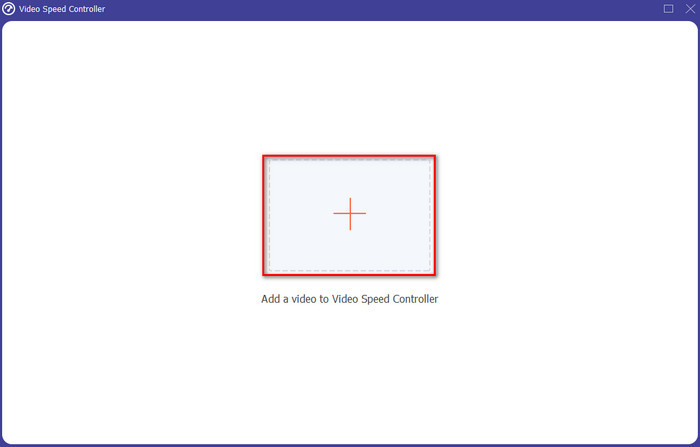
Korak 3. Kako biste dodali datoteku koju želite ubrzati, kliknite gumb +. Zatim u mapi koja će se otvoriti odaberite željenu datoteku i kliknite Open za nastavak.
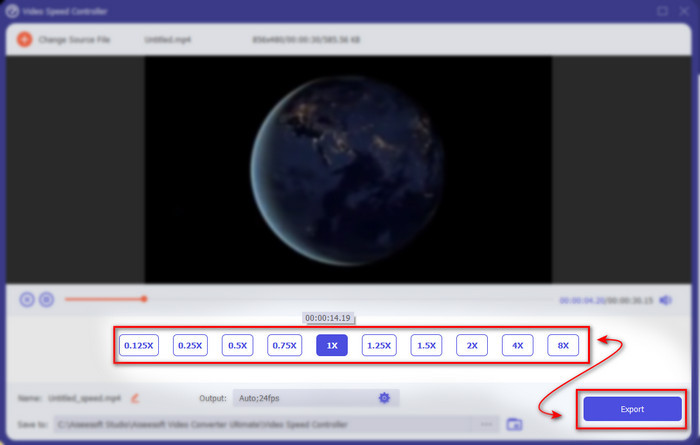
Korak 4. Da biste prilagodili brzinu videa, odaberite opciju speed ispod. A za preuzimanje datoteke kliknite Export kako biste započeli postupak izvoza.
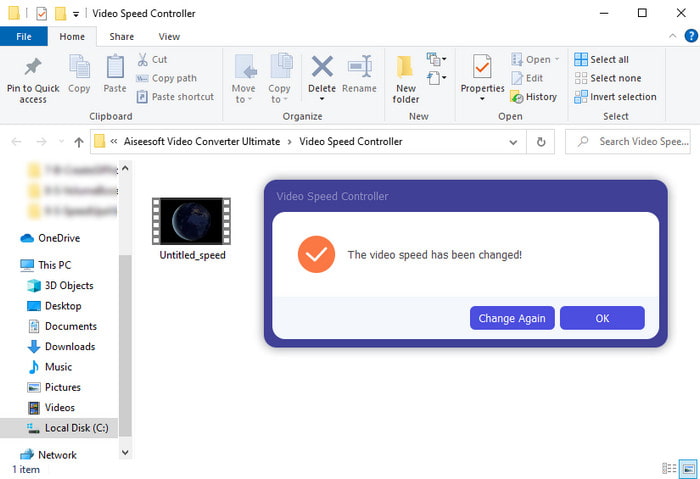
Korak 5. Ne morate čekati ni minutu, jer će datoteka biti spremna nakon nekoliko sekundi. Ako vam se na ekranu zatim pojavi mapa, to znači da je datoteka već izvezena. Kliknite na datoteku kako biste pogledali ubrzani video.
Povezano:
Dio 3. Često postavljana pitanja o ubrzavanju videa na Tiktoku
Kako ubrzati TikTok video koji nije vaš?
Ako želite ubrzati video koji nije vaš, najprije morate preuzeti TikTok video. Kliknite gumb + i Upload, zatim odaberite video iz galerije. Odaberite opciju brzine i kliknite Next kako biste ga objavili. Ili upotrijebite Video Converter Ultimate za ubrzavanje videa tako da slijedite gore navedene korake.
Mogu li snimiti 3 minute video na Tiktoku?
Apsolutno da, možete ako su odvojeno snimljeni, ali ne možete snimiti ravno 3-minutni video. Budući da je duljina snimanja uz podršku ove aplikacije 15 do 60 punih sekundi. Dakle, ako je dužina videa koji želite snimiti veća od minute, bolje ga je snimiti zasebno. Međutim, ako ste jedan od korisnika koje je Tiktok odabrao da isprobaju 3-minutnu snimku onda ste sretni jer je ovo testirano samo za malu grupu ljudi.
Mogu li svojim videozapisima na Tiktoku dodati MP3?
Kada je TikTok prvi put objavljen, korisnicima je bilo dopušteno da dodaju glazbu u svoj video, ali sada su uklonili ovu značajku. Zbog problema s autorskim pravima koji je zaveden na TikTok. Dakle, kako bi izbjegli problem, oni ga uklanjaju i dodaju dostupni uzorak glazbe ili možete koristiti drugu aplikaciju da to učini umjesto vas.
Ima li Tiktok dobno ograničenje?
Prema uvjetima i odredbama TikToka, 13 godina ili više mora biti dob korisnika koji će koristiti ovu aplikaciju. Također, Tiktok nema provjeru dobi kada se prijavite pa očekujte da će se neki sadržaji stariji od 16 godina pojaviti na vašem feedu.
Zaključak
A sada kada znate kako ubrzati video na TikToku, vrijeme je da u tome uživate. Nadalje, odaberite rješenje za koje smatrate da vam najbolje odgovara. Ako mislite da su ugrađene opcije ubrzavanja na TikToku dovoljne, onda ih koristite. No ako želite bolje mogućnosti ubrzavanja s pregledom, upotrijebite Video Converter Ultimate. Bez obzira koju opciju odabrali, možete očekivati izvrstan rezultat zahvaljujući njihovim funkcijama i ukupnim performansama.
-
 7 jednostavnih koraka kako riješiti probleme s kašnjenjem zvuka OBS-a [riješeno]
 Mučite li se s gledanjem videoisječka nakon snimanja zbog kašnjenja zvuka kada koristite OBS Studio? Pročitajte članak u nastavku da biste saznali kako učinkovito popraviti nesinkronizirani zvuk.
-
 Mogući izvrsni načini | Kako popraviti kašnjenje zvuka VLC-a [2021]
 Je li vam teško gledati svoj omiljeni film na VLC media playeru zbog audio nesigurnosti? Nastavite čitati ovaj članak da biste saznali sve moguće načine popravljanja kašnjenja zvuka VLC-a.
-
 Najbolji načini za povećanje glasnoće MP4 na mreži i izvan mreže
 Mučite li se čuti zvukove svog videoisječka? Pročitajte članak u nastavku da biste saznali kako povećati glasnoću mp4 na različite načine.
