


 Video Converter Ultimate
 Snimač zaslona
 Video popravak
Pretvorite MPEG u AVI s 5 dostupnim MPEG u AVI video konverterom
MPEG is one of the best formats you might already encounter as it stores files for videos and audio. Also, it is not just a container, but as well it uses MPEG 1 and MPEG 2 compression. However, MPEG 1 and 2 are the old formats that used to be stored on Blu-rays. So now, we will explain how to improve it by converting the format to an AVI. In the list below, we present different tools you can use to convert MPEG to AVI and deeper details about the MPEG and AVI.
Dio 1. Kratko objašnjenje o MPEG i AVI formatu datoteke
MPEG i AVI jedni su od vrhunskih formata koje možete koristiti za pohranu medijske datoteke. Iako su izvrsni, još uvijek postoje neki razlozi zašto trebate koristiti MPEG u AVI video pretvarač. Ali za sada ćemo objasniti puno detalja o ova dva formata i imati ideju o MPEG i AVI.
Kao što je ranije rečeno, MPEG nije samo spremnik, već ima i ugrađeni kompresor. U osnovi, to je dvostruki format datoteke. Također, ovaj je format najčešće korišteni format na Blu-rayu zbog kvalitete i kompresije koju pruža. Štoviše, MPEG format je klasificiran u 6, ali mi ćemo raspravljati o dva najčešće korištena, a to su MPEG-1 i MPEG-2. Nadalje, MPEG-1 je prva generacija MPEG-ova. Ovaj format pohranjuje standardnu rezoluciju, ali u usporedbi s drugim formatom MPEG-1 je puno manji. Iako MPEG-2 nudi mnogo bolju kvalitetu od MPEG-1, on ipak najbolje radi na Blu-ray i DVD-ovima. Također, ovaj format TV postaja najčešće koristi za prijenos i reprodukciju videa.
But AVI is far different from MPEGs because it is uncompressed. Also, the quality this format provides is high because it doesn't compress the file it contains. Although the format is huge in size still it gains a lot of support on all platforms compared to MPEG files.
Dio 2. 2 od najboljih pretvarača koji se koriste za pretvorbu MPEG u AVI format izvan mreže
1. FVC Video Converter Ultimate
If you are looking for a multi-purpose MPEG to AVI converter and download then FVC Video Converter Ultimate must be the tool for it. This tool already receives a higher position in this article because of the features and simplicity this tool provides. Although it is easy to use, you can achieve the phenomenal output you always want to have. Also, unlike any other converter, this software sets the standard into a high level one. So, if you want to achieve 100% success before, during, and after your conversion then it is a must to use this tool. And now, let's proceed to the step-by-step tutorial on how to use the FVC Video Converter Ultimate.
Step 1. So, to download the tool on your desktop click the button presented below. Install it after the process of downloading is finished, do the quick set-up and click Start Now.
Besplatno preuzimanjeZa Windows 7 ili novijiSigurno preuzimanje
Besplatno preuzimanjeZa MacOS 10.7 ili novijiSigurno preuzimanje
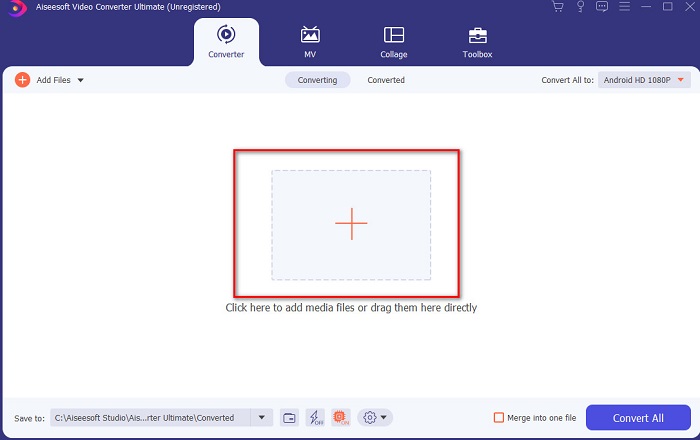
Step 2. The interface of the tool should look like this then click + sign in the middle part. A folder will show next on your display then select the MPEG video file you want to be converted and click Open.
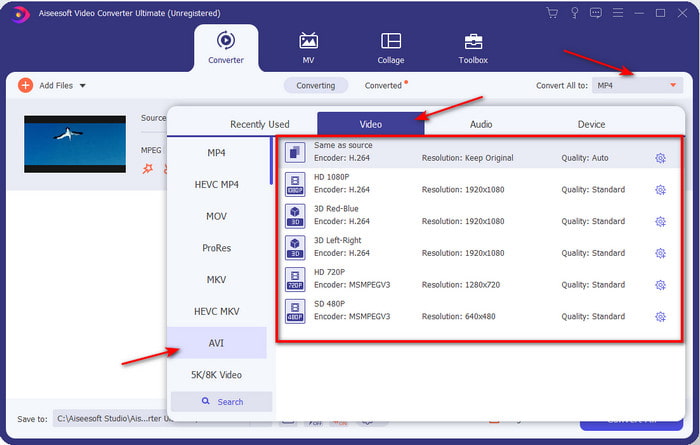
Step 3. If the file is already on your interface, click the Convert All to: and find the AVI format.
Step 4. And now to start the conversion of MPEG 4 movies to AVI format press Convert All.
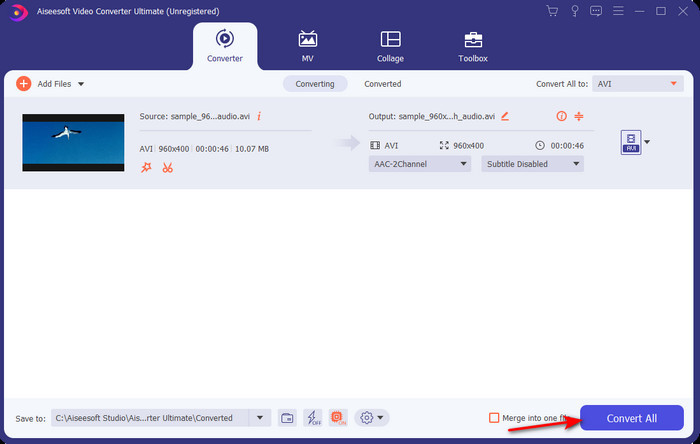
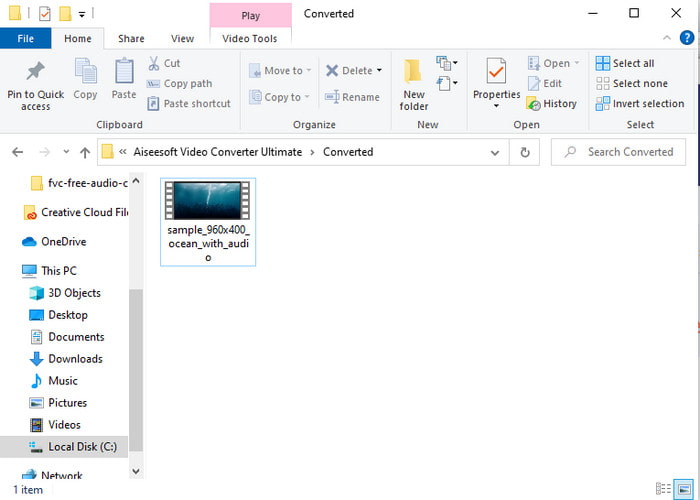
Step 5. Downloading the file will only take a few minutes and if it is done a folder will show next with the converted format. So now, click the file to watch the newly converted format of your MPEG.
2. FFmpeg
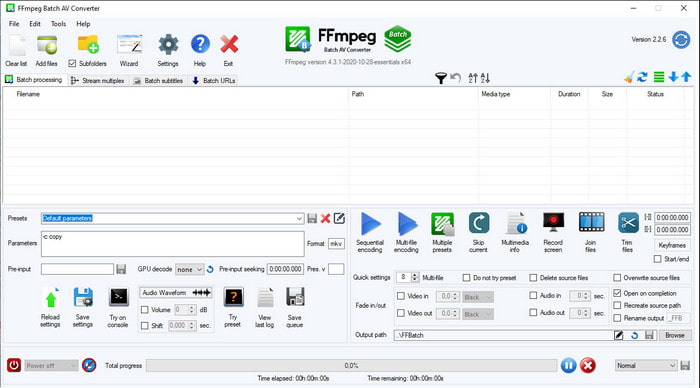
Another software available in this list is FFmpeg. If you're looking for open-source software, this is one of the choices you can find on the web. Also, the interface of this tool is tough to understand, especially for beginners and pros. The converting process here is generally excellent and produces a high output like any converters. So, if you want to convert using FFmpeg MPEG to AVI, then follow these steps accordingly as we make it simple to understand.
Step 1. Download the FFmpeg on your desktop and create a new folder then inside of it unzip the file.
Step 2. Search the CDM on your Window and open it.
Step 3. Find the file using command prompt, then insert this code ffmpeg -i input.mpeg -vn -ar 44100 -ac 2 -b:a 192k output.avi and hit Enter on your keyboard to start the process.
Dio 3. 3 od najboljih pretvarača koji se koriste za pretvaranje MPEG u AVI format na mreži
3. FVC besplatni video konverter
If you are looking for the best free MPEG to AVI converter online the FVC Free Video Converter is the online converter that will suit your taste. Because of the simplicity of the interface of the web tool it provides. Also, the great thing about this online tool is that you can easily access it with your favorite browser. Moreover, converting with this tool has no limitation which means you can convert any format any time. However, you can't do the batch conversion here unlike on the FVC Video Converter Ultimate. And now if you want to try and use this online tool then follow the steps provided below.
Step 1. To go to the main website of the FVC converter you must click this link first.
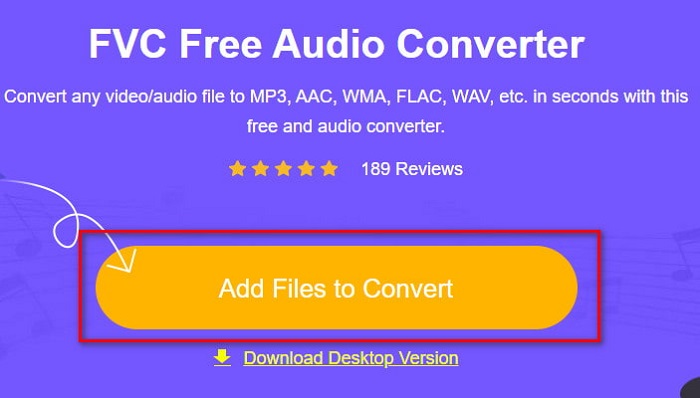
Step 2. Click Add Files to Convert then the web tool will launch and a folder will show. Locate the file and click Open.
Step 3. After the web tool is already launched, choose the format that is presented in this section.
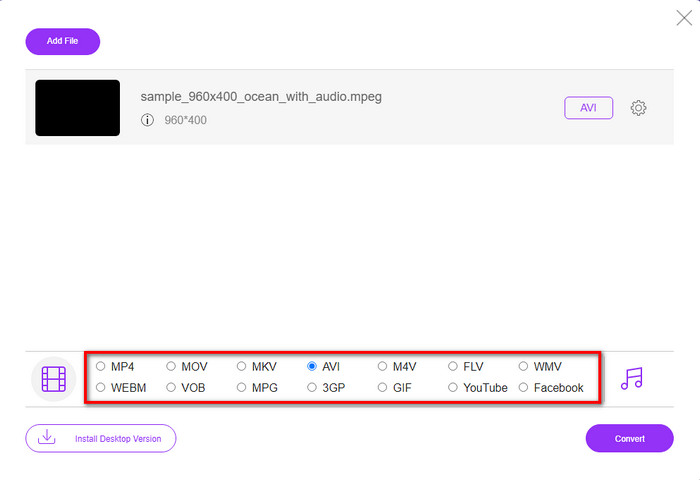
Step 4. If you already select the format, it is now the time to convert the format by clicking the Convert button.
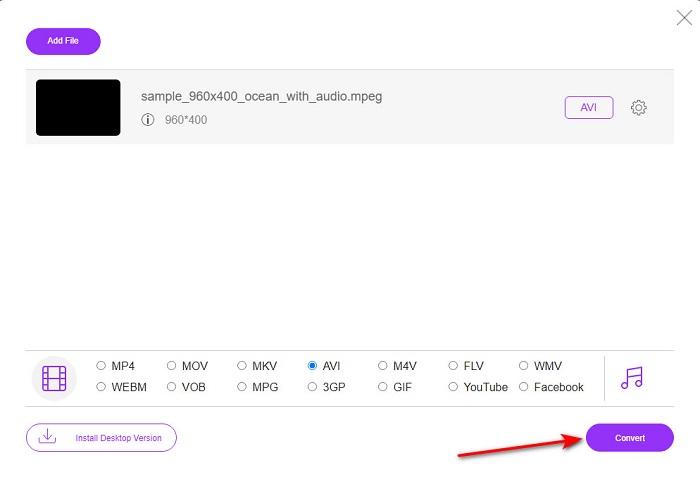
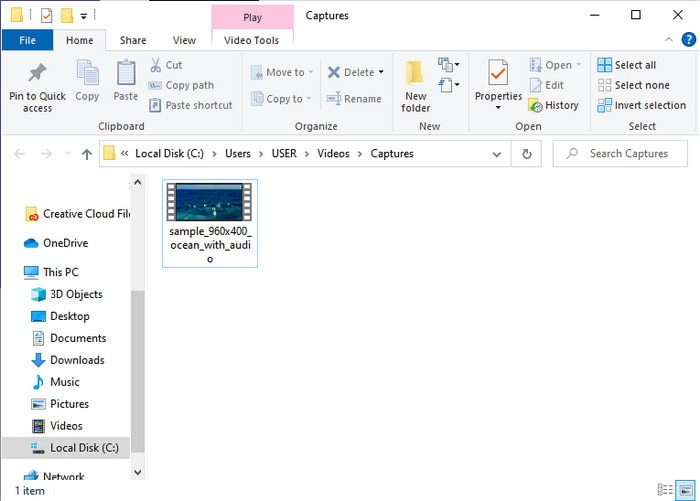
Step 5. Wait for an ample minute for the process to begin shortly. If the process is done, a folder will show with the converted file you've made earlier.
4. Freeconvert.com
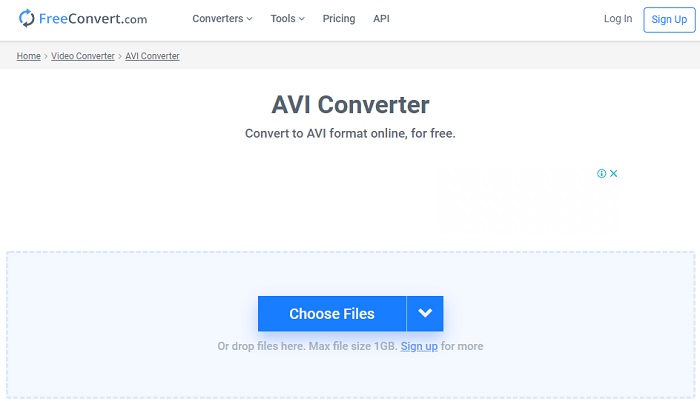
Just like the online tool mentioned above, this is another online tool you can use, Freeconvert.com. This web tool has already gained popularity among the users on the web. Also, many users praise this tool because of how easy it is to use and its other functionality. However, if you choose this web tool, there is a major drawback: the format the web tool supports is limited. Another is that the process of converting here is a bit slower than expected. So now, if you want to know how to use this online converter, then follow the steps.
Step 1. Search the website freeconvert.com on your web. Then click AVI under the Video Converters.
Step 2. Press the Choose File and locate the MPEG file on the folder that will show next. After the selection of the file made, click Convert To AVI.
Step 3. Wait for the uploading process to finish, then click Download AVI to save the file.
Dio 4. Često postavljana pitanja o pretvorbi MPEG u AVI
Gubi li se kvaliteta pretvaranjem MPEG-a?
Pa ovisi u koji ćeš format to pretvoriti. Dakle, ako svoj MPEG pretvorite u GIF, očekujte drastičnu promjenu jer podržava manje kombinacija boja nego drugi format. Međutim, ako koristite neki drugi format osim GIF-a, ne očekujte gubitak.
Je li MPEG s gubitkom ili bez gubitka?
MPEG podržava kompresiju s gubitkom, pa ako koristite ovaj format, očekujte manju veličinu datoteke čak i ako imate dugačak video i audio zapis.
Je li MPEG dobar format?
Prije je to bio jedan od najboljih formata koje možete koristiti za pohranu podataka na DVD-ove. Međutim, u ovom razdoblju MPEG nije najbolji izbor za pohranu podataka. Ali ako ga želite pohraniti na DVD, CD ili Blu-ray i prenijeti ih mnogo brže, onda ovo mora biti izbor.
Zaključak
Ukratko, sav online i offline softver predstavljen ovdje izvrstan je za korištenje za pretvaranje formata. Međutim, postoji jedan alat koji dokazuje da možete lako postići fenomenalnu pretvorbu s FVC Video Converter Ultimate. Zapravo, možemo to objasniti u 3 riječi i to je jednostavno za korištenje, učinkovito i sigurno. Dakle, ako želite postići veličinu, odmah preuzmite ovaj alat i isprobajte ga.
-
 Kako besplatno pretvoriti MPEG u MP4 datoteke na sustavima Windows, Mac, Online
 Pročitajte i nabavite 3 besplatna načina pretvorbe MPEG u MP4 datoteke na računalu. Možete koristiti mrežne i stolne video pretvarače da biste s lakoćom pretvorili MPEG u MP4 format.
-
 [2021] Najbolji alati i jednostavni načini kako pretvoriti MPEG u MP3
 Ovaj članak uglavnom govori o tome kako možete pretvoriti svoje MPEG videozapise u MP3 uz korištenje najpouzdanijih alata na popisu.
-
 Vodič za pretvaranje MP4 u AVI datoteke sa 7 besplatnih video pretvarača
 Želite li dobiti sve besplatne načine za pretvaranje AVI u MP4 video? Ne biste trebali propustiti ovaj članak. Evo 7 načina za besplatno pretvaranje AVI datoteka u MP4 na Windows, Mac, iPhone, Android i na mreži.
