


 Video Converter Ultimate
 Snimač zaslona
 Video popravak
Korak po korak o tome kako dodati sliku albuma u MP3 koristeći najbolji softver na stolnom računalu
Dodavanje omota albuma može biti vrlo korisno, osobito ako želite da se slušatelj snažnije veže uz glazbu koju sluša. Uz takav omot albuma korisnici mogu dobiti dojam o tome o čemu je glazba, osobito kada je riječ o digitalnim datotekama. U nekim slučajevima MP3 datoteka nema odgovarajući omot albuma ili on nije pridružen datoteci. Ako imate isti problem, važno je naučiti kako dodati omot albuma u MP3 glazbene datoteke na računalu. Da biste saznali više o toj temi, nastavite čitati ovaj članak jer donosimo sažeta i jasna objašnjenja ovog problema.

Dio 1. Kako dodati omot albuma u MP3 uz Video Converter Ultimate [Preporučeni uređivač oznaka]
Želite li upotrijebiti vrhunski softver za dodavanje omota albuma u MP3? FVC Video Converter Ultimate preporučeni je uređivač oznaka za taj zadatak. Ovaj softver nije preporučen bez razloga. Za razliku od drugog softvera, kod kojeg je broj formata omota koje možete učitati i koristiti kao naslovnicu za MP3 ograničen, ovdje to nije slučaj. S ovim vrhunskim alatom možete dodati omot albuma svojim MP3, WAV, WMA, AAC, FLAC datotekama i više od 1000 video i audio formata. Impresivno, zar ne? Ovaj je alat prvi izbor za dodavanje slikovne naslovnice vašem albumu. Želite znati kako koristiti ovaj ultimativni softver? U tom slučaju pažljivo pročitajte i slijedite demonstraciju u nastavku.
Korak 1. Kliknite gumb za preuzimanje u nastavku i odaberite operativni sustav koji trenutačno koristite. Nakon preuzimanja softvera prijeđite na instalaciju alata. Kada je sve gotovo, kliknite Start Now da pokrenete softver na svom računalu.
Besplatno preuzimanjeZa Windows 7 ili novijiSigurno preuzimanje
Besplatno preuzimanjeZa MacOS 10.7 ili novijiSigurno preuzimanje
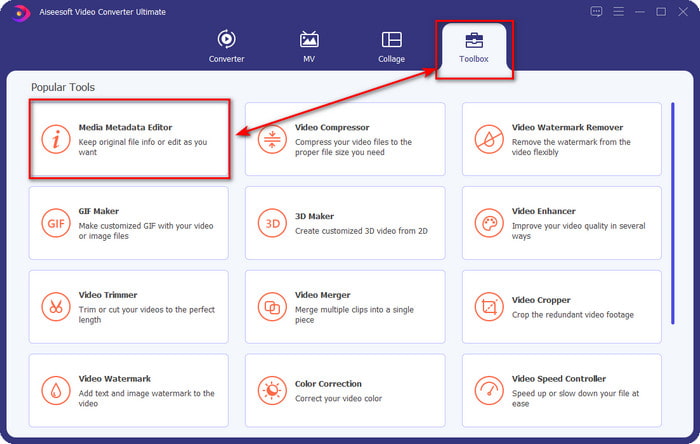
Korak 2. Idite na odjeljak Toolbox i pod njim kliknite Media Metadata Editor.
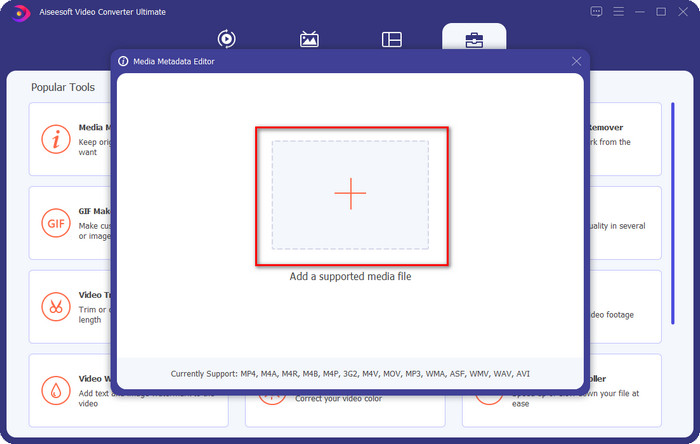
Korak 3. Odaberite glazbenu datoteku kojoj želite dodati omot albuma klikom na gumb +. Za umetanje odabrane glazbene datoteke kliknite Open.
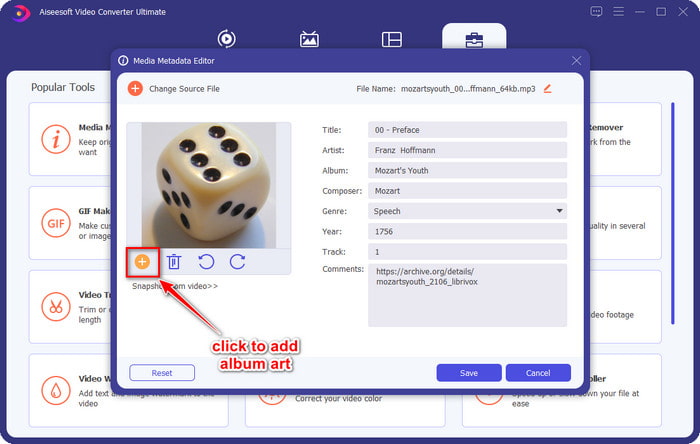
Korak 4. Zatim kliknite gumb + u donjem lijevom dijelu sučelja, pronađite omot albuma koji želite koristiti i kliknite Open. Po potrebi dodajte ostale metapodatke u textbox.
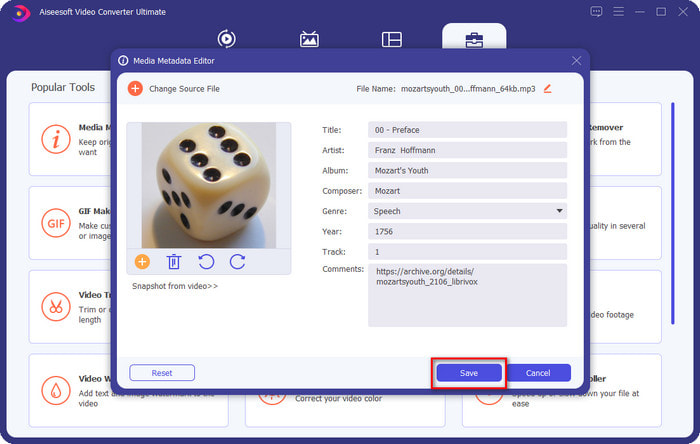
Korak 5. Kada završite s dodavanjem omota albuma i metapodataka u MP3 datoteku, možete kliknuti Save da biste pridružili omot albuma MP3 datoteci koju ste učitali. Jednostavno, zar ne? Sve postaje moguće i lako kad koristite ovaj ultimativni alat za rješavanje problema.
Dio 2. Kako dodati sliku albuma u MP3 pomoću VLC Media Player besplatnog uređivača metapodataka]
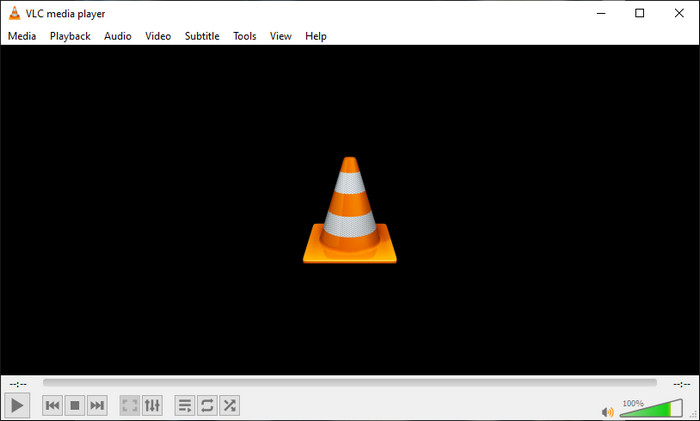
VLC Media Player je jedan od najraširenijih i najboljih medijskih reproduktora koje imamo. Ovaj alat može reproducirati bilo koju video datoteku, a sposoban je i uređivati metapodatke, primjerice dodati omot albuma glazbenoj datoteci. S ovim reproduktorom možete slobodno prilagođavati ili dodavati metapodatke. Ako želite uputu kako dodati omot albuma u MP3 na Windows 10/11 ili Mac računalu pomoću ovog alata, slijedite korake u nastavku.
Korak 1. Preuzmite medijski reproduktor na svoje računalo i otvorite ga.
Korak 2. Na glavnom sučelju kliknite Tools, a zatim pod tim izbornikom kliknite Information.
Korak 3. Desnom tipkom miša kliknite VLC ikonu u donjem desnom kutu, dodajte omot albuma i kliknite Save.
Dio 3. Kako dodati sliku albuma u MP3 u iTunes [ugrađeni uređivač metapodataka na Macu]
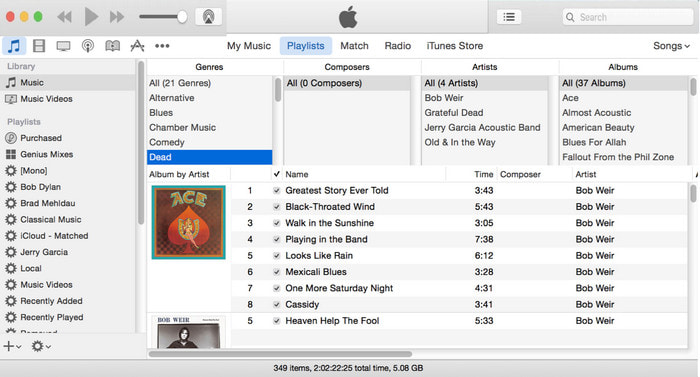
Za korisnike Mac računala iTunes je naš osnovni uređivač metapodataka za dodavanje slikovne naslovnice MP3 datoteci. Ova ugrađena aplikacija može nam pomoći da uredimo metapodatke datoteka koje imamo na Macu. Međutim, softver trenutačno nije dostupan na nekim verzijama macOS‑a jer je zamijenjen s tri odvojene aplikacije koje obavljaju iste funkcije kao i iTunes. No na nekim Mac računalima sa starijim verzijama sustava i dalje postoji. Ako ste jedan od Mac korisnika koji žele znati kako dodati omot albuma u MP3 u iTunesu, slijedite korake u nastavku.
Korak 1. Otvorite aplikaciju iTunes na svom Macu.
Korak 2. Kliknite Music, zatim Library, i desnom tipkom miša kliknite glazbenu datoteku koja nema omot albuma.
Korak 3. U opcijama iznad kliknite Artwork, zatim Add Artwork, odaberite sliku koju želite učitati i kliknite OK da biste je primijenili.
Dio 4. Često postavljana pitanja o tome kako dodati omot albuma na MP3
Mogu li dodati omot albuma u MP3 na Audacityju?
Nažalost, ne možete dodati sliku u MP3 datoteku koju imate pomoću Audacityja. Ovaj alat ne podržava nijedan slikovni ili video format jer je namijenjen upotrebi kao uređivač glazbe. Ali još uvijek možete koristiti Audacity kao uređivač metapodataka ako želite urediti svoje MP3 metapodatke.
Zašto u mojoj audio datoteci nedostaje omot albuma?
Postoje tri razloga zašto u vašoj audio datoteci nedostaje omot albuma. Prvi razlog je taj što datoteka koju morate preuzeti ne uključuje omot albuma, pogotovo ako je riječ o piratstvu. Većina glazbene datoteke koju smo preuzeli na webu ne sadrži omot albuma kako bi se izbjegle probleme s pisanjem teksta. Zatim je datoteka nestala jer slika nije bila pravilno priložena. Neki korisnici se susreću s ovim problemom i teško ga je riješiti, stoga je neophodna upotreba profesionalnog zbrajanja omota albuma. Konačno, slika je oštećena; ako datoteka koju ste prenijeli nije dostupna kao omot albuma ili je glazbena datoteka koju ste učitali oštećena, to bi mogao biti razlog tome.
Koji su najbolji metapodaci koje mogu koristiti?
Ako su uređivači metapodataka koje smo gore naveli ograničeni, možete kliknuti ovu poveznicu da biste otvorili novi članak i pronašli sve najbolje uređivače metapodataka koje možete koristiti.
Zaključak
Sada kada imamo ideju o dodavanju omota albuma na MP3, vrijeme je da odaberemo koji nam alat najbolje odgovara. Ako ste korisnik Maca i ne želite preuzeti nikakav softver na svoju radnu površinu, morate odabrati iTunes. Ali iTunes se postupno ukida na ažuriranoj verziji Maca. Ako želite preuzeti besplatni alat koji vam može pomoći da dodate omot svojoj glazbi, onda je VLC izvrstan izbor. Međutim, alat nije profesionalni alat. Dakle, ako želite da je stručni softver koji vas može prilagoditi ovom zadatku dostupan na oba operacijska sustava, Windows i Mac, tada upotrijebite vrhunski softver. Preuzmite softver na svoju radnu površinu kako biste imali profesionalni alat na dohvat ruke klikom na gumb za preuzimanje prikazan gore.
-
 Kako jednostavno pregledati metapodatke fotografija i videozapisa na iOS-u
 Želite li znati kako vidjeti metapodatke na iPhoneu i iPadu? Tada bi vam čitanje ovog članka moglo pomoći da riješite ovaj problem bez napora.
-
 Najbolje tehnike kako urediti iD3 oznake na iTunesu [Učinkoviti savjeti]
 Trebate znati kako uređivati oznake na iTunesu? Onda ste na pravom mjestu. Kao što smo raspravljali o metodama, možete slijediti uređivanje oznaka pomoću iTunesa.
-
 Kako urediti svojstva WAV datoteka na Windows 10/11 i Mac [Riješeno]
 Tražite li način za uređivanje svojstava vaših WAV datoteka u sustavu Windows 10/11? Ovo pitanje će imati odgovor ako nastavite čitati ovaj članak.
