


 Video Converter Ultimate
 Snimač zaslona
 Video popravak
Kako učinkovito uvesti HEIC datoteku u Lightroom na Windows i Mac
Ako želite poboljšati HEIC sliku ili je organizirati, možete uvesti HEIC u Lightroom i bez poteškoća obaviti svo sređivanje i uređivanje. Ovdje ga možete jednostavno učitati bez preuzimanja dodatnog kodeka za HEIC kako biste ga mogli pregledavati ili uređivati u ovom softveru. Dakle, ako vam je potreban vodič koji će vas naučiti kako uvesti HEIC datoteku u ovaj program, možete pročitati i slijediti upute za Windows i Mac koje smo uključili u ovaj tekst.
Bez daljnjega, pročitajmo sljedeće pojedinosti da bismo znali kako to učiniti, a ako Lightroom nije uspio uvesti HEIC, postoji način da ga također dodamo ovdje. Ali prije svega, morate preuzeti softver na svoj Windows ili Mac prije nego što pročitate sljedeće pojedinosti.

Dio 1. Kako uvesti HEIC u Lightroom na vašem Windowsu 10/11 ili ažuriranom
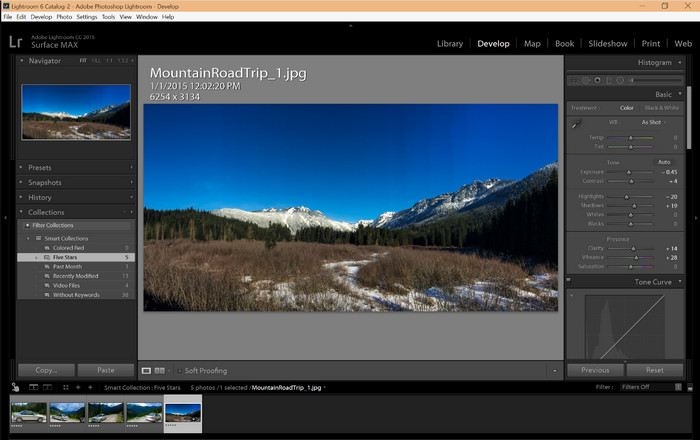
Lightroom podržava ažuriranu verziju sustava Windows; ovaj dio je za vas ako preuzmete softver na svoj Windows OS. Ne biste se trebali brinuti jer Lightroom može bez napora otvoriti HEIC datoteke slijedeći donji vodič.
Korak 1. Preuzmite softver na Windows 10/11, zatim ga instalirajte i otvorite da biste nastavili.
Korak 2. Kada softver već radi na vašem sustavu, kliknite gumb +, pritisnite Browse i odaberite HEIC datoteku koju želite uvesti ovdje.
Korak 3. Nakon što ih odaberete, sada možete pregledavati HEIC datoteke u Lightroomu na vašem Windows 10/11.
Dio 2. Kako otvoriti HEIC fotografiju u Lightroomu na vašem Macu 10.13 ili novijim
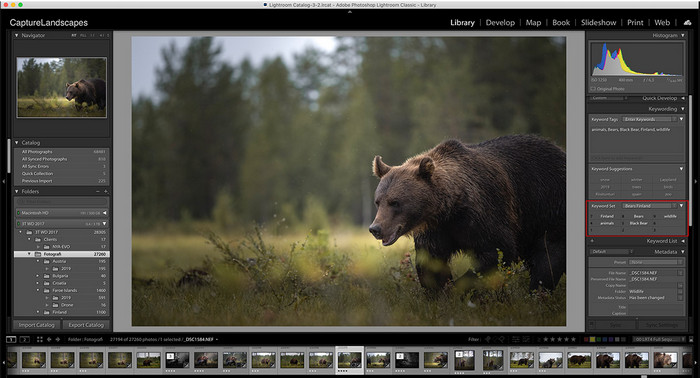
Čak i bez Lightrooma, možete bez napora pregledavati HEIC datoteku, pogotovo ako je vaša Mac verzija High Sierra 10.13 ili novija na Preview. Iako Preview podržava značajke uređivanja, nije ga dovoljno koristiti za komplicirano uređivanje, poput onoga što vam Lightroom može pružiti. Također, nećete se morati brinuti zbog toga jer Lightroom podržava HEIC datoteke za njihovo uređivanje ili organiziranje na vašem Macu.
Korak 1. Instalirajte softver na macOS 10.13 ili noviji; ako je verzija vašeg operativnog sustava niža, očekujte da se softver neće otvoriti. Nakon što preuzmete Lightroom na svoj desktop, trebate ga otvoriti.
Korak 2. U gornjem dijelu prozora pronaći ćete različite izbornike i naziv Lightroom u gornjem lijevom kutu, što znači da je softver već otvoren. Pritisnite izbornik File i nastavite na Add Photos, ili umjesto toga možete upotrijebiti prečac na tipkovnici pritiskom na Command + Shift + I.
Korak 3. Na zaslonu će se pojaviti mapa; odaberite sliku koju želite uvesti i kliknite Review for Import.
Dio 3. Lightroom nije uspio uvesti HEIC datoteku | Najbolje rješenje za rješavanje nepodržanog HEIC problema
Mnogi korisnici imali su problema s prijenosom HEIC datoteke zbog kompatibilnosti sa softverom kao što je Lightroom na Windowsima i Macu; čak i uz pomoć gore navedenih metoda, to je još uvijek nemoguće. Ali nema potrebe da se osjećate tužno jer postoji način da uvozite svoju HEIC datoteku na Lightroom pretvaranjem HEIC-a u JPG uz pomoć najboljeg alata na webu.
FVC Free HEIC to JPG Converter rješenje je koje morate koristiti da biste HEIC datoteku pretvorili na Windowsu i Macu bez preuzimanja softvera. Ovakav web-alat može vaš nepodržani format pretvoriti u standardni, poput JPEG-a. Slike možete učinkovito učitati u Lightroom bez problema s nepodržanim formatom. Osim pretvaranja HEIC u JPG, ovdje također možete učitati više HEIC slika i sve ih odjednom pretvoriti zahvaljujući grupnoj konverziji. Zvuči odlično, zar ne? Želite li znati što nas još više oduševljava? Pa, možete obaviti i ubrzanu konverziju potpuno besplatno. Ako želite riješiti problem nepodržanog formata koji imate s HEIC-om, slijedite korake u nastavku kako biste saznali kako pretvoriti format.
Jednostavni koraci kako promijeniti HEIC format u JPG pomoću web alata:
Korak 1. FVC Free HEIC to JPG Converter – klikom na ovu poveznicu možete otvoriti glavnu web-stranicu pretvarača u svom omiljenom pregledniku. Ne trebate brinuti jer je siguran za korištenje i nema oglasa koji bi mogli smetati na web-sučelju.
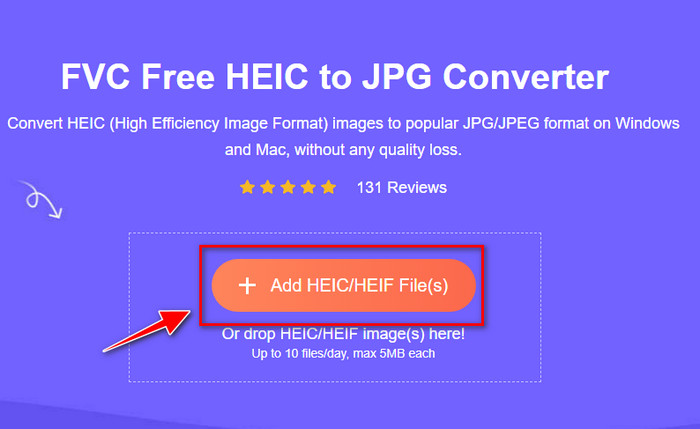
Korak 2. Kliknite Add HEIC/HEIF Files kako biste ovdje učitali HEIC sliku koju Lightroom ne može otvoriti. Alternativno, možete povuci i ispusti datoteku ovdje umjesto da je birate iz mape.
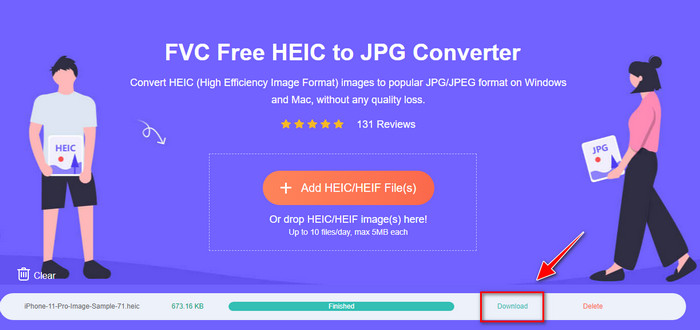
Korak 3. Gumb Download pojavit će se kada se traka napretka ispuni; kliknite ga da biste spremili novo pretvorenu HEIC datoteku na svoj desktop. Nakon toga možete uvesti datoteku u Lightroom bez pojavljivanja dijaloškog okvira koji kaže da je format nepodržan ili oštećen.
Dio 4. Često postavljana pitanja o uvozu HEIC-a u Lightroom
Postoje li ograničenja za uvoz HEIC datoteka u Lightroom?
Do ove točke možete uvesti HEIC datoteke na Lightroom koliko god želite. Nema ograničenja za prijenos ove vrste formata na Lightroom.
Je li Lightroom besplatan za Windows i Mac?
Nažalost, Lightroom za Windows i Mac nije besplatan, ali ga možete besplatno preuzeti na Windows i Mac. Iako softver nije besplatan, možete iskoristiti prednosti besplatne probne verzije koju podržava tijekom 7 dana. Ako smatrate da će vam softver trebati dulje vrijeme, možete se pretplatiti nakon probnog razdoblja.
Hoće li izvoz HEIC datoteke na Lightroom ostaviti vodeni žig?
Srećom, Lightroom ne dodaje vodeni žig na sliku koju ste ovdje učitali. No možete dodati vodeni žig ako to želite. Stoga, ako namjeravate objaviti sliku na internetu, preporučujemo da na nju dodate vodeni žig kako bi bila zaštićena od ljudi koji bi je mogli pokušati ukrasti.
Što je bolje za uređivanje slika? Photoshop ili Lightroom?
Ovisi o vašim zahtjevima; uz pomoć Adobe editora Photoshopa i Lightrooma, svoju sliku možete jednostavno poboljšati u izgledu. Pretpostavimo da želite uređivač slika koji je jednostavan za rukovanje. U tom slučaju, Lightroom je izbor koji morate odabrati jer je najbolji uređivač slika za poboljšanje slike koju imate. Ali ako želite detaljnije uređivati slike, Photoshop je vaš uređivač koji odgovara potrebama svakog profesionalnog urednika.
Zaključak
Uz pomoć Lightrooma možete jednostavno urediti sliku koju imate ili je organizirati u skladu s tim kako bi izgledala uredno. Dakle, ako želite uvesti HEIC datoteku na Lightroom, možete slijediti korake koje dodamo bez obzira jeste li korisnik Windowsa ili Maca. Ali ako naiđete na poteškoće pri uvozu HEIC datoteke, pročitajte treći dio dok ga rješavamo kako bismo ga učinili kompatibilnim s Lightroomom. Sada možete nastaviti s uređivanjem. Nadamo se da će vam ovaj zapis dati ideju o tome kako uvesti datoteku; ako imate drugih prijedloga ili preporuka, možete nam ostaviti poruku.
-
 iMazing HEIC Converter | Funkcije, prednosti i nedostaci i kako ga koristiti
 Ovaj članak će pregledati sposobnost iMazing HEIC Convertera i njegove alternative pa ako želite saznati više o tome, pročitajte ovo s oprezom
-
 3 najlakša načina za pretvaranje HEIC u JPG na iPhoneu poput stručnjaka
 Nemate pojma kako promijeniti HEIC u JPG na iPhoneu? Ako ste jedan od korisnika koji imaju problem s HEIC-om, pročitajte ovo.
-
 Zašto su moje fotografije iPhonea u HEIC formatu [Razlozi i kako riješiti]
 Želite li znati zašto su moje iPhone fotografije u HEIC formatu? Ovaj članak pruža vjerodostojne dokaze o tome što čini HEIC najboljim.
