


 Video Converter Ultimate
 Snimač zaslona
 Video popravak
Kako promijeniti brzinu VLC reprodukcije pomoću kontrole brzine i prečaca [Otkriveno]
Changing the video speed can be a tough job on most media player players, but with VLC Player, this job is easy peasy. Suppose you have an hour-long video and want to watch it at high speed to save some time, then speeding up is a choice. On the other hand, if you're going to watch a video to see more detail, you must watch it in a slow-mo. With VLC, you can easily change the playback speed of the video you watch, whether it is a speed-up or slow-down; everything is possible here. Keep on reading this article as it reveals the secret techniques you can use to change VLC playback speed according to your wants.

Dio 1. Promjena brzine VLC reprodukcije pomoću kontrole brzine i prečaca
Postoje dva načina na koja možete promijeniti brzinu videa koji reproducirate na VLC-u; ovo su kontrolna brzina i prečice. Na sreću, mi ćemo vam ih dati obje. Ako ste spremni kontrolirati brzinu VLC-a gore ili dolje, odaberite kojim putem želite ići.
Prije nego što nastavimo s koracima, provjerite jeste li već preuzeli media player na radnu površinu. Ako ne, možete posjetiti njegovu službenu web stranicu kako biste imali media player.
1. način. Koristite kontrolu brzine na VLC Playeru na Windowsima i Macu
Iako je kontrola brzine dostupna na Windows i Mac verzijama VLC-a, koraci su i dalje različiti za svaki od njih. Dakle, ako ste korisnik Windowsa i želite promijeniti brzinu videa, gledate pa pročitajte korake za Windows korisnika, ali ako ste korisnik Maca, onda pročitajte drugi.
For Windows Users:
Step 1. After downloading the media player, open it, then open the media file you want to play on a change speed.
Step 2. Go to the Playback menu and choose the Speed option to use the VLC to change the playback speed.
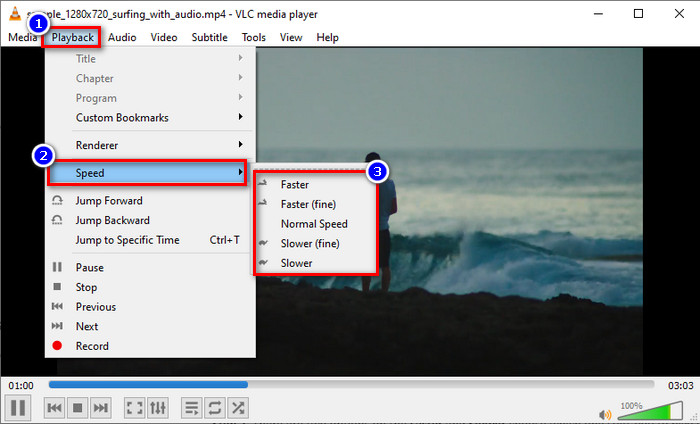
Step 3. Choose the speed you want to have and click it. Play the video you upload to watch it at your selected speed.
For Mac Users:
Step 1. Play whatever video or audio file you want on the Mac version of this software.
Step 2. To use the speed controller, click Playback.
Step 3. There are two options on the faster and slower drag the slider to choose which one suits you to play the video at the speed you pick.

2. način. Koristite prečace za promjenu brzine na VLC Playeru
Pretpostavimo da ste umorni od sljedećih koraka, a zatim morate pokušati koristiti prečac za brzinu reprodukcije VLC-a. Oni rade isti posao; prečaci mogu ubrzati ili usporiti videozapis kao što je prvi način koji dodajemo u ovom članku. Ne postoji ništa posebno u korištenju prečaca osim što posao čini lakšim i učinkovitijim. Iako možete kontrolirati brzinu videozapisa pomoću prečaca, koraci za tipku prečaca za Windows i Mac razlikuju se za svaki. Da biste znali kako promijeniti brzinu pomoću tipki na tipkovnici, slijedite sljedeće pojedinosti.
For Windows Users:
Step 1. Open the media file you want to play in this media player.
Step 2. While playing, click the [ on your keyboard to slow down the video. But if you want to speed it up a little, click ]. To return the speed of the video you are watching at the normal speed, click =.
For Mac Users:
Step 1. Launch the media player and open the media file to play it here.
Step 2. While watching the file, click the command + to increase the video speed, and if you want to slow it down, press the command -.
Dio 2. Zauvijek promijenite brzinu videa na Windows i Mac
VLC can change the speed that is currently playing but not permanently apply the speed up or slow-down you set, so what should you do to save it forever? You can use the FVC Video Converter Ultimate to save the video playback you choose permanently on the video. So, you won't need to change the playback and do the steps we mentioned above to play the video to your desired speed. Even though the software can offer a hand on changing the speed, the software doesn't support shortcut commands to convert the speed more quickly.
Also, you have full control over the video if you use this software to change the speed of the video you want. To apply the VLC increase speed or decrease, you can follow the step-by-step procedure we add below for you to follow.
Step 1. Click the download button below to have the editor on your desktop, then follow the set-up process to install the software. After that, click it to open it right away.
Besplatno preuzimanjeZa Windows 7 ili novijiSigurno preuzimanje
Besplatno preuzimanjeZa MacOS 10.7 ili novijiSigurno preuzimanje
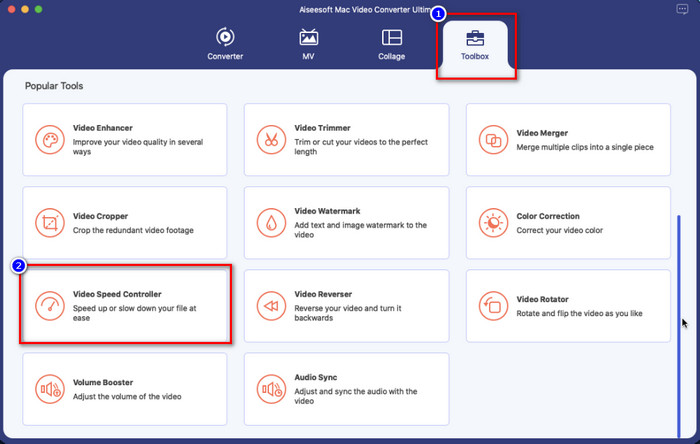
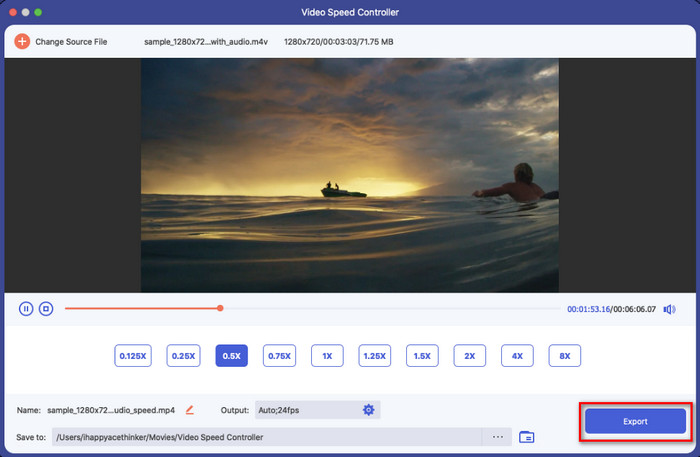
Step 2. Open Toolbox and locate the Video Speed Controller on the available options.
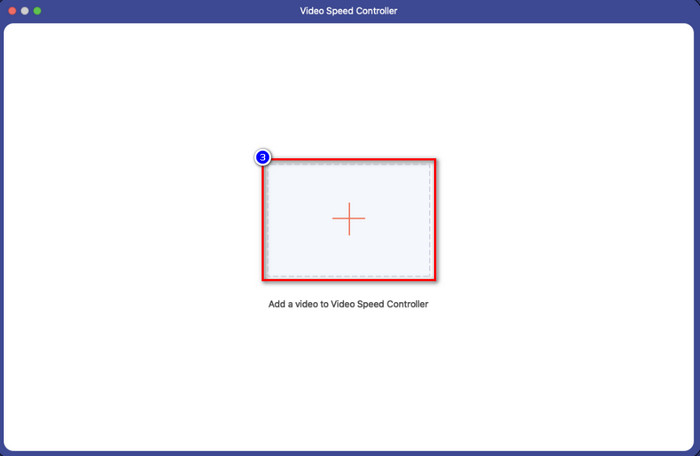
Step 3. You can now add the file you want to the folder by clicking the + button and clicking Open to upload it.
Step 4. Pick the speed you want to apply to your video. Once you click the speed, there will be a preview sample of the video that will play right away.
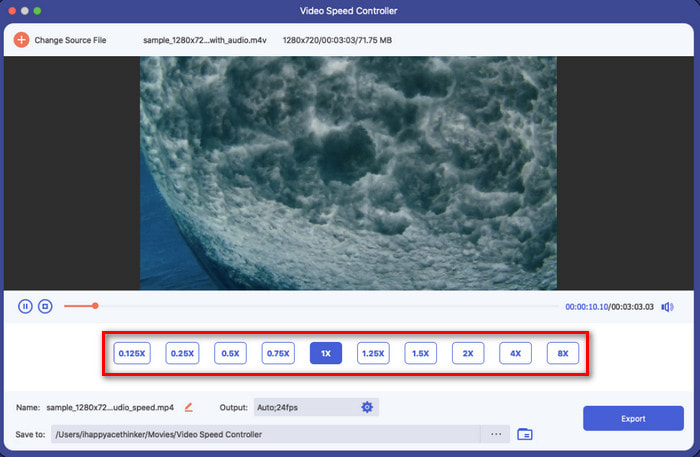
Step 5. If everything is done, click Export to save the video with a permanent increase or decrease in video speed on your desktop. If you want to revert the changes to the original speed, then do the same steps before and this time, choose the other way instead.
Dio 3. Često postavljana pitanja o VLC Speed Playback-u
Postoji li ograničenje brzine reprodukcije tijekom korištenja VLC-a?
Konkretno, ne postoji ništa drugo nego da ne možete trajno spremiti video koji ubrzavate jer media player nije napravljen za ovaj posao. Nakon što ovdje ubrzate videozapis, vratit će se na izvornu brzinu nakon što ga pauzirate i reproducirate. Da biste to izbjegli, slijedite korake koje dodajemo u drugom dijelu ako odlučite trajno promijeniti brzinu svog videozapisa.
Zašto se videozapis ubrzava da bi preskočio previše scena VLC-a s isječkom?
Zbog brzine koju ste odabrali, ako prekomjerno koristite regulator brzine i koristite najveću brzinu, očekujte da će VLC preskočiti neki dio kako bi nadoknadio brzinu koju odaberete. Dakle, da biste se klonili ovog problema, morate kontrolirati brzinu koju odaberete ispravno i nemojte je pretjerivati.
Kako mogu vratiti brzinu na normalu na VLC-u?
Možete kliknuti pauzu i reproducirati da biste vratili brzinu videozapisa na normalnu. Ali također možete dodirnuti = na tipkovnici za Windows; za Mac, bolje je kliknuti gumb za pauzu/reprodukciju kako biste ga vratili na normalnu brzinu videozapisa.
Zaključak
You can select either to use the speed control or the hotkeys to control the VLC playback speed. What way you choose, they both do the same thing, controlling the speed of the video you play on VLC. However, you can’t export the change video speed to your desktop because VLC isn’t meant for saving the video you change speed. But you can forever save the video speed once you convert it on FVC Video Converter Ultimate. If you want to try using the Video Speed Controller option, you will impress yourself with how easy it is and fast.
-
 4 najbolja video playera s regulatorom brzine u 2021
 Zar niste primijetili brzinu reprodukcije svakog media playera kad god reproducirate video? Ovaj je članak prikladan za vas da naučite sve o video playerima s kontrolom brzine.
-
 3 načina za ubrzanje videa na iPhoneu [Dokazano]
 Imate problema s podešavanjem brzine reprodukcije videozapisa jer koristite iPhone? Ovo je izvrstan članak koji će vam pomoći u rješavanju vašeg problema.
-
 Windows Media Player | Naučite kako ubrzati videozapise [Dokazano]
 Želite usporiti svoj videoisječak pomoću Windows Media Playera, ali imate problema s time kako to učiniti? Ovaj je članak idealan za čitanje i može vam objasniti kako ubrzati videozapise pomoću Windows Media Playera.
