


 Video Converter Ultimate
 Snimač zaslona
 Video popravak
Profesionalno uklonite vodeni žig otporan na pucanje pomoću ovih fantastičnih alata
Shootproof je klijentska foto galerija i portfelj‑web stranica. Ako na internetu tražite prekrasne slike, Shootproof vam u tome može pomoći. Ova web stranica nudi mnoštvo predivnih fotografija koje prodavači izrađuju. Shootproof je poznata usluga za dijeljenje galerija namijenjena fotografima. Osim toga, omogućuje fotografima da kreiraju internetsku trgovinu za svoje fotografije. Međutim, mnogi prodavači dodaju vodene žigove na svoje slike kako ih drugi ne bi lako prisvojili. Stoga, ako ste jedan od korisnika koji traže način kako ukloniti Shootproof vodeni žig, nastavite čitati ovaj članak.

Dio 1. 2 metode za uklanjanje vodootpornog vodenog žiga bez napora
Uklanjanje Shootproof vodenog žiga nije teško ako imate odgovarajući alat za uklanjanje vodenog žiga. A kako bismo vam pomogli odabrati najbolji alat za uklanjanje vodenog žiga, tražili smo najčešće korišteni besplatni alat za uklanjanje vodenog žiga na internetu. Da biste upoznali ovaj alat, pročitajte ovaj dio do kraja.
FVC besplatno uklanjanje vodenih žigova
FVC Free Watermark Remover je jedan od poznatih mrežnih alata za uklanjanje vodenih žigova. Ova internetska aplikacija je besplatna i sigurna za korištenje. Osim toga, dostupna je u svim web preglednicima, poput Google Chromea, Firefoxa i Safarija. Podržava standardne formate slika, uključujući PNG, JPEG, JPG, BMP i druge. U funkciji za uklanjanje vodenog žiga možete odabrati različite alate za označavanje područja kako biste uklonili vodeni žig sa svoje slike.
Štoviše, mnogi početnici mogu koristiti ovaj alat za uklanjanje vodenog žiga jer je jednostavan za korištenje. Također, kada izvezete svoju sliku, ona će imati izvorni format datoteke. Ovaj alat također ne zahtijeva da se prijavite ili registrirate.
Kako ukloniti Shootproof vodeni žig pomoću FVC Free Watermark Removera:
Korak 1. Najprije otvorite preglednik i u okvir za pretraživanje upišite FVC Free Watermark Remover.
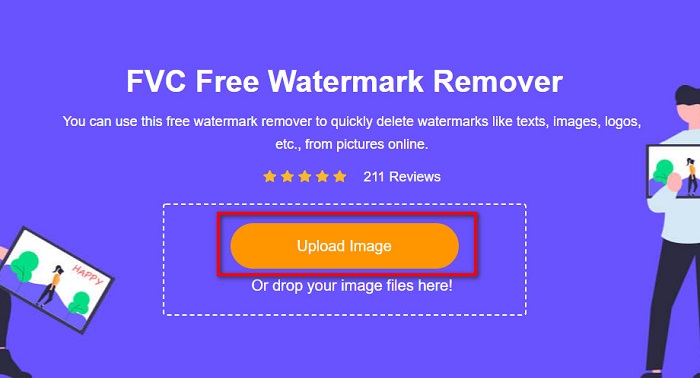
Korak 2. Zatim kliknite gumb Upload Image na glavnom sučelju kako biste učitali sliku s koje želite ukloniti vodeni žig.
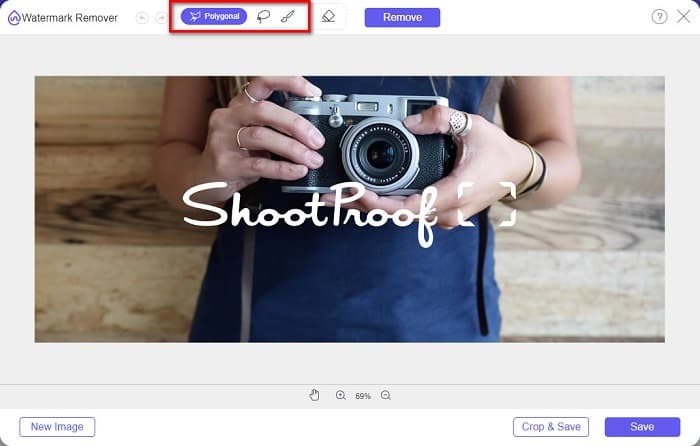
Korak 3. Zatim odaberite alat za označavanje koji želite koristiti za uklanjanje vodenog žiga na svojoj slici. Možete birati između Polygonal, Lasso i Brush.
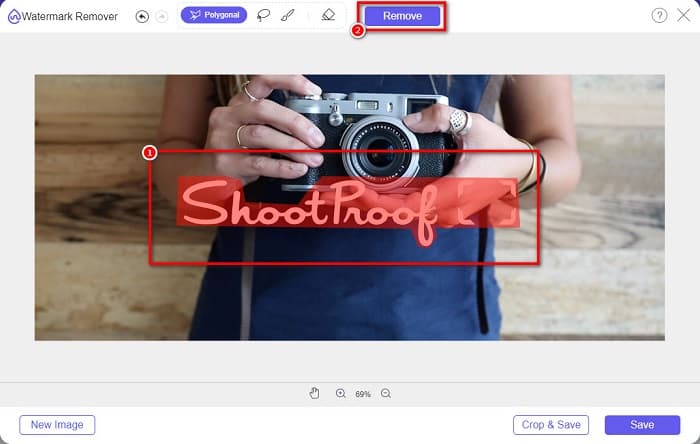
Korak 4. Zatim označite područje vodenog žiga na svojoj slici. Kada ga označite, kliknite gumb Remove. Vidjet ćete da je vodeni žig sada nestao.
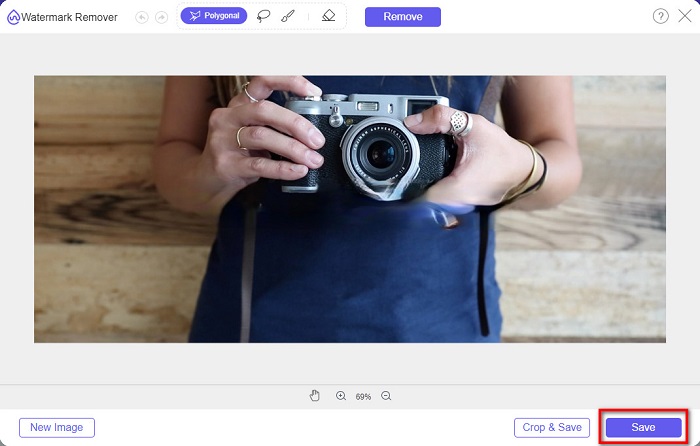
Korak 5. Na kraju kliknite gumb Save kako biste spremili svoj rezultat na uređaj. I to je to! Uz ove jednostavne korake možete dobiti Shootproof sliku bez vodenog žiga.
Apowersoft Online uklanjanje vodenih žigova
Apowersoft Online Watermark Remover je poznata mrežna aplikacija za uklanjanje bilo kakvih vodenih žigova sa slika. Riječ je o jednostavnoj internetskoj aplikaciji jer ima intuitivno korisničko sučelje. Osim toga, podržava najčešće formate slika, kao što su PNG i JPG. Ne trebate se brinuti ni za sigurnost svojih datoteka, jer je ovaj mrežni alat siguran za korištenje. Ima i funkciju kojom možete uklanjati vodene žigove s videozapisa. Međutim, ako vam je internetska veza spora, možete doživjeti sporije učitavanje i izvoz.
Kako ukloniti Shootproof vodeni žig pomoću Apowersoft Online Watermark Remover:
Korak 1. U pregledniku potražite Apowersoft Online Watermark Remover, zatim otvorite njihovu početnu stranicu. Na glavnom sučelju kliknite opciju Remove Watermark From Image.
Korak 2. Zatim ćete na sljedećem sučelju vidjeti watermark remover box i postaviti ga na područje vodenog žiga.
Korak 3. Da biste uklonili vodeni žig sa svoje slike, kliknite gumb Erase.
Dio 2. Savjeti o korištenju značajke otpornog na pucanje vodenog žiga
Koristeći značajku vodenog žiga za Shootproof, možete dodavati i uklanjati vodene žigove na svoju sliku. Ako želite odvratiti druge korisnike od posjedovanja vaše fotografije, na svoju sliku možete dodati tekst koji služi kao vodeni žig.
Kako dodati vodeni žig na Shootproof:
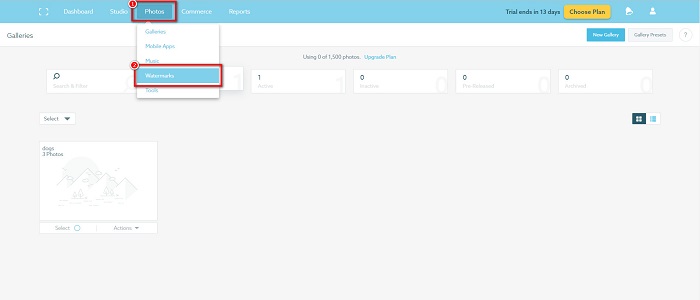
Korak 1. Idite na Photos, zatim kliknite opciju Watermarks.
Korak 2. Potom odaberite želite li tekstualni ili slikovni vodeni žig.
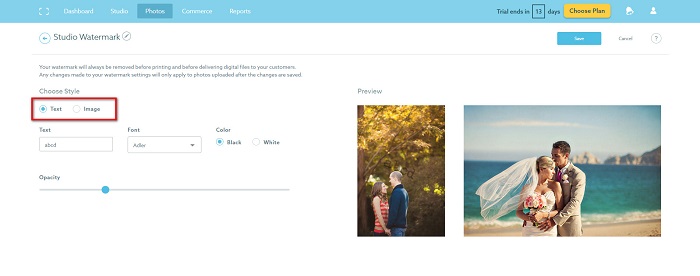
Ako želite koristiti slikovni vodeni žig, preporučuje se da morate učitati PNG datoteku visoke razlučivosti s prozirnom pozadinom. Također možete koristiti JPG datoteke.
Korak 3. Zatim prilagodite Watermark Settings. U Watermark Settings možete odabrati položaj vodenog žiga na fotografiji. Također možete prilagoditi veličinu i neprozirnost (opacity) vodenog žiga.
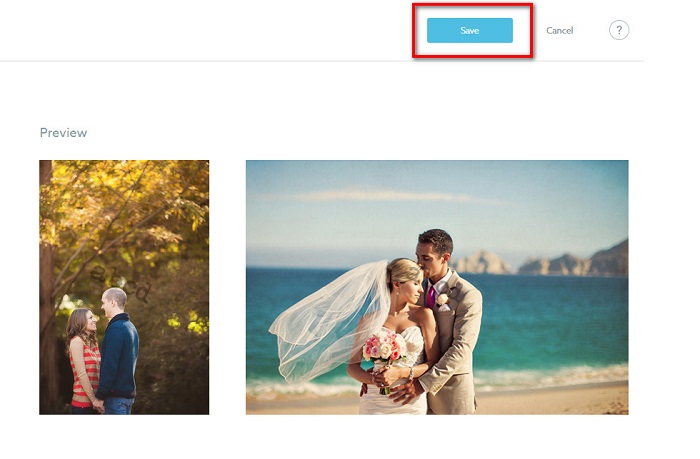
Korak 4. Na kraju kliknite gumb Save kako biste spremili postavke koje ste promijenili.
Stavite vodeni žig na slike koje učitate.
Na stranici Vodeni žig možete odabrati zadani vodeni žig. Također možete uključiti vodene žigove za sva buduća prijenosa. Ovo možete promijeniti prije učitavanja novih slika.
A kada učitavate nove fotografije u svoju galeriju putem web-baziranog učitavača ili učitavača sa stolnog računala, možete odabrati vodeni žig koji želite koristiti na zaslonu za učitavanje.
Kako ukloniti vodeni žig u Shootproof
Uvijek imajte na umu da će uređivanje ili dodavanje postojećeg vodenog žiga utjecati samo na vaše buduće prijenose. Promjene koje ste napravili neće utjecati na slike koje se već nalaze u vašoj galeriji. Ali ako želite promijeniti vodeni žig ili ukloniti Shootproof vodeni žig, možete osvježiti vodeni žig da biste ga ažurirali u svojoj galeriji. Evo kako možete ukloniti ili promijeniti vodeni žig Shootproof.
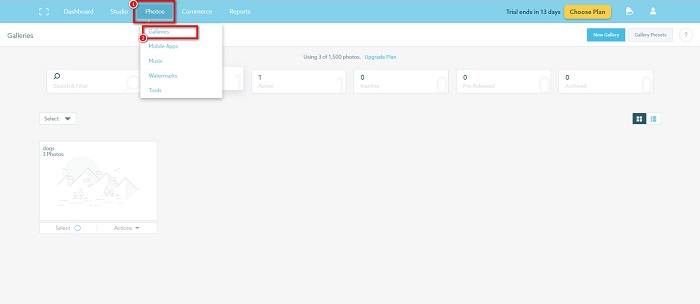
Korak 1. Idite na Photos > Galleries, zatim kliknite svoju galeriju.
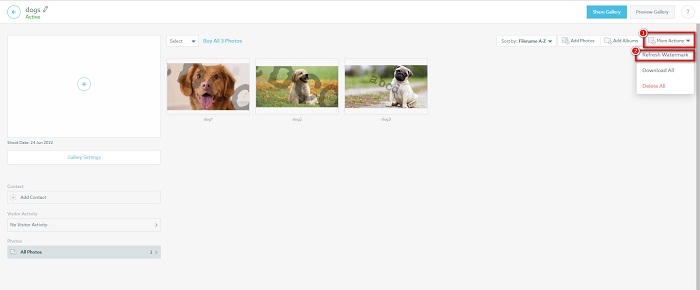
Korak 2. U galeriji kliknite gumb More Actions u gornjem desnom kutu sučelja.
Korak 3. Zatim odaberite Refresh Watermark kako biste uklonili vodene žigove sa svake slike koju učitate.
Korak 4. Da biste uklonili vodeni žig, isključite klizač. A ako samo želite promijeniti vodeni žig, odaberite New Watermark.
Korak 5. Na kraju kliknite Apply Change kako biste spremili napravljene promjene.
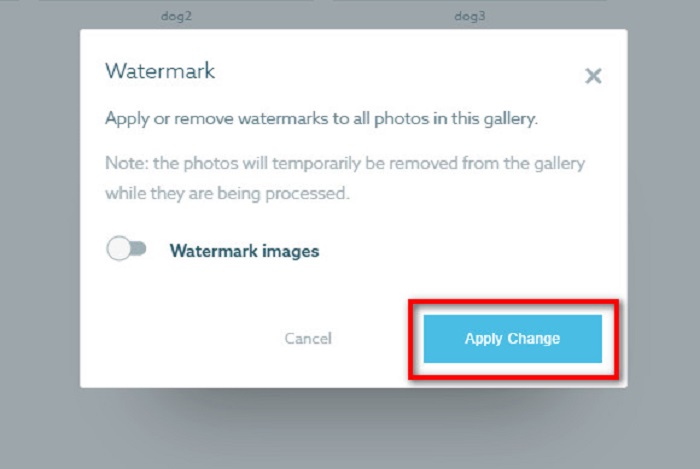
Vidjet ćete da će se fotografije automatski prikazati kao obrada. Kada se promjene primijene, vidjet ćete da će se slike vratiti u vašu galeriju.
Povezano s:
Izvrsni Arnold Maya alati za uklanjanje vodenog žiga koje ne smijete propustiti
123rf alati za uklanjanje vodenog žiga – detaljan pregled najboljih rješenja
Dio 3. Često postavljana pitanja o Shootproof Remove Watermark
Možete li ukloniti digitalne vodene žigove?
Uklanjanje nevidljivih digitalnih vodenih žigova je teško. Na primjer, one koje je ugradio Digimarc Photoshop dodatak teško je ukloniti. Obrezivanje, promjena veličine, dodavanje šuma i umjereno zamućivanje možda neće raditi s digitalnim vodenim žigovima.
Možete li ukloniti vodeni žig logotipa s videozapisa?
Da. Moguće je ukloniti logo vodeni žig na vašem videu. Mnogi alati za uklanjanje vodenih žigova omogućuju vam uklanjanje logotipa s vaših videozapisa. Ako želite ukloniti logotip sa svog videa, koristite Video Converter Ultimate.
Prikazuje li se Shootproof ako napravite snimku zaslona?
Shootproof poduzima nekoliko mjera za zaštitu fotografija prodavatelja. Međutim, Shootproof ne može spriječiti ljude da naprave snimke zaslona vaše slike u vašoj galeriji.
Zaključak
I to je sve! Slijedeći gore navedene metode, sada možete ukloniti Shootproof vodeni žig sa svoje slike. Iako je uklanjanje vodenog žiga na Shootproofu besplatno, postupak može biti pomalo kompliciran. Stoga, ako želite lako ukloniti Shootproof vodeni žig sa svoje slike, upotrijebite FVC Free Watermark Remover.
-
 Izvanredan Photobucket uklanjanje vodenih žigova na mreži i izvan mreže
 Naučite kako ukloniti Photobucket vodeni žig sa svojih fotografija pomoću ovih nevjerojatnih Photobucket alata za uklanjanje vodenih žiga. Pročitajte ovaj članak da biste saznali načine.
-
 Jednostavno uklonite vodeni žig iz PDF-a jednostavnim koracima
 Uklonite vodeni žig iz PDF-a slijedeći ove jednostavne korake. Naučite kako jednostavno ukloniti vodene žigove iz PDF datoteke pomoću ovih nevjerojatnih alata.
-
 Jednostavni načini za uklanjanje vodenog žiga sa maturalnih slika
 Želite znati najbolje načine za uklanjanje vodenih žigova sa slika mature? Čitajući ovaj članak, moći ćete znati kako lako ukloniti vodene žigove na slikama diploma.
