


 Video Converter Ultimate
 Snimač zaslona
 Video popravak
Naučite kako sliku učiniti jasnijom pomoću ovih jednostavnih metoda
Kada snimite fotografiju koja is ispala mutna, to se smatra nedostatkom. I vrlo je nezadovoljavajuće kada imate mutnu sliku. No srećom, danas postoji mnogo aplikacija koje vam mogu pomoći izoštriti i „odmutiti” fotografiju. Adobe Photoshop je među najpoznatijim aplikacijama za uređivanje fotografija. Međutim, nije baš prilagođen početnicima. Stoga ćemo predstaviti jednostavnije metode koje možete koristiti da bi vaša mutna fotografija postala izvrsne kvalitete. Pročitajte ovaj tekst u nastavku kako biste naučili kako učiniti sliku jasnijom u nekoliko jednostavnih koraka.

Dio 1. Kako učiniti sliku jasnijom na internetu
S upotrebom AI tehnologije, sada postoji mnogo online programa za povećanje veličine slike koji mogu automatski izoštriti vašu sliku. Korištenje mrežnih aplikacija za jasniju sliku je zgodno jer ne morate ništa preuzimati na svoj uređaj. Također će uštedjeti prostor za pohranu na vašem uređaju jer mu možete pristupiti putem preglednika.
FVC Free Image Upscaler je najpoznatija internetska aplikacija ako želite izoštriti ili učiniti svoju sliku jasnijom. Ovaj je alat jednostavan za korištenje jer ima vrlo pregledno korisničko sučelje. Osim toga, možete poboljšati kvalitetu slike povećanjem za 2x, 4x, 6x ili 8x. Također, FVC Free Image Upscaler koristi AI (umjetnu inteligenciju) koja automatski prepoznaje mutne dijelove slike i zatim ih poboljšava. Omogućuje vam precizno popravljanje izgubljenih piksela, tekstura boja i ostalih detalja.
Štoviše, podržava više formata slika, poput PNG, JPG, JPEG i WebP. A ono što je još sjajno kod ovog mrežnog alata je to što vam ne trebaju nikakvi računi da biste mu pristupili. Također je besplatan za korištenje i siguran za korištenje. I usprkos tome što je to online aplikacija, ne sadrži dosadne oglase koji bi vam mogli odvratiti pozornost i brza je i učinkovita za korištenje. Dakle, ako tražite prikladan alat, FVC Free Image Upscaler je najbolji alat.
Kako učiniti sliku jasnijom na mreži koristeći FVC Free Image Upscaler:
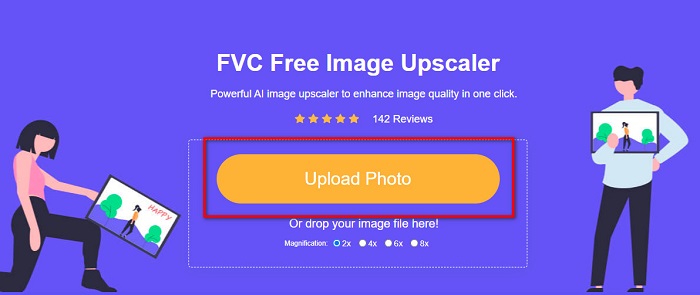
Korak 1. Na računalu otvorite preglednik i u tražilicu upišite FVC Free Image Upscaler. Ili kliknite na ponuđenu poveznicu da biste izravno otvorili početnu stranicu aplikacije. Kliknite gumb Upload Photo kako biste pokrenuli aplikaciju.
Korak 2.0 Nakon pokretanja aplikacije ponovno kliknite Upload Photo kako biste dodali sliku koju želite povećati/izoštriti. Otvorit će se prozor s datotekama na računalu, gdje ćete pronaći svoju sliku i otvoriti je.
Korak 3. Zatim odaberite željeni magnification predložak. Što je veće povećanje, to će vaša slika biti oštrija. No imajte na umu da se s porastom kvalitete povećava i veličina datoteke. Možete birati magnification između 2x, 4x, 6x i 8x.
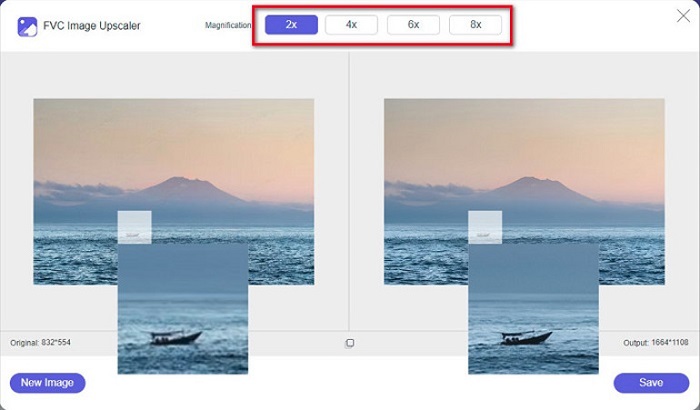
Korak 4. Rezultate ćete vidjeti na desnoj strani sučelja. Ako ste zadovoljni dobivenom slikom, kliknite gumb Save da biste spremili rezultat na svoj uređaj.
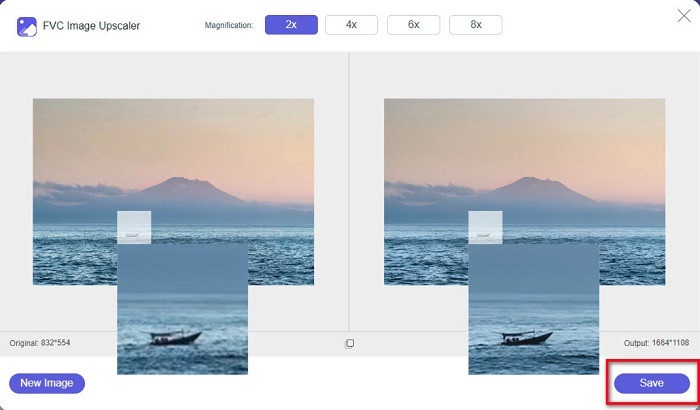
Samo pričekajte da se vaša slika spremi i voila! Sada možete podijeliti svoju nevjerojatnu fotografiju s prijateljima ili na drugim platformama društvenih medija.
Dio 2. Kako učiniti sliku jasnijom izvan mreže
Također je dobro koristiti izvanmrežnu aplikaciju kada želite izoštriti ili urediti svoju sliku. Mnoge aplikacije za uređivanje fotografija su izvan mreže; morate ih kupiti prije korištenja. Ali ne brini; u ovom ćemo dijelu pružiti besplatni izvanmrežni alat koji možete koristiti na radnoj površini.
Paint.net je jedna od najkorištenijih aplikacija za uređivanje fotografija koja je besplatna i sigurna za korištenje. Ovaj izvanmrežni alat ima jednostavnije korisničko sučelje od Adobe Photoshopa, koji koriste brojni profesionalci. Iako je sučelje jednostavno, i dalje može proizvesti izvrsne rezultate i omogućuje vam izoštravanje mutne slike. Osim toga, sadrži i druge funkcije za uređivanje koje mogu pomoći u poboljšanju vaših fotografija. Uz Paint.net možete izoštriti sliku, ispravljati boje i dodavati pozadinu fotografiji.
Štoviše, pomicanjem klizača možete odabrati oštrinu svoje slike i ukloniti njezine zamućene dijelove. Međutim, dostupan je samo na Windows uređajima. Ipak, ako želite povećati sliku dok je izoštravate, možete koristiti Paint.net.
Kako sliku učiniti većom i jasnijom koristeći Paint.net:
Korak 1. Najprije preuzmite i instalirajte Paint.net na svoje računalo, zatim ga otvorite nakon završetka instalacije. Potom učitajte sliku klikom na File > Open.
Korak 2. Zatim idite na Effects > Photo > Sharpen. Pojavit će se novi prozor u kojem ćete podesiti oštrinu slike kako biste je „odmutili”.
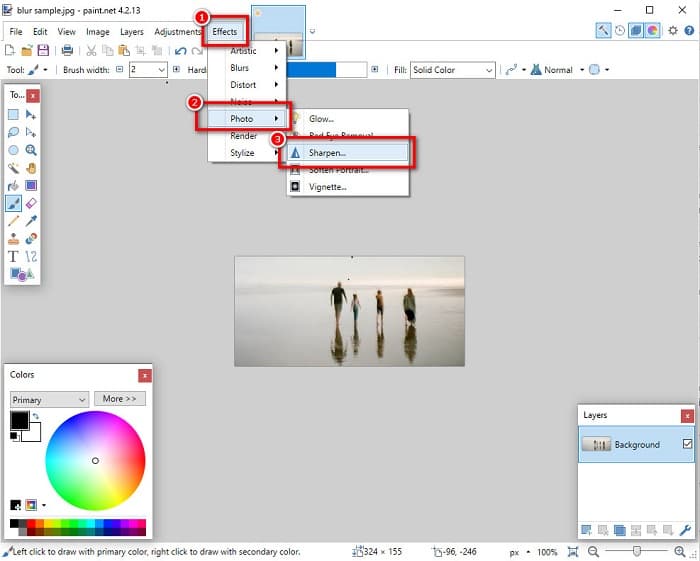
Korak 3. Na kartici Sharpen pomaknite klizač kako biste odabrali željenu oštrinu slike. Možete također klikati na strelice gore/dolje kako biste numerički odabrali razinu oštrine.
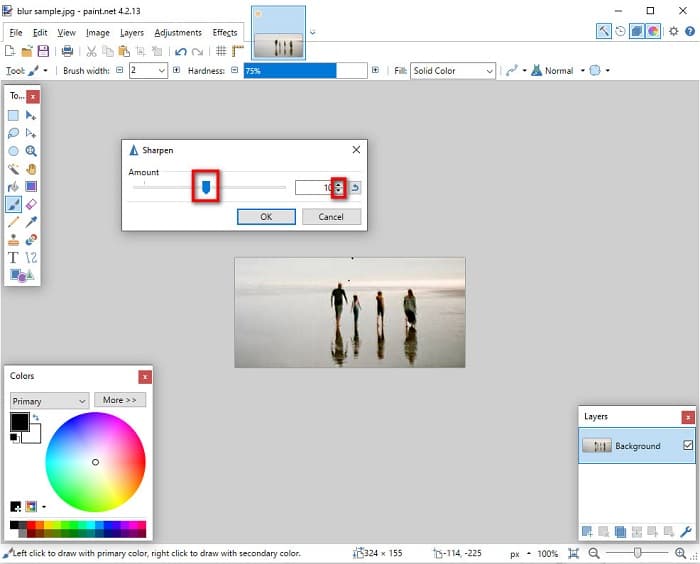
Korak 4. Na kraju kliknite gumb OK i zatim idite na File > Save kako biste spremili svoj rezultat na računalo.
Dio 3. Kako učiniti sliku jasnijom na vašem iPhoneu
A ako imate mutnu sliku snimljenu pomoću iPhonea, također možete koristiti aplikaciju za uklanjanje zamućenja za vaš iPhone uređaj. Brojne aplikacije za uređivanje slika koje možete preuzeti s AppStorea mogu vam pomoći da uklonite zamućenje slike. Međutim, nisu sve aplikacije besplatne za korištenje; morate ih kupiti prije korištenja. Srećom, pronašli smo aplikaciju za uklanjanje zamućenja slike koja je besplatna za korištenje u AppStoreu. Pročitajte ovaj odjeljak do kraja kako biste saznali kako sliku učiniti jasnijom na svom iPhone uređaju.
Ako se pitate koja je besplatna aplikacija za uređivanje fotografija koja može pomoći da „odmutite” sliku, VSCO je aplikacija koju tražite. VSCO je poznata aplikacija za uređivanje fotografija dostupna u AppStoreu. Osim toga, pri uklanjanju zamućenja u aplikaciji VSCO trebate obratiti pozornost na određene postavke. Da biste odmutili fotografiju u VSCO-u, morate podesiti jasnoću (clarity), oštrinu (sharpness), kontrast i ekspoziciju slike. VSCO također ima druge alate za uređivanje koje možete koristiti za obradu fotografija. Nadalje, podržava najčešće formate slika na iPhoneu, poput HEIC i HEIF. Manji nedostatak aplikacije je što podržava samo nekoliko formata slika, a za korištenje naprednijih funkcija uređivanja potrebno je plaćeno članstvo.
Kako sliku učiniti jasnijom na iPhoneu koristeći VSCO:
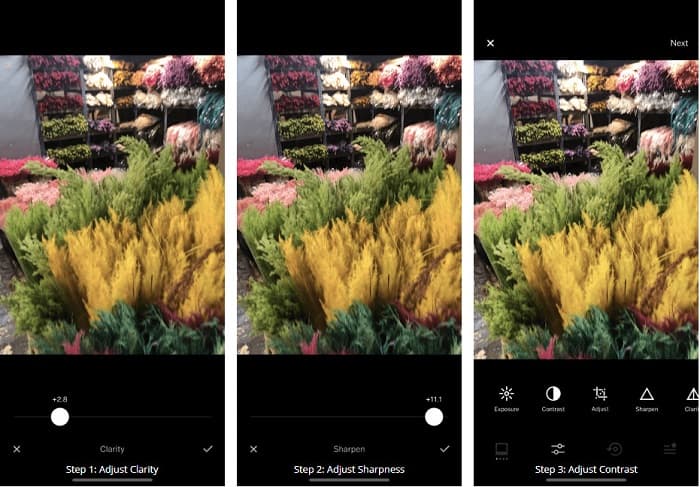
Korak 1. Instalirajte VSCO iz AppStorea, zatim otvorite aplikaciju na svom iPhoneu.
Korak 2. Otvorite svoju sliku, zatim idite na opciju Clarity. Opcija Clarity pomaže ukloniti šum velikih razmjera na fotografiji. Samo malo pomaknite klizač Clarity pri dnu sučelja.
Korak 3. Zatim ćemo podesiti oštrinu slike. Funkcija Sharpen pomoći će vam postići željenu „hrskavost” fotografije. Pomičući klizač možete odabrati razinu oštrine koju želite.
Korak 4. Kada završite s podešavanjem jasnoće i oštrine, prijeđimo na prilagodbu kontrasta. Pomaknite opciju Contrast i klizač za Contrast kako biste odabrali razinu svjetline i tamnoće slike.
Korak 5. Na kraju ćemo još prilagoditi Exposure kako bismo fotografiju malo posvijetlili. Povećanje ekspozicije pomoći će uravnotežiti tamne dijelove u odnosu na kontrast. I to je to! Podešavanjem ovih postavki možete 'odmutiti' svoju mutnu fotografiju. Kliknite ovdje kako biste naučili kako promijeniti veličinu slike na iPhoneu.
Dio 4. Kako učiniti sliku jasnijom na vašem Androidu
Na Androidu također postoje aplikacije koje možete koristiti za jasniju sliku. Dakle, ako želite mutnu sliku spremljenu u svoju galeriju, ova vam aplikacija može pomoći da poboljšate svoju sliku. Pročitajte ovaj dio da biste saznali kako ukloniti zamućenje slike na svom Android uređaju.
Aplikacija Remini (za Android) vjerojatno je jedna od najboljih aplikacija za uređivanje fotografija koju možete koristiti na Android uređaju. Ova aplikacija omogućuje vam uređivanje i „odmutivanje” mutnih slika. Štoviše, jednostavna je za korištenje i besplatna. Korištenjem opcije Enhance možete učiniti fotografiju jasnijom. Međutim, prije korištenja morate najprije izraditi račun. U Pro verziji možete pristupiti naprednim funkcijama uklanjanja zamućenja.
Kako ukloniti zamućenje slike koristeći Remini za Android:
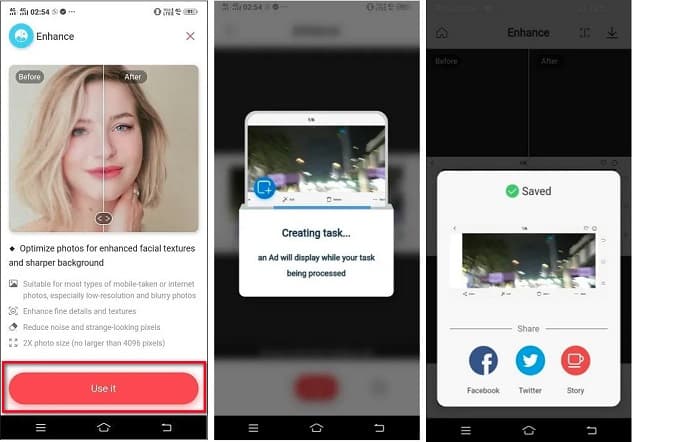
Korak 1. Instalirajte Remini na svoj Android uređaj. Nakon instalacije odmah otvorite aplikaciju. Na glavnom sučelju dodirnite gumb Use it kako biste nastavili s „odmutivanjem” slike.
Korak 2. Zatim odaberite sliku i dodirnite crveni gumb na dnu sučelja. Time ćete pokrenuti zadatak, a tijekom obrade prikazat će se oglas.
Korak 3. Nakon toga pojavit će se konačan rezultat, gdje možete usporediti izgled slike prije i poslije obrade. Ako ste zadovoljni rezultatom, spremite svoju fotografiju.
Dio 5. Često postavljana pitanja o tome kako sliku učiniti jasnijom
Mogu li koristiti GIMP za uklanjanje zamućenja slike?
Da. GIMP je nevjerojatan softver za uređivanje fotografija koji možete koristiti za uklanjanje zamućenja slike. Također možete preuzeti ovu aplikaciju na svoj Windows uređaj.
Povećava li uklanjanje zamućenja slike veličinu datoteke?
Da. Uklanjanje zamućenja slike znači povećanje kvalitete i rezolucije vaše slike. Kada se razlučivost povećava, povećava se i veličina datoteke vaše slike.
Koju aplikaciju mogu koristiti za zamućivanje slike?
YouCam Perfect je aplikacija koja vam može pomoći da zamutite svoju sliku. Uz njegovu AI tehnologiju, možete odmah zamutiti svoju sliku.
Zaključak
Ovaj je članak objasnio što trebate znati o tome kako učiniti sliku jasnijom. Dakle, ako tražite aplikacije koje vam omogućuju uklanjanje zamućenja sa slike, gore navedene metode pomoći će vam ostvariti taj cilj. No ako radije koristite mrežni alat s jednostavnim sučeljem, poslužite se alatom FVC Free Image Upscaler.
-
 Činjenična PicResize recenzija koju morate znati 2022
 Želite li znati je li PicResize najbolja opcija za uređivanje slike? Pročitajte ovaj članak dok pregledavamo cijeli alat.
-
 Sve što trebate znati o Waifu2x i Alternative
 Trebate znati više o Waifu2x? Ovaj članak pruža informacije koje treba istaknuti u ovoj aplikaciji i njezinoj alternativi.
-
 Kako optimizirati sliku za web pomoću najboljih rješenja [Brzo]
 Kako optimizirati sliku za web? Trebat će vam pouzdan softver i vodič; sve informacije su ovdje.
