


 Video Converter Ultimate
 Snimač zaslona
 Video popravak
Sjajan način za uklanjanje vodenog žiga iz Camtasije 9 koji morate isprobati
Ako tražite jednostavan i najbolji način kako ukloniti vodeni žig u Camtasia 9, na pravom ste mjestu. Postoji mnogo izvrsnih videozapisa koje želimo gledati. Međutim, neki od njih imaju veliki vodeni žig, što ih čini iritantnijima i onemogućuje nam da cijenimo sam sadržaj videa. Štoviše, zbog tih nepotrebnih elemenata, postoje dijelovi videa koje ne možete vidjeti, što gledatelje dodatno razočarava. Srećom, postoje softverske aplikacije s alatima za uklanjanje vodenih žigova koje možete koristiti da uklonite vodene žigove s svojih videozapisa, kako biste mogli uživati u omiljenim filmovima bez ometanja. Ako želite saznati više o brzom uklanjanju vodenih žigova s vaših videozapisa, pročitajte ovaj članak od početka do kraja.

Dio 1: Najbolji način za uklanjanje vodenog žiga iz Camtasije
Korištenje programa Video Converter Ultimate
Ako tražite odličnu i pouzdanu aplikaciju s alatima za uklanjanje vodenog žiga, Video Converter Ultimate je izvrstan softver koji možete koristiti. Ovom aplikacijom možete ukloniti vodene žigove sa svojih videozapisa. Aplikaciju možete koristiti i ako vaš video ima vodene žigove drugih aplikacija, poput Camtasije. Nadalje, jednostavna je i laka za upotrebu, što je čini prikladnom za početnike. Osim toga, sadrži razne alate za uređivanje u kojima možete uživati, kao što su Video Compressor, Video Enhancer, Video Trimmer, Audio Compressor, Video Reverser, Video Rotator i drugi. U ovom ćemo članku prikazati dva načina uklanjanja vodenih žigova s vaših videozapisa pomoću programa Video Converter Ultimate.
1. Korištenje Video Watermark Remover
Korak 1: Preuzmite Video Converter Ultimate na svoje računalo. Zatim prijeđite na postupak instalacije.
Besplatno preuzimanjeZa Windows 7 ili novijiSigurno preuzimanje
Besplatno preuzimanjeZa MacOS 10.7 ili novijiSigurno preuzimanje
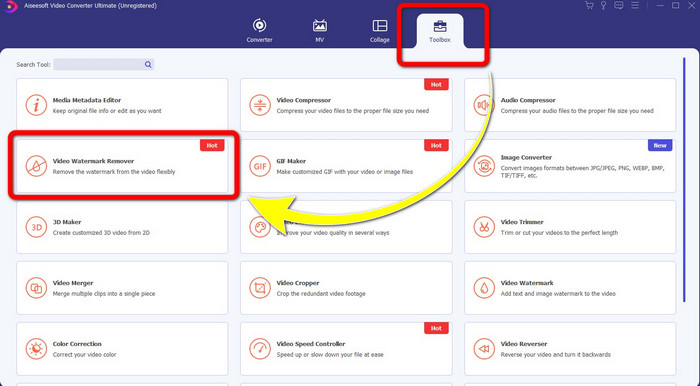
Korak 2: Kada je instalacija dovršena, otvorite aplikaciju i idite na Toolbox > Video Watermark Remover. Zatim će se na vašem zaslonu pojaviti novo sučelje.
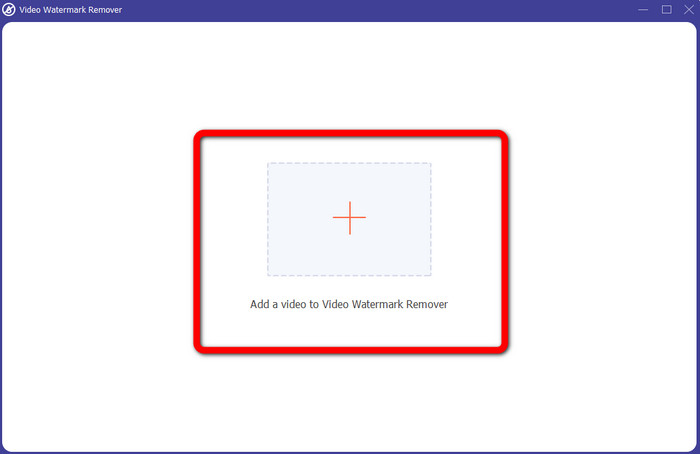
Korak 3: Kada se pojavi novo sučelje, kliknite gumb s oznakom Plus i dodajte videozapis s vodenim žigom.
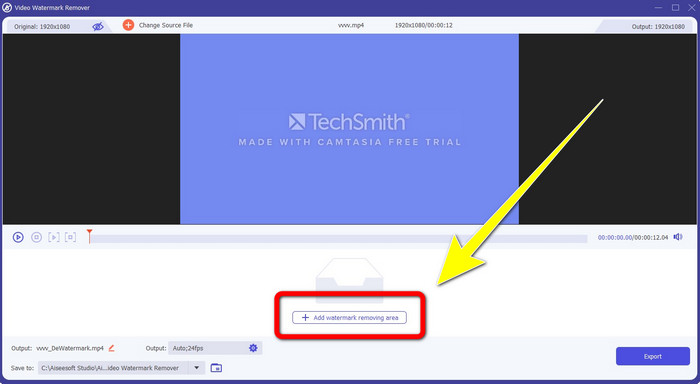
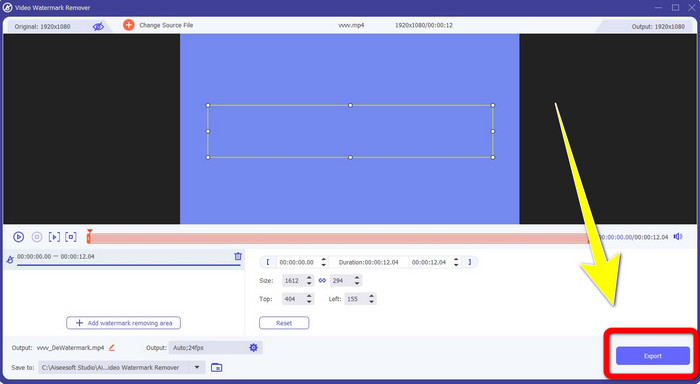
Korak 4: Nakon što dodate svoj videozapis s vodenim žigom, kliknite Add Watermark Removing Area.
Korak 5: Na zaslonu će se pojaviti pravokutno područje. Upotrijebite taj okvir kako biste prekrili vodeni žig na svom videozapisu.
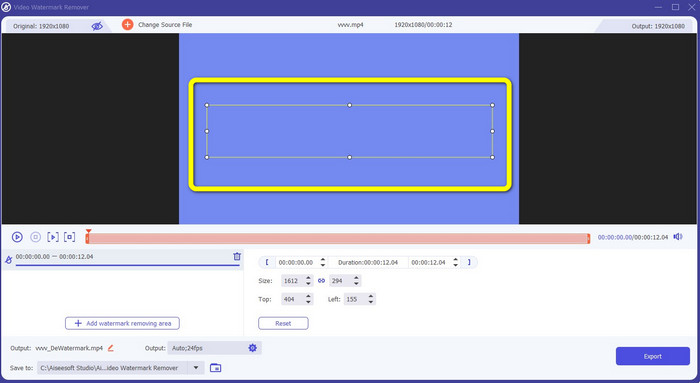
Korak 6: Kada je vodeni žig prekriven, vodeni žig će nestati s vašeg videozapisa. Kliknite Export da biste spremili video. Na taj način sada možete ukloniti video s vodenim žigom iz Camtasije.
2. Korištenje značajki izrezivanja
Drugi način koji možete isprobati su mogućnosti obrezivanja u programu Video Converter Ultimate. To je jedan od najjednostavnijih načina uklanjanja vodenih žigova s vaših videozapisa, osobito ako je vodeni žig samo u kutu ili na rubu videa. Obrezivanjem videozapisa možete trenutno ukloniti nepotrebne elemente na snimci. Slijedite ove jednostavne korake kako biste uklonili vodene žigove pomoću alata za obrezivanje.
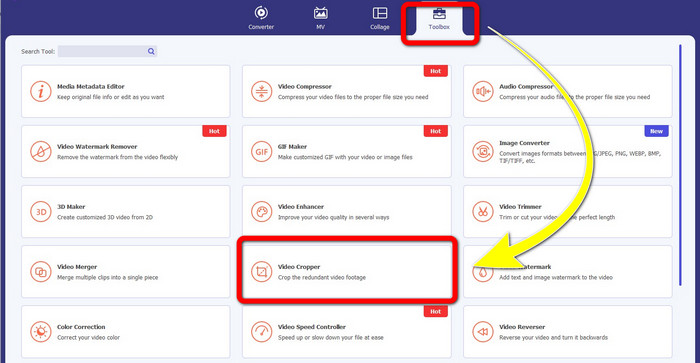
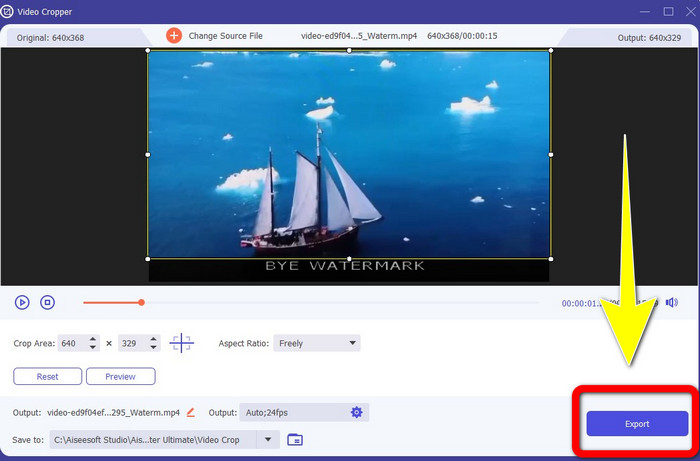
Korak 1: Otvorite Video Converter Ultimate. Kliknite Toolbox > Video Cropper. Zatim će se na vašem zaslonu pojaviti novo sučelje.
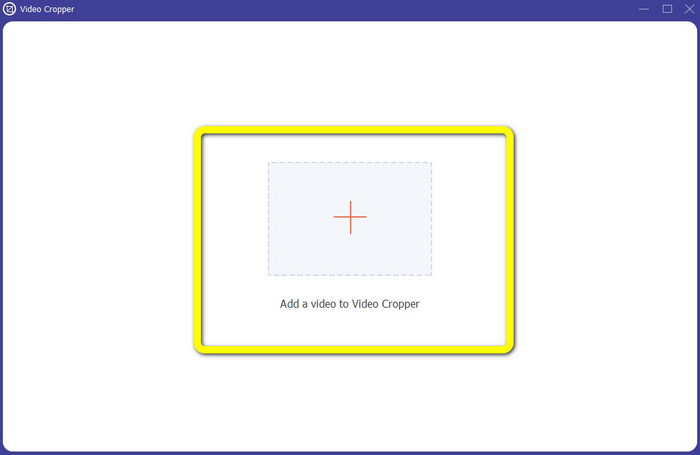
Korak 2: Kliknite gumb s oznakom Plus i dodajte svoj videozapis s vodenim žigom koji želite ukloniti.
Korak 3: Kada ste već dodali svoj videozapis s vodenim žigom, sada možete obrezati rubove videa do područja na kojem se nalazi vodeni žig. Na taj način možete ukloniti vodene žigove.
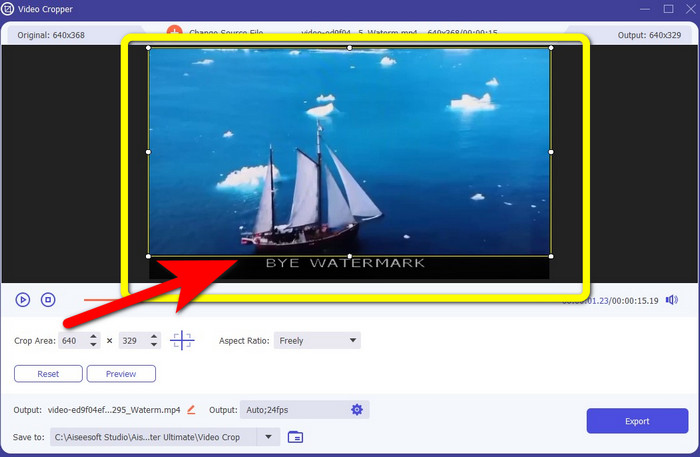
Korak 4: Ako ste već obrezali svoj videozapis i vidjeli da je vodeni žig nestao, kliknite Export da biste spremili uređeni video. Sada možete uživati gledajući svoj video bez ikakvih vodenih žigova na zaslonu.
Dio 2: Kako proizvesti videozapise u Camtasiji bez vodenog žiga
Želite li naučiti kako napraviti Camtasia video bez vodenih žigova? Najprije definirajmo što je Camtasia. Camtasia je jednostavan i koristan alat za uređivanje koji možete koristiti. Osim toga, to je i softver za snimanje zaslona. Također ima razne mogućnosti uređivanja u kojima možete uživati, poput anotacija, prijelaza, animacija, audio efekata, video efekata i još mnogo toga. Uz to, u ovoj aplikaciji možete izraditi i prezentaciju slajdova.
Uz pomoć ove aplikacije možete svoje videozapise učiniti privlačnijim i jedinstvenijim za gledatelje. U Camtasiji možete napraviti prekrasne videozapise u kojima možete uživati. Međutim, ova aplikacija ima vodeni žig nakon što izvezete svoj videozapis osim ako ne kupite aplikaciju. Slijedite ove jednostavne korake kako biste naučili mnoge stvari u ovoj aplikaciji, posebno stvaranje videa u Camtasiji.
Uz pomoć ove aplikacije možete svoje videozapise učiniti privlačnijim i jedinstvenijim za gledatelje. U Camtasiji možete napraviti prekrasne videozapise u kojima možete uživati. Međutim, ova aplikacija ima vodeni žig nakon što izvezete svoj videozapis osim ako ne kupite aplikaciju. Slijedite ove jednostavne korake kako biste naučili mnoge stvari u ovoj aplikaciji, posebno stvaranje videa u Camtasiji.
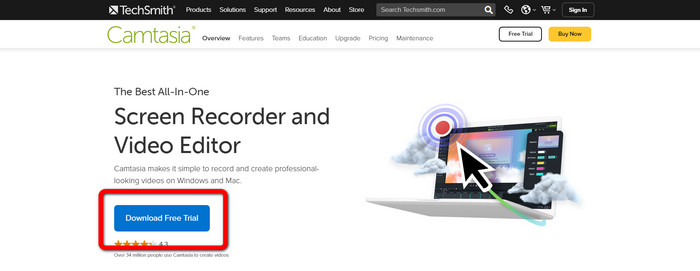
Korak 1: Morate preuzeti Camtasiju na svoje Windows računalo. Kliknite gumb Download Free Trial da biste preuzeli aplikaciju. Zatim, nakon instalacije, otvorite aplikaciju.
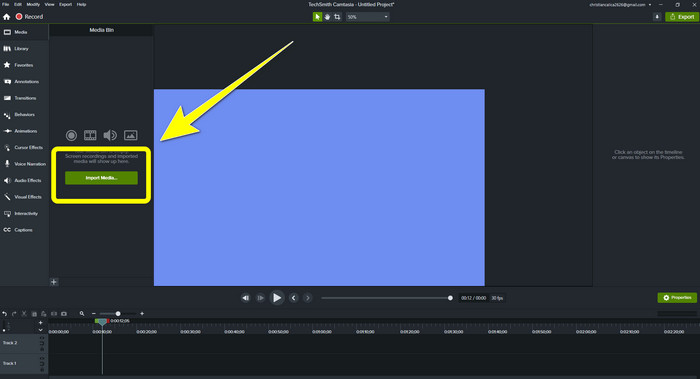
Korak 2: Nakon pokretanja aplikacije kliknite gumb Import Media kako biste dodali datoteku koju želite urediti.
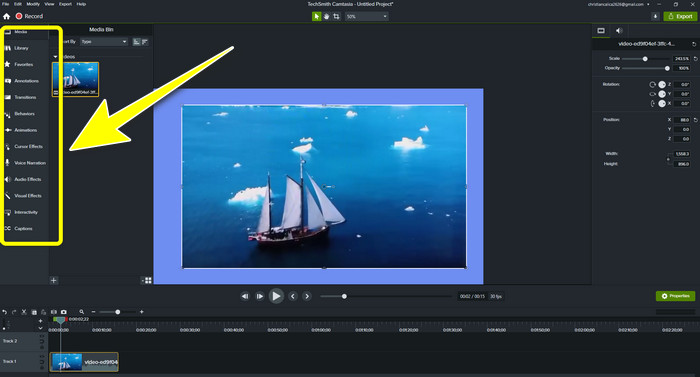
Korak 3: Sada možete uređivati svoje datoteke u ovoj aplikaciji koristeći editing tools, kao što su dodavanje titlova, prijelaza, animacija, anotacija, ponašanja i još mnogo toga.
Korak 4: Ako ste završili i zadovoljni ste uređivanjem svojih videozapisa, sada možete kliknuti gumb Export > Local File kako biste spremili svoj rezultat.
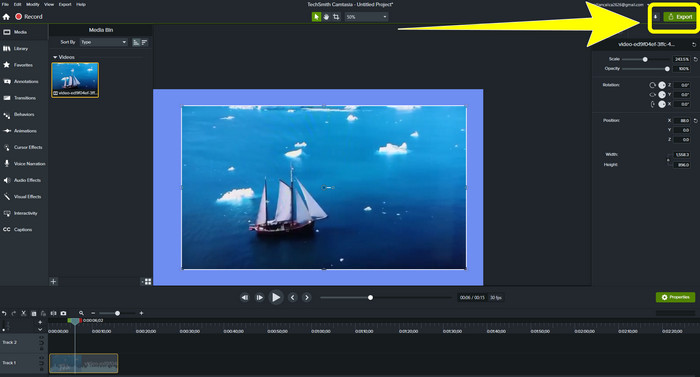
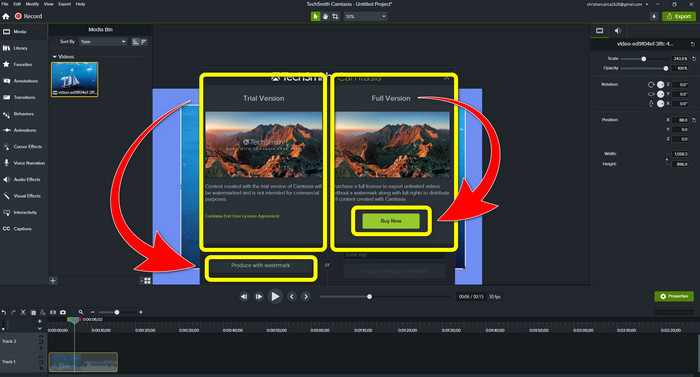
Korak 5: Nakon klika na Export > Local File Button, pojavit će se novo sučelje. Ako želite kupiti aplikaciju, kliknite gumb Buy kako biste izvezli video u Camtasiji bez vodenog žiga. Međutim, ako koristite samo probnu verziju, vaš će video nakon izvoza i spremanja imati vodeni žig.
Povezano s:
Kako besplatno ukloniti Filmora vodeni žig sa svojih videozapisa ili projekata
Najbrži trik za uklanjanje Adobe Stock vodenog žiga s videa [ vodič ]
Dio 3: Često postavljana pitanja o uklanjanju vodenih žigova
Postoji li odličan alat za uklanjanje vodenog žiga koji mogu koristiti na svom Macu?
Definitivno da! Možete koristiti aplikacije s alatima za uklanjanje vodenih žigova, poput Video Converter Ultimate. Ona je sposobna ukloniti vodene žigove s vaših videozapisa. Osim toga, ova je aplikacija dostupna i na Windows i na Mac sustavima, što je čini još praktičnijom.
Mogu li na neki način ukloniti vodene žigove s fotografija?
Apsolutno da! Za uklanjanje vodenih žigova s fotografija možete koristiti mnoge aplikacije na svom uređaju. Najbolje što trebate učiniti je pretražiti alate za uklanjanje vodenog žiga u svojim preglednicima i potražiti prvih 10 rezultata na stranici s rezultatima.
Mogu li ukloniti vodene žigove pomoću telefona?
Da, možete! Neke od aplikacija s alatima za uklanjanje vodenih žigova sada su dostupne na Mac i Windows te mobitelima poput Android telefona i iPhonea.
Kako mogu ukloniti vodene žigove pomoću alata za obrezivanje?
Uklanjanje vodenih žigova na vašim fotografijama ili videozapisima pomoću alata za obrezivanje je lako, pogotovo ako je vodeni žig na rubu slike. Sve što trebate učiniti je izrezati ga, ukloniti vodeni žig i gotovi ste.
Zaključak
Kao što možete vidjeti, ovaj članak prikazuje najbolje načine kako ukloniti vodeni žig iz Camtasia 9. Također nudi izvrsnu i pouzdanu aplikaciju s dvjema metodama za uklanjanje nepotrebnih elemenata s vaših videozapisa. Ta aplikacija je Video Converter Ultimate.
-
 5 načina za uklanjanje vodenog žiga s videa na profesionalan način
 Trebate ukloniti vodeni žig s videozapisa kako bi izgledao profesionalno? Pa, pročitajte ovaj članak dok dodajemo vodič o tome kako to učiniti!
-
 3 najnovija Shutterstock sredstva za uklanjanje vodenog žiga koja će vam ikada trebati
 Ne sviđa vam se Shutterstock vodeni žig priložen uz izvezeni video? Možete upotrijebiti sredstvo za uklanjanje vodenog žiga Shutterstock da biste ga učinkovito izbrisali.
-
 Najlakše metode o tome kako ukloniti vodeni žig s fotografija
 Nerviraju li vas vodeni žigovi na fotografiji? ne brini! Ovaj članak će pružiti jednostavne i lake metode za uklanjanje vodenih žigova s vaših fotografija
