


 Video Converter Ultimate
 Snimač zaslona
 Video popravak
Kako promijeniti veličinu slika u Illustratoru na računalu
Mnoga složena uređivanja postala su raširena, osobito s pojavom profesionalnih aplikacija za obradu fotografija kao što je Adobe Illustrator. Ipak, uz te moćne aplikacije i dalje je moguće raditi jednostavne obrade. Primjerice, i dalje možete koristiti Adobe Photoshop ako želite promijeniti dimenzije svoje slike. A jeste li znali? Svoju sliku u Illustratoru možete promijeniti veličinom na dva načina. Jedan je ručno skaliranje slike, a drugi je upisivanje brojčanih vrijednosti koje želite za svoju fotografiju. U ovom ćemo vam vodiču pokazati te dvije metode kako biste naučili kako promijeniti veličinu slika u Illustratoru.

Dio 1. Kako promijeniti veličinu slika u Illustratoru
Adobe Illustrator je softver za uređivanje fotografija koji najčešće koriste profesionalci. Ova vam aplikacija omogućuje stvaranje iznimnih rezultata pomoću sofisticiranih alata za digitalno crtanje. Savršen je za izradu vektorskih ilustracija, ikona, tipografije, logotipa i više. Štoviše, ima napredne opcije boja za stvaranje paleta boja, gradijentnih shema boja i miješanje različitih boja za nevjerojatan izlaz slike.
S Adobe Illustratorom možete raditi mnoge stvari. Navedene značajke samo su neke od brojnih značajki koje nudi Illustrator. A ako pitate može li Adobe Illustrator promijeniti veličinu vaše slike, onda je odgovor potvrdan. Stalno čitajte ovaj dio kako biste naučili korake kako promijeniti veličinu slika u Illustratoru.
Kako promijeniti veličinu slike u Illustratoru pomoću Image Scalera
Korak 1. Prvo što morate učiniti jest preuzeti Adobe Illustrator na svoje računalo. Nakon što preuzmete i instalirate aplikaciju, pokrenite je na svom uređaju. Zatim otvorite svoju sliku u Illustratoru tako da odete na File > Open. Svoju sliku možete i kopirati i zalijepiti na već otvorenu radnu ploču (artboard).
Korak 2. Zatim kliknite Selection Tool (Cmd V na tipkovnici) i kliknite na svoju sliku da biste je odabrali. Nakon odabira, na kutovima slike pojavit će se ručke. Te ručke izgledaju kao mali bijeli kvadrati s plavim obrubom. Pomoću tih ručki možete skalirati/promijeniti veličinu slike, rotirati je i izobličiti (shear).
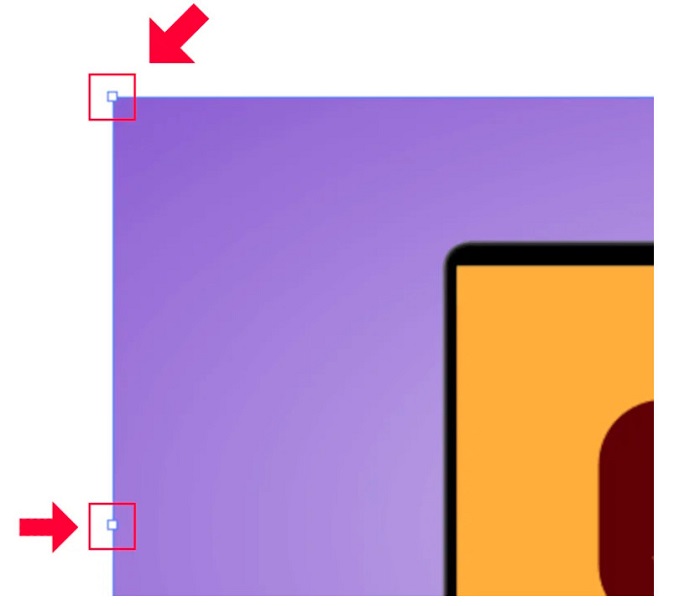
Korak 3. Da biste promijenili veličinu slike skaliranjem, kliknite i povucite bilo koju od ručki do željene veličine. Također možete zaključati omjer stranica svoje slike tako da držite tipku Shift na tipkovnici dok pomičete pokazivač.
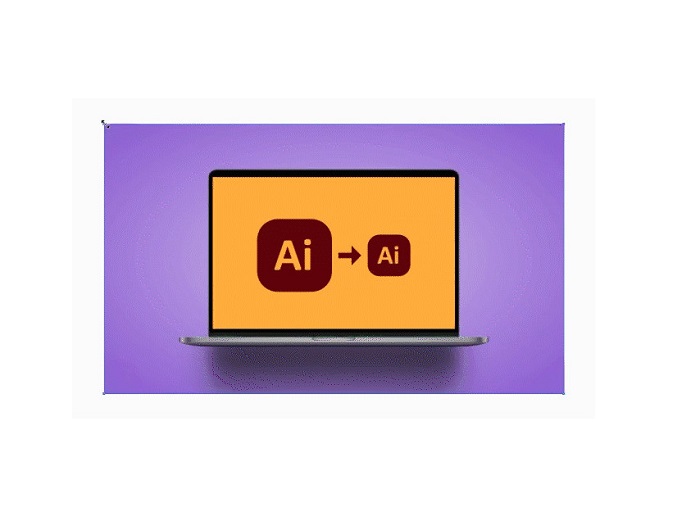
Nakon promjene veličine vaše slike prema vašim željama, sada možete otpustiti klik na ručke.
Kako koristiti Adobe Illustrator za promjenu veličine slike podešavanjem numeričkih vrijednosti
Sada ćemo vas naučiti kako promijeniti veličinu fotografije unosom numeričkih vrijednosti pomoću izbornika Transformacija umjesto ručnog skaliranja slike pomoću alata za odabir.
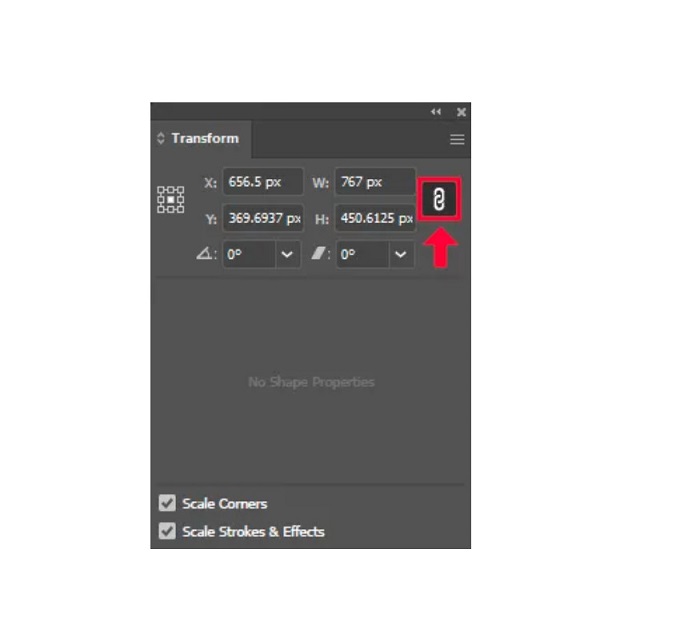
Korak 1. Kada se Adobe Illustrator otvori na vašem uređaju, otvorite Transform izbornik klikom na Windows > Transform. Ovaj izbornik možete pozvati i pritiskom na Shift + F8 na tipkovnici. Ovako izgleda Transform izbornik.
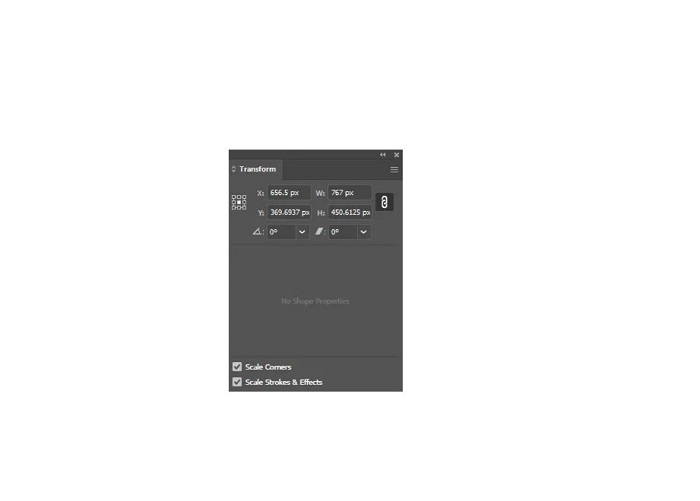
Transform izbornik omogućuje vam promjenu položaja objekta u odnosu na X i Y os. Ovaj izbornik možete koristiti i za rotiranje, izobličavanje (shear) i promjenu veličine slike unosom brojčane vrijednosti.
Korak 2. Zatim pomoću Selection Toola odaberite sliku kojoj mijenjate veličinu. Potom prilagodite širinu i visinu u Transform izborniku mijenjajući brojeve prema željenoj veličini svoje fotografije. Slovo W označava širinu (width), a H označava visinu (height) vaše slike.
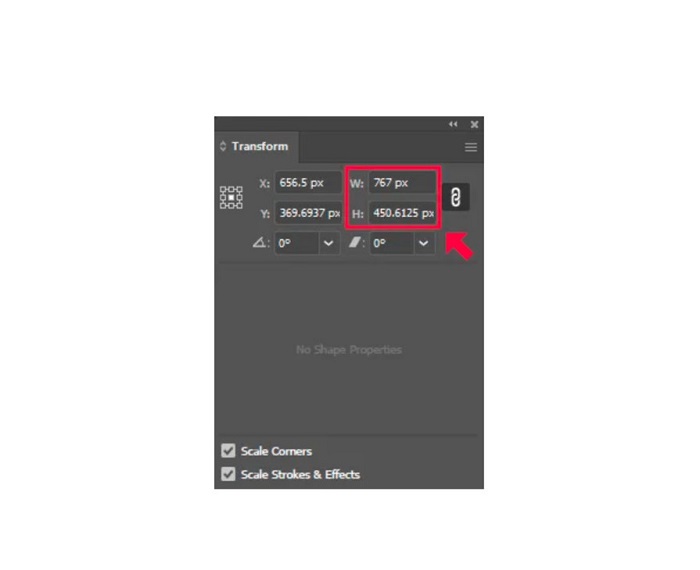
Korak 3. Također će pomoći ako zaključate omjer stranica fotografije klikom na ikonu lanca (Chain) pokraj visine i širine. Kada uključite opciju Chain i promijenite visinu slike, širina će se automatski prilagoditi.
Savjet. Možete promijeniti i zadanu jedinicu mjere svoje slike. Illustrator koristi piksele (px) kao zadanu jedinicu. Jedinicu možete promijeniti na sljedeći način:
◆ Centimetri (cm)
◆ Milimetri (mm)
◆ Inči (in)
◆ Postoci (%)
Da biste promijenili jedinicu mjere svoje slike, upišite je iza brojčane vrijednosti mjere. Kada promijenite brojčanu vrijednost i jedinicu slike, pritisnite Enter na tipkovnici.
Sada ćemo izvesti vašu sliku. Odaberite sliku pomoću Selection Toola, kliknite desnom tipkom miša i odaberite Export Selection.
Nakon što odaberete opciju Export Selection, pojavit će se izbornik Export for Screens. Ovaj izbornik omogućit će vam da spremite sliku promijenjene veličine u upotrebljivom formatu.
Ispod minijature možete pregledati svoj izlaz i promijeniti naziv datoteke u onaj koji želite. Zatim, u panelu Export to kliknite ikonu mape kako biste odabrali lokaciju na koju će se datoteka spremiti. Također provjerite je li polje Scale postavljeno na 1x. Zatim odaberite izlazni format. Preporučuje se korištenje PNG ili JPG formata.
Na kraju kliknite gumb Export Asset da biste spremili svoj rezultat.
Nevjerojatno, zar ne? Adobe Illustrator vam omogućuje uređivanje slika po želji. Ovaj dio također je odgovor ako tražite kako promijeniti veličinu slika u illustratoru bez izobličenja. Međutim, ova aplikacija nije alat prilagođen korisniku jer nema sučelje jednostavno za korištenje. Stoga, ako želite promijeniti veličinu/povećati veličinu svoje slike pomoću aplikacije jednostavne za korištenje, temeljito pročitajte sljedeći dio.
Dio 2. Online alternativa za Illustrator
Adobe Illustrator je izvanmrežni alat i nije besplatan. Dakle, ako želite koristiti fantastičan alat za promjenu veličine slike koji je besplatan i koji će vam pomoći da poboljšate svoju sliku, slijedite upute koje ćemo predstaviti u nastavku.
FVC Free Image Upscaler internetski je alat za povećavanje slika koji vam može pomoći poboljšati fotografije lošije kvalitete. Ovaj mrežni alat može unaprijediti vašu sliku s uvećanjem 2x, 4x, 6x i 8x. Osim toga, koristi AI (umjetnu inteligenciju) koja automatski prepoznaje dijelove slike slabije kvalitete i zatim ih poboljšava. Podržava sve formate slika, uključujući JPEG, JPG, PNG i BMP. Nadalje, siguran je za korištenje i potpuno besplatan. Zahvaljujući jednostavnom korisničkom sučelju, lako možete promijeniti veličinu/povećati svoju sliku.
Kako promijeniti veličinu slike koristeći FVC Free Image Upscaler:
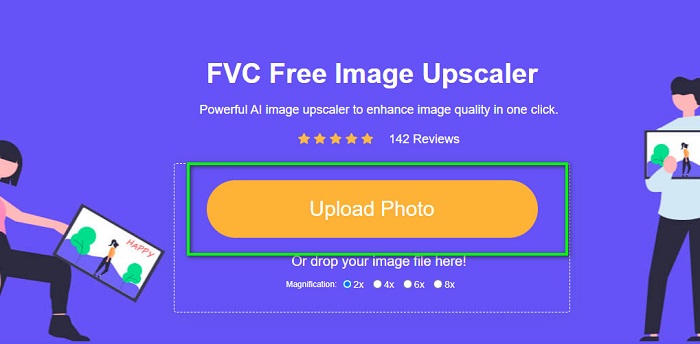
Korak 1. Potražite FVC Free Image Upscaler u pregledniku ili kliknite ovu poveznicu kako biste izravno otišli na njihovu glavnu stranicu. Na glavnom sučelju softvera kliknite gumb Upload Photo da biste pokrenuli aplikaciju na svom uređaju.
Korak 2. Zatim ponovno kliknite gumb Upload Photo kako biste uvezli sliku koju želite povećati.
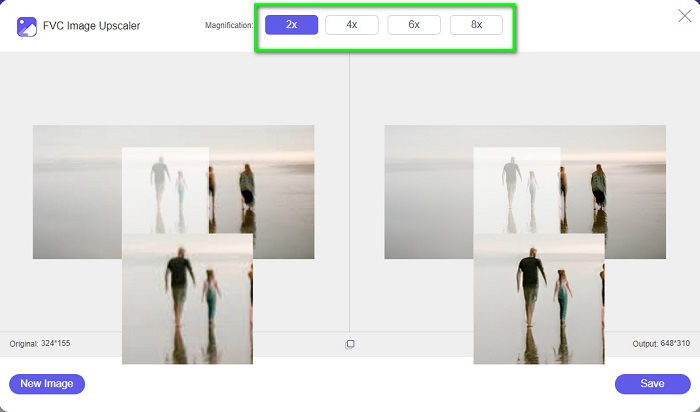
Korak 3. Kada se fotografija učita, odaberite zadani stupanj uvećanja koji želite za svoju sliku. Možete birati između 2x, 4x, 6x i 8x.
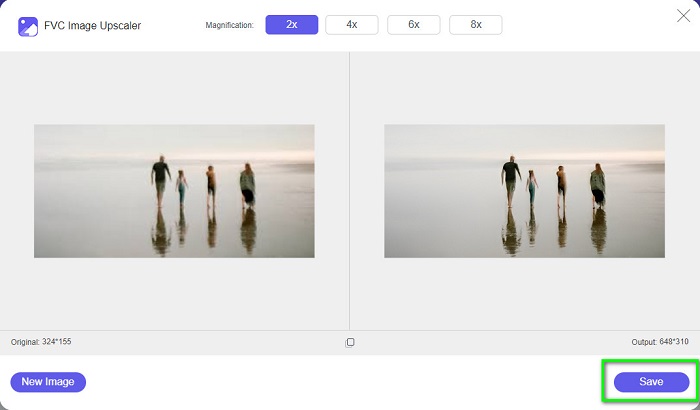
Korak 4. Na kraju označite gumb Save da biste spremili rezultat na svoj uređaj.
Povezano s:
Kako koristiti GIMP za promjenu veličine slika: detaljan postupak korak po korak
Kako promijeniti veličinu fotografije za Facebook [brzi i jednostavni koraci]
Dio 3. Često postavljana pitanja o tome kako promijeniti veličinu slike u Illustratoru
Zašto Adobe Illustrator ne želi promijeniti veličinu slika?
Ne možete promijeniti veličinu slike u Illustratoru jer granični okvir vjerojatno nije aktiviran. Da biste uključili granični okvir, idite na Pogled > Prikaži granični okvir. Ako ga aktivirate, sada možete promijeniti veličinu svoje slike u Illustratoru.
Mogu li promijeniti veličinu slike u Illustratoru bez gubitka kvalitete?
Da. Postoji način na koji možete promijeniti veličinu svoje slike pomoću Adobe Illustrator. Međutim, većinu vremena, kada promijenite veličinu slike pomoću skalera, to će utjecati na kvalitetu vaše slike.
Je li Adobe Illustrator besplatan?
Ne. Adobe Illustrator nije besplatan. Prije korištenja ove moćne aplikacije za uređivanje fotografija, morate je kupiti za $20.99 mjesečno.
Zaključak
Naučili ste kako promijeniti veličinu slika u Illustratoru slijedeći metode koje smo vam pokazali. Možda zahtijeva više koraka, ali vrijedi ga koristiti i isprobati. Problem s Adobe Illustratorom je taj što nije besplatan i ima složeno sučelje. Stoga, ako želite praktičniji i besplatan alat za promjenu veličine slika, koristite FVC Free Image Upscaler.
-
 Kako promijeniti veličinu slike – Adobe Resize Image [online i offline]
 Ako tražite Adobe promjenu veličine slike, onda imamo rješenje za vas. Detaljno pogledajte ovaj post kako biste naučili kako promijeniti veličinu slika pomoću programa Adobe na računalu.
-
 Najbolja aplikacija za promjenu veličine fotografija online, offline, Android i iPhone
 Koje su najbolje aplikacije za promjenu veličine fotografija? Kliknite stranicu da biste saznali pet najboljih najmoćnijih aplikacija za promjenu veličine fotografija koje možete koristiti za poboljšanje ili promjenu veličine datoteke
-
 7 najboljih poboljšivača piksela za sve web preglednike koje morate koristiti
 Ako želite znati koje najbolje pojačivače piksela možete koristiti, bolje pogledajte ovaj post. Ovaj članak navodi sedam najboljih pojačivača foto piksela za sve web preglednike.
