


 Video Converter Ultimate
 Snimač zaslona
 Video popravak
Izvanredna aplikacija za promjenu veličine slike - FastStone Photo Resizer
Traženje programa za promjenu veličine fotografija na internetu je jednostavno. Posebno danas, postoji mnogo softvera za uređivanje fotografija koji su dostupni online. Kada je riječ o promjeni veličine i pretvaranju slika, možete pronaći mnogo odličnih alata, i online i offline. Ali ako imate poteškoća s odabirom jednog, olakšat ćemo vam izbor. FastStone je platforma za uređivanje slika koju možete koristiti za promjenu veličine svojih slika. U ovom ćemo vam članku dati potpune pojedinosti o FastStoneu i kako koristiti FastStone Photo Resizer.

Dio 1. FastStone Photo Resizer pregled
FastStone Photo Resizer je aplikacija za uređivanje slika koju morate koristiti. Možete ga koristiti na radnoj površini sustava Windows i lako ga preuzeti. Osim toga, ima čisto i jednostavno sučelje, što ga čini alatom lakim za korištenje. FastStone Photo Resizer podržava različite formate slika, poput JPEG, BMP, PNG, TIFF i GIF. Također sadrži mnoge značajke za uređivanje koje možete koristiti za pretvaranje, preimenovanje, obrezivanje, dodavanje teksta, promjenu boje, dodavanje vodenog žiga i više.
Nadalje, nudi skupnu obradu, gdje možete istovremeno obrađivati dvije ili više slika. A ako želite pregledati konverziju koju radite, FastStone vam to omogućuje. FastStone image Resizer možete besplatno preuzeti na svoje Windows računalo, ali morate kupiti aplikaciju da biste koristili njene eksplicitne značajke. Slijedite upute u nastavku ako želite znati kako promijeniti veličinu slika koristeći FastStone.
Pros
- Nudi niz značajki i alata za uređivanje.
- Ima nisku cijenu.
- Ima jednostavno korisničko sučelje.
- Ima jednostavan proces dijeljenja datoteka.
Protiv
- Ima samo ograničenu podršku i pomoć.
- Nije besplatan za korištenje.
- Dostupno samo na Windows softveru
Kako koristiti FastStone Photo Resizer za promjenu veličine slika:
Korak 1. Prvo preuzmite i instalirajte FastStone Photo Resizer na svoje Windows računalo. Nakon instalacije aplikacije, pokrenite je na računalu. Zatim, na glavnom sučelju aplikacije, kliknite gumb Batch Convert u izborniku (Menu) kako biste učitali sliku koju želite promijeniti.
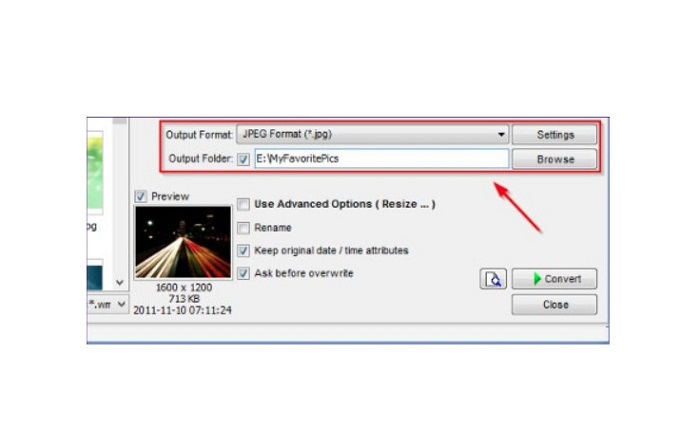
Korak 2. Nakon uvoza slike/slika, pojavit će se na sučelju. Zatim kliknite strelicu padajućeg izbornika Output Format kako biste odabrali željeni izlazni format datoteke. A da biste odabrali odredišnu mapu za izlaznu datoteku, kliknite gumb Browse pokraj Output Folder.
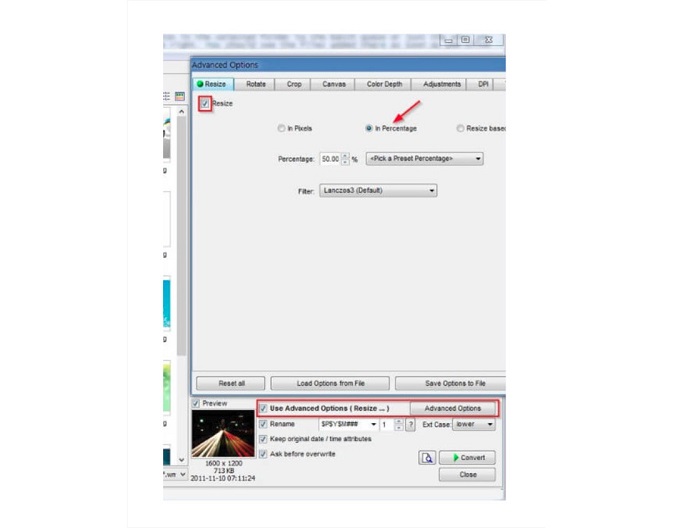
Korak 3. Zatim kliknite Advanced Options i pojavit će se nova kartica. Potom na kartici Resize označite opciju In Percentage kako biste promijenili veličinu slike prema postotku. Možete odabrati i filter klikom na padajuću strelicu pokraj opcije Filter.
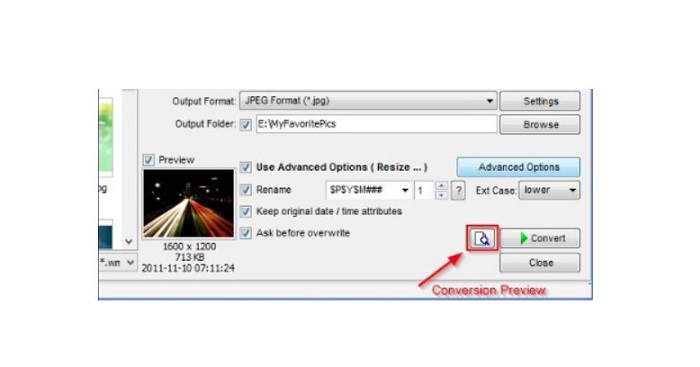
Korak 4. Zatim možete pregledati svoju sliku i usporediti je s izvornom datotekom klikom na ikonu Preview pokraj gumba Convert.
Korak 5. Na kraju označite gumb Convert kako biste pokrenuli postupak promjene veličine. Aplikacija će također pretvoriti vašu slikovnu datoteku u format koji ste odabrali u prethodnom koraku. Nakon što FastStone promijeni veličinu vaše slike, pojavit će se novi prozor u kojem ćete vidjeti izlazne slike i njihove veličine.
I to je kraj vodiča za FastStone Photo Resizer. Slijedeći gore navedene korake, možete jednostavno promijeniti veličinu svoje slike koristeći FastStone.
Dio 2. Alternative za FastStone Photo Resizer
FastStone Photo Resizer dostupan je samo na Windows stolnim računalima. Još jedna prepreka je to što morate kupiti aplikaciju prije nego što pristupite njezinim drugim značajkama za uređivanje. Dakle, ako više volite koristiti aplikaciju za trimer videa koja je dostupna na Windows, Mac ili Linux uređajima i dostupna je na mreži, pažljivo pročitajte ovaj odjeljak.
FVC Free Image Upscaler
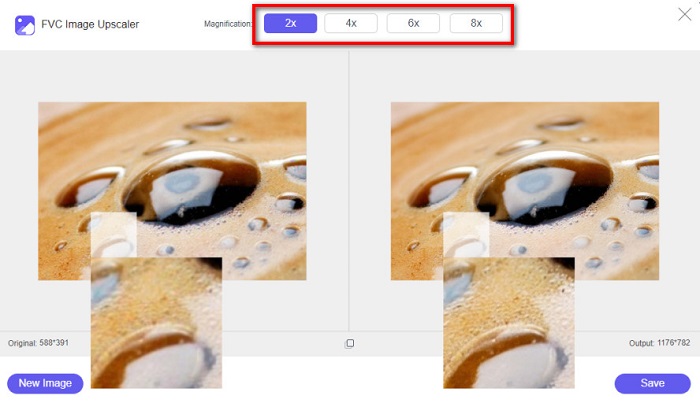
FVC Free Image Upscaler jedna je od najčešće korištenih aplikacija za promjenu veličine slika dostupnih online i u svim preglednicima, uključujući Google, Firefox i Safari. Ovaj online alat može vam pomoći i s mutnim slikama. Ako imate mutnu ili niskokvalitetnu fotografiju, možete upotrijebiti ovaj alat kako biste je izoštrili i poboljšali njezinu kvalitetu. Osim toga, možete poboljšati svoju sliku uz povećanje od 2x, 4x, 6x i 8x. Impresivno je kod FVC Free Image Upscaler alata to što koristi AI tehnologiju koja automatski otkriva mutne dijelove vaše slike i zatim ih poboljšava.
Štoviše, podržava sve formate slika, kao što su PNG, JPG, JPEG i BMP. Također se ne morate registrirati ili prijaviti za račun da biste koristili ovaj alat. A ako želite provjeriti pregled svog izlaza prije nego što ga spremite, to možete učiniti dok koristite ovu aplikaciju. Osim toga, siguran je za korištenje i praktičan za korištenje. I unatoč tome što je to aplikacija ovisna o internetu, ima sučelje za brzu obradu gdje vam neće biti teško učitavati slike za promjenu veličine.
Korak 1. Otvorite preglednik i u tražilicu upišite FVC Free Image Upscaler. Kliknite ponuđenu poveznicu kako biste otišli izravno na glavnu stranicu.
Korak 2. Pokrenite program na računalu klikom na gumb Upload Photo. Nakon pokretanja aplikacije ponovno kliknite gumb Upload Photo kako biste učitali sliku kojoj želite promijeniti veličinu ili ukloniti zamućenje.
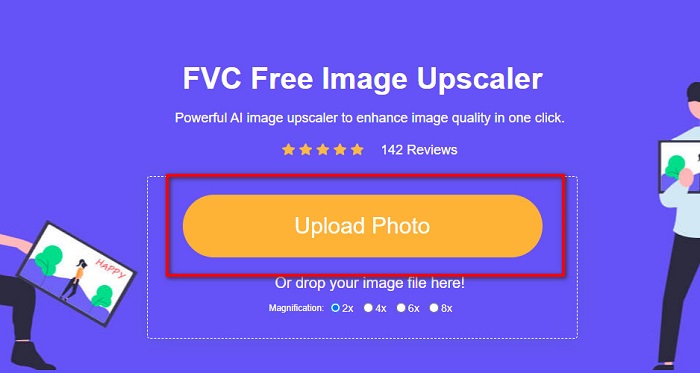
Korak 3. Zatim ćete vidjeti unaprijed zadane vrijednosti povećanja između kojih možete birati. Možete odabrati 2x, 4x, 6x ili 8x.
Korak 4. Pomaknite pokazivač miša kako biste vidjeli pregled svoje slike. Ako ste zadovoljni rezultatima, kliknite gumb Save u donjem desnom kutu sučelja.
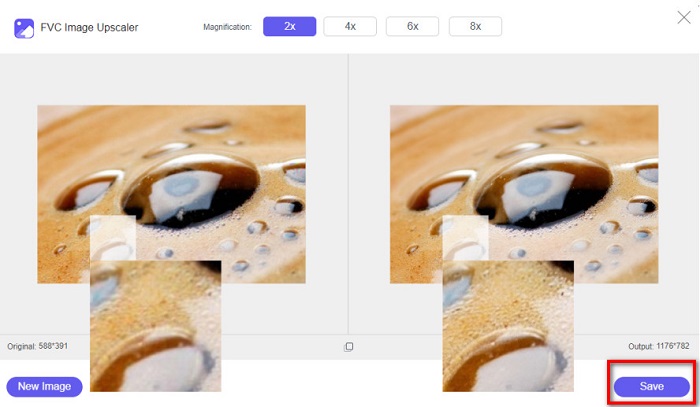
Image Resizer.com
Još jedan fantastičan online alat za promjenu veličine slika koji možete koristiti je Image Resizer.com. Image Resizer.com omogućuje vam da promijenite veličinu slike prilagođavanjem dimenzija slike. Nadalje, ima značajku obrezivanja i rotiranja fotografije. Također je prikladan za početnike jer ima jednostavno sučelje. Međutim, sadrži mnogo napornih oglasa koji vas mogu ometati.
Korak 1. U pregledniku potražite Image Resizer.com. Na glavnom korisničkom sučelju kliknite gumb Select Image kako biste učitali fotografiju kojoj želite promijeniti veličinu.
Korak 2. Na sljedećem sučelju možete promijeniti dimenzije svoje slike po dimenziji ili po postotku. Zatim upišite željenu Width and Height (širinu i visinu) za svoju sliku.
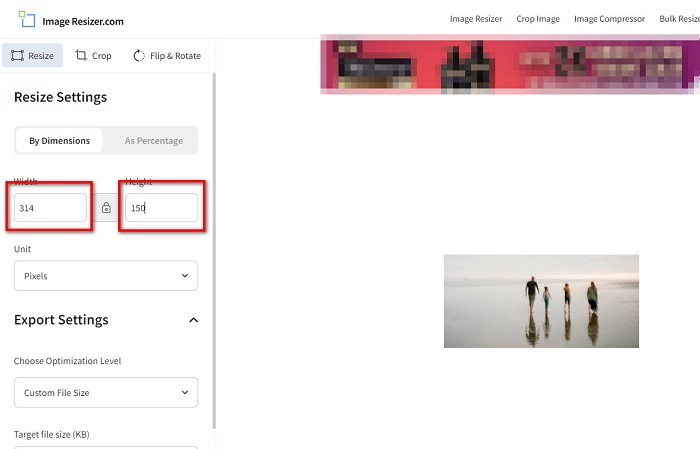
Korak 3. Kada završite s promjenom veličine slike, kliknite gumb Resize Image kako biste dovršili postupak.
Dio 3. Često postavljana pitanja o FastStone Photo Resizer
Koliko košta FastStone Photo Resizer?
Možete kupiti punu verziju programa FastStone Photo Resizer za $19.95 (doživotna licenca)
Je li FastStone preglednik besplatan?
FastStone Image Viewer je preglednik slika koji se koristi za Microsoft Windows. FastStone Image Viewer možete koristiti besplatno i bez naknade.
Uništava li FastStone Photo Resizer kvalitetu fotografije?
Ne. Kada optimizirate svoju sliku pomoću FastStone Photo Resizer alata, nećete izgubiti kvalitetu slike.
Zaključak
FastStone Photo Resizer izvrsna je aplikacija ako želite promijeniti veličinu slike na svom Windows računalu. Osim toga, ima mnogo funkcija za uređivanje i također je jednostavan za korištenje. Ali ako se pitate postoji li FastStone Photo Resizer za Mac, odgovor je da ne postoji. Stoga, ako želite alat za promjenu veličine fotografija koji je dostupan na svim platformama, upotrijebite FVC Free Image Upscaler odmah.
-
 Potpuni vodič za Imglarger – rješenje za dizajnere fotografija
 Imglarger je jedan od najeminentnijih alata za rješavanje slika. Kliknite ovu stranicu da saznate potpune opise, prednosti i nedostatke, cijenu i alternative Imglargera.
-
 Najbolja aplikacija za promjenu veličine fotografija online, offline, Android i iPhone
 Koje su najbolje aplikacije za promjenu veličine fotografija? Kliknite stranicu kako biste saznali pet najboljih najmoćnijih aplikacija za promjenu veličine fotografija koje možete koristiti za poboljšanje ili promjenu veličine datoteke.
-
 6 načina za promjenu veličine slike na webu i izvan mreže [100% radi]
 Uz vodič koji ovdje dodajemo, sada možete jednostavno promijeniti veličinu slike na temelju željene veličine. Ovdje saznajte kako to učiniti!
