


 Video Converter Ultimate
 Snimač zaslona
 Video popravak
Najlakše metode za uklanjanje logotipa ManyCam na vašem uređaju
Želite li naučiti kako ukloniti ManyCam logo na Windowsu i Macu? U tom slučaju, ovaj će vam članak ponuditi različite načine za uklanjanje logotipa s vaših videozapisa koje svakako trebate isprobati. Reprodukcija omiljenih videa s vodenim žigovima ili logotipovima može biti poprilično iritantna. Ne možete u potpunosti uživati u svojim videozapisima jer vas ometaju. Ponekad čak ne vidite ni neke dijelove videa zbog vodenih žigova, slika, teksta ili logotipa. Srećom, možete koristiti izvrsne softverske aplikacije s funkcijom uklanjanja vodenog žiga kako biste uklonili te nepotrebne objekte iz svojih videozapisa.
Uz pomoć ovih aplikacija više se nikada nećete razočarati. Ako ste zainteresirani za najbolje metode za uklanjanje logotipa ManyCam, vaš najbolji izbor je pročitati ovaj članak.

Dio 1: Kako ukloniti logotip ManyCam aktiviranjem pretplate
Ako želite naučiti kako ukloniti vodene žigove iz ManyCama, na pravom ste mjestu. ManyCam je softver za live streaming dostupan i na Windowsu i na Macu. Ova aplikacija omogućuje vam kreiranje jedinstvenog prijenosa na vašim platformama, izradu tutorijala, poslovnih prezentacija, streamanje igara i još mnogo toga. Osim toga, ima i niz drugih izvrsnih funkcija koje možete koristiti, kao što su dodavanje glazbe, snimanje zaslona, dodavanje zelenog ekrana, prijenos igara i drugo. Za kreatore sadržaja ManyCam je iznimno vrijedan i koristan. Pruža ključne alate koji su im potrebni, poput screencastinga i snimanja zaslona, što im sve skupa znatno olakšava rad.
Međutim, svaki put kada izradite ili uredite svoj video, u donjem dijelu videa nalazi se logo manycam, što je uznemirujuće. Srećom, ovaj logotip možete ukloniti aktiviranjem pretplate na ManyCam. Slijedite ove korake u nastavku kako biste saznali kako ukloniti logo manycam aktiviranjem pretplate.
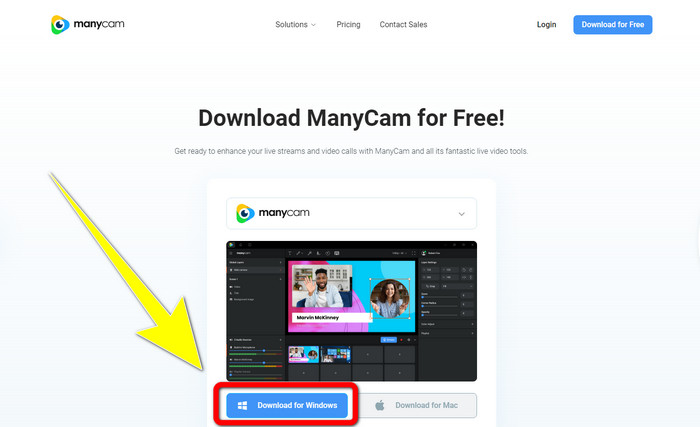
Korak 1: Da biste preuzeli ManyCam, kliknite gumb Download for Windows. Zatim prijeđite na postupak instalacije.
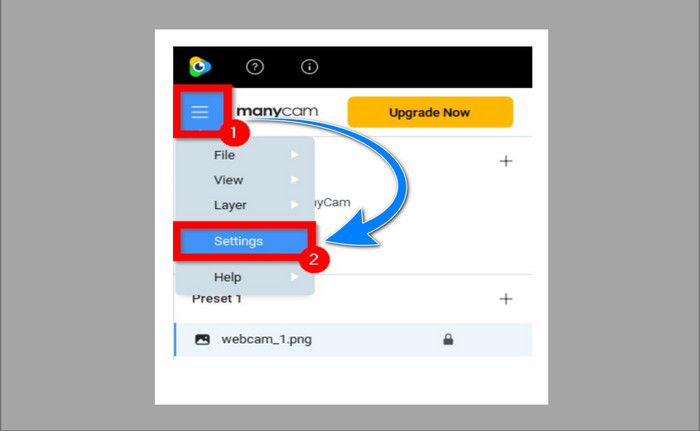
Korak 2: Pokrenite aplikaciju na računalu i kliknite ikonu izbornika ("sendvič") u ManyCamu, zatim idite na Settings > Account i prijavite se u račun koji ste izradili nakon kupnje pretplate.
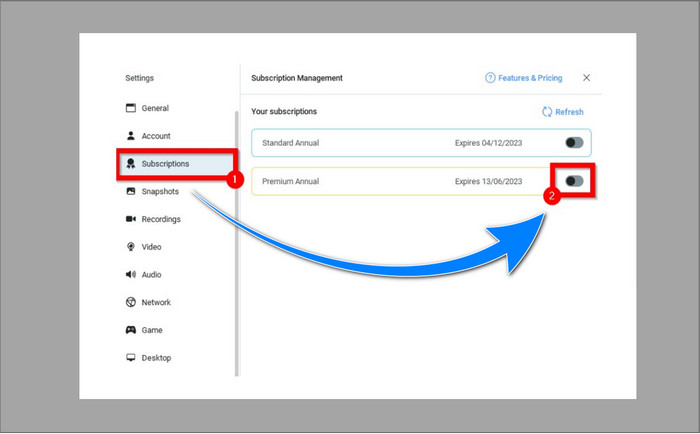
Korak 3: Idite na karticu Subscription kako biste provjerili je li pretplata aktivirana.
Korak 4: Ako je pretplata već aktivna, pojavit će se Pop-up poruka i gotovi ste.
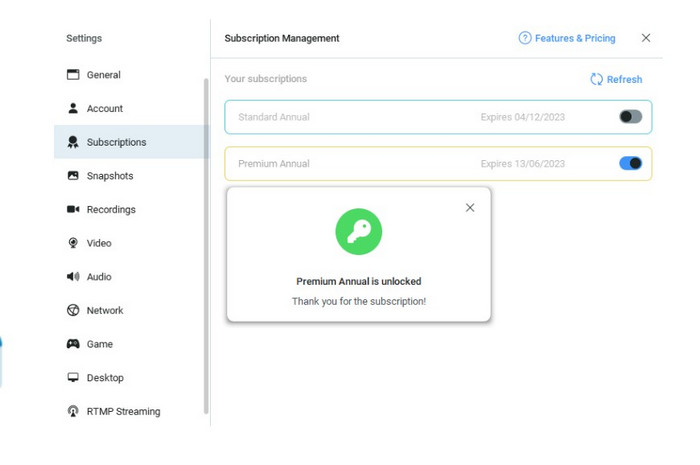
Ako je vaša aplikacija ManyCam već aktivirana, vodeni žigovi ili logotipi na vašim videozapisima bit će automatski uklonjeni. Možete uživati u gledanju svojih omiljenih videozapisa bez nailaska na vodene žigove na njima.
Dio 2: Kako ukloniti Logo ManyCam bez pretplate
Želite li besplatno ukloniti vodeni žig iz ManyCama? Osim same ManyCam aplikacije, možete upotrijebiti i drugu aplikaciju za uklanjanje logotipa iz ManyCama. Najbolja aplikacija koju možete iskoristiti je Video Converter Ultimate. Ova aplikacija može ukloniti nepotrebne objekte s vaših videozapisa, poput teksta, vodenih žigova, logotipa itd. Osim toga, Video Converter Ultimate nudi mnogo alata za uređivanje u kojima možete uživati, kao što su kontrola brzine videa, poboljšanje videa, dodavanje i uklanjanje vodenih žigova, korekcija boja, pojačivač glasnoće i još mnogo toga. Najbolji alat koji možete koristiti za uklanjanje vodenih žigova u Video Converter Ultimateu je Video Watermark Remover.
Ovaj alat pomoći će vam da s lakoćom uklonite vodene žigove. Nadalje, ova je aplikacija dostupna i na Windowsima i na Macu. Također, neće vam biti teško koristiti ovu aplikaciju. Također podržava nekoliko formata audio i video datoteka, kao što su MP4, FLV, MOV, MKV, MP3, AAC i drugi. Ako želite ukloniti logotip ManyCam pomoću programa Video Converter Ultimate, ovaj će vam članak pokazati dva načina. Ti su načini korištenje alata za obrezivanje videozapisa i uklanjanja vodenog žiga.
1. Korištenje Video Croppera
Korak 1. Preuzmite FVC Video Converter Ultimate i prijeđite na instalaciju.
Besplatno preuzimanjeZa Windows 7 ili novijiSigurno preuzimanje
Besplatno preuzimanjeZa MacOS 10.7 ili novijiSigurno preuzimanje
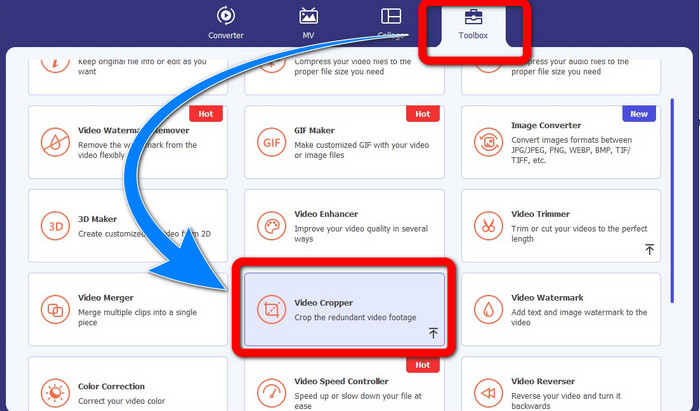
Korak 2: Nakon instalacije pokrenite aplikaciju. Kliknite Toolbox > Video Cropper.
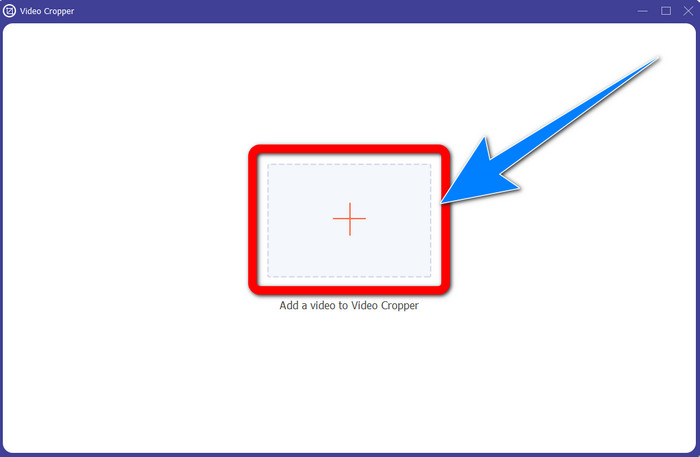
Korak 3: Nakon što kliknete Video Cropper, pojavit će se novo sučelje. Kliknite gumb sa znakom Plus i dodajte svoje videozapise s vodenim žigom iz ManyCama.
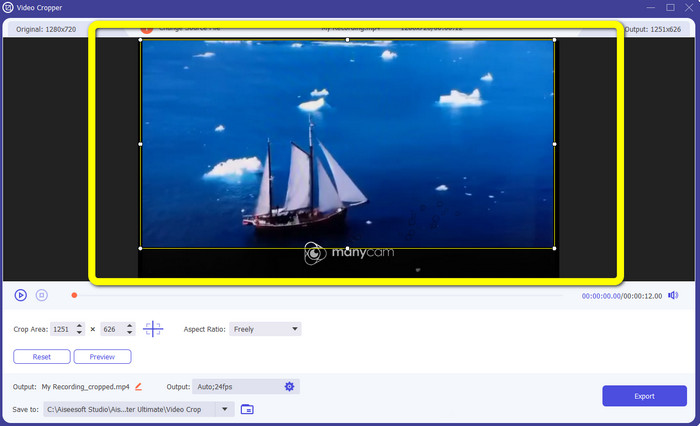
Korak 4: Kada je datoteka već dodana, možete obrezati (cropati) video i ukloniti vodeni žig.
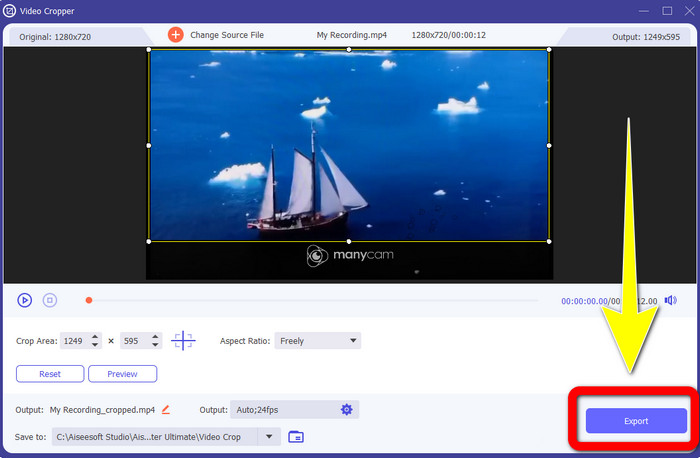
Korak 5: Kada uklonite vodeni žig, kliknite gumb Export kako biste spremili konačnu datoteku. Sada možete reproducirati svoj omiljeni video bez vodenog žiga.
2. Korištenje Video Watermark Removera
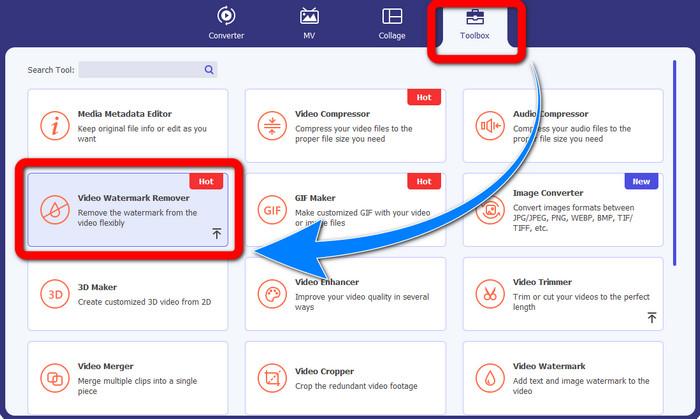
Korak 1: Otvorite aplikaciju. Idite na Toolbox > Video Watermark Remover.
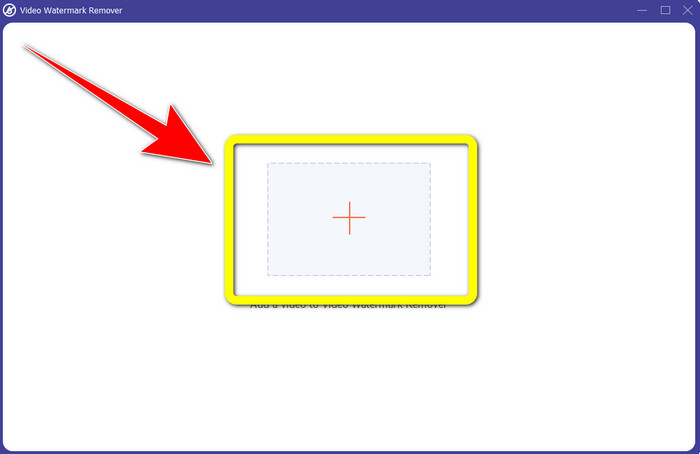
Korak 2: Nakon klika na Video Watermark Remover pojavit će se novo sučelje. Kliknite gumb sa znakom Plus da biste dodali video s vodenim žigovima iz ManyCama.
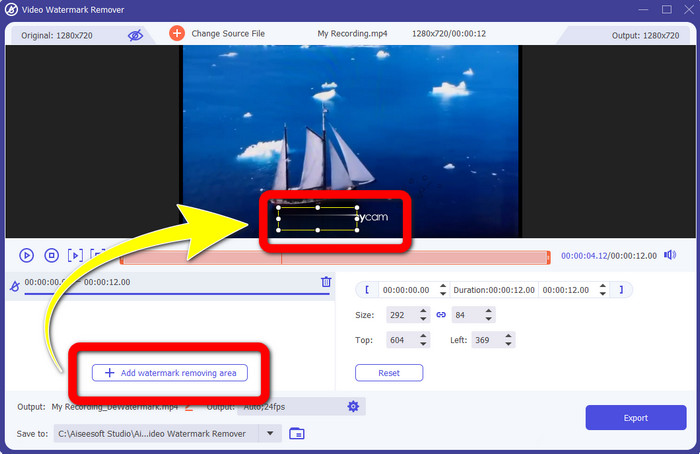
Korak 3: Kada ste već dodali svoj video, kliknite Add Watermark Removing Area, a zatim će se u vašem videu pojaviti polje. Povucite to polje preko vodenog žiga kako biste ga prekrili.
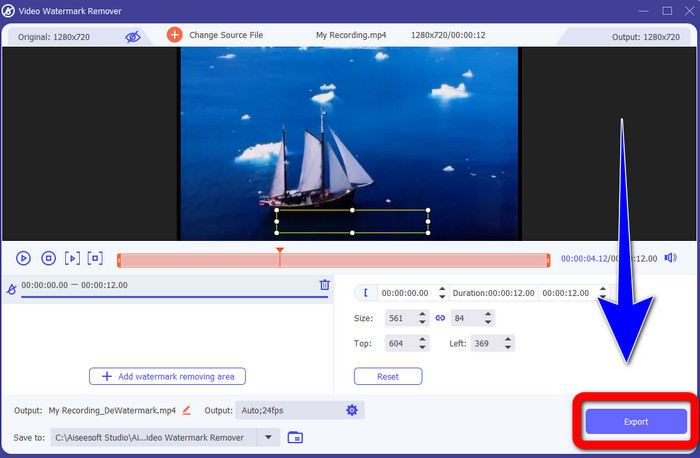
Korak 4: Kada završite s uklanjanjem vodenih žigova iz svojih videozapisa, kliknite Export da spremite rezultat. Ovo je najbolji način da besplatno uklonite ManyCam logo.
Dio 3: Često postavljana pitanja o uklanjanju logotipa ManyCam
Koliko će trajati uklanjanje logotipa?
Ne morate čekati dulje jer će proces uklanjanja logotipa ili bilo kojih nepotrebnih objekata trajati samo nekoliko sekundi.
Mogu li ukloniti logotip ManyCam na svom telefonu?
Da! Logotip ManyCam možete ukloniti na svojim Android uređajima ili iPhoneu pomoću različitih softverskih aplikacija s alatima za uklanjanje vodenih žigova. Potražite aplikaciju u svojoj trgovini Play ili App Store i pokušajte koristiti one aplikacije koje možete vidjeti na vrhu rezultata.
Postoji li najbolji način za uklanjanje vodenih žigova na mom Macu?
Naravno, da! Možete koristiti izvrsnu aplikaciju s alatom za uklanjanje vodenog žiga kako biste uklonili vodene žigove na svom Macu. Ta aplikacija je Video Converter Ultimate. Savršeno radi i na Windowsu i na Macu. Ovaj softver može pomoći pri uklanjanju nepotrebnih objekata iz vaših videozapisa, poput logotipa, vodenih žigova, slika i teksta.
Mogu li koristiti alat za izrezivanje iz aplikacije ManyCam za uklanjanje logotipa ManyCam?
Nažalost, ne! Korištenje alata za obrezivanje kako biste uklonili logo iz ManyCama nije učinkovito. Čak i ako pokušate obrezati video da biste uklonili logo, on će se i dalje pojavljivati. Jedino rješenje za uklanjanje logotipa jest aktivirati pretplatu u ManyCamu.
Osim ManyCam-a, postoji li alternativni način za uklanjanje vodenih žigova na mojim videozapisima?
Da tamo je! Osim ManyCam-a, postoji više aplikacija s uklanjanjem vodenog žiga koje možete koristiti bez kupnje. Jedna od najboljih aplikacija koju možete koristiti za uklanjanje vodenih žigova na svojim videozapisima je Video Converter Ultimate. Jednostavan je i lagan za korištenje, što je pogodno za početnike.
Zaključak
Na temelju gore navedenih informacija možete naučiti kako ukloniti ManyCam logo na Windowsu i Macu. Možete koristiti ManyCam aplikaciju za jednostavno uklanjanje logotipa nakon aktivacije pretplate. Osim toga, ako želite koristiti aplikaciju s besplatnim alatom za uklanjanje vodenog žiga, trebali biste upotrijebiti Video Converter Ultimate. Ova aplikacija bit će vam od velike pomoći pri uklanjanju nepotrebnih objekata iz vaših videozapisa.
-
 Najlakše metode o tome kako ukloniti vodeni žig s fotografija
 Nerviraju li vas vodeni žigovi na vašim fotografijama? ne brini! Ovaj članak će pružiti jednostavne i lake metode za uklanjanje vodenih žigova s vaših fotografija.
-
 Kako ukloniti vodeni žig Powtoon pomoću 4 učinkovite metode
 Pročitajte ovaj članak da biste saznali kako ukloniti vodeni žig Powtoon pomoću najboljih alata koje smo ovdje uključili i vodiča.
-
 Recenzija programa za uklanjanje vodenog žiga Apowersoft – značajke, prednosti i mane te cijene
 Apowersoft Watermark Remover jedno je od najboljih uklanjanja vodenih žigova koje podržava online i offline, kliknite ovo da biste saznali više!
