


 Video Converter Ultimate
 Snimač zaslona
 Video popravak
Kako ispraviti boju s 5 najboljih alata koje morate imati
Korekcija boja temeljni je proces u uređivanju videa koji poboljšava i usklađuje boje u videu, pružajući vizualno privlačan i upečatljiv rezultat. Uključuje podešavanje kontrasta, zasićenosti, svjetline i nijansi kako bi se postigao savršen vizualni dojam. Bilo da ste profesionalni snimatelj ili nadobudni kreator sadržaja, razumijevanje kako izvesti korekciju boja mijenja pravila igre u isporuci dojmljivih vizuala. Proces započinje identificiranjem i analizom postojećeg balansa boja, svijetlih dijelova, sjena i srednjih tonova unutar video materijala. Nakon toga se prilagodbe rade pomoću specijaliziranog softvera koji omogućuje preciznu kontrolu nad tim elementima boje. Uronimo dublje u ovaj članak i naučimo kako popraviti probleme s bojama videa uz najbolje alate na koje se možete osloniti.

Dio 1. Pet načina kako ispraviti boju videozapisa
Pronalaženje raznih besplatnih ispravaka boja u uređivaču videozapisa na mreži za povećanje vizualne privlačnosti vašeg videozapisa može biti jednostavno kao što mislite. Međutim, potraga za naprednijim i pouzdanijim je pomalo nezgodna za stvaranje pravog ugođaja za vaše videozapise. Otkrijte pet učinkovitih načina za usavršavanje boja vašeg videa pomoću različitih svestranih softvera, poboljšavajući vaše pripovijedanje i privlačeći publiku.
1. Video Converter Ultimate
Video Converter Ultimate je cjelovito rješenje za video koje vam omogućuje poboljšanje kvalitete videa podešavanjem ključnih parametara poput svjetline, kontrasta i zasićenosti. Ovaj praktični alat za korekciju boja također vam omogućuje uređivanje videa funkcijama poput skraćivanja, obrezivanja i spajanja. Uz to, nudi mnoštvo opcija za konverziju videa, omogućujući vam pretvaranje videa u na tisuće formata i prilagodbu za različite uređaje poput MP4, MKV, MOV, MP3, AAC, GIF, iPhone, Samsung i Apple TV, čime se osigurava uživanje na različitim platformama. Osim toga, korisnici mogu dodavati titlove i vodene žigove kako bi svoje videozapise učinili osobnijima. Sa svojim jednostavnim sučeljem, ovaj je alat savršen i za početnike i za iskusne korisnike. Slijedite korake u nastavku kako biste uspješno izvršili korekciju boja svog videa pomoću Video Converter Ultimatea.
Korak 1: Preuzmite i instalirajte alat za korekciju boja
Najprije preuzmite alat klikom na jedan od gumba Besplatno preuzimanje u nastavku. Ovisno o operativnom sustavu vašeg računala, svakako preuzmite verziju Video Converter Ultimatea koja odgovara vašem računalu. Slijedite upute za instalaciju.
Besplatno preuzimanjeZa Windows 7 ili novijiSigurno preuzimanje
Besplatno preuzimanjeZa macOS 10.7 ili novijiSigurno preuzimanje
Korak 2: Pokrenite Video Converter Ultimate
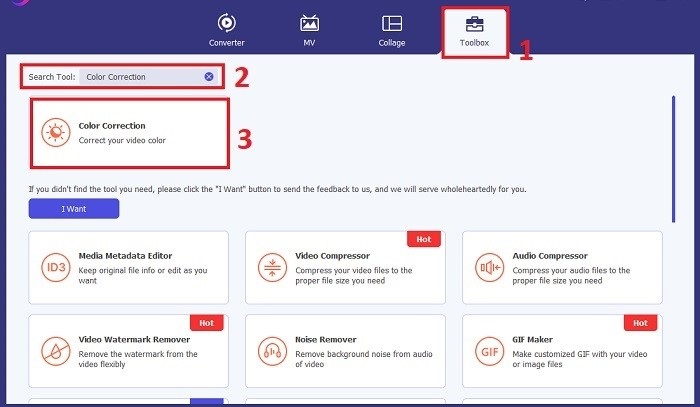
Nakon instalacije otvorite Video Converter Ultimate. U glavnom izborniku idite na Toolbox i potražite značajku Color Correction. Kliknite na nju da biste nastavili.
Korak 3: Uvezite video za korekciju boja
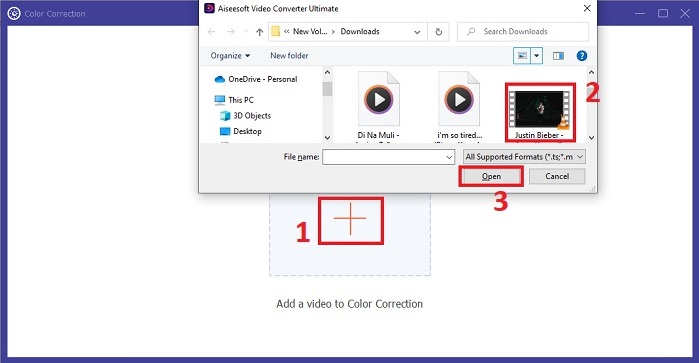
Sada kliknite gumb Plus kako biste uvezli video koji želite koloristički ispraviti. Pronađite videodatoteku na svom računalu. Zatim odaberite Open da biste je unijeli u softver.
Korak 4: Prilagodite postavke boje videa i spremite
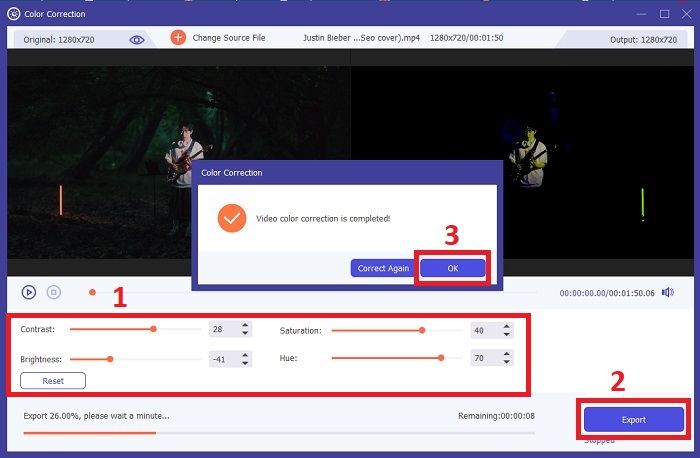
Nakon uvoza videa, precizno podesite parametre boje poput svjetline, kontrasta, zasićenosti i nijanse kako biste postigli željenu korekciju boja. Kada ste zadovoljni prilagodbama boje, kliknite Export. Pričekajte da alat obradi video i spremi ispravljenu verziju na odabranu lokaciju.
2. Korekcija boja Premiere Pro
Premiere Pro poznat je po visokokvalitetnom softveru za uređivanje videa i opsežnim mogućnostima korekcije boja. Nudi različite alate za ocjenjivanje boja i efekte za precizne prilagodbe. Color Correction Premiere Pro omogućuje podešavanje ravnoteže boja i ekspozicije ili primjenu kreativnih izgleda za postizanje željenog vizualnog stila. Također možete birati između stotina ugrađenih video efekata i prijelaza ili započeti s profesionalno dizajniranim predlošcima i modificirati ih kako biste stvorili željeni rezultat. Štoviše, ima značajke suradnje i glatko se integrira s drugim Adobe softverom, što ga čini najboljim izborom među profesionalcima.
Korak 1. Započnite otvaranjem Premiere Proa i uvozom svog videa. Zatim idite u Color workspace.
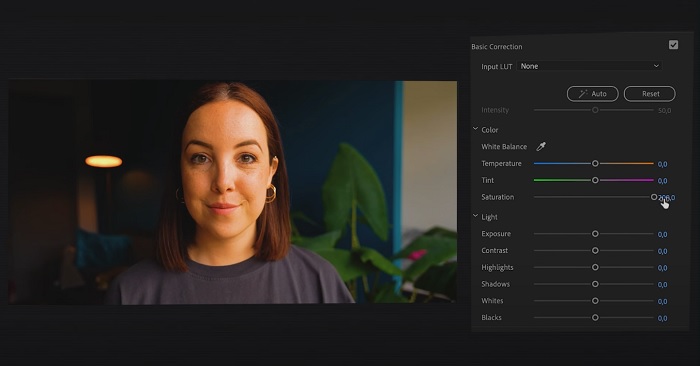
Korak 2. Unutar Color workspacea upotrijebite Lumetri Color panel za podešavanje ekspozicije, balansa boja i kreativnih izgleda.
Korak 3. Upotrijebite skope (scopes) kako biste osigurali da se prilagodbe boja točno podudaraju s željenim rezultatom. Na kraju pregledajte i izvezite ispravljeni video.
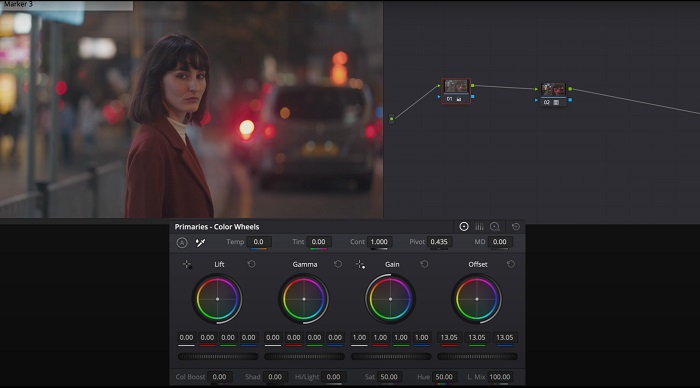
3. Davinci Resolve Color Correction
Istražite iznimne mogućnosti ocjenjivanja boja. Ovaj sveobuhvatni softver kombinira profesionalno uređivanje, korekciju boja, vizualne efekte i audio postprodukciju. Uz korisničko sučelje alata i opsežan skup značajki, svoju kreativnu viziju možete oživjeti s preciznošću i stilom. Napredni alati za ocjenjivanje boja Davinci Resolve Color Correction omogućuju vam da svoje videozapise istaknete. Bilo da radite na vrhunskim holivudskim filmovima ili osobnim projektima, ovaj alat omogućuje profesionalcima i entuzijastima da stvore uvjerljive narative neusporedive kvalitete.
Korak 1. Otvorite Davinci Resolve i uvezite svoj video. Nakon uvoza, prijeđite na karticu Color.
Korak 2. Unutar kartice Color upotrijebite kotačiće boja, krivulje i čvorove (nodes) za korekciju boja vašeg videa. Možete koristiti dostupne skope za precizne prilagodbe.
Korak 3. Nakon što izvršite potrebne prilagodbe boja, pregledajte ispravljeni video kako biste bili sigurni da odgovara vašim očekivanjima. Kad ste zadovoljni, izvezite ispravljeni video, spreman za upotrebu.
4. Final Cut Pro korekcija boja
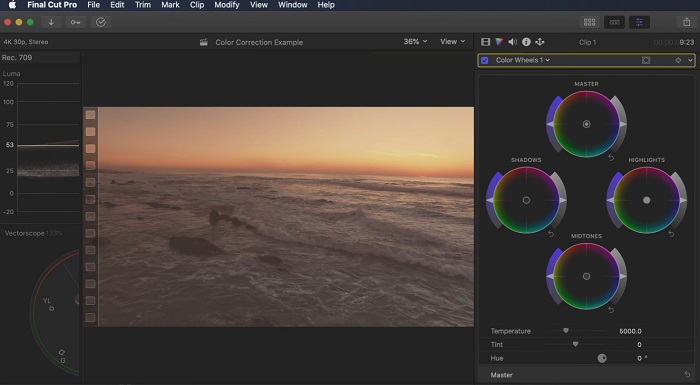
Ako ste korisnik Mac računala i tražite vrhunsku aplikaciju za uređivanje videa, Final Cut Pro je izvrsna opcija. Može se pohvaliti korisnički prilagođenim sučeljem i moćnim značajkama koje uređivanje čine lakim. Kada je u pitanju korekcija boja, Final Cut Pro nudi Color Board i Color Wheels za podešavanje ekspozicije, zasićenosti i nijanse. Možete primijeniti efekte boja u stvarnom vremenu i koristiti napredne alate za ocjenjivanje kako biste poboljšali svoje snimke. Osim toga, glatko izvozi na Apple uređaje i popularne internetske platforme. Ako ste profesionalac koji traži učinkovitost i kreativnost, Final Cut Pro je jednostavan. Provjerite imate li macOS 13.4 ili noviji i Mac računalo s Apple silikonom za optimalne performanse.
Korak 1. Možete započeti uvozom svog videa u Final Cut Pro, a zatim otići u Color workspace.
Korak 2. Iskoristite Color Board ili Color Wheels kako biste izvršili ključne prilagodbe ekspozicije, zasićenosti i nijanse.
Korak 3. Dodatno doradite boju svog videa koristeći dodatne alate za color grading, kako biste osigurali najbolje moguće rezultate. Kada završite, pregledajte i izvezite ispravljeni video.
5. Korekcija boje After Effects
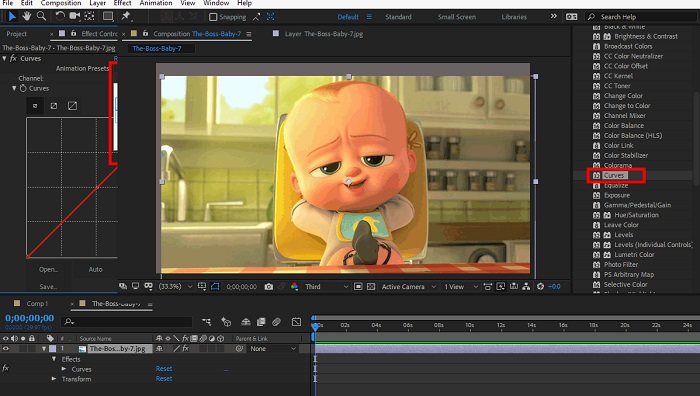
After Effects je poznati softver za pokretnu grafiku i vizualne efekte sa snažnim mogućnostima korekcije boja. Osim svojih osnovnih učinaka korekcije boje, nudi različite slojeve za prilagodbu i efekte za poboljšanje i modificiranje boja. Možete brzo animirati tekst i grafiku, oživljavajući ih zadivljujućim pokretima. Korekcija boja After Effects omogućuje vam da iskoristite razine, krivulje i načine stapanja kako biste postigli željeno gradiranje boja. To je svestrana opcija korekcije boja zahvaljujući integraciji s različitim Adobe proizvodima i velikoj zajednici koja nudi upute i dodatke. Štoviše, softver se kontinuirano razvija, uvodeći značajke kao što su intuitivna ploča sa svojstvima, transparentna kontrola slojeva i učinkovito multi-frame renderiranje koje usmjeravaju tijek rada i održavaju kreacije na vrhuncu kreativnosti.
Korak 1. Uvezite svoj videoisječak u projekt alata. Primijenite efekte korekcije boja tako da odete na panel Effects & Presets i odaberete odgovarajuće alate za korekciju boja poput Curves, Levels ili Color Balance.
Korak 2. Kliknite na primijenjeni efekt korekcije boja kako biste pristupili njegovim parametrima. Zatim izmijenite postavke poput ekspozicije, kontrasta, zasićenosti i nijanse kako biste ispravili i poboljšali boje u svom videu.
Korak 3. Pregledajte video u panelu Composition kako biste vidjeli kako korekcije boja utječu na snimku. Fino podesite prilagodbe na temelju pregleda, osigurajte da je postignuta željena korekcija boja i zatim prijeđite na renderiranje ili izvoz ispravljenog videa.
Daljnje čitanje:
Najbolje aplikacije za poboljšanje boja fotografija na vašem Androidu i iOS-u – besplatno
4 nevjerojatna načina za dodavanje filtera videu na Windowsu i macOS-u
Dio 2. Često postavljana pitanja o video korektorima boja
Kako izvršiti korekciju boje na iMovieu?
Za korekciju boja u iMovieju uvezite svoj videoisječak, odaberite ga i kliknite gumb Color Correction (ikona čarobnog štapića). Pomičite klizače za ekspoziciju, zasićenost i boju dok ne postignete željeni izgled.
Kako mogu pristupiti alatima za korekciju boja u OpenShotu?
U OpenShot Video Editoru za korekciju boja odaberite isječak, idite na karticu Effects i kliknite Color Correction. Podesite klizače za svjetlinu, kontrast, nijansu i zasićenost kako biste postigli željenu korekciju boja.
Kako mogu pristupiti alatima za korekciju boja u Sony Vegasu?
U Sony Vegasu za korekciju boja odaberite isječak koji želite koloristički ispraviti, idite na karticu Video FX i potražite Color Corrector. Povucite ga i ispustite na isječak te prilagodite svojstva boje u prozoru Effect Controls.
Zaključak
Ovladavanje korekcijom boja ključno je za poboljšanje vizualne privlačnosti vaših videa i stvaranje zadivljujućeg doživljaja gledanja. U ovom smo vodiču istražili pet moćnih alata za korekciju boja kako bismo postigli besprijekornu korekciju. Ako tražite visokokvalitetne alate za video montažu, razmislite o korištenju Video Converter Ultimatea, Premiere Proa, Final Cut Proa, DaVinci Resolvea ili After Effectsa. Ti programi nude širok raspon funkcija i mogućnosti koji vam pomažu u stvaranju profesionalno izgledajućih videa. Svaki program ima vlastit skup značajki i funkcija koje odgovaraju različitim preferencijama i razinama stručnosti.
-
 Kako dodati i napraviti Instagram filter prije objavljivanja slike i videa
 Koji su filteri na Instagramu? Kako ga primijeniti? Kako napraviti jedan? Ova pitanja će imati jasne odgovore u ovom postu, stoga ih pročitajte.
-
 Metode bez problema za pretvaranje slika u crno-bijele
 Želite li da vaše fotografije izgledaju nostalgično? Imamo odgovor za vas. Ovaj će post ponuditi značajne načine pretvaranja slike u boji u crno-bijelu.
-
 6 omiljenih Snapchat animiranih Snapchat filtera na Snapchatu
 Želite li znati najbolje načine za dodavanje filtara na Snapchat videozapise? Pa, možete kliknuti ovo i naučiti različite filtre koje možete koristiti za primjenu na Snapchat videozapise.
