


 Video Converter Ultimate
 Snimač zaslona
 Video popravak
3 najbolja načina za jednostavno pretvaranje H. 264 u MP4 [2024]
Imate li problema s reprodukcijom svojih videozapisa u H.264 formatu zbog problema s nekompatibilnošću? Pa, niste sami. Mnogi korisnici imaju isti problem i odlučuju pretvoriti datoteku u format koji široko podržavaju razni uređaji poput MP4.
Dakle, ako ste jedan od njih i tražite načine kako pretvoriti ovu datoteku za potpuno glatku reprodukciju na svom uređaju, ovaj će vam članak pokazati najbolje metode za jednostavno pretvaranje formata H.264 u MP4. Spremni učiniti svoje videozapise univerzalno kompatibilnima? Krenimo!

Dio 1: Je li H.264 isto što i MP4
I H.264 i MP4 su video formati, ali imaju različite svrhe. H.264, također poznat kao AVC (Advanced Video Coding), standard je video kompresije koji se obično koristi za snimanje, kompresiju i distribuciju video sadržaja visoke razlučivosti. S druge strane, MP4 (MPEG-4 dio 14) je format spremnika koji može pohraniti različite vrste podataka, uključujući video, audio, titlove i fotografije.
Dok se H.264 posebno odnosi na tehnologiju video kompresije, MP4 obuhvaća širi raspon multimedijskih sadržaja. Jednostavnije rečeno, H.264 je poput metode kodiranja koja se koristi za komprimiranje video podataka, dok je MP4 poput spremnika koji drži komprimirani video zajedno s drugim multimedijskim komponentama.
Dio 2: Brz i jednostavan način za pretvaranje H.264 u MP4
Najbrži i najjednostavniji način za pretvaranje H.264 u MP4 jest korištenje programa FVC Video Converter Ultimate. Ovaj desktop softver osmišljen je za obradu raznih video i audio datoteka poput MP4, MKV, MOV, AVI, FLV, WMV, WEBM, M4V, TS, MXF, MPG, 3GP, VOB i drugih. Time dobivate širok izbor formata u koje želite pretvoriti svoju H.264 datoteku. Štoviše, ima i prilagođeni profil koji možete koristiti za uređivanje izlaznih postavki, poput video kodeka, rezolucije, broja sličica u sekundi, bitratea i još mnogo toga. Na kraju, zajamčen vam je brz proces konverzije i izlaz bez gubitka kvalitete, jer podržava do 4K rezolucije uz brzinu konverzije i do 30× veću u odnosu na druge alate za pretvaranje.
Korak 1. Najprije preuzmite ovaj softver i instalirajte ga na svoje računalo.
Besplatno preuzimanjeZa Windows 7 ili novijiSigurno preuzimanje
Besplatno preuzimanjeZa MacOS 10.7 ili novijiSigurno preuzimanje
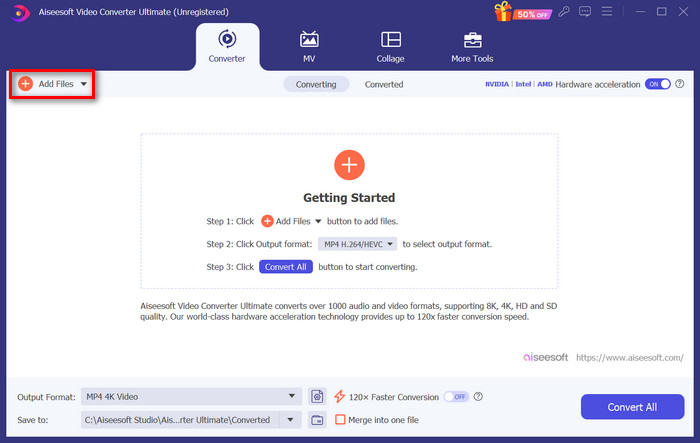
Korak 2. Na kartici Converter kliknite gumb Add Files i uvezite svoje H.264 datoteke.
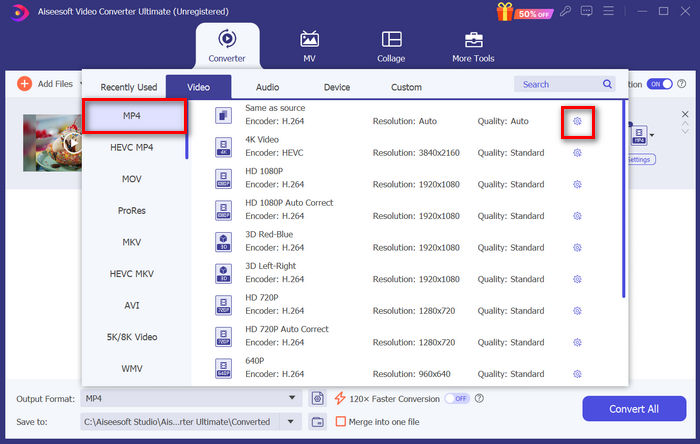
Korak 3. Nakon što je H.264 video datoteka uvezena, među popisom formata odaberite MP4 tako da kliknete gumb Output format.
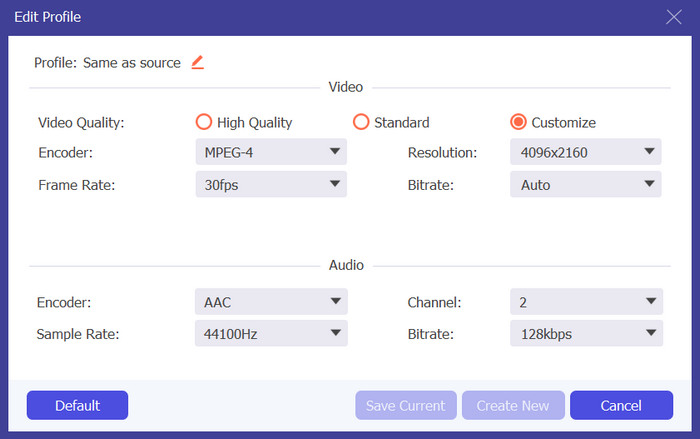
Ako želite prilagoditi Custom Profile, idite u Settings dialog box. Ondje možete urediti video kodek, kvalitetu, naziv datoteke itd. Kada završite, kliknite gumb Create New da biste spremili.
Korak 4. Kada je sve gotovo, kliknite gumb Convert All.
Uz FVC Video Converter Ultimate, pretvaranje H.264 u MP4 može se obaviti brzo, bez trošenja puno vremena i truda. Osim toga, možete pretvarati i druge formate, poput H.265 i AVCHD u MP4. Uz to, možete biti sigurni da ćete tijekom cijelog procesa zadržati visoku kvalitetu izlazne datoteke.
Dio 3: Pretvorite H.264 u MP4 koristeći FFmpeg
FFmpeg je alat naredbenog retka koji se koristi za upravljanje multimedijskim datotekama, a nudi mogućnosti u rasponu od reprodukcije do konverzije i uređivanja. Sa svojim svestranim značajkama, ovaj alat omogućuje korisnicima učinkovitu pretvorbu H.264 u MP4 format, pružajući prikladno rješenje za one koji su zadovoljni sučeljima naredbenog retka.
Korak 1. Najprije trebate preuzeti FFmpeg izvršne datoteke na svoje računalo.
Korak 2. Zatim otvorite prozor naredbenog retka u mapi s izvršnim datotekama. Otvorit će se skočni terminalski prozor.
Korak 3. Nakon toga dodajte H.264 datoteku koju želite pretvoriti u MP4.
Korak 4. Na kraju upišite naredbu: ./ffmpeg.exe -i inputfilename.mkv outputfilename.mp4 i pritisnite Enter.
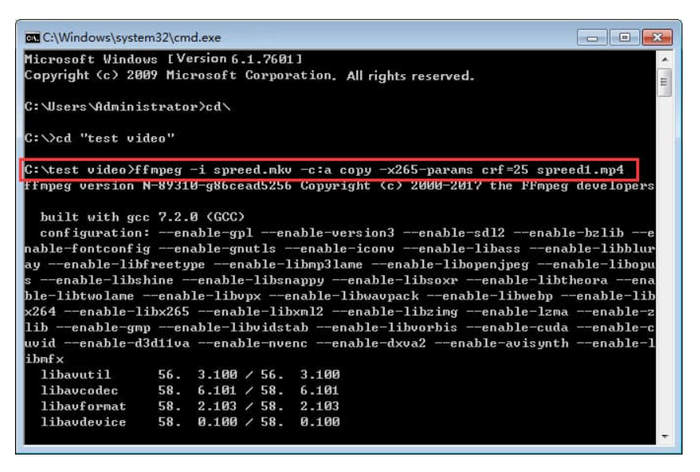
Ako ste upoznati s naredbenim redcima, FFmpeg bi mogao najbolje raditi s vaše strane kada pretvarate H.264 u MP4. Međutim, ako ne, bit će vam teško upravljati ovim alatom, što je jedan od njegovih nedostataka kada je u pitanju upotrebljivost za nove korisnike.
Dio 4: Pretvorite H.264 u MP4 na mreži
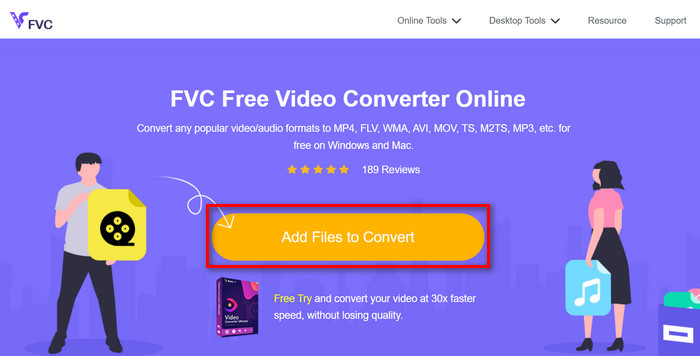
Ako tražite alat za online pretvaranje H.264 u MP4, najbolji alat koji možete koristiti je FVC Free Video Converter Online. Ovaj alat nudi brz i vrlo intuitivan način pretvaranja H.264 datoteka u željeni format, jer je dovoljno da uvezete datoteku i odaberete željeni format, a ostalo se odvija gotovo automatski.
Korak 1. Prvo morate uvesti H.264 datoteku koju želite pretvoriti klikom na gumb Add Files to Convert.
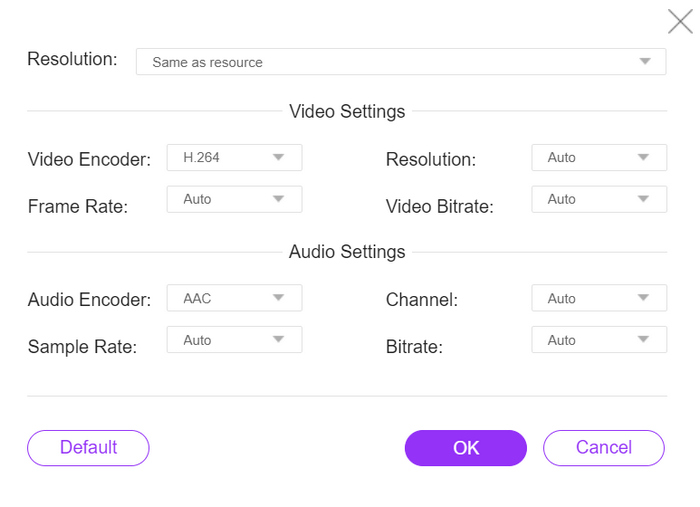
Korak 2. Zatim za izlazni format odaberite MP4. Također, ako želite ručno postaviti rezoluciju, video enkodere, bitrate itd., samo kliknite ikonu zupčanika pored izlaznog formata. Kada završite, kliknite gumb OK.
Korak 3. Na kraju, za pokretanje procesa pretvaranja samo kliknite gumb Convert.
Nemate razloga brinuti o kvaliteti ispisa konvertirane H.264 datoteke jer ovaj alat podržava razlučivost videozapisa do 1080P. Štoviše, brzina pretvorbe neće trajati tako dugo jer je ovo 30× brže u usporedbi s drugim alatima za pretvorbu.
Dio 5. Često postavljana pitanja o pretvaranju H.264 u MP4
H264 naspram mp4, koji je bolji?
Kada je riječ o kompatibilnosti, MP4 se čini izvrsnim, s obzirom na to da ljudi često odlučuju pretvoriti H.264 u MP4 za poboljšanu podršku uređaja i iskustvo reprodukcije. Međutim, oba formata imaju svoje prednosti i učinkovito služe različitim svrhama.
Mogu li zadržati izvornu kvalitetu svog H.264 videa prilikom pretvaranja u MP4?
Da, možete zadržati izvornu kvalitetu svog H.264 videa prilikom pretvaranja u MP4, posebno ako koristite renomirani alat za konverziju kao što je FVC Video Converter Ultimate ili FFmpeg. Ovi alati nude opcije za podešavanje postavki kao što su razlučivost, brzina prijenosa i kodek kako bi se osigurao visokokvalitetni izlaz.
Koji video playeri su kompatibilni s H.264 formatom?
Brojni video playeri mogu reproducirati H.264 format, uključujući VLC Media Player, Windows Media Player i QuickTime Player.
Zaključak
To je to! Sada imate sve alate i metode za bezbrižno pretvaranje formata H.264 u MP4. Bilo da vam više odgovara desktop program, alat naredbenog retka ili online konverter, izbor je na vama. Započnite već danas i osigurajte kompatibilnost sa svakim uređajem!
-
 Najbolji besplatni pretvarač MPG u MP4 u 2024. (detaljan pregled)
 Zašto trebate promijeniti MPG u MP4? Dobijte odgovor u ovom postu i upoznajte visoko rangirani MPG pretvarač u MP4 na tržištu.
-
 Audio u MP4: Pretvaranje bilo koje audio datoteke u MP4 format
 Pretvorite svoje omiljene pjesme, podcastove i snimke u MP4 format za jedinstveni spoj zvuka i slike. Otkrijte kako pretvoriti WMA u MP4 ili drugi audio u video format.
-
 Top 5 najboljih besplatnih i plaćenih pretvarača FLV u MP4 (2024 recenzije)
 Ostanite na ovom postu i saznajte više o ažuriranjima u vezi s FLV i MP4 datotekama. Osim toga, odabrali smo najpouzdaniji pretvarač FLV u MP4.
