


 Video Converter Ultimate
 Snimač zaslona
 Video popravak
Detaljan vodič o tome kako obrnuti zvuk u Audacityju [2024.]
Preokretanje audio zapisa može dodati jedinstvenu dimenziju i boju vašim glazbenim produkcijama, generirajući zadivljujuće zvučne efekte za kreativno pripovijedanje. Ovaj stil se naširoko koristi i postaje popularan kada se radi o obogaćivanju audio projekata dubinom i originalnošću. Dakle, ako uređujete zvuk u Audacityju i želite dodati zaokret tako što ćete ga preokrenuti, na pravom ste mjestu!
U ovom ćemo vas članku provesti kroz detaljne korake o tome kako preokrenuti zvuk u Audacityju i podijeliti vrijedne savjete koji će vam pomoći da ovu značajku iskoristite najbolje. Do kraja ovog vodiča bit ćete spremni preokrenuti svoje audio zapise i lako istražiti nove kreativne horizonte. Dakle, pripremite se transformirati svoje audio projekte i otkrijte uzbudljiv potencijal obrnutog zvuka!

Dio 1. Kako preokrenuti zvuk u Audacityju
Audacity je program osmišljen kako bi korisnicima omogućio uređivanje audio datoteka bez potrebe za skupim vrhunskim alatima, osiguravajući visokokvalitetni ispis bez ikakvih troškova. Kao alat otvorenog koda, besplatno je dostupan svima i nudi dugačak popis značajki koje se obično nalaze u plaćenom softveru. Među svojim nizom mogućnosti, Audacity se ističe svojom sposobnošću preokretanja audio zapisa. Ova značajka omogućuje korisnicima da budu kreativni u pogledu načina na koji žele da njihov zvuk zvuči. Urednici obično preokrenu svoj zvuk jer to dodaje jedinstven učinak njihovim projektima.
Evo kako možete obrnuti (reverzirati) zvuk u Audacityju.
Korak 1. Preuzmite i instalirajte Audacity na svoje računalo.
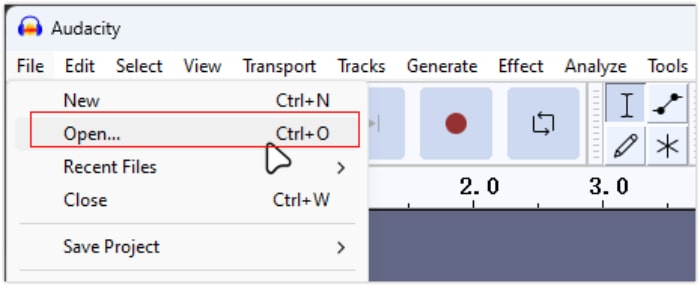
Korak 2. Pokrenite alat, idite na izbornik File u gornjem lijevom kutu i odaberite Open. Zatim na računalu pronađite i odaberite audio datoteku ili je jednostavno povucite i ispustite u program, onu koju želite obrnuti.
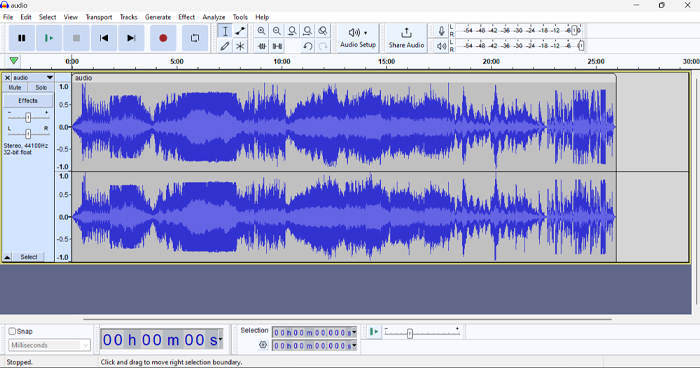
Korak 3. Sada kliknite na audio zapis, idite na karticu Select i odaberite All kako biste označili cijelu audio datoteku.
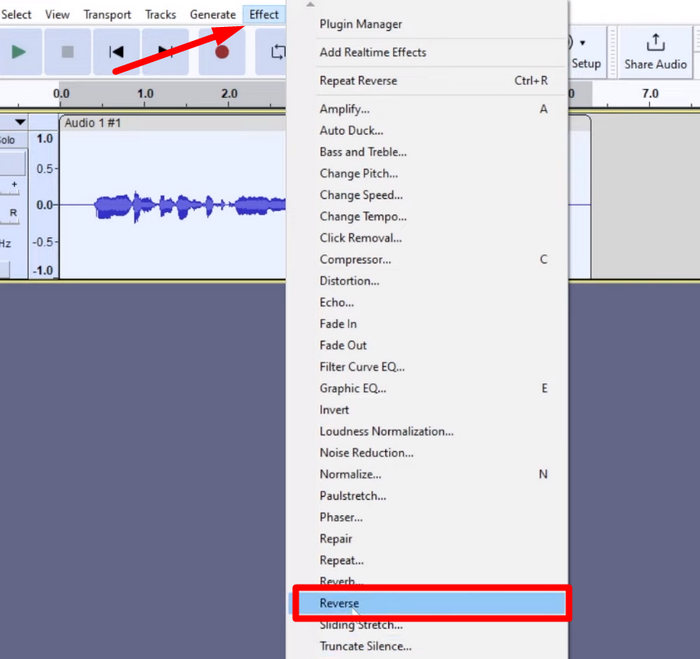
Korak 4. Da biste obrnuli zvuk, idite na karticu Effect i iz padajućeg izbornika odaberite Reverse. Audacity će obraditi i obrnuti odabrani audio isječak.
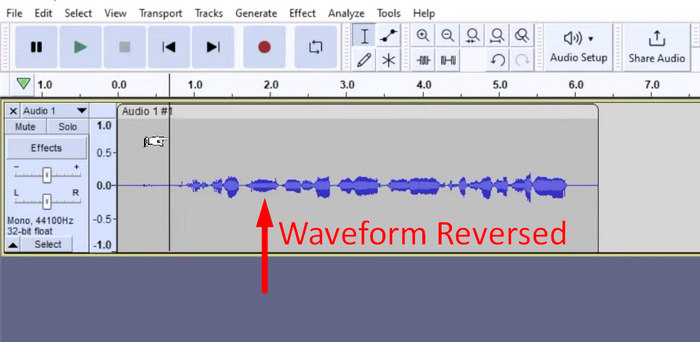
Korak 5. Obrnuti zvuk možete preslušati pritiskom na razmaknicu (Spacebar) na tipkovnici. Alternativno, koristite kontrole za reprodukciju u gornjem lijevom kutu prozora Audacityja i kliknite gumb Play.
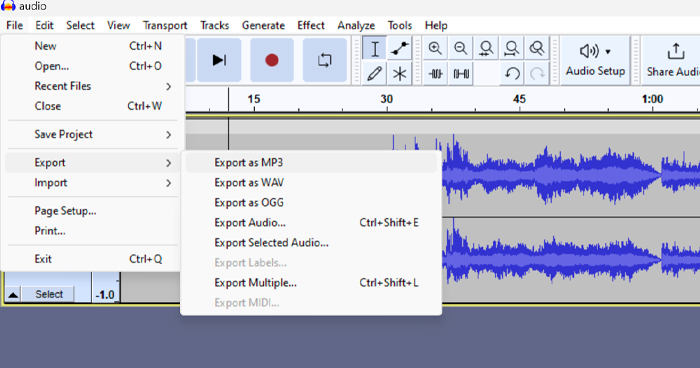
Korak 6. Na kraju, da biste izvezli obrnuti audiozapis, vratite se u izbornik File i pod njim odaberite Export. Na taj način vaš će se zvuk spremiti kao nova datoteka. U međuvremenu, ne zaboravite odabrati željeni format audio datoteke prije izvoza.
Zbog nekih problema u vezi s neočekivanim gubitkom posla, redovito spremajte svoj projekt tijekom uređivanja kako biste spriječili gubitak napretka. Svoj rad možete brzo spremiti korištenjem Ctrl + S na Windowsima ili Cmd + S na Macu. Uz to, razmislite o korištenju opisnih naziva datoteka i organiziranju datoteka u namjenskoj mapi kako bi vaši projekti bili dobro organizirani i lako dostupni.
Dio 2. Kako preokrenuti dio zvuka u Audacityju
Postoje slučajevi u kojima su korisnici samo željeli preokrenuti dio zvuka u Audacityju, možda zato što postoje samo određeni dijelovi koje žele naglasiti ili stvoriti poseban učinak. Koraci u nastavku gotovo su isti kao i preokrenuti cijelu stazu. Međutim, odabir dijela zvuka pomalo je zahtjevan i potrebno je naglasiti korake kako bi se izbjegla zabuna, posebno za početnike.
Evo kako obrnuti samo dio zvuka u Audacityju.
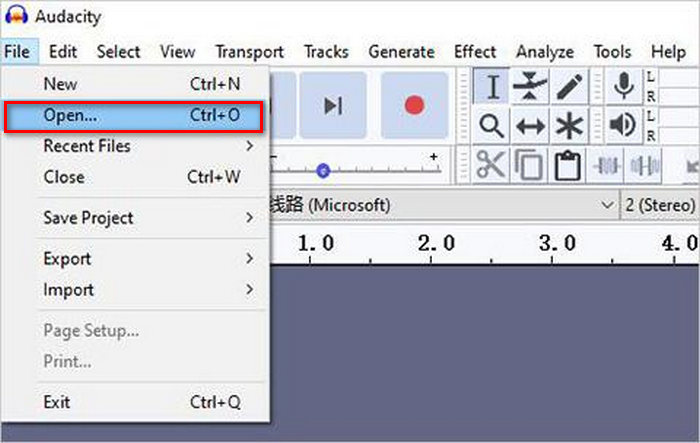
Korak 1. Kada ste na glavnom sučelju alata, idite na izbornik File u gornjem lijevom kutu i odaberite Open. Zatim na računalu pronađite i odaberite audio datoteku ili je jednostavno povucite i ispustite u program, onu koju želite obrnuti.
Korak 2. Sada, kako biste odabrali dio zvuka koji želite obrnuti, koristite značajku Zoom za povećanje prikaza valnog zapisa i povucite mišem kako biste označili dio zvuka koji želite obrnuti.
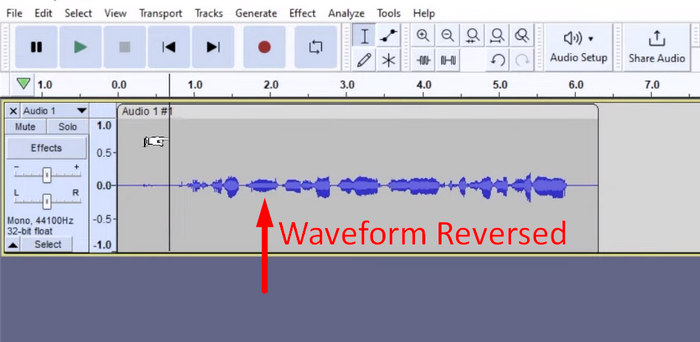
Korak 3. Da biste obrnuli zvuk, idite na karticu Effect i iz padajućeg izbornika odaberite Reverse. Audacity će obraditi i obrnuti odabrani audio isječak.
Korak 4. Obrnuti zvuk možete preslušati pritiskom na razmaknicu (Spacebar) na tipkovnici. Alternativno, koristite kontrole za reprodukciju u gornjem lijevom kutu prozora Audacityja i kliknite gumb Play.
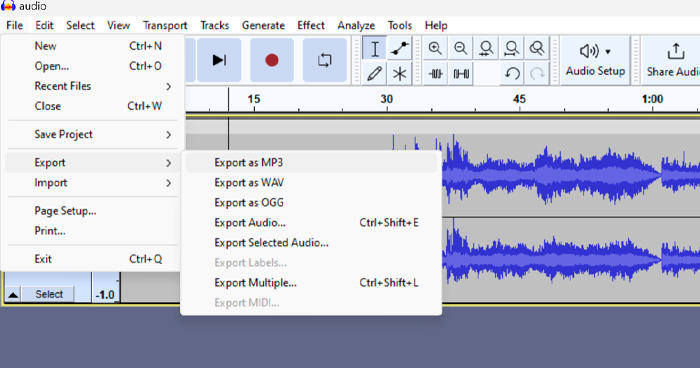
Korak 5. Na kraju, da biste izvezli obrnuti audiozapis, pod izbornikom File odaberite Export. Zatim odaberite Export as i prije konačnog izvoza odaberite željeni format audio datoteke.
Kada u Audacityju odabirete određeni dio zvuka koji želite obrnuti, svakako dovoljno povećajte prikaz valnog oblika kako biste jasno vidjeli gdje točno taj dio počinje i završava. To pomaže u preciznom odabiru i sprječava uključivanje neželjenih dijelova zvuka. Osim toga, prije nego što okrenete zvuk unatrag, po potrebi upotrijebite alat Clip Split kako biste podijelili zvuk u manje segmente, na primjer, za rezanje MP3 zvuka, što olakšava zasebno uređivanje i manipulaciju pojedinim dijelovima. Ovakav pristup povećava kontrolu nad uređivanjem i osigurava da obrnuti zvuk glatko postigne željeni efekt.
Dio 3. Obrnuti audio/video s alternativom Audacity
Ako, pak, više volite jednostavniji i lakši način za obrnuti zvuk ili video, možete upotrijebiti ovu alternativu Audacityju – FVC-preporučeni Video Converter Ultimate. Ovaj cjeloviti video i audio alat možda je najpoznatiji po snažnim mogućnostima konverzije, ali osim toga izvrsno služi i korisnicima kojima treba praktičan način za obrnuti zvuk ili video.
Korak 1. Na svoje računalo preuzmite i instalirajte FVC-preporučeni Video Converter Ultimate.
Besplatno preuzimanjeZa Windows 7 ili novijiSigurno preuzimanje
Besplatno preuzimanjeZa MacOS 10.7 ili novijiSigurno preuzimanje
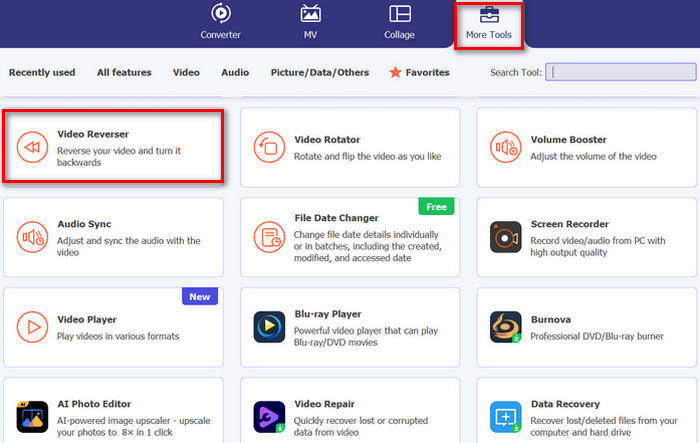
Korak 2. Pokrenite alat i idite na karticu Moretools. Ondje odaberite Video Reverser.
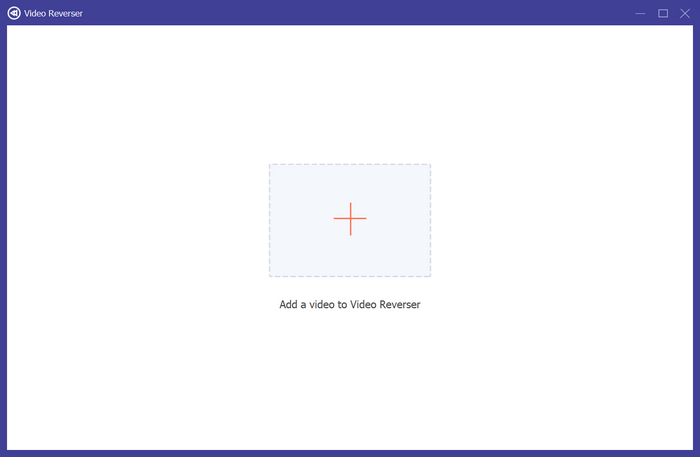
Korak 3. Sada uvezite zvuk ili video koji želite obrnuti klikom na gumb Add a Video to Video Reverser.
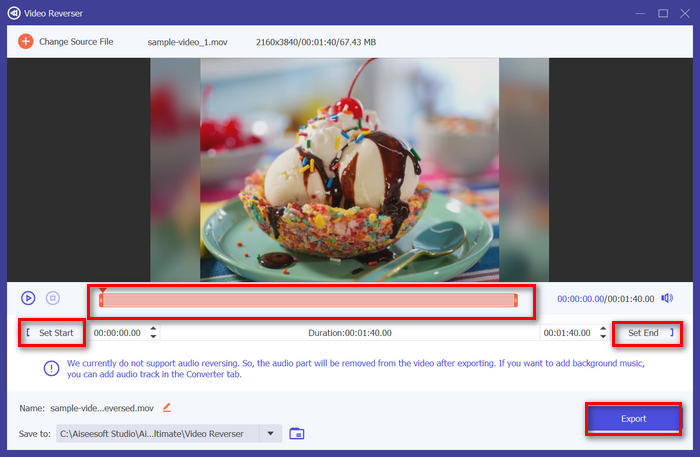
Korak 4. Kada ste u sučelju Video Reverser, ako želite obrnuti cijelu snimku, jednostavno prijeđite na gumb Export kako biste automatski obrnuli svoju datoteku. No ako želite obrnuti samo dio, možete povući klizač i pažljivo odabrati dio zvuka ili videa koji želite obrnuti. Alternativno, možete jednostavno upisati početno vrijeme i završno vrijeme dijela datoteke koji želite obrnuti. Kada završite, samo kliknite gumb Export.
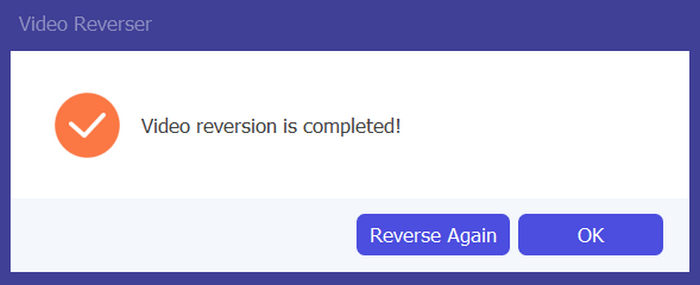
Korak 5. Kada je izvoz dovršen, dobit ćete ovu poruku i moći ćete pristupiti svom obrnutom videu u mapi na računalu.
Eto ga! Lagano, zar ne? Ne morate se zbuniti složenim sučeljem. Uz Video Converter Ultimate koji je odabrao FVC, sve što trebate je na dohvat ruke.
Dio 4. Često postavljana pitanja o obrnutom zvuku u Audacityju
Kako poništiti obrnuti audio efekt u Audacityju?
Ako ste poništili u Audacityju i želite to poništiti, možete se jednostavno vratiti na izvorni zvuk. Jednostavno idite na izbornik Uredi u gornjem lijevom kutu sučelja Audacity i odaberite Undo Reverse. Štoviše, možete koristiti tipkovnički prečac Ctrl + Z za Windows ili Cmd + Z za Mac da poništite posljednju radnju. Ovo će vratiti zvuk u izvorno stanje prije nego što se primijeni obrnuti učinak.
Koje audioformate podržava Audacity za preokretanje zvuka?
Audacity podržava razne popularne audio formate, kao što su WAV, MP3, FLAC, AIFF i OGG.
Možete li iskriviti zvuk u Audacityju?
Da. U Audacityju možete iskriviti zvuk. Audacity nudi nekoliko efekata i alata koji vam omogućuju primjenu izobličenja na audio zapise. Da biste to dodali, idite na Effect, kliknite Distortion and Modulation i odaberite Distortion.
Možete li pretvoriti audio u Audacity?
Da, možete. Audacity podržava mnogo audio formata. Ako utvrdite da neka vaša audio datoteka nije kompatibilna s vašim uređajem, primjerice, možete lako koristiti Audacity za pretvaranje formata AIFF u MP3.
Zaključak
Zaključno, učenje kako obrnuti zvuk u Audacityju jednostavno je i dodaje jedinstvene efekte vašim audio ili video projektima. Slijedite detaljne korake kako biste već danas počeli okretati svoje audiozapise unatrag. Za jednostavniju alternativu isprobajte FVC-preporučeni Video Converter Ultimate. Spremni ste za kreativnost? Isprobajte bilo koju od ovih metoda već sada!
-
 Besplatno se pridružite MOV-u - Kako spojiti dvije MOV datoteke u jednu
 Početnicima može biti teško spojiti nekoliko MOV video isječaka. Dakle, postoji li jednostavan i brz način kombiniranja MOV datoteka? Ako postoji, kako ga onda koristiti? Ovaj će vam post pomoći da dobijete ove odgovore.
-
 4 načina za besplatno spajanje videozapisa na sustavu Windows / Mac / Online
 Evo 4 brza načina za spajanje videozapisa u novi videozapis. Nema ograničenja veličine datoteke ili formata video datoteke. Uspješno se možete pridružiti 2, 3, 4 i čak više video isječaka u različitim formatima i rezolucijama.
-
 Konkretni vodič za besplatno spajanje M4V datoteka na sustavima Windows i Mac
 Ako tražite rješenje za kombiniranje M4V video datoteka u jednu, nikada ne propustite ovaj odlomak. Ovdje ćemo razgovarati o dvije najbolje metode kombiniranja M4V video datoteka.
